> ## Documentation Index
> Fetch the complete documentation index at: https://docs.assetinfinity.ai/llms.txt
> Use this file to discover all available pages before exploring further.
# Custom fields
> Adding the things your plant tracks that the product does not — fifteen field types, and why a type can only be chosen once.
What the product tracks is not all you track. Custom fields add your own to any record type.
 ## The types
| Type | For |
| ----------------- | --------------------------------------------------- |
| **Text** | A line — a batch number, a serial |
| **Long text** | A paragraph. Notes, observations |
| **Whole number** | Counts. No decimal point |
| **Decimal** | Measurements — hours, pressures, tolerances |
| **Money** | An amount, in the organisation's currency |
| **Percentage** | Nought to a hundred |
| **Rating** | A score out of five |
| **Yes / no** | A single condition |
| **Date** | A calendar day |
| **Date and time** | A moment |
| **One of a list** | A closed list you define |
| **One of a few** | The same, as buttons, where there are three or four |
| **Any of a list** | More than one may be chosen |
| **Link** | A web address |
## The type is chosen once
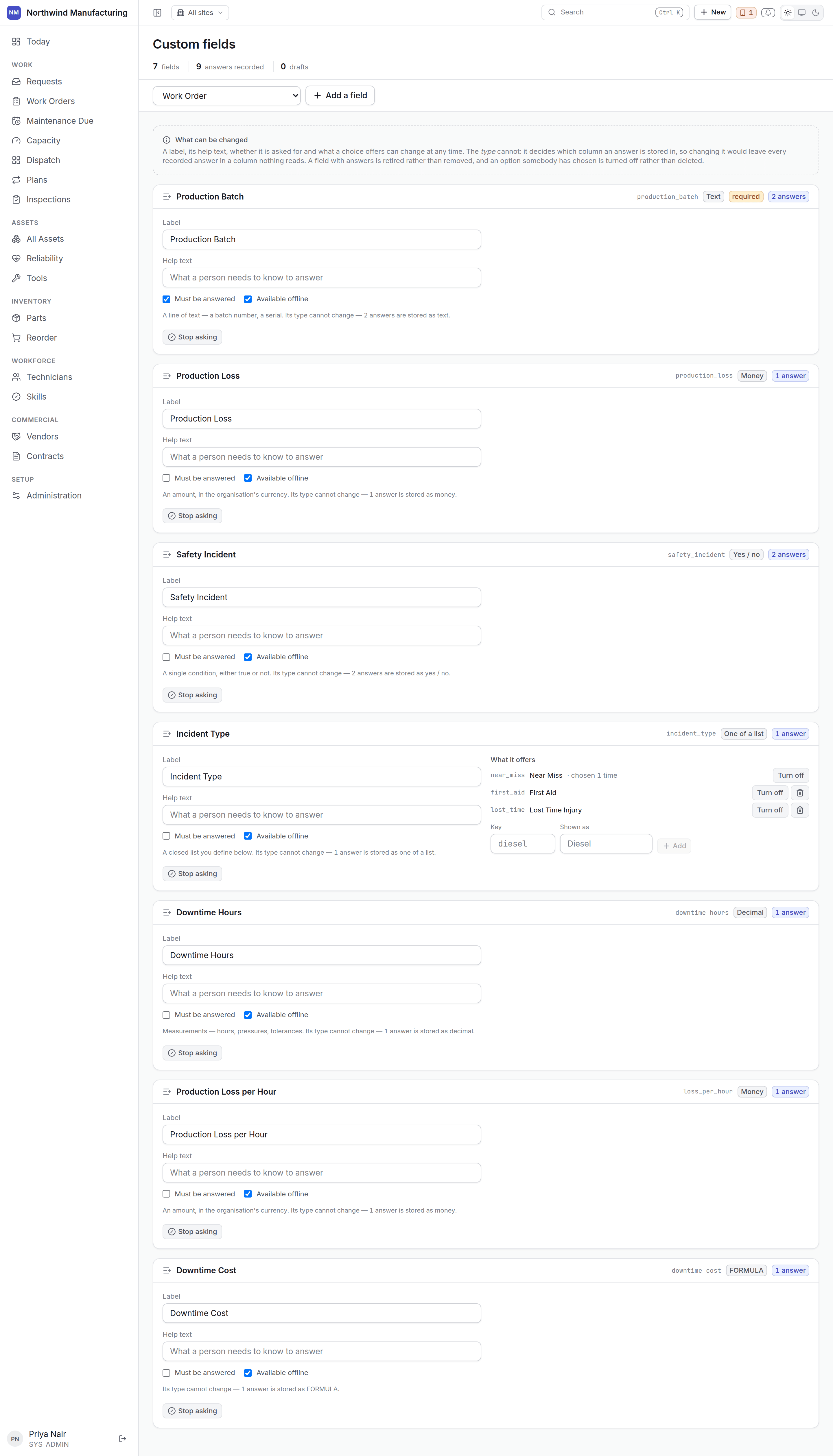
A field's **type cannot be changed after it is created.**
This is not a limitation anyone forgot to lift. The type decides which column an answer is stored
in — changing it would not convert the answers, it would orphan them in a column nothing reads.
So after creation the screen shows the type as a **fact** rather than a control, and tells you how
many answers are stored against it.
Everything that is genuinely a decision stays editable: the label, the help text, whether it is
required, and what a choice list offers.
If you have the type wrong, create a new field and retire the old one. It is a nuisance; silently
orphaning a year of answers is worse.
## Adding a field
Work orders, assets, parts, vendors, contracts, technicians — anything the model allows.
The label is what people see. Choose the type carefully — this is the decision you cannot undo.
One line saying what good input looks like. Worth writing; it is what stops five people entering
a date five ways.
A required field must be answered before the record can be saved — and, on a work order, before
the job can be closed.
Added after the field exists.
## Required fields on work orders
A required custom field appears on the field app under **"before you can close this"**, with the
count. A technician cannot complete the job without it.
That is a useful lever and an easy one to overuse: every required field is something somebody must
type at the machine, possibly in the rain.
## Choice lists
Editing a choice list follows the same rule as everywhere: what has already been answered cannot be
reinterpreted. Removing a choice that answers already use is refused, and the refusal **counts the
answers** so you know what you are dealing with.
Add new choices freely.
## Where they appear
On the record's own screen, in a section of their own; in list **Columns**; in **Filter**; and in
exports.
## Related topics
- [Core concepts](/core-concepts.md)
- [Statuses and transitions](/config/statuses.md)
- [Working a job](/field/job.md)
- [Setting up the plant](/setup/overview.md)
- [Inside a work order](/work/work-order-detail.md)
## The types
| Type | For |
| ----------------- | --------------------------------------------------- |
| **Text** | A line — a batch number, a serial |
| **Long text** | A paragraph. Notes, observations |
| **Whole number** | Counts. No decimal point |
| **Decimal** | Measurements — hours, pressures, tolerances |
| **Money** | An amount, in the organisation's currency |
| **Percentage** | Nought to a hundred |
| **Rating** | A score out of five |
| **Yes / no** | A single condition |
| **Date** | A calendar day |
| **Date and time** | A moment |
| **One of a list** | A closed list you define |
| **One of a few** | The same, as buttons, where there are three or four |
| **Any of a list** | More than one may be chosen |
| **Link** | A web address |
## The type is chosen once
A field's **type cannot be changed after it is created.**
This is not a limitation anyone forgot to lift. The type decides which column an answer is stored
in — changing it would not convert the answers, it would orphan them in a column nothing reads.
So after creation the screen shows the type as a **fact** rather than a control, and tells you how
many answers are stored against it.
Everything that is genuinely a decision stays editable: the label, the help text, whether it is
required, and what a choice list offers.
If you have the type wrong, create a new field and retire the old one. It is a nuisance; silently
orphaning a year of answers is worse.
## Adding a field
Work orders, assets, parts, vendors, contracts, technicians — anything the model allows.
The label is what people see. Choose the type carefully — this is the decision you cannot undo.
One line saying what good input looks like. Worth writing; it is what stops five people entering
a date five ways.
A required field must be answered before the record can be saved — and, on a work order, before
the job can be closed.
Added after the field exists.
## Required fields on work orders
A required custom field appears on the field app under **"before you can close this"**, with the
count. A technician cannot complete the job without it.
That is a useful lever and an easy one to overuse: every required field is something somebody must
type at the machine, possibly in the rain.
## Choice lists
Editing a choice list follows the same rule as everywhere: what has already been answered cannot be
reinterpreted. Removing a choice that answers already use is refused, and the refusal **counts the
answers** so you know what you are dealing with.
Add new choices freely.
## Where they appear
On the record's own screen, in a section of their own; in list **Columns**; in **Filter**; and in
exports.
## Related topics
- [Core concepts](/core-concepts.md)
- [Statuses and transitions](/config/statuses.md)
- [Working a job](/field/job.md)
- [Setting up the plant](/setup/overview.md)
- [Inside a work order](/work/work-order-detail.md)