> ## Documentation Index
> Fetch the complete documentation index at: https://docs.assetinfinity.ai/llms.txt
> Use this file to discover all available pages before exploring further.
# FF&E planning settings
> The areas a hotel's furniture, fixtures and equipment plan is divided into, the product types filed under each, and the reasons a line can give.
This screen configures FF\&E planning — the furniture, fixtures and equipment plan a hotel draws up for
replacing its rooms, restaurants and back of house. It sets the areas a plan is divided into, the
product types offered in each area, and the reasons a line can give for the spend. Open it from
**Administration → FF\&E planning**. The **FF\&E plans** link at the top goes to the [plans themselves](/finance/ffe-plans).
If you don't see this in your navigation, your administrator can switch the module on under **Administration → Modules**, or it may not be included in your plan.
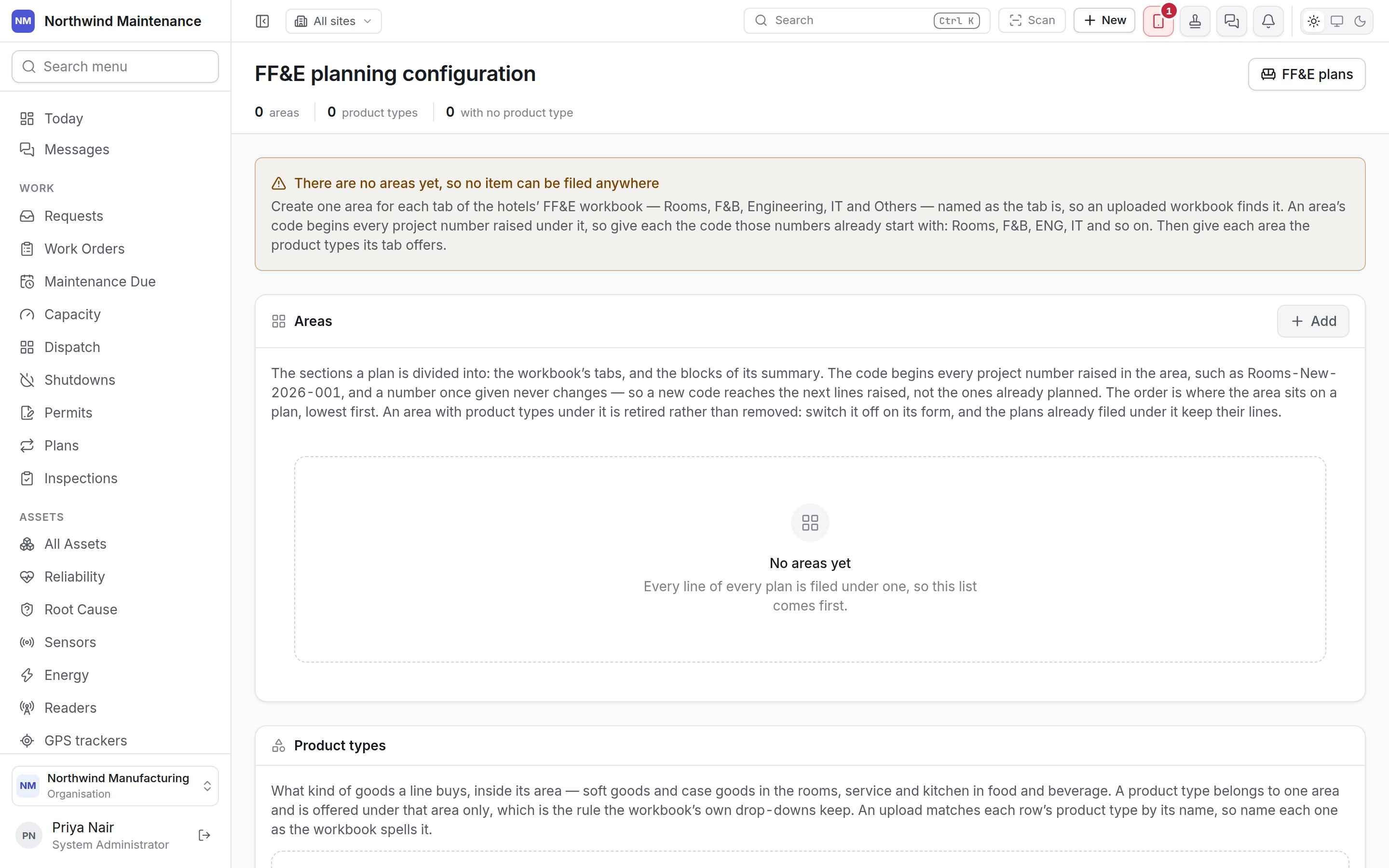
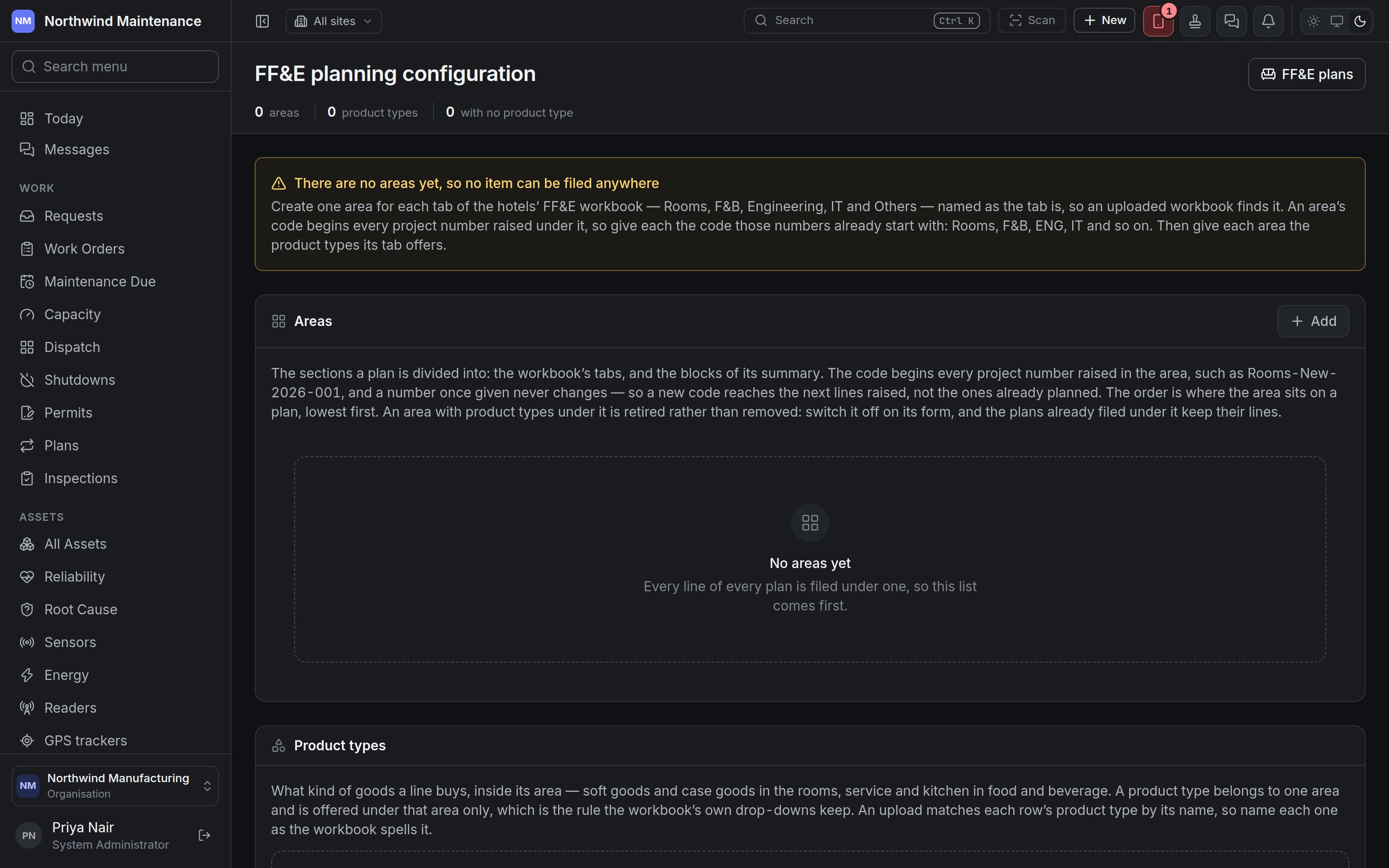 The stat strip counts **areas**, **product types** and areas **with no product type**. Banners say
what is missing in the order you need to fix it: with no areas, no line can be filed anywhere; an
area with no product type cannot have anything filed under it.
**Who can change this.** **Change a draft FF\&E plan, import it from a workbook, and submit it** and
**Start an FF\&E plan for a hotel**. Without them, the screen says the areas and product types are set
by finance.
## Setting it up from a workbook
Most hotels already keep their FF\&E plan in a workbook with one tab per area — Rooms, F\&B,
Engineering, IT and Others. Create one area for each tab, named exactly as the tab is, so an uploaded
workbook finds it. Give each area the code its project numbers already start with — Rooms, F\&B, ENG,
IT. Then give each area the product types its tab offers, spelt as the workbook spells them.
## Areas
The sections a plan is divided into: the workbook's tabs and the blocks of its summary. The list shows
**Code**, **Name**, **Order** and **In use**. **Add** opens the form; click an area to edit it.
The stat strip counts **areas**, **product types** and areas **with no product type**. Banners say
what is missing in the order you need to fix it: with no areas, no line can be filed anywhere; an
area with no product type cannot have anything filed under it.
**Who can change this.** **Change a draft FF\&E plan, import it from a workbook, and submit it** and
**Start an FF\&E plan for a hotel**. Without them, the screen says the areas and product types are set
by finance.
## Setting it up from a workbook
Most hotels already keep their FF\&E plan in a workbook with one tab per area — Rooms, F\&B,
Engineering, IT and Others. Create one area for each tab, named exactly as the tab is, so an uploaded
workbook finds it. Give each area the code its project numbers already start with — Rooms, F\&B, ENG,
IT. Then give each area the product types its tab offers, spelt as the workbook spells them.
## Areas
The sections a plan is divided into: the workbook's tabs and the blocks of its summary. The list shows
**Code**, **Name**, **Order** and **In use**. **Add** opens the form; click an area to edit it.
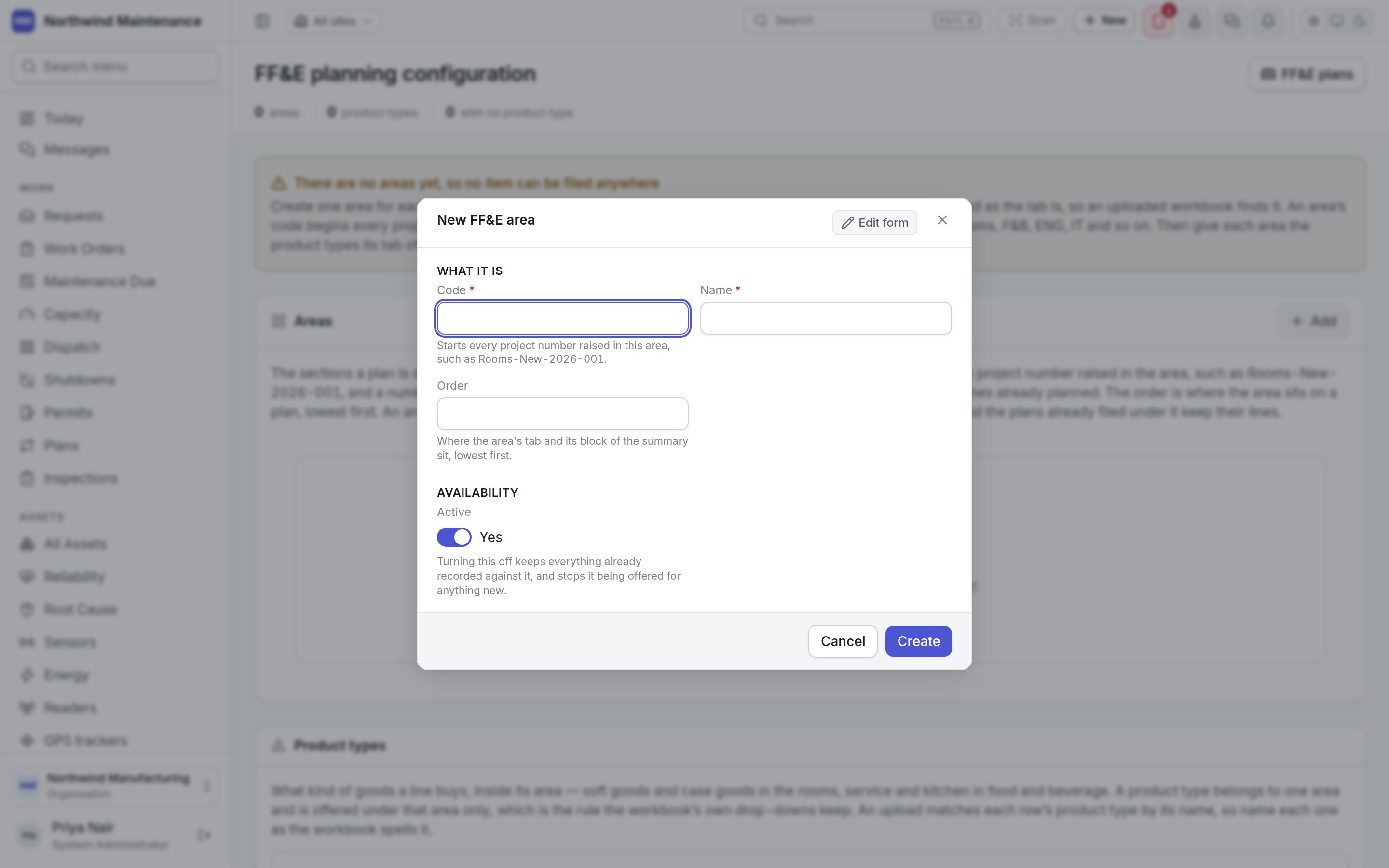
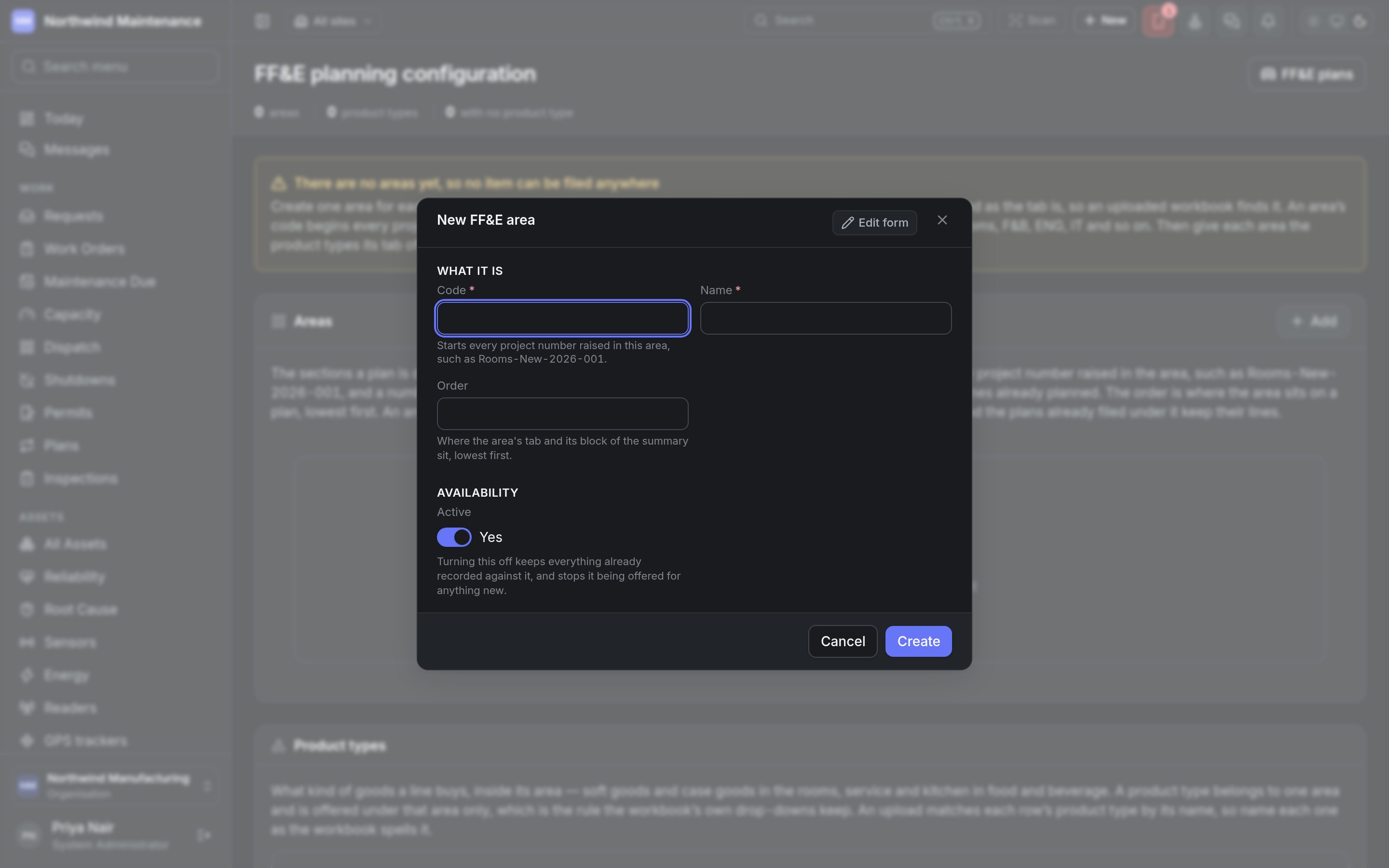 | Field | What it means | Notes |
| - | - | - |
| **Code** | Starts every project number raised in this area, such as Rooms-New-2026-001 | Required. A number once given never changes, so a new code reaches only the next lines raised |
| **Name** | The area, named as the workbook tab is | Required |
| **Order** | Where the area's tab and its block of the summary sit | Lowest first |
| **Active** | Whether the area is offered | An area with product types under it is retired rather than removed: switch it off here and plans already filed under it keep their lines |
## Product types
What kind of goods a line buys inside its area — soft goods and case goods in the rooms, service and
kitchen equipment in food and beverage. A product type belongs to one area and is offered under that
area only, which is the rule the workbook's own drop-downs keep. Each area has its own **Add to**
*area* button; a product type cannot be added until its area exists.
| Field | What it means | Notes |
| - | - | - |
| **Area** | The area it belongs to | Required |
| **Code** | A short code | Required |
| **Name** | The product type, spelt as the workbook spells it | Required. An upload matches each row's product type by name |
| **Order** | Where it sits in the area's list | Lowest first |
| **Active** | Whether it is offered | |
## Reasons
Why the money is being spent — end of life, brand standard, guest comfort, safety. This is the same
list [capex planning](/config/capex-planning#natures-of-investment) calls **natures of investment**, so a
change here is a change there too, and **Add** opens the same form: **Name** (required), **Division**
(empty to offer it to every division) and **Active**.
An upload matches each row's reason by name, and a reason the list does not have refuses the upload. A
line may also give no reason. Retiring a reason leaves the lines already recorded against it alone.
This documentation is built and hosted on [Mintlify](https://mintlify.com), a developer documentation platform.
| Field | What it means | Notes |
| - | - | - |
| **Code** | Starts every project number raised in this area, such as Rooms-New-2026-001 | Required. A number once given never changes, so a new code reaches only the next lines raised |
| **Name** | The area, named as the workbook tab is | Required |
| **Order** | Where the area's tab and its block of the summary sit | Lowest first |
| **Active** | Whether the area is offered | An area with product types under it is retired rather than removed: switch it off here and plans already filed under it keep their lines |
## Product types
What kind of goods a line buys inside its area — soft goods and case goods in the rooms, service and
kitchen equipment in food and beverage. A product type belongs to one area and is offered under that
area only, which is the rule the workbook's own drop-downs keep. Each area has its own **Add to**
*area* button; a product type cannot be added until its area exists.
| Field | What it means | Notes |
| - | - | - |
| **Area** | The area it belongs to | Required |
| **Code** | A short code | Required |
| **Name** | The product type, spelt as the workbook spells it | Required. An upload matches each row's product type by name |
| **Order** | Where it sits in the area's list | Lowest first |
| **Active** | Whether it is offered | |
## Reasons
Why the money is being spent — end of life, brand standard, guest comfort, safety. This is the same
list [capex planning](/config/capex-planning#natures-of-investment) calls **natures of investment**, so a
change here is a change there too, and **Add** opens the same form: **Name** (required), **Division**
(empty to offer it to every division) and **Active**.
An upload matches each row's reason by name, and a reason the list does not have refuses the upload. A
line may also give no reason. Retiring a reason leaves the lines already recorded against it alone.
This documentation is built and hosted on [Mintlify](https://mintlify.com), a developer documentation platform.