> ## Documentation Index
> Fetch the complete documentation index at: https://docs.assetinfinity.ai/llms.txt
> Use this file to discover all available pages before exploring further.
# Approvals on the handset
> Signing, sending back or rejecting requests that are waiting on you, answering when you are asked to look, and following what you raised — from the handset.
The **Approvals** screen lets you give a signature from wherever you are rather than walking to a desk: it lists the requests waiting on you, the ones somebody has asked you to look at, and the ones you raised.
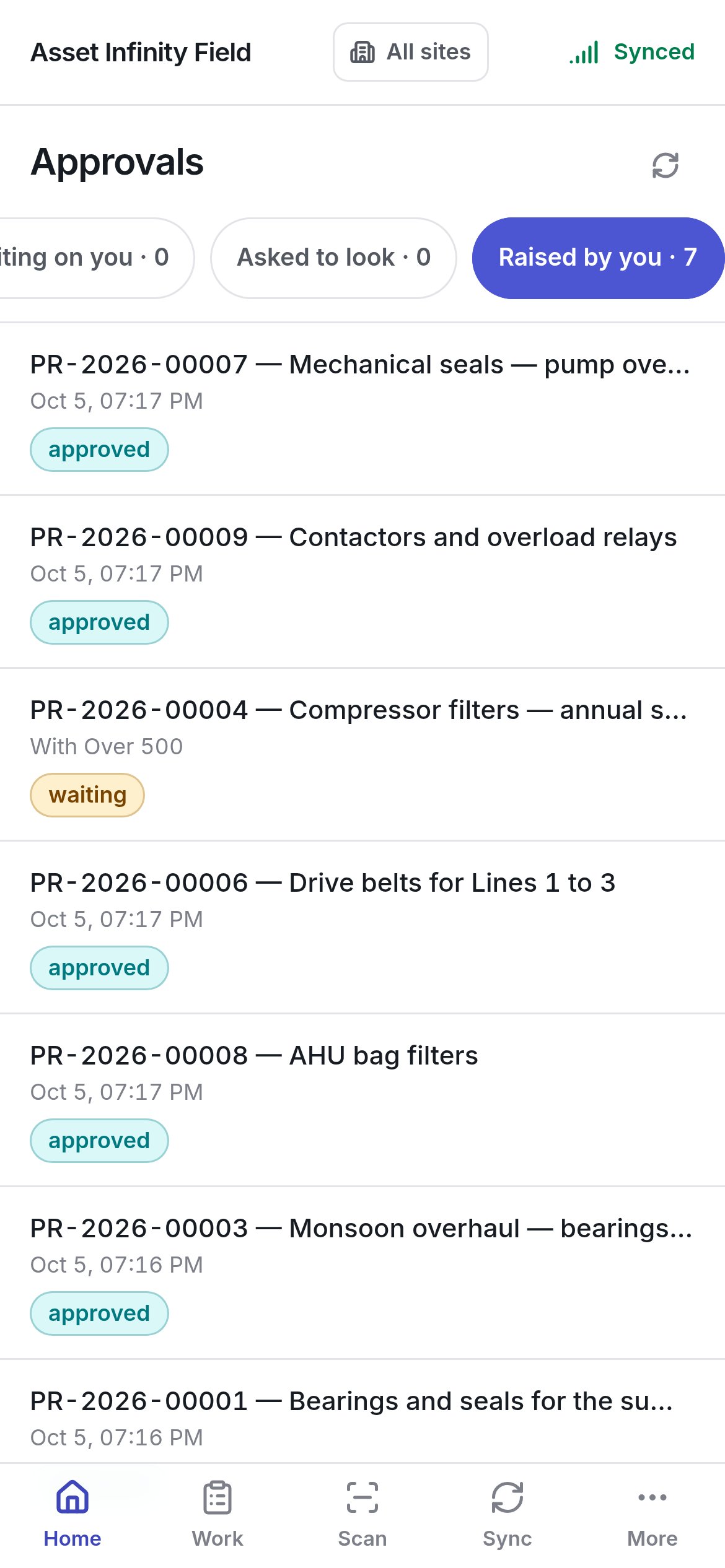
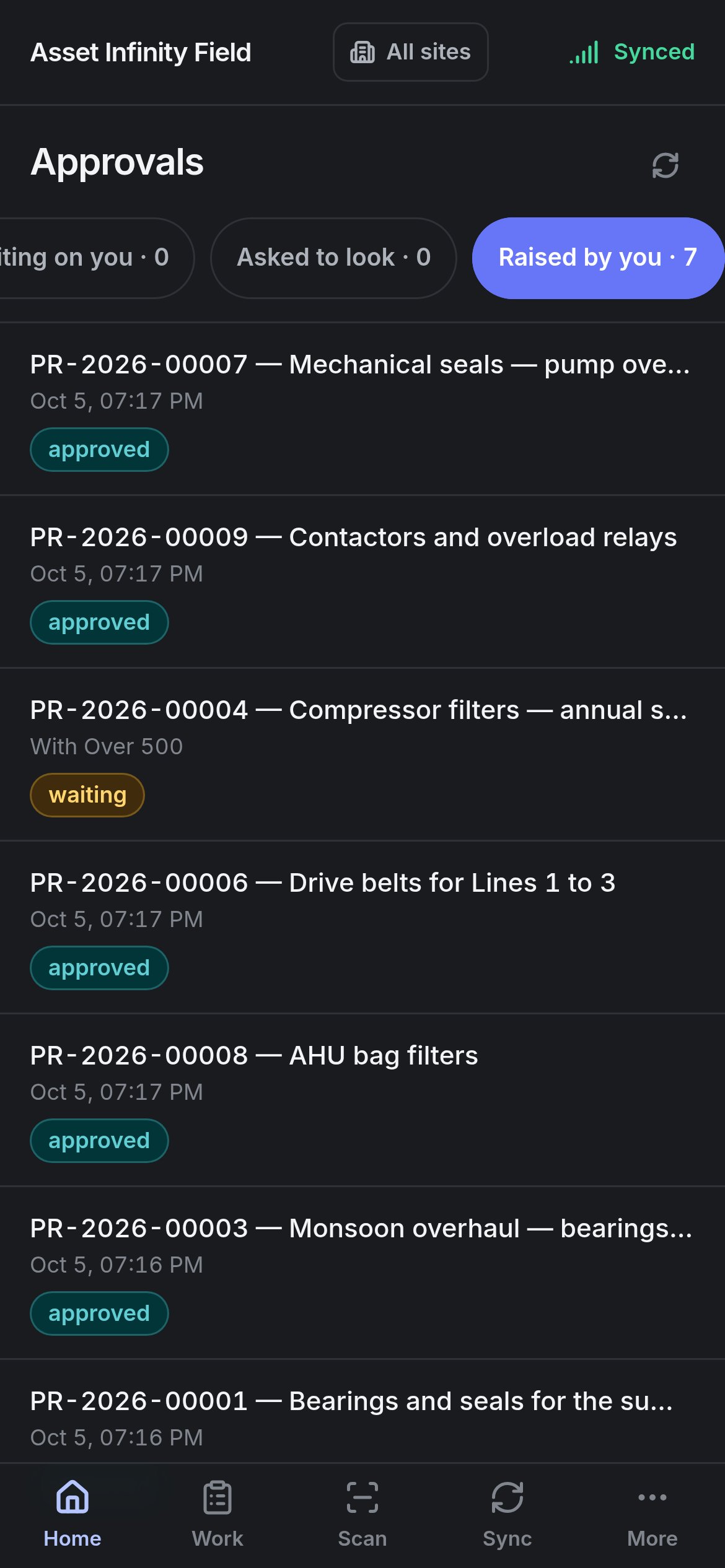 Open it from **Home → Approvals**, whose badge counts what is waiting on you and turns red when any of it is overdue, or by tapping a notification about an approval. The door is always there, because any request in your organisation can be put behind an approval chain.
**Approvals are read live and need a connection.** Somebody else may sign the same request while you are walking, so nothing on this screen is kept on the handset, and nothing you decide here is queued. Without a signal the screen says **No signal**, and a decision you tried to send says nothing has changed. The badge on Home is counted at the last sync, so it can be a little behind the live list.
The same approvals in the web app are described in [approvals](/work/approvals); chains are configured under [workflows](/config/workflows).
## The three lists
| Tab | What it lists | Empty state |
| - | - | - |
| **Waiting on you · {count}** | Steps you can sign now. Rows are flagged **overdue**, **escalated to you**, **sent back to you**, **waiting on somebody's view** or **needs fields filled in**, with how long they have been **waiting** | **Nothing is waiting on you** |
| **Asked to look · {count}** | Requests an approver has asked for your view on before they sign, with **Asked by {person}** | **Nobody has asked you to look at anything** |
| **Raised by you · {count}** | Requests you raised that need somebody's signature, with **With {person}** — or **nobody can sign it** | **You have not asked for anything** |
**Refresh** reloads the lists.
## Deciding a request
Tap a row on **Waiting on you** to open it. The sheet shows:
| Part | What it shows |
| - | - |
| **Asked by**, **Raised**, **Site** | Who asked, when, and where (**Not at a site** if none) |
| **Why you** | Why the step reached you — for example **The step before ran past its deadline**, or that the step is set up to be signed by whoever raised the request, or **Sent back to you by {person}** |
| What is being asked | The values the request asks for, such as **Deadline asked for**, **Reason** and **Note**, with any **Changed at {step} by {person}** history |
| **The record this is about** / **The rest of the record** | The record the request is for, read-only. A request with lines shows them read-only; to change a line on its own, open it in the web app |
| **This step asks you to check these.** | Fields the step needs answered, each **needed** or **answered**, with **Change it** (or a note that it can only be changed in the web app). What you enter goes into the request itself |
| **Where it has got to** | Every step, who signed or is **Waiting for {person}**, and any asks |
| **Signing as** | **Myself**, or **On behalf of {person}** where you hold a delegation. The decision is recorded as yours, with the authority you used named beside it |
Then decide:
| Button | What it does | Asks for |
| - | - | - |
| **Approve** | Signs this step. Anything you left alone is approved as it was asked for | — |
| **Send back** | Returns it to the step before. Not a rejection — the request stays alive and they can put it right | **What needs changing?** (required) |
| **Reject** | Turns the request down | **Why is it being rejected?** — the person who asked has to know what to change (required) |
The buttons wait while somebody's view is outstanding, and while the step's own fields are unanswered. If somebody else answered first, the screen says the request is no longer waiting on you.
## Asking somebody to look
**Want somebody to look at this before you sign it?** — **Ask somebody** lets you pick anybody in your organisation (**Find somebody**) and say **What do you want them to check?**, then **Ask them**. They need no permission and cannot approve it, but if they decline, the request is turned down. You cannot sign until they answer; **Take it back** withdraws the ask.
## When you are asked to look
On **Asked to look**, open the request and answer:
| Button | What it does |
| - | - |
| **Acknowledge** | Gives your view and lets the approver carry on. **Anything to add?** is optional and is shown to everyone deciding |
| **Decline** | Turns the request down. **Why are you declining?** is required, because the person who raised it has to know what was wrong |
## Following what you raised
On **Raised by you**, a request shows its **Status**, its **Steps** (**{outstanding} of {total} still to sign**) and **Decided** once it is. **Withdraw it** cancels a request you no longer need. If a request is waiting on a step nobody can sign, the screen says so — whoever looks after the workflow has to name somebody. If it was approved but could not be carried out, the reason is shown and you can raise it again.
This documentation is built and hosted on [Mintlify](https://mintlify.com), a developer documentation platform.
Open it from **Home → Approvals**, whose badge counts what is waiting on you and turns red when any of it is overdue, or by tapping a notification about an approval. The door is always there, because any request in your organisation can be put behind an approval chain.
**Approvals are read live and need a connection.** Somebody else may sign the same request while you are walking, so nothing on this screen is kept on the handset, and nothing you decide here is queued. Without a signal the screen says **No signal**, and a decision you tried to send says nothing has changed. The badge on Home is counted at the last sync, so it can be a little behind the live list.
The same approvals in the web app are described in [approvals](/work/approvals); chains are configured under [workflows](/config/workflows).
## The three lists
| Tab | What it lists | Empty state |
| - | - | - |
| **Waiting on you · {count}** | Steps you can sign now. Rows are flagged **overdue**, **escalated to you**, **sent back to you**, **waiting on somebody's view** or **needs fields filled in**, with how long they have been **waiting** | **Nothing is waiting on you** |
| **Asked to look · {count}** | Requests an approver has asked for your view on before they sign, with **Asked by {person}** | **Nobody has asked you to look at anything** |
| **Raised by you · {count}** | Requests you raised that need somebody's signature, with **With {person}** — or **nobody can sign it** | **You have not asked for anything** |
**Refresh** reloads the lists.
## Deciding a request
Tap a row on **Waiting on you** to open it. The sheet shows:
| Part | What it shows |
| - | - |
| **Asked by**, **Raised**, **Site** | Who asked, when, and where (**Not at a site** if none) |
| **Why you** | Why the step reached you — for example **The step before ran past its deadline**, or that the step is set up to be signed by whoever raised the request, or **Sent back to you by {person}** |
| What is being asked | The values the request asks for, such as **Deadline asked for**, **Reason** and **Note**, with any **Changed at {step} by {person}** history |
| **The record this is about** / **The rest of the record** | The record the request is for, read-only. A request with lines shows them read-only; to change a line on its own, open it in the web app |
| **This step asks you to check these.** | Fields the step needs answered, each **needed** or **answered**, with **Change it** (or a note that it can only be changed in the web app). What you enter goes into the request itself |
| **Where it has got to** | Every step, who signed or is **Waiting for {person}**, and any asks |
| **Signing as** | **Myself**, or **On behalf of {person}** where you hold a delegation. The decision is recorded as yours, with the authority you used named beside it |
Then decide:
| Button | What it does | Asks for |
| - | - | - |
| **Approve** | Signs this step. Anything you left alone is approved as it was asked for | — |
| **Send back** | Returns it to the step before. Not a rejection — the request stays alive and they can put it right | **What needs changing?** (required) |
| **Reject** | Turns the request down | **Why is it being rejected?** — the person who asked has to know what to change (required) |
The buttons wait while somebody's view is outstanding, and while the step's own fields are unanswered. If somebody else answered first, the screen says the request is no longer waiting on you.
## Asking somebody to look
**Want somebody to look at this before you sign it?** — **Ask somebody** lets you pick anybody in your organisation (**Find somebody**) and say **What do you want them to check?**, then **Ask them**. They need no permission and cannot approve it, but if they decline, the request is turned down. You cannot sign until they answer; **Take it back** withdraws the ask.
## When you are asked to look
On **Asked to look**, open the request and answer:
| Button | What it does |
| - | - |
| **Acknowledge** | Gives your view and lets the approver carry on. **Anything to add?** is optional and is shown to everyone deciding |
| **Decline** | Turns the request down. **Why are you declining?** is required, because the person who raised it has to know what was wrong |
## Following what you raised
On **Raised by you**, a request shows its **Status**, its **Steps** (**{outstanding} of {total} still to sign**) and **Decided** once it is. **Withdraw it** cancels a request you no longer need. If a request is waiting on a step nobody can sign, the screen says so — whoever looks after the workflow has to name somebody. If it was approved but could not be carried out, the reason is shown and you can raise it again.
This documentation is built and hosted on [Mintlify](https://mintlify.com), a developer documentation platform.