> ## Documentation Index
> Fetch the complete documentation index at: https://docs.assetinfinity.ai/llms.txt
> Use this file to discover all available pages before exploring further.
# Correcting a job on the handset
> The Correct this job form, and the sheets that move a job's dates, change its urgency, reassign it and ask for more time.
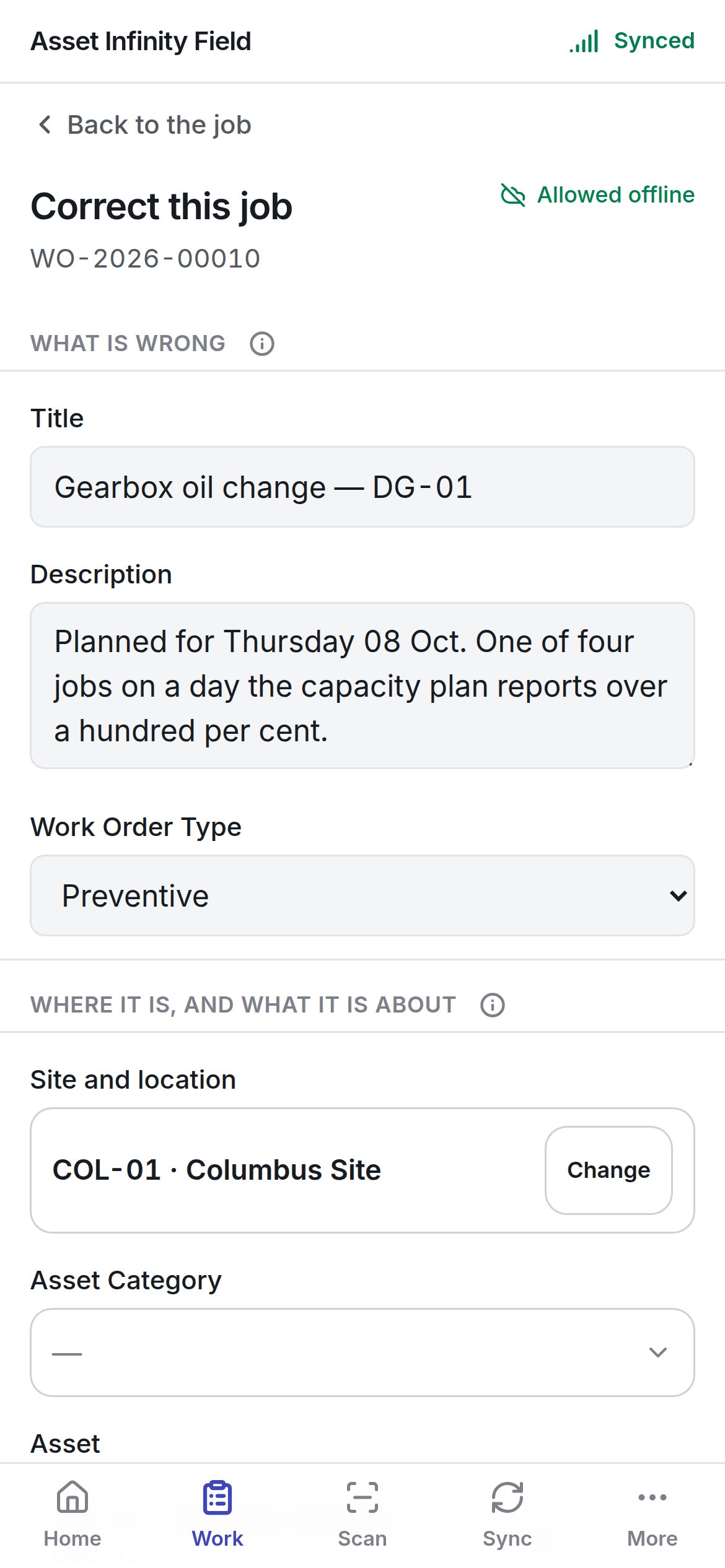
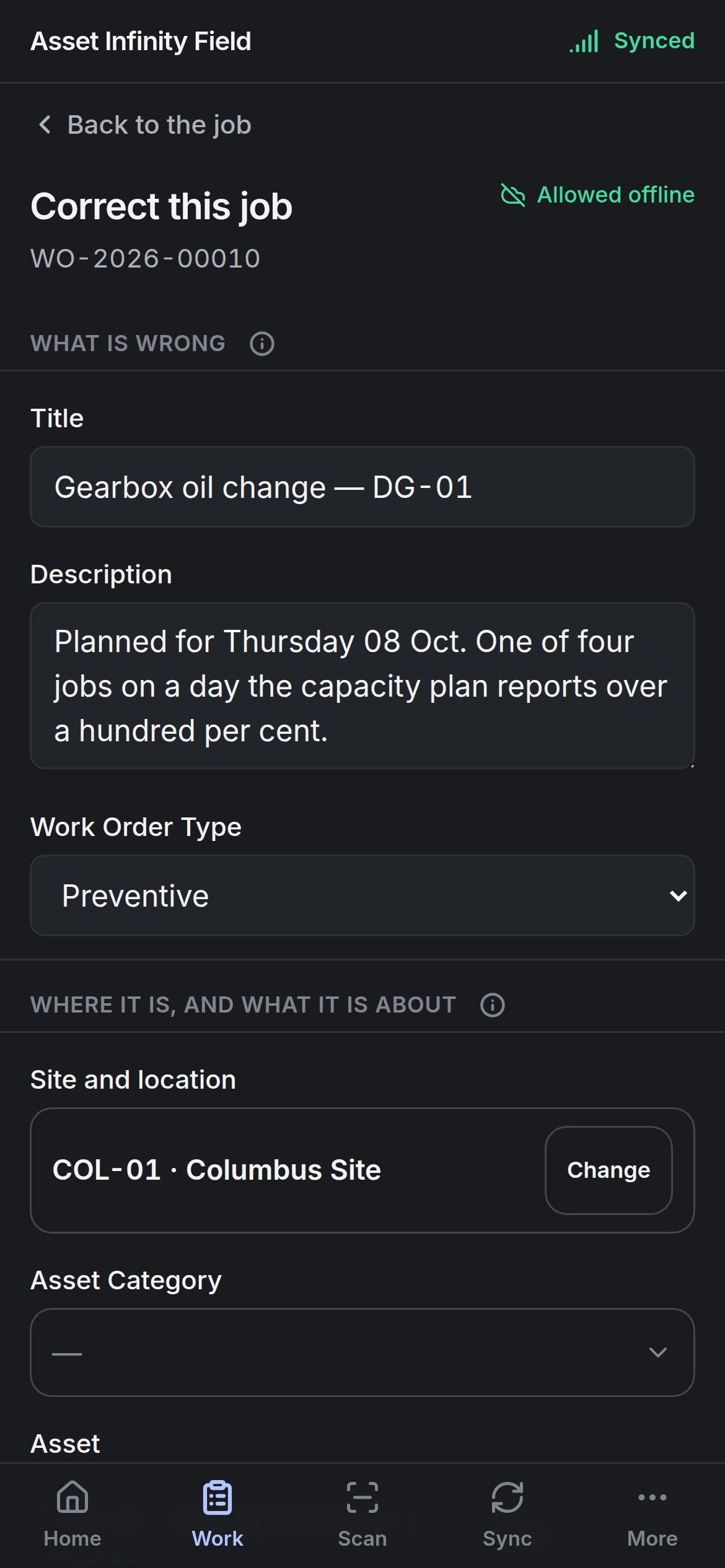
**Correct this job** is the handset's edit form for a work order: it fixes what the job *says* — a title typed at two in the morning, the wrong asset, a missing answer — as opposed to what has *happened* to it, which you record on the [job screen](/field/job).
 ## Opening it
Tap the pencil beside the job's number on the job screen. The pencil appears only if you are allowed to edit work orders; without that permission the form says **Changing a job is not something your account can do** — you can still accept, work and close the job. **Back to the job** returns without saving.
The badge in the corner says whether saving works offline — normally **Allowed offline**. If your organisation has switched off correcting jobs from a handset, the form says so and the change needs a connection and somebody at a desk.
## The fields
The form is built from your organisation's own work order form in the [Form Studio](/config/form-studio), so its sections, labels, help text and required marks match the web app. The default sections and fields are:
| Field | What it means | Notes |
| - | - | - |
| **Title** | What the job is | Free text |
| **Description** | The longer account | Free text |
| **Work Order Type** | The kind of work | Choose from your organisation's [work order types](/config/work-orders). **Not saying** leaves it empty |
| **Site and location** | Where the work is | **Change** opens a picker of the sites and locations on the handset |
| **Asset Category** | The kind of asset | Choose from the categories on the handset |
| **Asset** | The asset the job is on | **Change** picks from the register on the handset; the barcode button beside it scans a label instead |
| **Work Order Priority** | How urgent it is | Locked here — **Urgency is changed with Set priority, which recomputes the response and resolution clocks**. Use **Set priority** |
| **Due at** | When it is due | Locked here — **Dates are moved with Reschedule, which records why the job moved**. Use **Reschedule** |
| **Status** | Where the job is | Shows **{status} — where it is now** and the statuses you may move it to. Choosing one shows **Moves to {status} when you save.** Finishing or cancelling is not offered here — that is done on the job itself, where the close-out questions are. Some moves are made on the server and need a signal; some are signed off by somebody else first |
| **Needs a permit** | Whether the work needs a permit to work | **Yes**, **No** or **Not saying** |
| **Safety Instructions** | What will hurt you | Free text, shown in amber at the top of the job |
| **Planned Start at**, **Planned End at** | When the work is planned | Locked — moved with **Reschedule** |
| **Estimated Duration (minutes)** | How long it should take | A number |
| **Reported by** | Who reported it | Chosen from the people on the handset |
| **Give it to** | Who is assigned | Shown only if you may assign work. **Change** lists the crews, people and approved suppliers who can take it — a crew shows **{count} in it** and who **leads the crew**. If nobody on the handset can take the job, it says so |
| **CC** / **Who else is told** | People who are kept informed | **Add somebody** and **Take off**. Where your organisation does not allow this from a handset, it says **Who else is told about this job is changed at a desk.** |
| **Remarks** | Anything else | Free text |
| **Additional fields** | Your organisation's own fields (custom fields) | Any section your organisation added — in the demo, **Production** with **Production Batch** (required), **Production Loss**, **Safety Incident**, **Downtime Hours** and so on |
| **Files and photographs** | Attachments | **Photograph** uses the camera; **Choose a file** picks a file from the phone |
Some fields cannot be answered on a handset, and say why rather than disappearing: a field **Calculated from the other answers, so it is not one to fill in**, a picker whose options are not on the device (**Answer this one from a browser**), and a field that a rule has closed **(no longer editable)**.
## Saving
**Save** stays greyed with **Change something and this will send it.** until you change a field. Once saved, **It is recorded on this device now and sent on the next sync.** If a required field is still empty, **Still needed: {fields}.** names it. If a rule closed a field while you were filling the form in, the form warns that that one change will not be saved and everything else will.
While a request for more time is waiting for an answer, the form says the job's status, dates and deadline stay as they are until somebody decides; everything else can still be corrected.
## Moving the dates
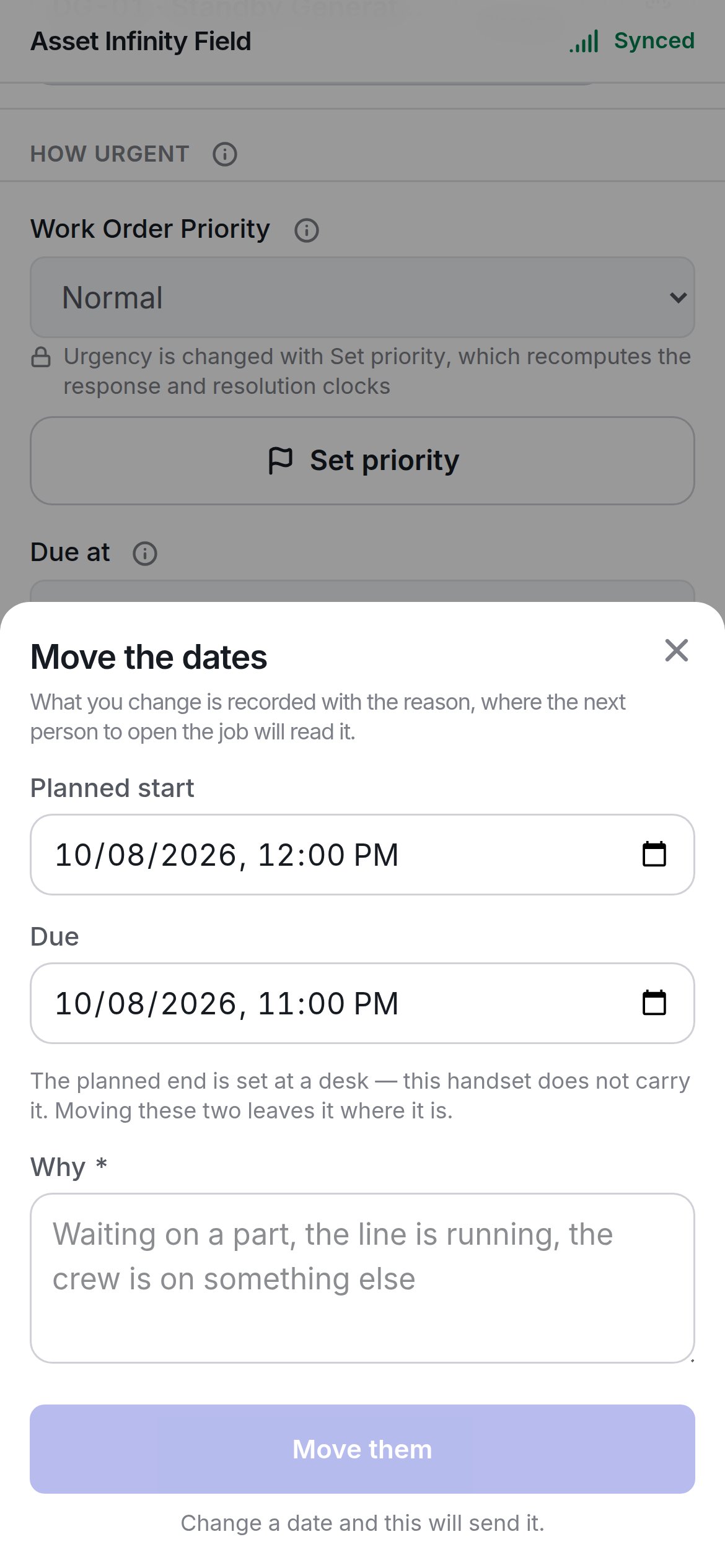
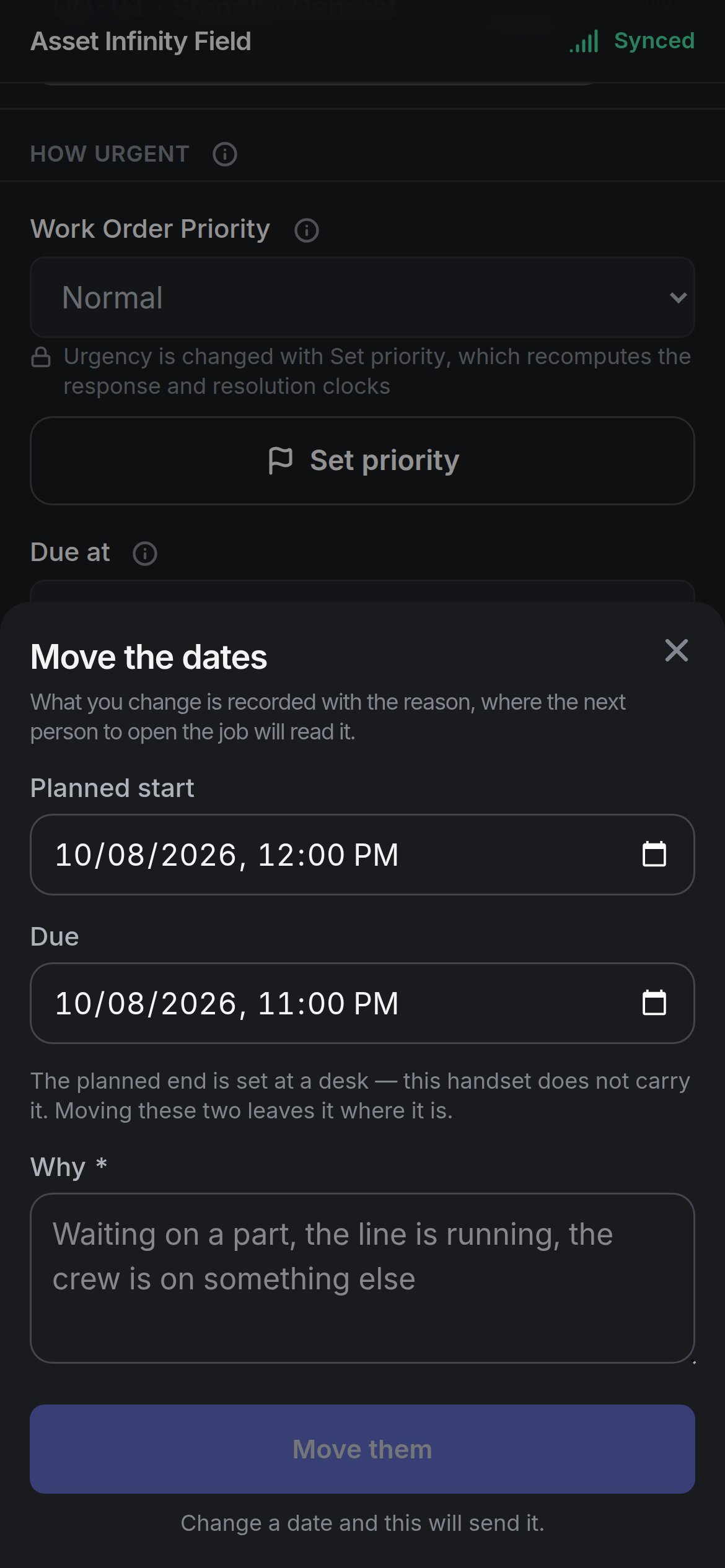
**Reschedule** opens **Move the dates**.
## Opening it
Tap the pencil beside the job's number on the job screen. The pencil appears only if you are allowed to edit work orders; without that permission the form says **Changing a job is not something your account can do** — you can still accept, work and close the job. **Back to the job** returns without saving.
The badge in the corner says whether saving works offline — normally **Allowed offline**. If your organisation has switched off correcting jobs from a handset, the form says so and the change needs a connection and somebody at a desk.
## The fields
The form is built from your organisation's own work order form in the [Form Studio](/config/form-studio), so its sections, labels, help text and required marks match the web app. The default sections and fields are:
| Field | What it means | Notes |
| - | - | - |
| **Title** | What the job is | Free text |
| **Description** | The longer account | Free text |
| **Work Order Type** | The kind of work | Choose from your organisation's [work order types](/config/work-orders). **Not saying** leaves it empty |
| **Site and location** | Where the work is | **Change** opens a picker of the sites and locations on the handset |
| **Asset Category** | The kind of asset | Choose from the categories on the handset |
| **Asset** | The asset the job is on | **Change** picks from the register on the handset; the barcode button beside it scans a label instead |
| **Work Order Priority** | How urgent it is | Locked here — **Urgency is changed with Set priority, which recomputes the response and resolution clocks**. Use **Set priority** |
| **Due at** | When it is due | Locked here — **Dates are moved with Reschedule, which records why the job moved**. Use **Reschedule** |
| **Status** | Where the job is | Shows **{status} — where it is now** and the statuses you may move it to. Choosing one shows **Moves to {status} when you save.** Finishing or cancelling is not offered here — that is done on the job itself, where the close-out questions are. Some moves are made on the server and need a signal; some are signed off by somebody else first |
| **Needs a permit** | Whether the work needs a permit to work | **Yes**, **No** or **Not saying** |
| **Safety Instructions** | What will hurt you | Free text, shown in amber at the top of the job |
| **Planned Start at**, **Planned End at** | When the work is planned | Locked — moved with **Reschedule** |
| **Estimated Duration (minutes)** | How long it should take | A number |
| **Reported by** | Who reported it | Chosen from the people on the handset |
| **Give it to** | Who is assigned | Shown only if you may assign work. **Change** lists the crews, people and approved suppliers who can take it — a crew shows **{count} in it** and who **leads the crew**. If nobody on the handset can take the job, it says so |
| **CC** / **Who else is told** | People who are kept informed | **Add somebody** and **Take off**. Where your organisation does not allow this from a handset, it says **Who else is told about this job is changed at a desk.** |
| **Remarks** | Anything else | Free text |
| **Additional fields** | Your organisation's own fields (custom fields) | Any section your organisation added — in the demo, **Production** with **Production Batch** (required), **Production Loss**, **Safety Incident**, **Downtime Hours** and so on |
| **Files and photographs** | Attachments | **Photograph** uses the camera; **Choose a file** picks a file from the phone |
Some fields cannot be answered on a handset, and say why rather than disappearing: a field **Calculated from the other answers, so it is not one to fill in**, a picker whose options are not on the device (**Answer this one from a browser**), and a field that a rule has closed **(no longer editable)**.
## Saving
**Save** stays greyed with **Change something and this will send it.** until you change a field. Once saved, **It is recorded on this device now and sent on the next sync.** If a required field is still empty, **Still needed: {fields}.** names it. If a rule closed a field while you were filling the form in, the form warns that that one change will not be saved and everything else will.
While a request for more time is waiting for an answer, the form says the job's status, dates and deadline stay as they are until somebody decides; everything else can still be corrected.
## Moving the dates
**Reschedule** opens **Move the dates**.
 | Field | What it means | Notes |
| - | - | - |
| **Planned start** | When the work is now planned to begin | Date and time |
| **Due** | The new due date | Date and time |
| **Why** | The reason | Required. Recorded with the change, where the next person to open the job reads it |
The planned end is set at a desk — the handset does not carry it, and moving these two leaves it where it is. **Move them** queues the change; it stays greyed until a date has changed.
## Changing how urgent it is
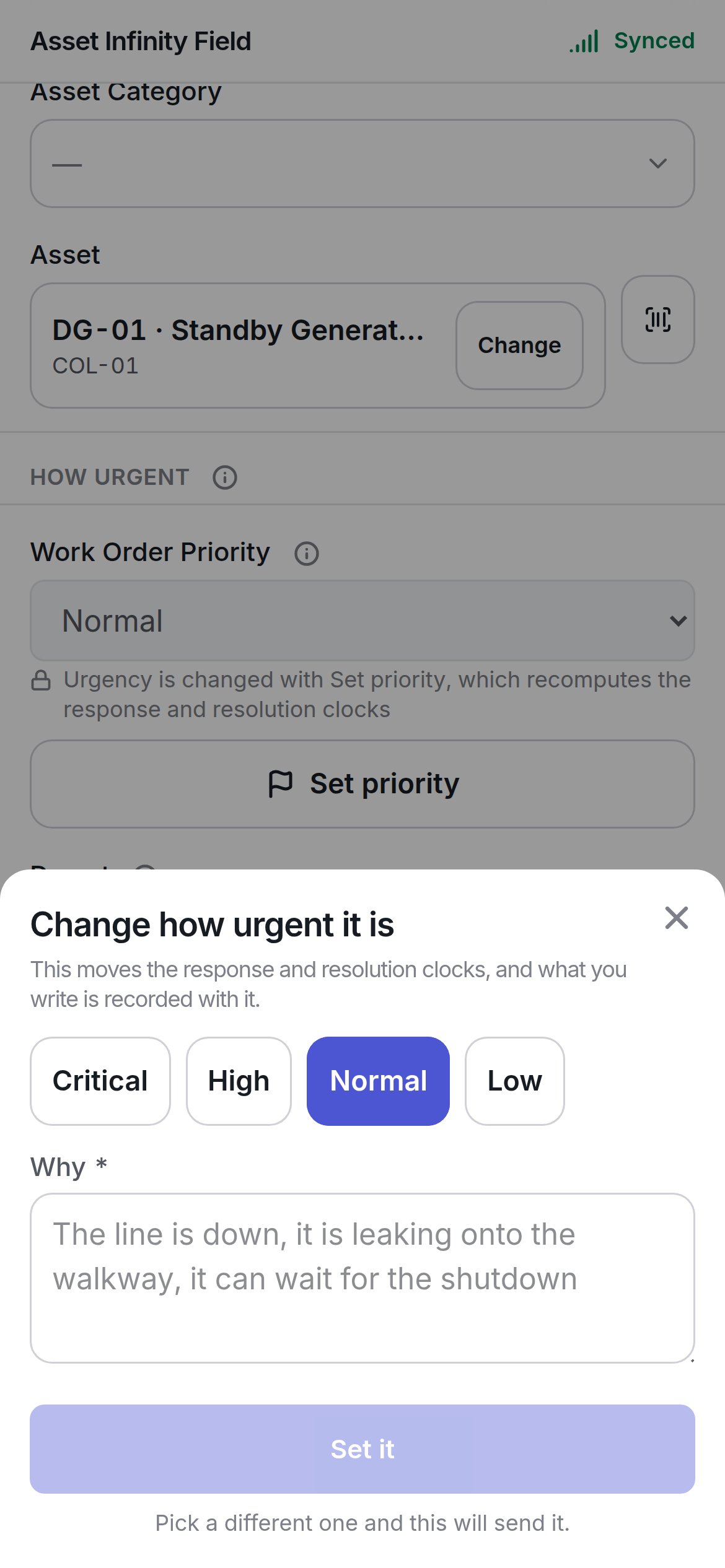
**Set priority** opens **Change how urgent it is**.
| Field | What it means | Notes |
| - | - | - |
| **Planned start** | When the work is now planned to begin | Date and time |
| **Due** | The new due date | Date and time |
| **Why** | The reason | Required. Recorded with the change, where the next person to open the job reads it |
The planned end is set at a desk — the handset does not carry it, and moving these two leaves it where it is. **Move them** queues the change; it stays greyed until a date has changed.
## Changing how urgent it is
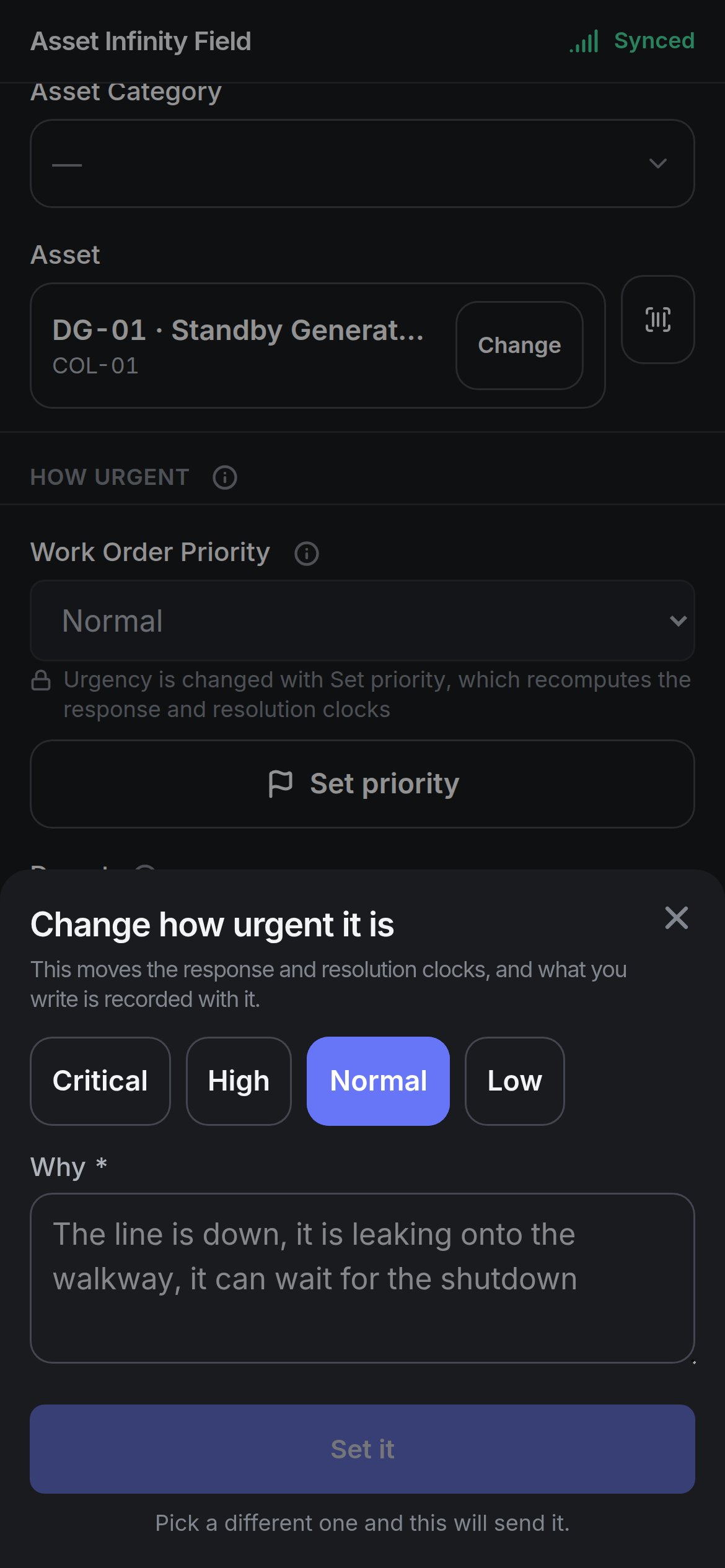
**Set priority** opens **Change how urgent it is**.
 | Field | What it means | Notes |
| - | - | - |
| Priority | The new urgency | One button per priority your organisation uses (defaults **Critical**, **High**, **Normal**, **Low**). The current one is highlighted |
| **Why** | The reason | Required. Recorded with the change |
Changing the priority moves the job's response and resolution clocks. **Set it** stays greyed until you pick a different priority.
## Asking for more time
**Ask for more time**, on the job screen under the due date, opens a sheet that asks to move what the job *promised* — its deadline — which is not the same as moving the plan.
| Field | What it means | Notes |
| - | - | - |
| **Due by** | The deadline you are asking for | Required. Date and time |
| **Why more time** | The reason | Chosen from the reasons your administrator has set up. Until any exist, the sheet says so |
| **Notes** | Anything else | Optional |
**Ask** sends the request. Where your organisation has somebody sign these off, the date moves when they approve — until then the job keeps showing the date it has, and the job screen shows **Somebody is deciding whether this job gets longer**. The button appears only when you hold the permission to request an extension and the job's status allows one.
Back to working the job.
This documentation is built and hosted on [Mintlify](https://mintlify.com), a developer documentation platform.
| Field | What it means | Notes |
| - | - | - |
| Priority | The new urgency | One button per priority your organisation uses (defaults **Critical**, **High**, **Normal**, **Low**). The current one is highlighted |
| **Why** | The reason | Required. Recorded with the change |
Changing the priority moves the job's response and resolution clocks. **Set it** stays greyed until you pick a different priority.
## Asking for more time
**Ask for more time**, on the job screen under the due date, opens a sheet that asks to move what the job *promised* — its deadline — which is not the same as moving the plan.
| Field | What it means | Notes |
| - | - | - |
| **Due by** | The deadline you are asking for | Required. Date and time |
| **Why more time** | The reason | Chosen from the reasons your administrator has set up. Until any exist, the sheet says so |
| **Notes** | Anything else | Optional |
**Ask** sends the request. Where your organisation has somebody sign these off, the date moves when they approve — until then the job keeps showing the date it has, and the job screen shows **Somebody is deciding whether this job gets longer**. The button appears only when you hold the permission to request an extension and the job's status allows one.
Back to working the job.
This documentation is built and hosted on [Mintlify](https://mintlify.com), a developer documentation platform.