> ## Documentation Index
> Fetch the complete documentation index at: https://docs.assetinfinity.ai/llms.txt
> Use this file to discover all available pages before exploring further.
# Adding an asset on the handset
> Adding an asset to the register while you stand in front of it — what you can read off the plate, where it is, and photographs — with no signal.
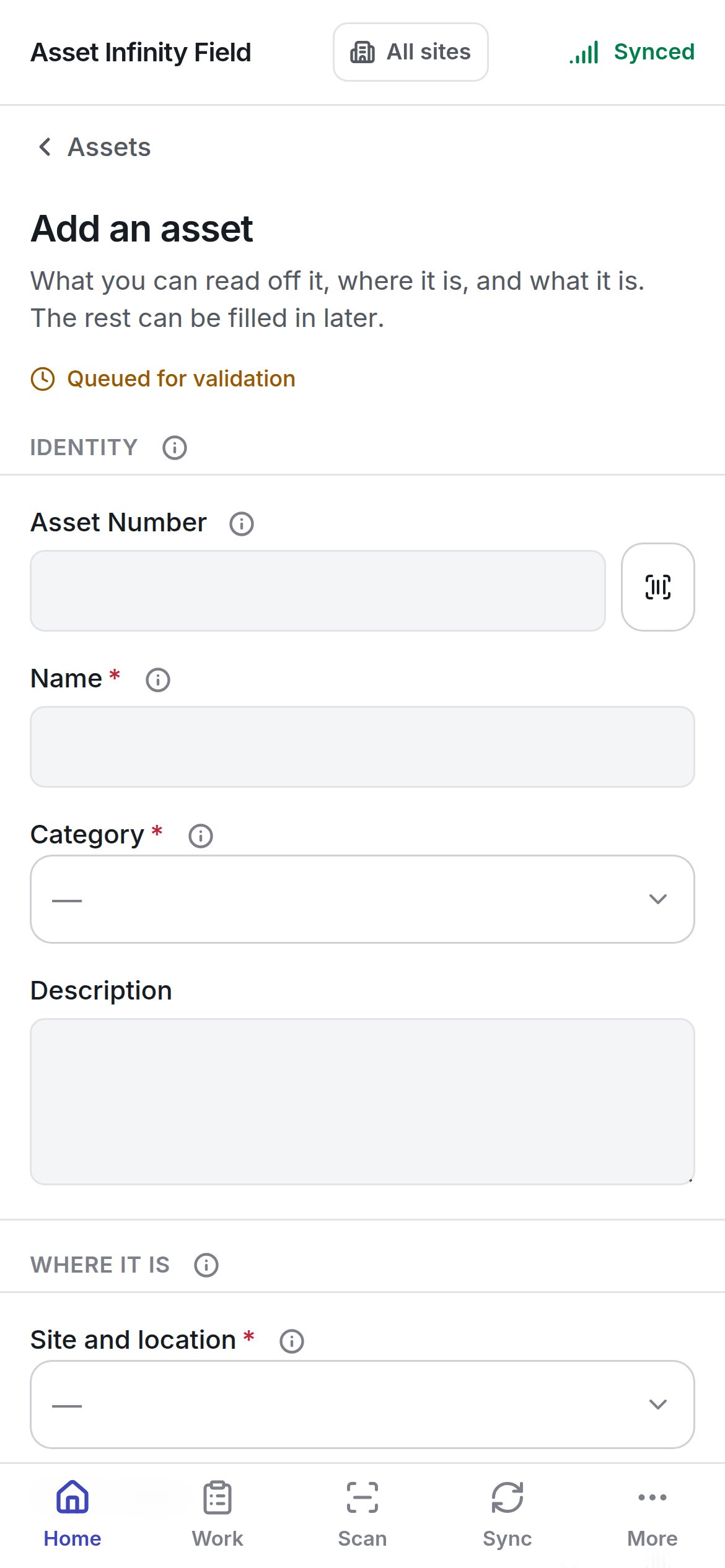
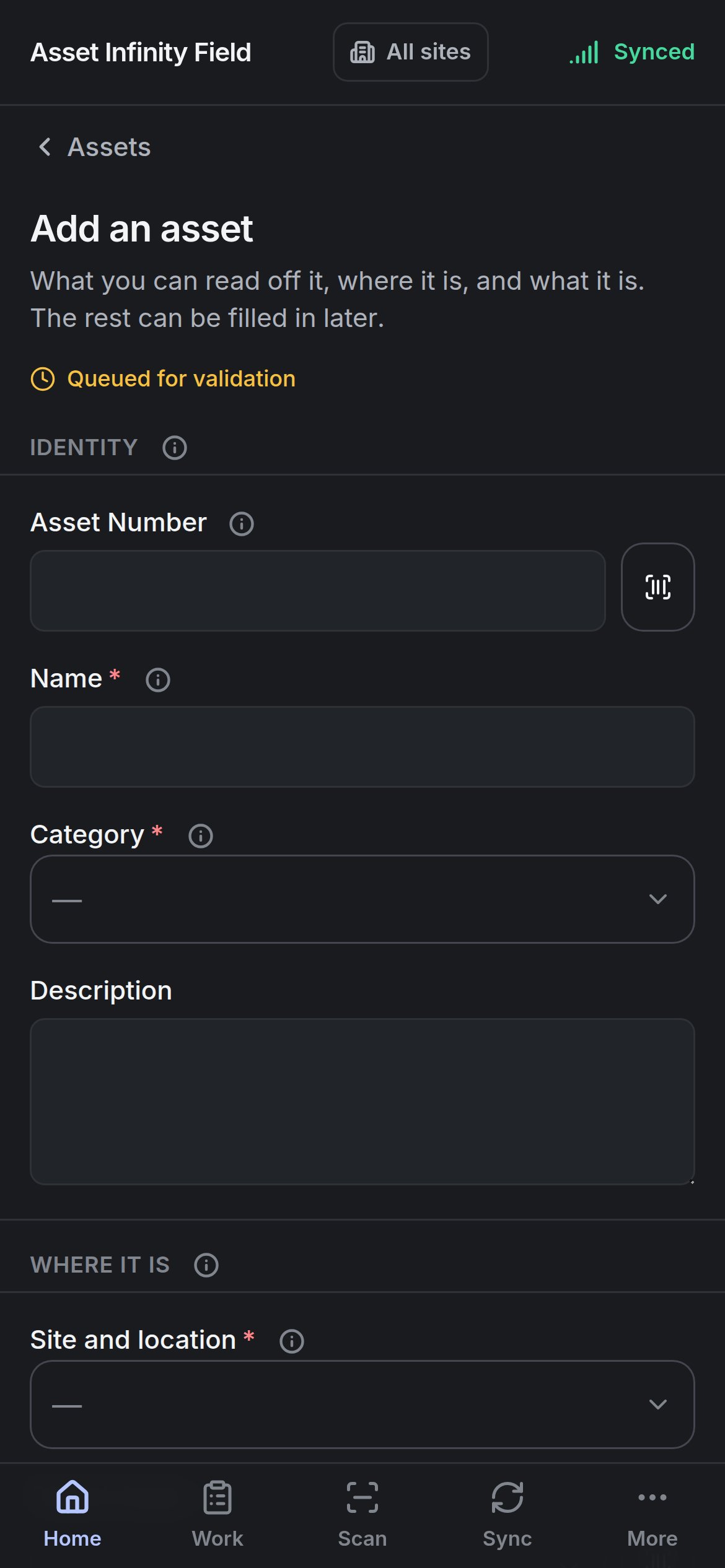
**Add an asset** puts something into the register from where it stands: what you can read off the plate, where it is, and what it looks like. The rest can be filled in later in the web app.
 ## Opening it
| From | What happens |
| - | - |
| **Home → Add an asset** | An empty form |
| **Add** on the [register](/field/register) | An empty form |
| **Add this asset** on a [scan](/field/scan) that matched nothing | The scanned code is filled in as the asset number, still editable |
You need permission to create assets. Without it the form says **Adding to the register is not something your account can do** and suggests reporting the asset as a job instead, so whoever keeps the register can add it. (The **Add an asset** door on Home is shown whenever the asset module is on, so somebody without the permission can reach this message.)
The badge on the form reads **Queued for validation**: the asset is recorded on the handset now and the server decides whether it stands when it arrives.
## The fields
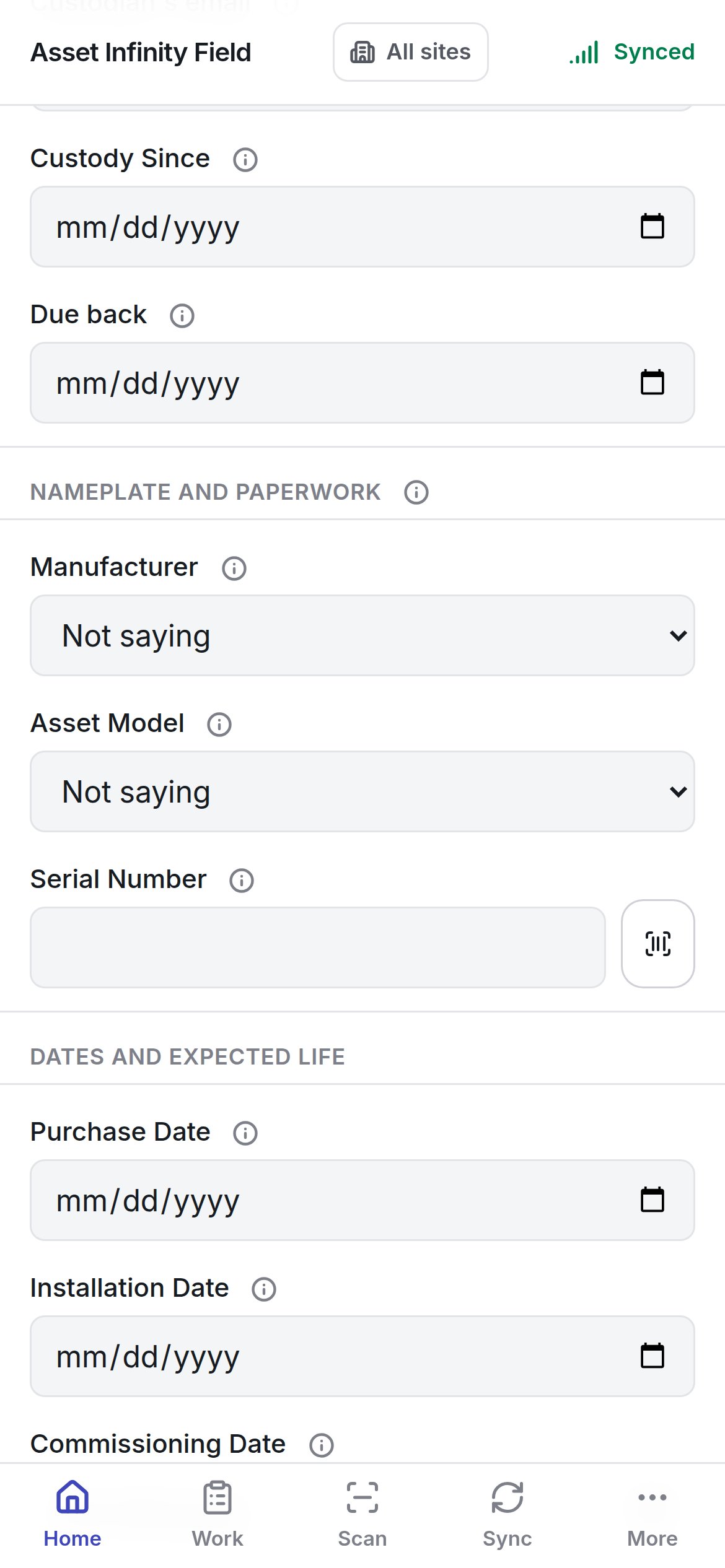
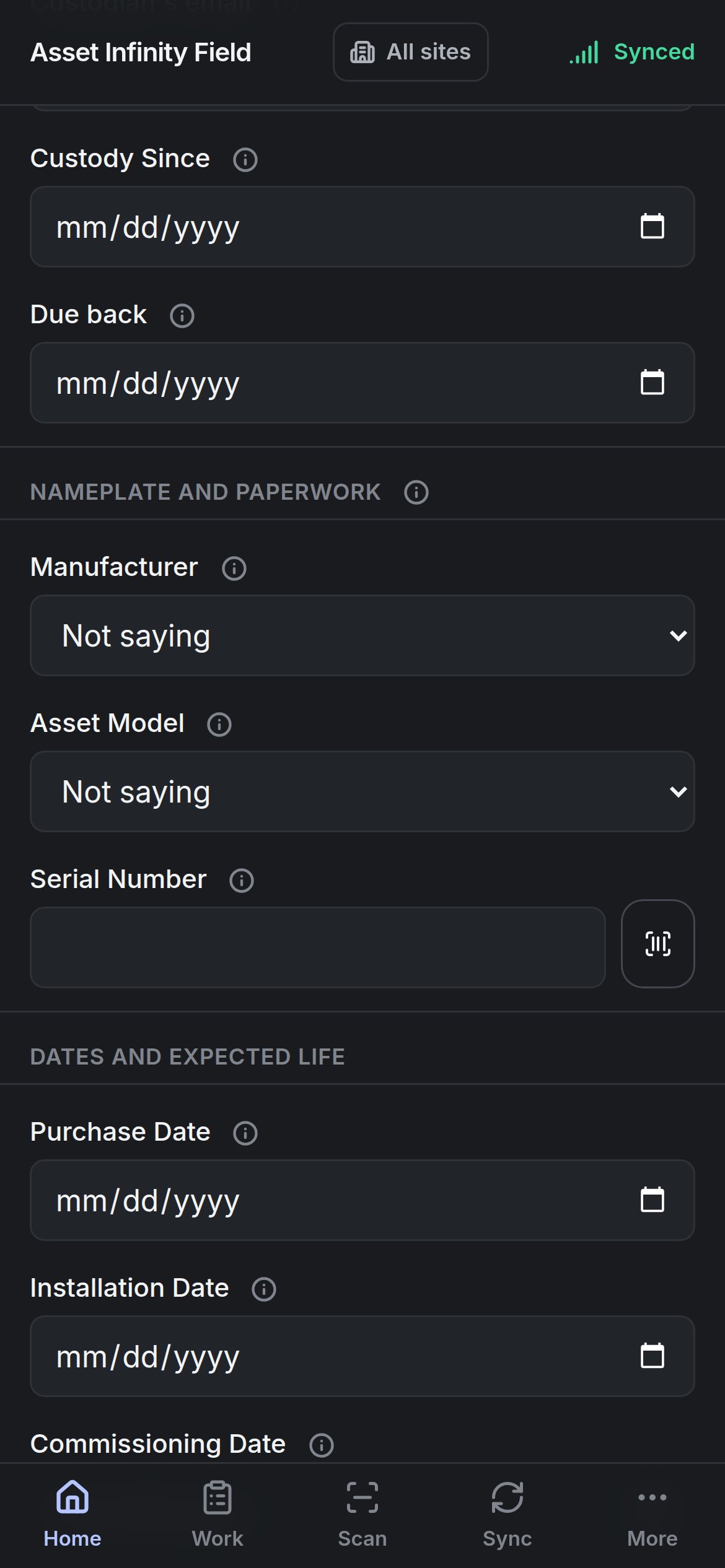
The form is built from your organisation's own asset form in the [Form Studio](/config/form-studio) — the same fields, labels, help and required marks as the web app's. If the handset has not synced that form yet, it says **This handset does not know what an asset is yet**. The default sections are:
## Opening it
| From | What happens |
| - | - |
| **Home → Add an asset** | An empty form |
| **Add** on the [register](/field/register) | An empty form |
| **Add this asset** on a [scan](/field/scan) that matched nothing | The scanned code is filled in as the asset number, still editable |
You need permission to create assets. Without it the form says **Adding to the register is not something your account can do** and suggests reporting the asset as a job instead, so whoever keeps the register can add it. (The **Add an asset** door on Home is shown whenever the asset module is on, so somebody without the permission can reach this message.)
The badge on the form reads **Queued for validation**: the asset is recorded on the handset now and the server decides whether it stands when it arrives.
## The fields
The form is built from your organisation's own asset form in the [Form Studio](/config/form-studio) — the same fields, labels, help and required marks as the web app's. If the handset has not synced that form yet, it says **This handset does not know what an asset is yet**. The default sections are:
 | Field | What it means | Notes |
| - | - | - |
| **Asset Number** | The asset's identifier | Leave empty to have one assigned from your [numbering](/config/numbering) when the server takes it. The barcode button scans it off the label |
| **Name** | What it is called | Required |
| **Category** | The kind of asset | Required. From your [asset categories](/config/assets). Decides which of your own fields appear |
| **Description** | Anything more | Optional |
| **Site and location** | Where it is | Required. From the sites and locations on the handset |
| **Parent Asset** | What it is part of | Optional — a motor inside a pump, say |
| **Coordinates** | Where it is on a map | **Use my location** takes a fix from the phone (**· to within {metres} m**); **Take it again** re-takes it. Useful for a pole or pump house that has never had a coordinate. Indoors there is often no fix — the form says so |
| **Criticality** | How much it matters | From your list (defaults **Critical**, **High**, **Medium**, **Low**) |
| **Owning department** | The department that owns it | From your organisation structure |
| **Cost centre** | Where its costs go | From your organisation structure |
| **Custodian** | Who is holding it | From the people on the handset |
| **Custodian's name**, **Custodian's email** | Somebody outside the system who holds it | Free text |
| **Custody Since**, **Due back** | The custody dates | Dates |
| **Manufacturer** | The maker | From your manufacturers list |
| **Asset Model** | The model | From your models list, shown with the manufacturer |
| **Serial Number** | The serial off the plate | The barcode button scans it |
| **Purchase Date**, **Installation Date**, **Commissioning Date**, **Warranty Expires on**, **Replacement Date** | The asset's key dates | Dates |
| **Expected Life (months)** | How long it should last | A number |
| **Purchase Cost**, **Replacement Value** | What it cost and would cost again | An amount and a currency |
| **Where the figure came from**, **As at** | The source and date of the replacement value | Optional |
| **Status** | The status it starts in | From your [asset statuses](/config/statuses) (defaults include **Planned**, **Standby**, **Operational**, **Under Maintenance**, **Breakdown**) |
| **Your own fields** | Your organisation's own asset fields | Which appear depends on the category. Photo, image, file and signature fields are answered with the camera or a file |
| **Photographs** | Pictures of it | **The plate, the machine, where it sits.** They go up with the asset on the next sync |
Some fields cannot be answered on the handset and say why instead of disappearing — a picker whose options are not on the device (**Answer this one from a browser**), or a field calculated from the others. Fields that need a list the handset does not carry are named under **Not asked here: {fields}** and filled in at a desk.
## Adding it
**Add it to the register** stays greyed while **Still needed: {fields}** names a required field. Once pressed, **It appears on the register as unsent until the server has taken it, and gets its real record then.** The asset shows on the register marked **Not sent**; until it has reached the server it cannot be moved, ticked into a selection or made somebody's parent.
Photographs taken on the form are held with it and sent straight after the asset itself, so they arrive attached to the right record. Leaving the form without adding the asset discards them.
Finding, browsing and acting on assets.
This documentation is built and hosted on [Mintlify](https://mintlify.com), a developer documentation platform.
| Field | What it means | Notes |
| - | - | - |
| **Asset Number** | The asset's identifier | Leave empty to have one assigned from your [numbering](/config/numbering) when the server takes it. The barcode button scans it off the label |
| **Name** | What it is called | Required |
| **Category** | The kind of asset | Required. From your [asset categories](/config/assets). Decides which of your own fields appear |
| **Description** | Anything more | Optional |
| **Site and location** | Where it is | Required. From the sites and locations on the handset |
| **Parent Asset** | What it is part of | Optional — a motor inside a pump, say |
| **Coordinates** | Where it is on a map | **Use my location** takes a fix from the phone (**· to within {metres} m**); **Take it again** re-takes it. Useful for a pole or pump house that has never had a coordinate. Indoors there is often no fix — the form says so |
| **Criticality** | How much it matters | From your list (defaults **Critical**, **High**, **Medium**, **Low**) |
| **Owning department** | The department that owns it | From your organisation structure |
| **Cost centre** | Where its costs go | From your organisation structure |
| **Custodian** | Who is holding it | From the people on the handset |
| **Custodian's name**, **Custodian's email** | Somebody outside the system who holds it | Free text |
| **Custody Since**, **Due back** | The custody dates | Dates |
| **Manufacturer** | The maker | From your manufacturers list |
| **Asset Model** | The model | From your models list, shown with the manufacturer |
| **Serial Number** | The serial off the plate | The barcode button scans it |
| **Purchase Date**, **Installation Date**, **Commissioning Date**, **Warranty Expires on**, **Replacement Date** | The asset's key dates | Dates |
| **Expected Life (months)** | How long it should last | A number |
| **Purchase Cost**, **Replacement Value** | What it cost and would cost again | An amount and a currency |
| **Where the figure came from**, **As at** | The source and date of the replacement value | Optional |
| **Status** | The status it starts in | From your [asset statuses](/config/statuses) (defaults include **Planned**, **Standby**, **Operational**, **Under Maintenance**, **Breakdown**) |
| **Your own fields** | Your organisation's own asset fields | Which appear depends on the category. Photo, image, file and signature fields are answered with the camera or a file |
| **Photographs** | Pictures of it | **The plate, the machine, where it sits.** They go up with the asset on the next sync |
Some fields cannot be answered on the handset and say why instead of disappearing — a picker whose options are not on the device (**Answer this one from a browser**), or a field calculated from the others. Fields that need a list the handset does not carry are named under **Not asked here: {fields}** and filled in at a desk.
## Adding it
**Add it to the register** stays greyed while **Still needed: {fields}** names a required field. Once pressed, **It appears on the register as unsent until the server has taken it, and gets its real record then.** The asset shows on the register marked **Not sent**; until it has reached the server it cannot be moved, ticked into a selection or made somebody's parent.
Photographs taken on the form are held with it and sent straight after the asset itself, so they arrive attached to the right record. Leaving the form without adding the asset discards them.
Finding, browsing and acting on assets.
This documentation is built and hosted on [Mintlify](https://mintlify.com), a developer documentation platform.