> ## Documentation Index
> Fetch the complete documentation index at: https://docs.assetinfinity.ai/llms.txt
> Use this file to discover all available pages before exploring further.
# Raising work from the handset
> Raise a job for a breakdown you have just found, or start an inspection round nobody scheduled, from wherever you are standing and with no signal.
The two raise forms let you record work the moment you find it: **Raise a job** for something that has broken and nobody has recorded yet, and **Start a round** for a check nobody scheduled because you are standing in front of the thing that wants one.
Both work with no signal. They are recorded on the handset and sent on the next sync, where the server decides whether they stand — the badge on each form says **Queued for validation**.
## Raise a job
Open it from **Home → Raise a job**, the **Raise** button on **Today** or **Work**, or **Raise a job** on an asset's own screen (which fills the asset in for you).
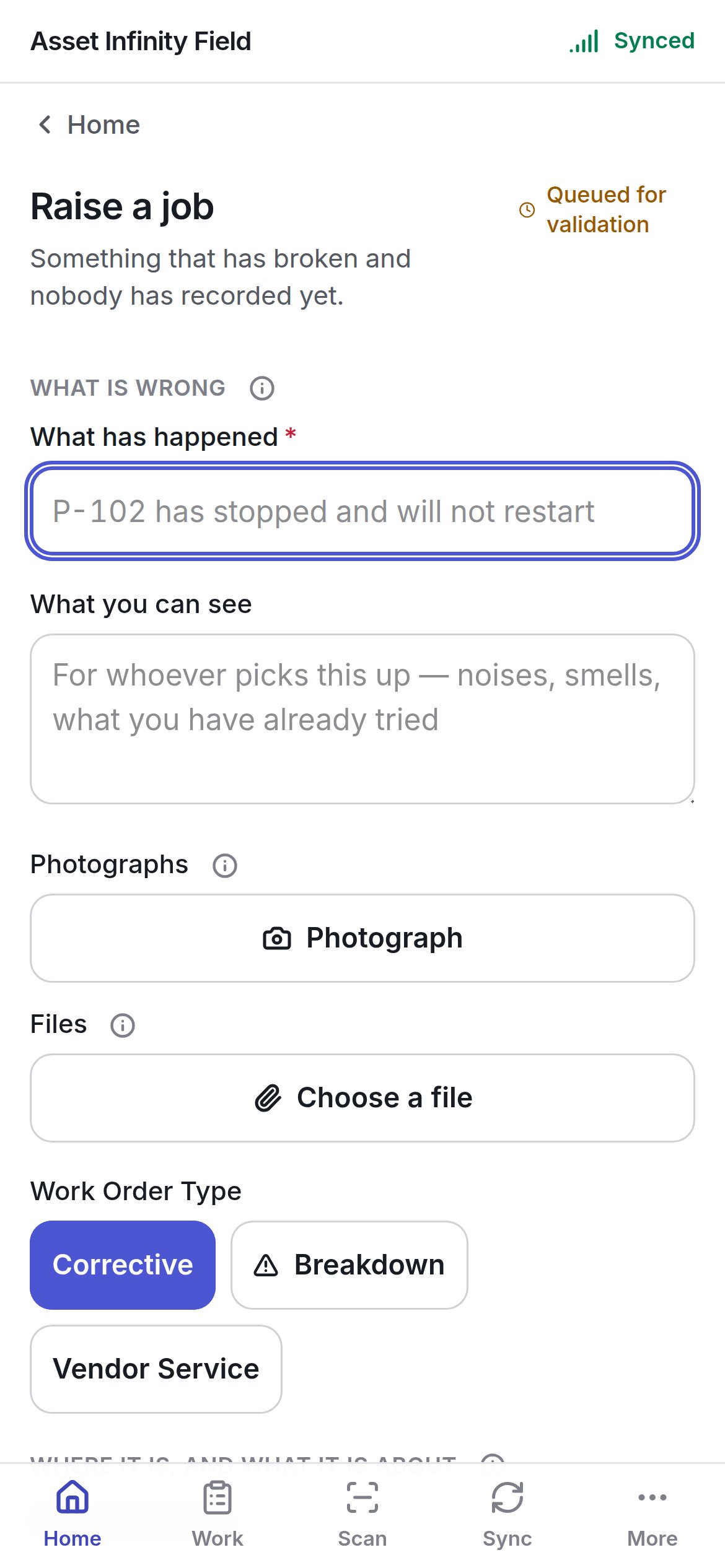
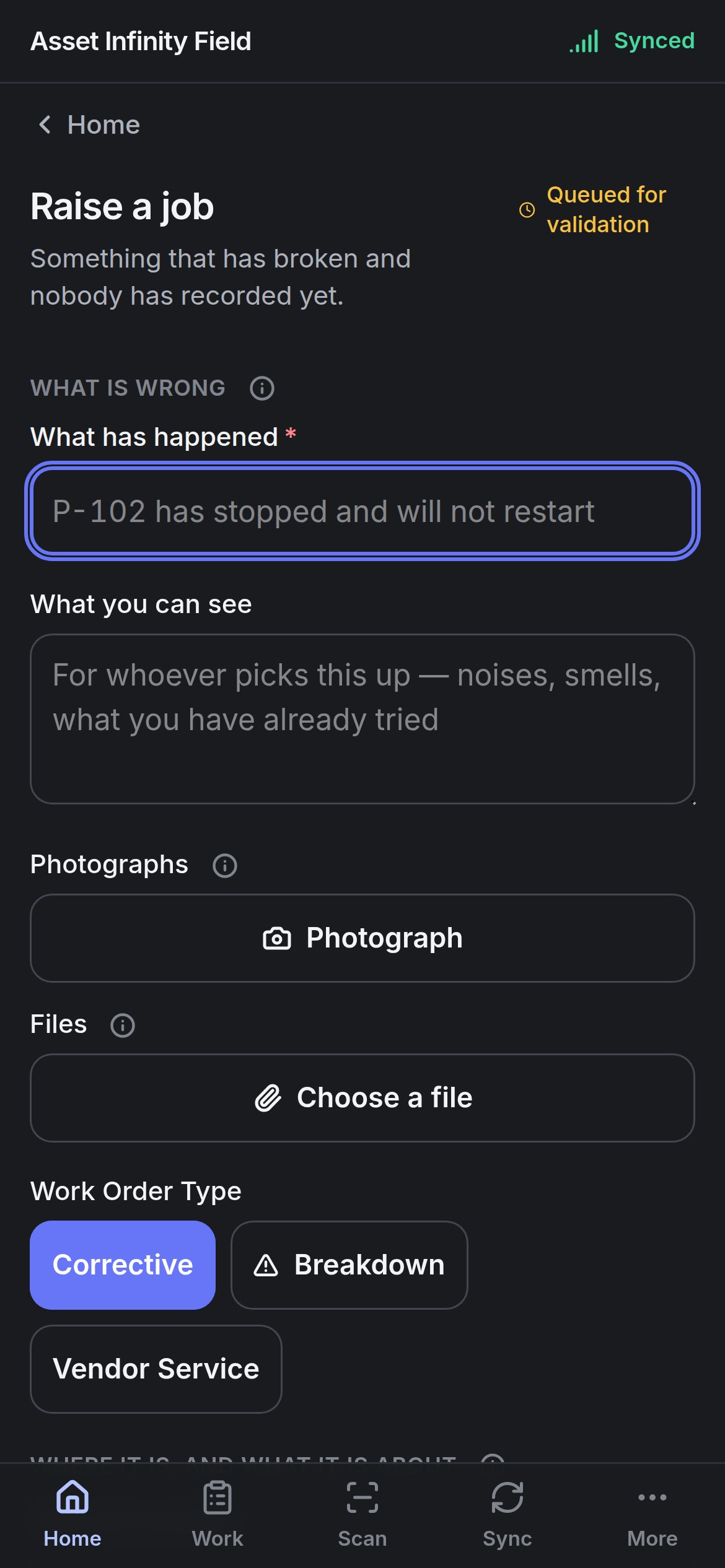 The form is built from your organisation's own work order form in the [Form Studio](/config/form-studio), so its sections, labels and required marks match the web app. The default fields are:
| Field | What it means | Notes |
| - | - | - |
| **What has happened** | A one-line title | Required. For example *P-102 has stopped and will not restart* |
| **What you can see** | The description | For whoever picks this up — noises, smells, what you have already tried |
| **Photographs** | Pictures of the fault | **Photograph** opens the camera (or the gallery). Taken now, attached the moment the job is queued. Shown only if you may add files |
| **Files** | Any other file | **Choose a file** |
| **Work Order Type** (Kind of work) | The kind of work | Buttons for each kind of work that may be raised by hand (defaults such as **Corrective**, **Breakdown**, **Vendor Service**). Kinds used only by maintenance plans are left out; if every kind belongs to a plan, the form says to ask an administrator. A long list becomes a searchable picker. The list comes from [work order types](/config/work-orders) |
| **Site and location** | Where it is | Picker of the sites and locations on the handset. Filled from the asset when you pick one |
| **Asset Category** | The kind of asset | Optional |
| **Asset** | Which asset | Search by **Asset number or name**. If nothing matches, say where it is instead and which one in the description |
| **Work Order Priority** | How urgent it is | One button per priority (defaults **Critical**, **High**, **Normal**, **Low**). Worked out on the handset from the kind of work and your organisation's priority rules; where there is no rule, **From the kind of work** lets the server decide |
| **Due at** | When it is due | Optional. Left empty, the server works it out |
| **Status** | Where the job starts | Shows the status a raised job opens in — **Open** by default. Not something you choose |
| **Needs a permit** | Whether the work needs a permit | **Yes**, **No** or **Not saying** |
| **Safety Instructions** | What will hurt whoever goes to it | Free text |
| **Reported by** | Who reported it | Filled in as you. Change it when somebody else told you — an operator, for example |
| **Who is taking it** (Give it to) | Who it is assigned to | Shown only if you may assign work. Search **A crew, a name or a supplier**. A crew holds it and its lead puts a name on it; a supplier gets it on their portal. Leave it alone and the job lands in the site's queue for a planner |
| **Who else is told** | People kept informed | Optional |
| Your organisation's own fields | Custom fields | In the demo, a **Production information** section with **Production Batch** (required), **Production Loss**, **Safety Incident**, **Downtime Hours** and so on |
Fields that name people from a directory the handset does not carry are listed under **Not asked here: {fields}** and filled in at a desk.
**Raise it** stays greyed while **Still needed: {fields}** lists a required field. Once pressed, the job is recorded on the handset — **The job opens when this reaches the server, and comes back to this handset on the next sync.** Until then it is listed under **Raised here** on Work. If your organisation has switched off raising jobs from a handset, the form says so and the raise needs a connection and somebody at a desk.
Photograph the fault while you are in front of it. A picture settles what words often don't, and it is attached the moment the job is queued rather than whenever you remember later.
## Starting a round
Open it from **Home → Start a round** or **Start one** on the Work list. It starts an [inspection round](/maintenance/inspections) from a template, against an asset or a place.
The form is built from your organisation's own work order form in the [Form Studio](/config/form-studio), so its sections, labels and required marks match the web app. The default fields are:
| Field | What it means | Notes |
| - | - | - |
| **What has happened** | A one-line title | Required. For example *P-102 has stopped and will not restart* |
| **What you can see** | The description | For whoever picks this up — noises, smells, what you have already tried |
| **Photographs** | Pictures of the fault | **Photograph** opens the camera (or the gallery). Taken now, attached the moment the job is queued. Shown only if you may add files |
| **Files** | Any other file | **Choose a file** |
| **Work Order Type** (Kind of work) | The kind of work | Buttons for each kind of work that may be raised by hand (defaults such as **Corrective**, **Breakdown**, **Vendor Service**). Kinds used only by maintenance plans are left out; if every kind belongs to a plan, the form says to ask an administrator. A long list becomes a searchable picker. The list comes from [work order types](/config/work-orders) |
| **Site and location** | Where it is | Picker of the sites and locations on the handset. Filled from the asset when you pick one |
| **Asset Category** | The kind of asset | Optional |
| **Asset** | Which asset | Search by **Asset number or name**. If nothing matches, say where it is instead and which one in the description |
| **Work Order Priority** | How urgent it is | One button per priority (defaults **Critical**, **High**, **Normal**, **Low**). Worked out on the handset from the kind of work and your organisation's priority rules; where there is no rule, **From the kind of work** lets the server decide |
| **Due at** | When it is due | Optional. Left empty, the server works it out |
| **Status** | Where the job starts | Shows the status a raised job opens in — **Open** by default. Not something you choose |
| **Needs a permit** | Whether the work needs a permit | **Yes**, **No** or **Not saying** |
| **Safety Instructions** | What will hurt whoever goes to it | Free text |
| **Reported by** | Who reported it | Filled in as you. Change it when somebody else told you — an operator, for example |
| **Who is taking it** (Give it to) | Who it is assigned to | Shown only if you may assign work. Search **A crew, a name or a supplier**. A crew holds it and its lead puts a name on it; a supplier gets it on their portal. Leave it alone and the job lands in the site's queue for a planner |
| **Who else is told** | People kept informed | Optional |
| Your organisation's own fields | Custom fields | In the demo, a **Production information** section with **Production Batch** (required), **Production Loss**, **Safety Incident**, **Downtime Hours** and so on |
Fields that name people from a directory the handset does not carry are listed under **Not asked here: {fields}** and filled in at a desk.
**Raise it** stays greyed while **Still needed: {fields}** lists a required field. Once pressed, the job is recorded on the handset — **The job opens when this reaches the server, and comes back to this handset on the next sync.** Until then it is listed under **Raised here** on Work. If your organisation has switched off raising jobs from a handset, the form says so and the raise needs a connection and somebody at a desk.
Photograph the fault while you are in front of it. A picture settles what words often don't, and it is attached the moment the job is queued rather than whenever you remember later.
## Starting a round
Open it from **Home → Start a round** or **Start one** on the Work list. It starts an [inspection round](/maintenance/inspections) from a template, against an asset or a place.
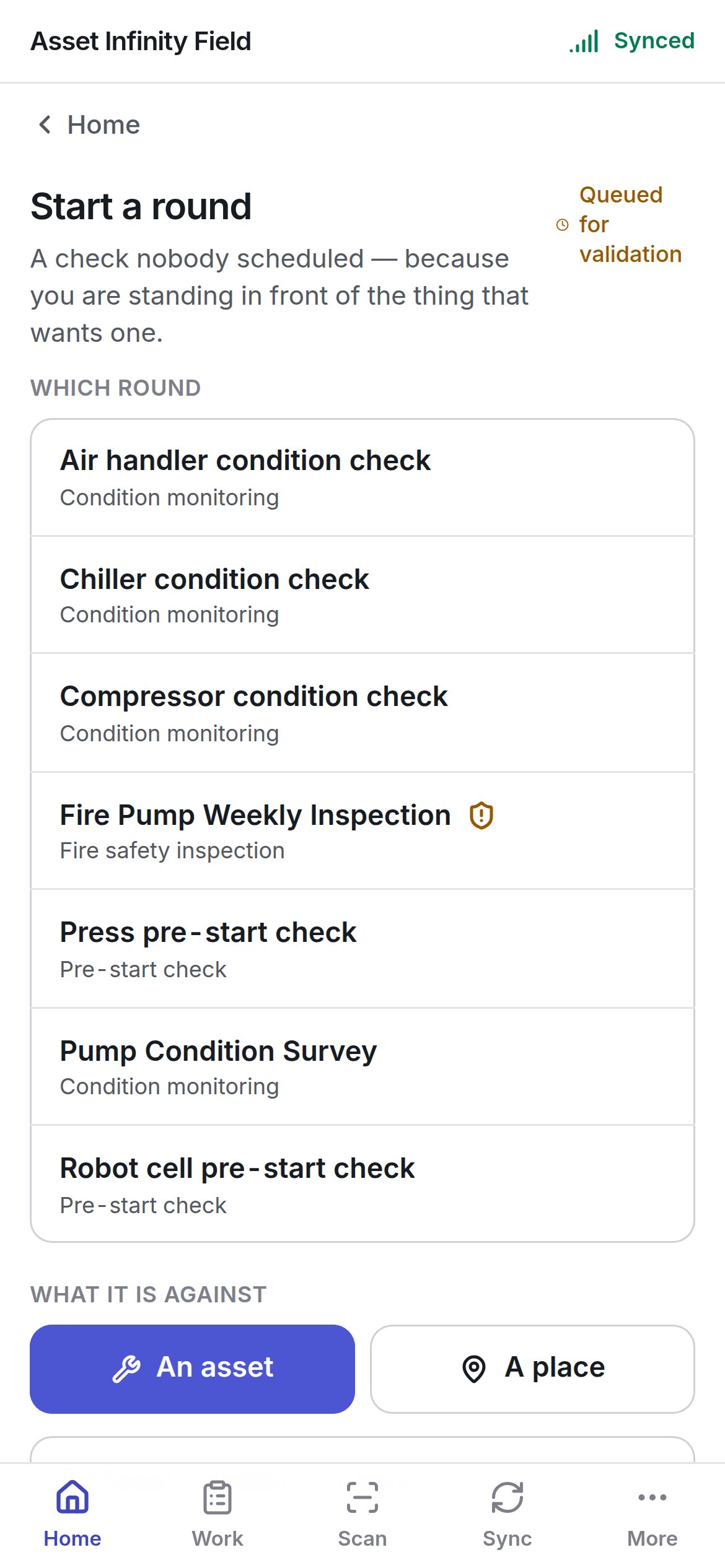
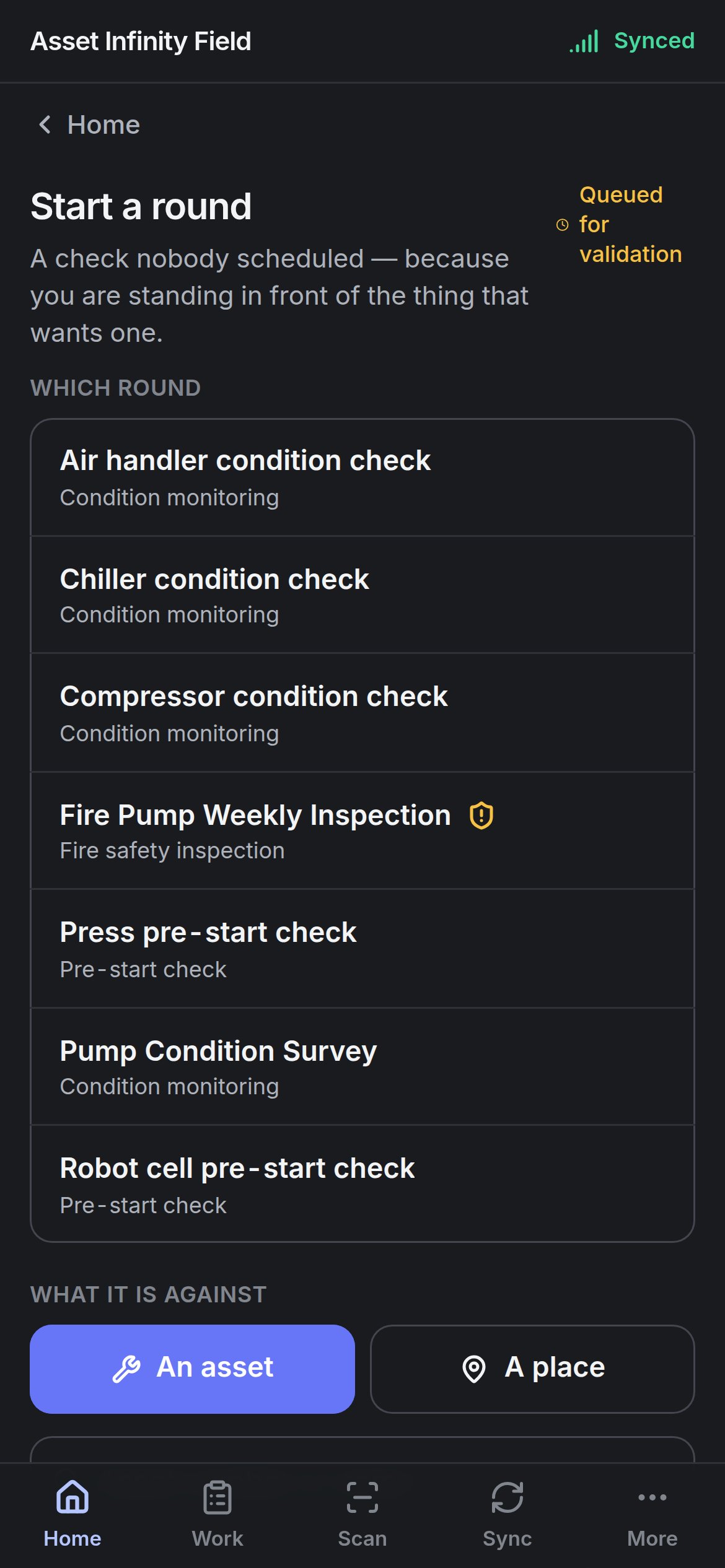 | Field | What it means | Notes |
| - | - | - |
| **Which round** | The template | Required. Each shows its name and kind (for example **Condition monitoring**, **Pre-start check**). A shield marks a **Statutory** round; **about {n} min** shows the estimated time where set. A long list becomes a searchable **Round name** picker. **Change** re-opens the choice |
| **What it is against** | **An asset** or **A place** | Required. Some templates allow only one |
| Asset | Which asset | When **An asset** is chosen. Search by **Asset number or name** |
| **Which site** | The site | When **A place** is chosen. Required |
| **Where inside it** | A location inside the site | Optional — **Not saying — the whole site** |
**Start it** queues the round. **The round is numbered and its questions are copied from the template when this reaches the server.** It comes back to the handset ready to answer on the next sync, and until then it appears under **Rounds started here** on Work. A round begun with no signal cannot be answered until that sync — the form says so before you press the button.
Templates are set up under [inspections configuration](/config/inspections).
Working through the questions once the round is on the handset.
Working the job once it comes back.
This documentation is built and hosted on [Mintlify](https://mintlify.com), a developer documentation platform.
| Field | What it means | Notes |
| - | - | - |
| **Which round** | The template | Required. Each shows its name and kind (for example **Condition monitoring**, **Pre-start check**). A shield marks a **Statutory** round; **about {n} min** shows the estimated time where set. A long list becomes a searchable **Round name** picker. **Change** re-opens the choice |
| **What it is against** | **An asset** or **A place** | Required. Some templates allow only one |
| Asset | Which asset | When **An asset** is chosen. Search by **Asset number or name** |
| **Which site** | The site | When **A place** is chosen. Required |
| **Where inside it** | A location inside the site | Optional — **Not saying — the whole site** |
**Start it** queues the round. **The round is numbered and its questions are copied from the template when this reaches the server.** It comes back to the handset ready to answer on the next sync, and until then it appears under **Rounds started here** on Work. A round begun with no signal cannot be answered until that sync — the form says so before you press the button.
Templates are set up under [inspections configuration](/config/inspections).
Working through the questions once the round is on the handset.
Working the job once it comes back.
This documentation is built and hosted on [Mintlify](https://mintlify.com), a developer documentation platform.