> ## Documentation Index
> Fetch the complete documentation index at: https://docs.assetinfinity.ai/llms.txt
> Use this file to discover all available pages before exploring further.
# Your profile
> Your own details, photograph, language, date format and timezone, how notifications reach you and when they should not, what your roles let you do, and your password, two-step sign-in, devices and organisations.
Your profile is where you look after your own account: how your name appears, which language and timezone the product uses for you, how notifications reach you, and how you sign in. It is also the page that tells you exactly what you are allowed to do, so a request to an administrator can name the gap.
Open it by clicking your name at the foot of the sidebar. Everybody can open their own profile; it needs no permission.
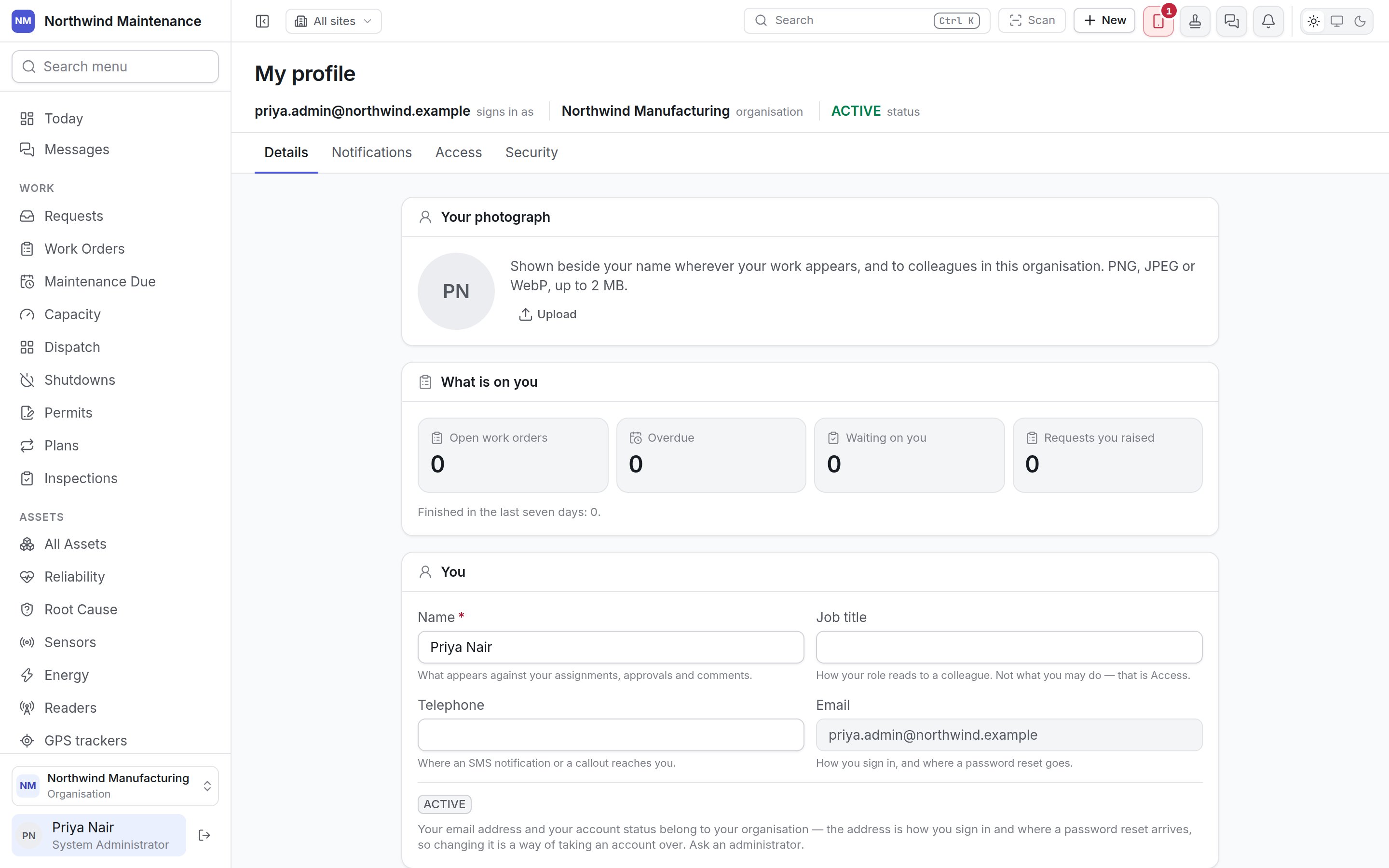
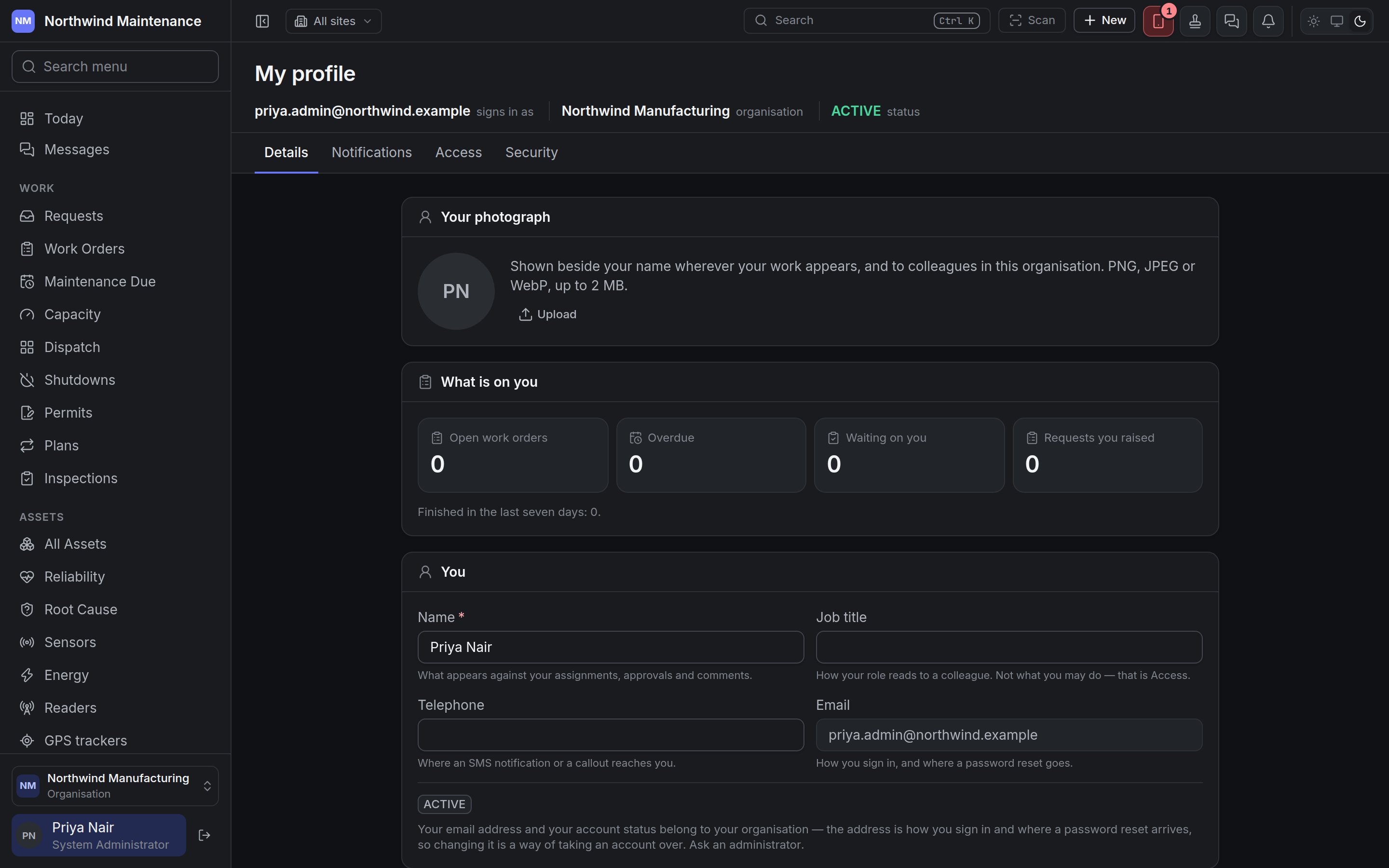 The header names the address you sign in as, the organisation you are in, and your account's status (for example **ACTIVE**). Four tabs sit below it: **Details**, **Notifications**, **Access** and **Security**.
If your password was issued by an administrator, a banner says **Your password was set for you and has to be changed.** with **Change it now**, which takes you to the password form on the Security tab.
## Details
### Your photograph
Shown beside your name wherever your work appears — assignments, approvals, comments, the sidebar — and to colleagues in your organisation. **Upload** a PNG, JPEG or WebP of up to 2 MB; once one is in place you can **Replace** or **Remove** it. Without a photograph your initials are shown.
### What is on you
A quick summary of your own work, each figure linking to the list behind it:
| Figure | Meaning |
| - | - |
| **Open work orders** | Open jobs assigned to you |
| **Overdue** | Of those, how many are past their due date |
| **Waiting on you** | Approval steps waiting for your decision — see [approvals](/work/approvals) |
| **Requests you raised** | Work requests you reported that are still open |
Underneath, **Finished in the last seven days** counts the jobs you completed this week.
### You
| Field | What it means | Notes |
| - | - | - |
| **Name** | What appears against your assignments, approvals and comments | Required |
| **Job title** | How your role reads to a colleague — "Shift electrician", "Stores lead" | Optional. It is shown under your name in the sidebar. It is a description, not a permission: what you may do is on the Access tab. |
| **Telephone** | Where an SMS notification or a callout reaches you | Optional. Used for SMS and WhatsApp unless you confirm a different mobile number on the Notifications tab. |
| **Email** | How you sign in, and where a password reset goes | Read-only. Your address and your account status belong to your organisation — changing the address would be a way of taking an account over — so ask an administrator. |
### How the product reads for you
Each of these is left empty by default and then follows your organisation's setting, which is shown beneath the field (for example *Your organisation: America/New\_York*). Choose **My organisation's** to go back to following it.
| Field | What it means | Notes |
| - | - | - |
| **Language** | The language the app and your notifications are written in | Options are the languages your organisation offers (for example English, French, Arabic, German, Spanish). Right-to-left languages such as Arabic and Hebrew flip the layout. |
| **Date and number format** | How dates, times, numbers and currency are written — for example `en-GB` writes 05/10/2026, `en-US` writes 10/5/2026 | Optional |
| **Timezone** | The timezone every time on screen is shown in | Optional, but the one that matters most: your quiet hours are read in it, so a wrong one wakes you up. Date filters such as "today" and "this week" are also worked out in it. |
Click **Save** to keep changes to the **You** and **How the product reads for you** sections.
### Developer mode
Shown only to people whose role lets them view integrations. When it is **On**, every screen gains an **API** button that names the calls behind it — what each takes, what it answers with, and a request you can copy into a terminal. It changes nothing about what you may read or write; it is a reference for whoever builds integrations against your organisation. It is **Off** until you turn it on.
## Notifications
Who is told about an event is decided by your organisation under [notification settings](/config/notifications). This tab is where you say how those notifications reach *you*.
The header names the address you sign in as, the organisation you are in, and your account's status (for example **ACTIVE**). Four tabs sit below it: **Details**, **Notifications**, **Access** and **Security**.
If your password was issued by an administrator, a banner says **Your password was set for you and has to be changed.** with **Change it now**, which takes you to the password form on the Security tab.
## Details
### Your photograph
Shown beside your name wherever your work appears — assignments, approvals, comments, the sidebar — and to colleagues in your organisation. **Upload** a PNG, JPEG or WebP of up to 2 MB; once one is in place you can **Replace** or **Remove** it. Without a photograph your initials are shown.
### What is on you
A quick summary of your own work, each figure linking to the list behind it:
| Figure | Meaning |
| - | - |
| **Open work orders** | Open jobs assigned to you |
| **Overdue** | Of those, how many are past their due date |
| **Waiting on you** | Approval steps waiting for your decision — see [approvals](/work/approvals) |
| **Requests you raised** | Work requests you reported that are still open |
Underneath, **Finished in the last seven days** counts the jobs you completed this week.
### You
| Field | What it means | Notes |
| - | - | - |
| **Name** | What appears against your assignments, approvals and comments | Required |
| **Job title** | How your role reads to a colleague — "Shift electrician", "Stores lead" | Optional. It is shown under your name in the sidebar. It is a description, not a permission: what you may do is on the Access tab. |
| **Telephone** | Where an SMS notification or a callout reaches you | Optional. Used for SMS and WhatsApp unless you confirm a different mobile number on the Notifications tab. |
| **Email** | How you sign in, and where a password reset goes | Read-only. Your address and your account status belong to your organisation — changing the address would be a way of taking an account over — so ask an administrator. |
### How the product reads for you
Each of these is left empty by default and then follows your organisation's setting, which is shown beneath the field (for example *Your organisation: America/New\_York*). Choose **My organisation's** to go back to following it.
| Field | What it means | Notes |
| - | - | - |
| **Language** | The language the app and your notifications are written in | Options are the languages your organisation offers (for example English, French, Arabic, German, Spanish). Right-to-left languages such as Arabic and Hebrew flip the layout. |
| **Date and number format** | How dates, times, numbers and currency are written — for example `en-GB` writes 05/10/2026, `en-US` writes 10/5/2026 | Optional |
| **Timezone** | The timezone every time on screen is shown in | Optional, but the one that matters most: your quiet hours are read in it, so a wrong one wakes you up. Date filters such as "today" and "this week" are also worked out in it. |
Click **Save** to keep changes to the **You** and **How the product reads for you** sections.
### Developer mode
Shown only to people whose role lets them view integrations. When it is **On**, every screen gains an **API** button that names the calls behind it — what each takes, what it answers with, and a request you can copy into a terminal. It changes nothing about what you may read or write; it is a reference for whoever builds integrations against your organisation. It is **Off** until you turn it on.
## Notifications
Who is told about an event is decided by your organisation under [notification settings](/config/notifications). This tab is where you say how those notifications reach *you*.
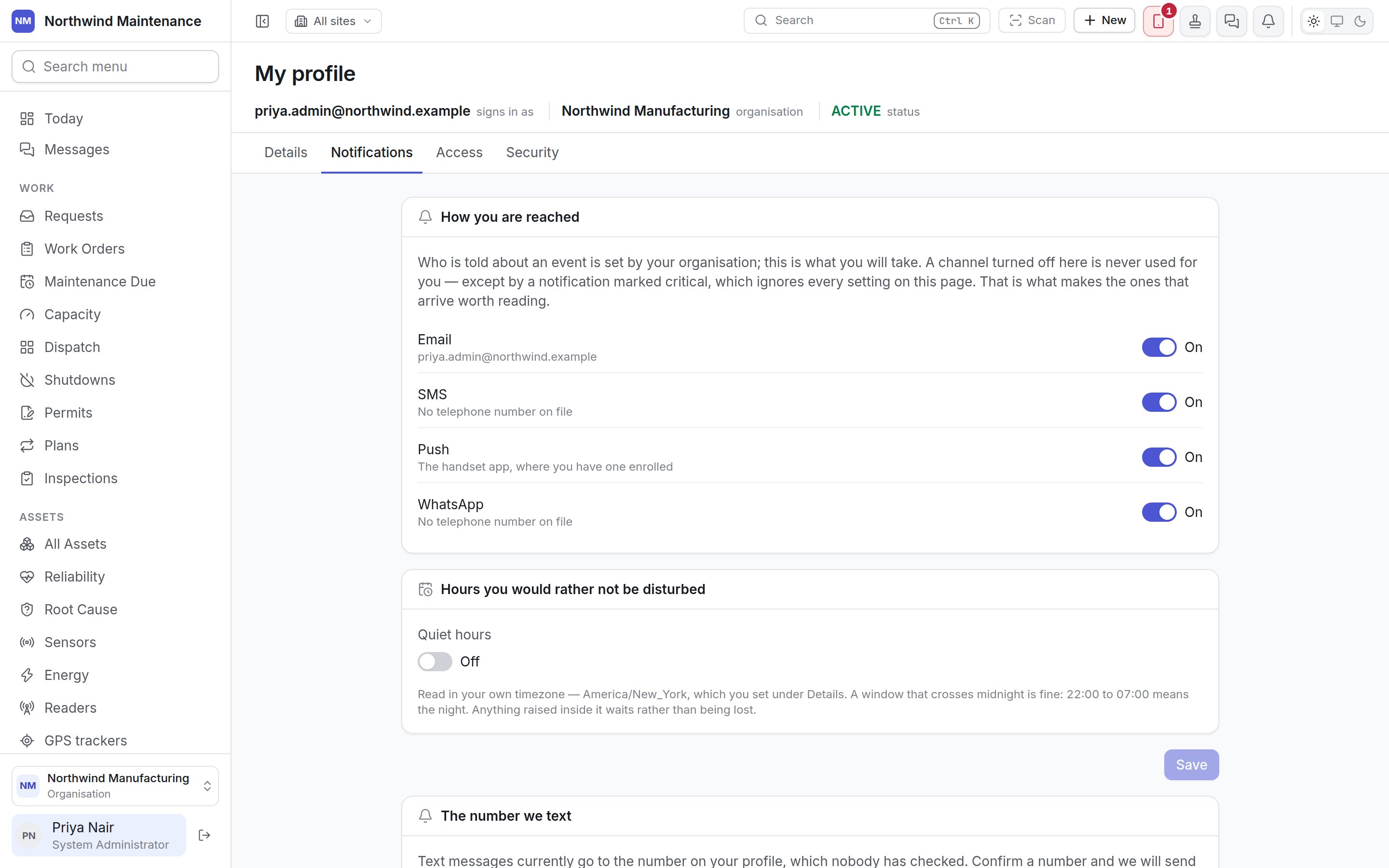
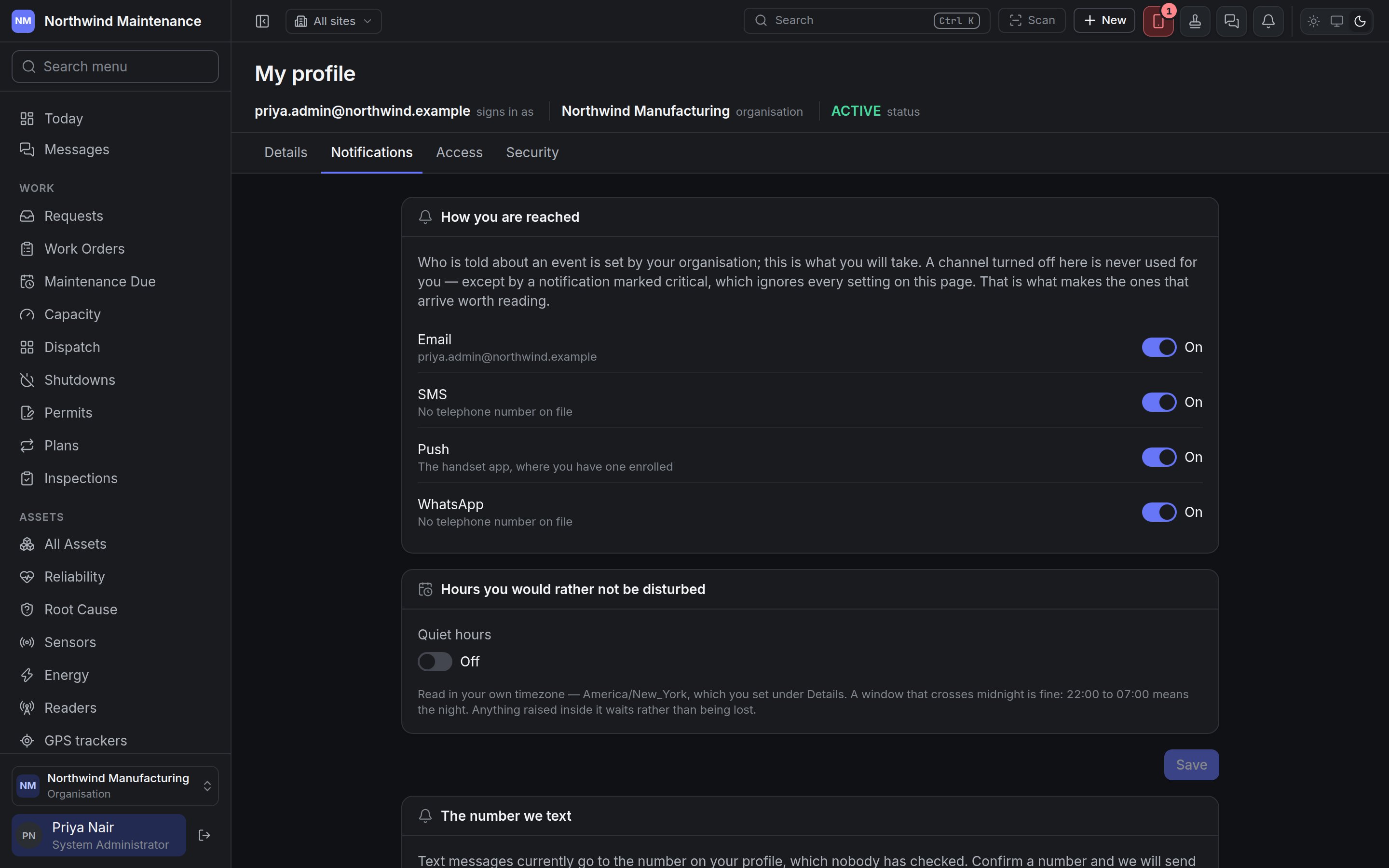 ### How you are reached
| Channel | Where it goes | Notes |
| - | - | - |
| **Email** | Your sign-in address | On by default |
| **SMS** | Your confirmed mobile number, or the telephone number on your Details tab | On by default. Shows **No telephone number on file** if there is nowhere to send it. |
| **Push** | The field app, on any handset you have enrolled | On by default |
| **WhatsApp** | Your telephone number | On by default |
A channel turned off here is never used for you — with one exception. A notification your organisation has marked **critical** ignores every setting on this page, which is what makes the ones that do arrive worth reading.
### Quiet hours
Turn **Quiet hours** on and set **From** and **To** to name the hours you would rather not be disturbed. The times are read in the timezone on your Details tab. A window that crosses midnight is fine — 22:00 to 07:00 means the night. Anything raised inside the window waits until it ends rather than being lost; critical notifications still come through. Click **Save**.
### The number we text
By default text messages go to the telephone number on your profile, which nobody has checked. Confirming a number proves it reaches you rather than whoever used to have it.
| Field | What it means | Notes |
| - | - | - |
| **Mobile number** | The number to text | Include the country code — nothing can guess it. Click **Send me a code**. |
| **The code** | The six digits from the message | Expires ten minutes after it was sent. Click **Confirm**. The screen says how many tries are left; **Send another code** sends a fresh one. |
Once confirmed the number shows **confirmed** and the date. **Remove** takes it away — texts then go back to the number on your profile; to stop them altogether, turn SMS off above.
### Your Telegram
Where your organisation uses Telegram, **Connect Telegram** gives you a link. Open it, tap **Start** in Telegram, and this page notices and shows **Connected**. The link works once and expires in fifteen minutes. **Disconnect** stops Telegram notifications reaching you.
## Access
What you may do and where you may do it are set by your organisation, not by you. This tab reads it back exactly as it stands today.
### How you are reached
| Channel | Where it goes | Notes |
| - | - | - |
| **Email** | Your sign-in address | On by default |
| **SMS** | Your confirmed mobile number, or the telephone number on your Details tab | On by default. Shows **No telephone number on file** if there is nowhere to send it. |
| **Push** | The field app, on any handset you have enrolled | On by default |
| **WhatsApp** | Your telephone number | On by default |
A channel turned off here is never used for you — with one exception. A notification your organisation has marked **critical** ignores every setting on this page, which is what makes the ones that do arrive worth reading.
### Quiet hours
Turn **Quiet hours** on and set **From** and **To** to name the hours you would rather not be disturbed. The times are read in the timezone on your Details tab. A window that crosses midnight is fine — 22:00 to 07:00 means the night. Anything raised inside the window waits until it ends rather than being lost; critical notifications still come through. Click **Save**.
### The number we text
By default text messages go to the telephone number on your profile, which nobody has checked. Confirming a number proves it reaches you rather than whoever used to have it.
| Field | What it means | Notes |
| - | - | - |
| **Mobile number** | The number to text | Include the country code — nothing can guess it. Click **Send me a code**. |
| **The code** | The six digits from the message | Expires ten minutes after it was sent. Click **Confirm**. The screen says how many tries are left; **Send another code** sends a fresh one. |
Once confirmed the number shows **confirmed** and the date. **Remove** takes it away — texts then go back to the number on your profile; to stop them altogether, turn SMS off above.
### Your Telegram
Where your organisation uses Telegram, **Connect Telegram** gives you a link. Open it, tap **Start** in Telegram, and this page notices and shows **Connected**. The link works once and expires in fifteen minutes. **Disconnect** stops Telegram notifications reaching you.
## Access
What you may do and where you may do it are set by your organisation, not by you. This tab reads it back exactly as it stands today.
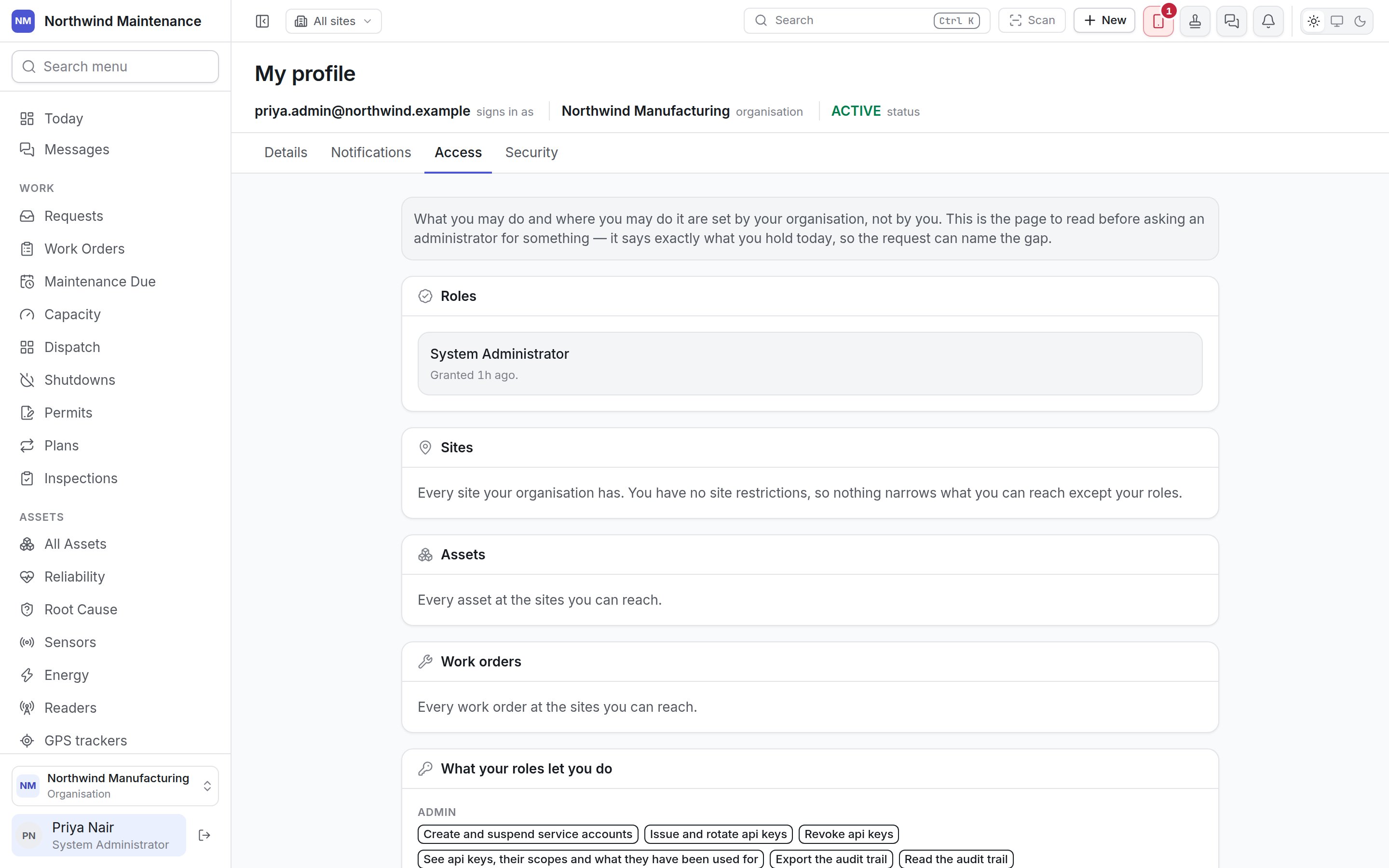
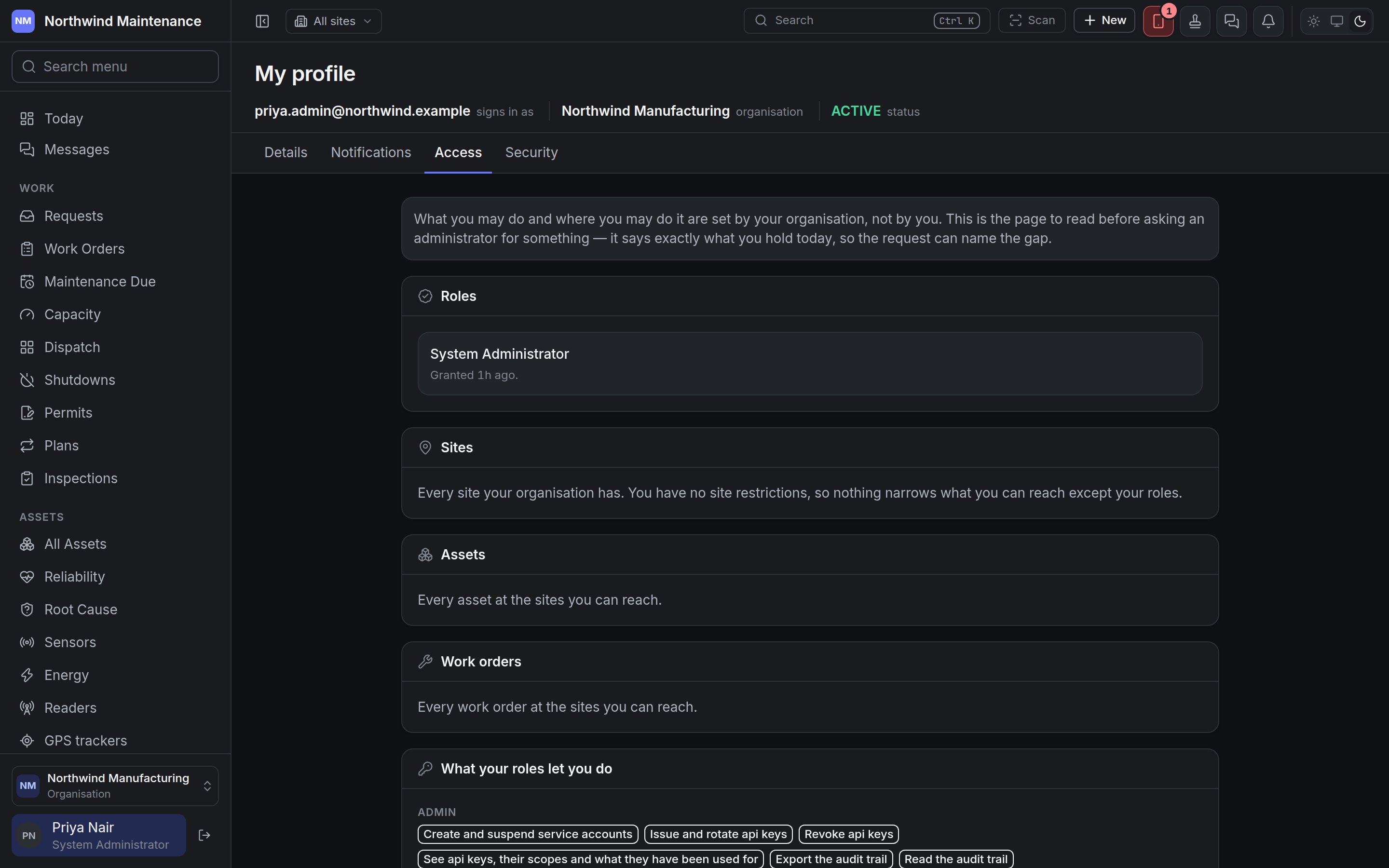 | Section | What it tells you |
| - | - |
| **Roles** | Each role you hold, when it was granted and by whom. **No roles** means you can sign in and see nothing until an administrator grants one. |
| **Sites** | The sites you can reach. *Every site your organisation has* means you have no site restrictions; otherwise each site or location is listed ("…at … — and everything inside it"). |
| **Assets** | Whether you see every asset at your sites, or only the ones that are yours — what you are recorded as holding, anything beneath it, and whatever you have a job assigned on. |
| **Work orders** | Whether you see every work order at your sites, those of your crew and your own, or only those given to or raised by you (plus your crew's and the unassigned queue if you lead a crew). It also says whose jobs you may change. |
| **What your roles let you do** | Every permission you hold, in plain words, grouped by module — *Assign or reassign work orders*, *Approve purchase requests*, *Record meter readings* and so on. |
If a button you expected is missing, this is the page to read before asking: find the permission that would allow it, and ask for that by name. Roles are managed under [roles](/setup/roles) and [people and access](/setup/access).
## Security
| Section | What it tells you |
| - | - |
| **Roles** | Each role you hold, when it was granted and by whom. **No roles** means you can sign in and see nothing until an administrator grants one. |
| **Sites** | The sites you can reach. *Every site your organisation has* means you have no site restrictions; otherwise each site or location is listed ("…at … — and everything inside it"). |
| **Assets** | Whether you see every asset at your sites, or only the ones that are yours — what you are recorded as holding, anything beneath it, and whatever you have a job assigned on. |
| **Work orders** | Whether you see every work order at your sites, those of your crew and your own, or only those given to or raised by you (plus your crew's and the unassigned queue if you lead a crew). It also says whose jobs you may change. |
| **What your roles let you do** | Every permission you hold, in plain words, grouped by module — *Assign or reassign work orders*, *Approve purchase requests*, *Record meter readings* and so on. |
If a button you expected is missing, this is the page to read before asking: find the permission that would allow it, and ask for that by name. Roles are managed under [roles](/setup/roles) and [people and access](/setup/access).
## Security
 ### Password
Says when you last changed it.
| Field | Notes |
| - | - |
| **Current password** | Required — proves the person at the keyboard is you |
| **New password** | Required. At least twelve characters; length beats punctuation, and four unrelated words is a good password. Your organisation's policy may add rules. |
| **New password again** | Required; must match, or you see **These do not match.** |
Click **Change password**. If you sign in only through an external account (Google, Microsoft or your organisation's identity provider) there is no password to change; the section says so and explains that an administrator can set one, or you can use **Forgot password** on the sign-in page.
### Two-step sign-in
Shown when your organisation has two-step sign-in available or required.
| State | What you see |
| - | - |
| Not set up | An explanation and **Set it up**. Scan the QR code with an authenticator app (or type the code shown), enter **Code from the app** and **Confirm**. Your recovery codes are then shown once under **Keep these somewhere safe** — store them and click **I have kept them**. |
| Set up | **Authenticator**, **Since**, **Last used** and **Recovery codes** (how many of the set are unused). A warning appears when two or fewer are left. |
With two-step sign-in on, enter **Your password** to use either button: **New recovery codes** replaces the whole set, and **Turn it off** removes the second step. **Turn it off** is absent where your organisation requires two-step sign-in — to move it to a new phone, ask an administrator to clear it.
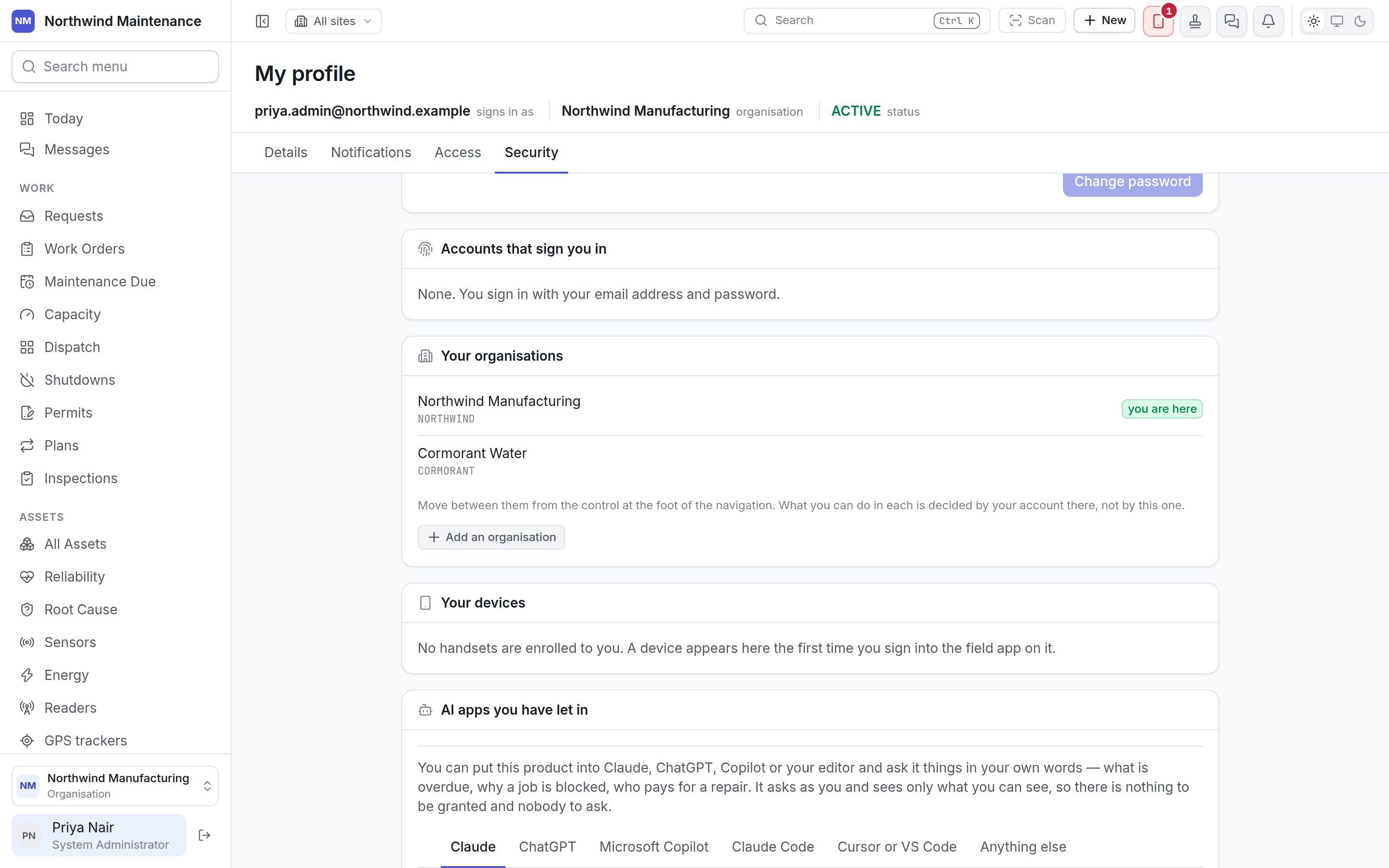
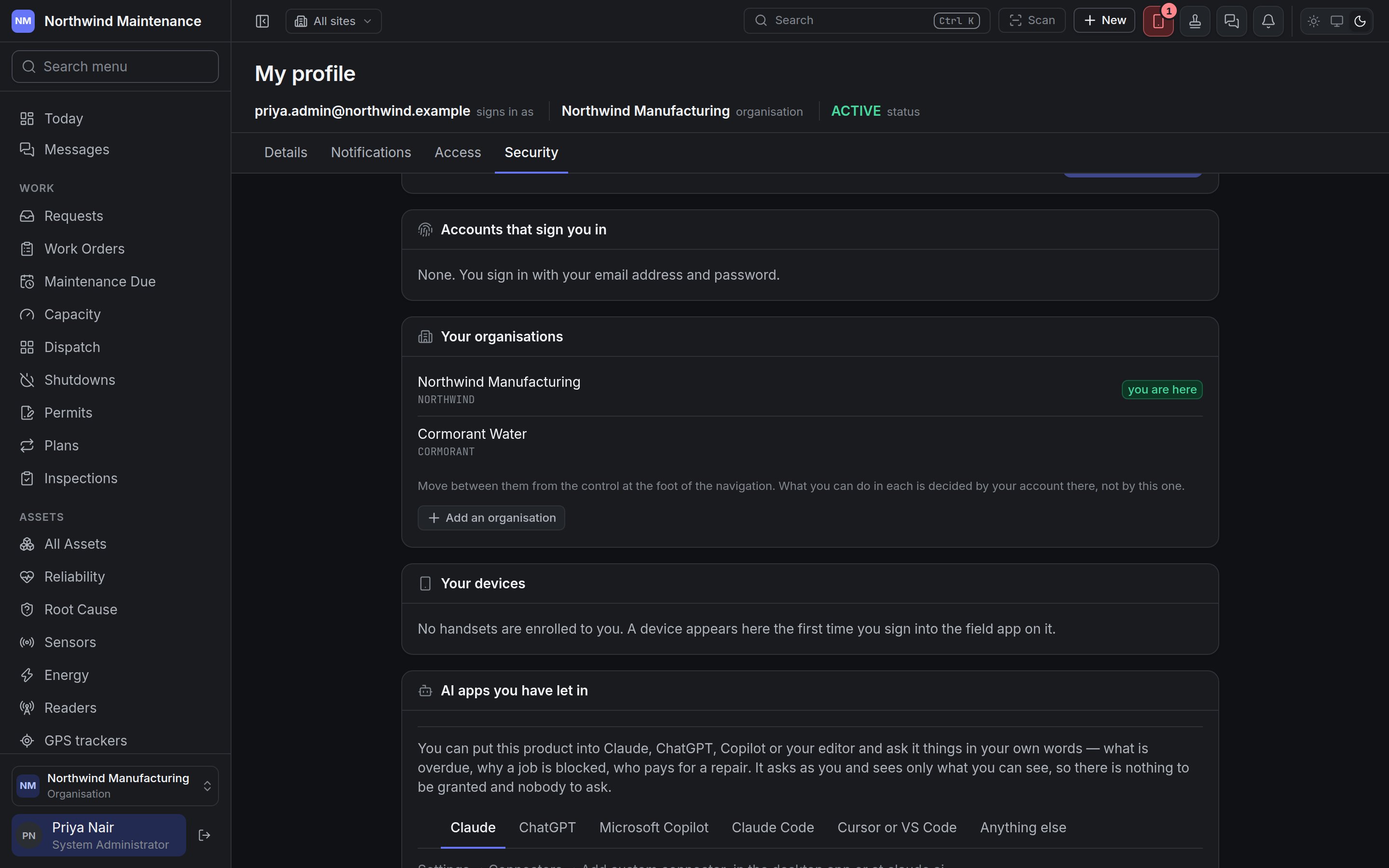
### Accounts that sign you in
The Google or Microsoft accounts linked to you, each with its address, when it was linked and when it was last used. **Unlink** removes one — unless it is the only way you can sign in, in which case it cannot be unlinked until you have a password. *None* means you sign in with your email and password.
### Your organisations
Every organisation your account can enter, with **you are here** against the current one. Move between them from the [organisation switcher](/get-started/navigating#the-foot-of-the-sidebar) at the foot of the sidebar; what you can do in each is decided by your account there.
**Add an organisation** opens a short form, where the installation allows it:
| Field | What it means | Notes |
| - | - | - |
| **Organisation name** | The new organisation's name | Required |
| **First site** | Its first site | Optional, but an organisation with no site cannot hold an asset, so most people add one now |
Click **Open it**. You become its administrator, signing in with this same address; it starts empty with the standard roles and lifecycles.
### Your devices
Handsets on which you have signed in to the [field app](/field/overview), each with its name, when it was last seen and the app version. **I no longer have this** revokes a device: its access ends immediately and it is told to destroy the copy of your work it holds. Anything it had queued and not sent is lost — which is the point, when the handset has gone missing.
### AI apps you have let in
You can connect AI assistants such as Claude, ChatGPT, Microsoft Copilot, Claude Code or your code editor to the product and ask questions in your own words — what is overdue, why a job is blocked, who pays for a repair. The section has setup instructions for each supported app and the address to paste, where your installation provides one. A connected app asks as you and sees only what you can see. Each one you have allowed is listed with when it last asked; **End it** disconnects it at once. Administrators configure the connection under [AI app connections](/config/mcp).
### This account
**Signed in as**, **Organisation**, **Last signed in** and **Account created**. There is no list of open sessions to end: a sign-in lapses after thirty minutes of inactivity and cannot outlive twelve hours, so closing the tab and waiting is what ends one. Handsets are different because they hold a copy of your work, which is why they are listed under **Your devices**.
This documentation is built and hosted on [Mintlify](https://mintlify.com), a developer documentation platform.
### Password
Says when you last changed it.
| Field | Notes |
| - | - |
| **Current password** | Required — proves the person at the keyboard is you |
| **New password** | Required. At least twelve characters; length beats punctuation, and four unrelated words is a good password. Your organisation's policy may add rules. |
| **New password again** | Required; must match, or you see **These do not match.** |
Click **Change password**. If you sign in only through an external account (Google, Microsoft or your organisation's identity provider) there is no password to change; the section says so and explains that an administrator can set one, or you can use **Forgot password** on the sign-in page.
### Two-step sign-in
Shown when your organisation has two-step sign-in available or required.
| State | What you see |
| - | - |
| Not set up | An explanation and **Set it up**. Scan the QR code with an authenticator app (or type the code shown), enter **Code from the app** and **Confirm**. Your recovery codes are then shown once under **Keep these somewhere safe** — store them and click **I have kept them**. |
| Set up | **Authenticator**, **Since**, **Last used** and **Recovery codes** (how many of the set are unused). A warning appears when two or fewer are left. |
With two-step sign-in on, enter **Your password** to use either button: **New recovery codes** replaces the whole set, and **Turn it off** removes the second step. **Turn it off** is absent where your organisation requires two-step sign-in — to move it to a new phone, ask an administrator to clear it.
### Accounts that sign you in
The Google or Microsoft accounts linked to you, each with its address, when it was linked and when it was last used. **Unlink** removes one — unless it is the only way you can sign in, in which case it cannot be unlinked until you have a password. *None* means you sign in with your email and password.
### Your organisations
Every organisation your account can enter, with **you are here** against the current one. Move between them from the [organisation switcher](/get-started/navigating#the-foot-of-the-sidebar) at the foot of the sidebar; what you can do in each is decided by your account there.
**Add an organisation** opens a short form, where the installation allows it:
| Field | What it means | Notes |
| - | - | - |
| **Organisation name** | The new organisation's name | Required |
| **First site** | Its first site | Optional, but an organisation with no site cannot hold an asset, so most people add one now |
Click **Open it**. You become its administrator, signing in with this same address; it starts empty with the standard roles and lifecycles.
### Your devices
Handsets on which you have signed in to the [field app](/field/overview), each with its name, when it was last seen and the app version. **I no longer have this** revokes a device: its access ends immediately and it is told to destroy the copy of your work it holds. Anything it had queued and not sent is lost — which is the point, when the handset has gone missing.
### AI apps you have let in
You can connect AI assistants such as Claude, ChatGPT, Microsoft Copilot, Claude Code or your code editor to the product and ask questions in your own words — what is overdue, why a job is blocked, who pays for a repair. The section has setup instructions for each supported app and the address to paste, where your installation provides one. A connected app asks as you and sees only what you can see. Each one you have allowed is listed with when it last asked; **End it** disconnects it at once. Administrators configure the connection under [AI app connections](/config/mcp).
### This account
**Signed in as**, **Organisation**, **Last signed in** and **Account created**. There is no list of open sessions to end: a sign-in lapses after thirty minutes of inactivity and cannot outlive twelve hours, so closing the tab and waiting is what ends one. Handsets are different because they hold a copy of your work, which is why they are listed under **Your devices**.
This documentation is built and hosted on [Mintlify](https://mintlify.com), a developer documentation platform.