> ## Documentation Index
> Fetch the complete documentation index at: https://docs.assetinfinity.ai/llms.txt
> Use this file to discover all available pages before exploring further.
# Scanning a label
> Look up the record behind any printed label — by typing its code, with a wedge scanner, or with a camera — and open it.
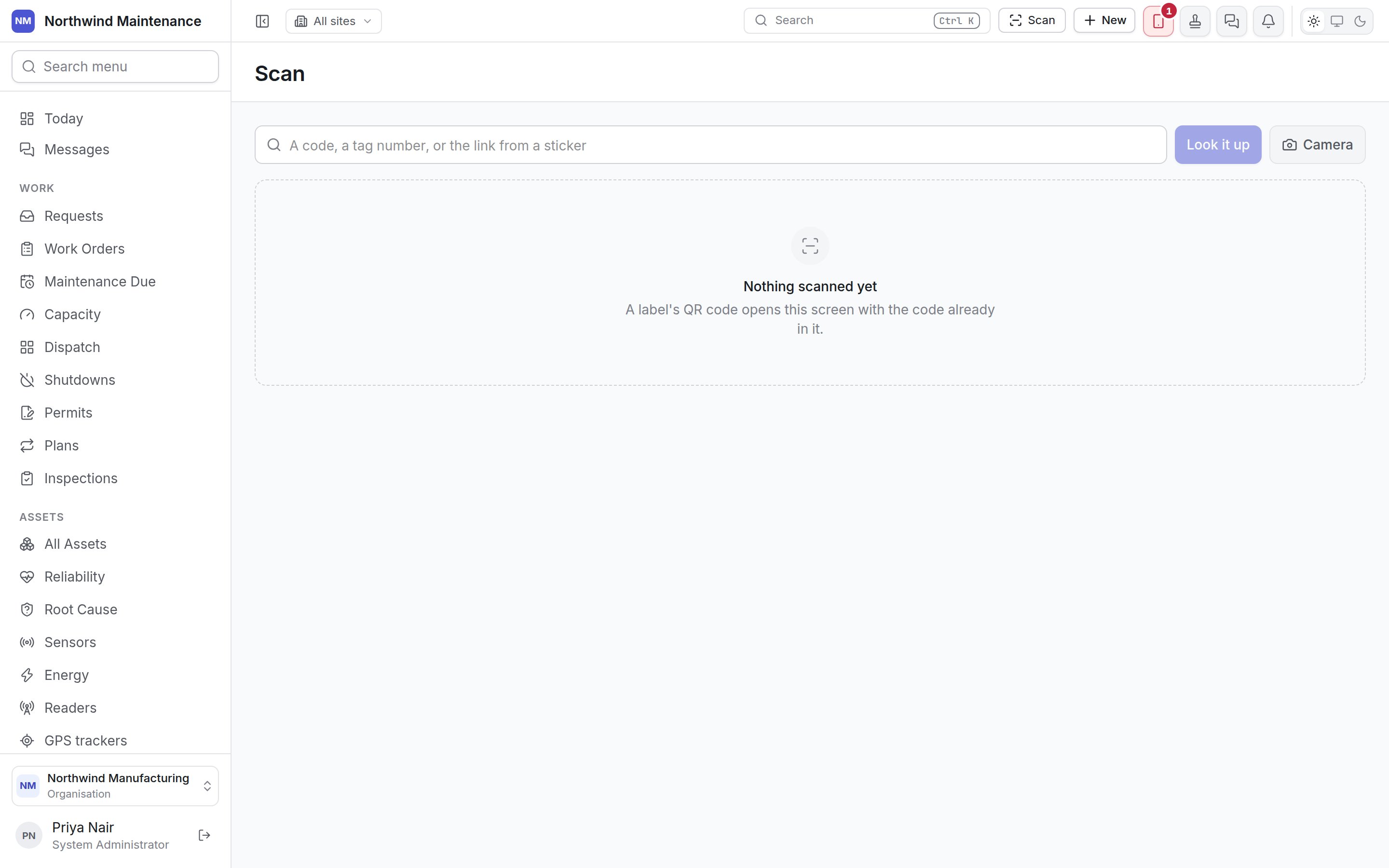
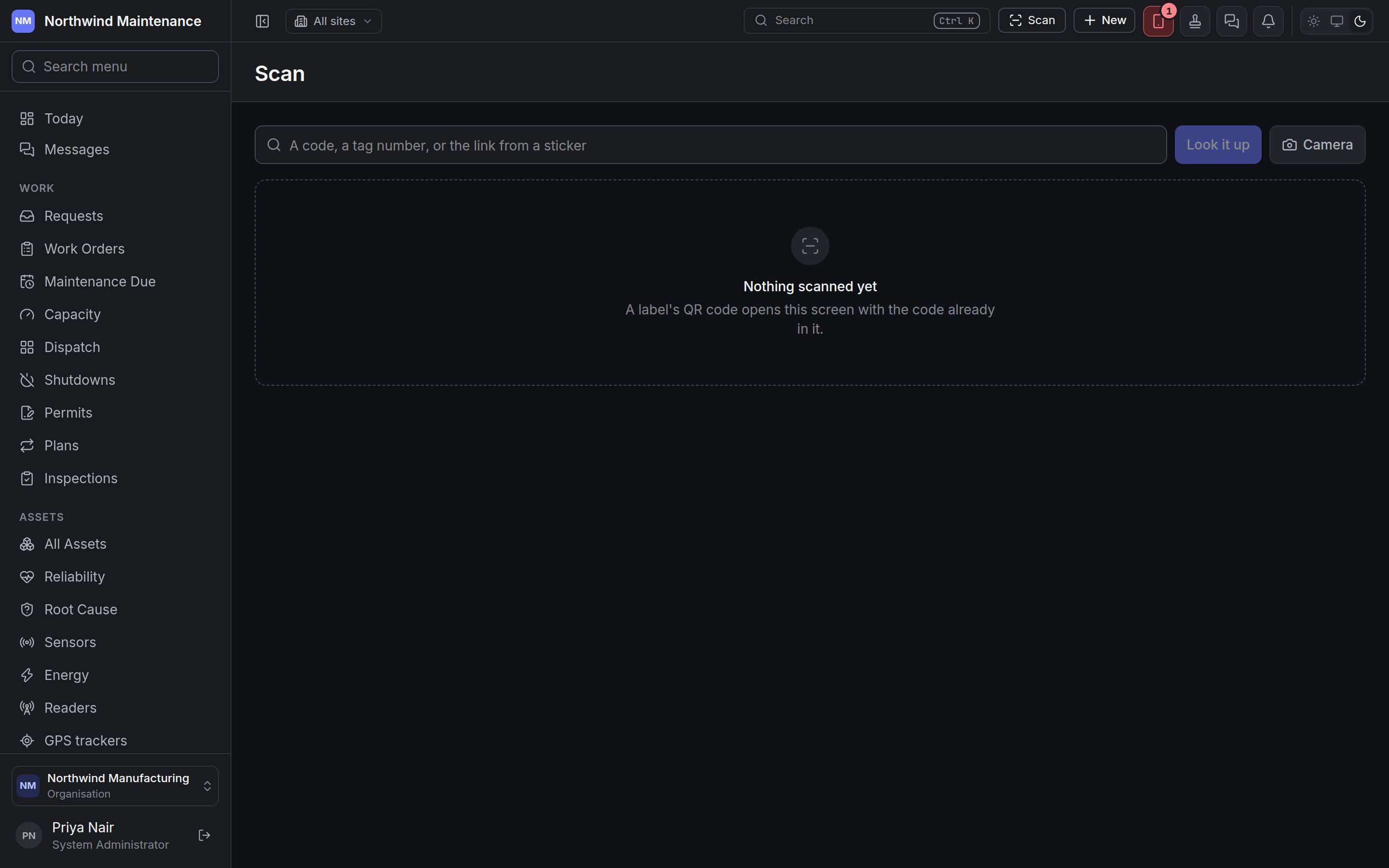
The scan screen turns a code on a label into the record it belongs to. Type the code, let a desk scanner type it for you, or point a camera at the label, and the screen shows what the code names with a button to open it.
 ## Getting there
| Way in | When |
| - | - |
| **Scan** in the header | From any screen on a desktop or tablet |
| **Scan a label** in the sidebar | On a phone-width window, where the header has no room for the button |
| A phone camera on a printed QR code | Every label the product prints carries a short link to this screen with the code already filled in, so scanning a sticker with any phone camera opens the record's summary straight away (you are asked to sign in first if you are not) |
Scanning needs no permission of its own. What it finds is limited to what you could already open: a label at a site you cannot reach is reported as not found, exactly like a code that does not exist.
Technicians at the machine usually scan from the field app instead, which uses the handset's own
camera and works offline — see [scanning in the field app](/field/scan).
## Looking a code up
| Control | What it does |
| - | - |
| Search box — *A code, a tag number, or the link from a sticker* | Type the code, paste the link from a QR code, or click into the box and scan with a wedge (keyboard) scanner, which types the code and presses Enter for you. |
| **Look it up** | Searches for the code. Enter does the same. |
| **Camera** | Opens a viewfinder using your computer's camera; hold the label up to it and the screen looks it up as soon as it reads the code. **Stop** closes the camera. Offered only in browsers that can decode barcodes. |
In a browser with no barcode decoder the screen says so under the box: type the code, use a wedge scanner, or use the field app. If the camera cannot be used — no camera, or permission refused — the screen says **The camera is not available** with the reason, and you can type the code instead.
## What a code can find
The lookup tries each kind of code a label can carry:
| Record | Matched by |
| - | - |
| **Asset** | Its asset number, its serial number, one of its other identifiers (for example a legacy tag), or the code on a label printed for it |
| **Tool** | Its tool number or serial number |
| **Part** | Its part number or barcode |
| **Site** | Its site code |
| **Location** | Its code, or the location path printed on a location label |
| **Visitor** | The reference on a visitor pass |
| **Device** | The reference on a device pass issued at the gate |
| Any labelled record | An RFID tag number written when the label was printed — the screen notes that this number was written onto the tag and appears nowhere else |
## Getting there
| Way in | When |
| - | - |
| **Scan** in the header | From any screen on a desktop or tablet |
| **Scan a label** in the sidebar | On a phone-width window, where the header has no room for the button |
| A phone camera on a printed QR code | Every label the product prints carries a short link to this screen with the code already filled in, so scanning a sticker with any phone camera opens the record's summary straight away (you are asked to sign in first if you are not) |
Scanning needs no permission of its own. What it finds is limited to what you could already open: a label at a site you cannot reach is reported as not found, exactly like a code that does not exist.
Technicians at the machine usually scan from the field app instead, which uses the handset's own
camera and works offline — see [scanning in the field app](/field/scan).
## Looking a code up
| Control | What it does |
| - | - |
| Search box — *A code, a tag number, or the link from a sticker* | Type the code, paste the link from a QR code, or click into the box and scan with a wedge (keyboard) scanner, which types the code and presses Enter for you. |
| **Look it up** | Searches for the code. Enter does the same. |
| **Camera** | Opens a viewfinder using your computer's camera; hold the label up to it and the screen looks it up as soon as it reads the code. **Stop** closes the camera. Offered only in browsers that can decode barcodes. |
In a browser with no barcode decoder the screen says so under the box: type the code, use a wedge scanner, or use the field app. If the camera cannot be used — no camera, or permission refused — the screen says **The camera is not available** with the reason, and you can type the code instead.
## What a code can find
The lookup tries each kind of code a label can carry:
| Record | Matched by |
| - | - |
| **Asset** | Its asset number, its serial number, one of its other identifiers (for example a legacy tag), or the code on a label printed for it |
| **Tool** | Its tool number or serial number |
| **Part** | Its part number or barcode |
| **Site** | Its site code |
| **Location** | Its code, or the location path printed on a location label |
| **Visitor** | The reference on a visitor pass |
| **Device** | The reference on a device pass issued at the gate |
| Any labelled record | An RFID tag number written when the label was printed — the screen notes that this number was written onto the tag and appears nowhere else |
 ## The result
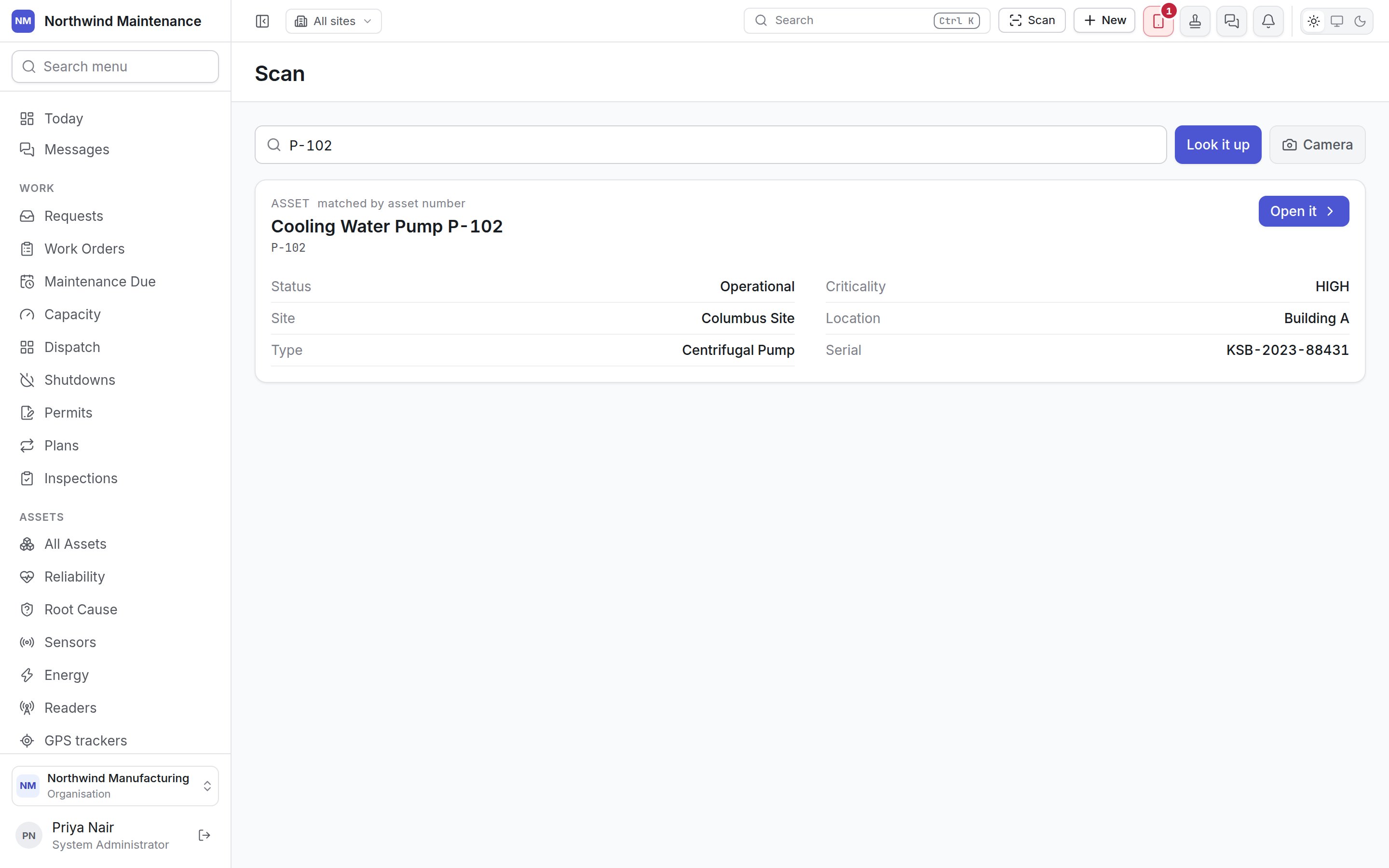
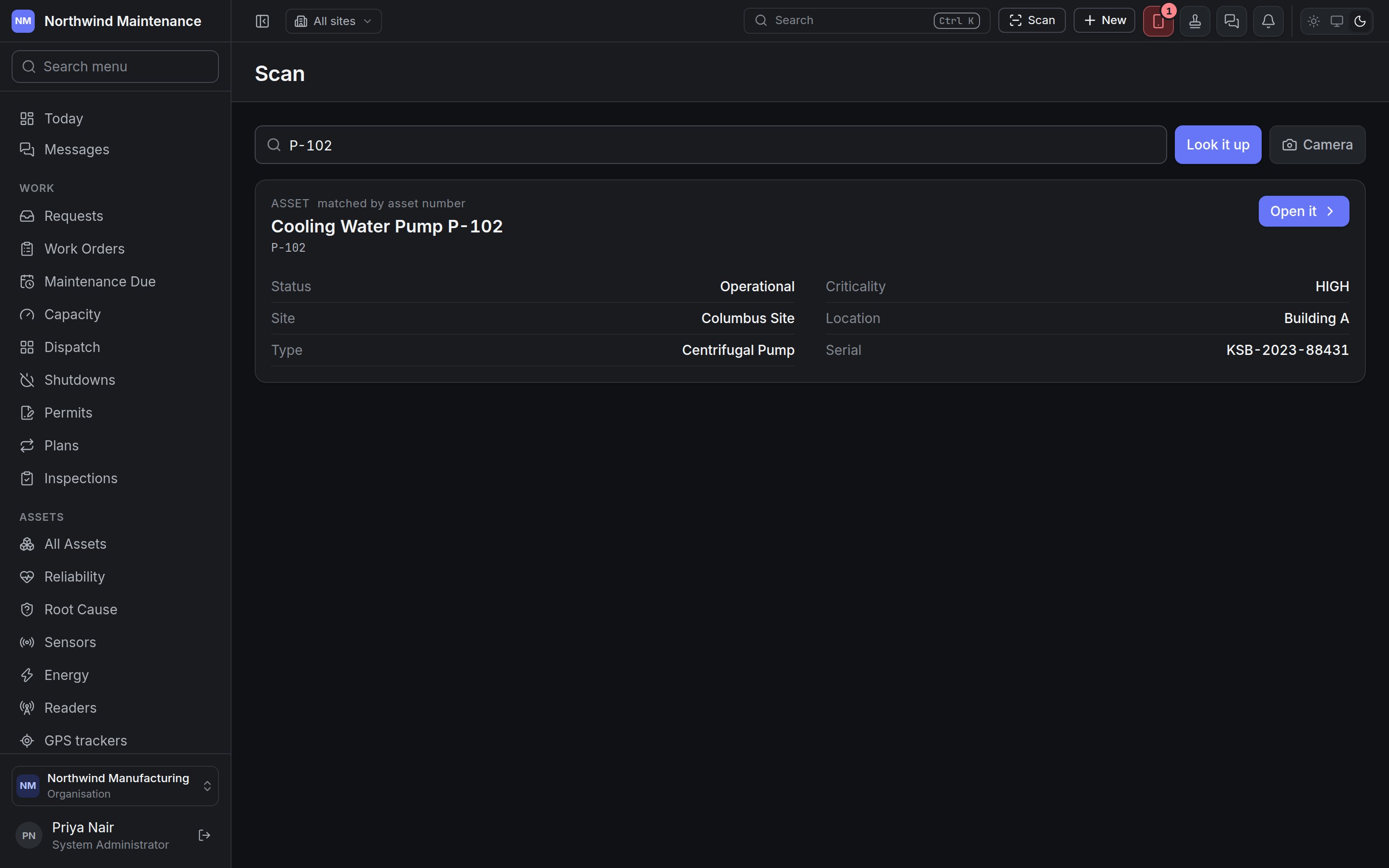
A match shows a card naming the kind of record and how it was matched (for example *Asset — matched by asset number*), its name and code, and a few facts so you can confirm it is the right thing before opening it:
| Record | Facts shown |
| - | - |
| Asset | Status, Criticality, Site, Location, Type, Serial |
| Tool | Status, Condition, Held by, Site, Calibration, Serial |
| Part | On hand, Available, Reorder at, Category, Criticality |
| Site | Company, Business unit, Timezone, Assets |
| Location | Site, Type, Inside, Assets here, In this branch |
| Visitor | Status (Expected, On site, Departed, Cancelled), Company, Host |
| Device | Standing (May leave or Held at the gate), At the gate, Whose, Kind, Serial, Site |
**Open it** goes to the record's own screen.
If nothing matches you see **Nothing here is labelled …** — the code may belong to another system, or to a site you do not have access to.
Labels themselves are designed and printed in the [label studio](/config/labels).
This documentation is built and hosted on [Mintlify](https://mintlify.com), a developer documentation platform.
## The result
A match shows a card naming the kind of record and how it was matched (for example *Asset — matched by asset number*), its name and code, and a few facts so you can confirm it is the right thing before opening it:
| Record | Facts shown |
| - | - |
| Asset | Status, Criticality, Site, Location, Type, Serial |
| Tool | Status, Condition, Held by, Site, Calibration, Serial |
| Part | On hand, Available, Reorder at, Category, Criticality |
| Site | Company, Business unit, Timezone, Assets |
| Location | Site, Type, Inside, Assets here, In this branch |
| Visitor | Status (Expected, On site, Departed, Cancelled), Company, Host |
| Device | Standing (May leave or Held at the gate), At the gate, Whose, Kind, Serial, Site |
**Open it** goes to the record's own screen.
If nothing matches you see **Nothing here is labelled …** — the code may belong to another system, or to a site you do not have access to.
Labels themselves are designed and printed in the [label studio](/config/labels).
This documentation is built and hosted on [Mintlify](https://mintlify.com), a developer documentation platform.