> ## Documentation Index
> Fetch the complete documentation index at: https://docs.assetinfinity.ai/llms.txt
> Use this file to discover all available pages before exploring further.
# Signing in and your password
> The two-step sign-in, choosing an organisation, two-step codes, creating a workspace, resetting a forgotten password, accepting an invitation and changing an issued password.
These are the screens you see before you are inside the app: signing in, choosing which organisation to enter, confirming a two-step code, creating a new workspace, and setting or resetting a password.
Every one of them shares the same layout — your organisation's branding (or the product's) on the left, the form on the right, a theme control in the top corner, and links to support, privacy and terms along the bottom. On your organisation's own web address the left side carries your organisation's name and logo.
## Signing in
Sign-in is two steps, so the app can work out *how* you sign in before it asks for a secret.
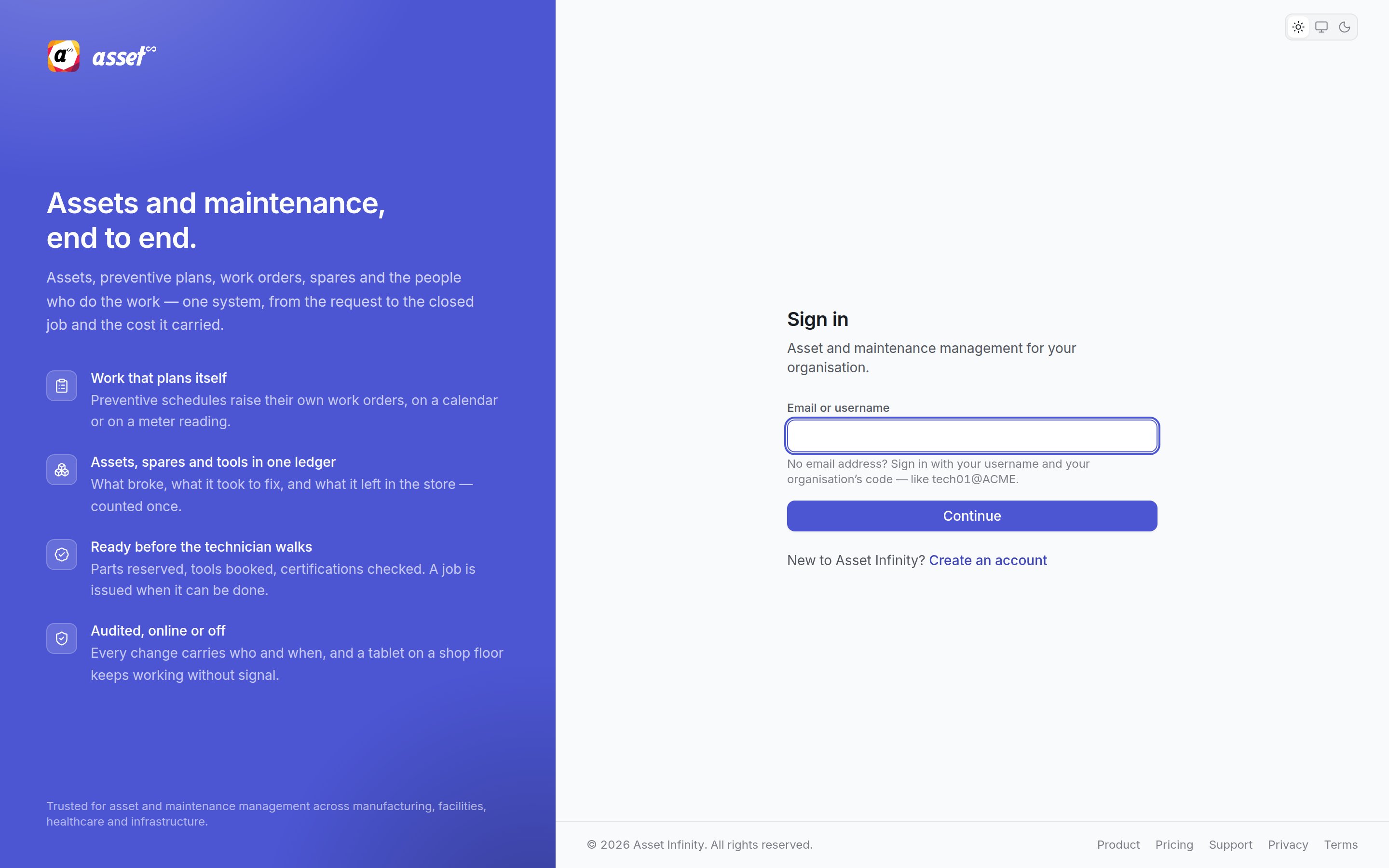
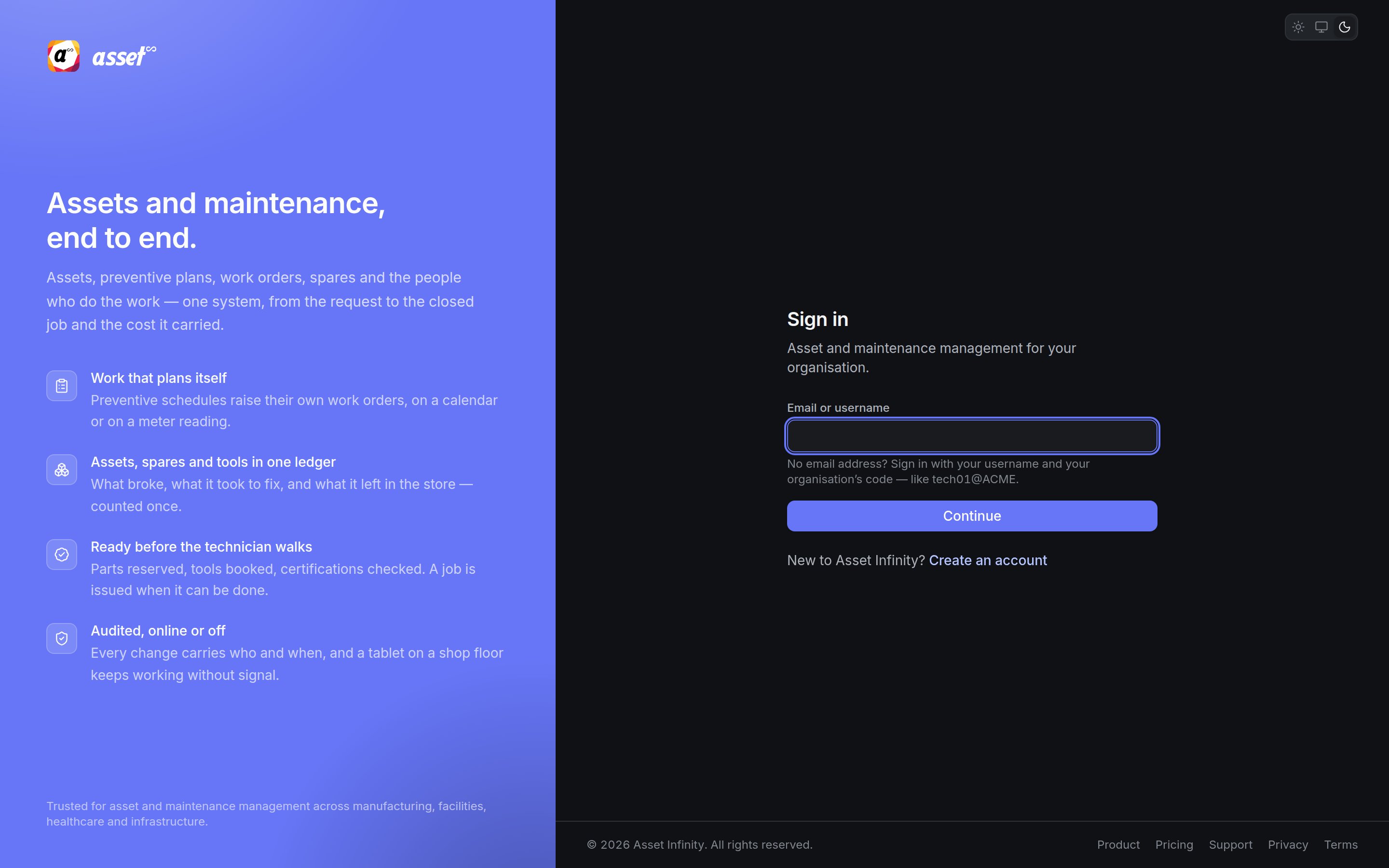 Type the address you sign in with into **Email or username** and click **Continue**.
No email address? Sign in with your username and your organisation's code, joined with an
@ — for example `tech01@ACME`. Your administrator gives you both.
If the product's own Google or Microsoft sign-in is offered on this installation, **Continue
with Google** and **Continue with Microsoft** appear above the box on this first step.
The second step shows the address you typed at the top — click it, or **Change**, to go back
and correct it. What appears under it depends on how your organisation has set up sign-in for
your address:
| You see | What to do |
| - | - |
| **Password** | Type your password and click **Sign in**. **Forgot password?** sits under the box. |
| **Sign in with …** buttons | Your organisation signs you in through its own identity provider. Click the button; you return here signed in. |
| **Your … password** (a directory) | Type the password you use for your organisation's directory. |
| **Use a password set here instead** | Your organisation allows both; this switches to the password box. |
| **Your identity provider unreachable? Administrators can sign in with a password** | An emergency route for administrators only, when the identity provider is down. Everyone else who follows it is refused. |
How sign-in methods are configured is described in [ways to sign in](/setup/sign-in-methods)
and [identity providers](/setup/identity-providers).
If your address has an account in more than one organisation using the same password, you are
asked **Which organisation?** and shown one button per organisation. Pick the one you want to
work in. **Back** returns you to the password step. You can move between them later from the
[organisation switcher](/get-started/navigating#the-foot-of-the-sidebar) at the foot of the
sidebar.
If two-step sign-in is on for your account, a **Two-step sign-in** screen follows. Type the
**Authentication code** from your authenticator app — or one of your recovery codes — and click
**Sign in**.
If your organisation *requires* two-step sign-in and you have not set it up yet, this screen
sets it up instead: scan the QR code with your authenticator app (**Scan with your authenticator
app**, or type the code shown under **Or type this in:**), enter the **Code from the app**, and
you are shown your recovery codes under **Keep these somewhere safe**. Each one signs you in once
if you lose your phone, and they are shown only this once — print them or put them in a password
manager, then click **I have kept them — continue**.
If you wait too long the screen says **That sign-in has expired. Start again.** and sends you
back to the password.
A deep link survives signing in: if you followed a link to a work order and were asked to sign in, you arrive at that work order rather than at Today. Your session renews itself while you work; after thirty minutes of inactivity, or twelve hours at most, you are asked to sign in again.
### When the password has to change
| Screen | Why you see it | Fields |
| - | - | - |
| **Choose a password** | Your password was issued by an administrator — "somebody else knows it" — so you must choose your own before going further. | **Current password**, **New password** (at least 12 characters), then **Save and continue** |
| **That password has expired** | Your organisation's password policy has an age limit and yours has passed it. | **New password** and **Type it again**, then **Set password** |
A new password must be at least 12 characters. The product's advice is that length beats punctuation — four unrelated words make a good password. Your organisation's [authentication settings](/setup/authentication) may add further rules, and the screen names any rule a password breaks.
## Forgot your password
**Forgot password?** on the password step opens **Forgot your password?**, with your address filled in if you had typed it.
Type the address you sign in with into **Email or username** and click **Continue**.
No email address? Sign in with your username and your organisation's code, joined with an
@ — for example `tech01@ACME`. Your administrator gives you both.
If the product's own Google or Microsoft sign-in is offered on this installation, **Continue
with Google** and **Continue with Microsoft** appear above the box on this first step.
The second step shows the address you typed at the top — click it, or **Change**, to go back
and correct it. What appears under it depends on how your organisation has set up sign-in for
your address:
| You see | What to do |
| - | - |
| **Password** | Type your password and click **Sign in**. **Forgot password?** sits under the box. |
| **Sign in with …** buttons | Your organisation signs you in through its own identity provider. Click the button; you return here signed in. |
| **Your … password** (a directory) | Type the password you use for your organisation's directory. |
| **Use a password set here instead** | Your organisation allows both; this switches to the password box. |
| **Your identity provider unreachable? Administrators can sign in with a password** | An emergency route for administrators only, when the identity provider is down. Everyone else who follows it is refused. |
How sign-in methods are configured is described in [ways to sign in](/setup/sign-in-methods)
and [identity providers](/setup/identity-providers).
If your address has an account in more than one organisation using the same password, you are
asked **Which organisation?** and shown one button per organisation. Pick the one you want to
work in. **Back** returns you to the password step. You can move between them later from the
[organisation switcher](/get-started/navigating#the-foot-of-the-sidebar) at the foot of the
sidebar.
If two-step sign-in is on for your account, a **Two-step sign-in** screen follows. Type the
**Authentication code** from your authenticator app — or one of your recovery codes — and click
**Sign in**.
If your organisation *requires* two-step sign-in and you have not set it up yet, this screen
sets it up instead: scan the QR code with your authenticator app (**Scan with your authenticator
app**, or type the code shown under **Or type this in:**), enter the **Code from the app**, and
you are shown your recovery codes under **Keep these somewhere safe**. Each one signs you in once
if you lose your phone, and they are shown only this once — print them or put them in a password
manager, then click **I have kept them — continue**.
If you wait too long the screen says **That sign-in has expired. Start again.** and sends you
back to the password.
A deep link survives signing in: if you followed a link to a work order and were asked to sign in, you arrive at that work order rather than at Today. Your session renews itself while you work; after thirty minutes of inactivity, or twelve hours at most, you are asked to sign in again.
### When the password has to change
| Screen | Why you see it | Fields |
| - | - | - |
| **Choose a password** | Your password was issued by an administrator — "somebody else knows it" — so you must choose your own before going further. | **Current password**, **New password** (at least 12 characters), then **Save and continue** |
| **That password has expired** | Your organisation's password policy has an age limit and yours has passed it. | **New password** and **Type it again**, then **Set password** |
A new password must be at least 12 characters. The product's advice is that length beats punctuation — four unrelated words make a good password. Your organisation's [authentication settings](/setup/authentication) may add further rules, and the screen names any rule a password breaks.
## Forgot your password
**Forgot password?** on the password step opens **Forgot your password?**, with your address filled in if you had typed it.
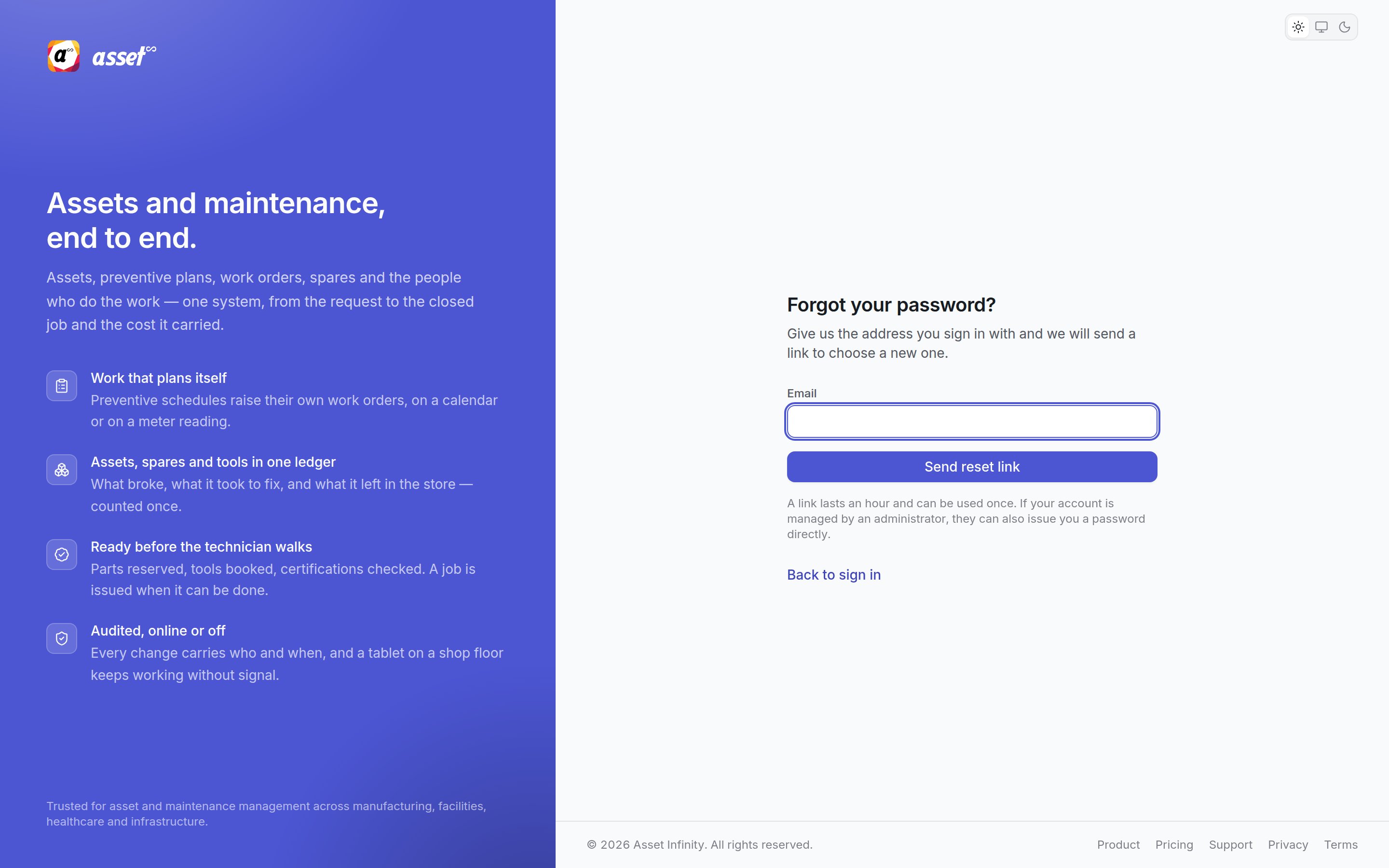
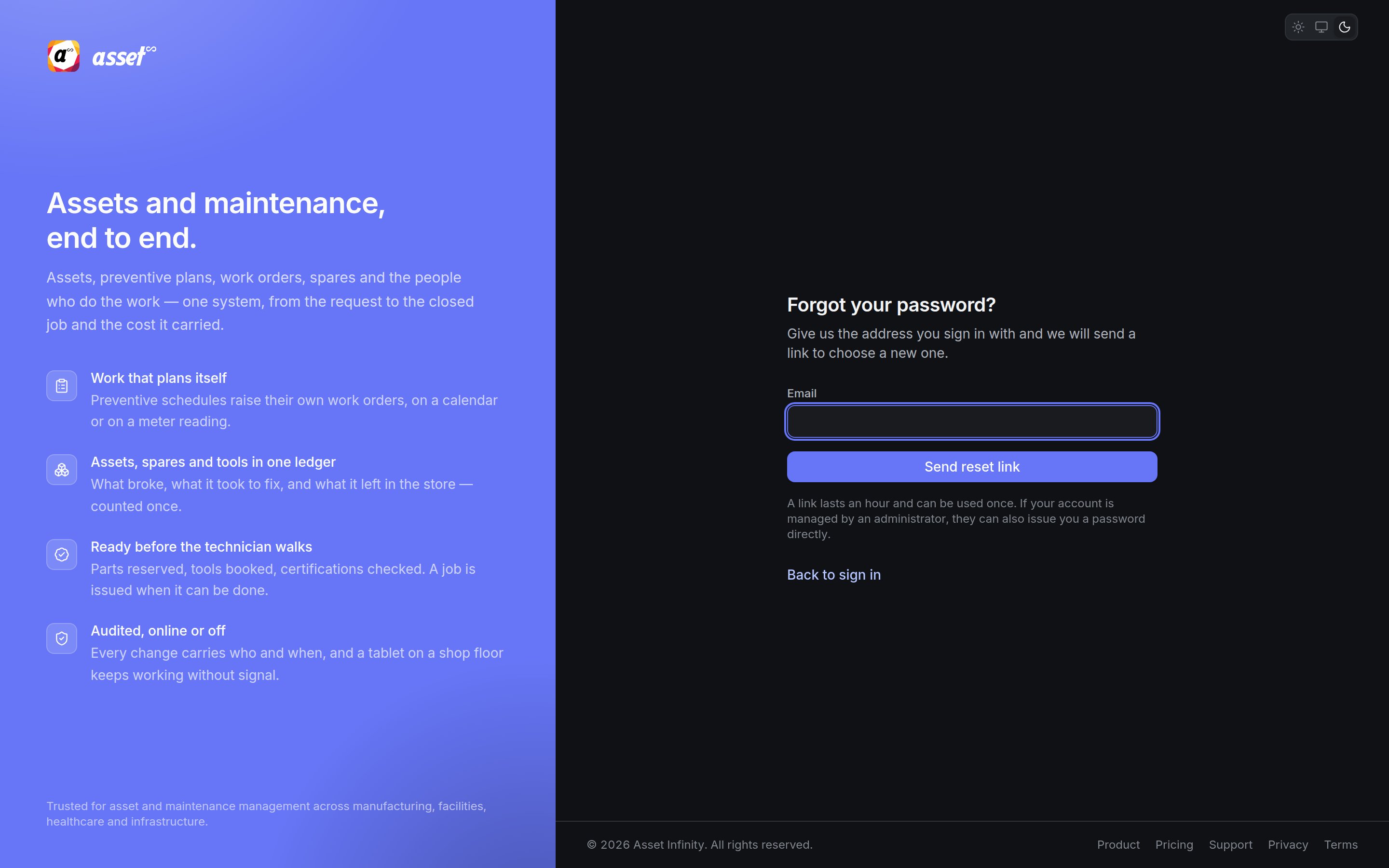 | Field | What it means | Notes |
| - | - | - |
| **Email** | The address you sign in with | Required. Click **Send reset link**. |
The screen always confirms that a link is on its way, whether or not the address has an account — it never reveals which addresses exist. If nothing arrives, check your spam folder and that the address is the one your account uses, or click **Try another address**. A link lasts an hour and can be used once. If your account is managed by an administrator, they can also issue you a password directly.
## Choosing a new password from the link
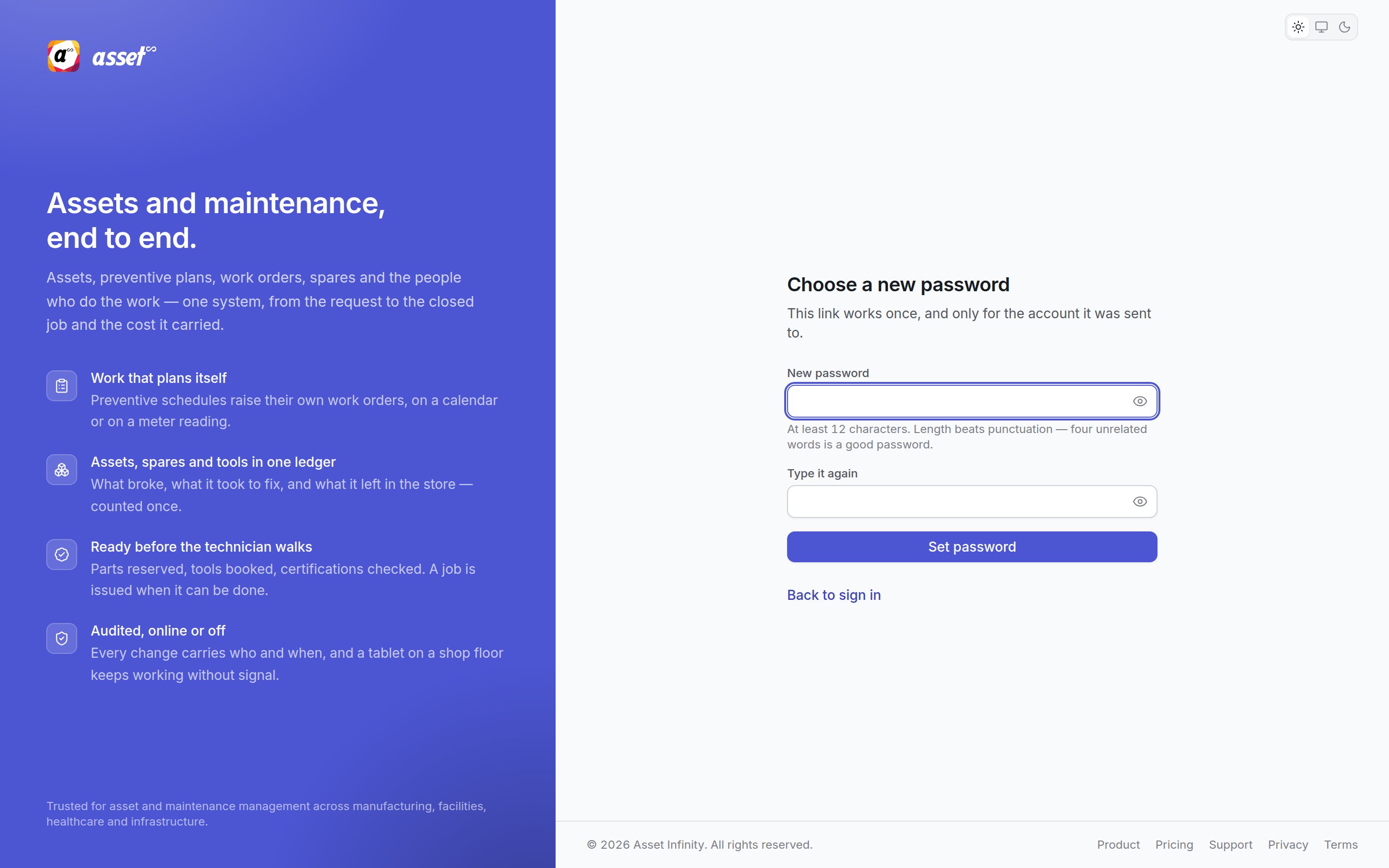
The link in the reset email opens **Choose a new password**. It works once, and only for the account it was sent to.
| Field | What it means | Notes |
| - | - | - |
| **Email** | The address you sign in with | Required. Click **Send reset link**. |
The screen always confirms that a link is on its way, whether or not the address has an account — it never reveals which addresses exist. If nothing arrives, check your spam folder and that the address is the one your account uses, or click **Try another address**. A link lasts an hour and can be used once. If your account is managed by an administrator, they can also issue you a password directly.
## Choosing a new password from the link
The link in the reset email opens **Choose a new password**. It works once, and only for the account it was sent to.
 | Field | What it means | Notes |
| - | - | - |
| **New password** | The password you will sign in with from now on | Required. At least 12 characters. The eye icon shows what you typed. |
| **Type it again** | The same password, to catch a typing mistake | Required. If the two differ you see **Those two do not match.** |
Click **Set password**. **Password changed** confirms it; the link is now used up and any lockout on the account has been cleared. Click **Go to sign in**.
If the screen says **That link is incomplete**, your email program probably broke the address across two lines. Copy the whole address out of the email, including everything after `?token=`, or click **Ask for a new link**.
## Accepting an invitation
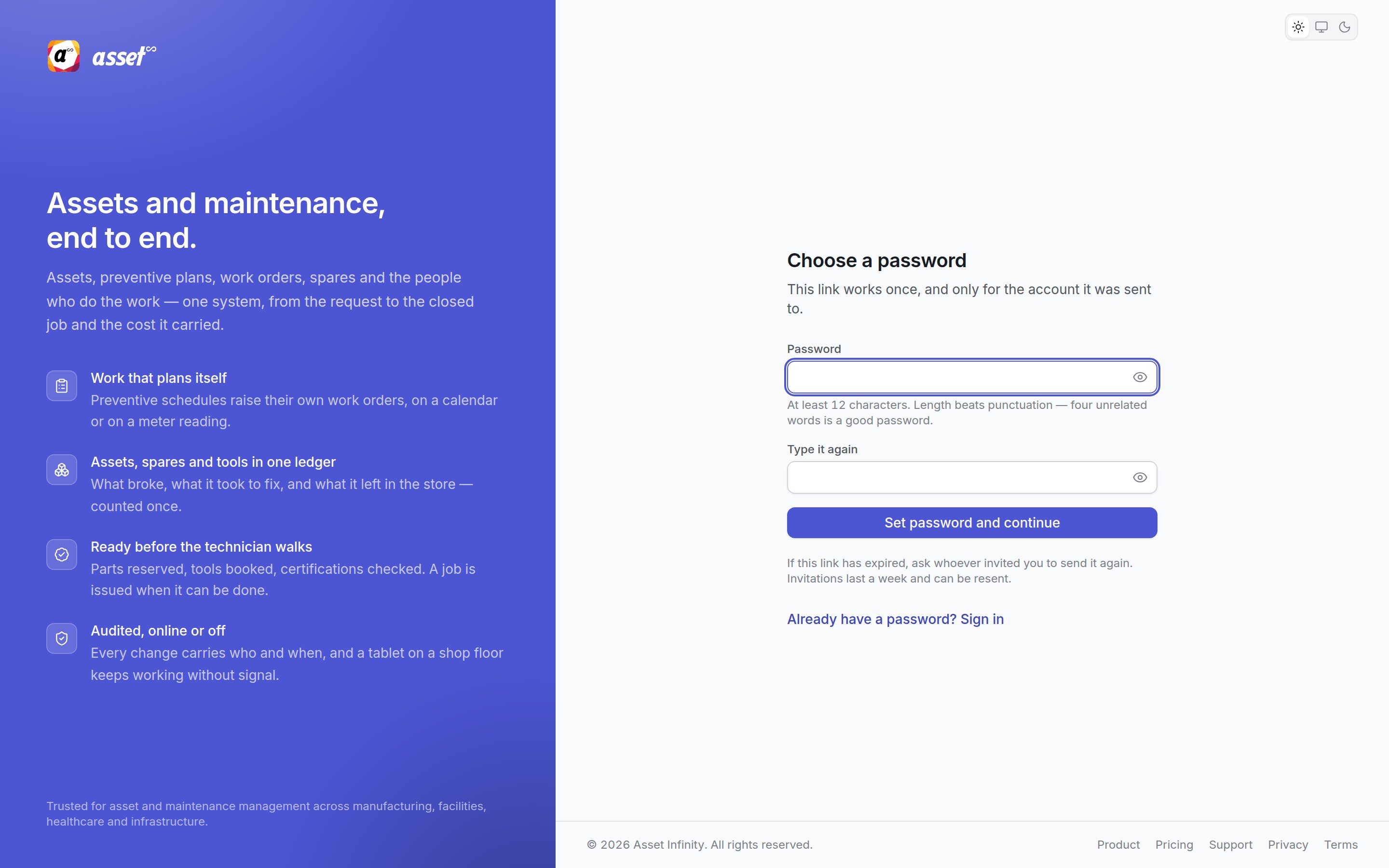
When an administrator invites you, the email links to **Choose a password**.
| Field | What it means | Notes |
| - | - | - |
| **New password** | The password you will sign in with from now on | Required. At least 12 characters. The eye icon shows what you typed. |
| **Type it again** | The same password, to catch a typing mistake | Required. If the two differ you see **Those two do not match.** |
Click **Set password**. **Password changed** confirms it; the link is now used up and any lockout on the account has been cleared. Click **Go to sign in**.
If the screen says **That link is incomplete**, your email program probably broke the address across two lines. Copy the whole address out of the email, including everything after `?token=`, or click **Ask for a new link**.
## Accepting an invitation
When an administrator invites you, the email links to **Choose a password**.
 | Field | What it means | Notes |
| - | - | - |
| **Password** | The password for your new account | Required, at least 12 characters |
| **Type it again** | Confirmation | Required; must match |
Click **Set password and continue**. **Your account is ready** names the address you sign in as. If you already had an account under that address in another organisation, the invitation joins the two — one sign-in rather than two — and you move between organisations from the switcher at the foot of the sidebar.
Invitations last a week. If yours has expired, ask whoever invited you to send it again; they can resend it from the same screen. **Already have a password? Sign in** takes you to the sign-in screen.
## Creating a workspace
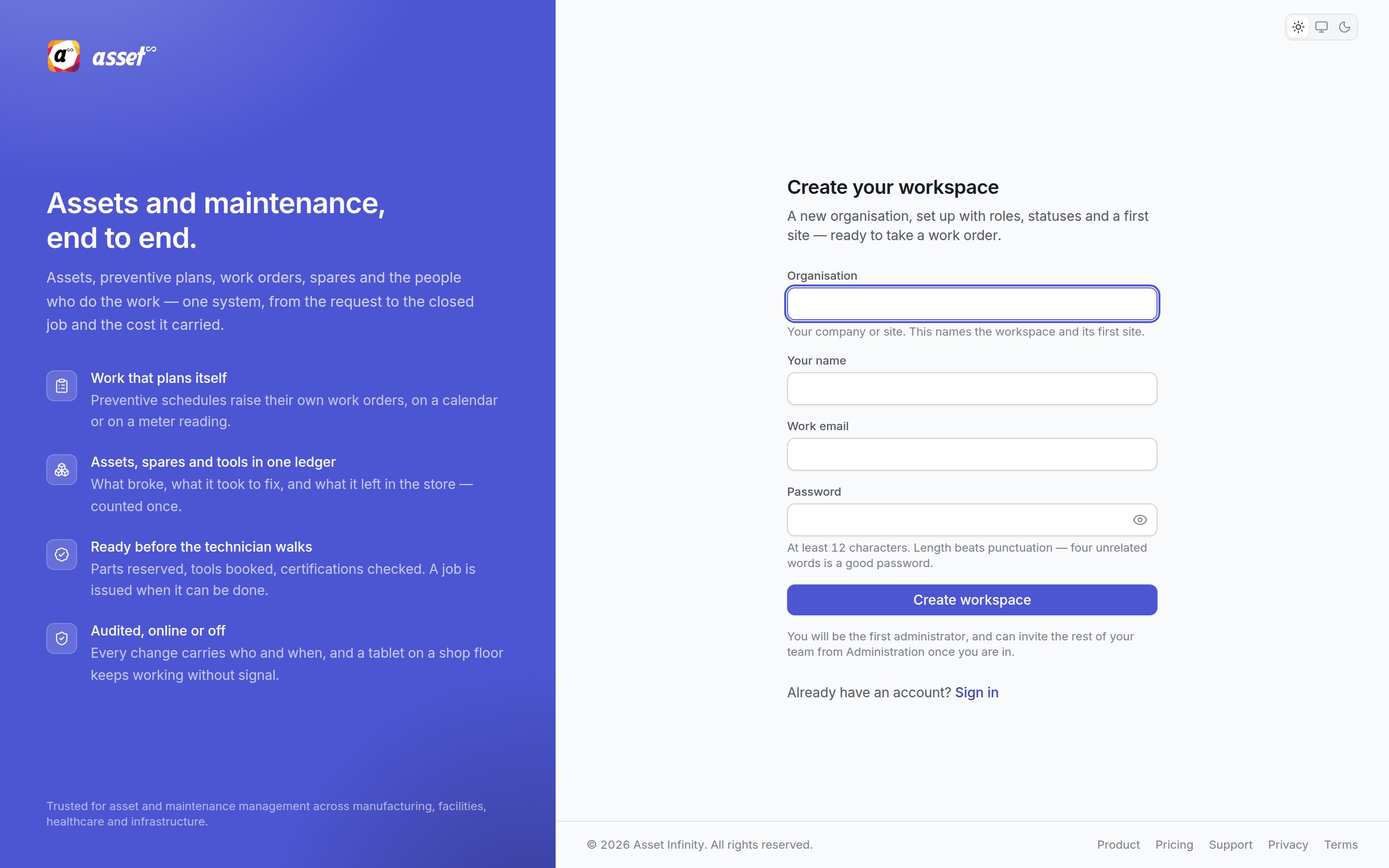
Where the installation accepts new organisations, the sign-in screen offers **New to Asset Infinity? Create an account**, which opens **Create your workspace** — a new organisation, set up with roles, statuses and a first site, ready to take a work order.
| Field | What it means | Notes |
| - | - | - |
| **Password** | The password for your new account | Required, at least 12 characters |
| **Type it again** | Confirmation | Required; must match |
Click **Set password and continue**. **Your account is ready** names the address you sign in as. If you already had an account under that address in another organisation, the invitation joins the two — one sign-in rather than two — and you move between organisations from the switcher at the foot of the sidebar.
Invitations last a week. If yours has expired, ask whoever invited you to send it again; they can resend it from the same screen. **Already have a password? Sign in** takes you to the sign-in screen.
## Creating a workspace
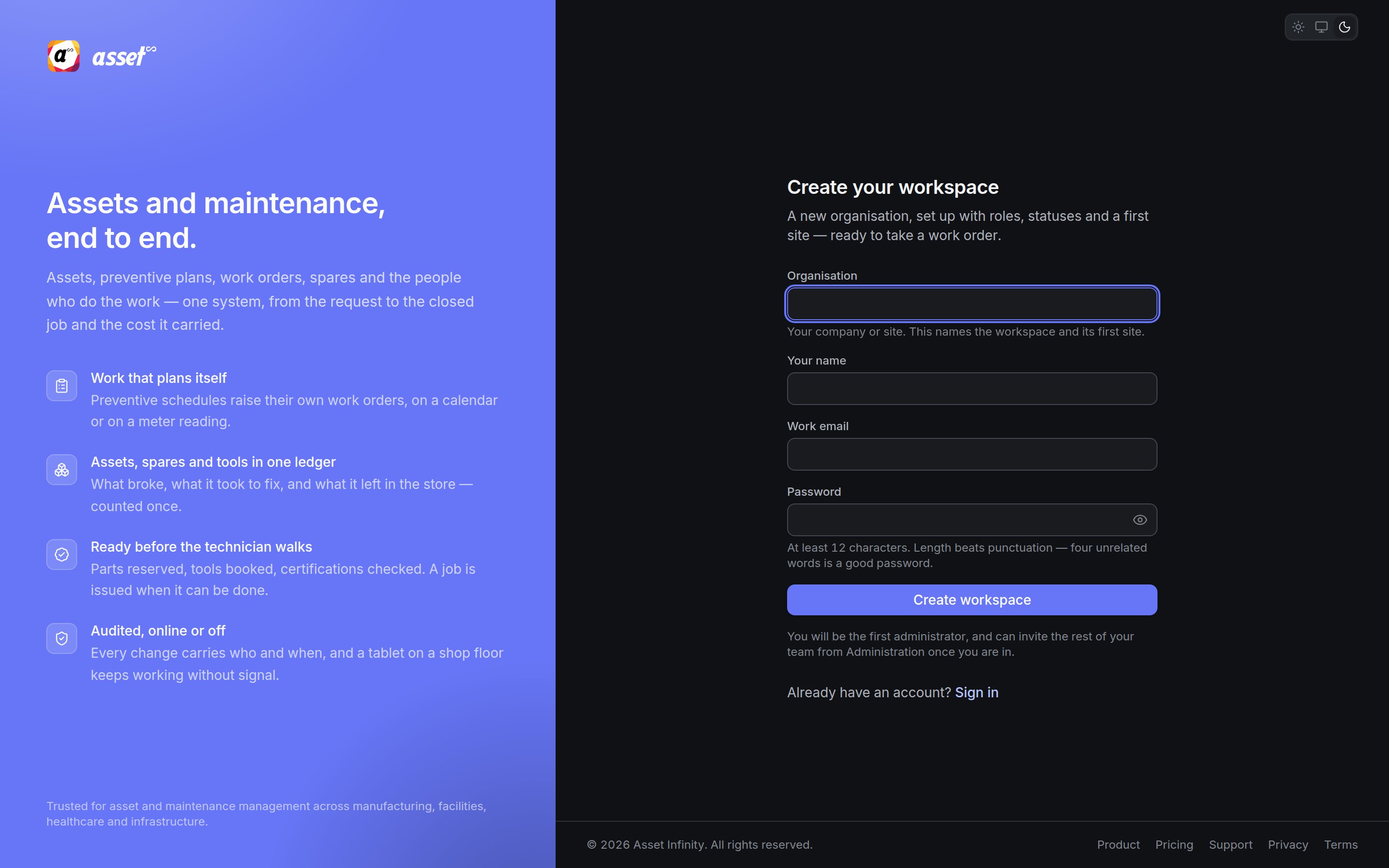
Where the installation accepts new organisations, the sign-in screen offers **New to Asset Infinity? Create an account**, which opens **Create your workspace** — a new organisation, set up with roles, statuses and a first site, ready to take a work order.
 | Field | What it means | Notes |
| - | - | - |
| **Organisation** | Your company or site | Required. It names the workspace and its first site. |
| **Your name** | How you appear to colleagues | Required |
| **Work email** | The address you will sign in with | Required |
| **Password** | Your password | Required, at least 12 characters |
Click **Create workspace**. You become its first administrator and can invite the rest of your team from Administration once you are in; the [getting started](/setup/getting-started) checklist walks you through what to set up. See also [self-service sign-up](/setup/sign-up).
On an organisation's own web address the link is absent, and opening the sign-up address shows **Accounts here are by invitation** instead, naming the organisation, telling you to ask one of its administrators to invite you, and linking to its help desk where one is configured.
## Approving from an email
An approval email can carry **Approve**, **Reject** and **Send back** buttons. Pressing one opens a page — without signing you in — that shows the request (its workflow, step, who asked and when it is due) with the action you chose already selected. Nothing is decided until you confirm on that page: **Reject** and **Send back** ask for a reason (**Why it is being rejected (required)**, **What needs changing (required)**), and **Approve** takes an optional **A note for the trail**. Click the confirm button (for example **Confirm: Approve**) to record it, or **Open the request in the app** to look first. A link that has already been used, or a request decided some other way, says so. See [approvals](/work/approvals).
Being signed out on a shared terminal matters. Signing out clears the support chat's conversation
from the device, and the approval-email page never signs anybody in, so the next person to use the
computer cannot act as you.
This documentation is built and hosted on [Mintlify](https://mintlify.com), a developer documentation platform.
| Field | What it means | Notes |
| - | - | - |
| **Organisation** | Your company or site | Required. It names the workspace and its first site. |
| **Your name** | How you appear to colleagues | Required |
| **Work email** | The address you will sign in with | Required |
| **Password** | Your password | Required, at least 12 characters |
Click **Create workspace**. You become its first administrator and can invite the rest of your team from Administration once you are in; the [getting started](/setup/getting-started) checklist walks you through what to set up. See also [self-service sign-up](/setup/sign-up).
On an organisation's own web address the link is absent, and opening the sign-up address shows **Accounts here are by invitation** instead, naming the organisation, telling you to ask one of its administrators to invite you, and linking to its help desk where one is configured.
## Approving from an email
An approval email can carry **Approve**, **Reject** and **Send back** buttons. Pressing one opens a page — without signing you in — that shows the request (its workflow, step, who asked and when it is due) with the action you chose already selected. Nothing is decided until you confirm on that page: **Reject** and **Send back** ask for a reason (**Why it is being rejected (required)**, **What needs changing (required)**), and **Approve** takes an optional **A note for the trail**. Click the confirm button (for example **Confirm: Approve**) to record it, or **Open the request in the app** to look first. A link that has already been used, or a request decided some other way, says so. See [approvals](/work/approvals).
Being signed out on a shared terminal matters. Signing out clears the support chat's conversation
from the device, and the approval-email page never signs anybody in, so the next person to use the
computer cannot act as you.
This documentation is built and hosted on [Mintlify](https://mintlify.com), a developer documentation platform.