

Credential
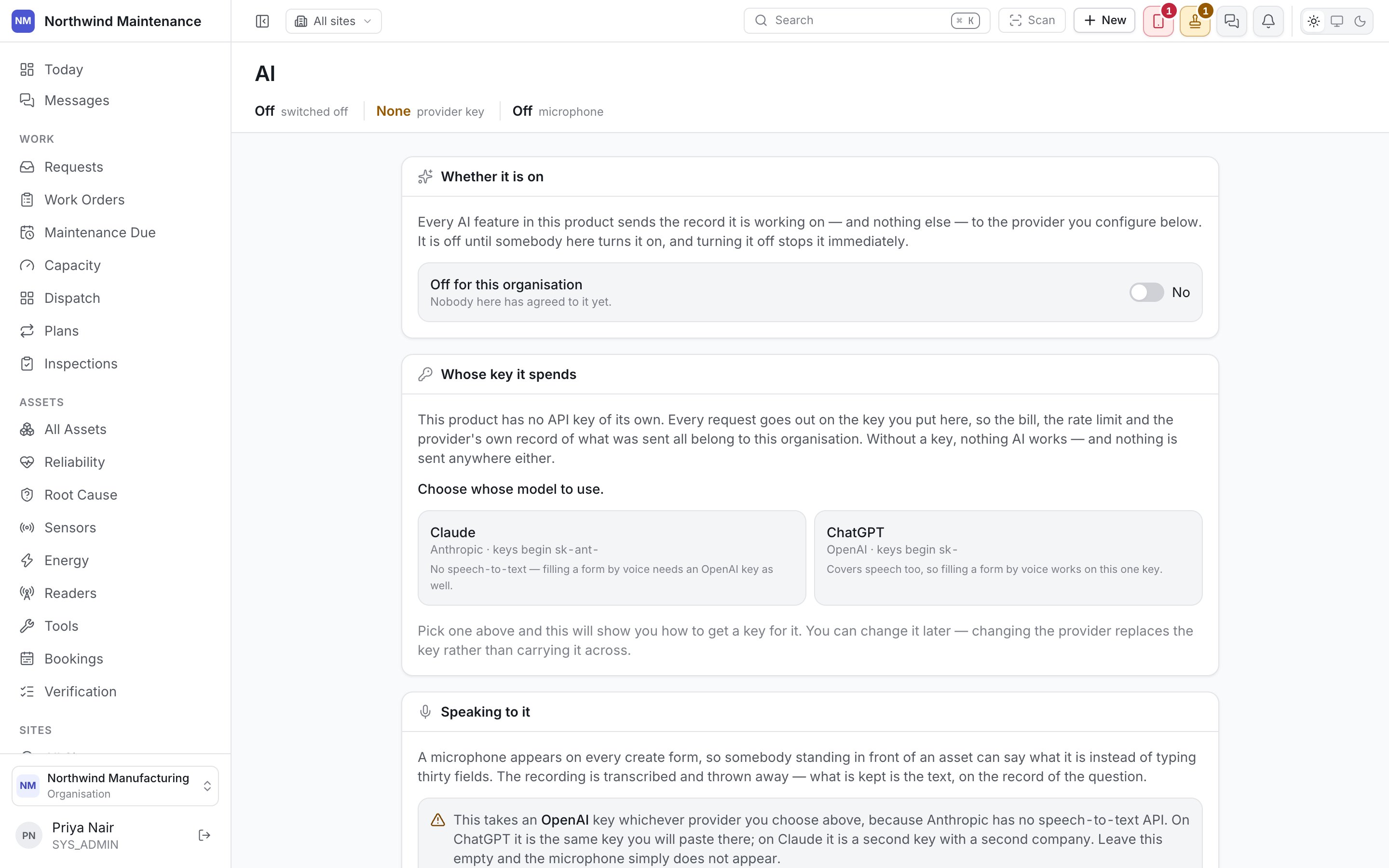
Pick a provider, paste a key, and it is validated and stored before anything else on this screen does anything.
Neither is selected by default. An administrator chooses one — there is no inherited or fallback
provider.
A key is checked against the prefix its provider expects before it is saved, so a key pasted into
the wrong card is rejected immediately rather than failing silently on the first real question.
Once saved, the key is never shown again in full: the field displays a row of dots and the last four
characters, along with who set it and when. Editing reveals the field for a new value; it does not
reveal the old one.
Getting a key from Anthropic
Getting a key from Anthropic
- Set up billing on the Anthropic Console — Copilot’s usage is billed to this account directly, outside your subscription.
- Create an API key under API Keys.
- Name it something that will still make sense in a year — “CMMS production”, not “key1” — and scope it to its own workspace if your console supports workspaces, so its spend is easy to find later.
- Paste it into the Anthropic card here.
Getting a key from OpenAI
Getting a key from OpenAI
- Set up billing on the OpenAI Platform — Copilot’s usage is billed to this account directly, outside your subscription.
- Create an API key under API keys.
- Name it for what it is — “CMMS production” — and, if your organisation has projects set up, scope it to a project dedicated to this so its spend does not blend into everything else your organisation runs on OpenAI.
- Paste it into the OpenAI card here.
Model override
Optional. Leave it blank and Copilot uses the current default model for the chosen provider. Set it to pin a specific model — useful if your organisation has a reason to stay on one version while a provider rolls out another.Replacing or removing a key
Replacing a key immediately starts routing new questions through it; nothing needs to be re-saved elsewhere. Removing a key switches Copilot off the same way an unset key does — there is no partial state where consent is on but nothing is configured to spend.Last used, last failure
Two timestamps drawn from real traffic, not from this screen: the last time a question was actually answered by the provider, and the last time the provider returned an error — with the error itself, so a stuck key (“expired”, “rate limited”, “billing hold”) is a screen you can point somebody at rather than a mystery reported secondhand.Consent
The toggle that turns Copilot on. Turning it on is a decision with a person’s name on it: who agreed and when is recorded here and stays on the record even if that person later leaves. Switching it off stops it immediately, everywhere it appears — the work order and asset Copilot tabs, and the fill-from-document and voice fill on create forms. The record of who agreed stays.Capabilities
Chips for the five things Copilot can be asked to do: Classify, Diagnose, Assist, Plan, Analyse. Only the ones ticked here can be asked for — this is enforced on the server, not just hidden from the menu, so a capability you have not agreed to cannot be reached by any route into the product. Ticking nothing allows all five. See the capability table for what each one is for.Daily ceiling
A cap on questions per day, counted across the whole organisation rather than per person. The page header shows a live questions left today figure so an administrator can see the cap approaching before somebody hits it mid-diagnosis.Speaking to it
Voice input on create forms — describing an asset out loud instead of typing or photographing a nameplate — needs its own OpenAI key here, configured the same way as the credential above, even if your organisation’s main Copilot key is with Anthropic.Anthropic has no speech-to-text capability of its own, so an Anthropic-only organisation gets
Copilot with no microphone button. Add an OpenAI key here — it can sit alongside an Anthropic key
used for everything else — and the microphone appears. Remove it and the button quietly disappears
again; nothing else about Copilot changes.