

If you don’t see this in your navigation, your administrator can switch the module on under Administration → Modules, or it may not be included in your plan.
How proposals are approved
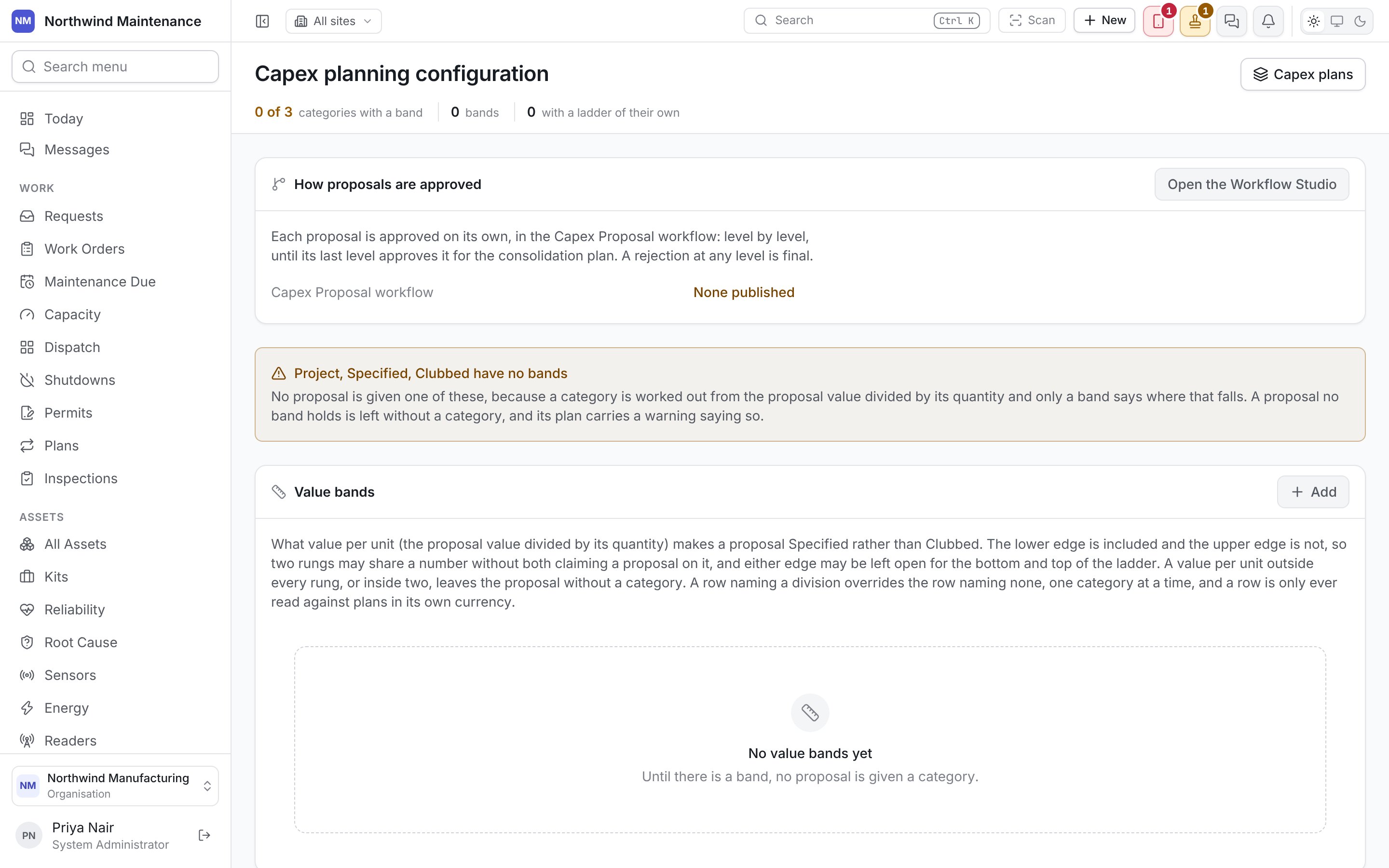
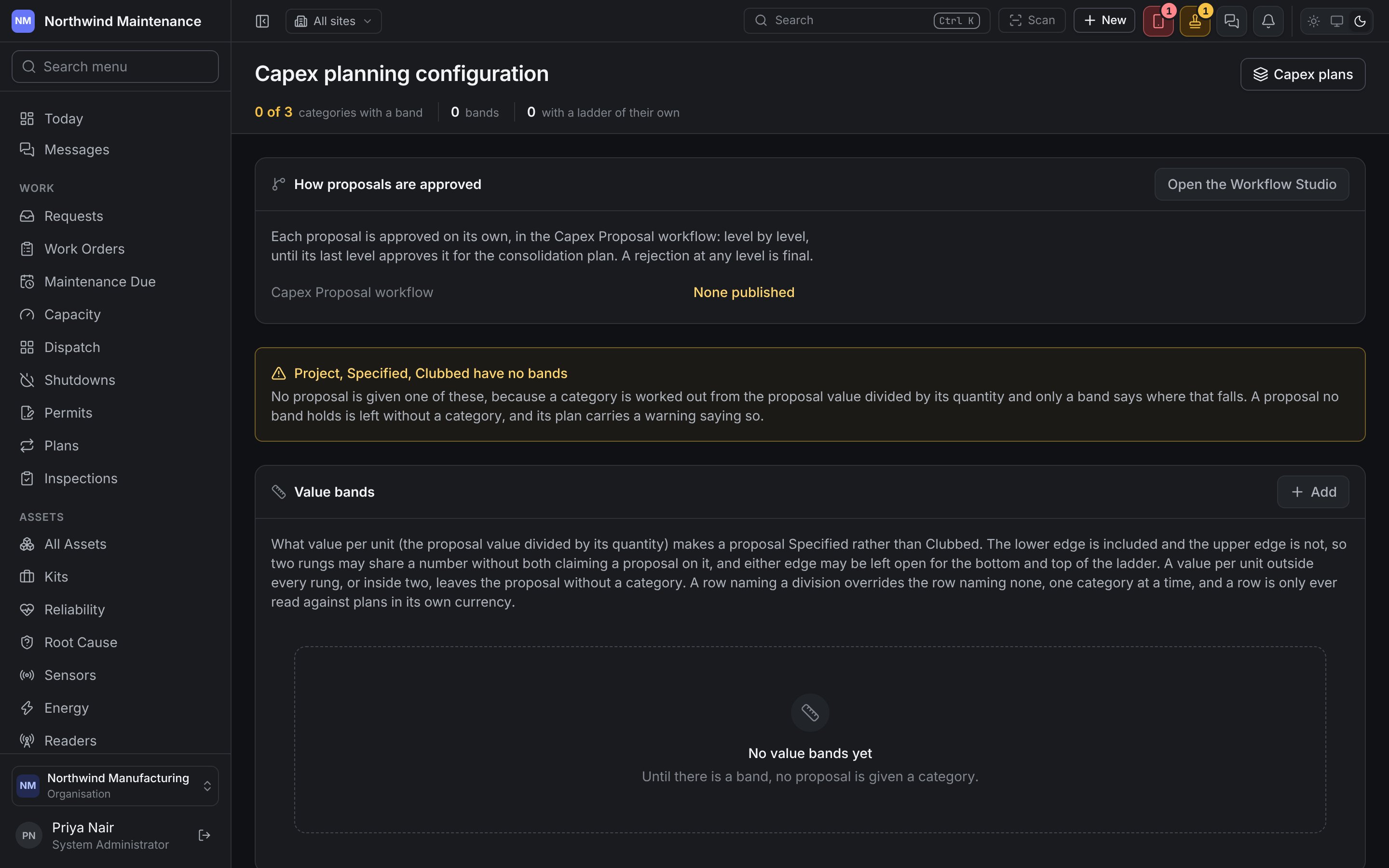
An organisation either sends whole plans for approval, or approves each proposal on its own. This section says which yours does, and whether a Capex Proposal workflow is Published or None published in the Workflow Studio, which Open the Workflow Studio opens. The section is shown to people who may view approval workflows. Until you switch, plans are sent for approval as a whole. To approve each proposal on its own instead, publish a Capex Proposal workflow first, or tick Proposals need no approval: each is approved for the consolidation plan as soon as it is submitted., then press Approve each proposal on its own and Switch now (needs permission to change approval workflows). This cannot be undone. A plan already sent as a whole finishes as it started, and the proposals it approves are then Approved for Consolidation Plan. Once switched, each proposal is approved on its own in the Capex Proposal workflow, level by level, until its last level approves it for the consolidation plan; a rejection at any level is final. The proposal then gets a row on Consolidated Planning and a plan on Capitalization Planning. Where the workflow would ask somebody who cannot open a unit’s plans, the section lists them under Asked by the Capex Proposal workflow, and unable to open the unit, each with the unit. Give them access to the unit on the Access screen, or take them off the workflow.Value bands
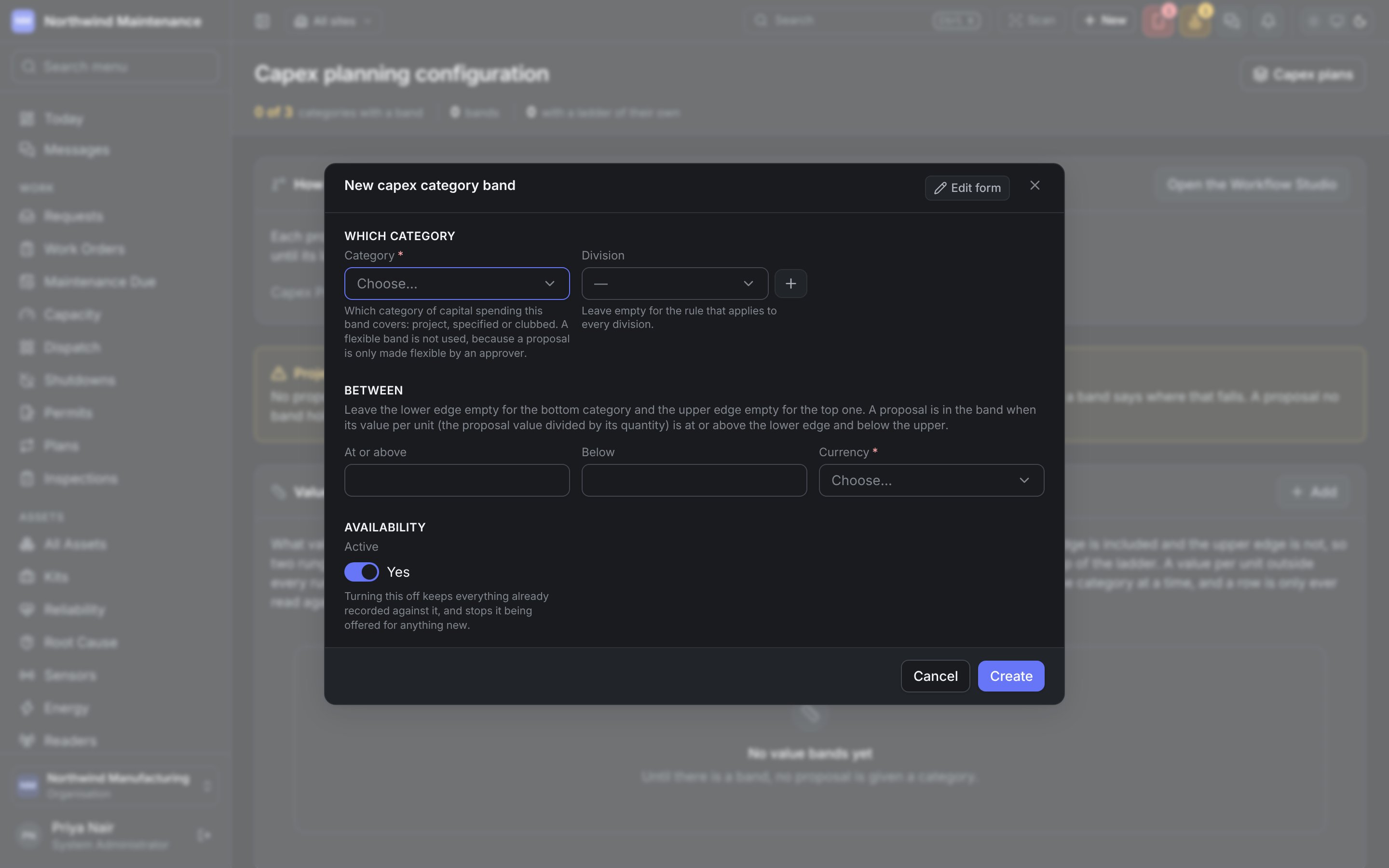
What value per unit puts a proposal in each category — Project, Specified or Clubbed. The lower edge is included and the upper edge is not, so two rungs can share a number without both claiming a proposal on it, and either edge may be left open for the bottom and top of the ladder. A band naming a division overrides the band naming none, one category at a time, and a band is only read against plans in its own currency. The list shows Category, Between, Applies to (Every division or one) and In use. A Flexible band left from earlier is tagged not used, and a note says that Flexible bands are not read.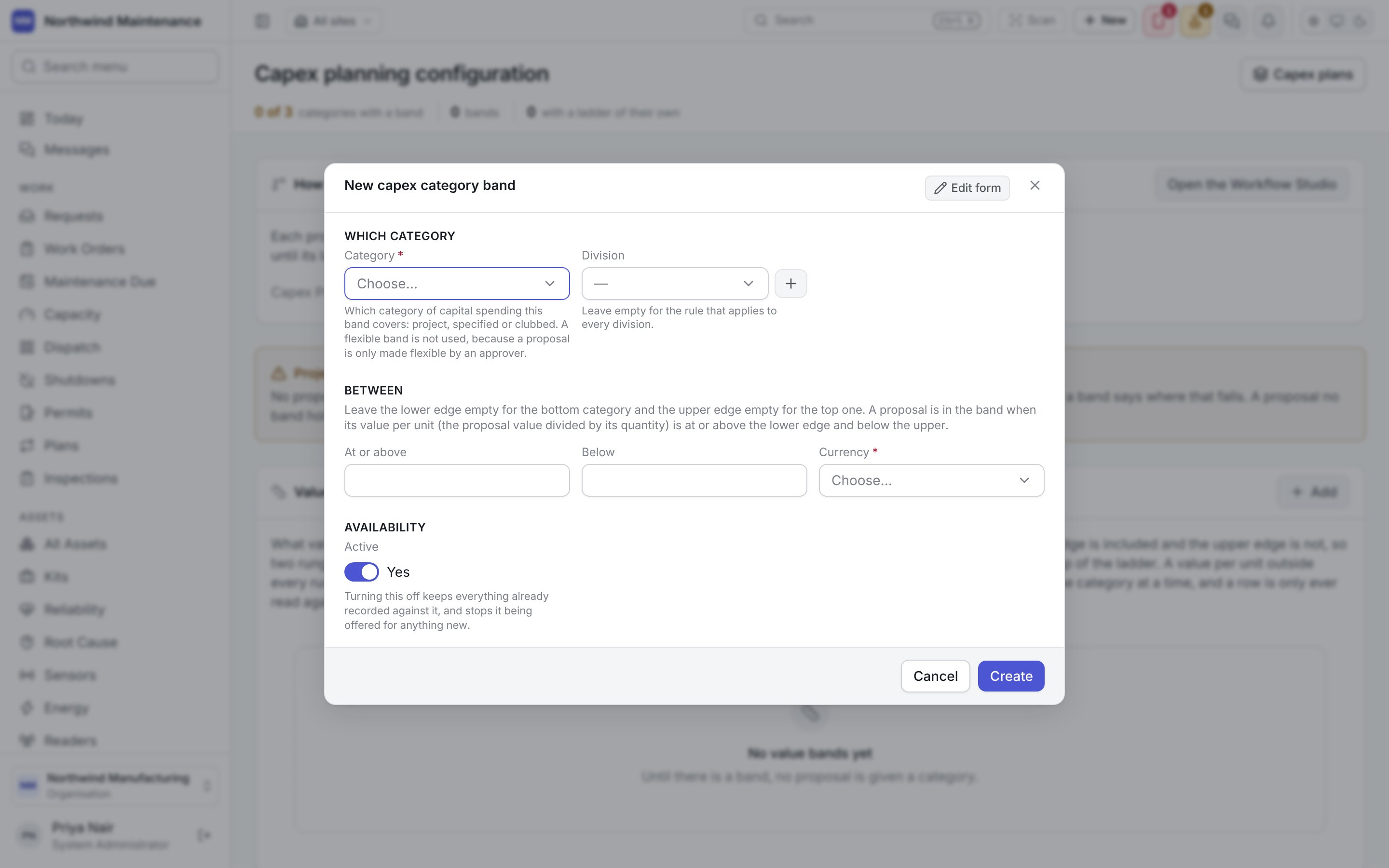
Capex plan reminders
How many days ahead of a plan’s shared with HO by and shortlisted proposal shared by dates the two reminders fire, and what a plan’s stakeholder invite attaches. Until this is set up, every plan reminds 15 and 7 days ahead, the invite attaches up to 5 files and 10 MB together, and the section says Using the defaults. Add sets it up; once it exists, the section lists Shared with HO — reminders, Shortlisted proposal — reminders and Files attached to the invite, and clicking it edits it. A plan’s invite carries the files on the plan that passed a virus check, within these limits, to the people who may open them in the product, and names every file with a link to the plan. A system with no virus scanner attaches none, and every file is linked instead.Planning windows
The dates between which units may enter their capex plans for a financial year. Both days are included, in your organisation’s timezone. Outside its window, a unit plan for that year cannot be started, changed or submitted, and a draft not submitted by the last day stays as it stands; the plan says why it is frozen. Approving, consolidating and opening budgets are never held to a window, and neither is a division’s plan, which is head office’s work after the units stop. A year with no window is open all year, so nothing changes until you add one. The list shows Financial year, Plans accepted (from and to) and Applies to (Every division or one). Add opens the form.Natures of investment
Why the money is being spent — capacity gearing, cost reduction, statutory compliance, and whatever else a division counts separately. A consolidated plan is sliced by this list. The list shows the name, Offered to (Every division or one) and In use. This is the same list FF&E planning calls Reasons, so a change in one is a change in the other.For the finance settings specific to organisations in India, see India.