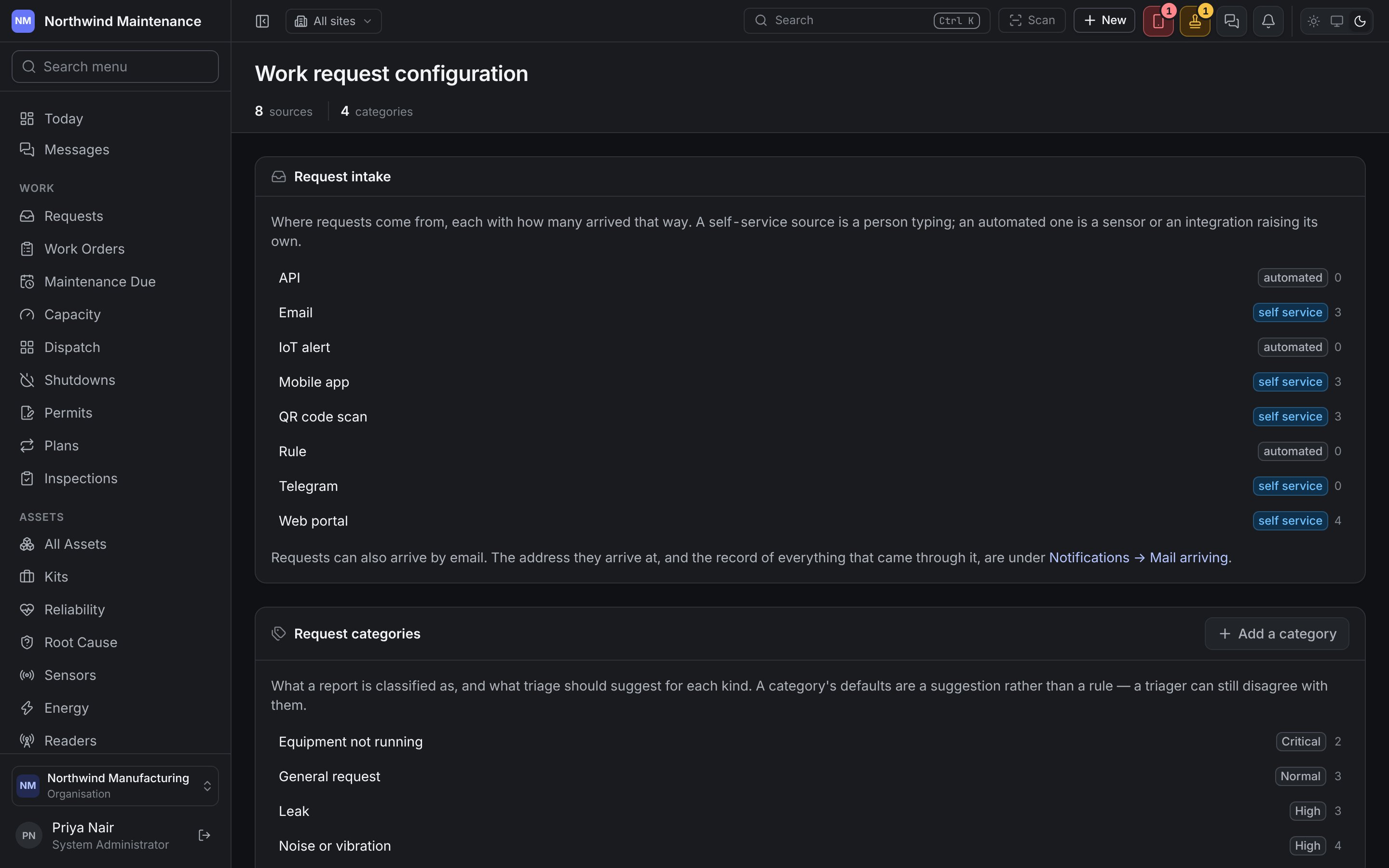

This screen configures the front door: where a work request can arrive from, what it can be classified as, and what triage is told once it arrives. Open it from Administration → Work requests.
If you don’t see this in your navigation, your administrator can switch the module on under Administration → Modules, or it may not be included in your plan.
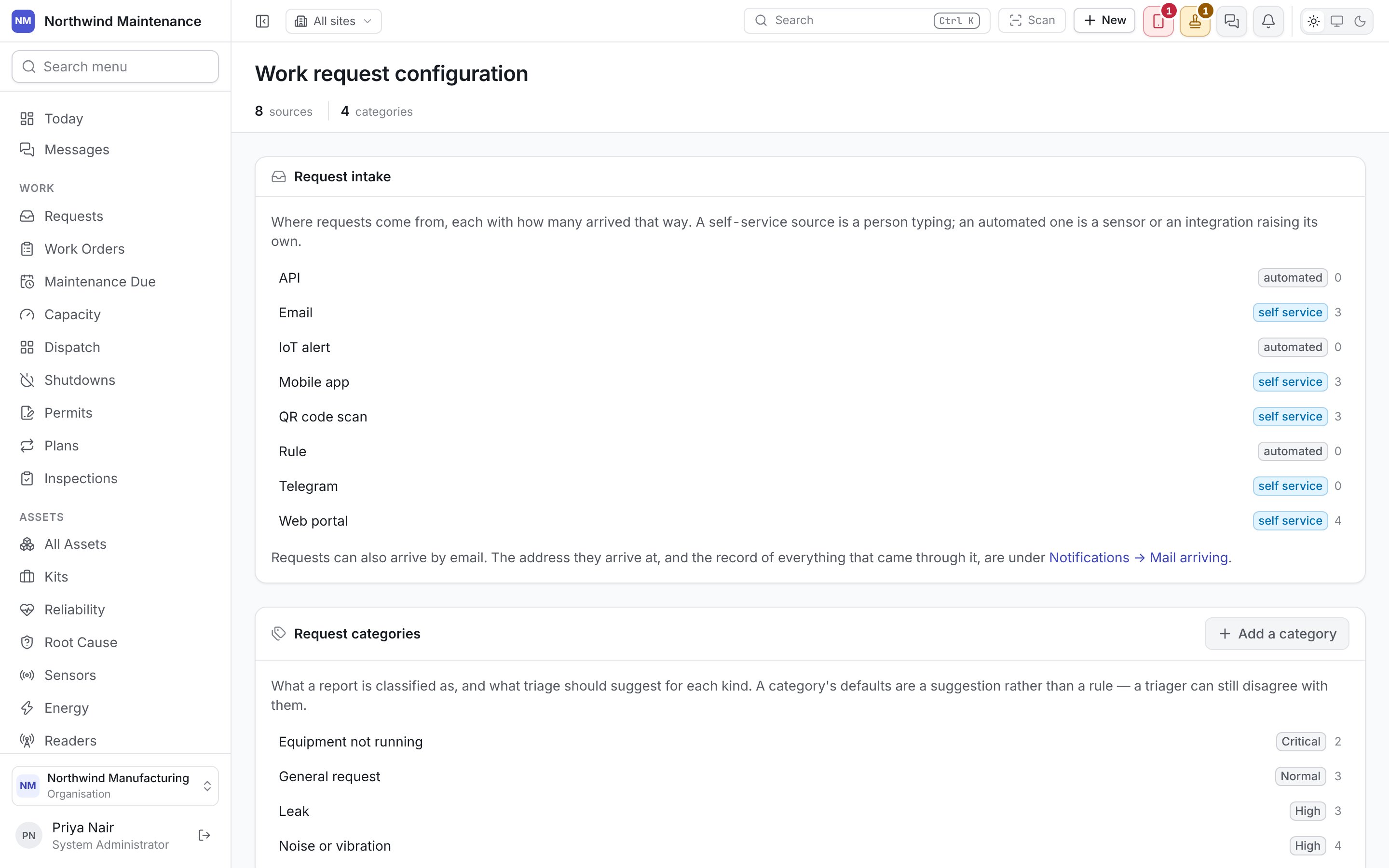
The work request configuration screen The work request configuration screen The stat strip counts the sources and categories you have. Below it are three sections. Who can change this. Sources and categories are edited by people whose role includes Add configuration entries and Edit configuration entries. Without them the screen is read-only.

Request intake

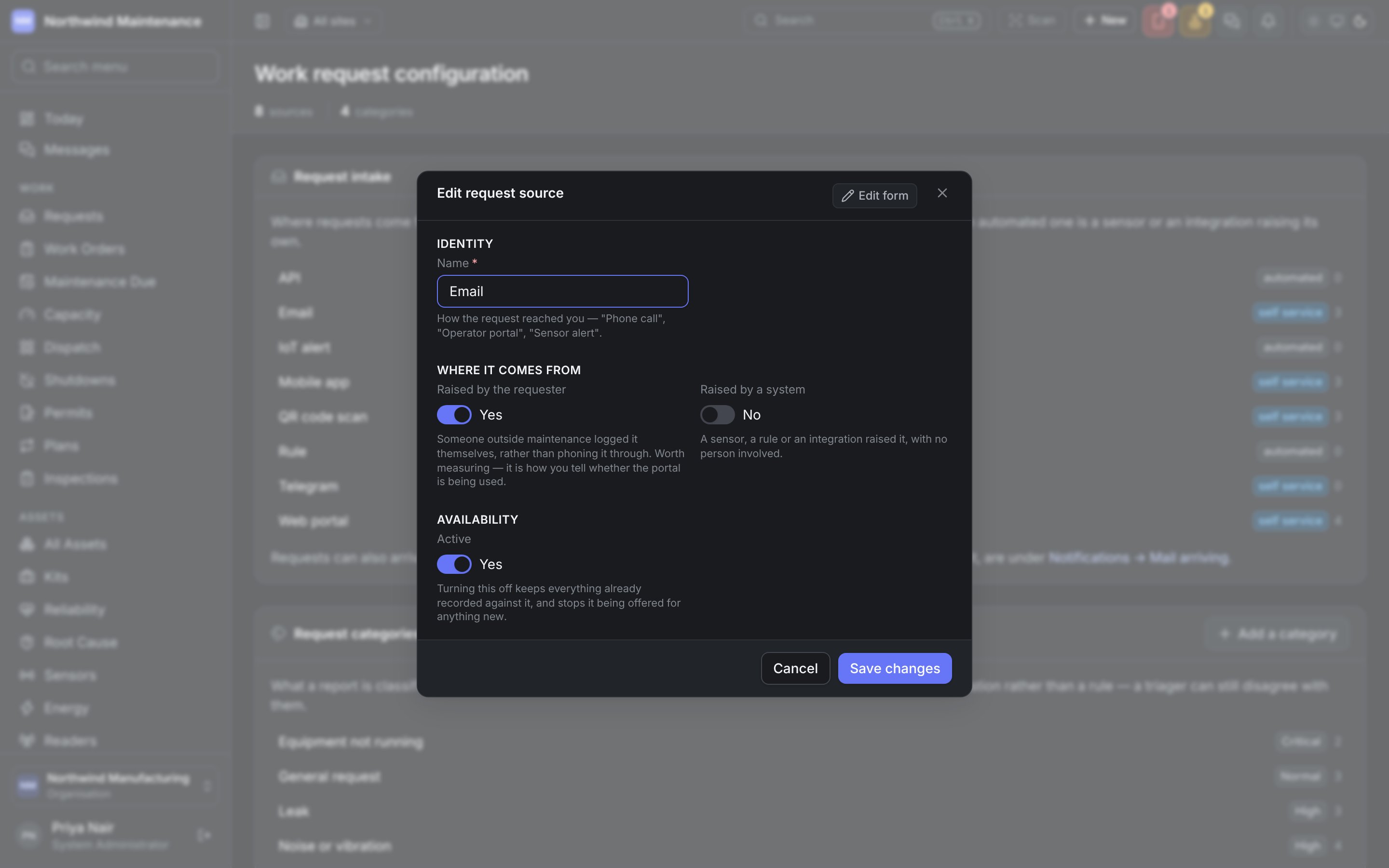
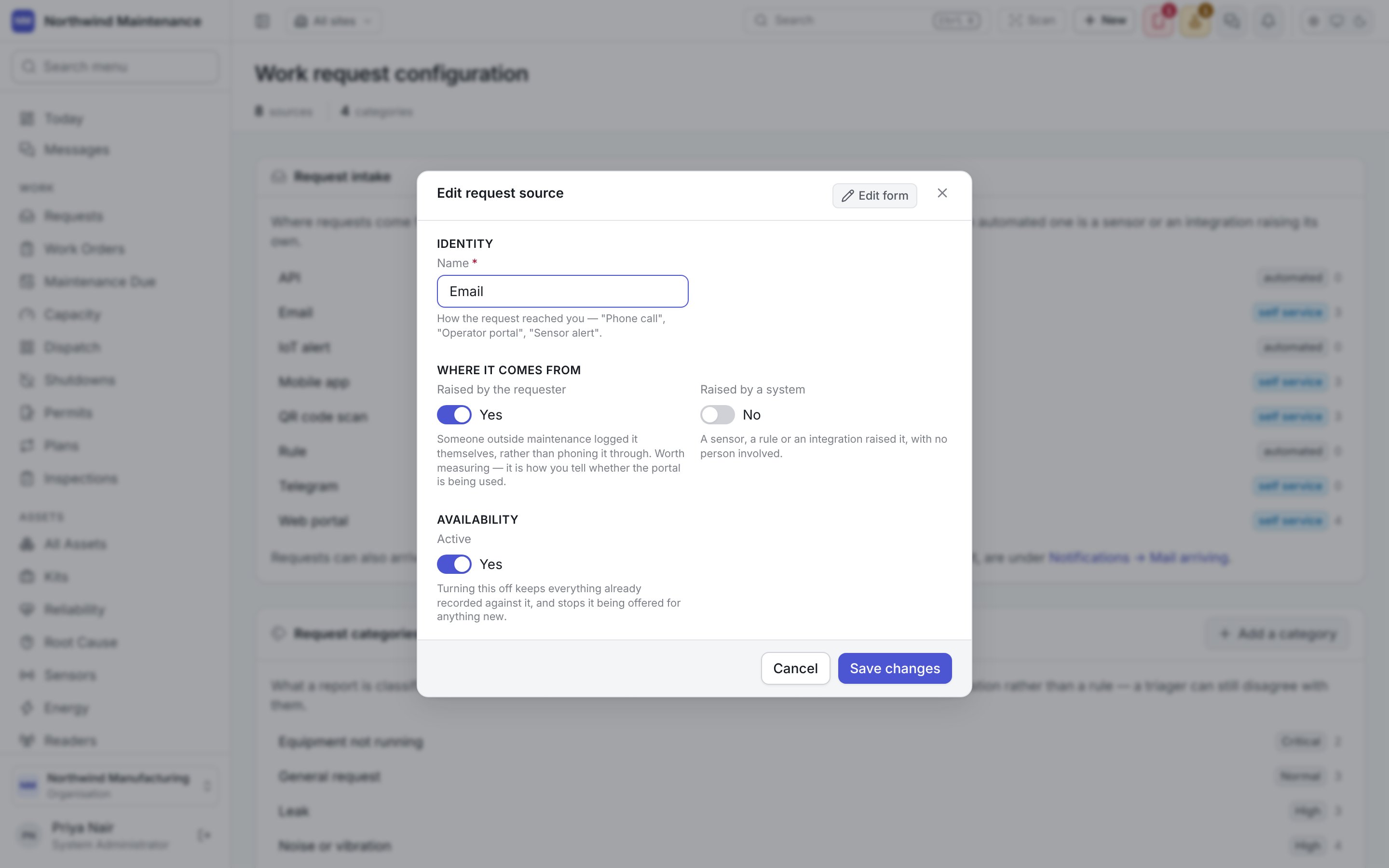
Where requests come from, each shown with how many requests arrived that way. The defaults are API, Email, IoT alert, Mobile app, QR code scan, Rule, Telegram and Web portal. Each source is tagged: Click a source to edit it. Editing the Email request source Editing the Email request source
Requests can also arrive by email. The address they arrive at, and the record of everything that came through it, are under Notifications → Mail arriving — see notifications.

Request categories

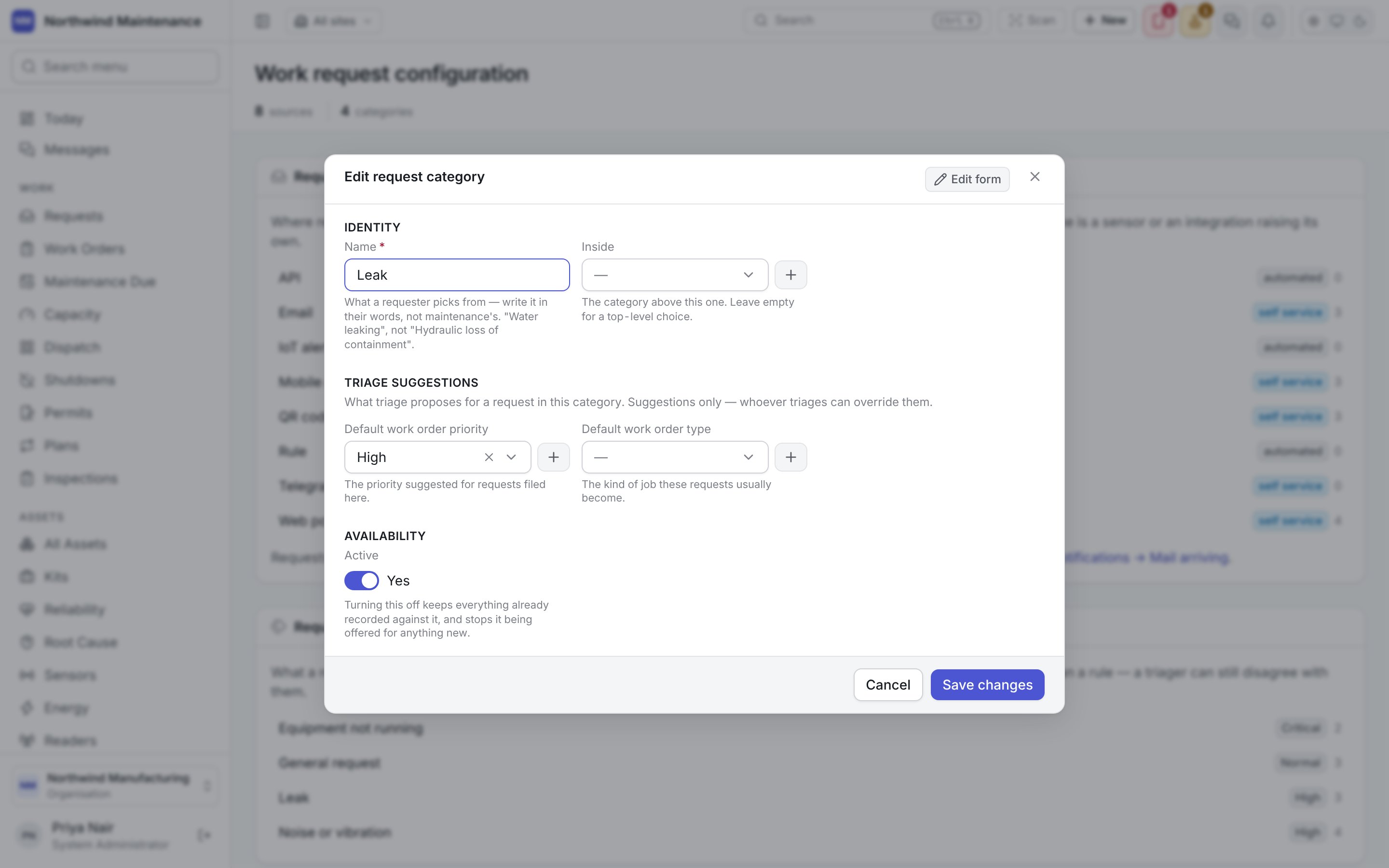
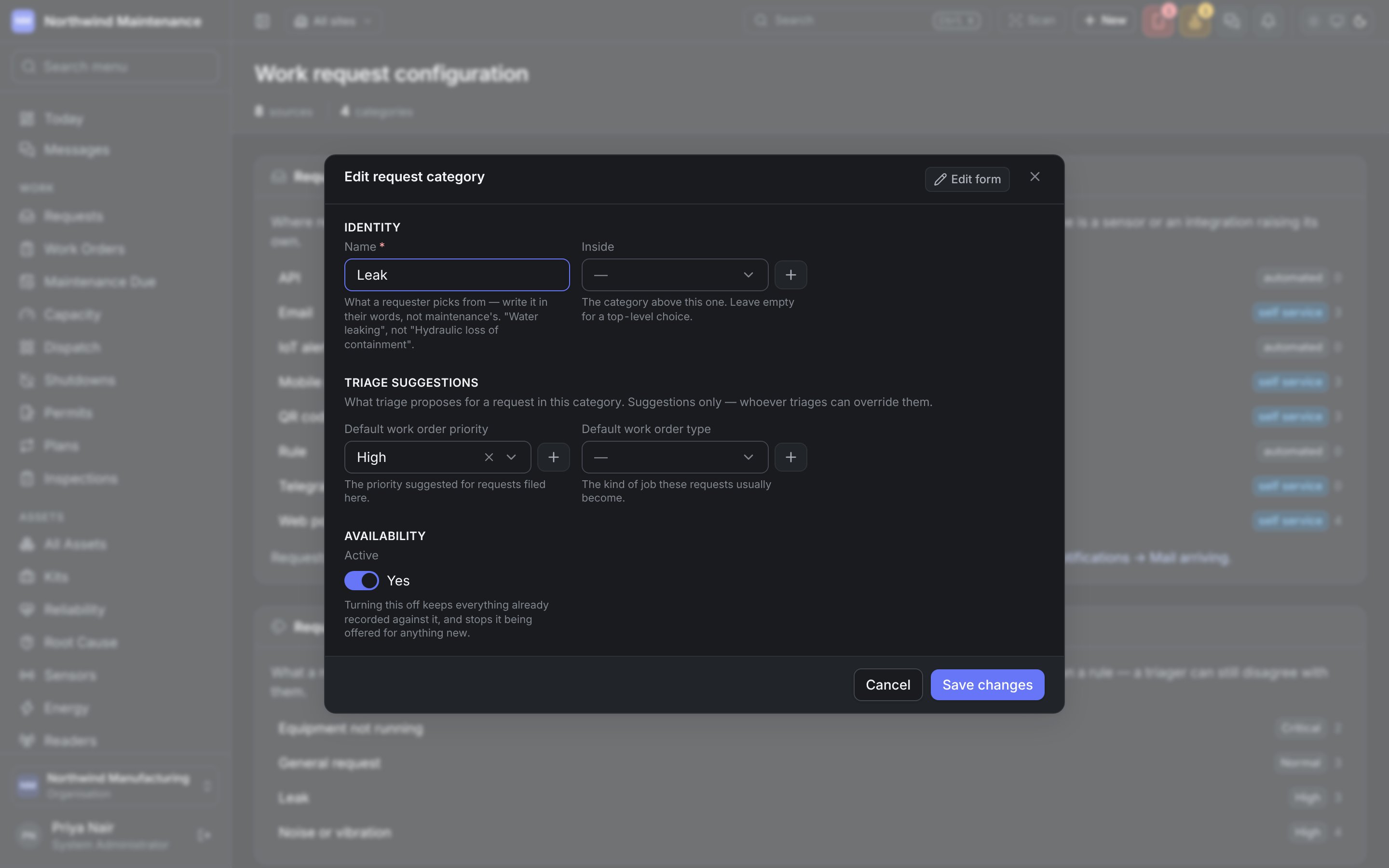
What a report is classified as, and what triage should suggest for each kind. The defaults are Equipment not running, General request, Leak and Noise or vibration. Each row shows the category’s suggested priority and how many requests have been filed under it. Add a category opens a new one; click a category to edit it. Editing the Leak request category Editing the Leak request category A category’s defaults are a suggestion rather than a rule. Whoever triages the request can still choose a different priority or type when converting it into a job.
What “how bad” is worth

The request form asks one question about urgency, with four answers: critical, high, medium and low. This panel shows what each answer suggests on your own priority ladder — for example, critical → Critical, 1h — together with that priority’s response time. The panel is read-only. A planner sets the job’s priority when the request becomes work, and the ladder itself is edited on work order settings. On a ladder with fewer than four rungs, two answers share the nearest rung.
If no priorities are configured, a report suggests nothing and a request converted into a job arrives without a priority. Build the ladder under work order settings first.