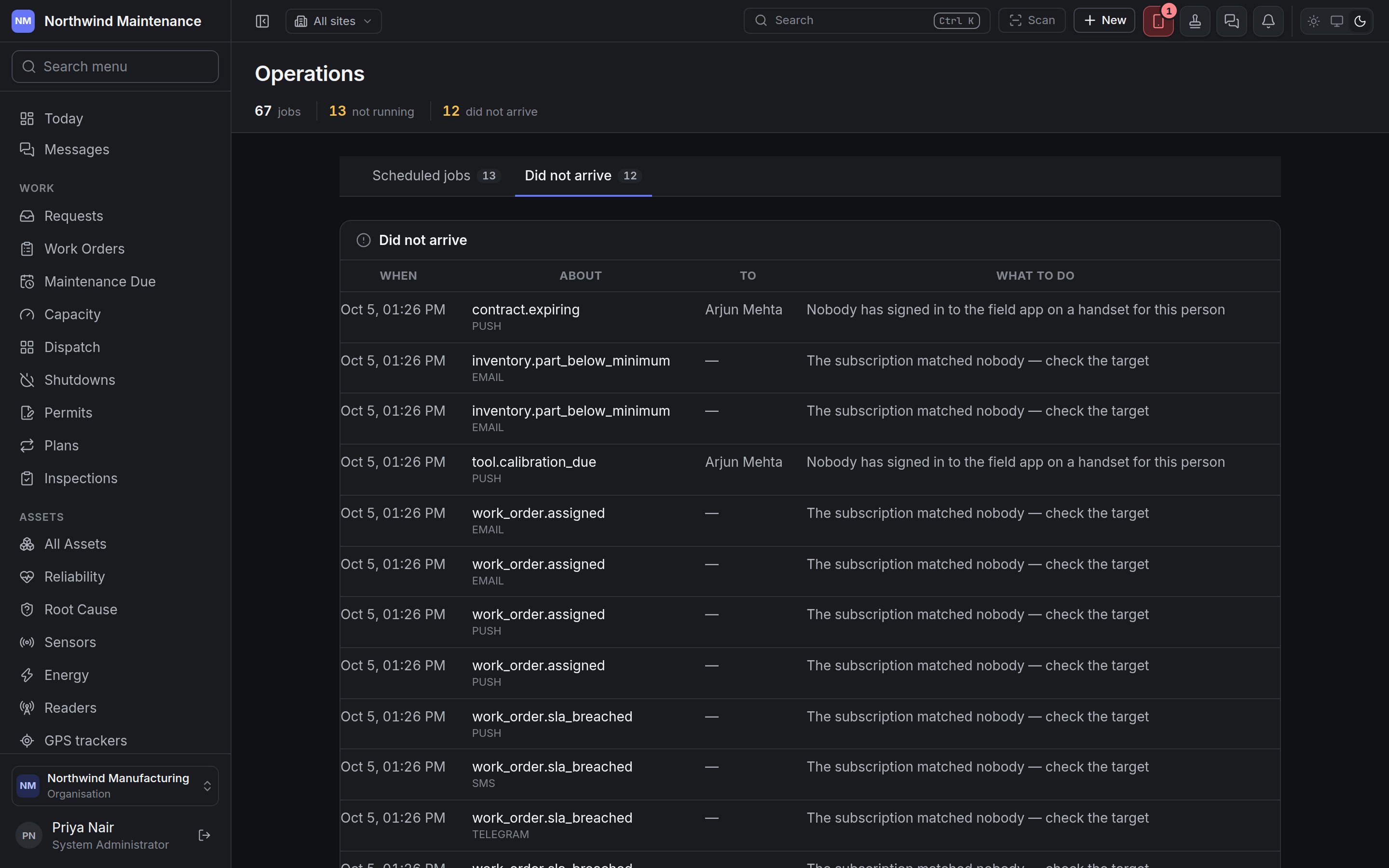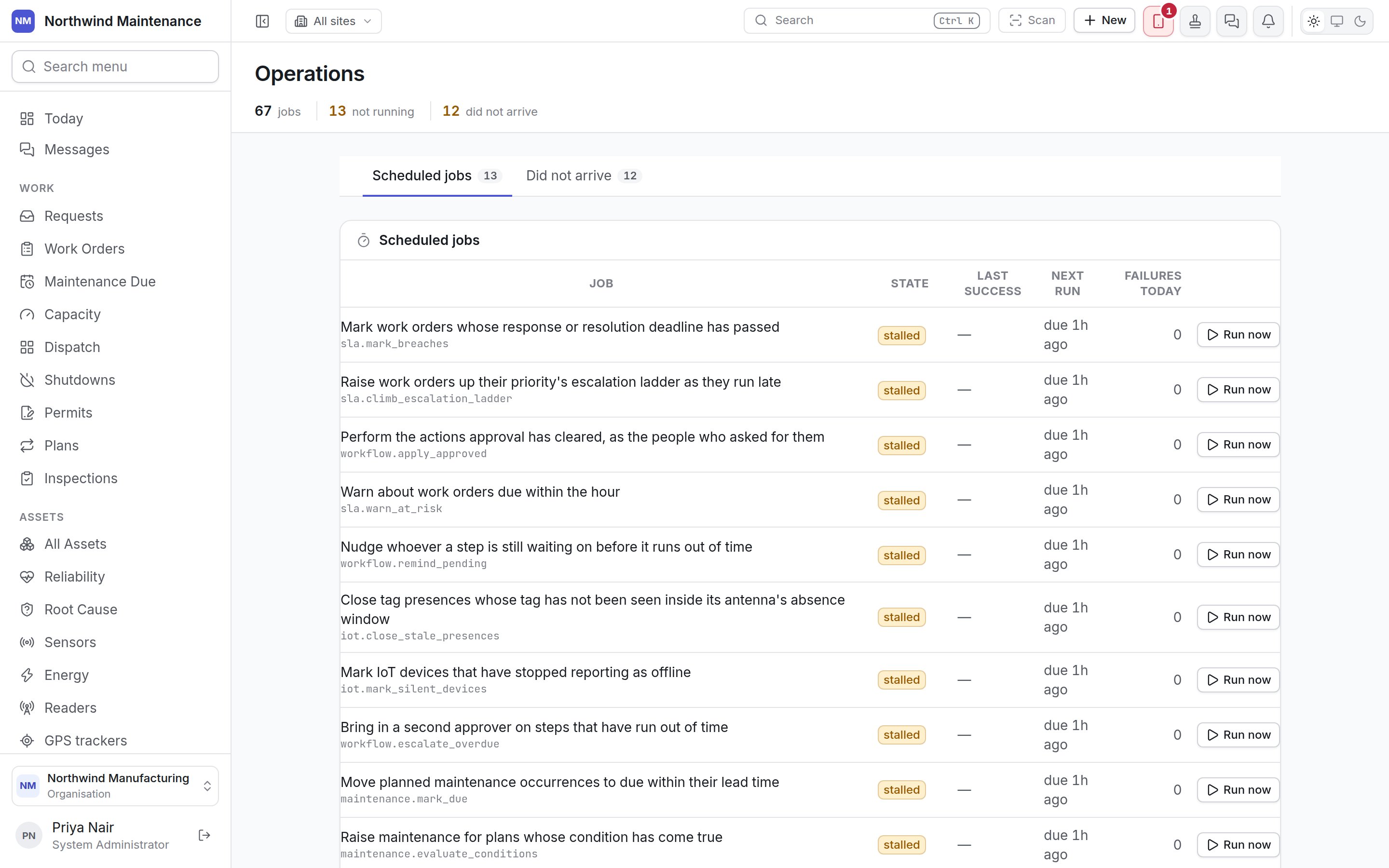
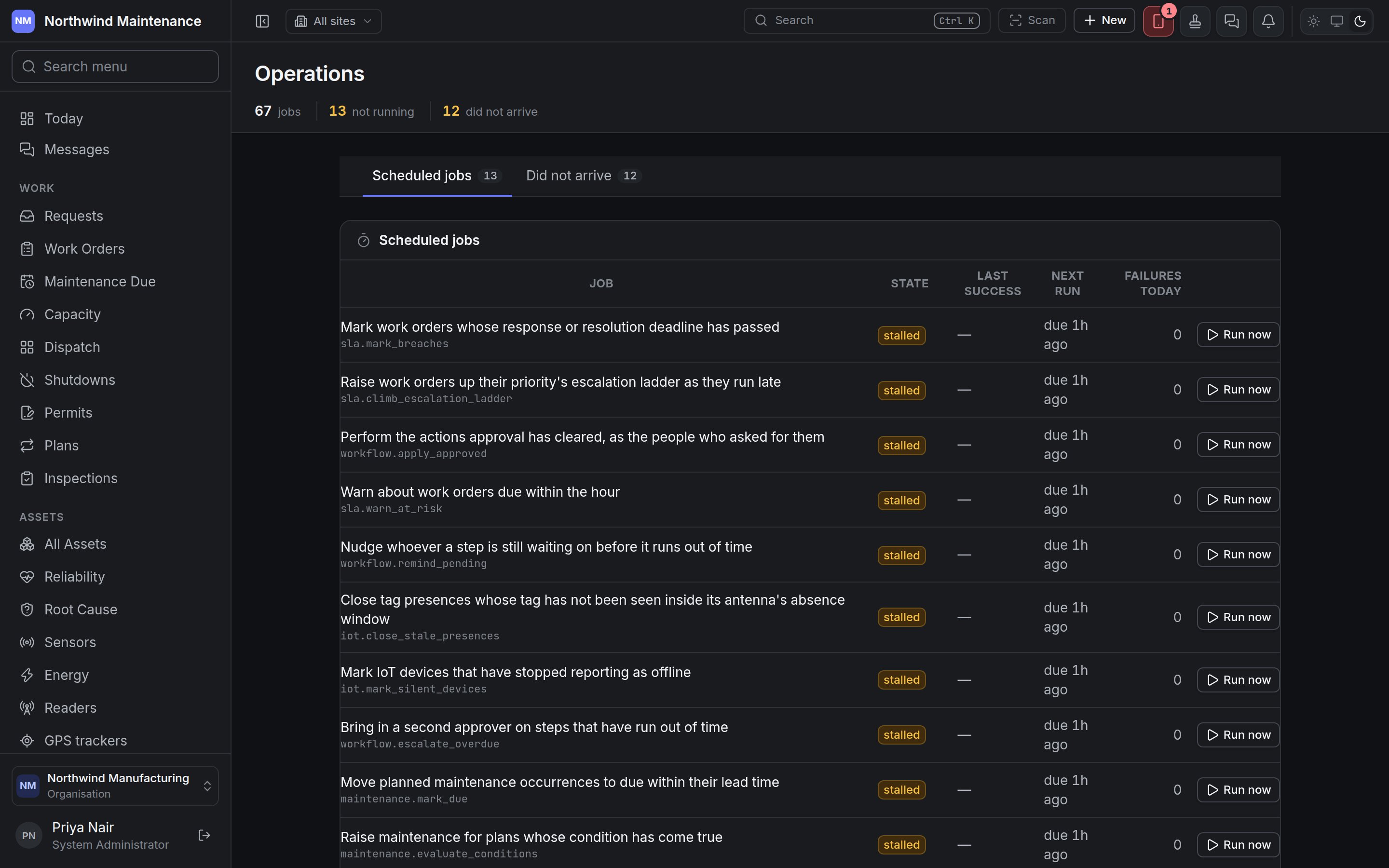
Administration → Operations answers two questions: is the work the product does on a schedule — marking deadlines as breached, raising planned maintenance, chasing overdue returns, sending reminders — actually running, and which notifications did not reach anybody. It is the screen to open when something that should have happened by itself did not. The Operations screen listing the scheduled jobs with their state and next run The Operations screen listing the scheduled jobs with their state and next run The screen is available on every plan. It takes Configure integrations — System Administrator by default. See roles.

The header

Scheduled jobs

Each row is one piece of scheduled work, described in a sentence — Mark work orders whose response or resolution deadline has passed, Raise the work for due occurrences whose plan generates automatically, Remind custodians of assets coming up on their return date, Expire lapsed certifications and warn about ones expiring soon, and so on. Click a job to see Recent runs of [job]: when each run Started, how long it Took, what it Did, its Outcome (ran or failed, with the error) and who Started by — the schedule or a person who pressed Run now. This job has not run here means it has never run for your organisation.
Many jobs stalled at once usually means the background service that runs them has stopped — not that each job is broken. If a job shows failing, its recent runs carry the error to pass on to your support contact.
Jobs that are commonly worth watching:

Did not arrive
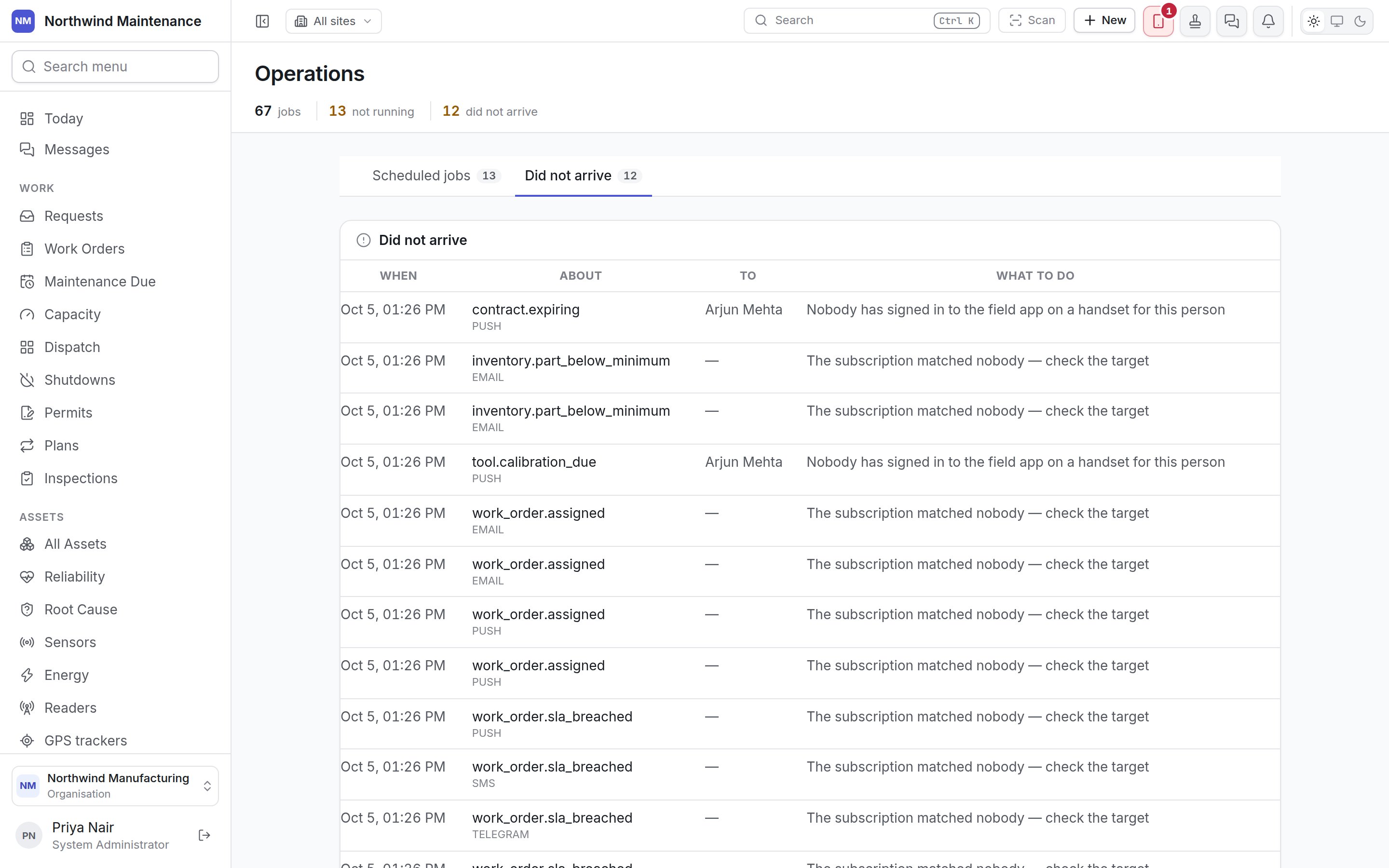
The Did not arrive tab listing notifications that reached nobody and what to do about each The Did not arrive tab listing notifications that reached nobody and what to do about each Every notification the product tried to send and could not. Everything sent, arrived means the list is empty. Most rows are fixed on Notifications: an audience naming a role nobody holds, a channel that has not been set up, or a person with no reachable handset.