

What is recorded
The product writes an event whenever a record is created, changed or deleted, and for actions such as signing in. Each event records:
Nobody can edit or delete an audit event, from this screen or anywhere else. The trail is kept in
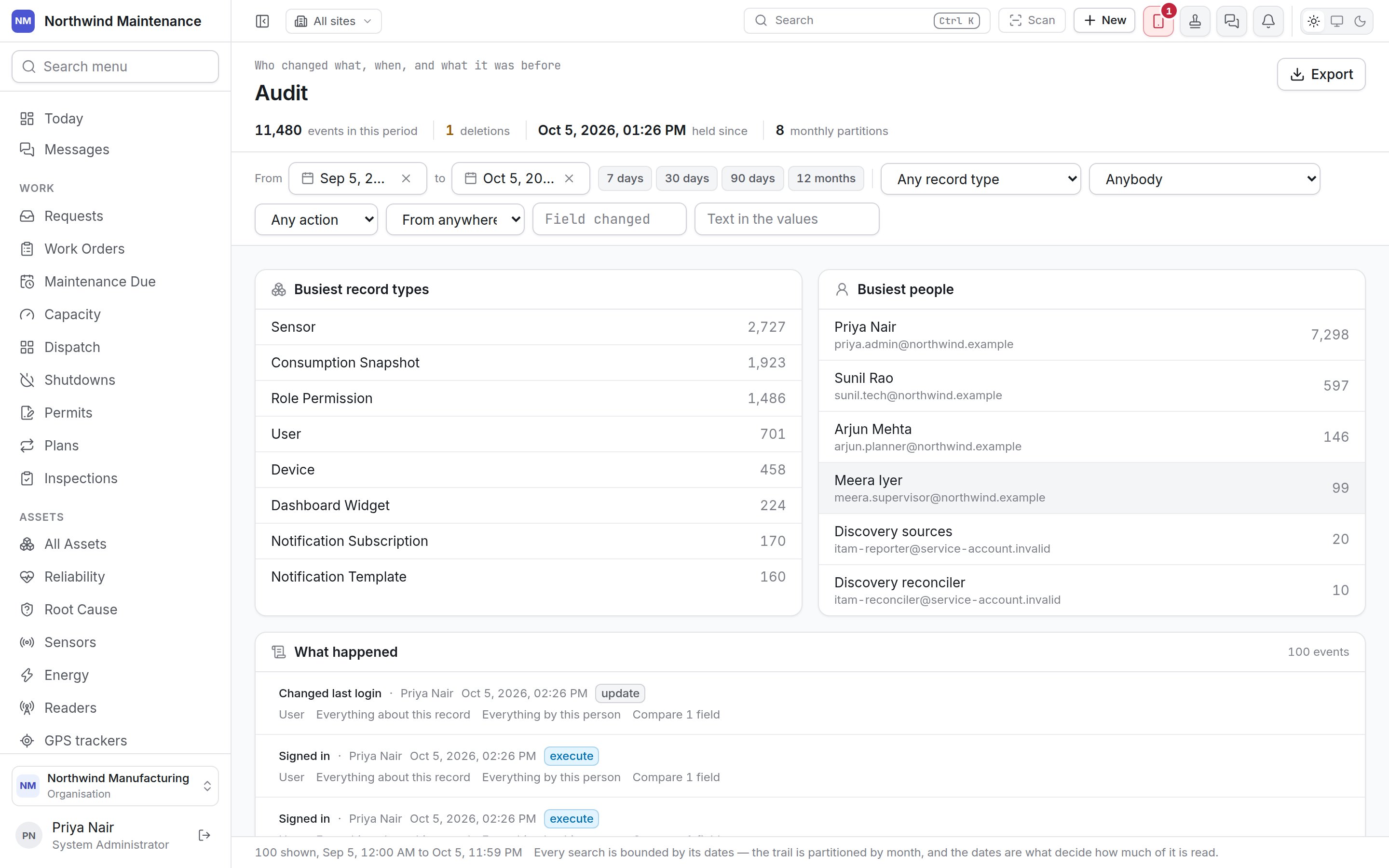
monthly sections; the stat strip says how many it holds.
The stat strip
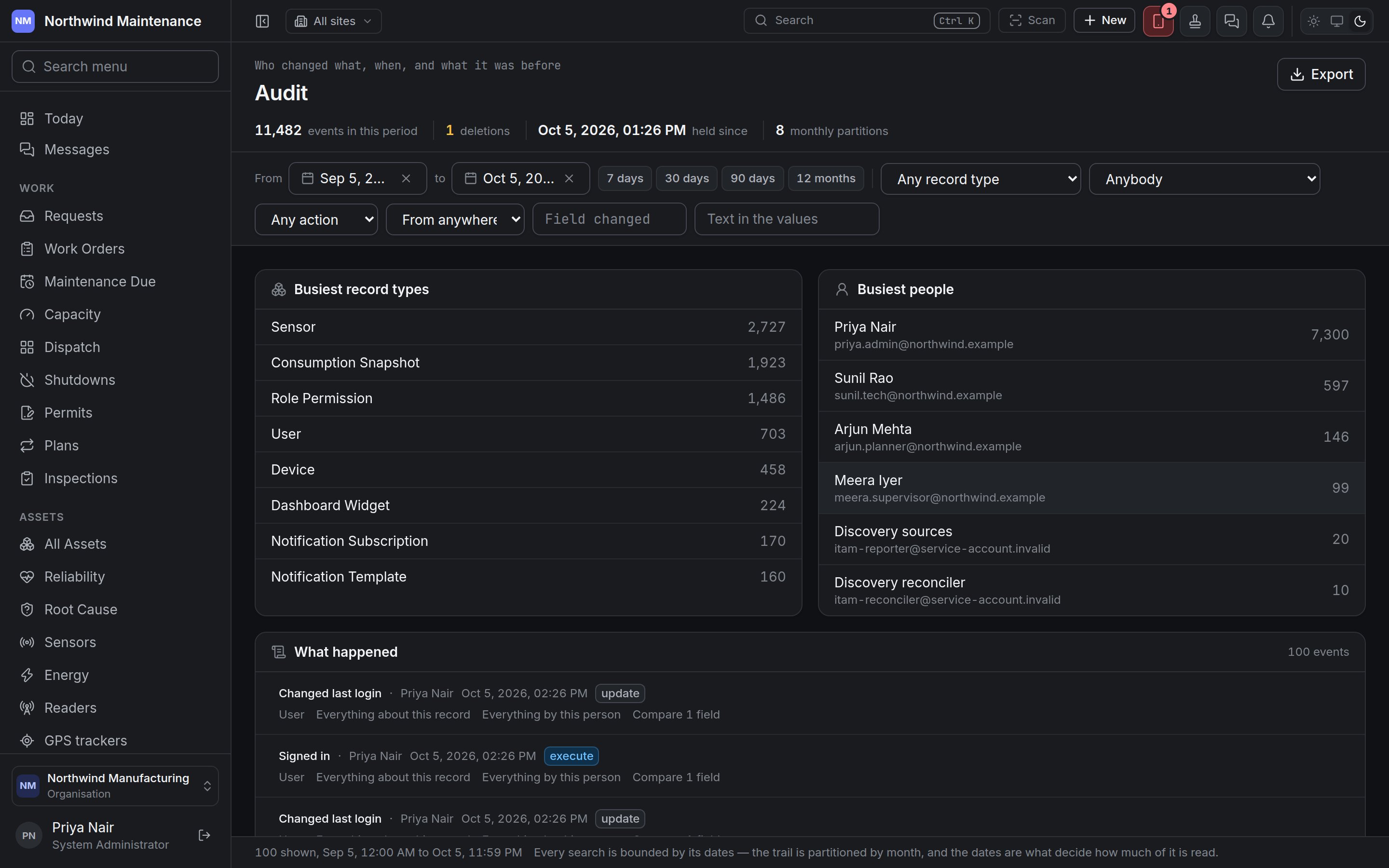
Narrowing the trail
Every search is bounded by its dates — the dates decide how much of the trail is read, so narrow them first for a fast answer.
Clear filters removes them all. On a phone the filters are behind Filters, closed with
Done.
The overview
While only the dates are set, two panels summarise the period: Busiest record types and Busiest people, each with a count. They cover the dates only, so they are hidden as soon as you narrow anything else, and a note says so (“Narrowed — the totals above cover the dates only”). If nothing in the period was done by a person, the people panel says every event was written by the product itself.What happened
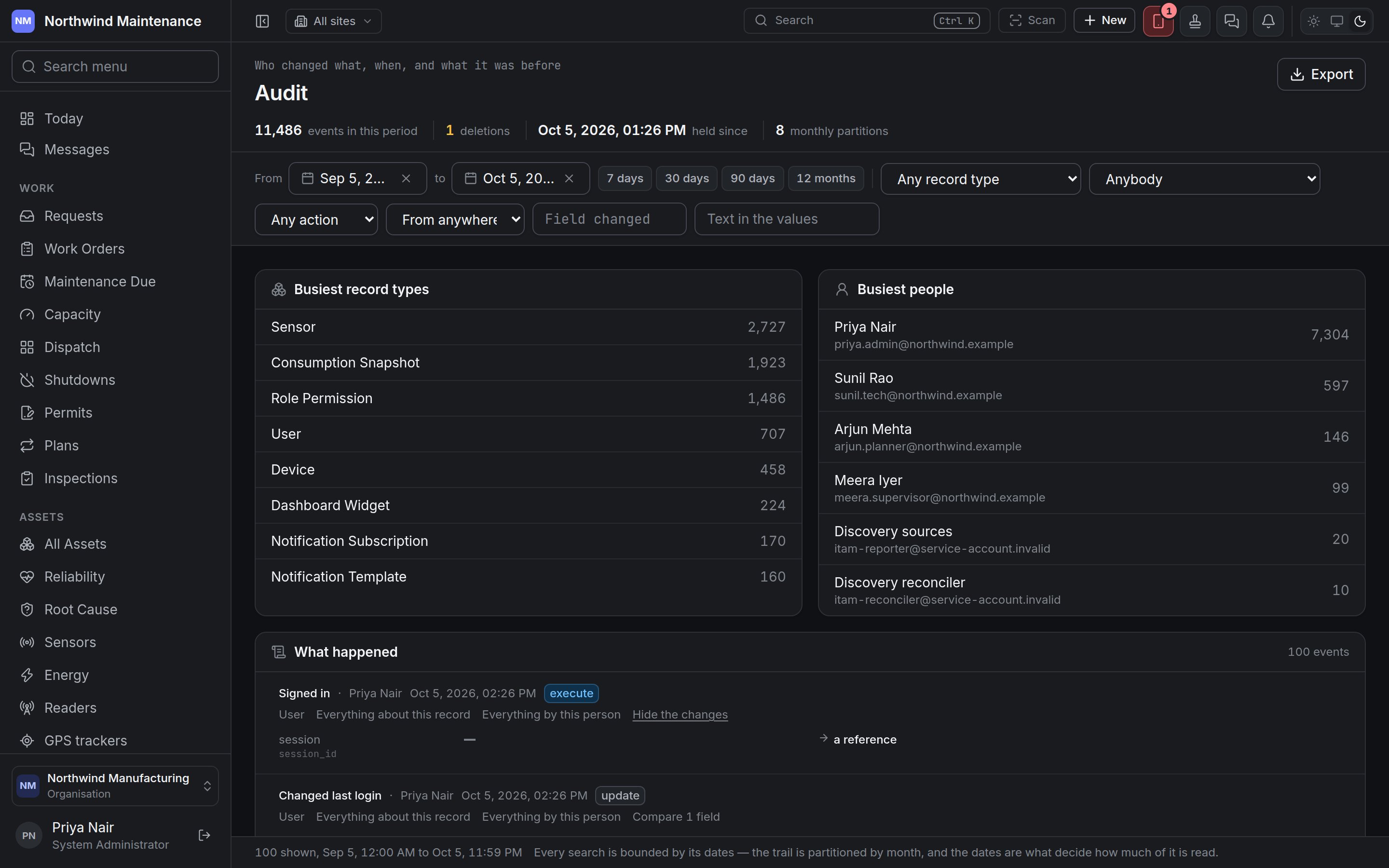
The list of events, newest first, with a count. Each event shows its summary, who did it, when, its action and record type, and three links: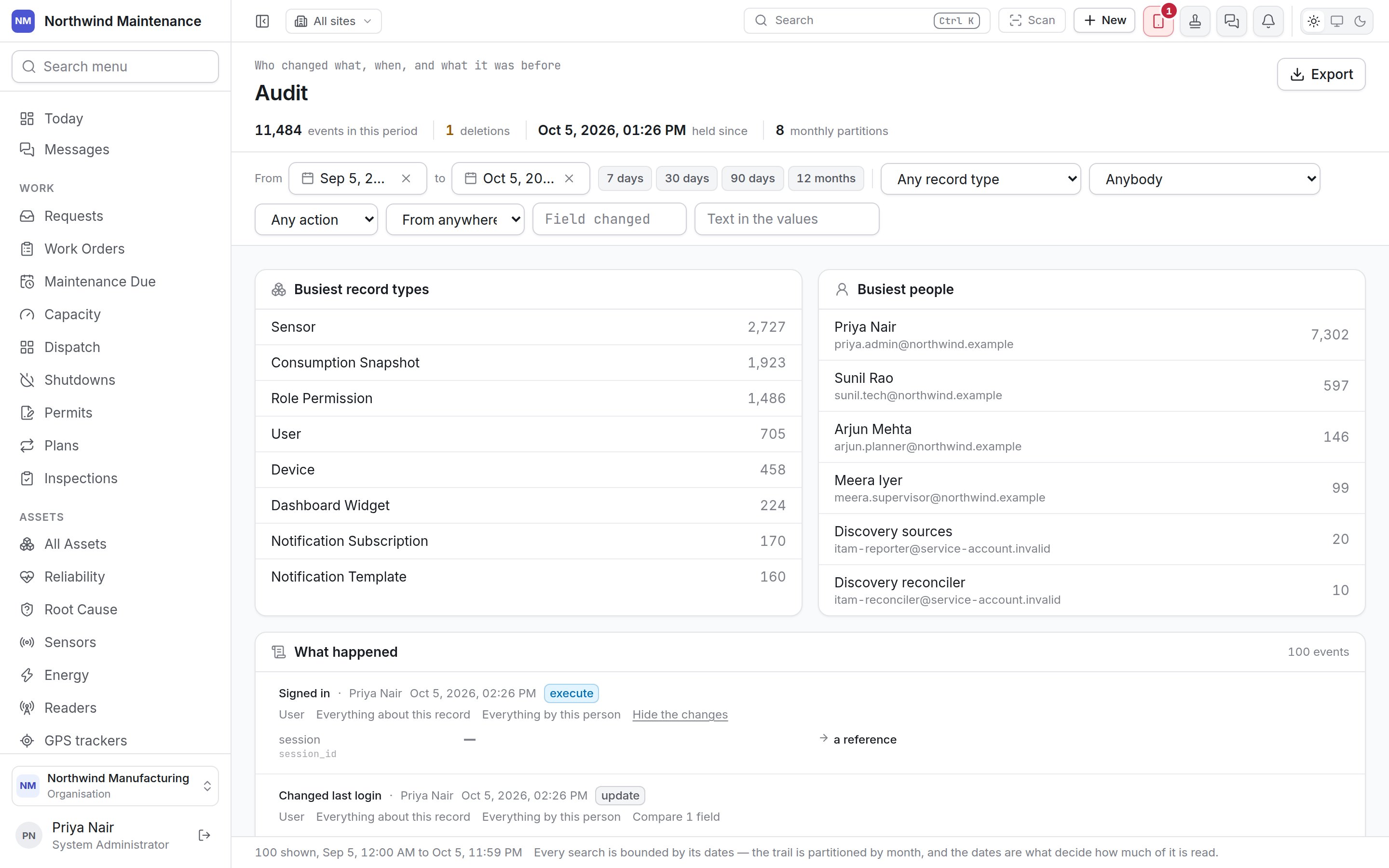
Exporting
Export downloads the trail for the period as a CSV file, with the columns When, Record type, Record, Action, Who, From, Fields changed, What happened and Reason. An export carries the dates, the record type and the person — nothing else. If you have set an action, a source, a field or a text search, a note above the list says the file would be wider than the list on screen. An export stops at 10,000 events; if it reaches that, a warning asks you to narrow the dates and take it again. To send the trail to your security team’s SIEM continuously, see security events.Who can use this screen
Somebody without Audit · view who opens the address is told that reading the whole trail needs
the audit permission; the history tab on a record they can already see is unaffected.