

What is here
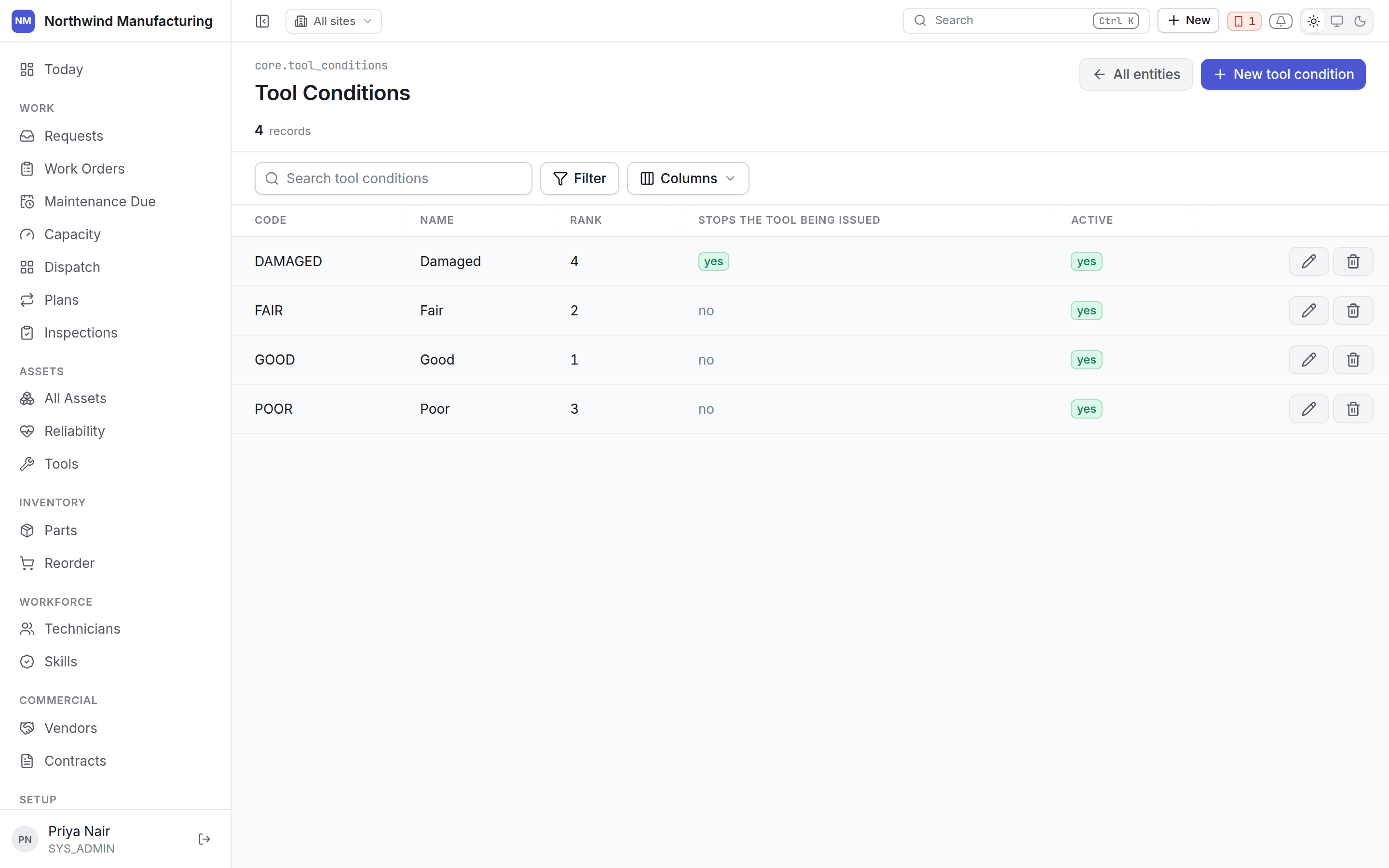
The smaller closed lists — tool conditions, skill categories, location types, asset relationship types and the rest. Administration lists what your deployment can configure and what your roles let you do to each. A generic table is not a compromise for these. It is the right answer, and it stays in step with the product automatically: the list of what exists and the fields each row carries come from the model itself, so a new list added in an upgrade appears here without anyone wiring up a screen.What is deliberately not here
Assets, vendors, contracts, parts
Assets, vendors, contracts, parts
Records with their own screens, and they link out rather than being editable in a generic table.
An asset is edited beside its meters and its work history, because that context is the reason
the screen exists.
Anything a module's settings screen owns
Anything a module's settings screen owns
Child records
Child records
A contract’s SLA lines, a template’s items. These are reached through their parent. A list of
every SLA line in the organisation, unattached to a contract, answers no question anybody has.
Editing
Each list gives you search, add, edit and deactivate. The columns come from the record itself, so what you see is what the row actually holds.Deactivate rather than delete
Prefer deactivating. A deactivated entry stops being offered on new records and stays readable on old ones — a job closed against a resolution code you have retired still shows what it was closed as. Deleting an entry that existing records use is refused, and the refusal counts the records so you know what you are dealing with.Permissions
What you can do here follows your role. Most configuration needsadmin.configuration permissions —
System Administrator and Maintenance Administrator by default. See roles.