

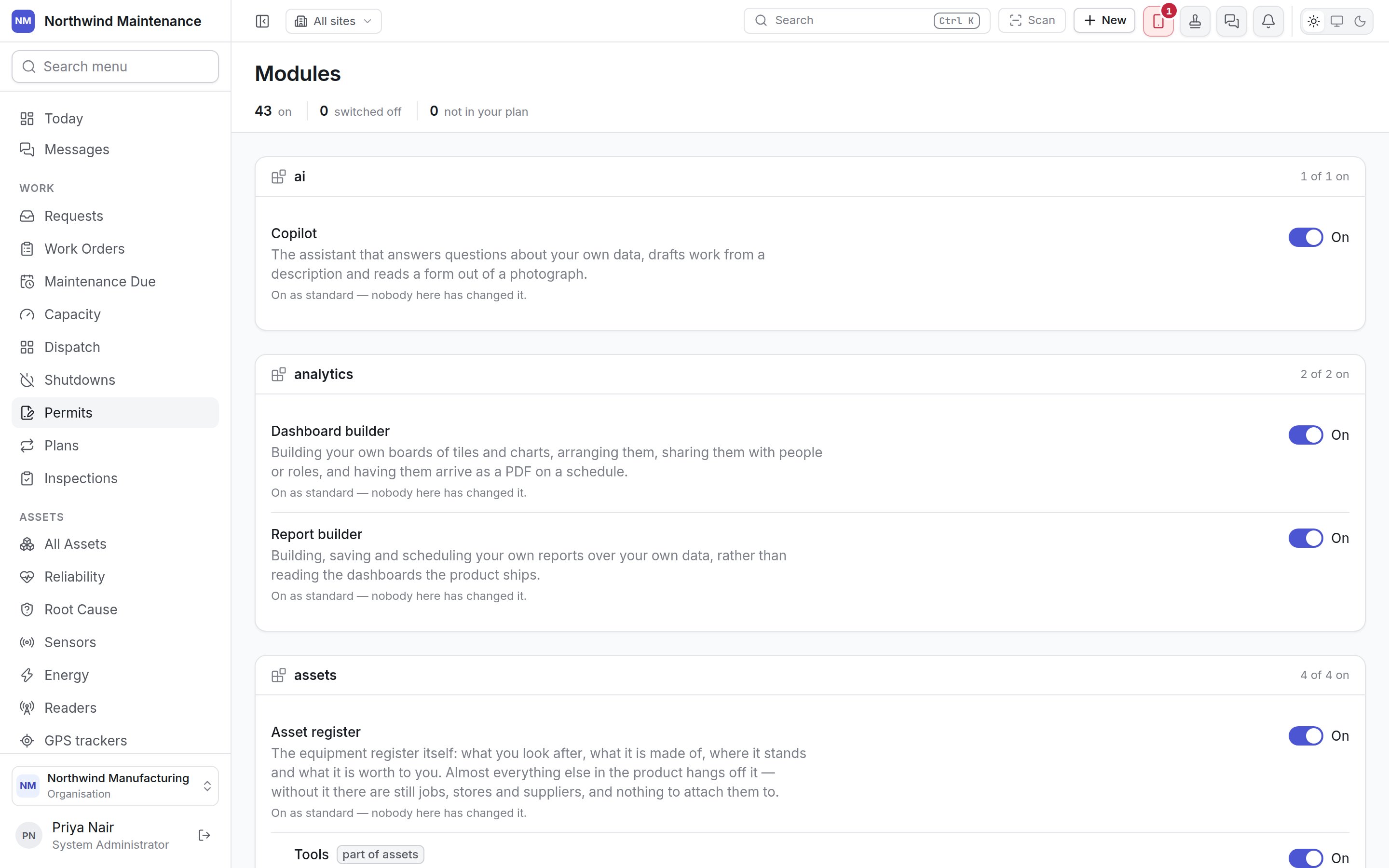
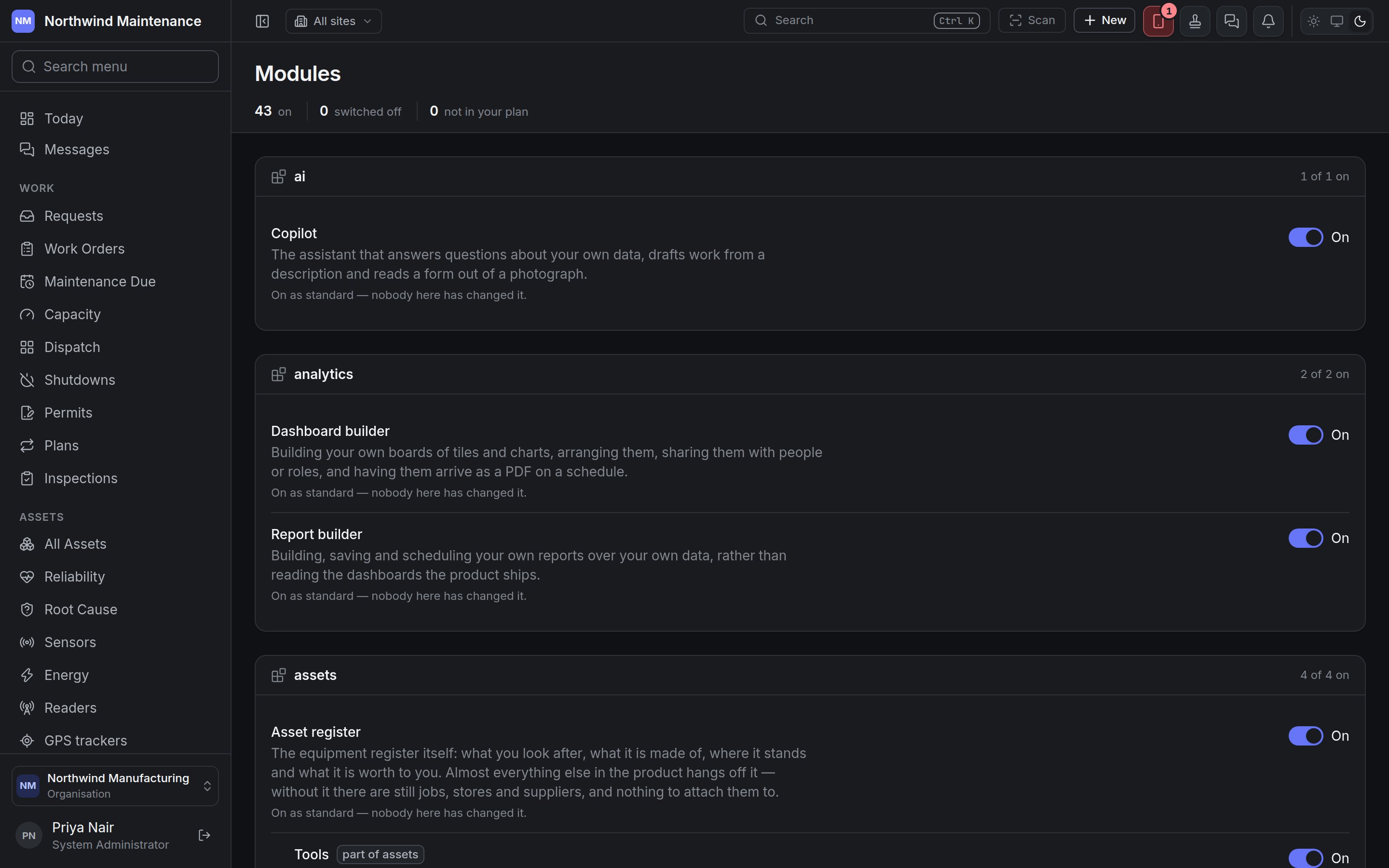
Reading the screen
The stat strip counts modules that are on, switched off, and not in your plan. Below it, modules are grouped by product area — each group heading shows the area and how many of its modules are on (2 of 2 on). Each module row shows its name, what it is for, and its state:Switching a module off
Switching a module off asks first, in a dialog headed Switch {name} off?, which says exactly what will happen:- everyone in the organisation loses it straight away — the menu items go, and anything they try to save in it is refused;
- any other modules that are part of it or need it are listed under These go with it:, and come back when it is switched back on;
- nothing is deleted, and switching it back on brings all of it back.
Every module
Every module is on as standard unless your plan says otherwise. Sub-modules are listed under the module they are part of.Copilot and analytics
Assets
Work and maintenance
Reliability
Inventory and purchasing
Suppliers and contracts
Finance
Sites, energy and devices
People, documents and communication
The groups above are arranged for reading; the screen groups modules by their product area.