

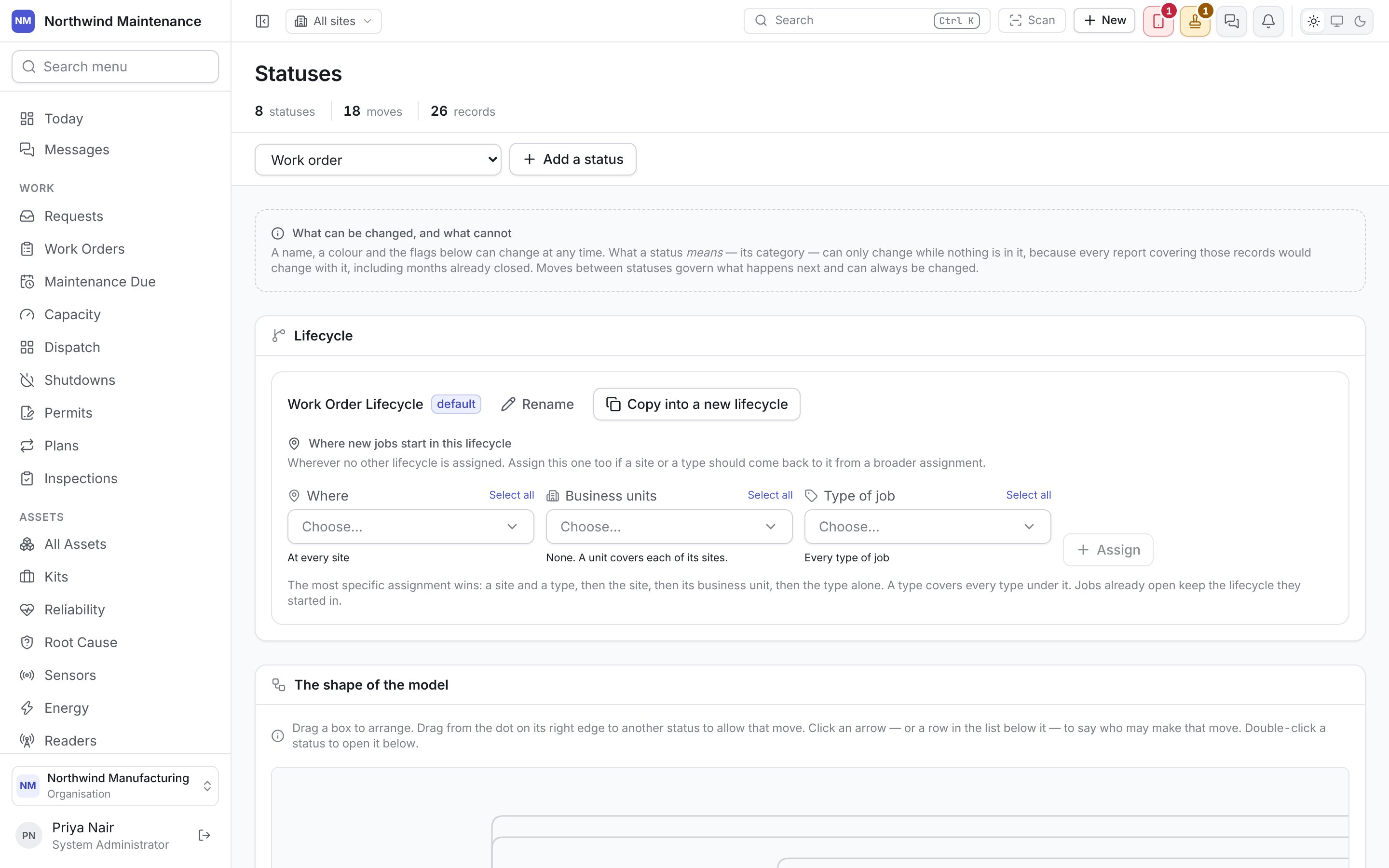
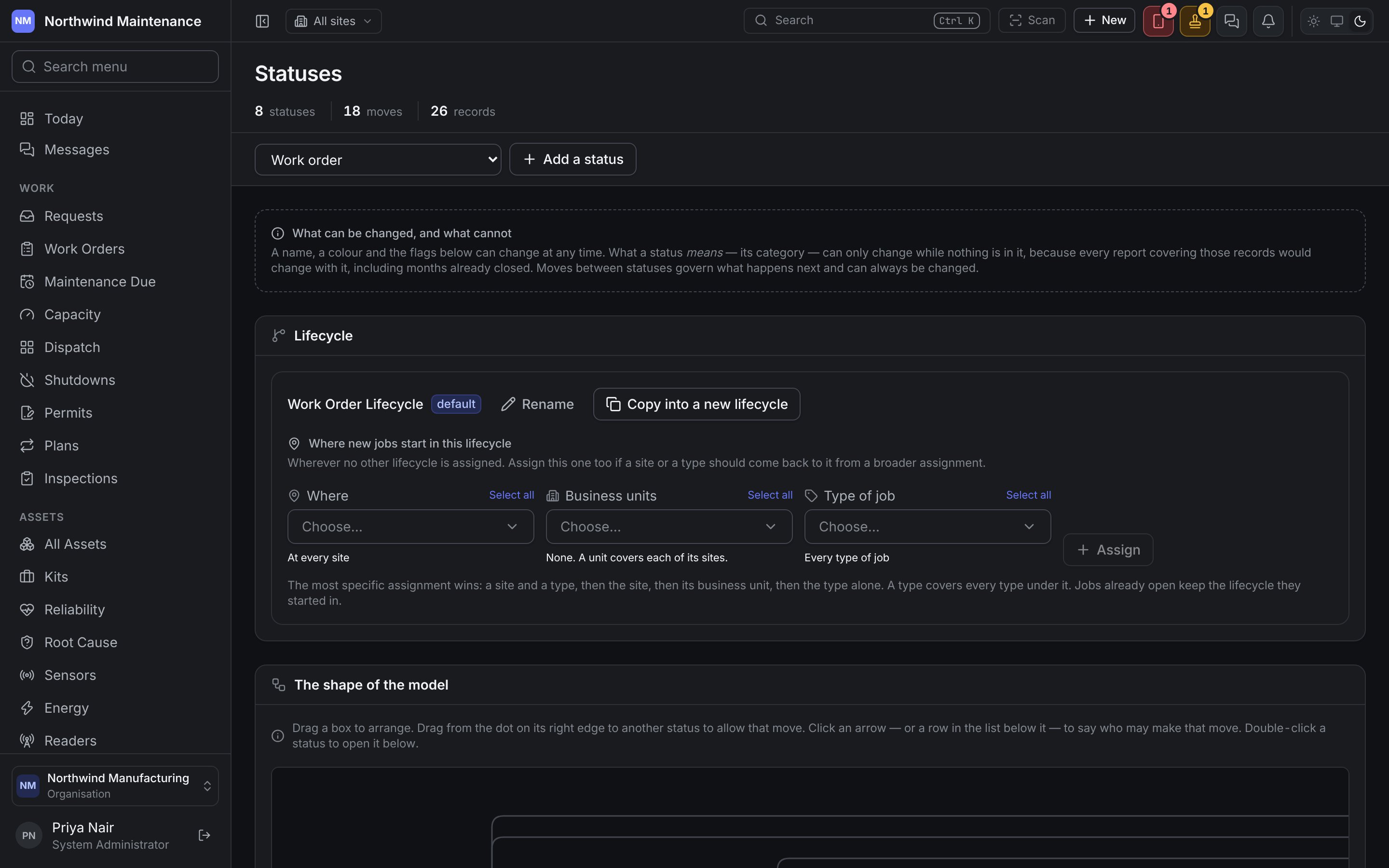
Who can use this screen
Without either permission the screen shows Statuses are configured by an administrator instead of the editor, because changing what a status means changes what every report counts. See roles.
The header and toolbar
Registers that have a state model
Each register has its own statuses and moves, and the screen describes every option in that register’s own words. Only the options that drive something in that register are shown.
The status names a fresh organisation starts with — Open, Assigned, Accepted, In Progress, On Hold, Completed, Closed and Deleted for work orders, for example — are defaults. Rename them, add your own and remove the ones you do not use.
The one rule
The screen says this in the What can be changed, and what cannot panel at the top. Every report and dashboard counts records by category rather than by name, so changing the category of a status that holds records would change the answer for months already closed. That is why each status shows how many records it holds, and why the Means box is locked — with the note locked while N records are here — until the status is empty. To change a category anyway, move the records out first. Moves between statuses only govern what happens next, so they can always be changed.Lifecycles
A register can run more than one lifecycle — for example a separate, shorter process at one site, or for one type of job. The Lifecycle section manages them for every register in the table above.Where new records start in a lifecycle
Under Where new jobs start in this lifecycle (or Where new records start in this lifecycle for other registers) you assign the lifecycle to places and types. A lifecycle with no assignment says Nowhere yet. Until it is assigned, no job starts in it. Each picker takes several choices at once, so one press can say “these sites run this lifecycle for these kinds of job”.
The most specific assignment wins: a site and a type, then the site, then its business unit, then the type alone. Records already open keep the lifecycle they started in. When a new assignment takes over from another lifecycle, the screen says so.
Assignments made together are listed together, as one line such as “At Columbus, Dayton, for Breakdown, Corrective, and every type under each”. The bin at the end of the line removes the whole group; the arrow before it shows each assignment, each with its own Remove this assignment.
Moving open records into a lifecycle
Move open jobs here (or Move open records here) moves records that are still open from another lifecycle into this one, for example after you have changed a site’s process.
Each record is put straight into its new status. No move is made, so nothing a move checks or triggers happens and nobody is notified. Finished records stay where they are. The button reads Move N open jobs, and progress appears in the bulk jobs tray.
The shape of the model
The diagram draws every offered status as a box and every allowed move as an arrow, so you can see whether the model has a dead end, whether anything comes back from a closed status, and how many steps lie between open and closed.
Below the diagram, a table lists every move:
What stands on a move
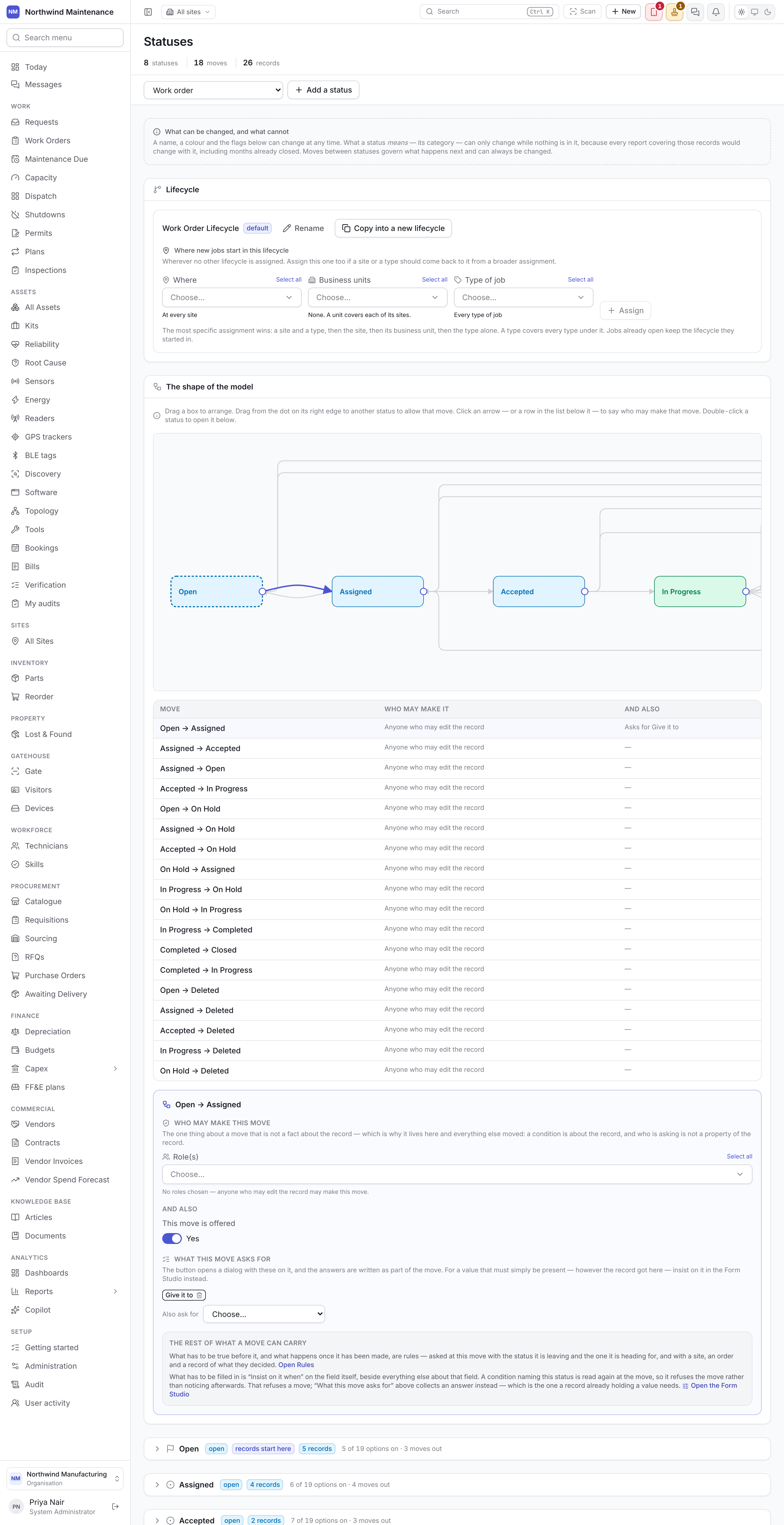
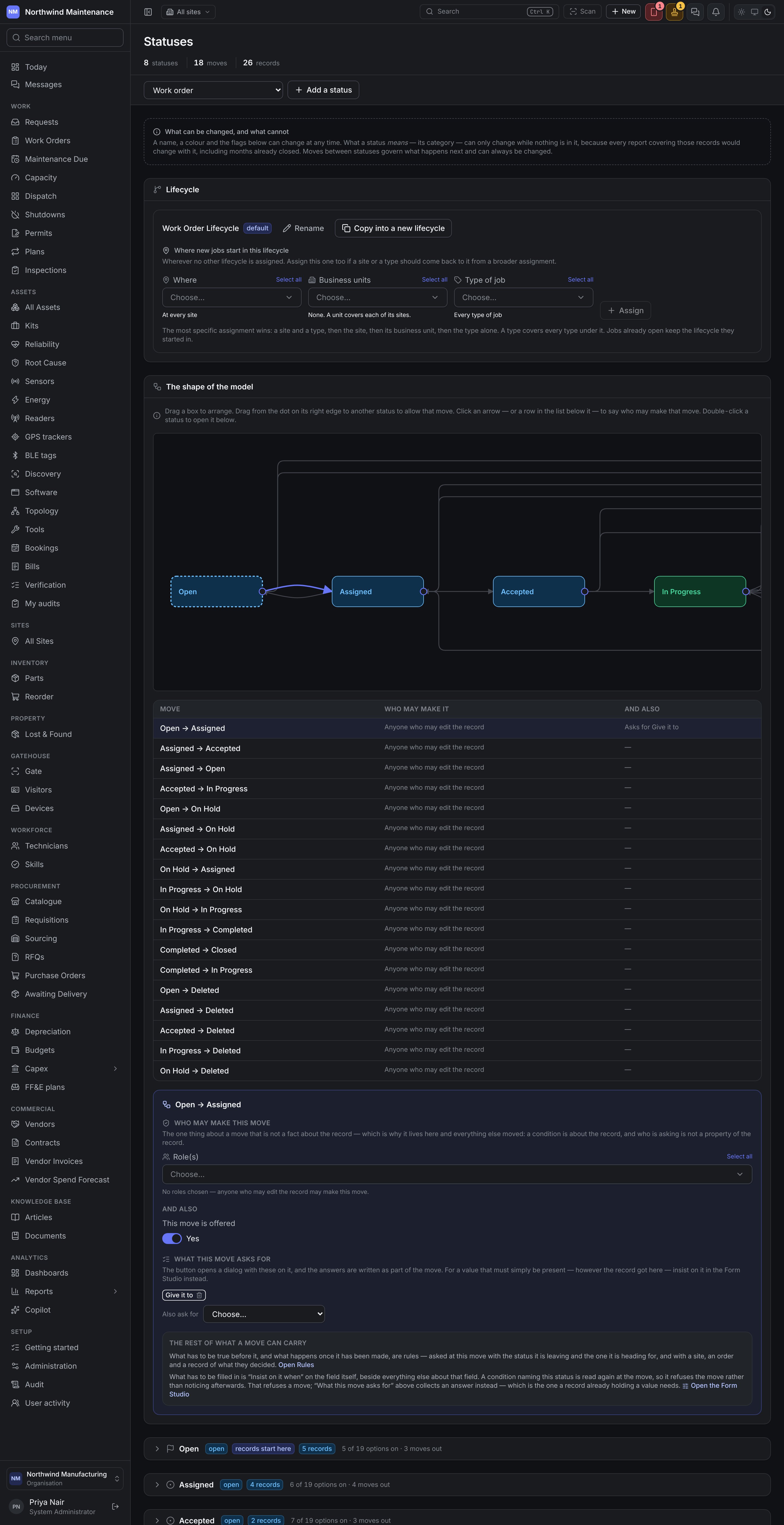
The panel’s last box, The rest of what a move can carry, points to the two other places a move is controlled:
- What has to be true before a move, and what happens after it are rules asked at Before a status change and After a status change. Open Rules takes you there.
- What has to be filled in is Insist on it when on the field itself in Form studio. A condition naming the status refuses the move. Open the Form Studio takes you there.
A status card
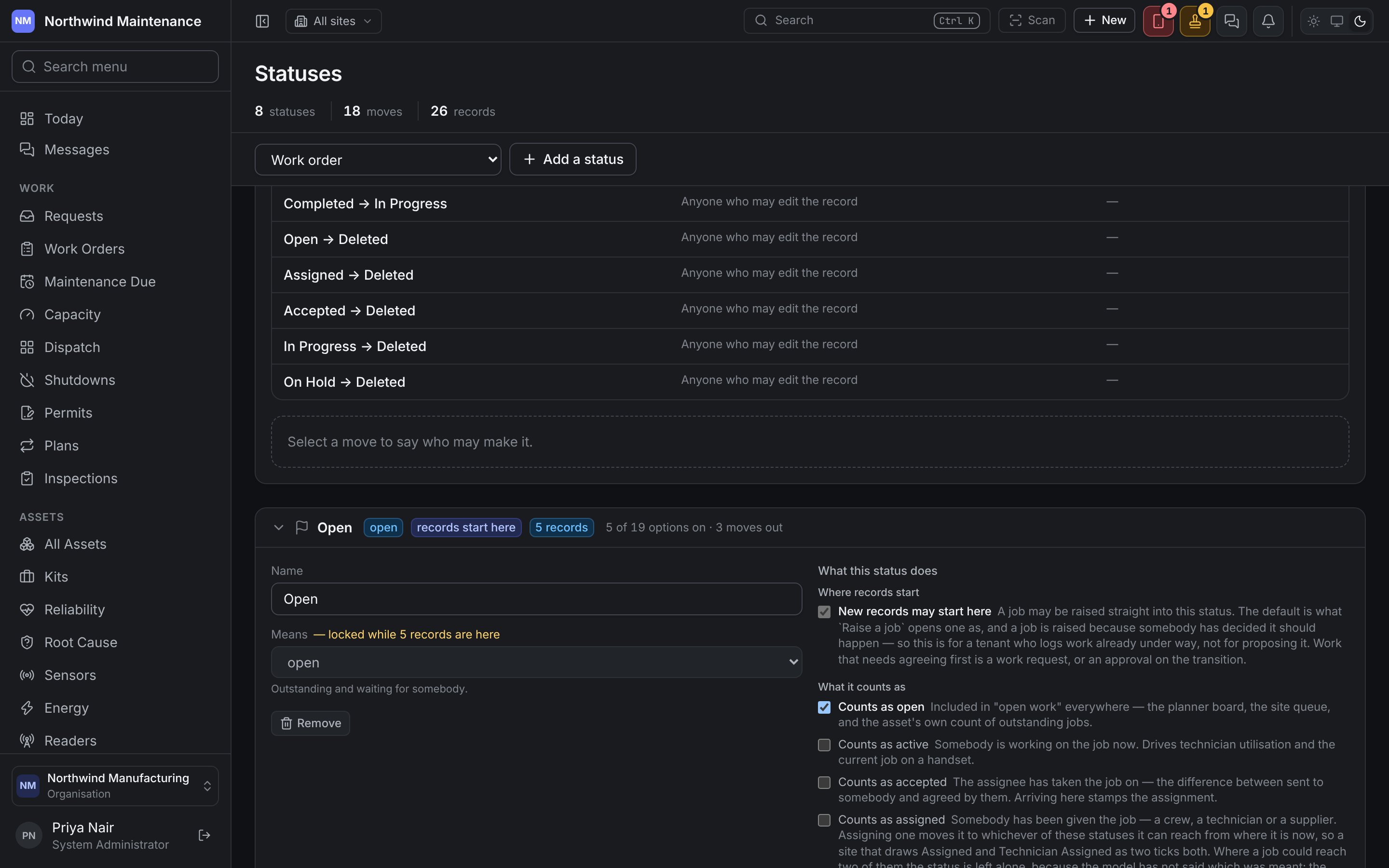
Every status has a card below the diagram. A closed card shows its name, its category, records start here or may start here, not offered if it is switched off, how many records it holds, unsaved if you have unsaved changes, and a summary such as 6 of 19 options on · 4 moves out. Click the card to open it — one card is open at a time, and a closed card keeps your unsaved changes.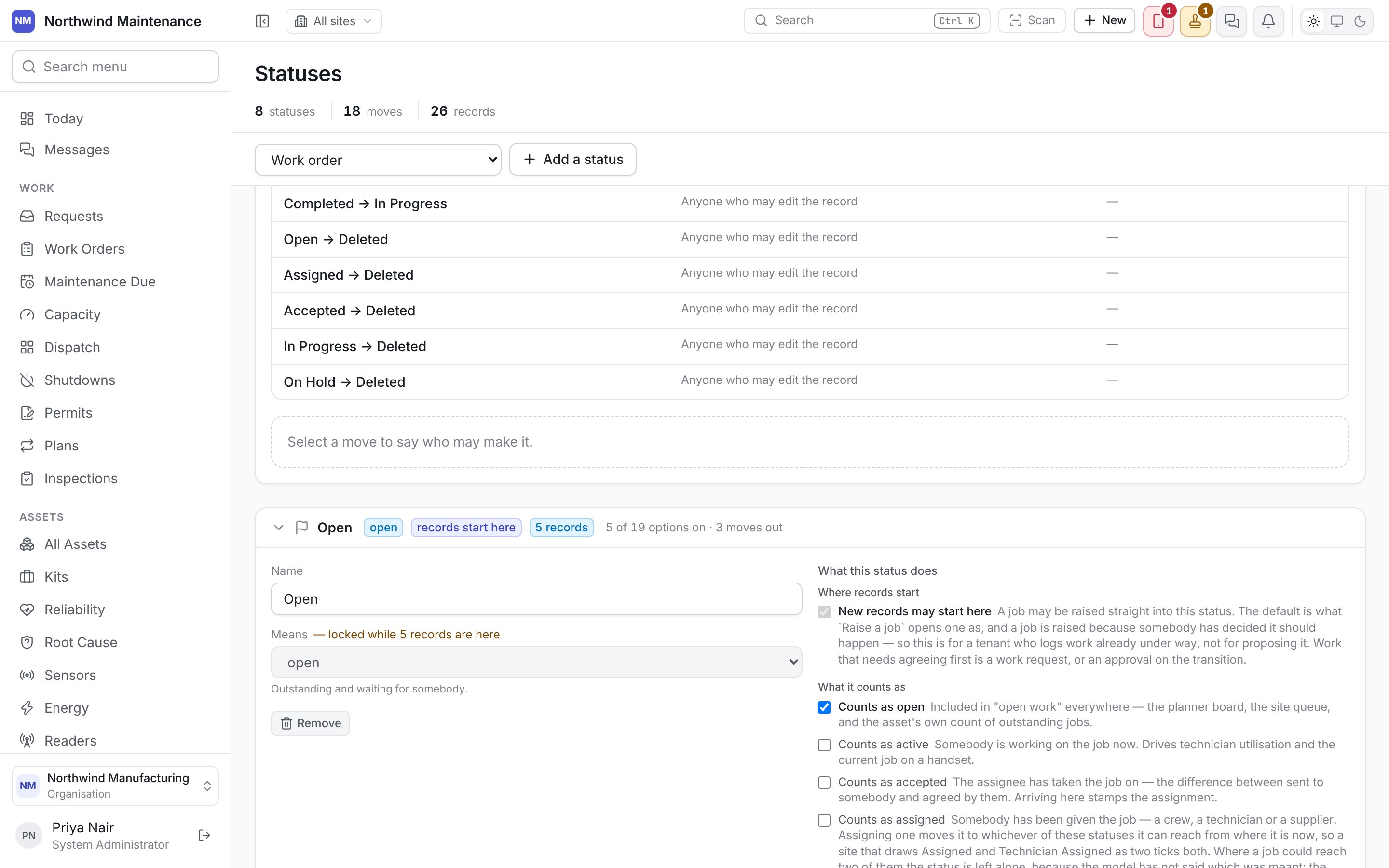
Categories
The category is what a status means. The default categories, and what each means for a work order, are:
Every other register has its own sentence for each category — for an asset, on hold means not available — under maintenance, broken down, off hire; for a purchase order, completed means the goods are in; the invoice may not be matched.
What a status does
The options are grouped on the card under Where records start, What it counts as, What may be done here, The SLA clock, On arrival and The status itself. Where two options cannot both be on, the card shows a three-way choice instead of two checkboxes.Accept and Deny
Work order statuses only. Tick The assignee accepts or denies the job here on a status to give the person the job is assigned to an Accept and a Deny button while the job is in it. A Deny always asks them why. Everybody else looking at the job sees the ordinary moves.
Accept and Deny are moves like any other, so the roles, questions and rules on those moves apply to the buttons too. That is also why Accept goes to only offers statuses a move already reaches: an Accept straight to Closed cannot be set up. The settings save as you change them, and unticking the box takes both buttons away. See Accepting or turning down a job.
On a booking
Asset statuses only, where your organisation has the bookings module. On a booking decides what an asset’s status becomes when a booking hands it over or takes it back.
Unticked, the asset keeps its status. Whoever is at the counter can still choose another, and is refused if the move is not theirs to make. Both are unavailable until a move out of the status is allowed — “Allow a move out of this status first, and a booking can then change it.” A status that takes an asset off the register, or one where nothing follows, does not offer them.
Statuses that are no longer offered and hold no records fold away under N statuses no longer offered at the bottom of the screen. Open the fold to switch one back on. A status that is not offered but still holds records stays in the main list, because those records need moving.
Adding a status
Add a status opens A new status:
Add creates it; Cancel closes the form. A new status is unreachable until you allow a move into it from somewhere — open a card that should lead to it and use Allow a move to, or drag an arrow on the diagram. Then open the new status’s card to set its options.
A worked example — a fourth on-hold state, Waiting for Access, for jobs blocked because production will not release the machine:
1
Create it
Add a status, name it Waiting for Access, Means on hold, Add.
2
Set its options
Open its card. Set The SLA clock to Pauses and leave Technician may edit off. Save.
3
Allow moves in and out
From Assigned, Accepted and In Progress, Allow a move to Waiting for Access. From Waiting for Access, allow moves back to Assigned and In Progress.
4
Decide who may make the moves
Click each new arrow and choose Role(s) if only supervisors should park a job.