

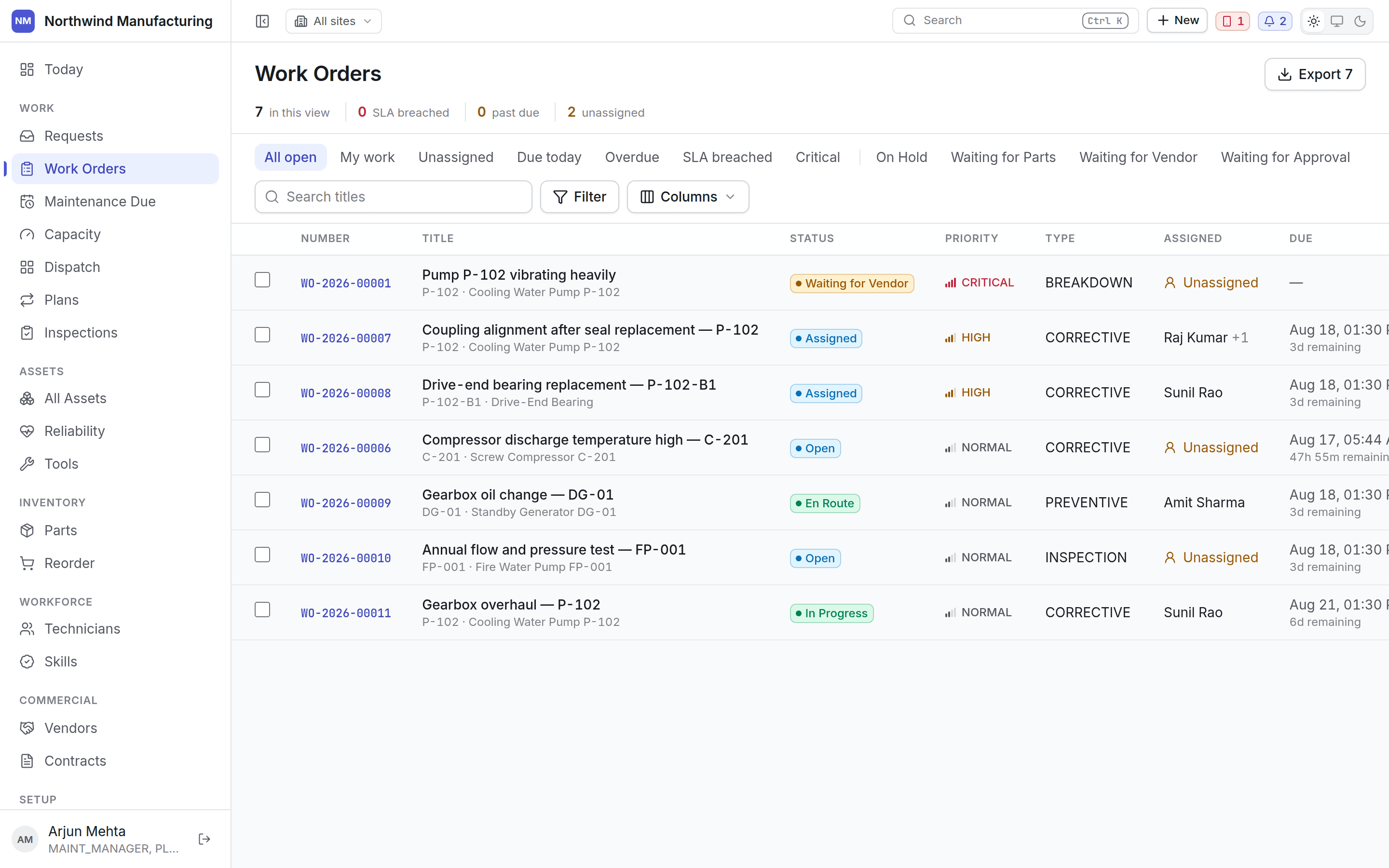
The summary line
Above the views: how many jobs are in the current view, how many have breached their service level, how many are past due, and how many are unassigned. It reflects the view you are in, so narrowing to Critical narrows the counts too.Views
The first group is fixed:
After the divider, one chip per status and type your organisation has configured — On Hold,
Waiting for Parts, Waiting for Vendor, Waiting for Approval, and your work order types.
These chips are built from your configuration. Rename
WAITING_PARTS to “Awaiting spares” and the
chip is called Awaiting spares. Add a fourth on-hold state and you get a fourth chip.Columns
Use Columns to change what is shown and in what order. Your layout is remembered per list, per
browser.
Filtering and searching
Search titles matches the title and the number. Filter narrows on any column — status, priority, type, assignee, asset, site, dates. Filters combine with the view you are in.Export
Export downloads what is in view, with the filters applied. The button carries the row count so you know what you are about to get. It exports the view, not the table.Bulk actions
Tick rows to act on several at once — assigning a batch of unassigned jobs to one technician, for example. Only moves your state model allows from the states of all selected rows are offered.Creating a work order
New on this screen, or New → Create Work Order in the header. The useful minimum is the asset, a title, a type and a priority. Everything else — requirements, assignment, scheduling — can follow. Most work should not be created here at all. Preventive work comes from maintenance plans; reported faults come from work requests. Creating jobs by hand is for the ones that fit neither.Inside a work order
What each tab on the job does.