

Kits appears only where your organisation has kits switched on, and only to people with View
kits and what is in them. If you don’t see it, your administrator can switch the module on under
Administration → Modules, or it may not be included in your plan.
The kit register
The register opens newest first. The header counts the kits, and how many on the page are short of something.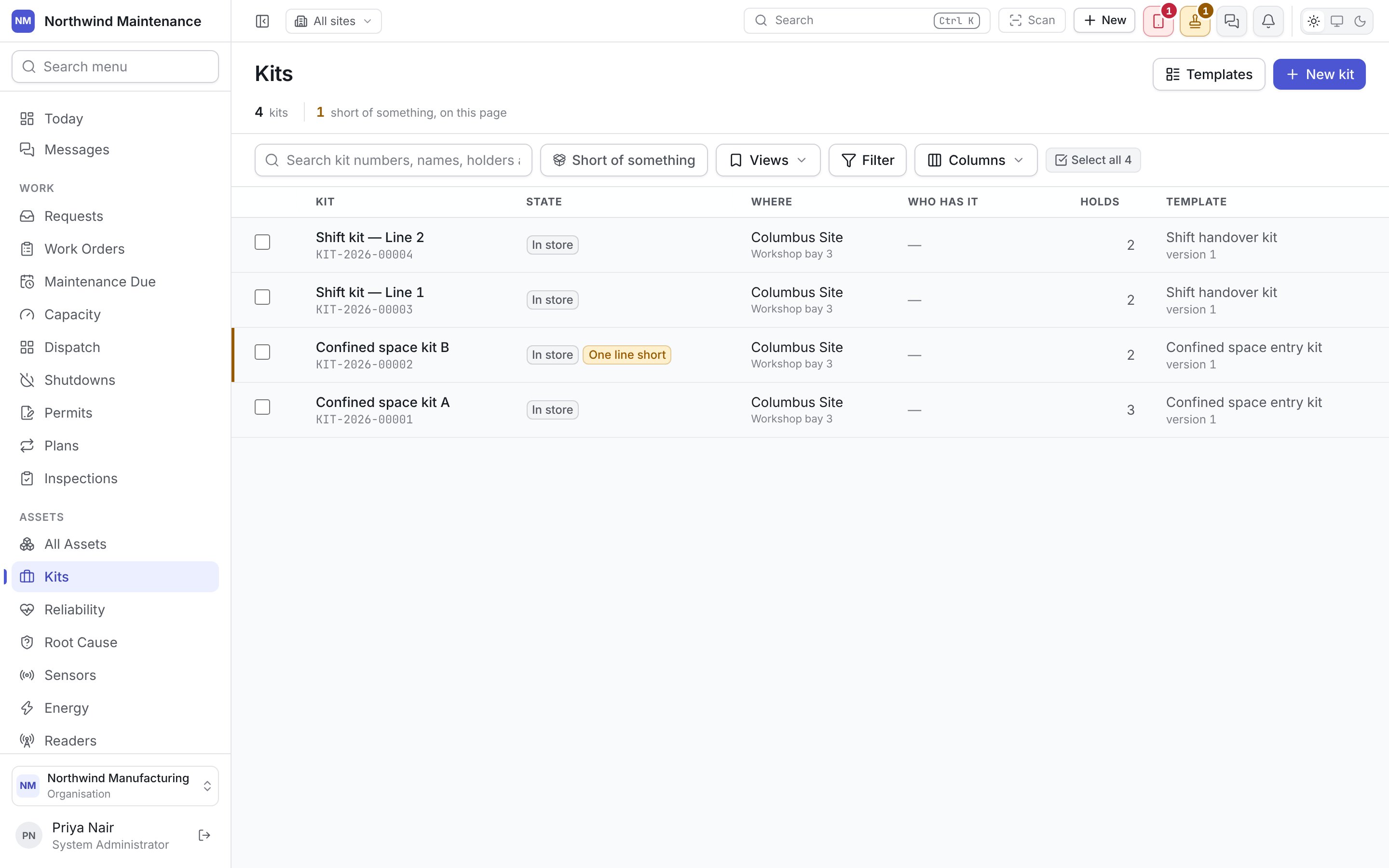
A kit short of a required line is tinted, so it stands out before anybody opens it. Short of
something in the toolbar narrows the list to those kits. The search box reads kit numbers, names,
holders, sites and templates.
Ticking kits opens a bar at the foot of the screen with Print labels, which prints the label for
each kit’s case from the kit design in the label studio. A kit cannot be edited in
a grid, because what it holds and where it is change only by filling and moving it.
Creating a kit
New kit asks for:
The form does not ask who is holding the kit. A kit starts in store, and is handed to somebody by
moving it, which checks first that it holds what it should.
Inside a kit
Clicking a kit opens its page. The header shows the kit number, its state and any shortfall.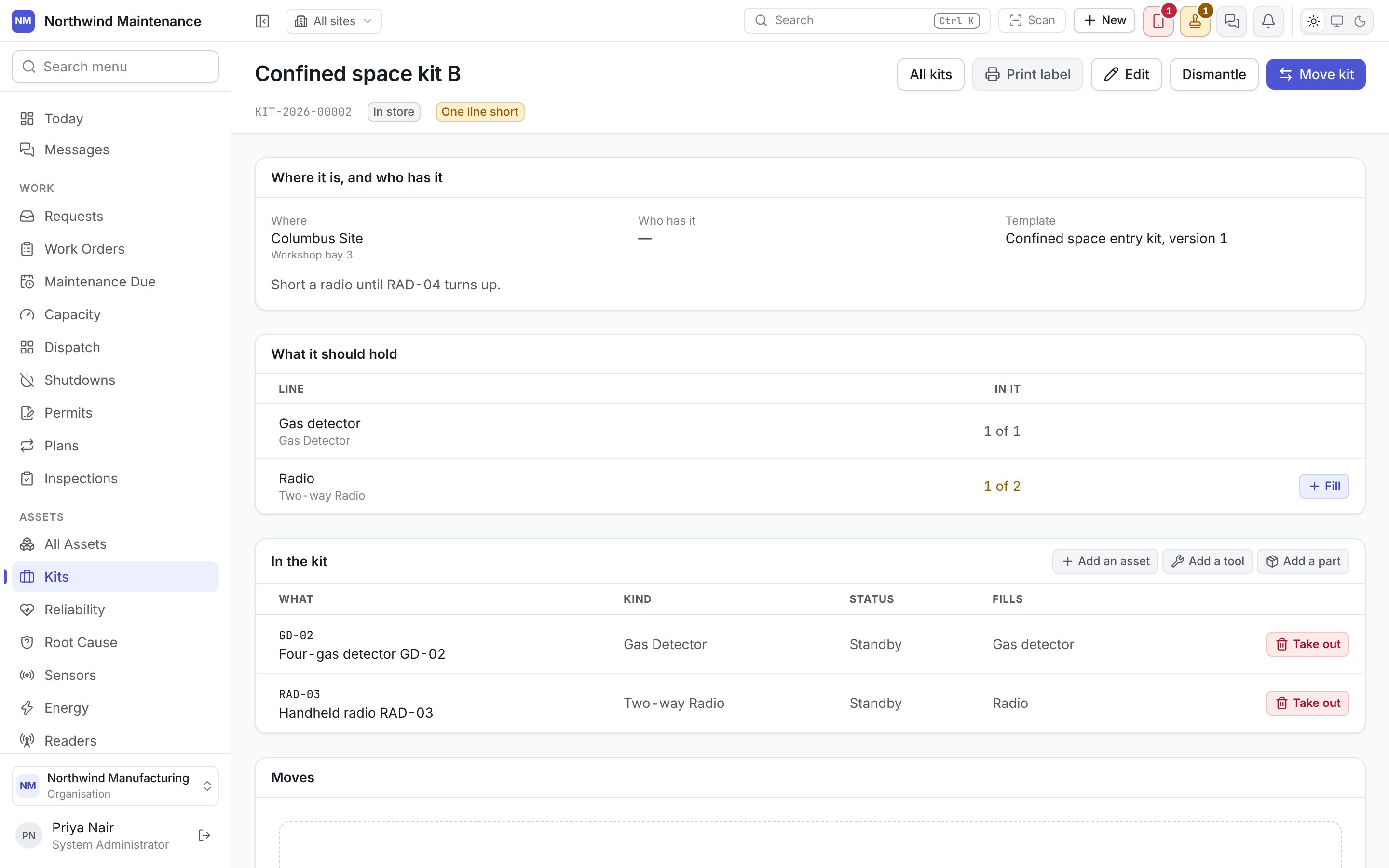
Putting things in
Add an asset, Add a tool and Add a part sit beside In the kit. Each opens a picker that offers only what the kit would accept, so a refusal is the exception rather than the way you learn the rules.
Put in adds the row. Filling from a template line offers only what fits that line — its
category, model, tool type or part.
Once in a kit, an asset goes where the kit goes. Moving it, handing it to somebody, splitting it or
disposing of it on its own is refused until it is taken out of the kit — move the kit instead.
Putting parts aside
While a part line is short, Put parts aside holds what the part lines are still short of in one store you choose, so the store does not issue it elsewhere before the kit is assembled. Only stores at the kit’s site holding some of a part the kit asks for are offered, and a store that cannot cover every part is refused. Each part then put in from that store is taken from the hold first. Let them go releases the hold.Header actions
A dismantled kit keeps its page and its moves, but offers none of these except All kits.
Moving a kit
Move kit sends a kit somewhere new, or to somebody new, with everything in it. It is a smaller form than moving an asset, because what goes is already decided.
The kit moves whole or not at all: if one thing in it cannot go, nothing moves. So the form offers
Check before Move kit. Check tries the move exactly as it would be made, without keeping
it, and lists each thing in the kit with Can go, Already there; nothing to change, or the
reason it would be refused. When everything can go, it says Everything in the kit can go.
Where moves need approval, Check says so, and Move kit sends one request for the whole kit;
nothing moves until it is approved. Once the kit has moved, the result names the consignment
everything moved as, and offers its handover document — one document listing everything in the kit,
headed by the kit.
The field app can move a kit too: scanning a kit’s label offers Move this kit. See scanning in the field app.
Taking a kit back
Take back checks a kit in from whoever has it, one thing at a time. Nothing starts ticked. Scan each label — a scanner types the code and presses Enter — or tick each thing as it is handed over, and count the parts that came back. A scan of something not in the kit says so. Where assets come back, choose What the assets go back into — the status they return in. Why is optional. Anything not checked in is what did not come back, and the dialog says so before you press Take back: a missing asset is taken out of the kit and left with whoever had it, and reported missing where missing assets are recorded; a missing tool stays checked out to the kit; parts that are short are written off.Dismantling a kit
Dismantle asks for confirmation and an optional Why. Everything comes out at once: assets stay where they are, tools go back to the tool room and parts to the stores they came from, and anything put aside for the kit is let go. The kit stays on the register with its moves, but cannot be filled or moved again.Kit templates
A template says what a kit of one kind should hold — a laptop, a meter, two radios — so a kit short of something is noticed before it is handed out. Open it from Templates on the kit register. It needs View kit templates as well as access to kits. Kits can also be put together without one.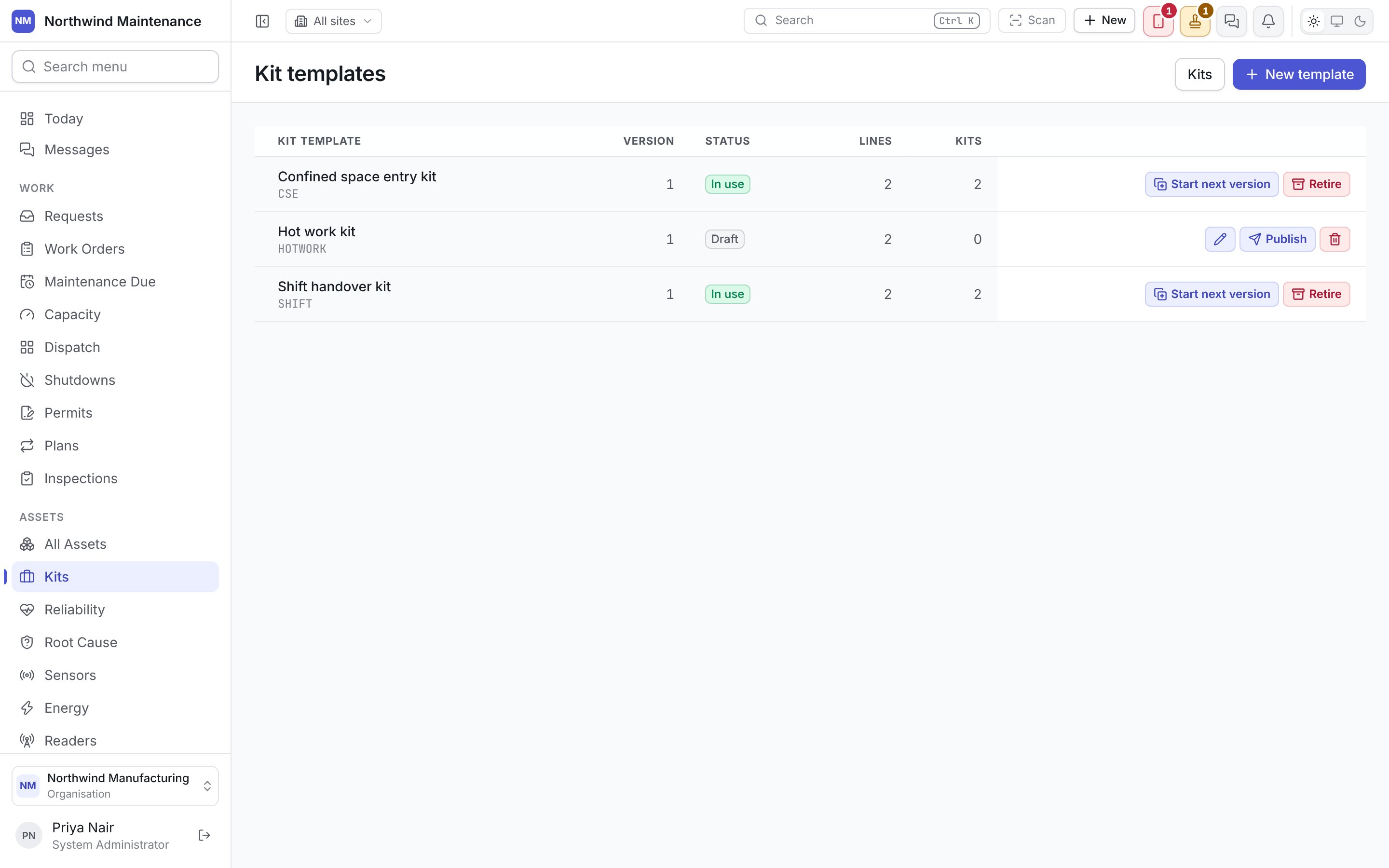
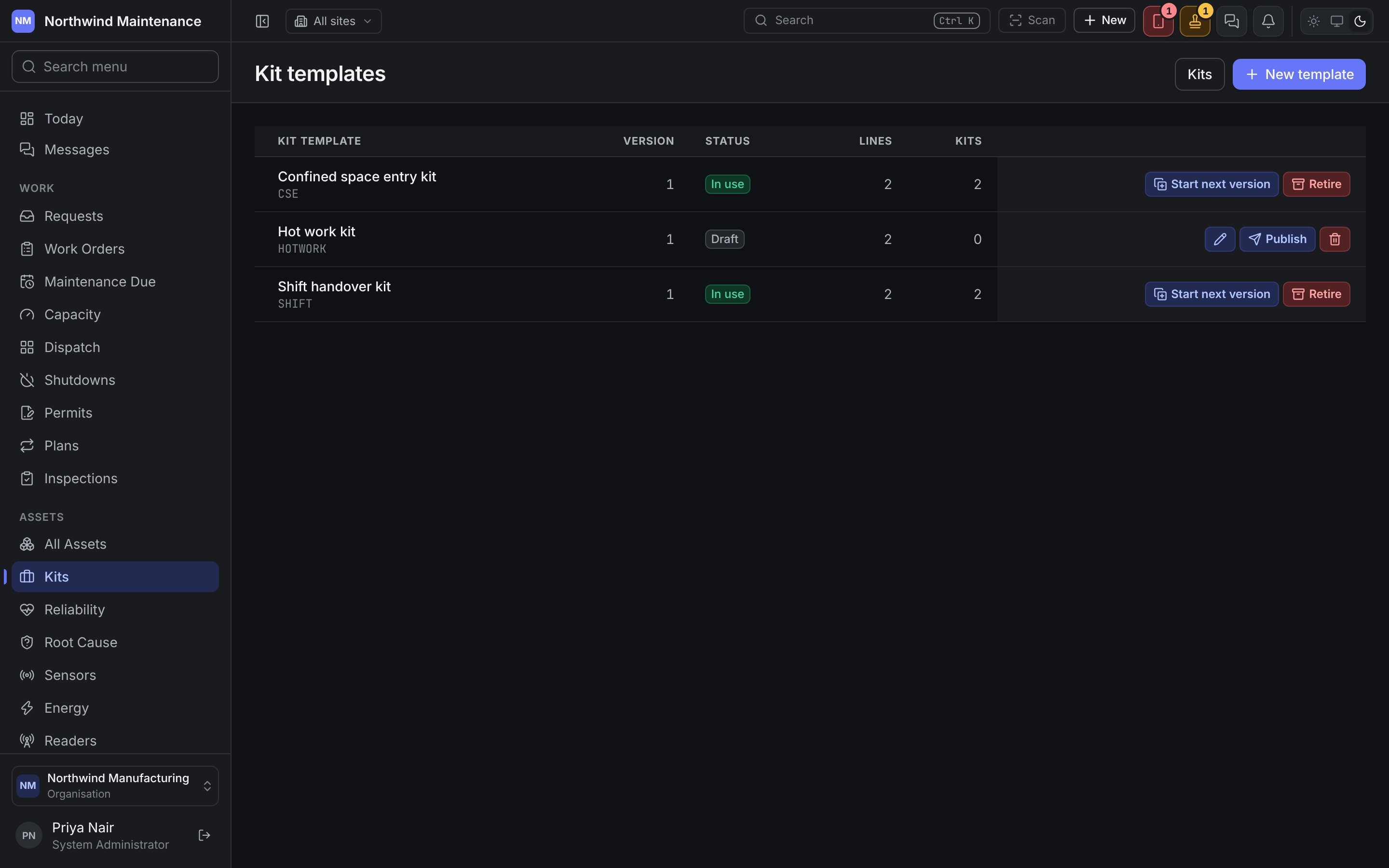
Clicking a template shows its lines underneath — what a kit of that version holds.
Templates are versioned
A template is versioned the way a bill of materials is, so a kit assembled last year can still be compared with what it was meant to hold then.
Start next version is not offered while a draft of the same template already exists.
A version no kit was assembled to can be deleted. Changing templates needs Edit draft kit templates,
publish and retire them; making one needs Create kit templates; deleting one needs Delete kit
templates nothing was assembled from.
New template asks for a Code (a short code people can type, such as FIELD-ENG, shared by every
version), a Name and a Description. A template starts as a draft.