

If you don’t see this in your navigation, your administrator can switch the module on under Administration → Modules, or it may not be included in your plan.
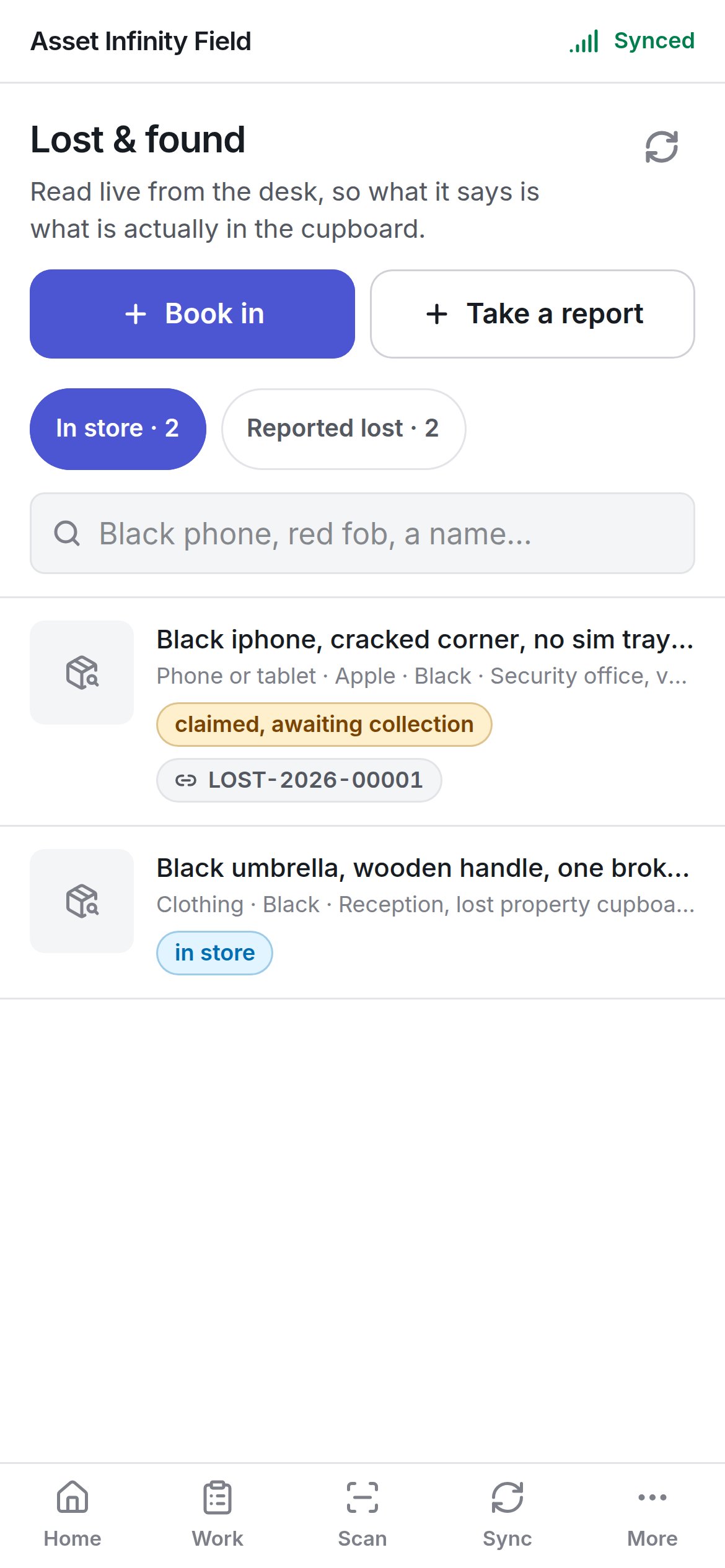
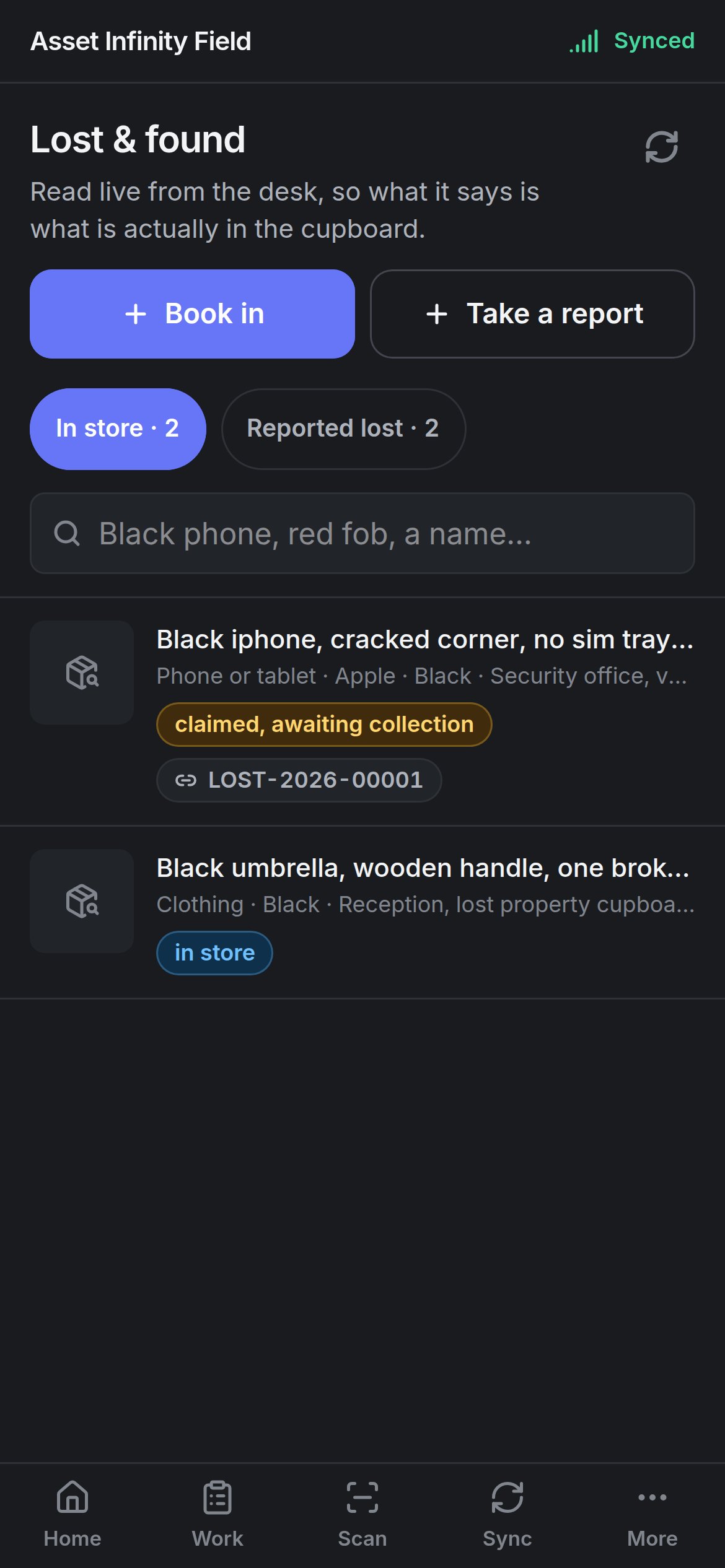
The two lists
Search what is on this screen (Black phone, red fob, a name…) filters the rows already shown. Only the most recent rows are listed — an older record is on the register in the web app.
A found item
Tap a row to open it.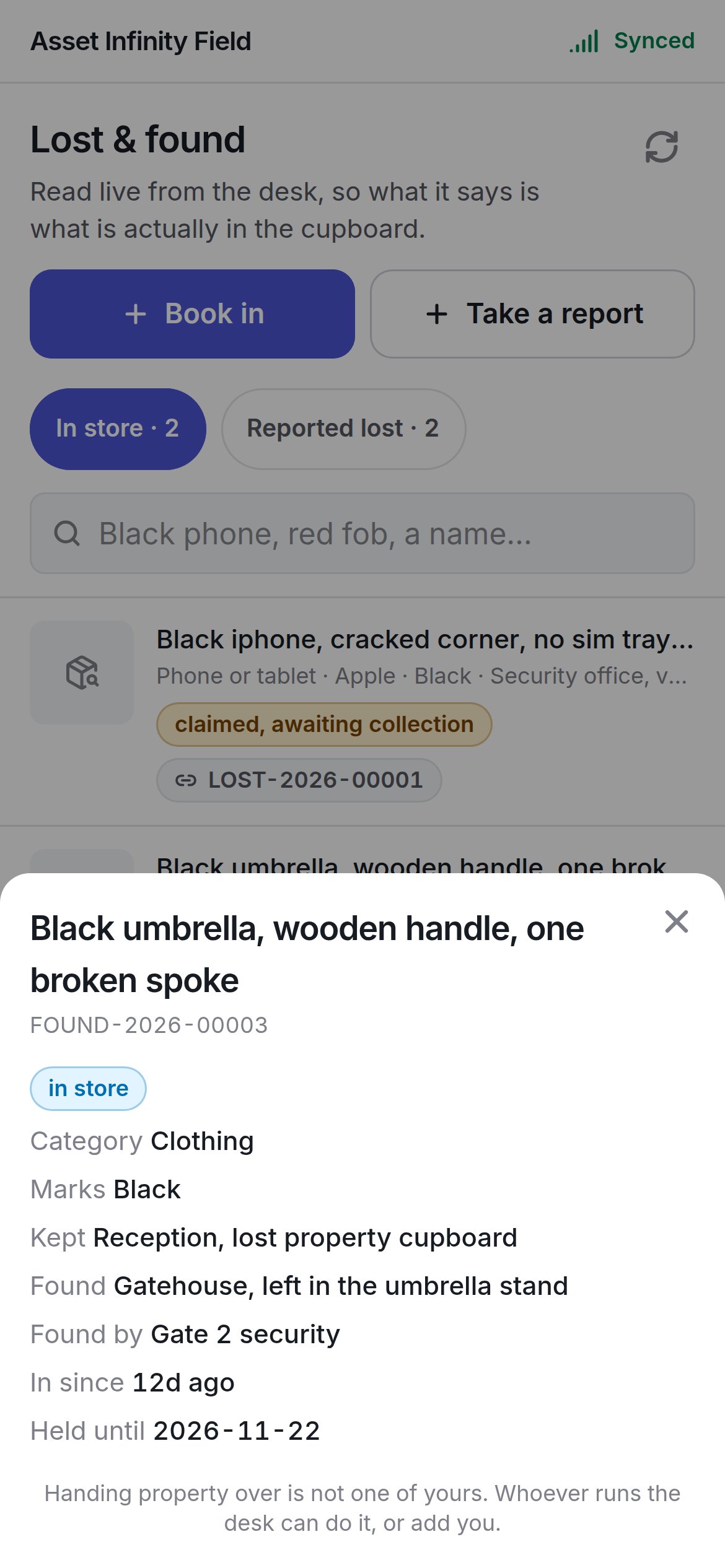
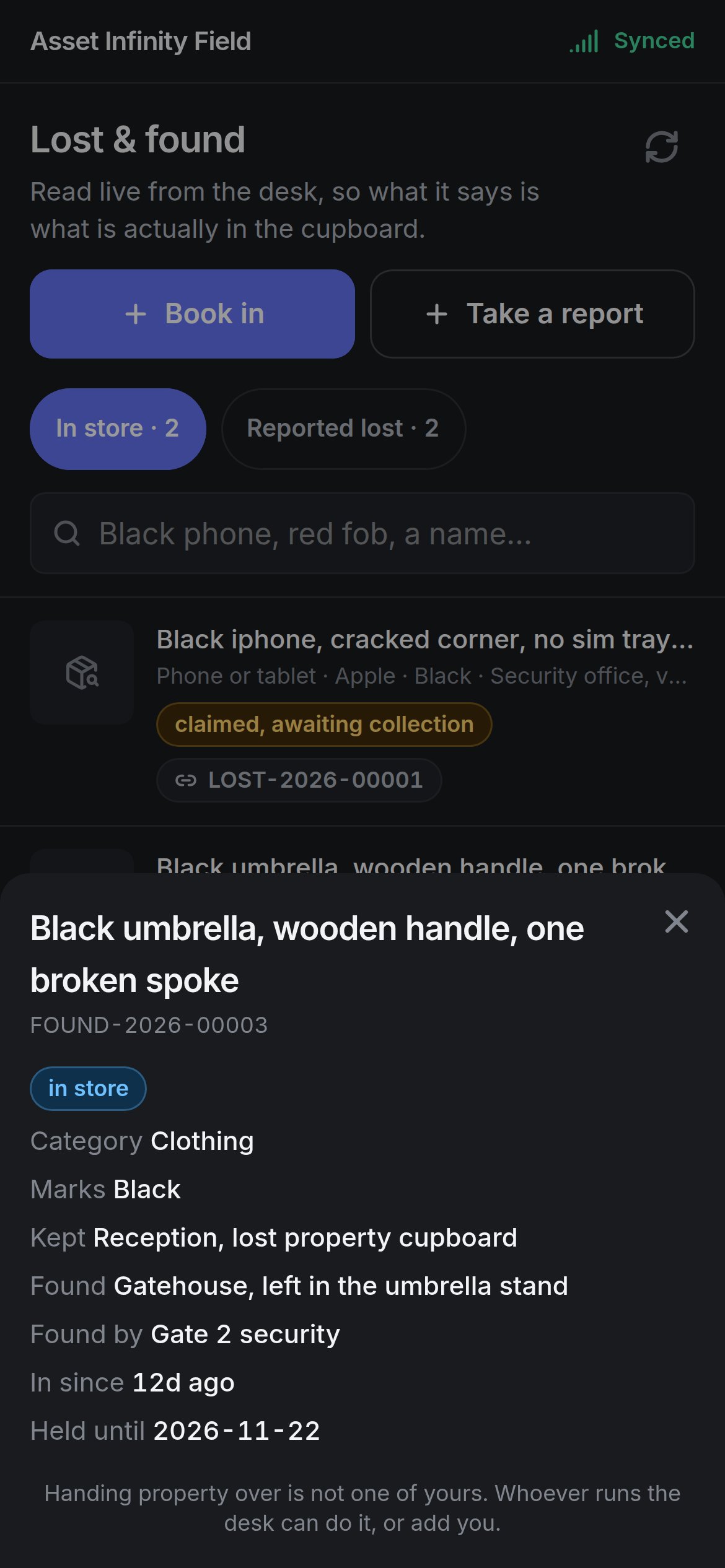
Without permission to hand property over, the sheet says so.
A lost report
A report shows Whose, Reach them, What makes it theirs, Last had it, Reported and Matched to. See what is in store lists property at the site handed in after they lost it, best first; That is theirs links the two. If nothing looks like it, the report stays open — property turns up days later more often than not.Handing it over
Record the handover asks:
Handing over an item that was matched to a report closes the report too. Do not let the property go until the screen says the handover reached the server.
Book something in
Book in opens Book something in — Half of what a desk holds is never reported lost by anybody. Book it in anyway.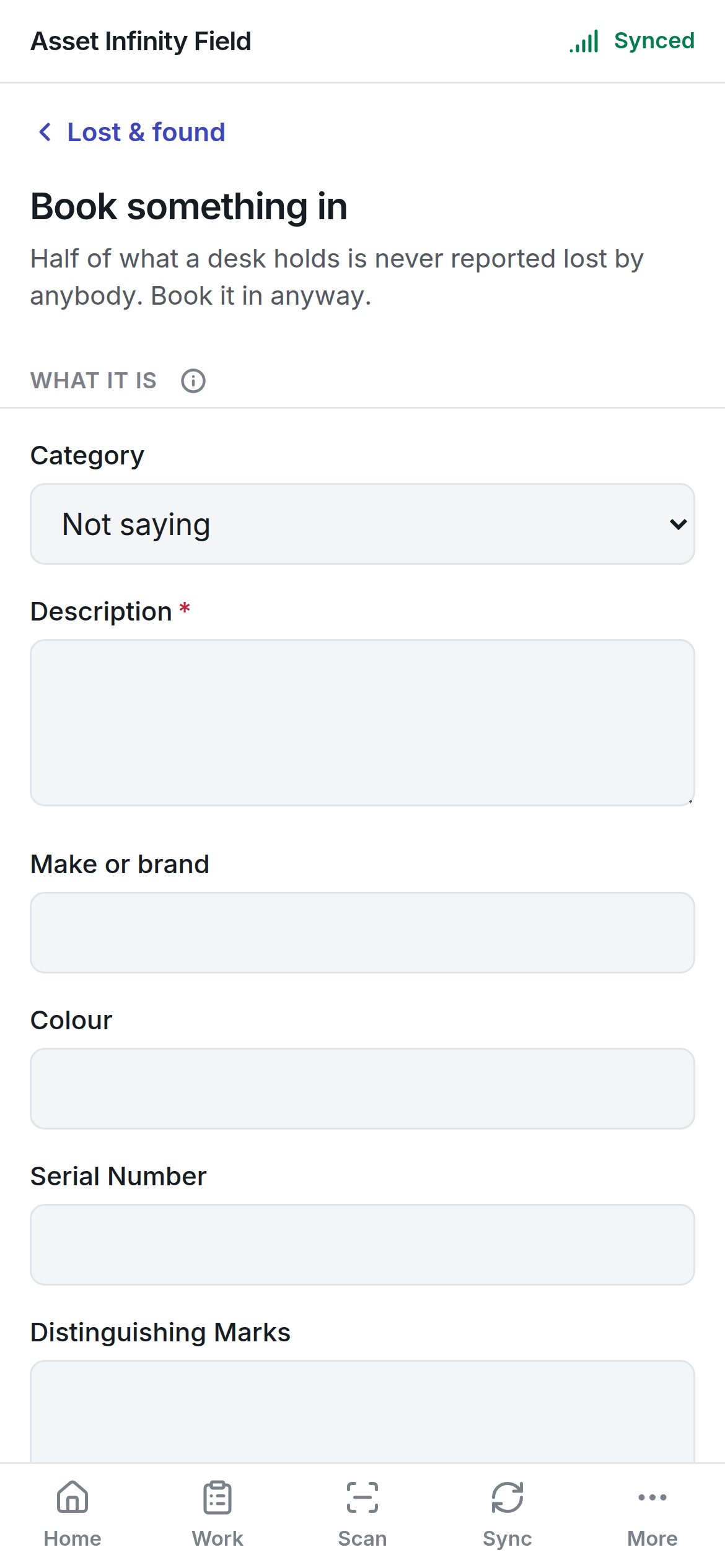
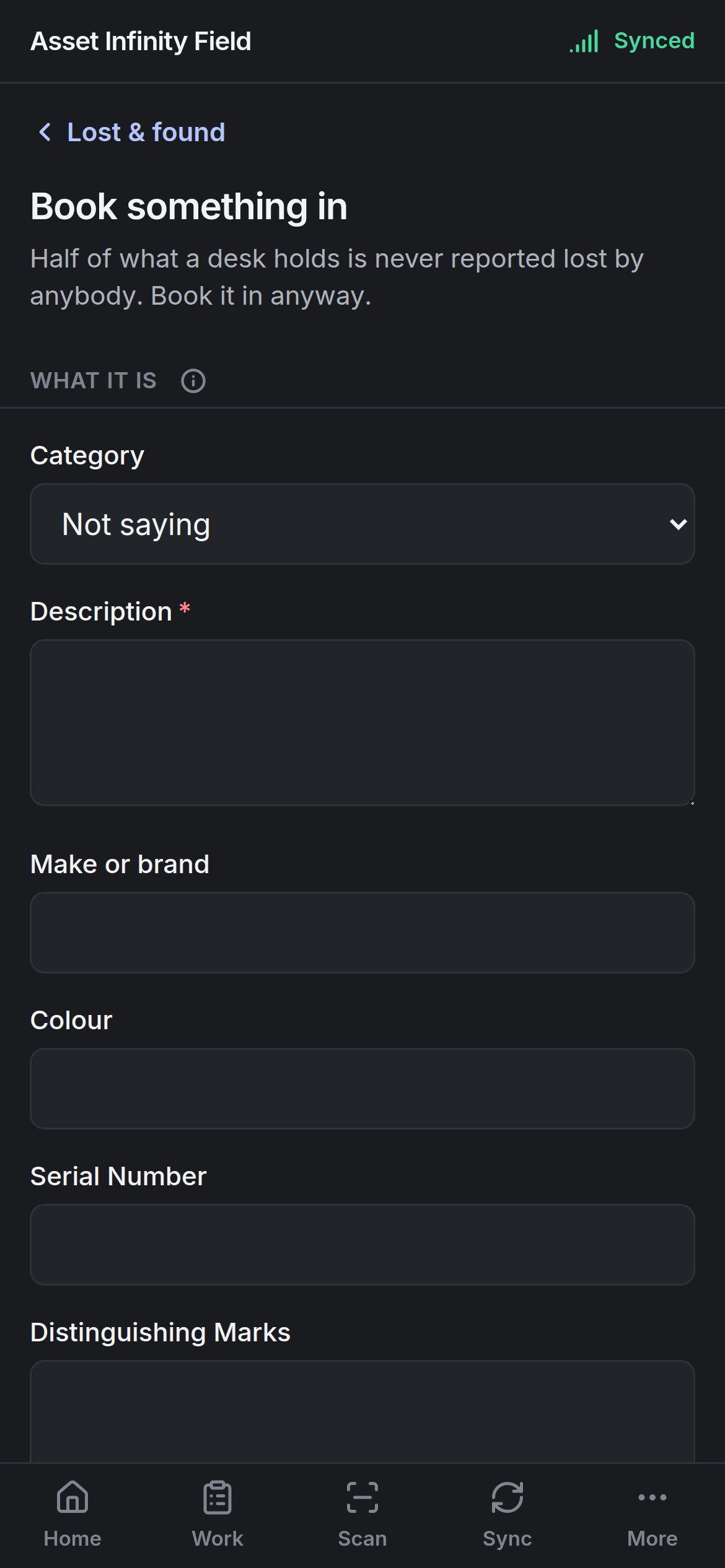
Estimated Value, Finder’s account and Booked in by are not asked on the handset and are answered on the register in the web app. Book it in stays greyed while Still needed: names a required field.
Take a report
Take a report — Describe it the way they describe it.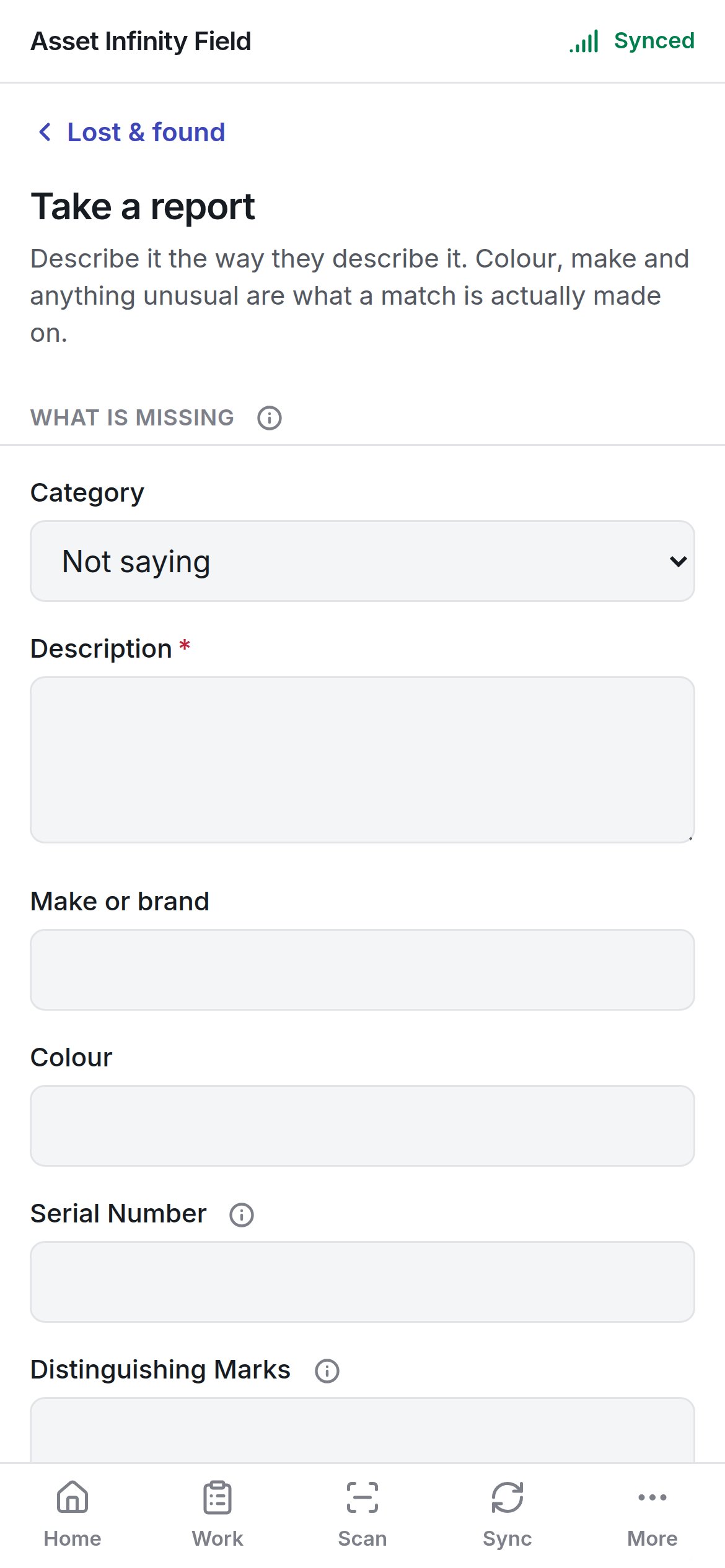
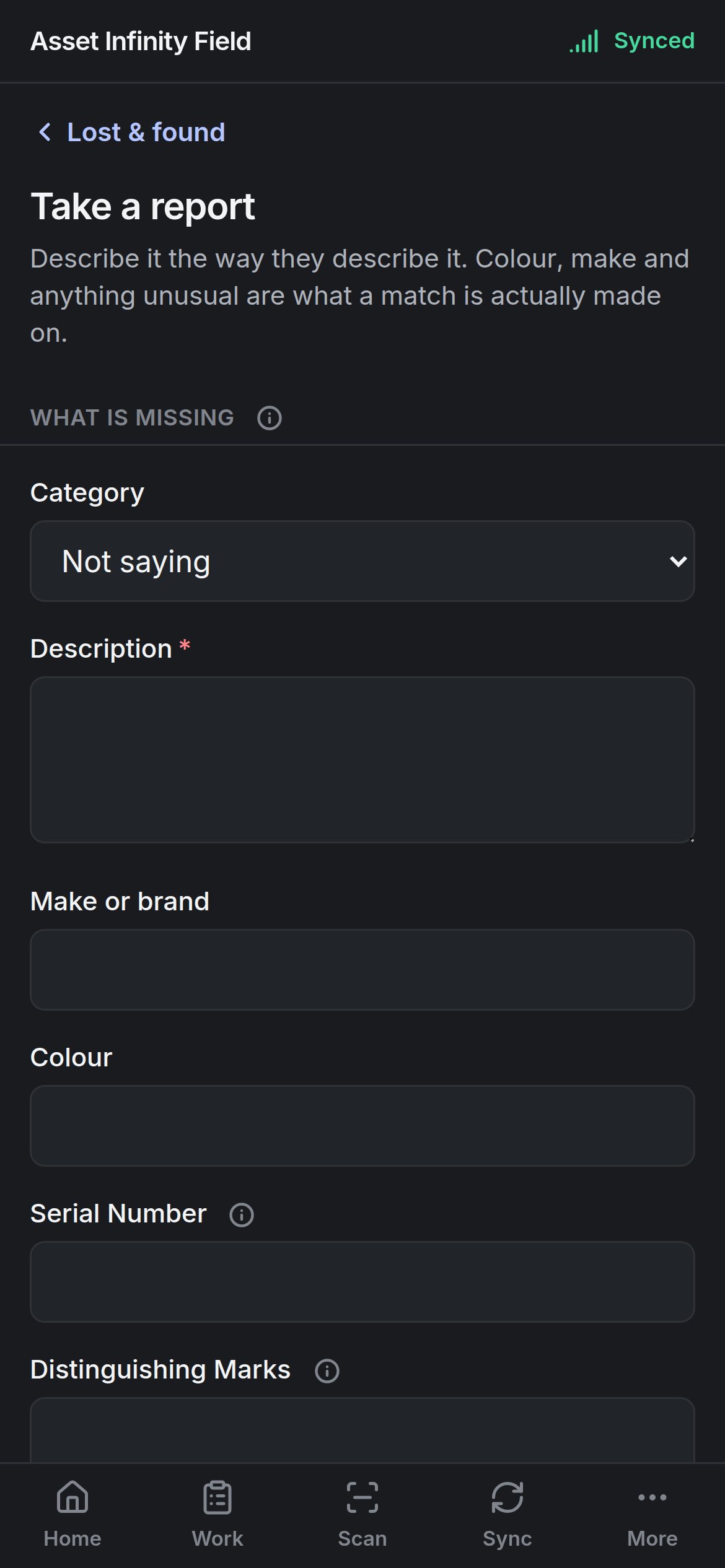
Estimated Value, Owner’s account and Reported by are answered on the register in the web app. Take the report stays greyed until the required fields are filled.