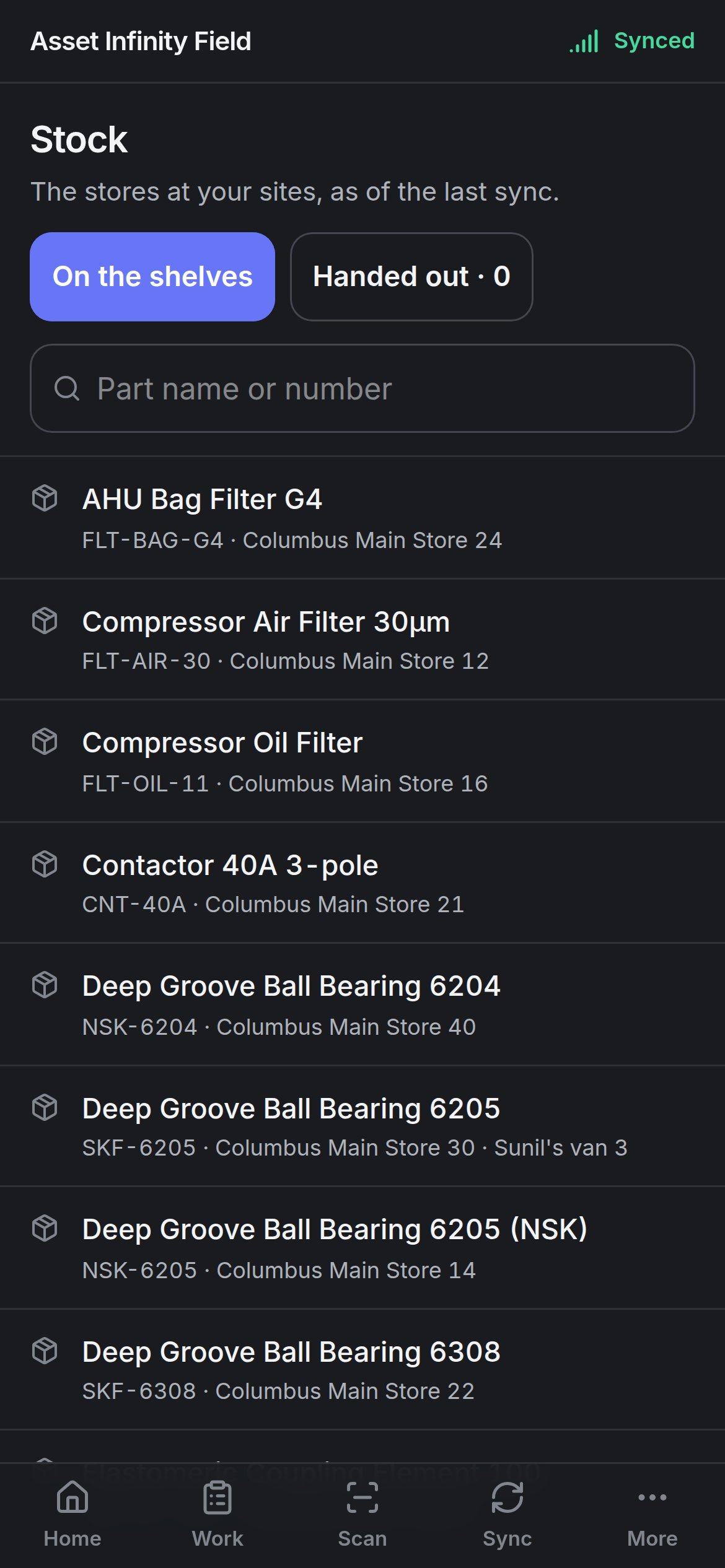
The Stock screen shows what the stores at your sites hold, as of the last sync, and lets the people allowed to move stock hand parts out, count a shelf, move stock between stores and take a delivery in — with no signal.
If you don’t see this in your navigation, your administrator can switch the module on under Administration → Modules, or it may not be included in your plan.
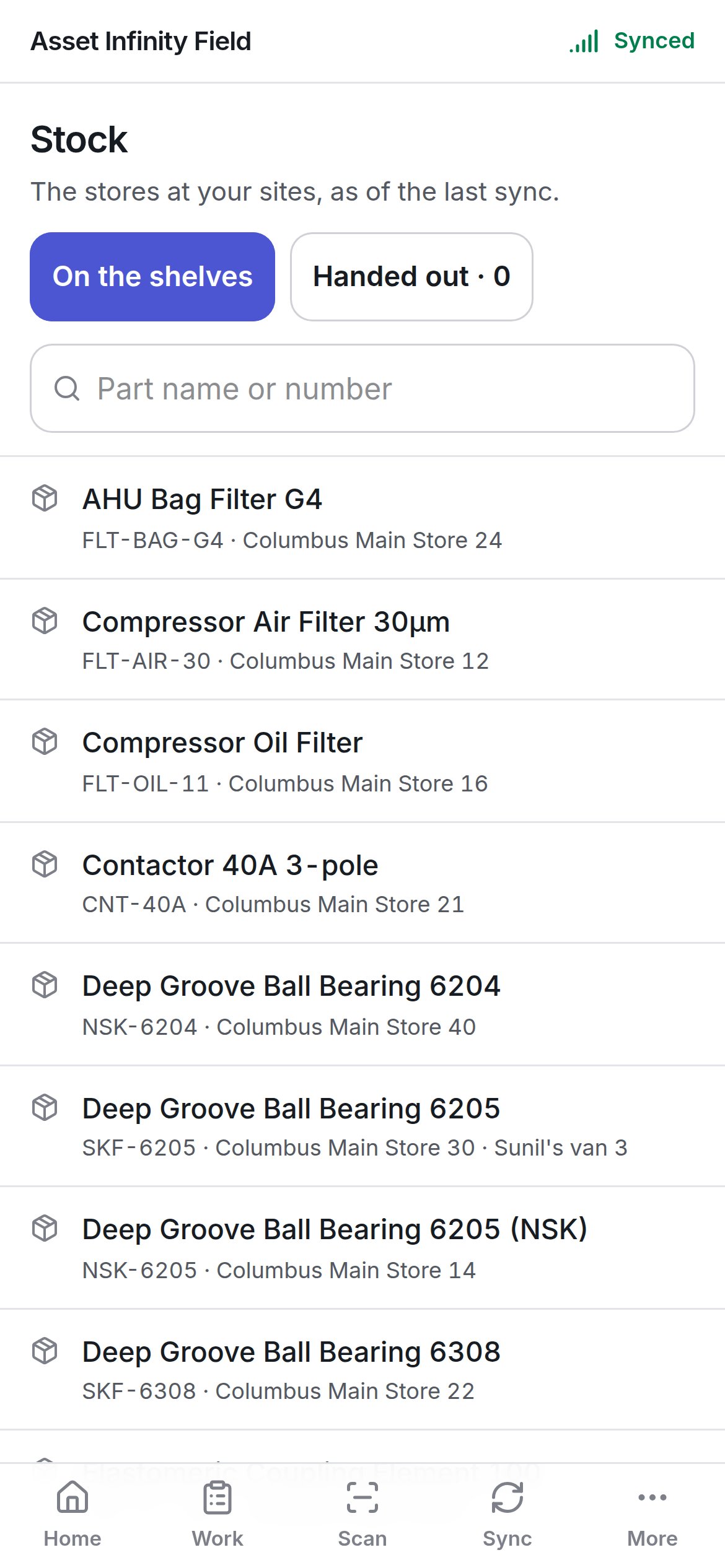
The Stock screen listing parts with the stores that hold them The Stock screen listing parts with the stores that hold them Open it from Home → Stock. The door appears when your organisation keeps inventory and you are allowed to see stock — the commonest use is simply checking whether the van has a filter before driving out.

The two lists

Part name or number searches the list. Long lists show the first rows and more. Type to narrow the list. Both lists follow the site filter in the header. If the handset holds no stock, the screen says it comes down when you sync.

Moving stock

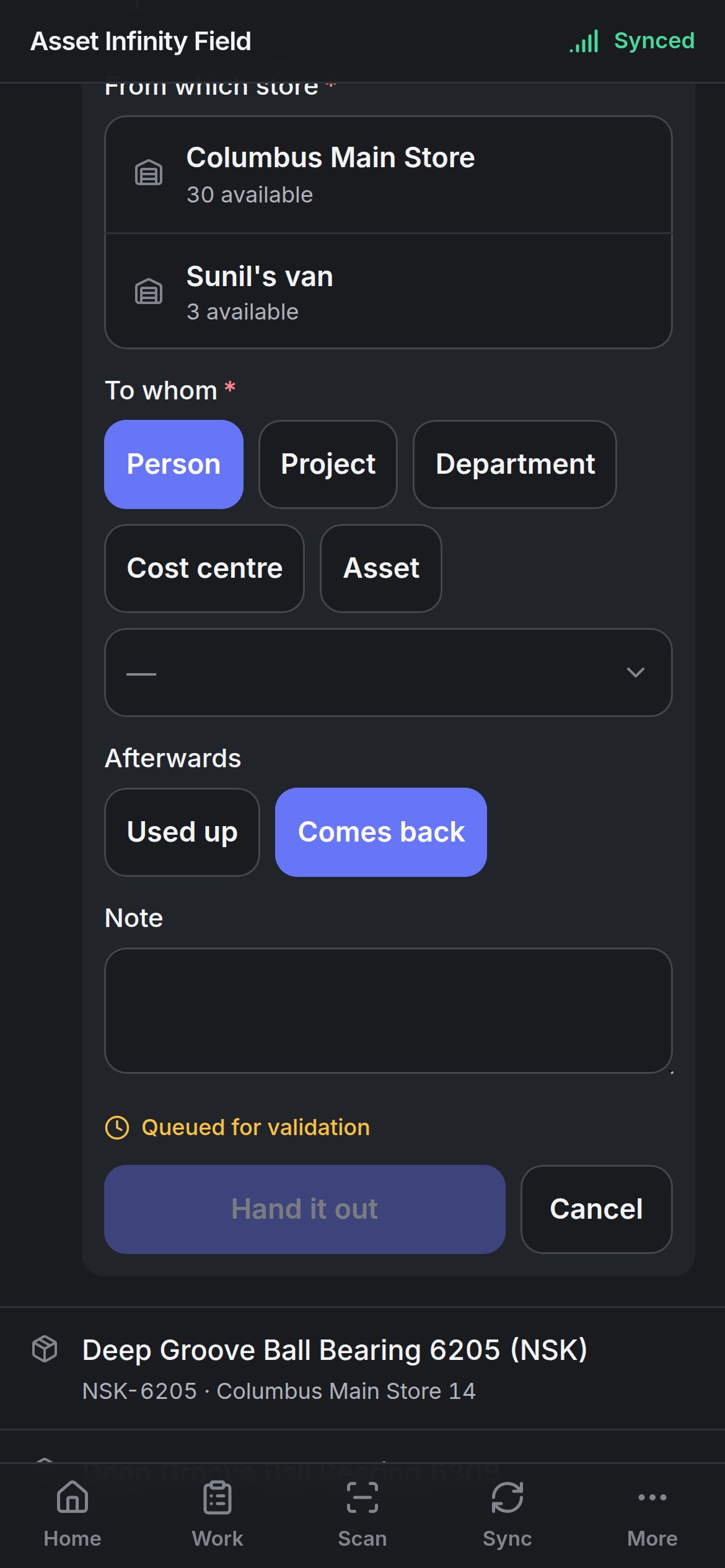
Tap a part to see what you can do with it. Each action appears only if you hold the permission behind it: Every movement is Queued for validation: recorded now, sent on the next sync, and checked by the server against what is actually there. Handing a part out, with From which store, To whom, Afterwards and Note Handing a part out, with From which store, To whom, Afterwards and Note
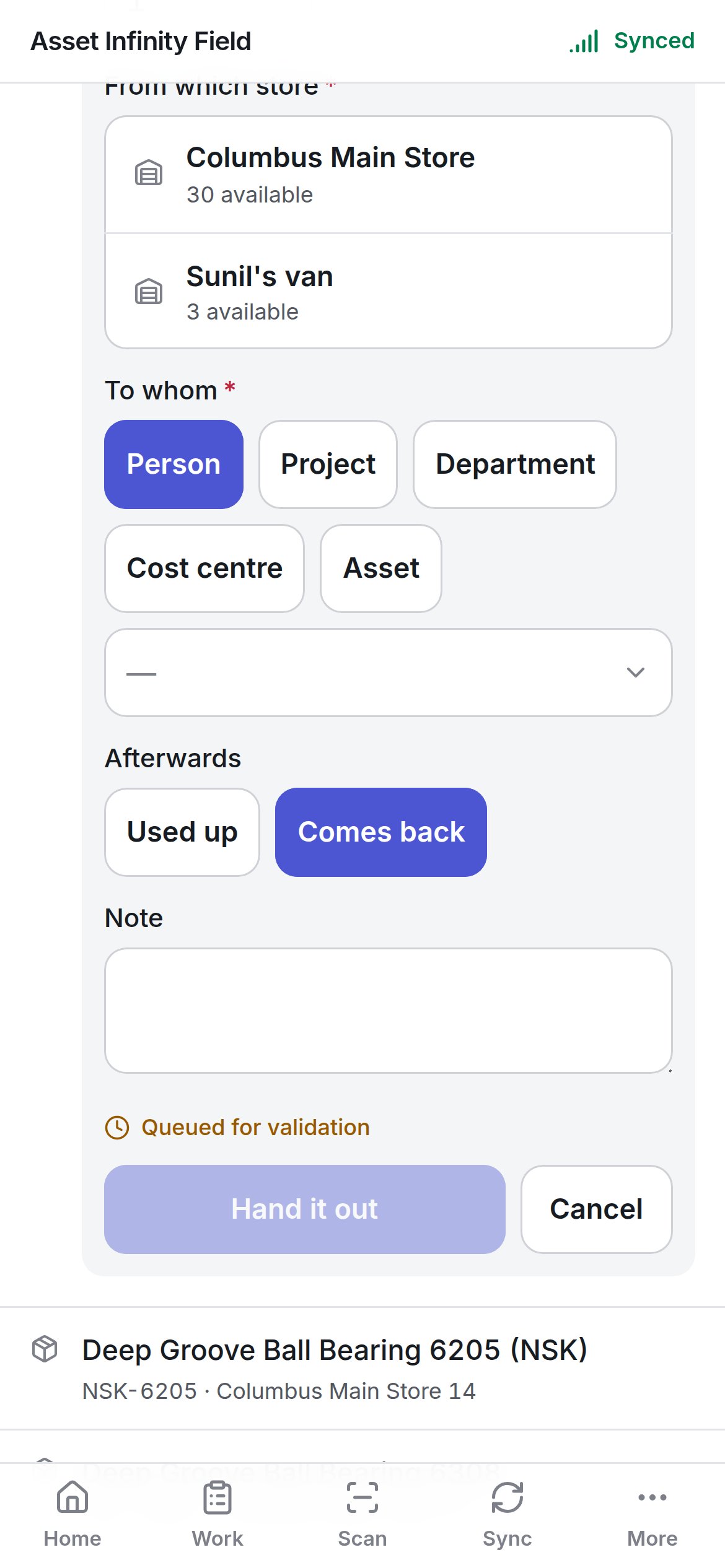
Hand it out

Hand it out queues the movement. If the last sync says fewer are on the shelf than you are handing out, the form warns The last sync says only here. It will be sent, and the server decides.

Record the count

Move it

Take it in

Getting handed-out stock back

On Handed out, each line offers It came back or It was used up (for people allowed to hand stock out). Neither can return more than went out — Only is out. Parts fitted to a job are recorded on the job screen rather than here. For stores, bins and reorder levels, see parts.