

If you don’t see this in your navigation, your administrator can switch the module on under Administration → Modules, or it may not be included in your plan. RFQs are the Quoting module, which can be switched off on its own while requisitions and orders stay on. Where Ordering is switched off, an RFQ can still be awarded — you compared prices and buy elsewhere — but Raise the order is not offered.
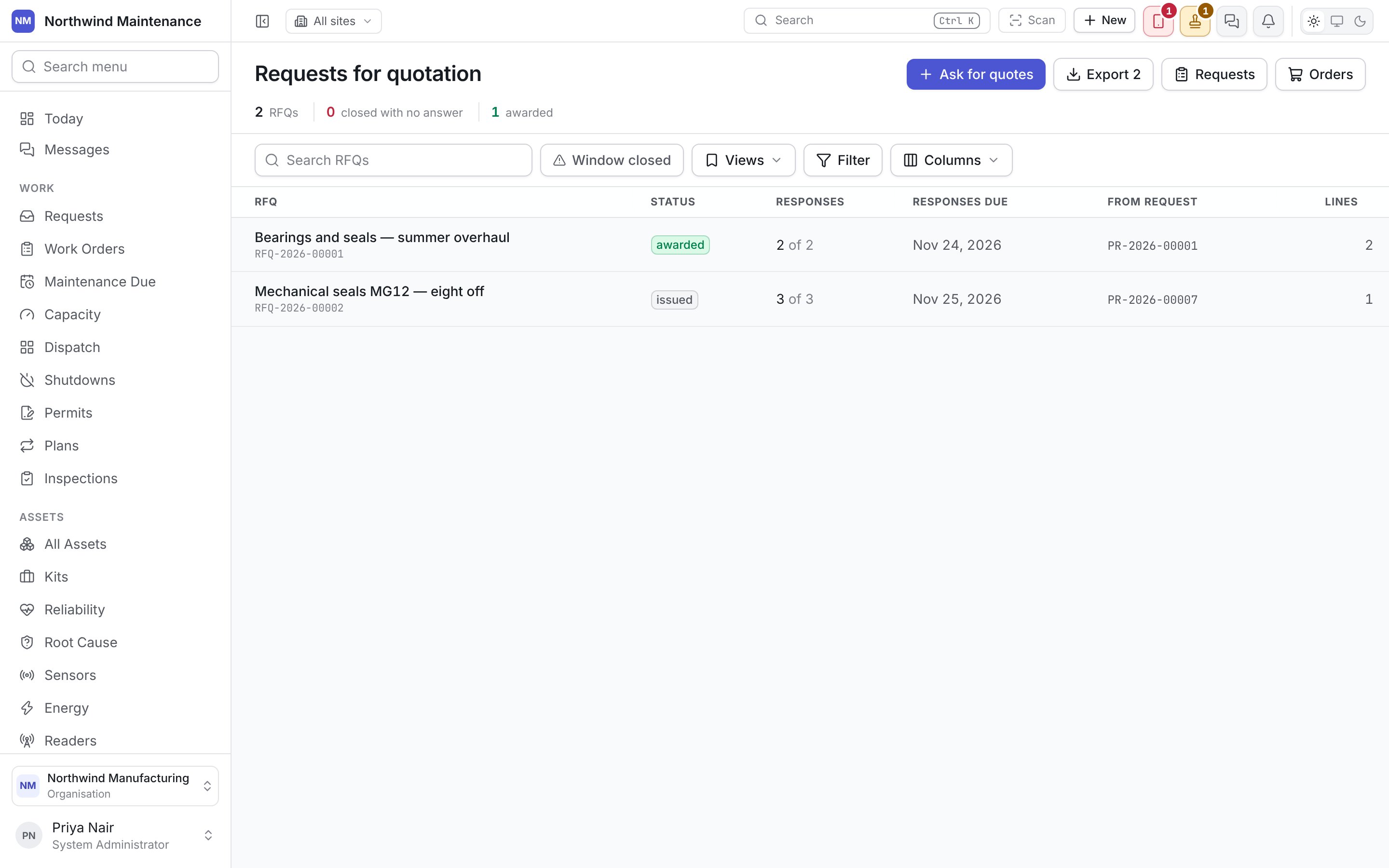
The register
The register is sorted by Responses due, soonest first. A row whose response window has closed is tinted amber.
Views, Filter and Columns work as on every register.
RFQ statuses
An RFQ follows a fixed lifecycle that is the same for every organisation.
Each invited vendor’s quote has a status of its own: no reply (invited, nothing recorded), received, declined, expired, awarded (the winning quote) or rejected.
Asking for quotes
Click Ask for quotes on the register, on an approved request, or after ticking lines on Sourcing.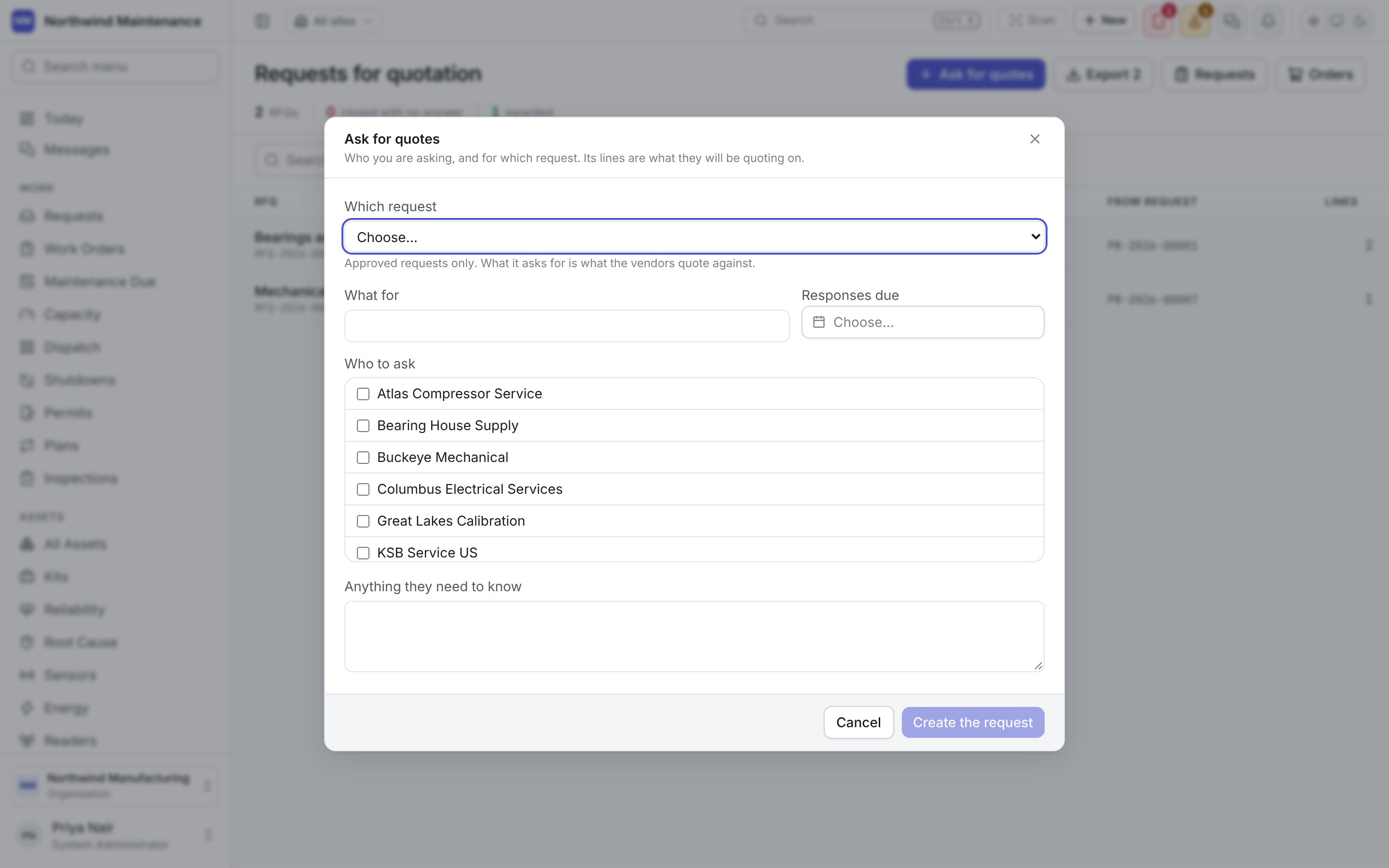
Create the request saves the RFQ as a draft and opens it. Click Issue to vendors on the RFQ to send it.
Inside an RFQ
Vendors and quotes
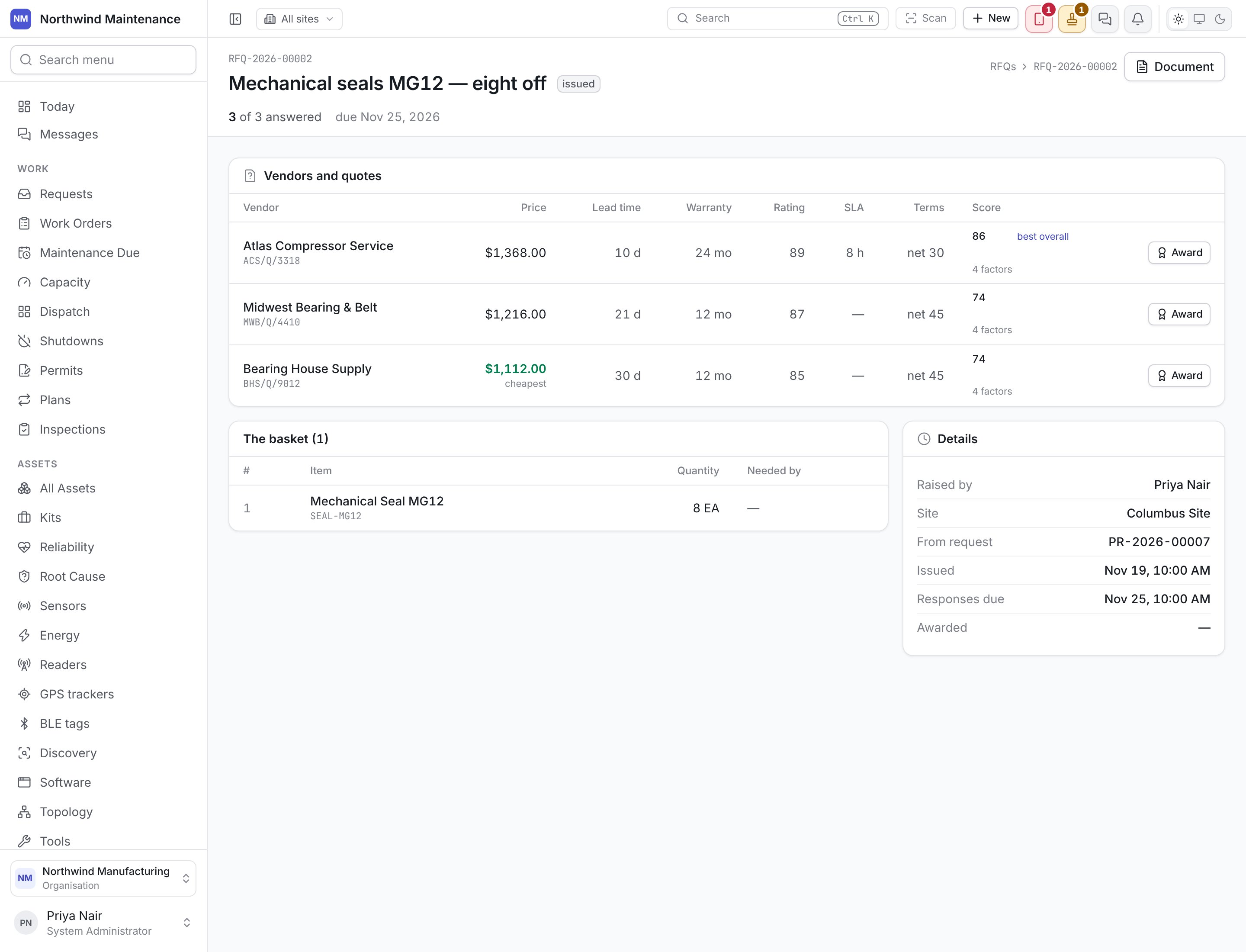
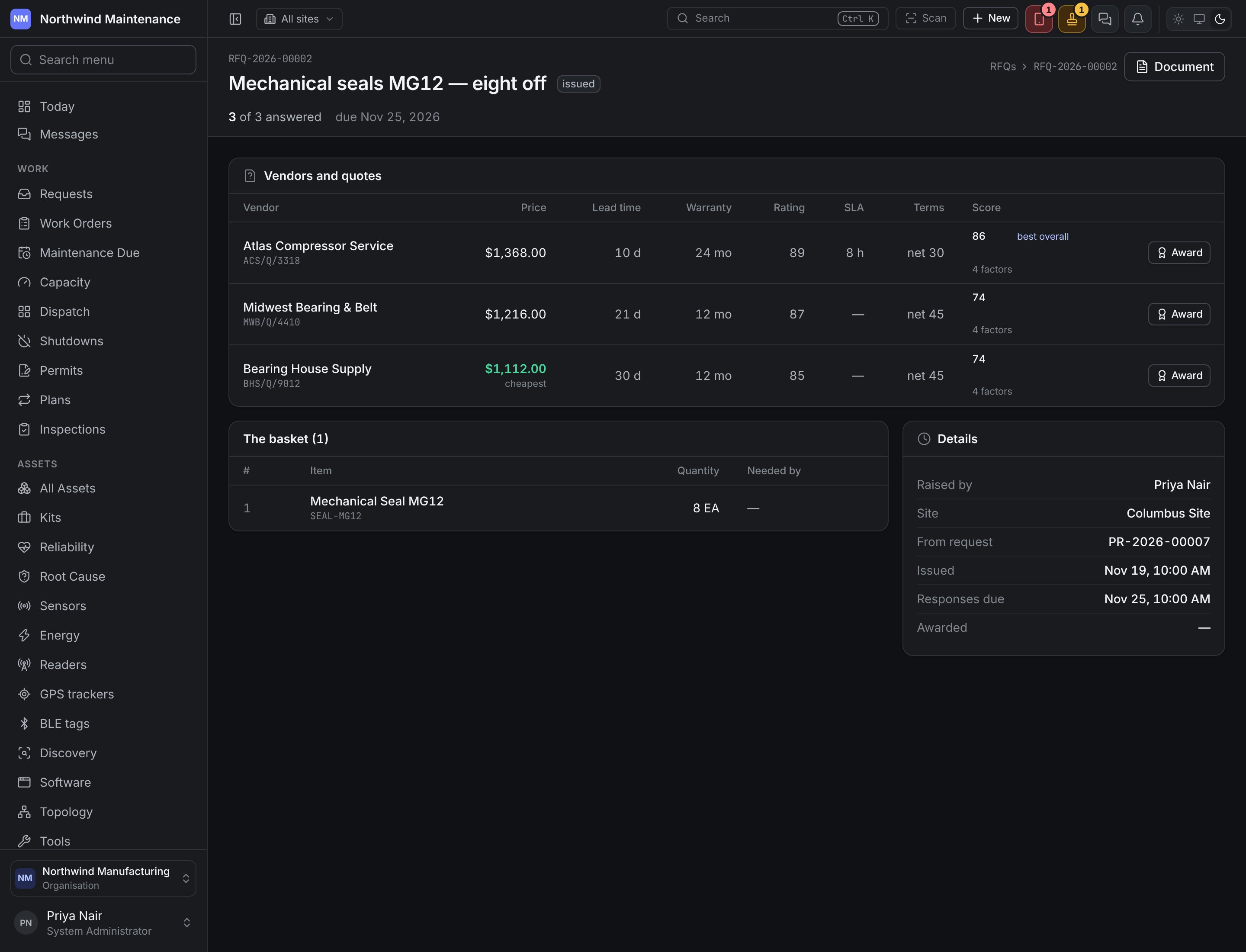
The comparison table is the reason the screen exists: every invited vendor side by side on the terms that decide a purchase.
Under each score, 4 factors (or fewer) can be pointed at to see how the score was built: each factor’s value and the weight it carries — price, lead time, vendor rating and warranty. When a vendor leaves a factor out, the weights are shared over the factors their quote does state, so an unstated warranty is not counted against them.
The cheapest and the best overall are often different quotes. That is the point of showing both.
Recording a quote
Most vendors send their quote by email. On a vendor still showing no reply, click Record their quote (needs Record vendor quotes):
They declined records that a vendor is not quoting, with what they said — no capacity, no longer supply it, too small a job.
Awarding
Somebody holding Select a winning quote and award an RFQ sees Award beside every answered quote.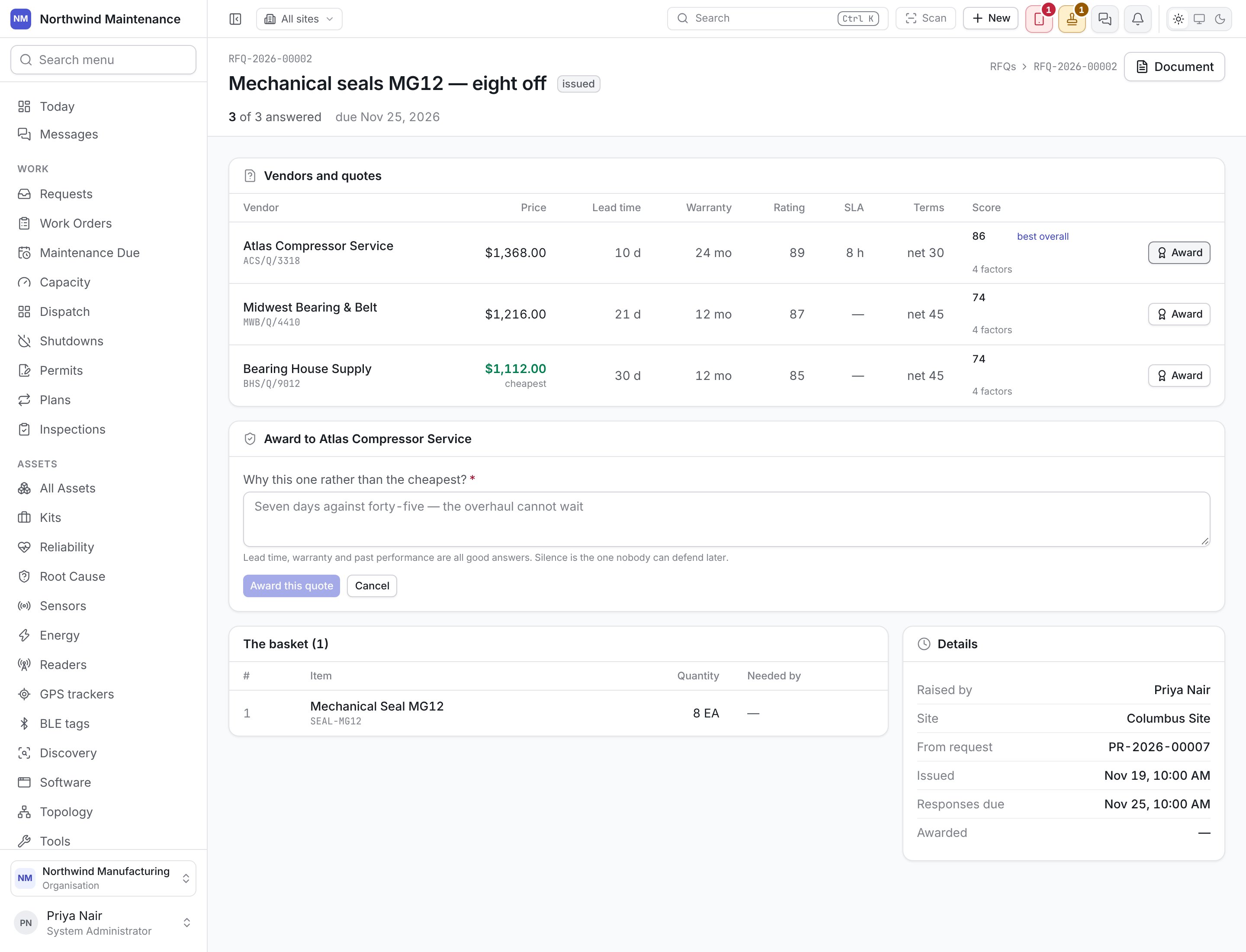
The basket and details
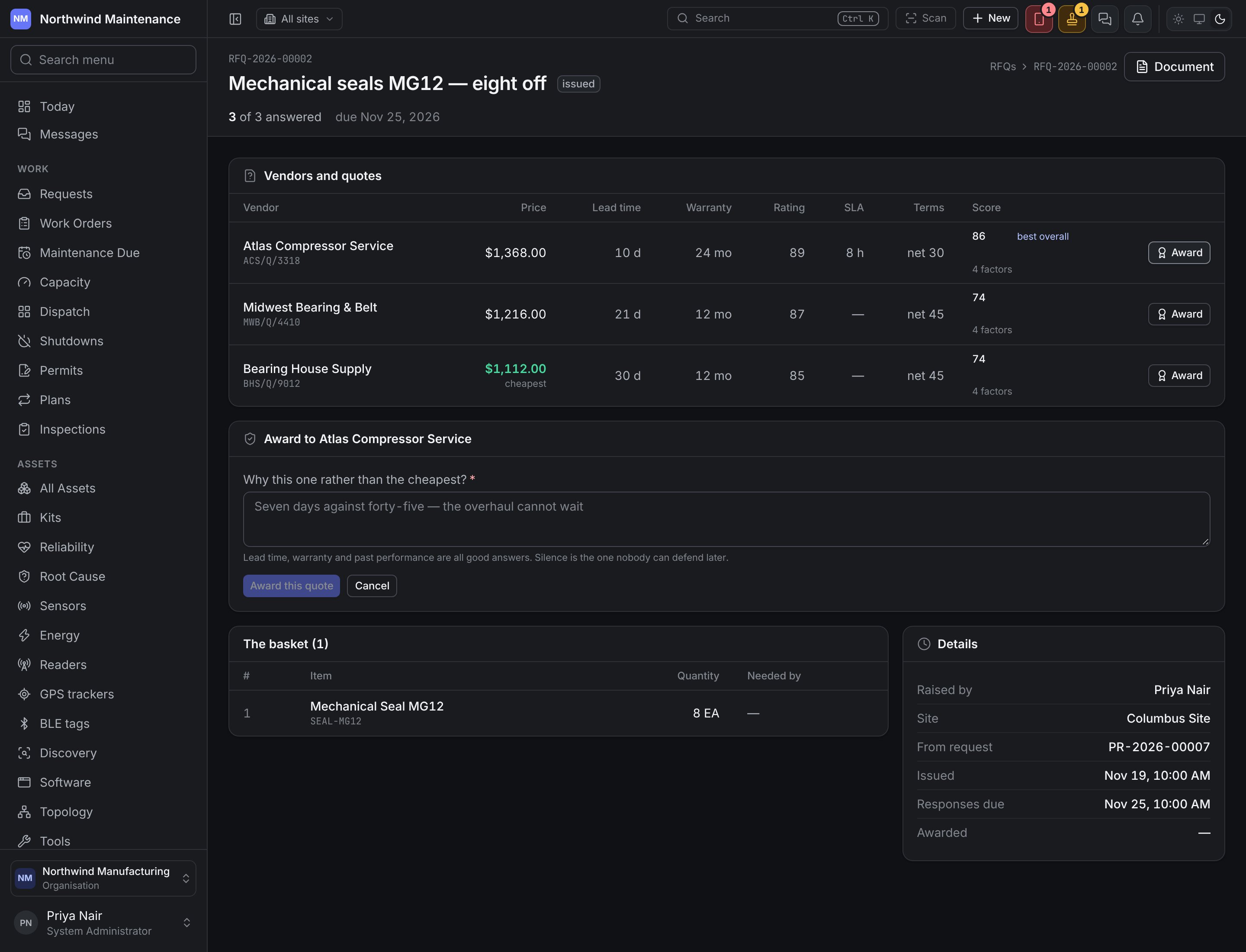
The basket lists what is being quoted on: #, Item, Quantity and Needed by. Details shows Raised by, Site, From request, Issued, Responses due, Awarded and, after an award that was not the cheapest, the reason.Purchase orders
The committed order that follows an award.
Requisitions
Where every RFQ starts.