

If you don’t see this in your navigation, your administrator can switch the module on under Administration → Modules, or it may not be included in your plan.
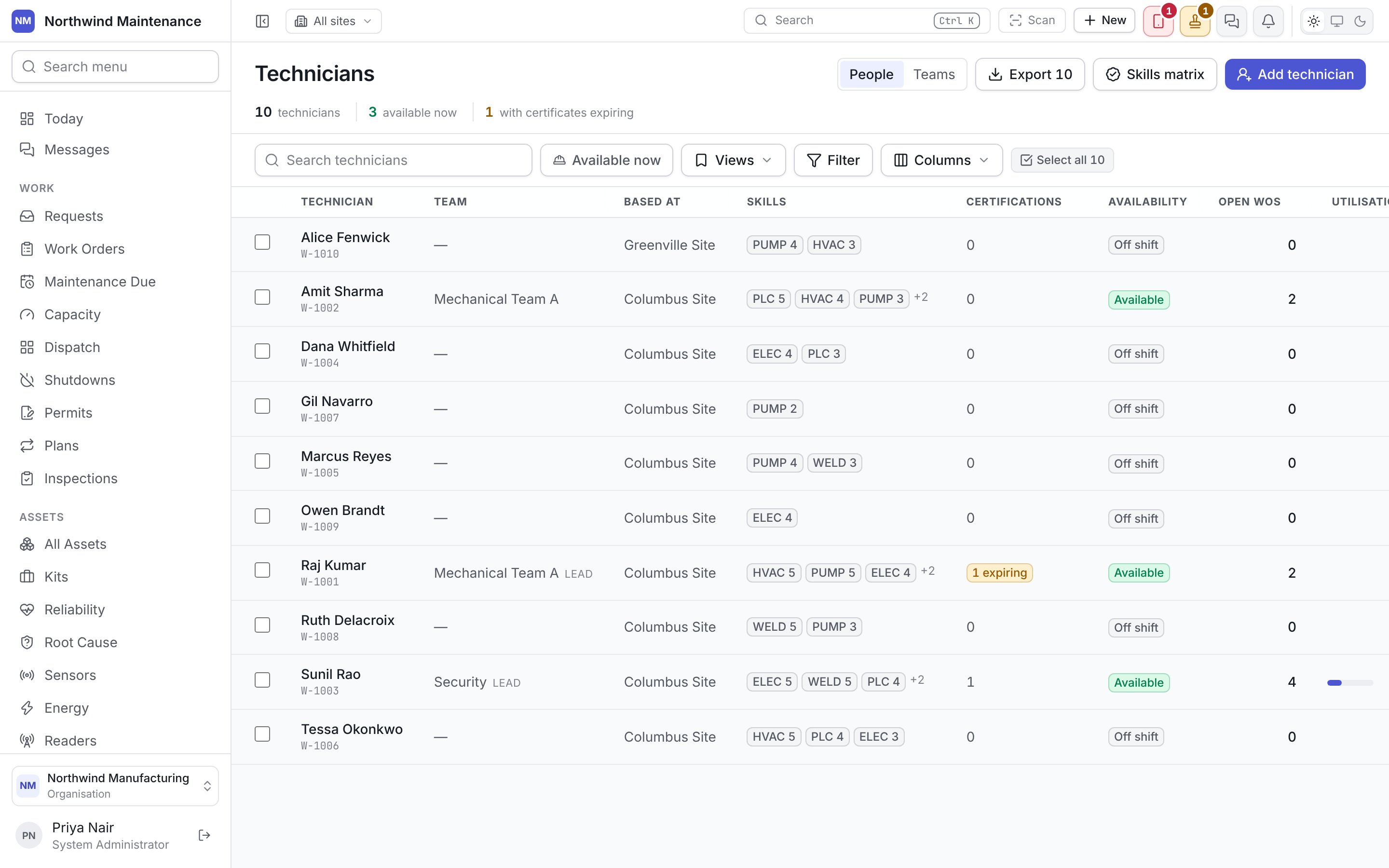
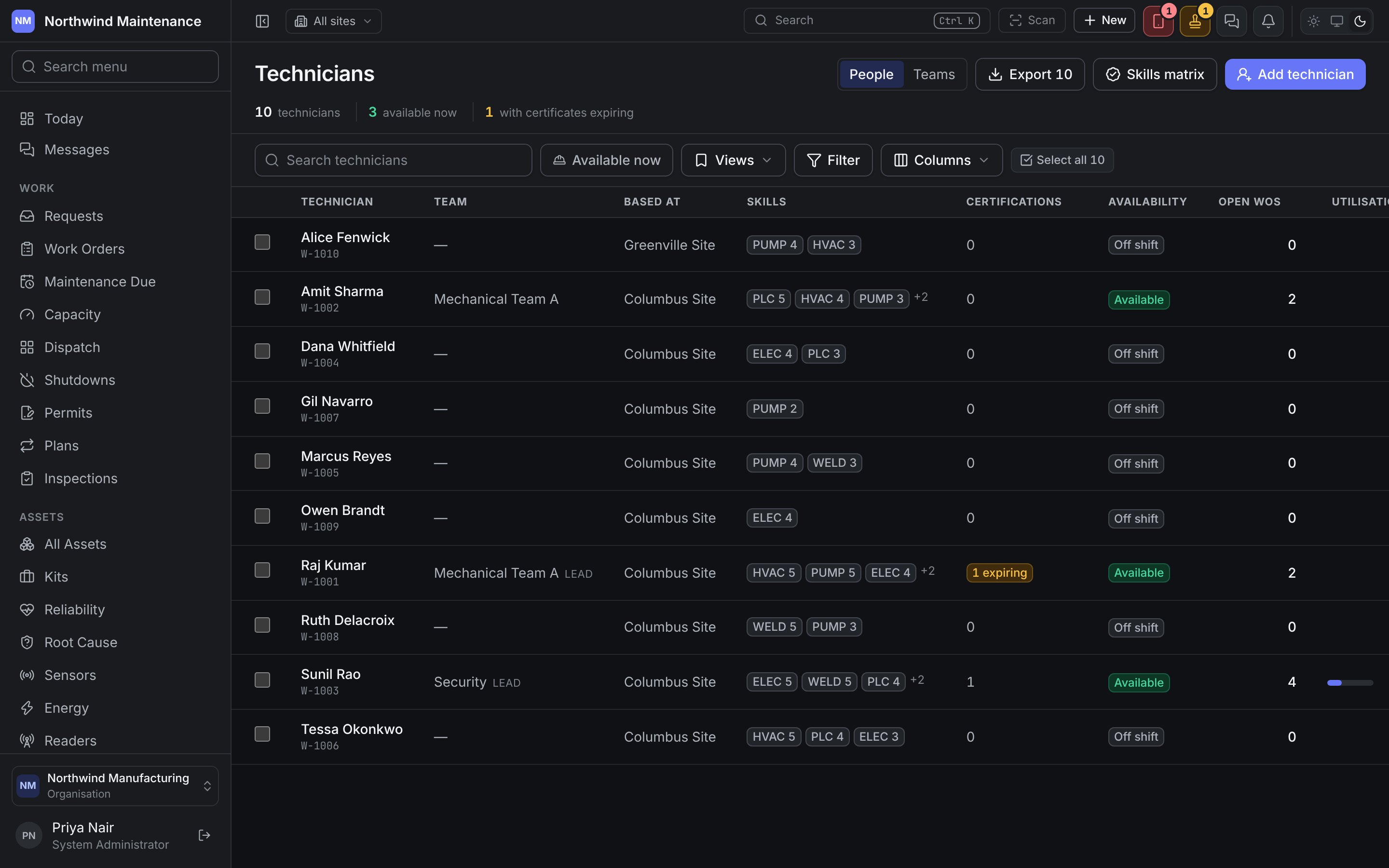
The header
Columns
Hidden columns you can add under Columns: Type (worker type), Email, Phone, Signs in as (their account, or no account), Department, Employment, Started, SLA met, Completed (in the period), Minutes owed (planned minutes outstanding), Max jobs (maximum concurrent jobs), Next expiry (next certification expiry), Can travel, Radius (travel radius in km) and Active.
Search technicians matches on the name. Available now shows only those available at this moment. Filter, Views and Columns work as on every list.
Availability
Availability is never worked out on this screen. It is decided in one place — employment status first, then approved leave, then any unavailable window, then the roster — so what you see here, on the dispatch board and in routing is always the same answer. To change it, use the technician’s Availability tab.Bulk edit
Tick rows, then Edit in a grid to change several technicians at once in a spreadsheet, one row per person. It runs as an import, which is what gives it an undo, so it needs Import access.Adding a technician
Every technician signs in, so a technician is added from an existing sign-in account. Add technician opens Add somebody who already signs in: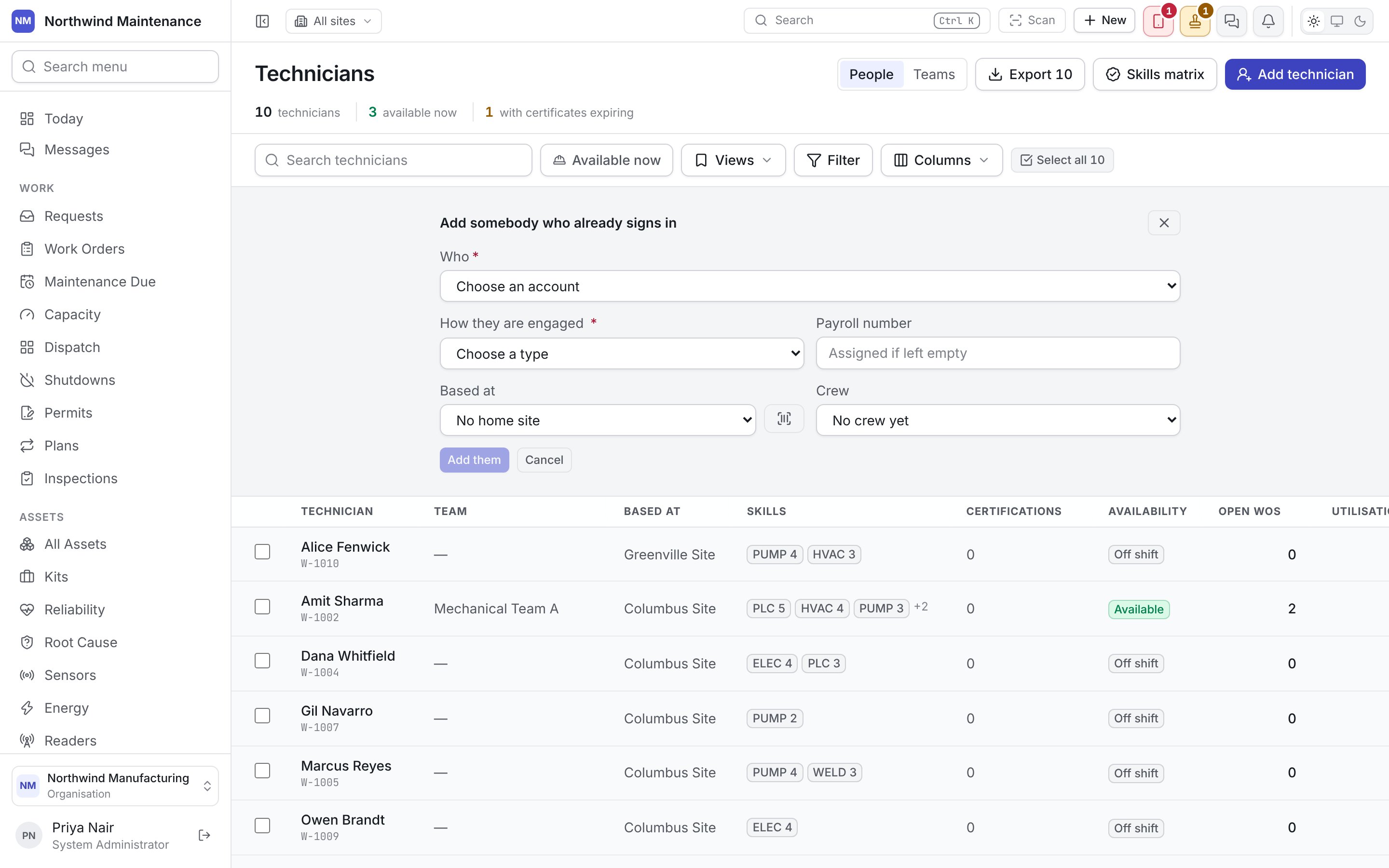
Add them creates the technician and opens their record, where you set skills, certifications and the rest. Somebody who has no login yet must first be invited under people and access; they can then be put on the roster from the same row there.
The button appears only for people holding both Add technicians, teams and shifts and Invite and manage users, because deciding whose login is whose is identity administration.
A technician and a user are different records, linked. A user is somebody who signs in; a technician is somebody who does maintenance and can be scheduled. The link is what lets the product know whose work “my work” means. Users and their roles live under people and access.
Teams
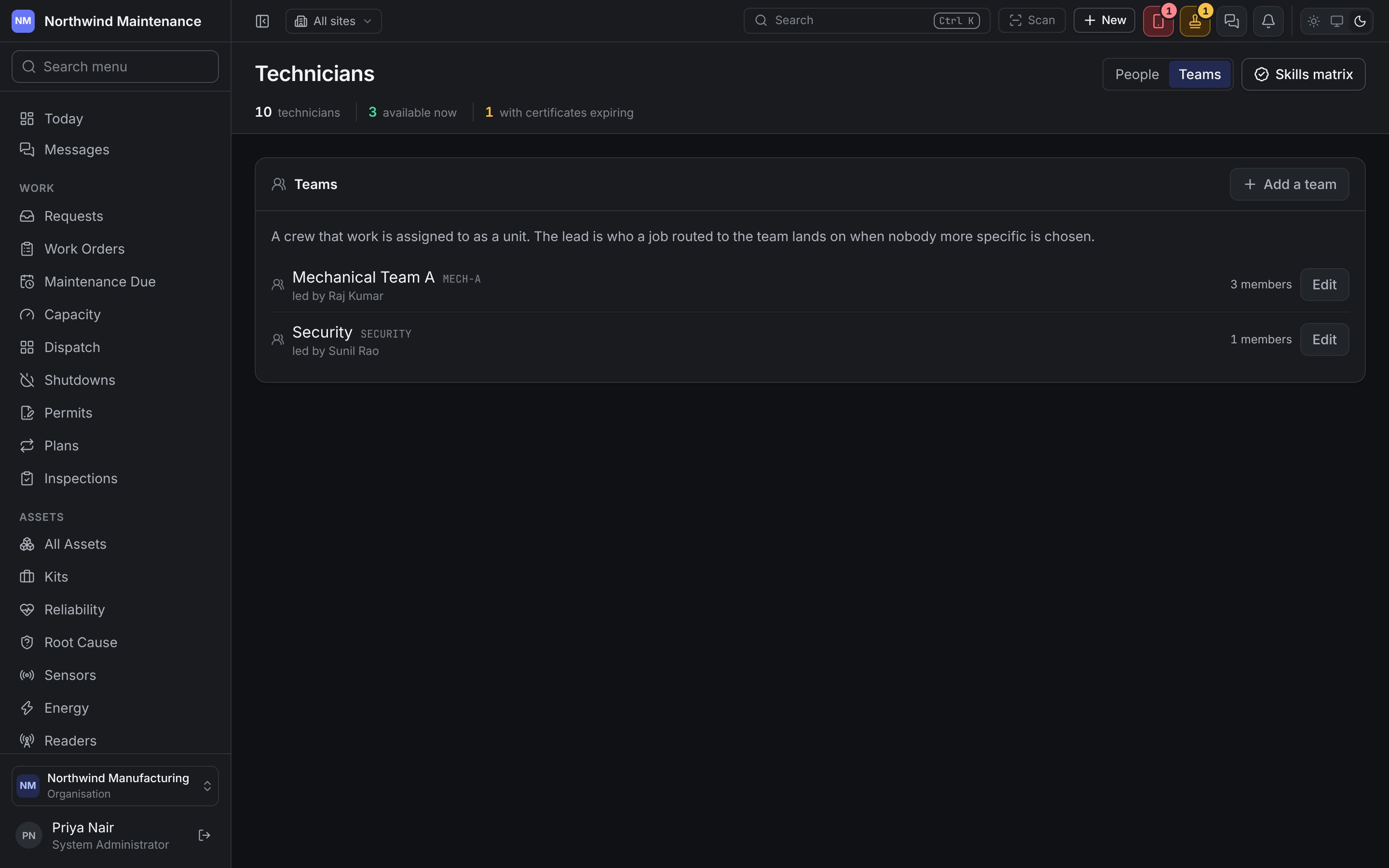
Teams lists every crew with its code, its lead (“led by Raj Kumar”) and the number of members, plus scoped or role-restricted where the team is narrowed.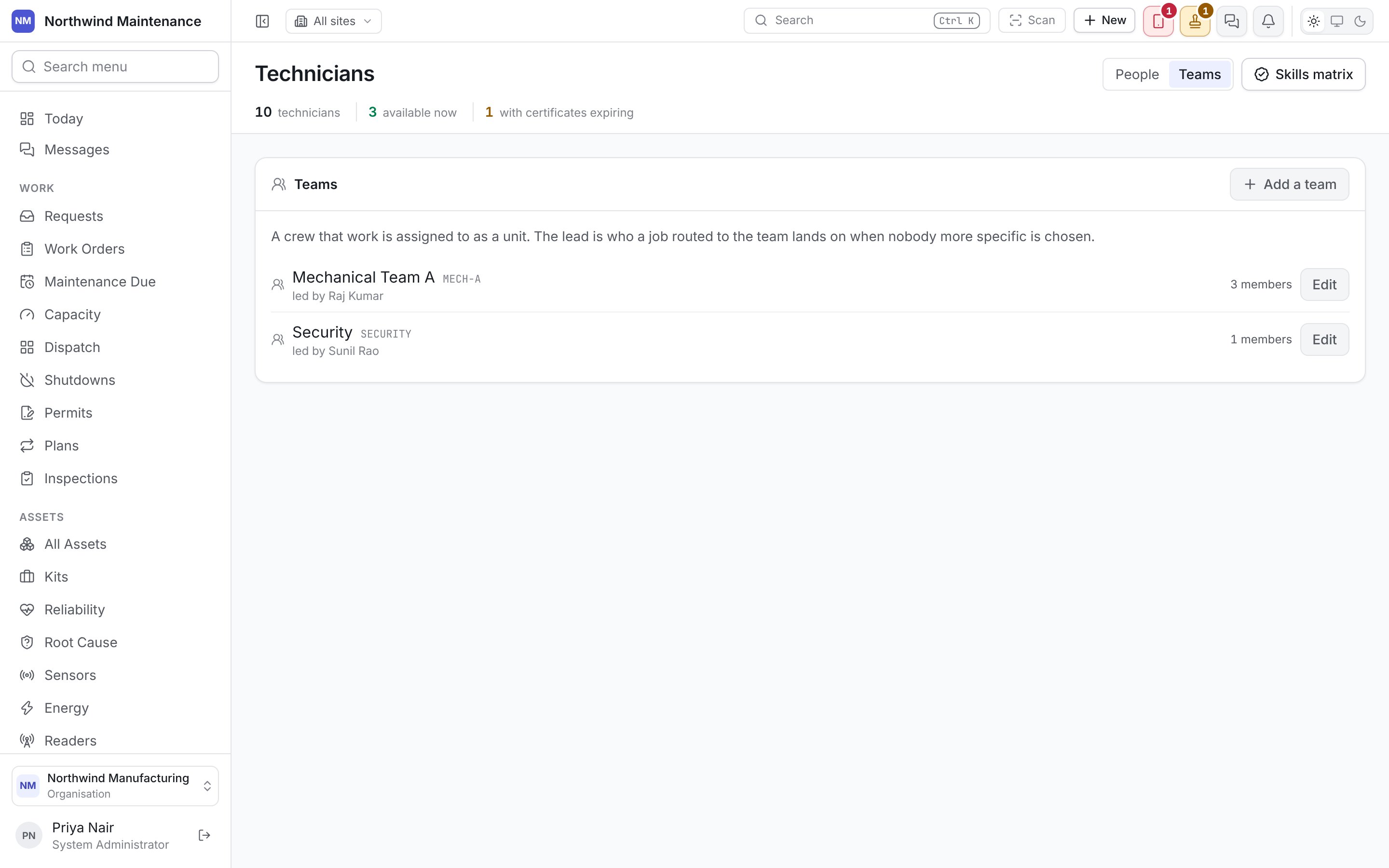
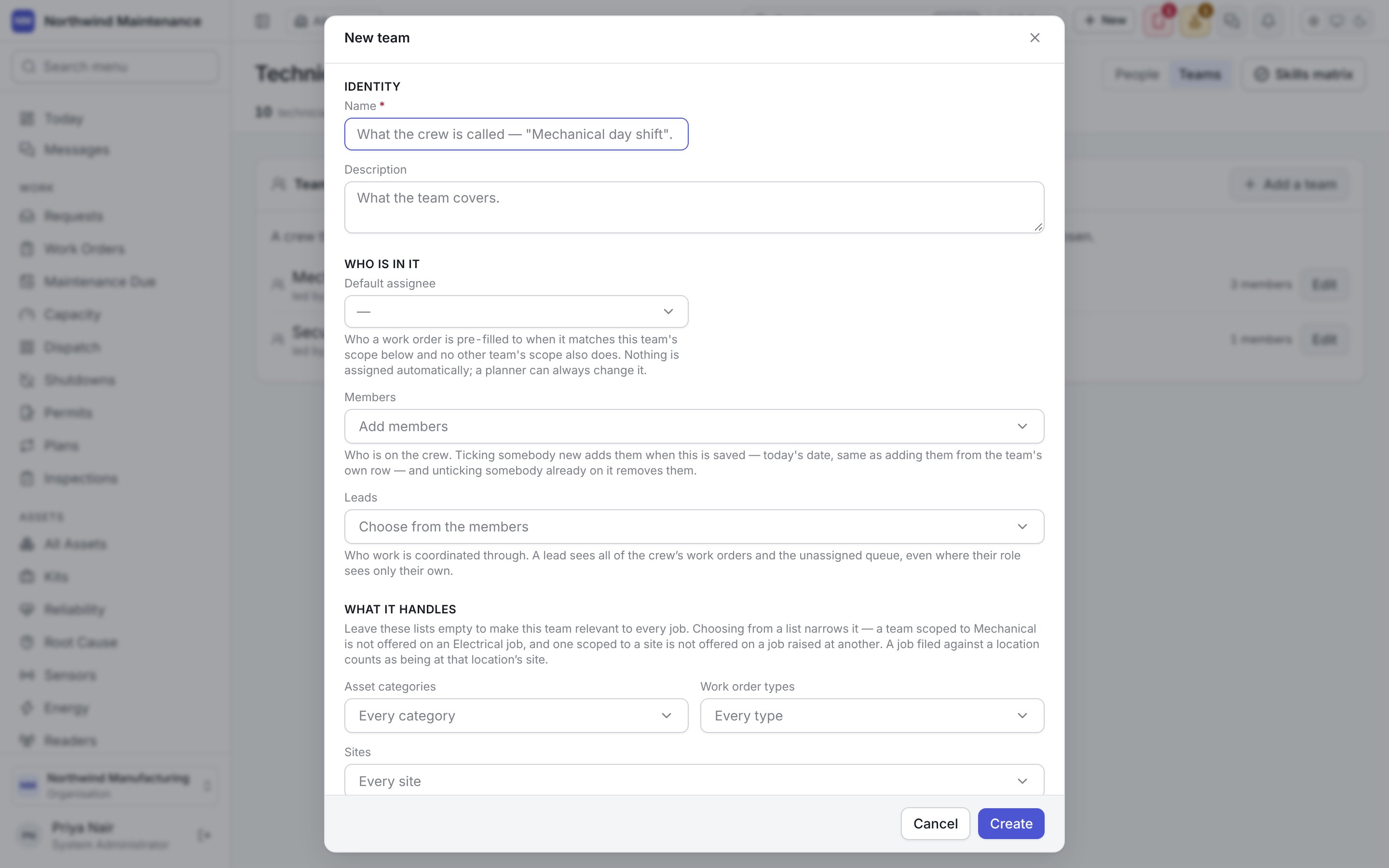
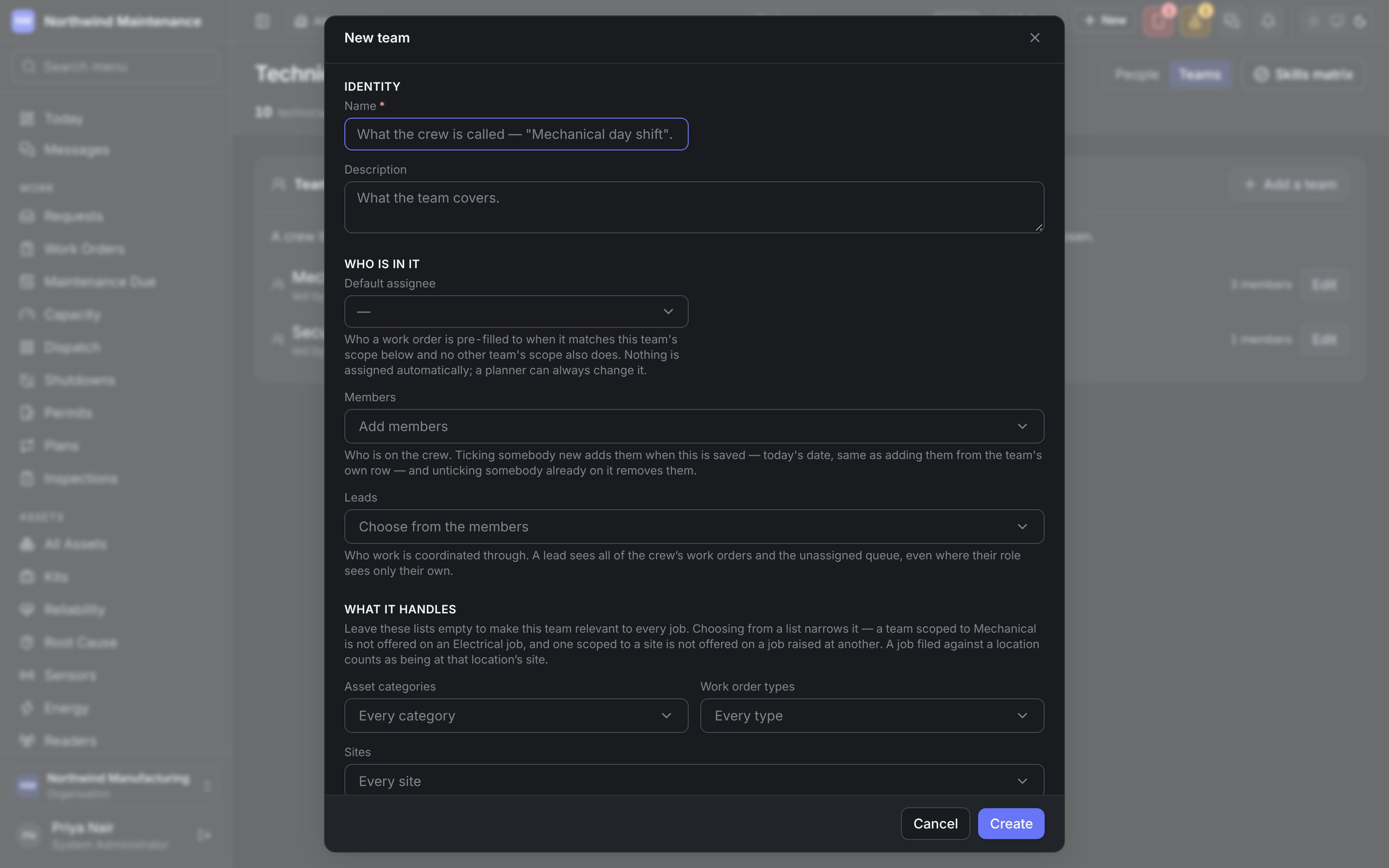
Adding a team needs Add technicians, teams and shifts; removing one needs Remove technicians and teams.
Inside a technician
Skills, certifications, training, schedule, availability, work and performance.