

If you don’t see this in your navigation, your administrator can switch the module on under Administration → Modules, or it may not be included in your plan.
Kinds of shutdown
The register
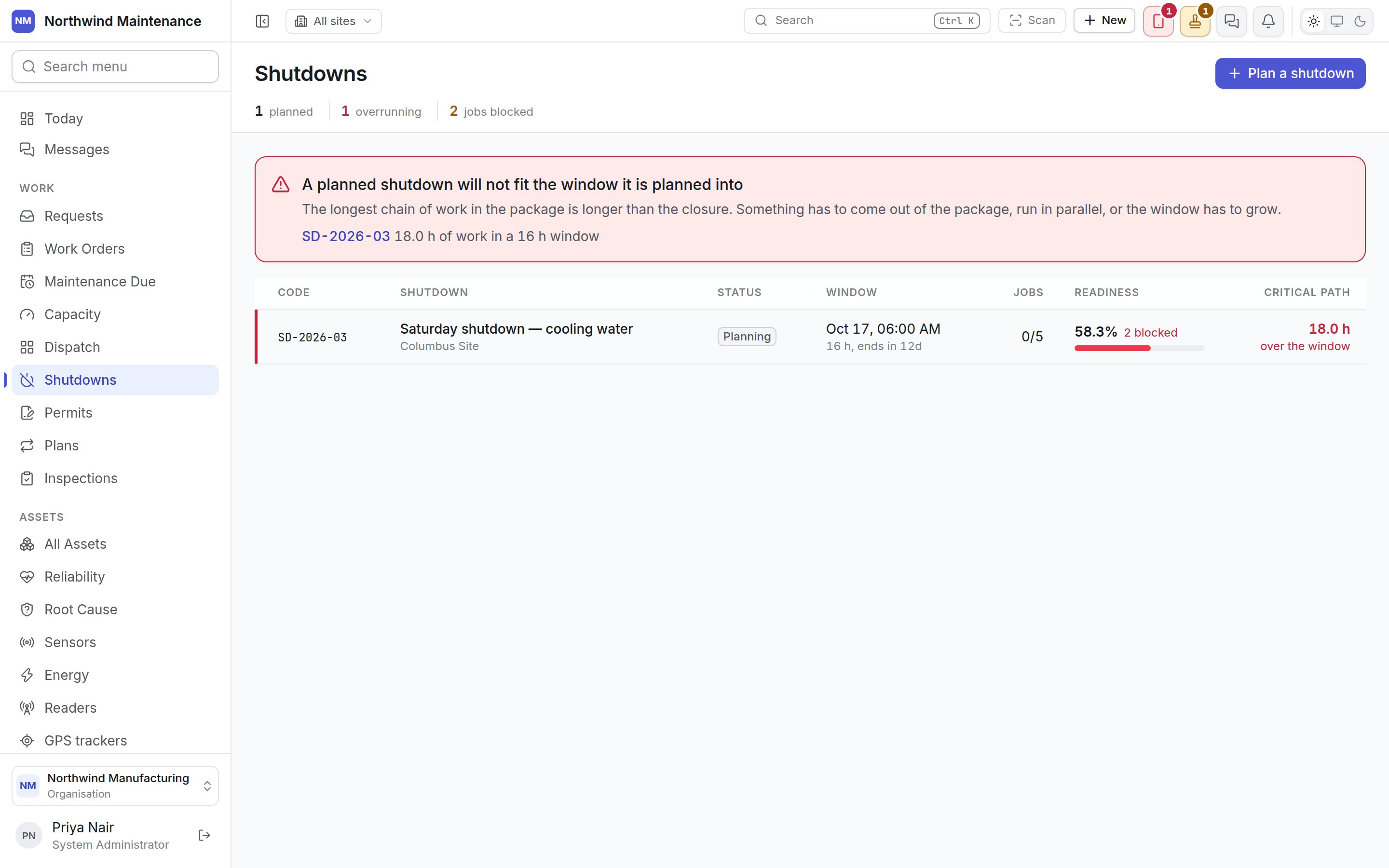
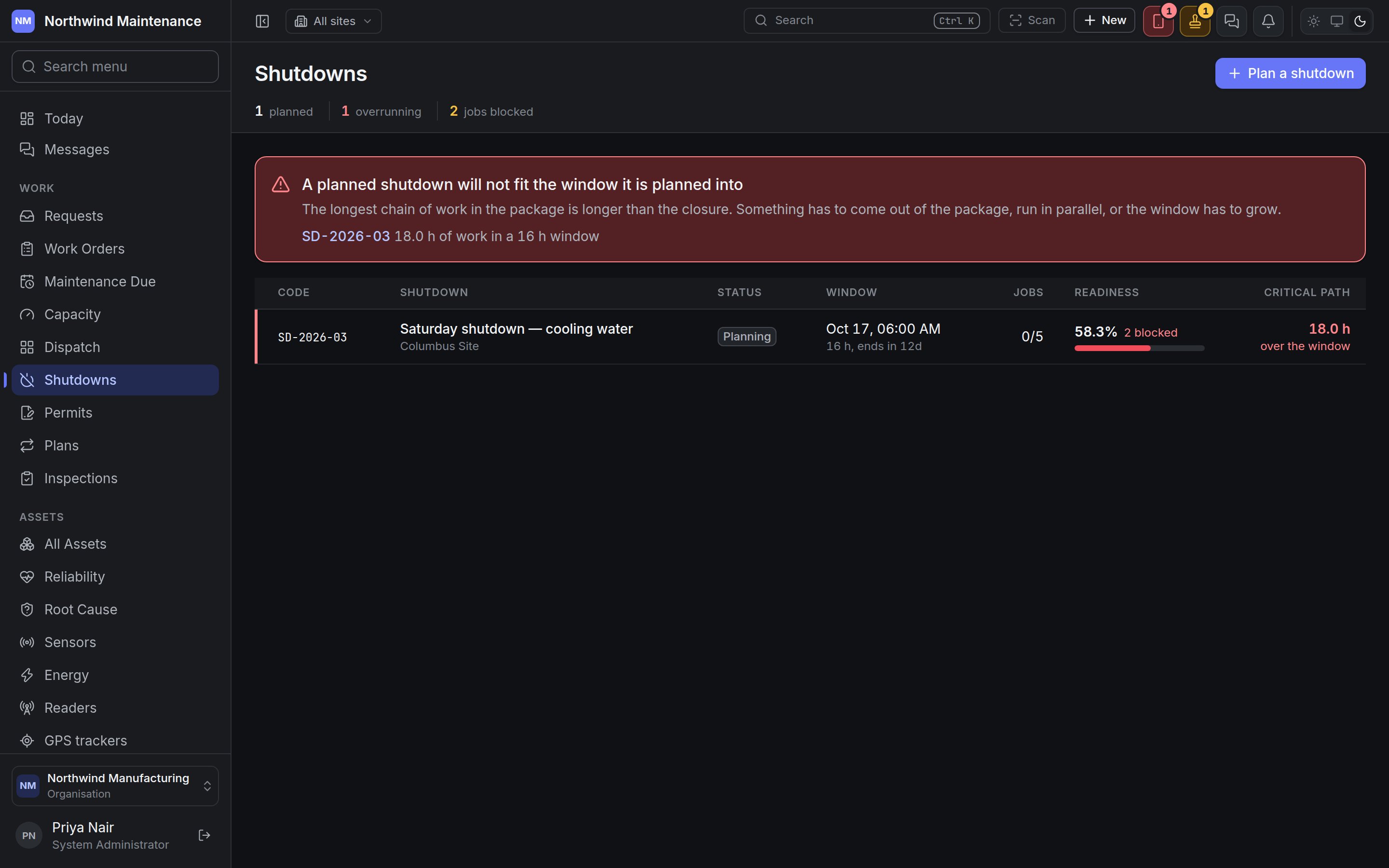
The register leads with the claim that is most expensive to be wrong about: whether the work fits the window. A shutdown whose longest chain of work is longer than the closure raises a red banner at the top — “A planned shutdown will not fit the window it is planned into” — naming each one, with how many hours of work sit in how long a window. “Something has to come out of the package, run in parallel, or the window has to grow.”
Rows of shutdowns that will not fit are red; rows with blocked jobs are amber. Click a row to open the shutdown.
Planning a shutdown
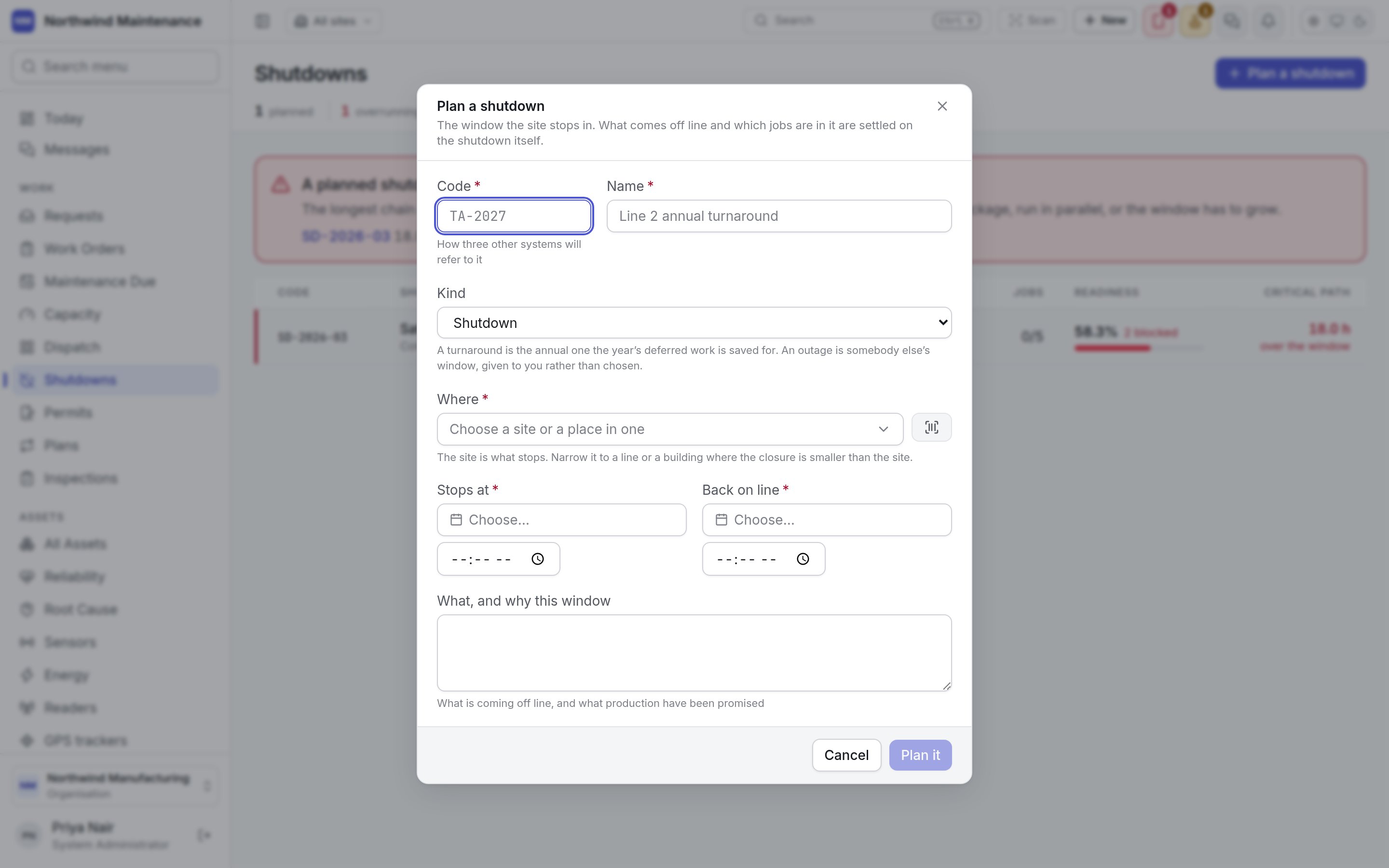
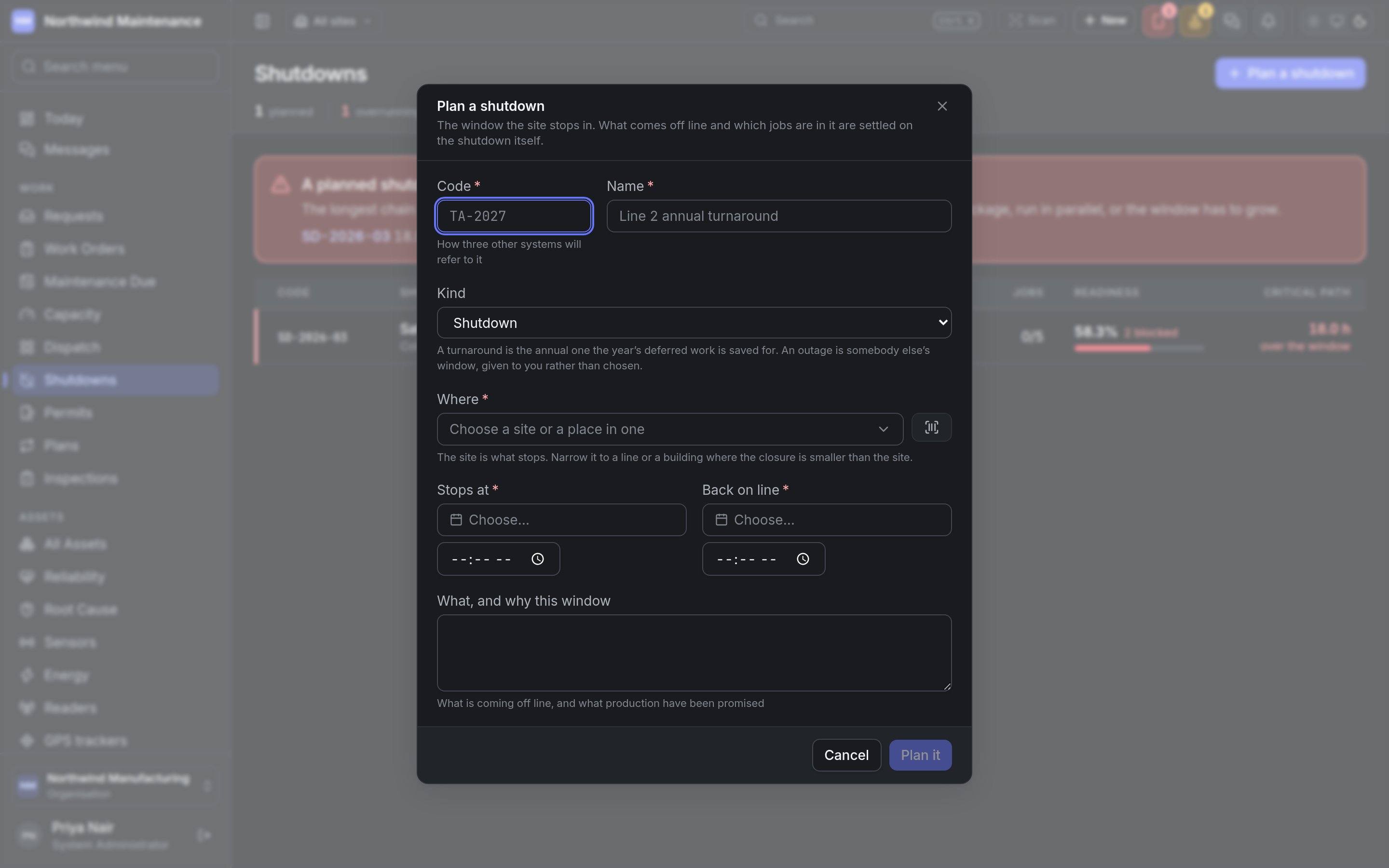
Plan it creates the shutdown in Planning and opens it.
The shutdown
Actions
Status flow
The plan
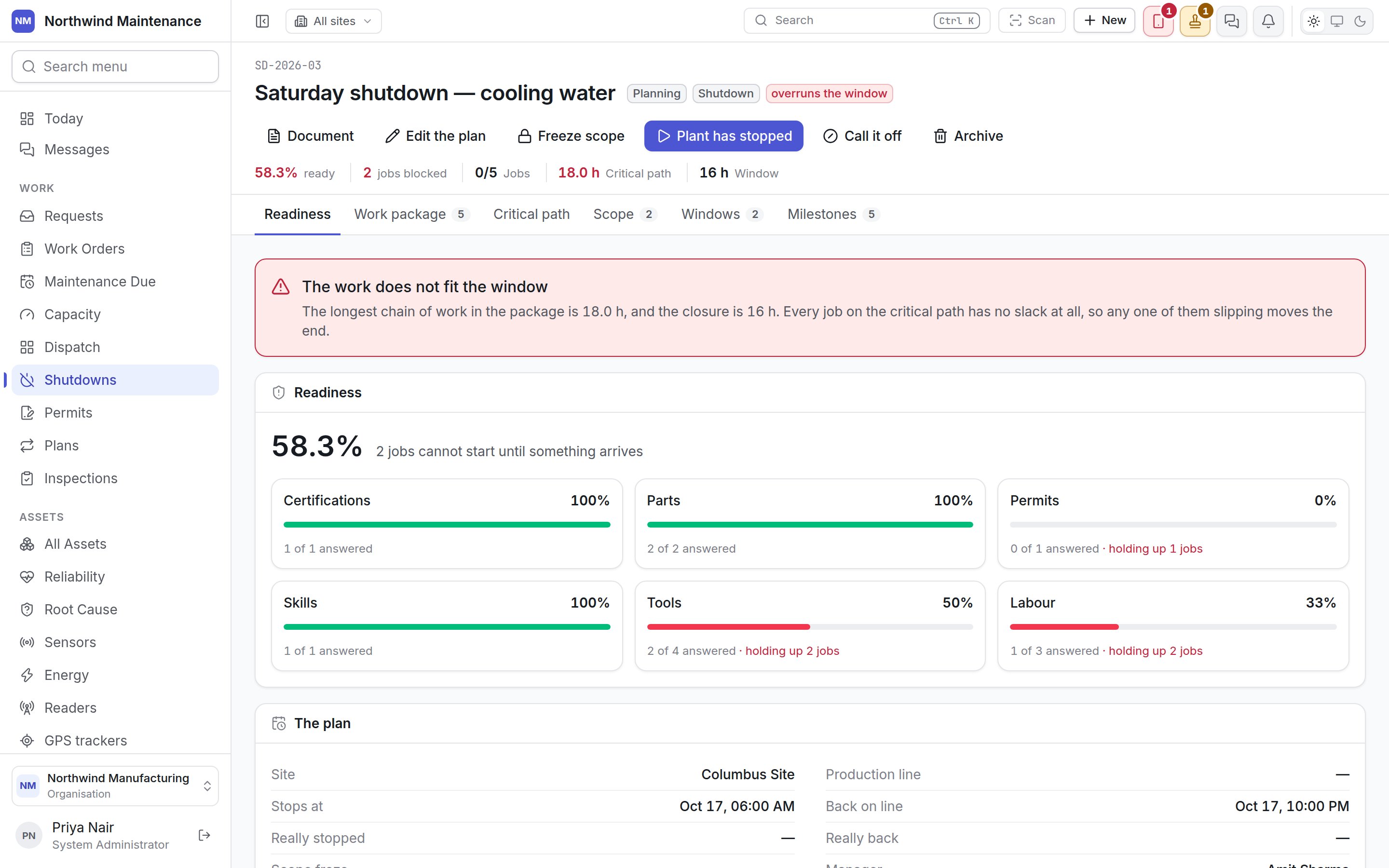
Below every tab, The plan shows Site, Production line, Stops at, Back on line, Really stopped, Really back, Scope froze, Manager and the description.Readiness
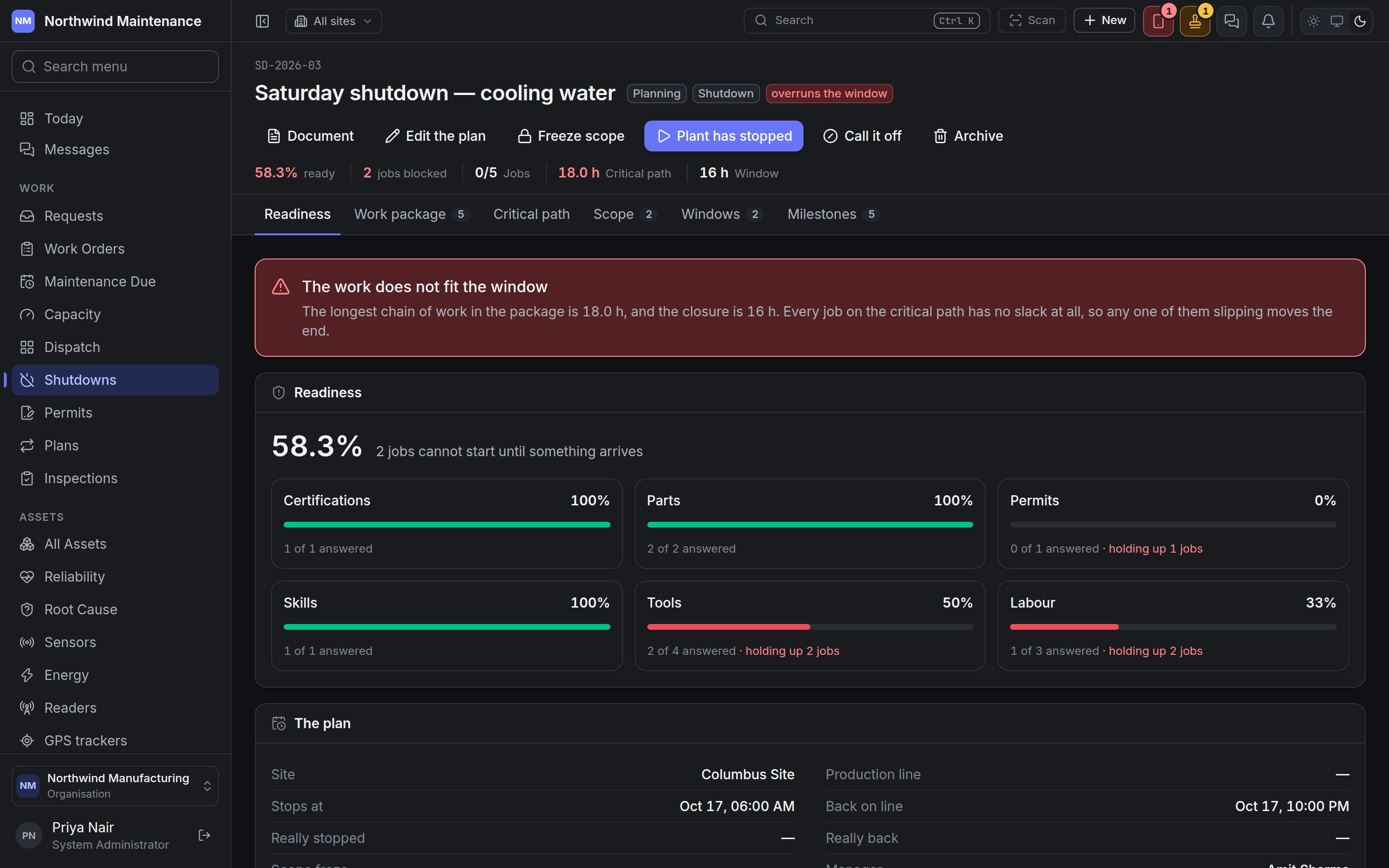
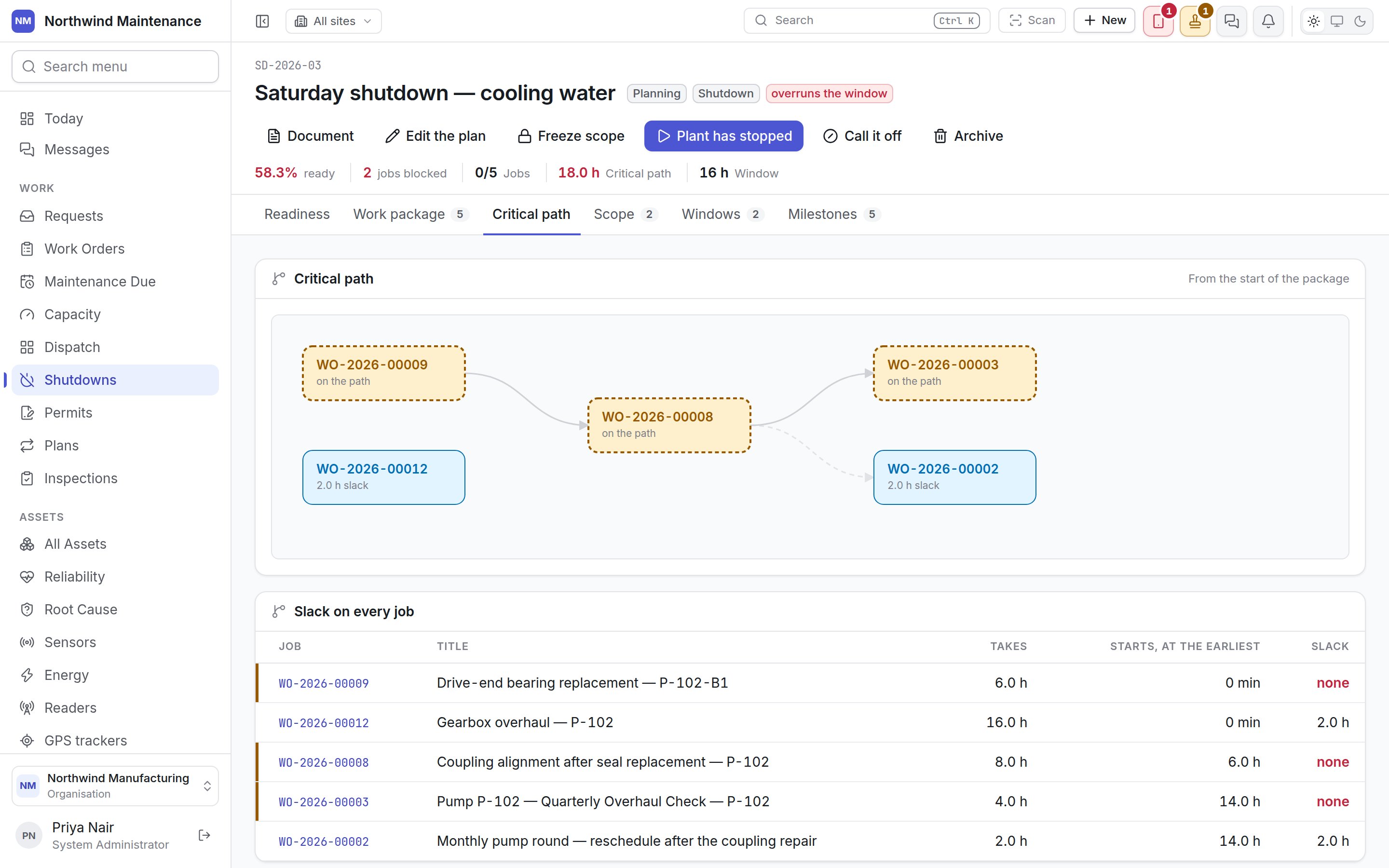
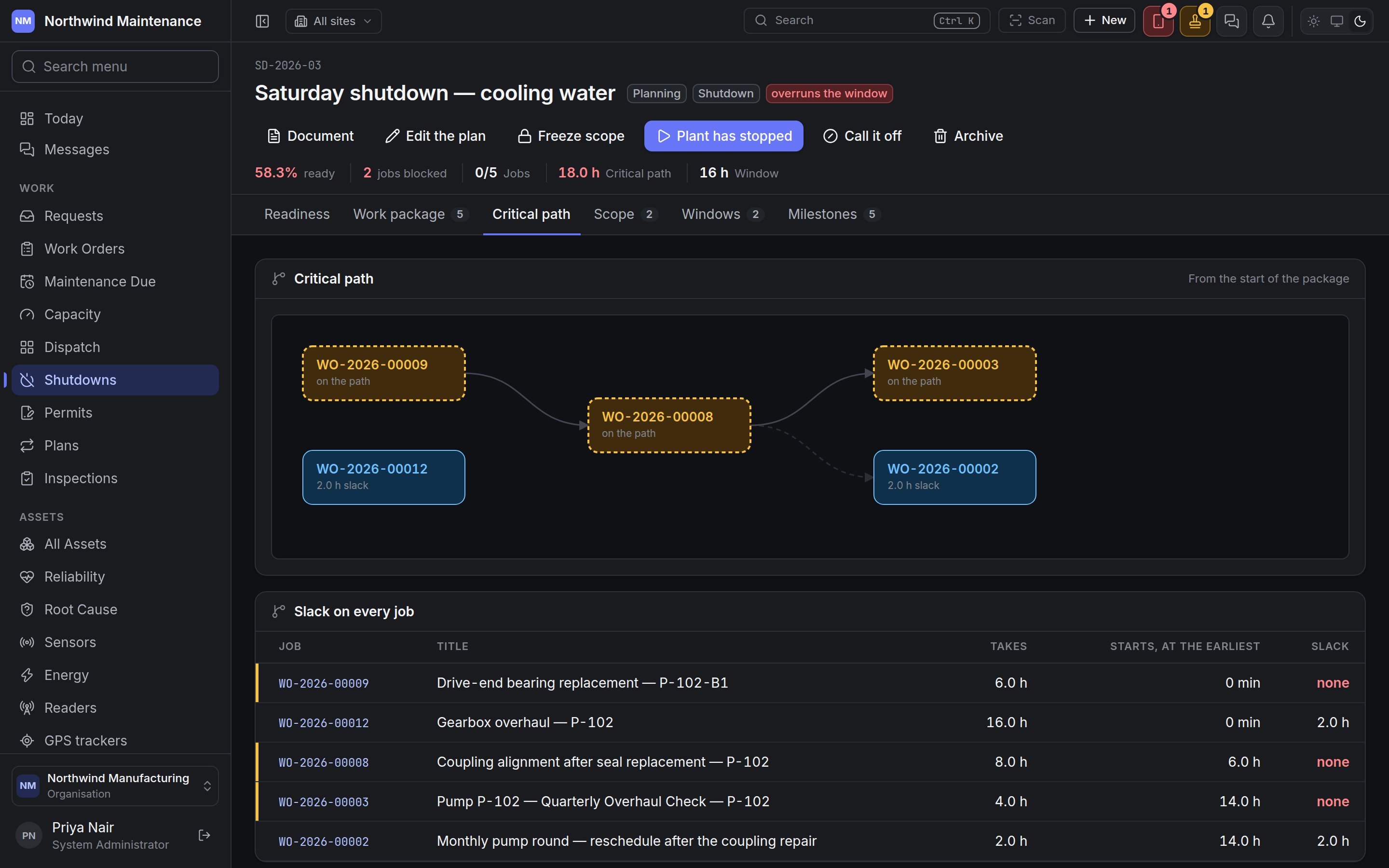
The first tab, because it is the question asked every morning for three months. It gives the overall percentage and how many jobs cannot start until something arrives, then one line per kind of requirement — Parts, Tools, Permits, Vendors, Labour, Skills, Certifications, Documents — with its percentage, how many are answered out of how many, and how many jobs each is holding up. When the work does not fit, a banner says so in numbers: “The longest chain of work in the package is 18.0 h, and the closure is 16 h. Every job on the critical path has no slack at all, so any one of them slipping moves the end.” The figures come from the requirements on each work order in the package — the same ones the work order’s own Readiness tab shows.Work package
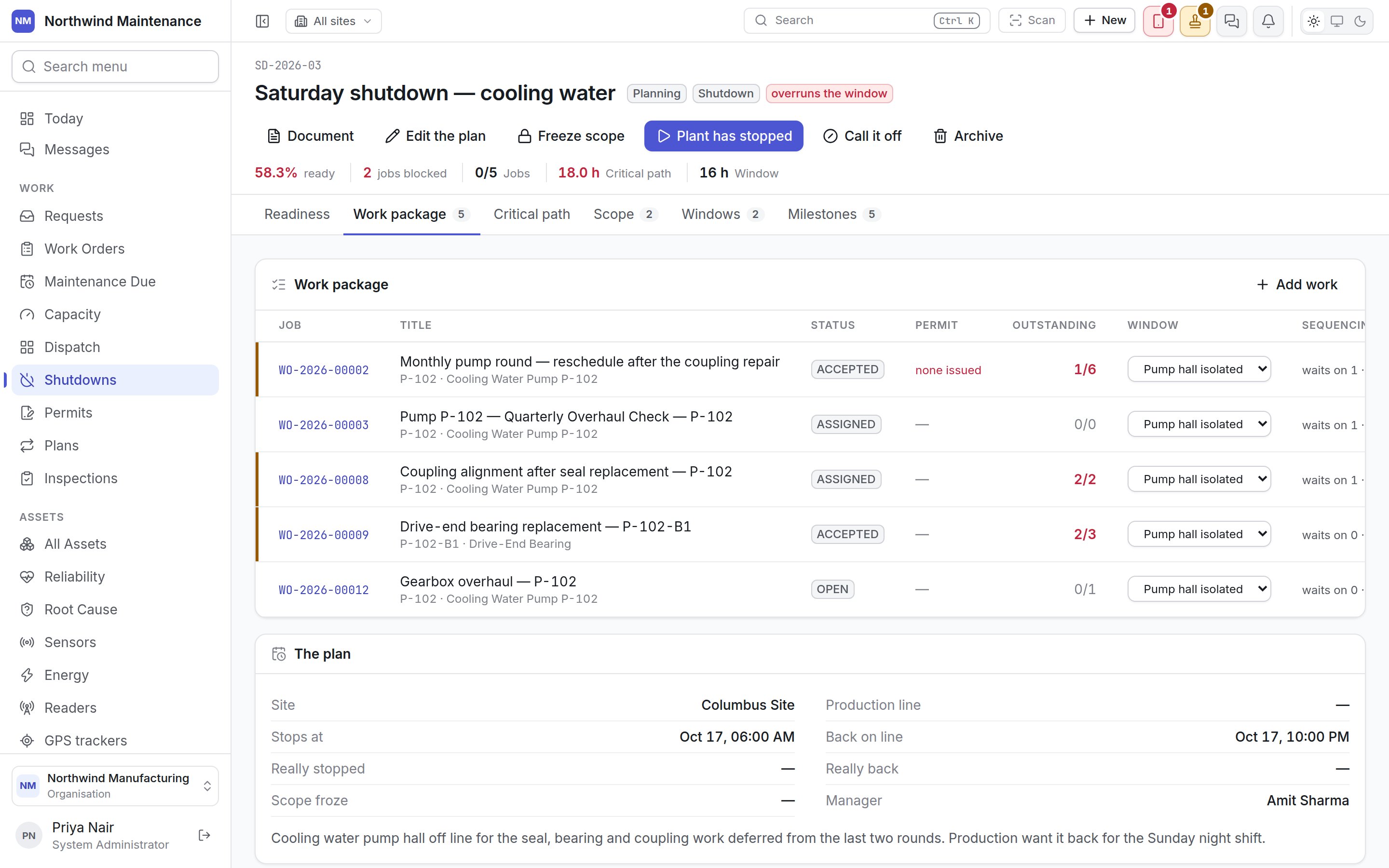
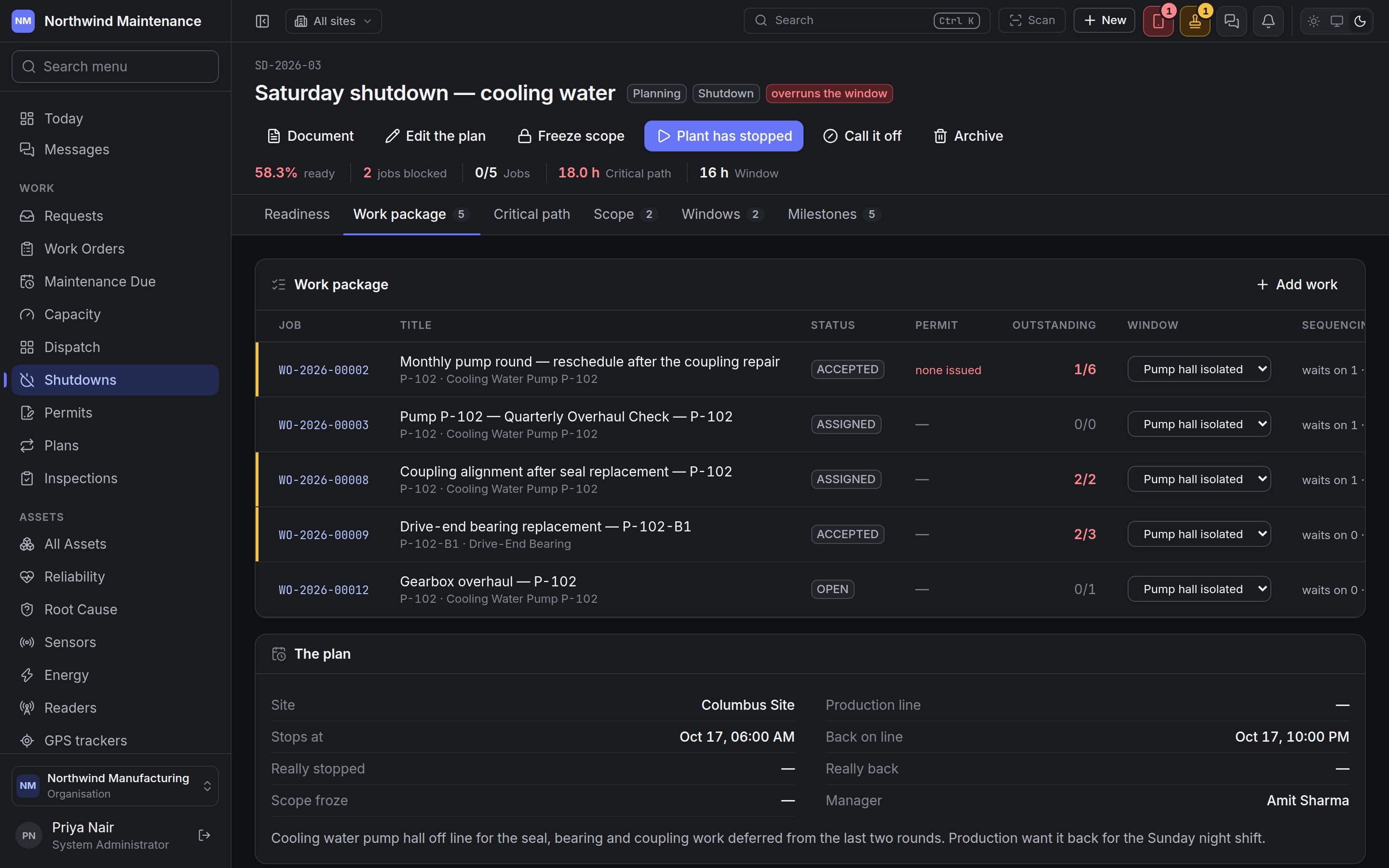
Work added after the scope froze is marked late.
Adding and removing work needs Add work to a shutdown, and take it out again.
Critical path
Scope
What comes off line — the assets and systems isolated for the shutdown. Each line shows what is Isolated (an asset, or a description), a Note, the Isolation reference (the lock-out reference the field matches) and how much Work planned touches it. Add a line (and Edit on a line) asks for an Asset, Or describe it when it is not an asset — such as a section of pipework — and the Isolation reference. Remove takes a line off.Windows
Work windows — the periods within the shutdown when particular work is possible, such as “Vessel open”, “Switchroom dead” or “Full site down”. With no windows, there is one window for the whole closure.
Add a window (and Edit) asks What is available, Open from, Until (which must be after the start) and What is and is not possible in it. Removing a window leaves its jobs with no window, and the screen says how many.
Milestones
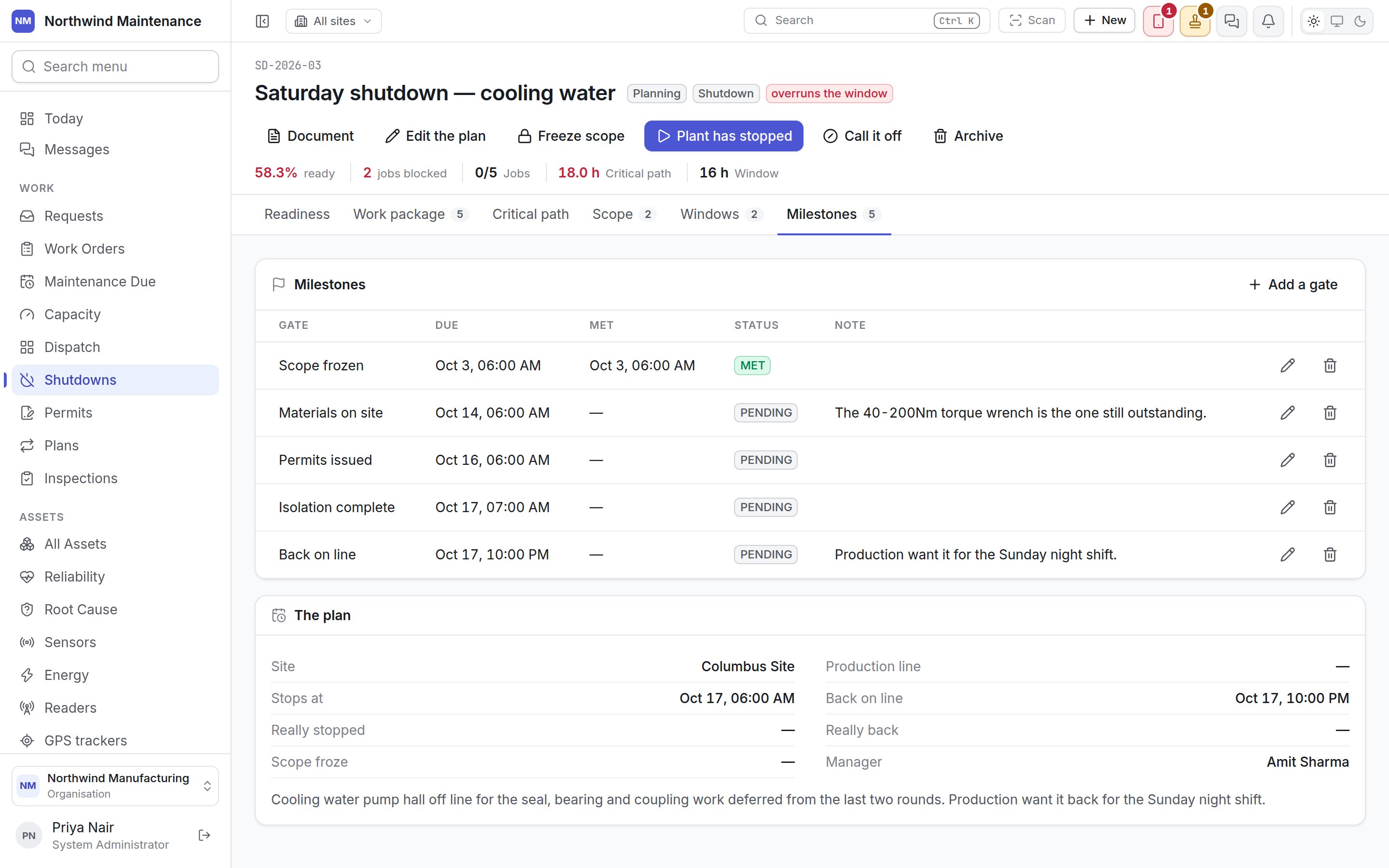
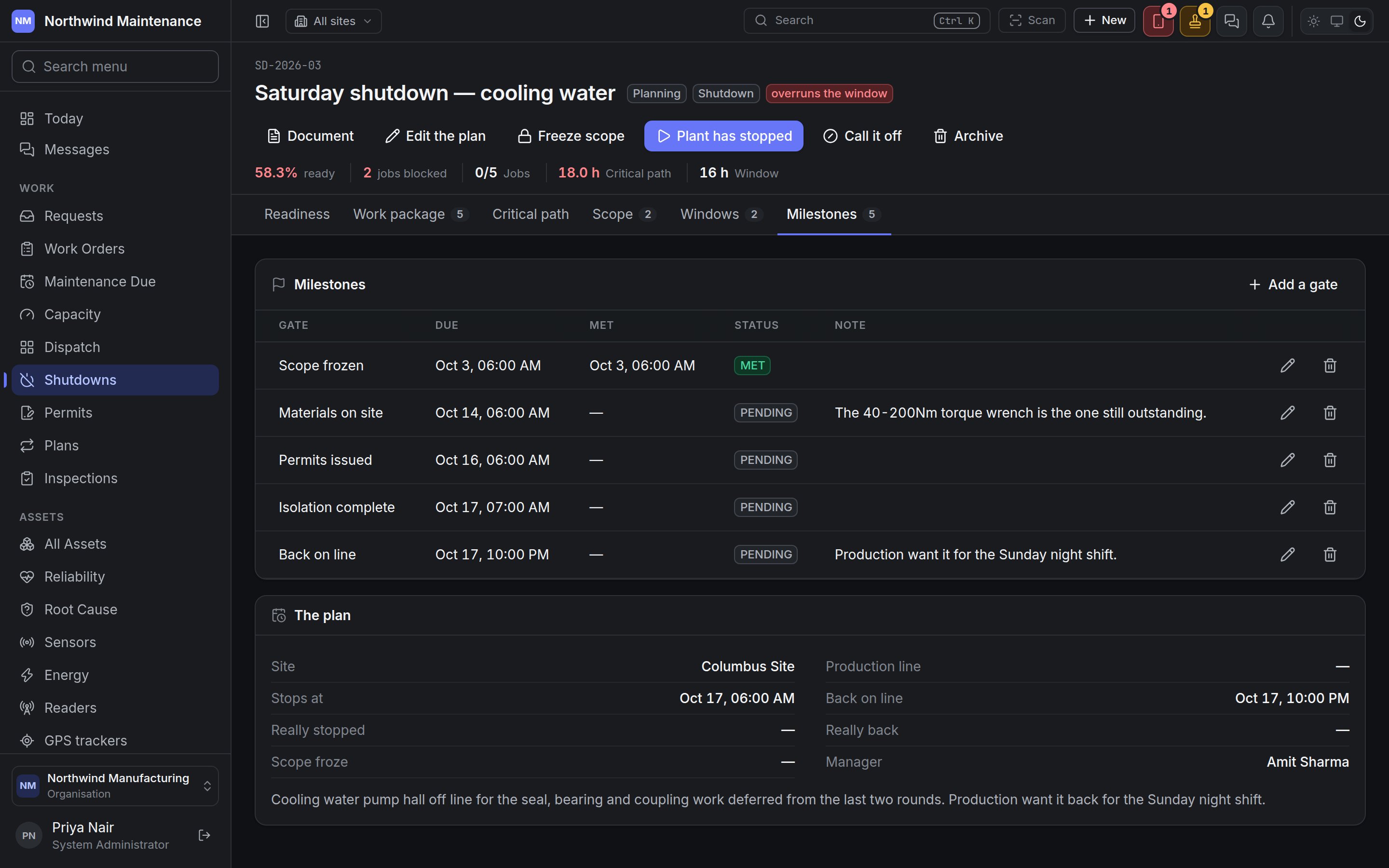
Add a gate (and Edit a gate) asks for the Gate, Due, Status, Met (shown when the status is MET — “Leave it blank and it is recorded as now”) and a Note.
Scope, windows and milestones are edited by people with Edit a shutdown, its scope, its windows and its milestones.
Shutdowns elsewhere
- Permits can cover a whole shutdown instead of one job; every job in the package then shows that permit on its Readiness tab, marked “via the shutdown”. See Permits.
- The capacity plan marks days a site is on shutdown, because a site that is down cannot absorb ordinary work.