

If you don’t see this in your navigation, your administrator can switch the module on under Administration → Modules (it is part of Capex planning), or it may not be included in your plan.
Where the assets come from
The assets are the ones on the latest CWIP upload, one row each, with each asset’s plan beside it once it has one. A plan belongs to the asset’s Asset Code and Sub-Asset No., not to a row of the upload, so it outlives the monthly file. An asset that a later file leaves out — usually because SAP has settled it — keeps its plan and its approval, is marked Not in the latest CWIP upload, no longer shows what SAP said of it, and its plan cannot be sent.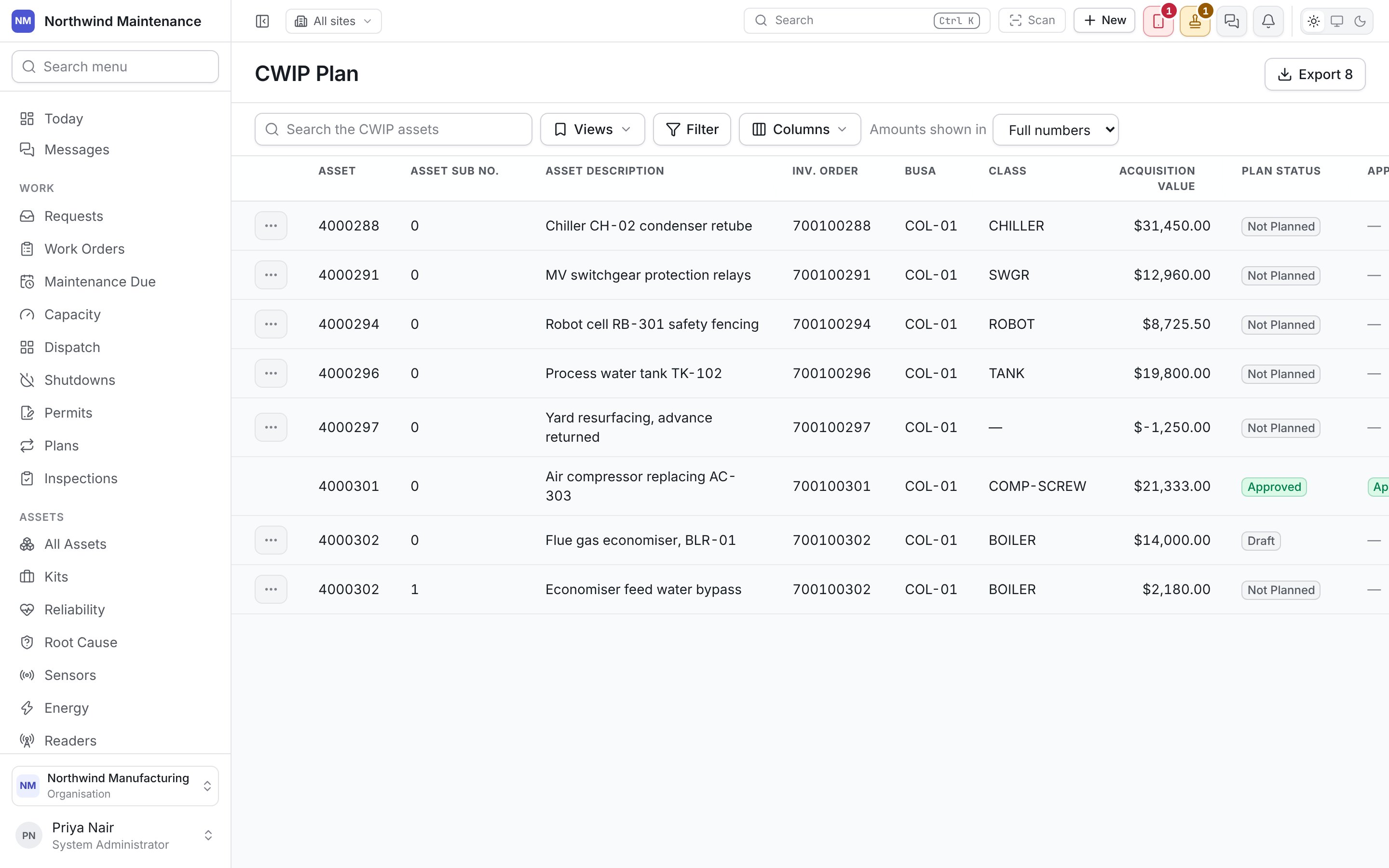
The list
Search the CWIP assets, saved Views, Filter, Columns and Amounts shown in work as on any register; a number typed whole finds the asset or internal order with that number. Export (needs Download a plan’s proposals and phasing as a spreadsheet) downloads the rows the list is showing. The list is in Asset Code order.
Columns also offers Project Name, the months and depreciation of each of the five years, and the first year’s depreciation month by month, off until you turn them on. Every date and time is written to the second on a 24-hour clock.
Clicking a row opens the asset to read, as View CWIP Plan. The row’s ⋯ offers Plan for an asset with no plan yet, or Edit for one that has one, where you may change it, and Send for approval where you may send it and it has everything it needs.
Planning an asset
Plan or Edit opens Edit CWIP Plan. What SAP says of the asset is drawn greyed, and every figure is worked out as you type, with the same arithmetic as Capitalization Planning. Your administrator arranges the form, and can insist on further answers, in Form Studio under CWIP Plan, which Edit form opens.
A plan is written over several sittings, so nothing is required to save it. Before it can be sent or approved it needs the Estimated Capitalization Date, Asset Class, Estimated Capitalization Value and Fiscal Calendar, a depreciation rate for the class, and any other answer your organisation insists on in Form Studio. A plan still missing any says Before it can be sent it still needs: and names them.
Approving a plan
A plan is approved in your organisation’s workflow for CWIP Plan, set up in the Workflow Studio, level by level, sent in the name of whoever sends it; a rejection at any level is final. Where no workflow applies, sending it approves it at once, and the screen says so. The approver a plan is waiting on opens it from Approval Status, or from Approvals. Opened from the list, it says This CWIP plan is waiting on you. Correct it here and save, then approve it in Approvals. The approval dialog draws the plan’s form — The CWIP plan you are approving. Correct what it needs here and save it before you approve. — with Save CWIP plan to save what you changed. Approve waits until the plan is saved and complete, and says Before it can be approved it still needs: with what is missing. Somebody reading a request they raised sees the same form greyed. Once a plan is approved or rejected, nobody can change it.Upload CWIP
The list of assets under construction this plans.
Change Logs
Who changed what on each CWIP plan, and how it went through approval.