

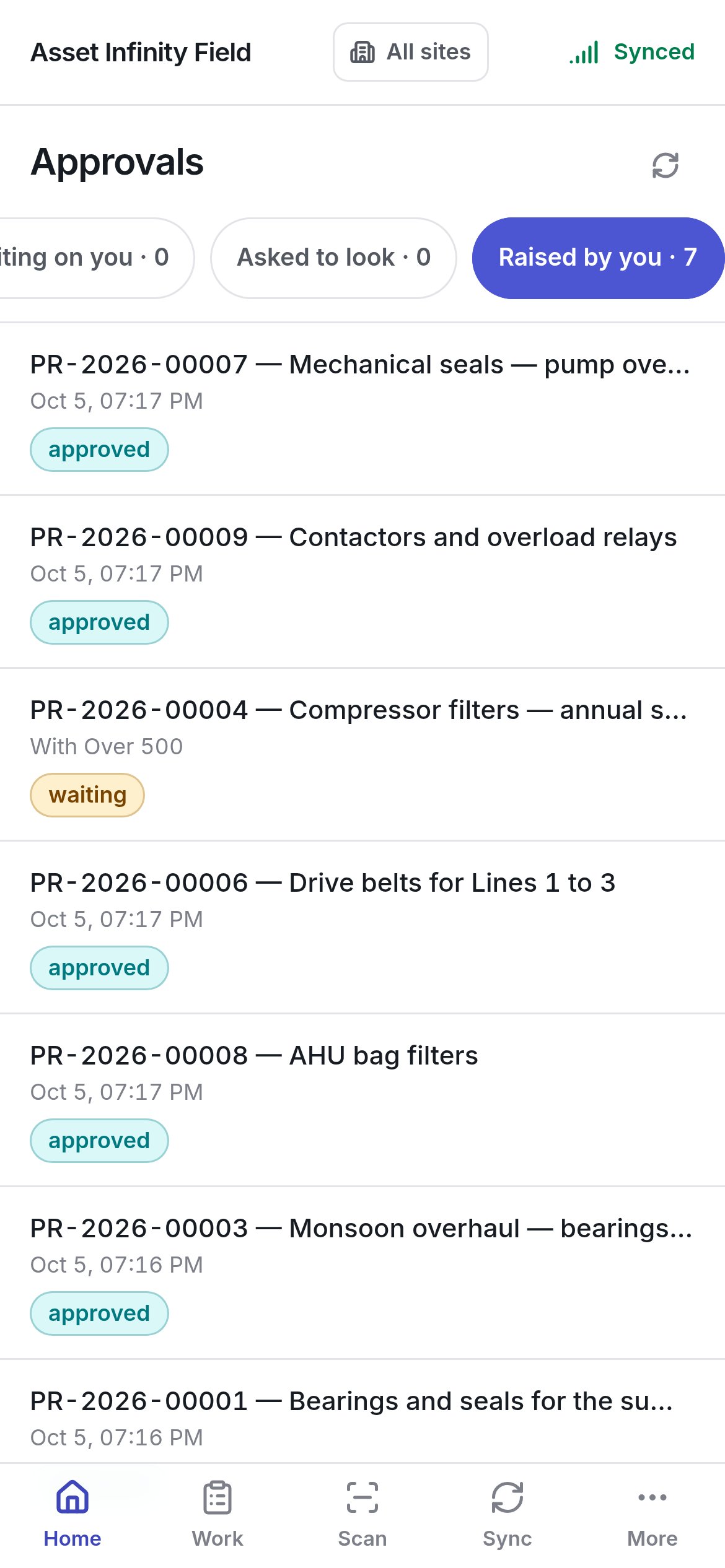
The Approvals screen lets you give a signature from wherever you are rather than walking to a desk: it lists the requests waiting on you, the ones somebody has asked you to look at, and the ones you raised. The Approvals screen on the Raised by you tab The Approvals screen on the Raised by you tab Open it from Home → Approvals, whose badge counts what is waiting on you and turns red when any of it is overdue, or by tapping a notification about an approval. The door is always there, because any request in your organisation can be put behind an approval chain.
Approvals are read live and need a connection. Somebody else may sign the same request while you are walking, so nothing on this screen is kept on the handset, and nothing you decide here is queued. Without a signal the screen says No signal, and a decision you tried to send says nothing has changed. The badge on Home is counted at the last sync, so it can be a little behind the live list.
The same approvals in the web app are described in approvals; chains are configured under workflows.

The three lists

Refresh reloads the lists.

Deciding a request

Tap a row on Waiting on you to open it. The sheet shows: Then decide: The buttons wait while somebody’s view is outstanding, and while the step’s own fields are unanswered. If somebody else answered first, the screen says the request is no longer waiting on you.

Asking somebody to look

Want somebody to look at this before you sign it? — Ask somebody lets you pick anybody in your organisation (Find somebody) and say What do you want them to check?, then Ask them. They need no permission and cannot approve it, but if they decline, the request is turned down. You cannot sign until they answer; Take it back withdraws the ask.

When you are asked to look

On Asked to look, open the request and answer:

Following what you raised

On Raised by you, a request shows its Status, its Steps ( of still to sign) and Decided once it is. Withdraw it cancels a request you no longer need. If a request is waiting on a step nobody can sign, the screen says so — whoever looks after the workflow has to name somebody. If it was approved but could not be carried out, the reason is shown and you can raise it again.