

If you don’t see this in your navigation, your administrator can switch the module on under Administration → Modules, or it may not be included in your plan.
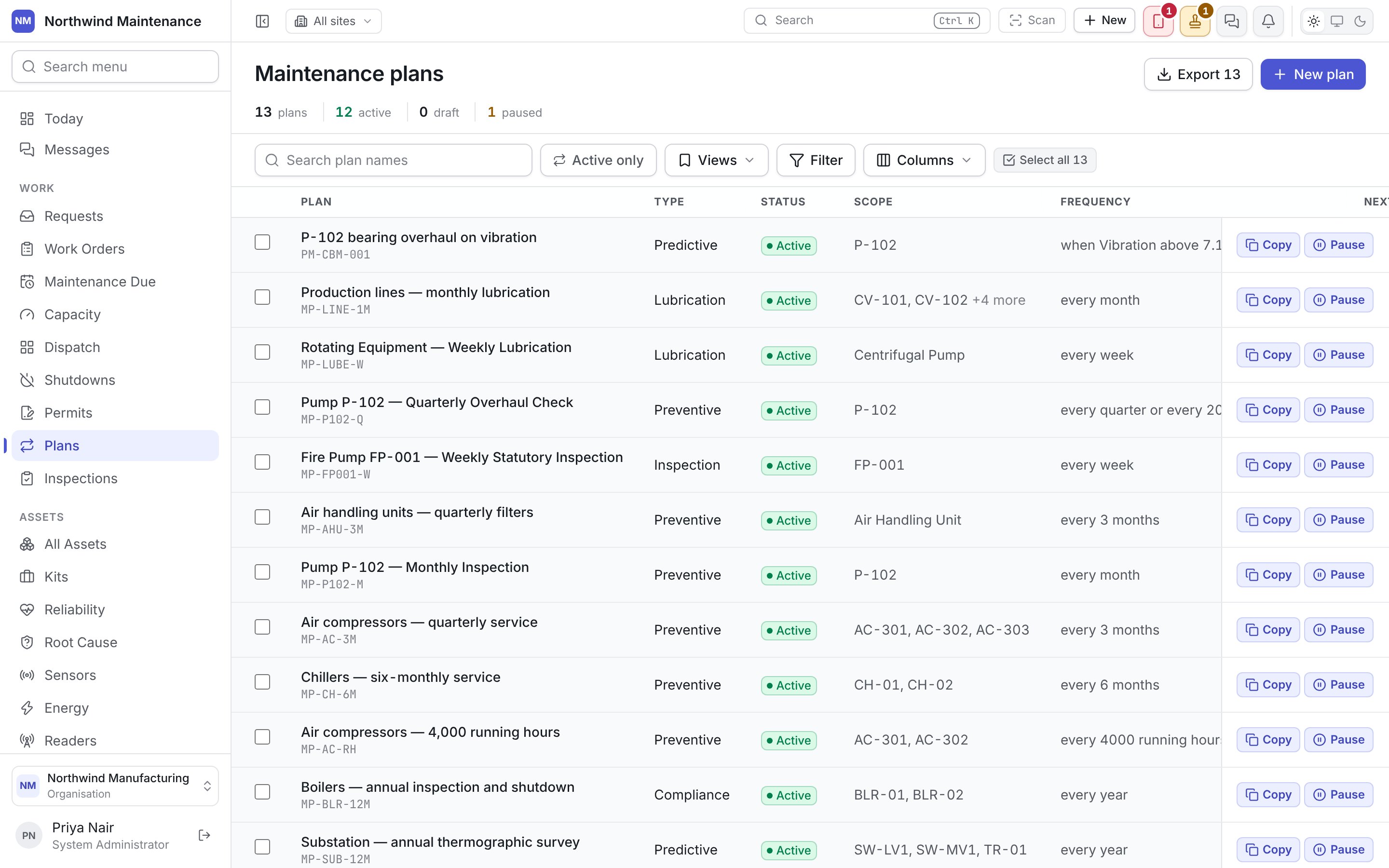
Who can do what
What you can do on this screen depends on the permissions your role holds. The names below are the ones shown on the roles screen.
The split between editing and activating is deliberate: a planner can write and tune a plan, while the decision that the site actually starts (or stops) doing that maintenance can sit with somebody else.
The header and stat strip
The counts are taken over everything that matches your filters, not only the page on screen.
Searching and filtering
The list is sorted with active plans first, then by the soonest next due date, so the top of the register is what is about to happen.
Columns
Shown by default
Available from Columns
These columns are mostly the terms of each plan. Turning them on lets you compare thirty plans side by side instead of opening thirty plans.
Any custom fields your organisation has added to maintenance plans can also be shown as columns, as can the usual created and updated stamps.
Row actions
Every row ends with up to two buttons.
The reason for a pause is required because a plan that quietly stopped generating months ago is a compliance gap nobody can explain later. The reason is kept in the plan’s activity.
Copying a plan
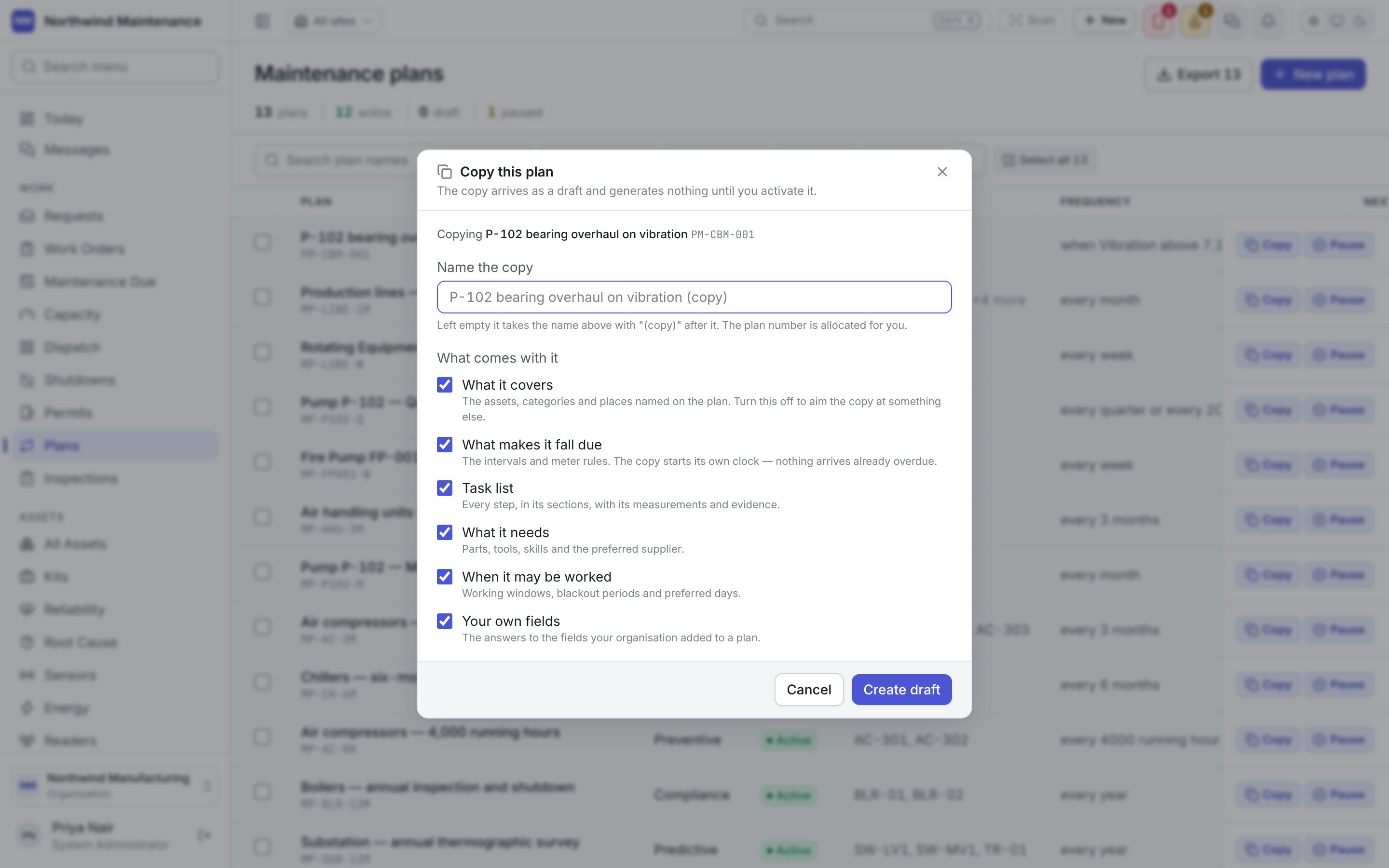
Create draft makes the copy and opens it. Cancel closes the dialog without creating anything.
Bulk actions
Tick one or more plans (or use Select all) and a bar appears at the bottom of the screen showing how many are selected.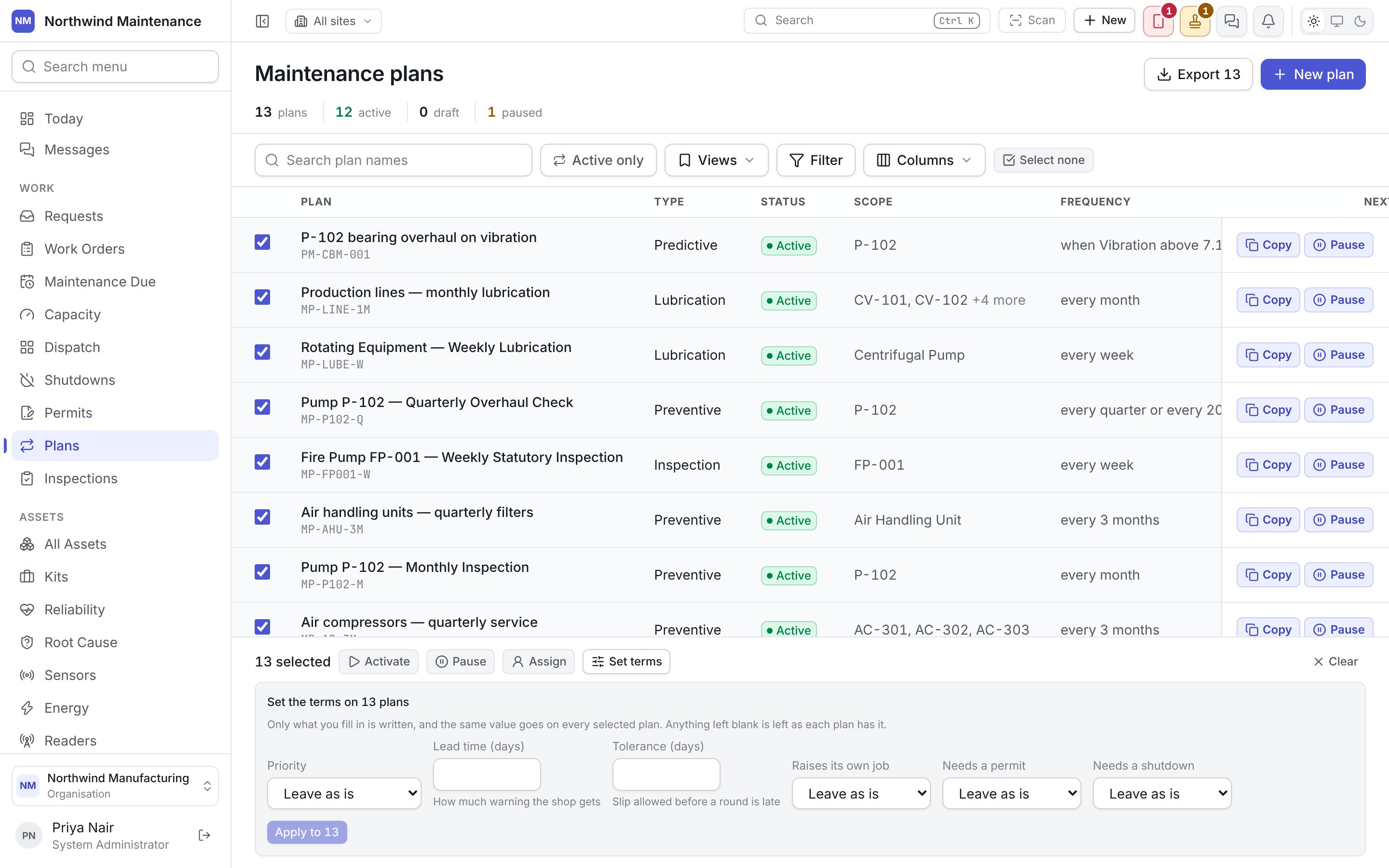
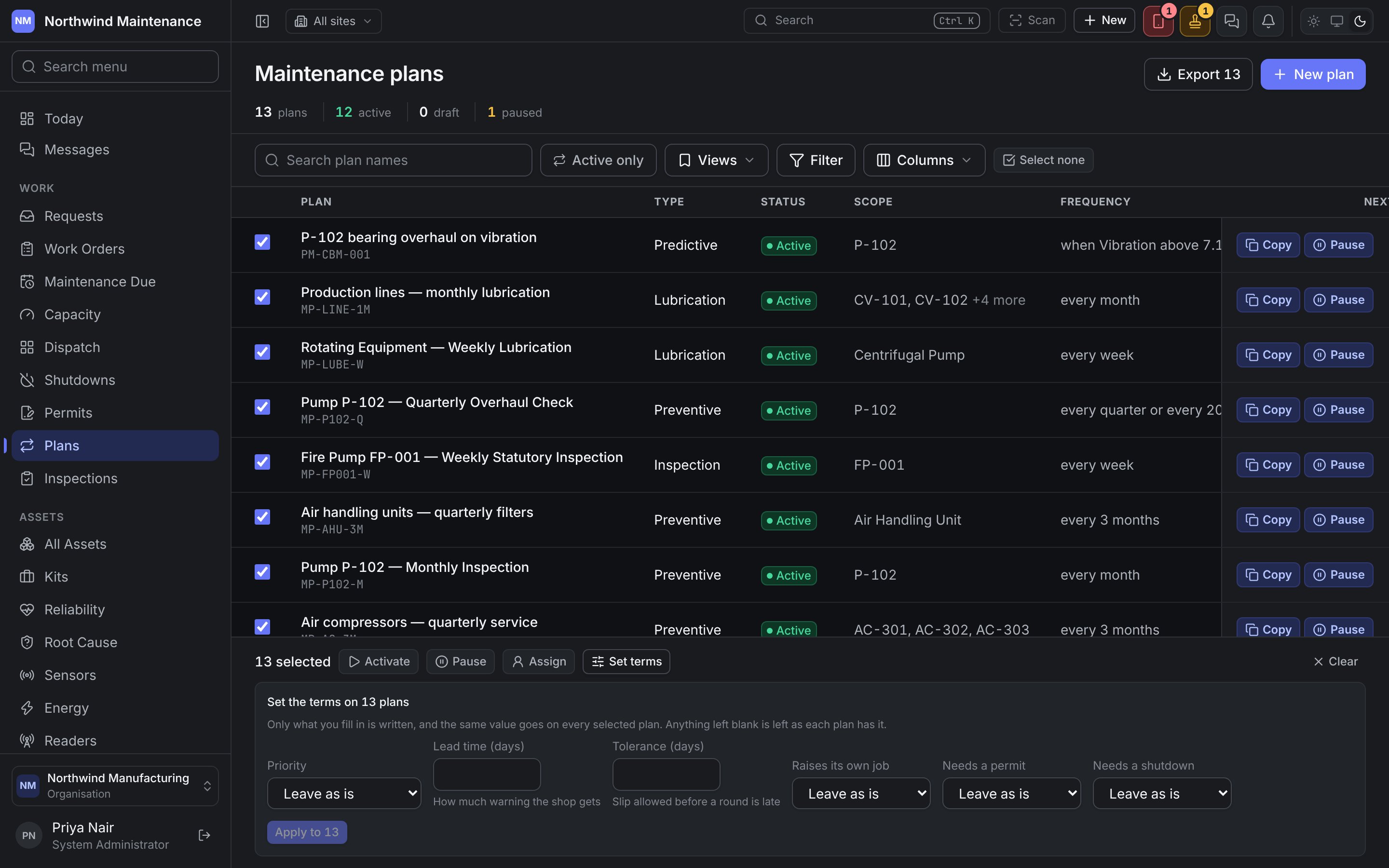
Set terms offers these fields:
After a bulk action the bar reports how many plans were changed and lists any it refused, with the reason for each.
Activate and Pause can also run as background jobs over every plan that matches the filter, so selecting several hundred plans is fine.
Plan statuses
The defaults are below. Your administrator can rename them or add others under statuses.Open a plan
Every tab of a plan explained.
Build a plan
The builder, one step and one field at a time.
How plans raise work
From trigger to round to work order.