

Why meters matter
The Meters tab
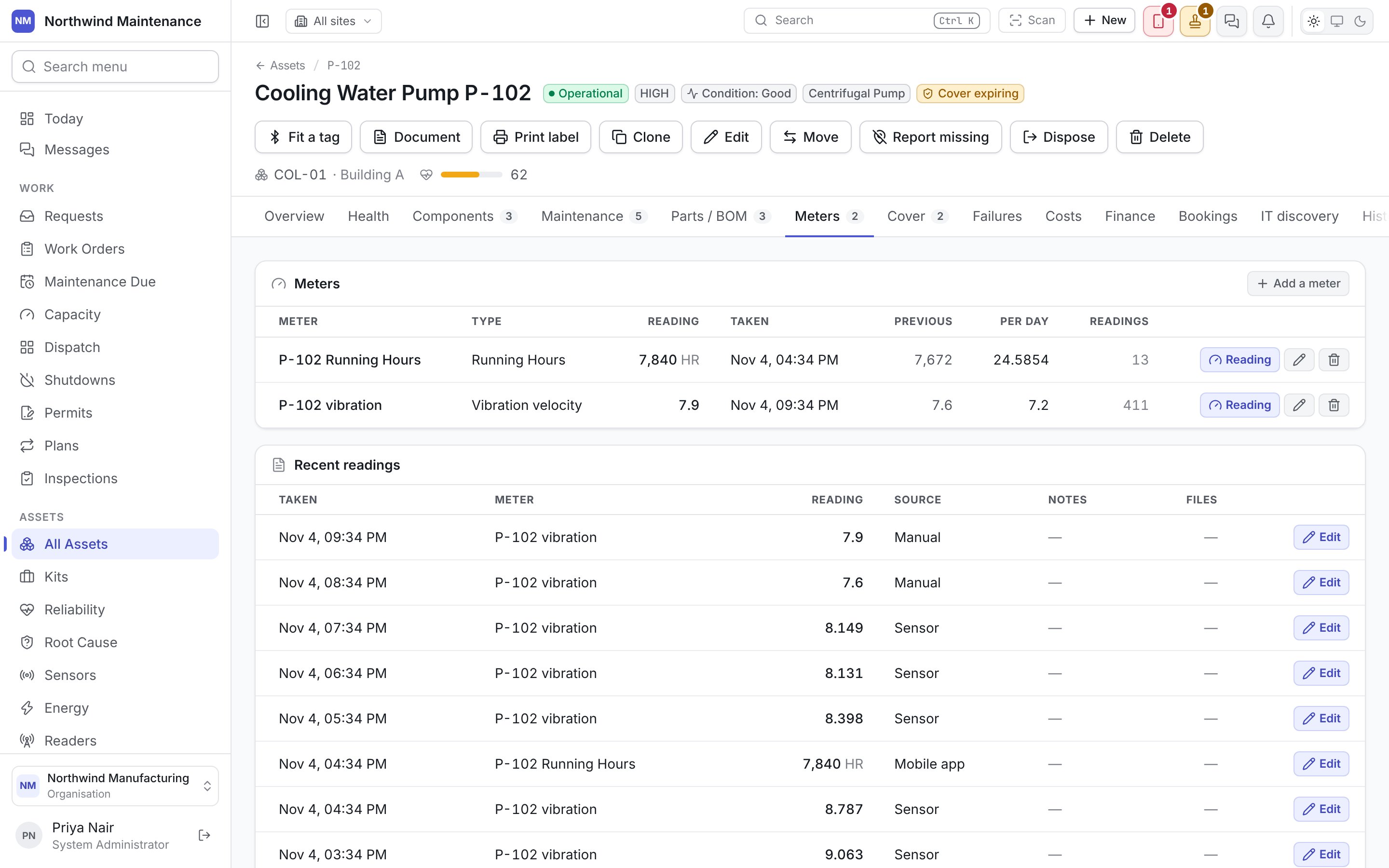
The tab has two tables. Meters lists each meter on the asset:
Recent readings lists the latest readings across every meter on the asset, newest first, with
Taken, Meter, Reading, Source, Notes and Files. A reading that has been
corrected shows what it was under the figure, so a corrected number never passes for the one the
technician recorded. Files shows a paperclip and a count where a photograph of the dial or another
file is attached to the reading; click it to open them. They can be read but not replaced or
removed, because the photograph is the evidence for the figure. People who may correct readings also see
Edit on each row — see correcting a reading. The source says how the
reading arrived:
Adding a meter
Add a meter on the Meters tab opens the meter form. You need Configure meters.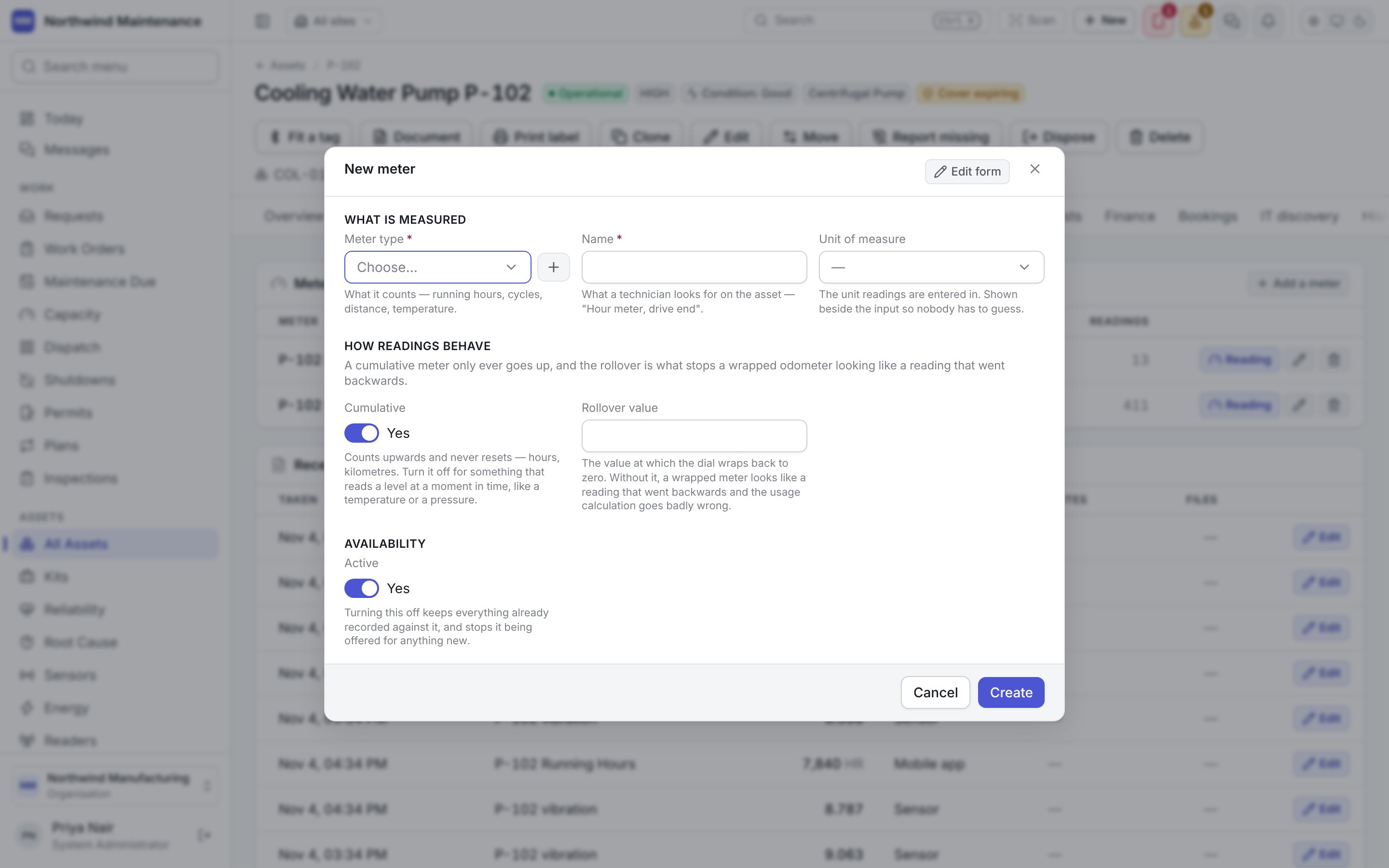
Recording a reading
On the asset
Press Reading beside a meter. The form opens in place.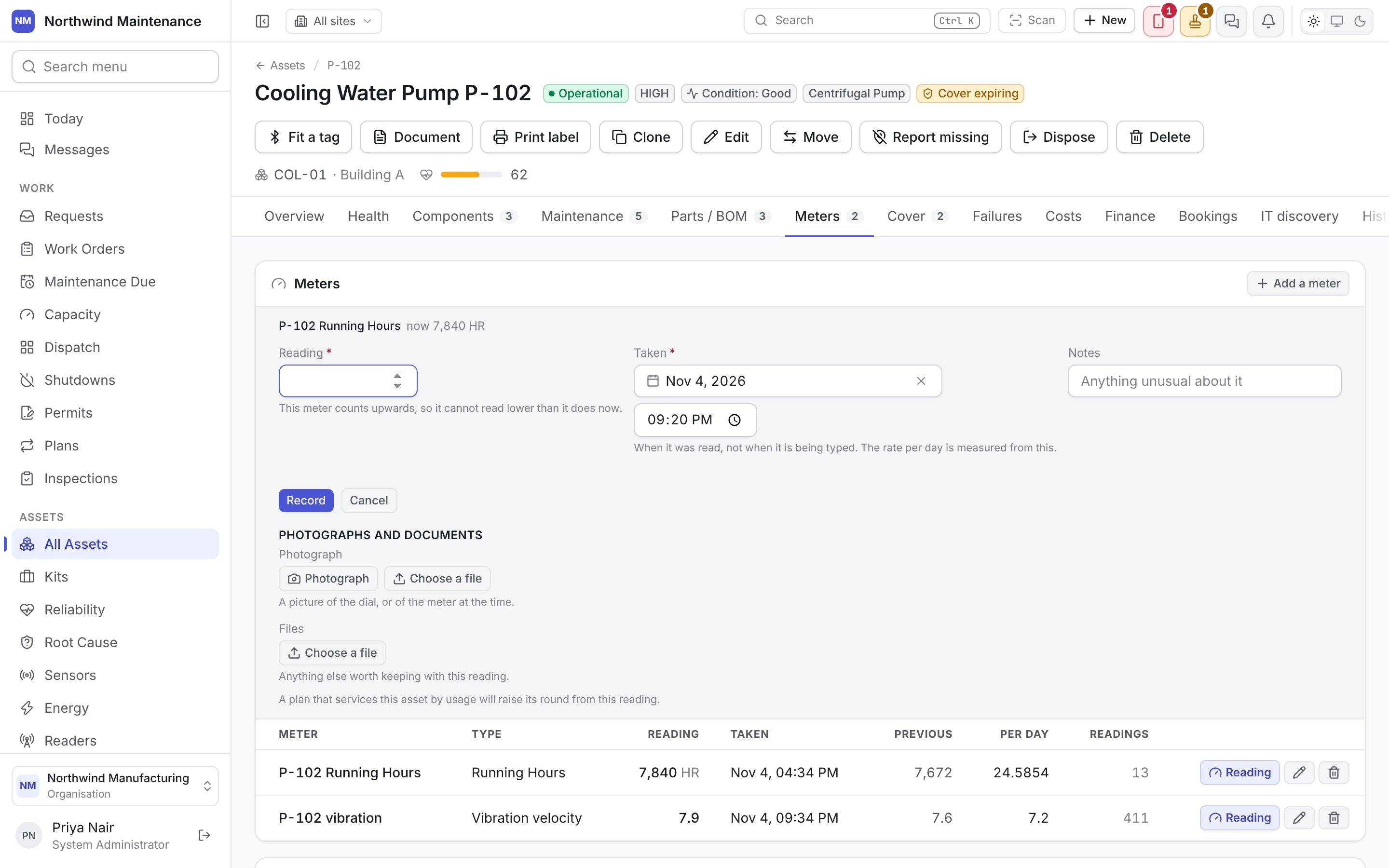
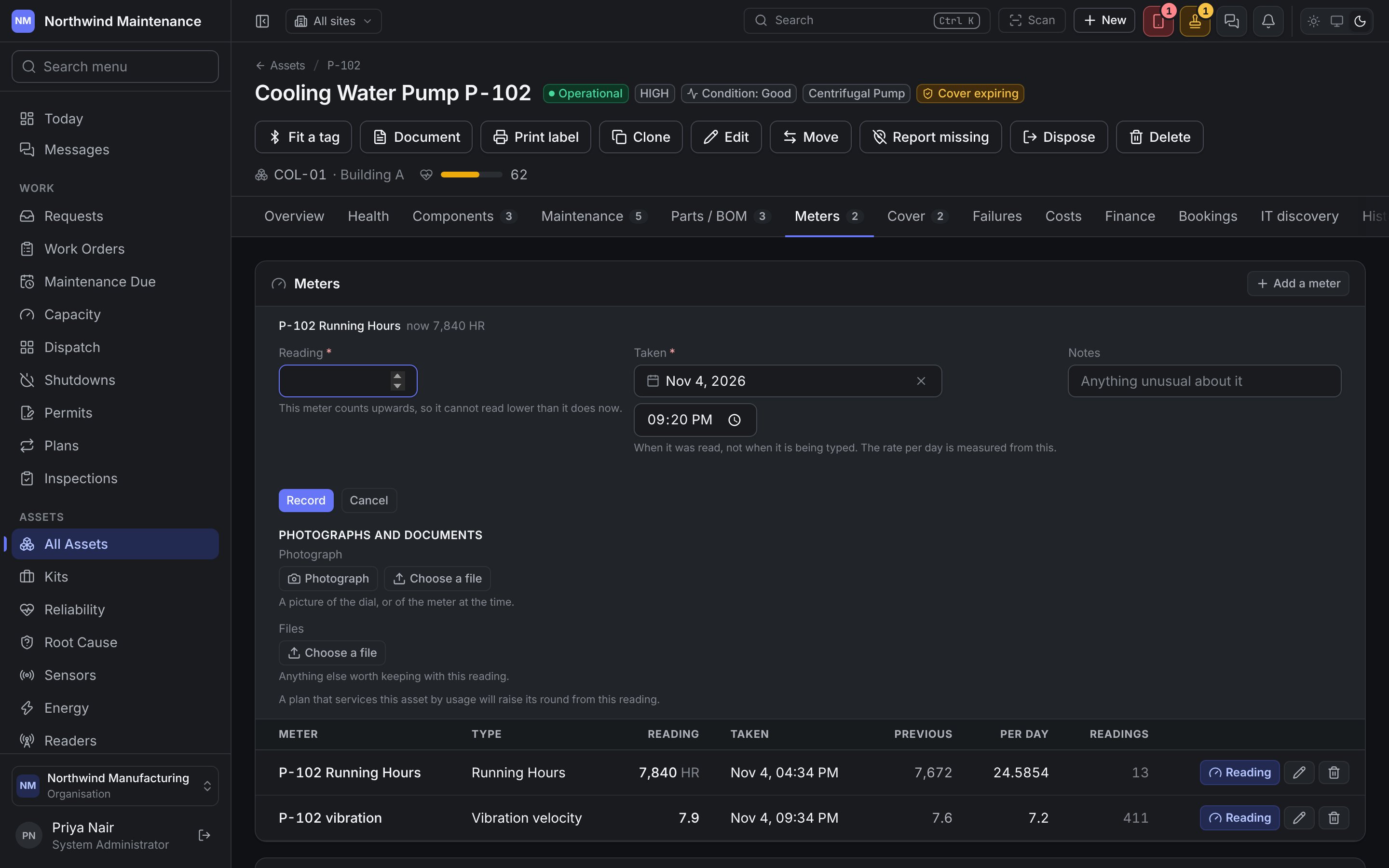
Record saves it. If a plan services the asset by usage, the form reminds you that the plan will
raise its round from this reading. Recording readings needs Record meter readings, which
technicians hold by default.
In the field app
A technician records the reading at the machine in the field app, usually as part of a job or a round. This is the most reliable path, because the person is standing in front of the counter. Readings taken without signal queue on the handset and arrive when it reconnects.From a sensor
A sensor bound to a meter writes its readings in automatically, which turns a live measurement into maintenance that comes due on its own. See sensors. Every reading records who took it, when, and how it arrived.Correcting a reading
A mistyped figure used to need a second reading, which left the meter’s rate and history saying it ran for a day and a half overnight. Now a reading from the last 30 days can be corrected in place. Edit on a row of Recent readings opens Edit reading. You need Correct a meter reading from the last 30 days; recording readings is not the authority to change what somebody else recorded.
Beside them, the Previous reading and Next reading on the same meter are shown with their dates.
On a cumulative meter they are the bounds: a corrected figure below the one before or above the one
after is refused, and the dialog says so before you save. On a meter with a rollover value, a
correction may not change whether the dial wrapped.
Save correction changes the reading and, if this is where the meter stands now, the meter’s
current reading too; usage-based plans are then looked at again. Some readings cannot be corrected
here:
The reading change log
Once any reading on the asset has been corrected, a Reading change log appears under the readings. Each correction is a row of its own, newest first: Changed (when), Changed by, Meter, Reading taken, From, To and Reason. A reading corrected twice keeps both steps.Cumulative meters, rollovers and replacements
A cumulative meter (running hours, cycles, kilometres) never goes down. A reading lower than the last one is refused unless the meter has a Rollover Value and the new reading is what it shows after wrapping round. Set the rollover value on any counter that wraps, so usage keeps being worked out correctly across the wrap. On such a meter the reading form says the meter goes back to zero after its rollover value, so a lower reading means the dial went round. Two checks stop a mistyped figure being taken as a turn of the dial:
The same checks apply on the energy reading ledger and in
the field app.
If a counter is physically replaced, add a new meter for the new counter and switch the old one’s
Active off, rather than typing a lower number into the old one. The old readings stay on record
and usage-based plans keep working from the right starting point.
A point-in-time meter (temperature, pressure, vibration) goes up and down freely; its readings
are compared against condition limits rather than added up.
Who can do what
See roles for which default roles hold each one.