

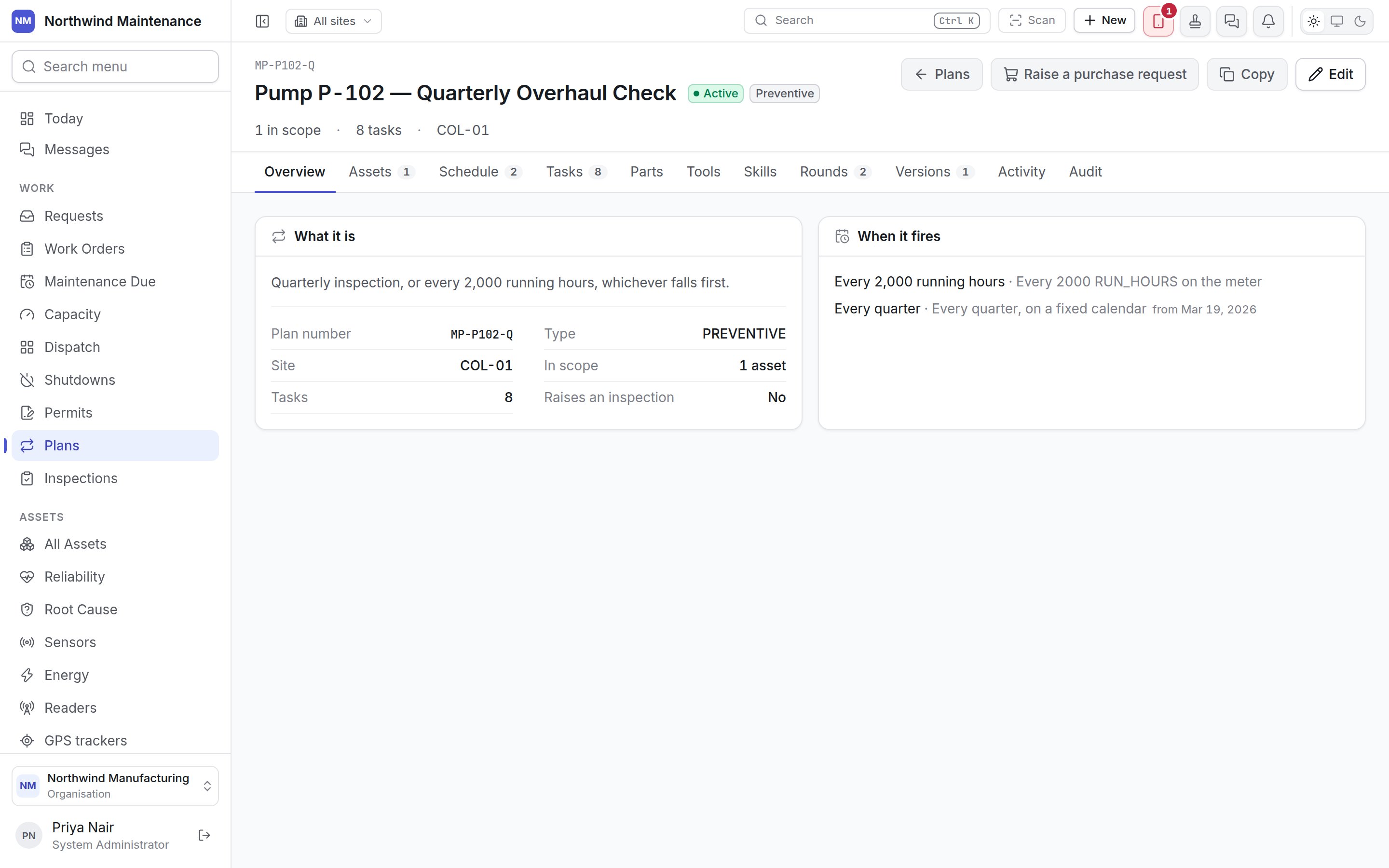
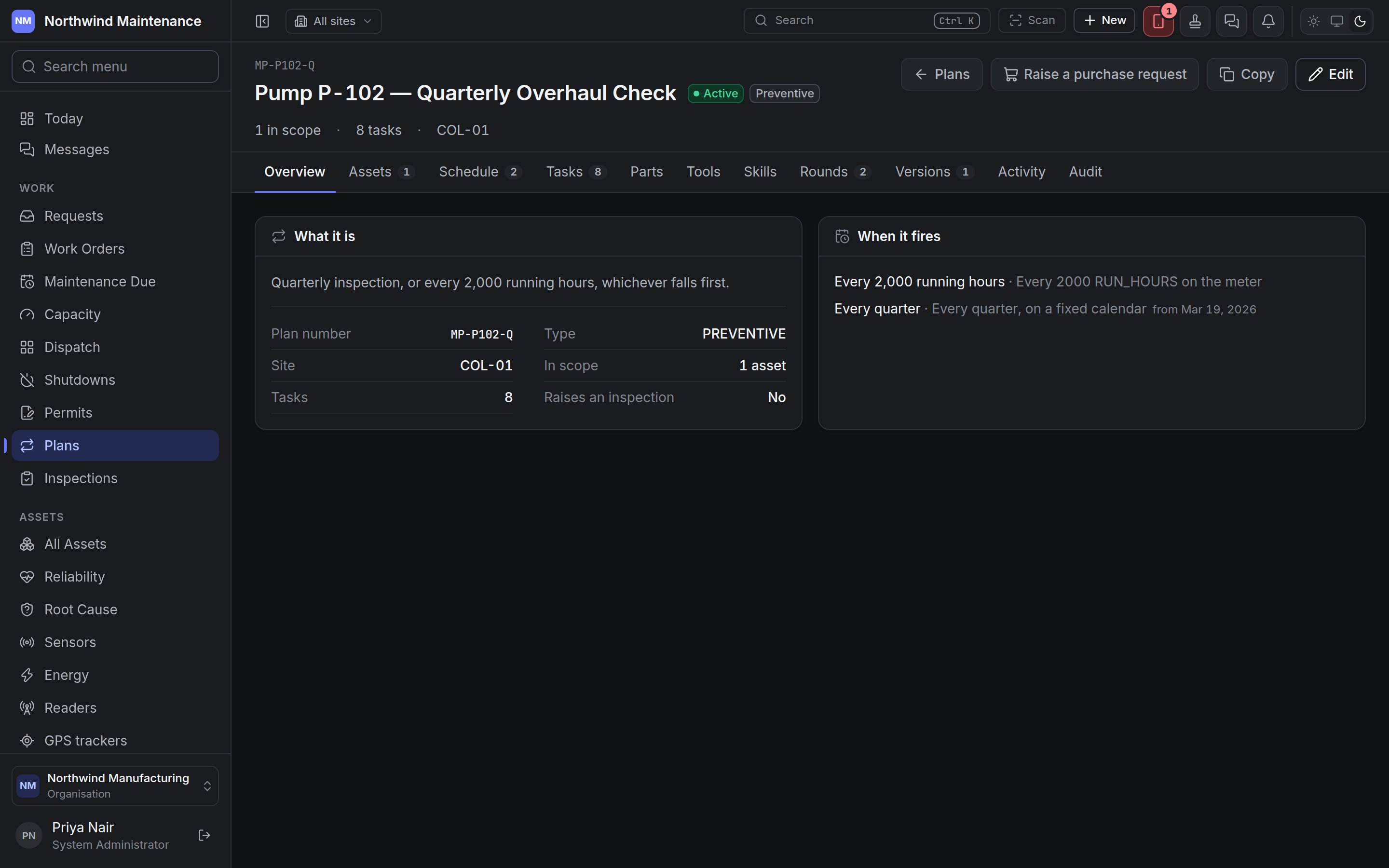
The header
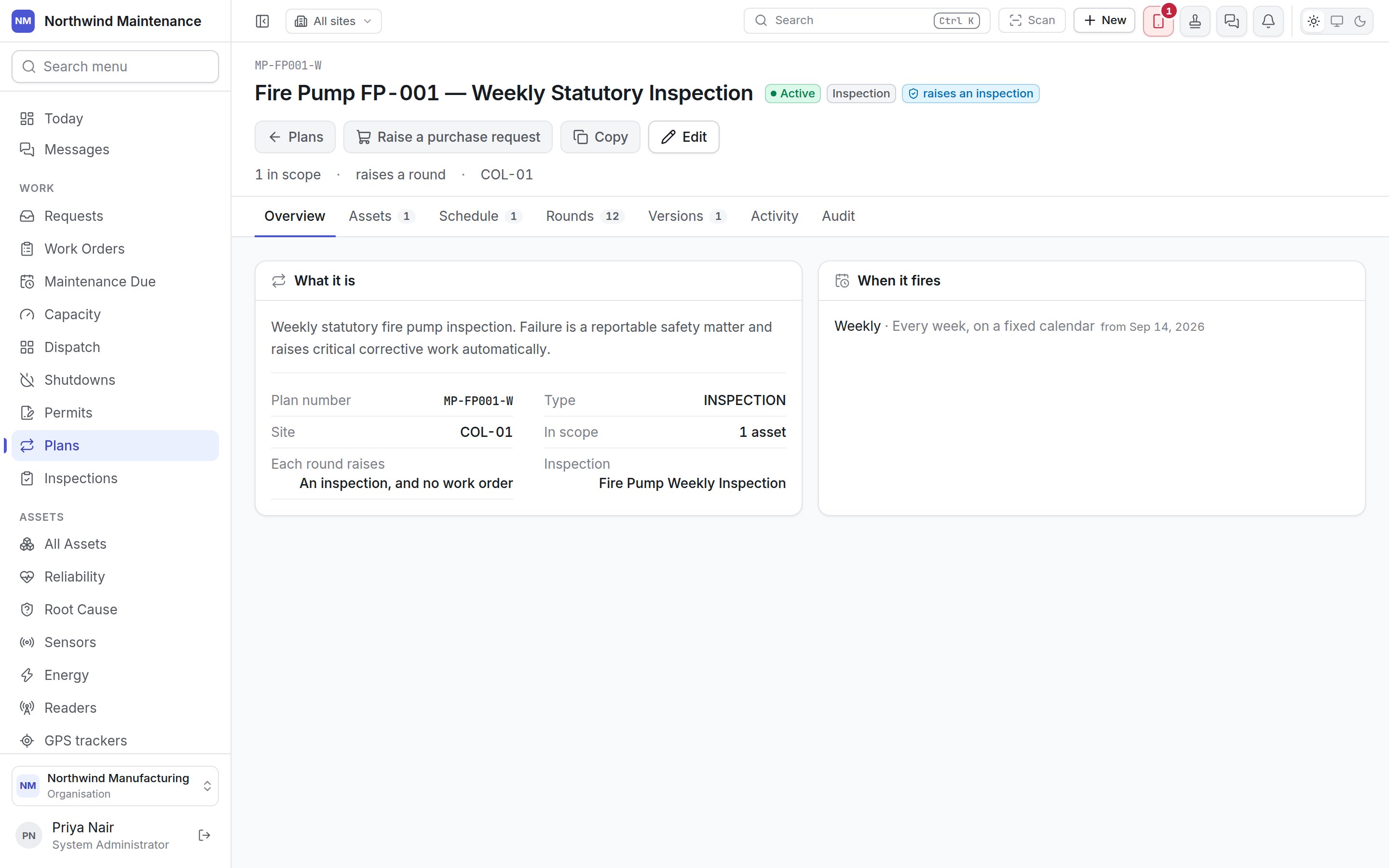
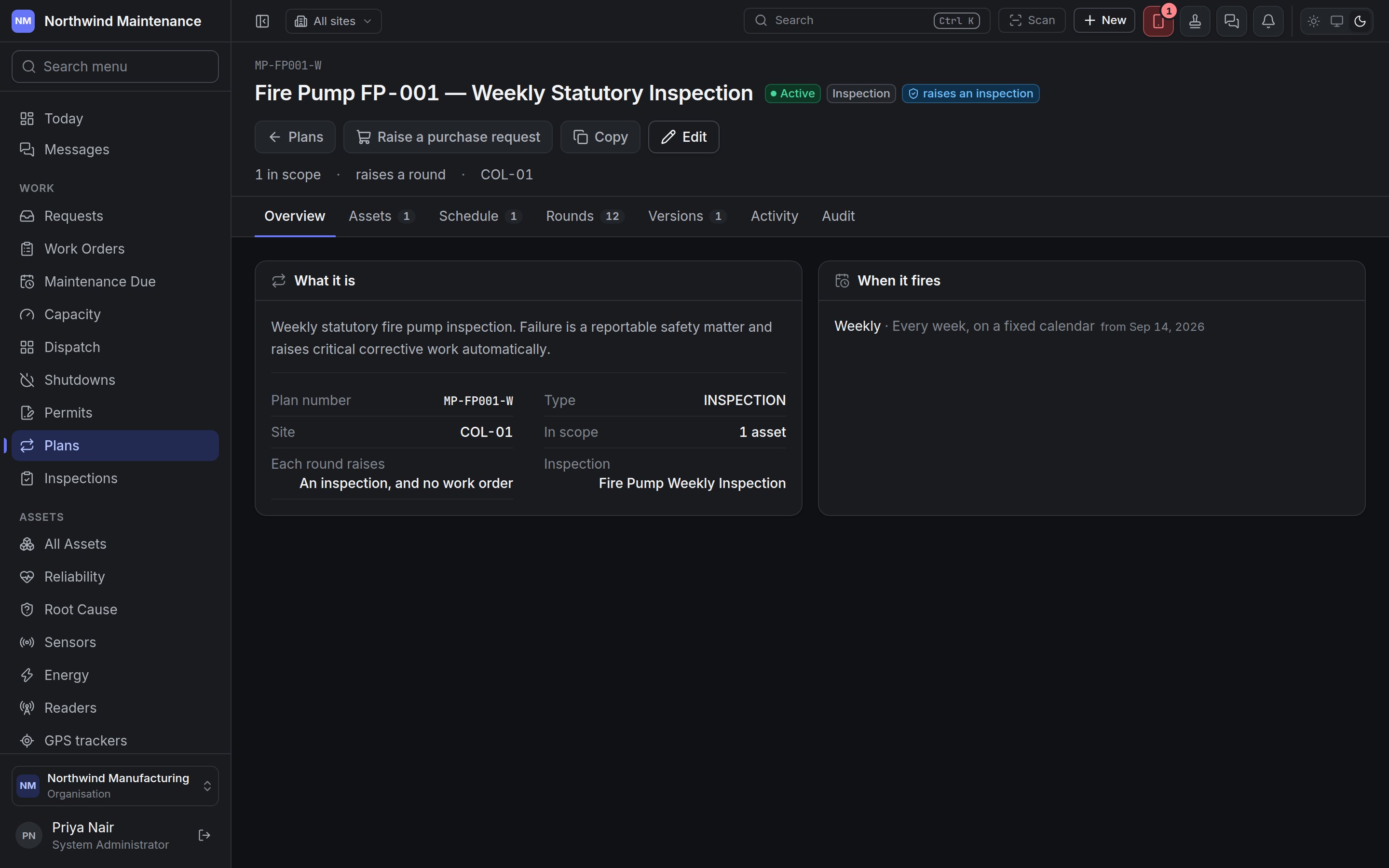
The plan number sits above the name. Beside the name are the plan’s status (Draft, Active, Paused or Retired by default — see statuses), its type, and a raises an inspection badge when every round produces an inspection. Under the name you see how many things are in scope, how many tasks a round carries (or raises a round for an inspection plan), and the site the plan is filed under.”This plan has changes no version records”
When somebody has edited the plan since its last published version, an amber notice appears above the tabs. It explains that rounds are already being raised from the edited plan — the schedule always reads the plan as it is now — but those rounds are stamped with the old version number, which does not describe them. The notice lists what has changed (for example what makes it fall due · the checklist). Publishing a new version closes the gap.Tabs
The tabs a plan shows depend on what it raises. A plan whose type raises an inspection has no task list, parts, tools or skills — the inspection template is the whole checklist — so those four tabs are left out rather than shown empty.Overview
What it is shows the plan’s description, then:
When it fires lists each trigger by its name, if it has one, followed by what it does — Every quarter, on a fixed calendar from Mar 19, 2026, or Every 2000 RUN_HOURS on the meter. If any trigger counts from completion, a note explains that a round finished late moves the next one with it. A plan with no trigger says so: it will never raise a round.
Bought for this plan appears only when purchase requests have been raised against the plan. Each line shows the request number (click to open it), its title, status, number of lines and date.
Assets
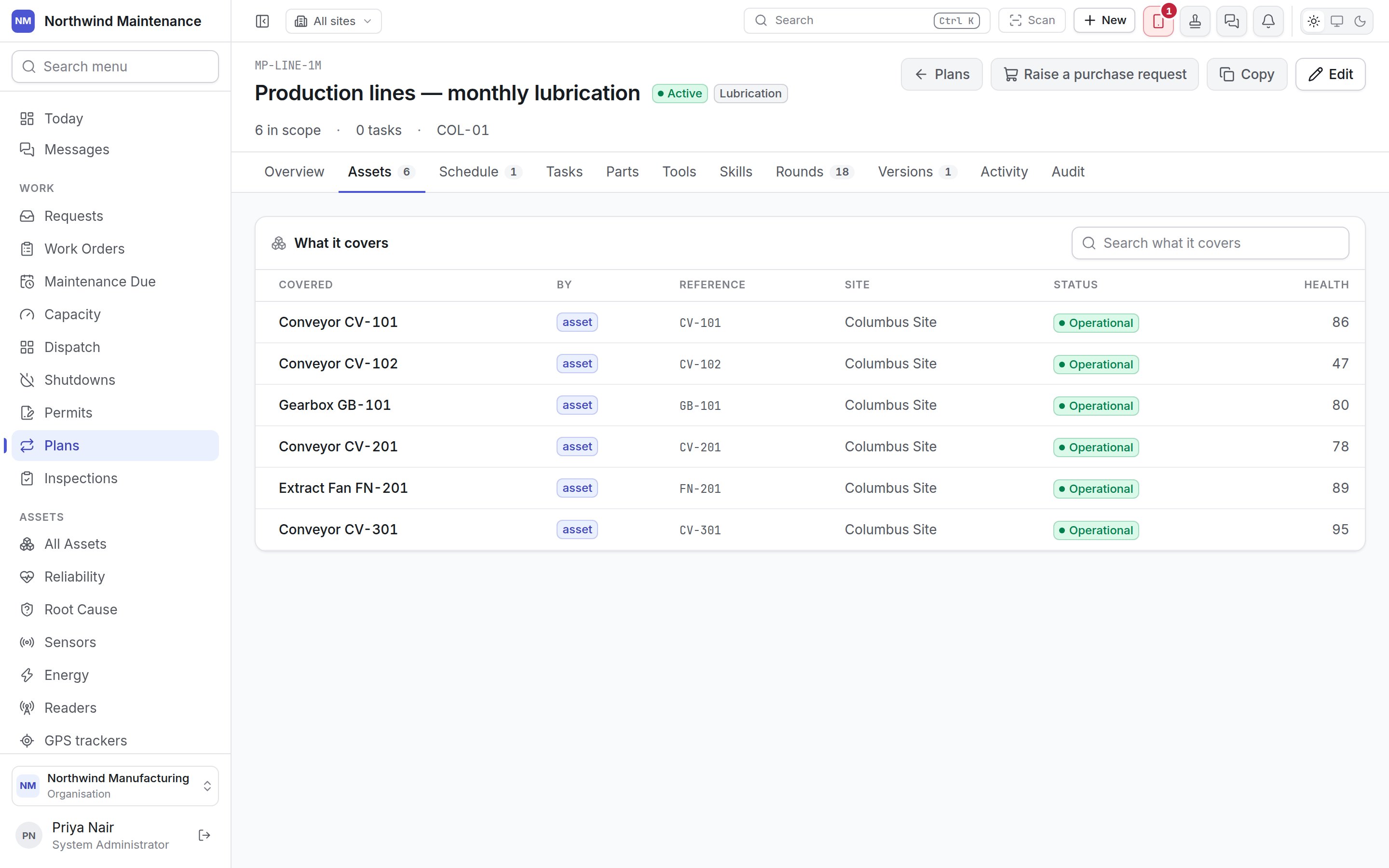
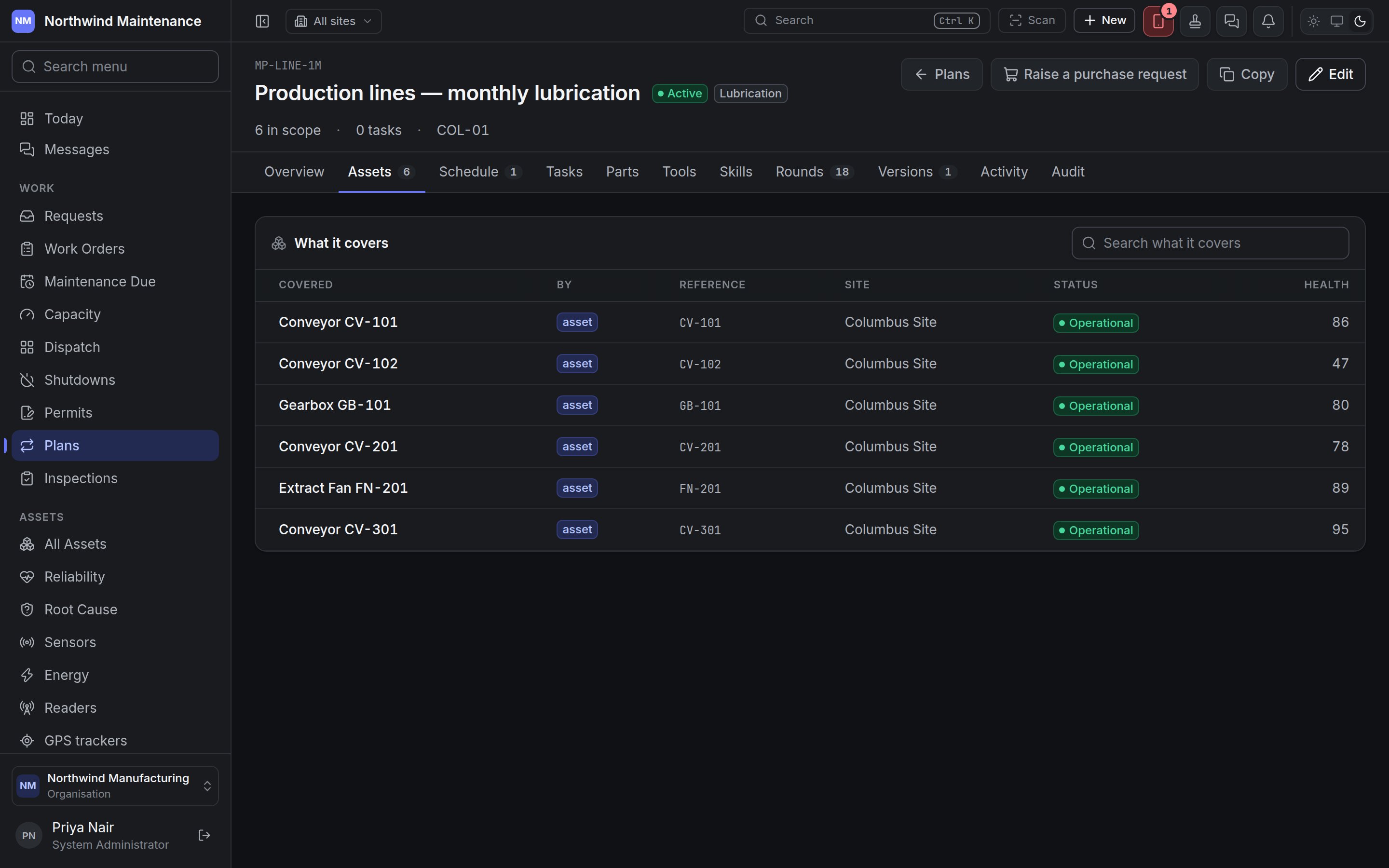
A plan with nothing in scope raises nothing. Add assets, a category or a place on the builder’s Scope step.
Schedule
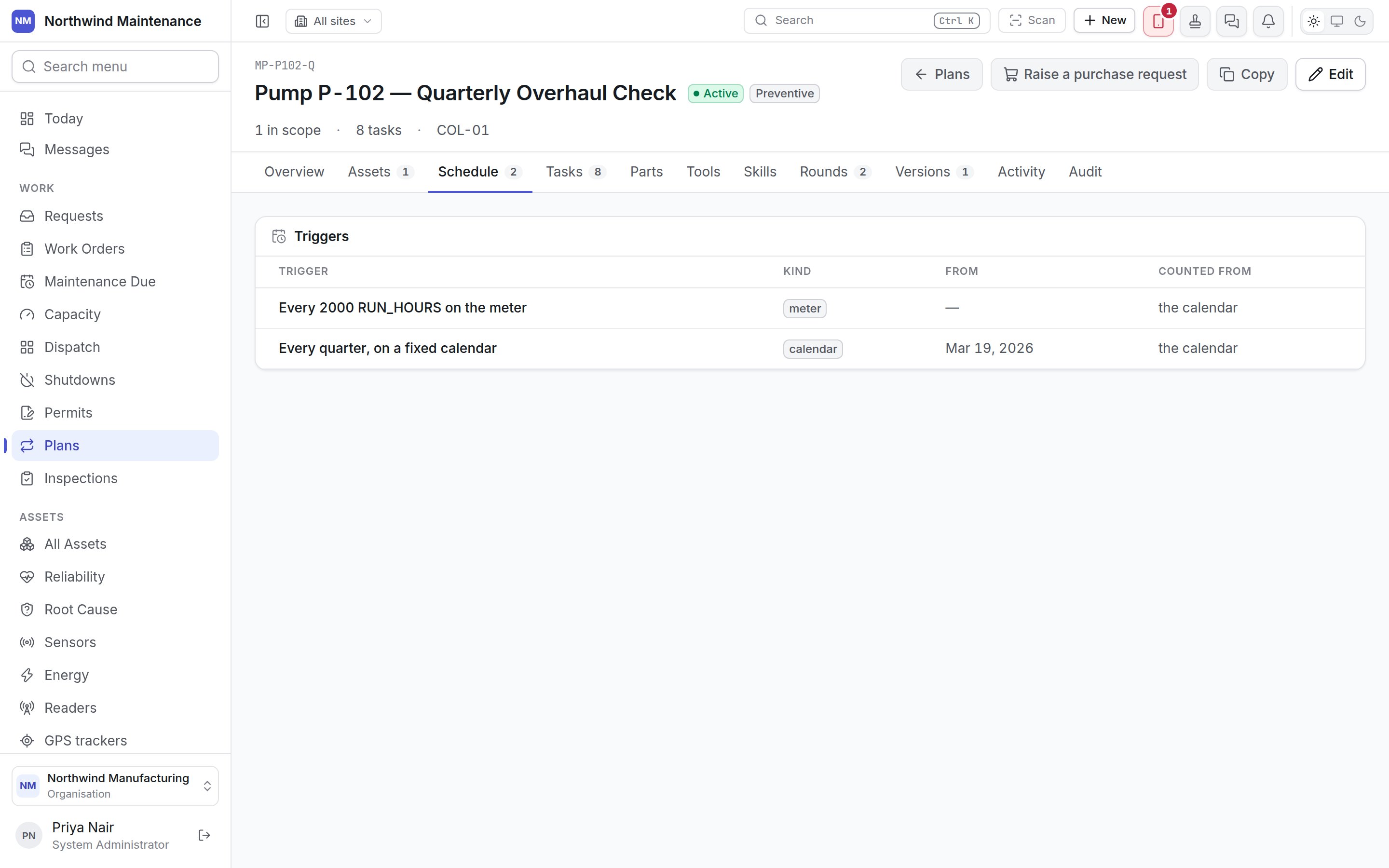
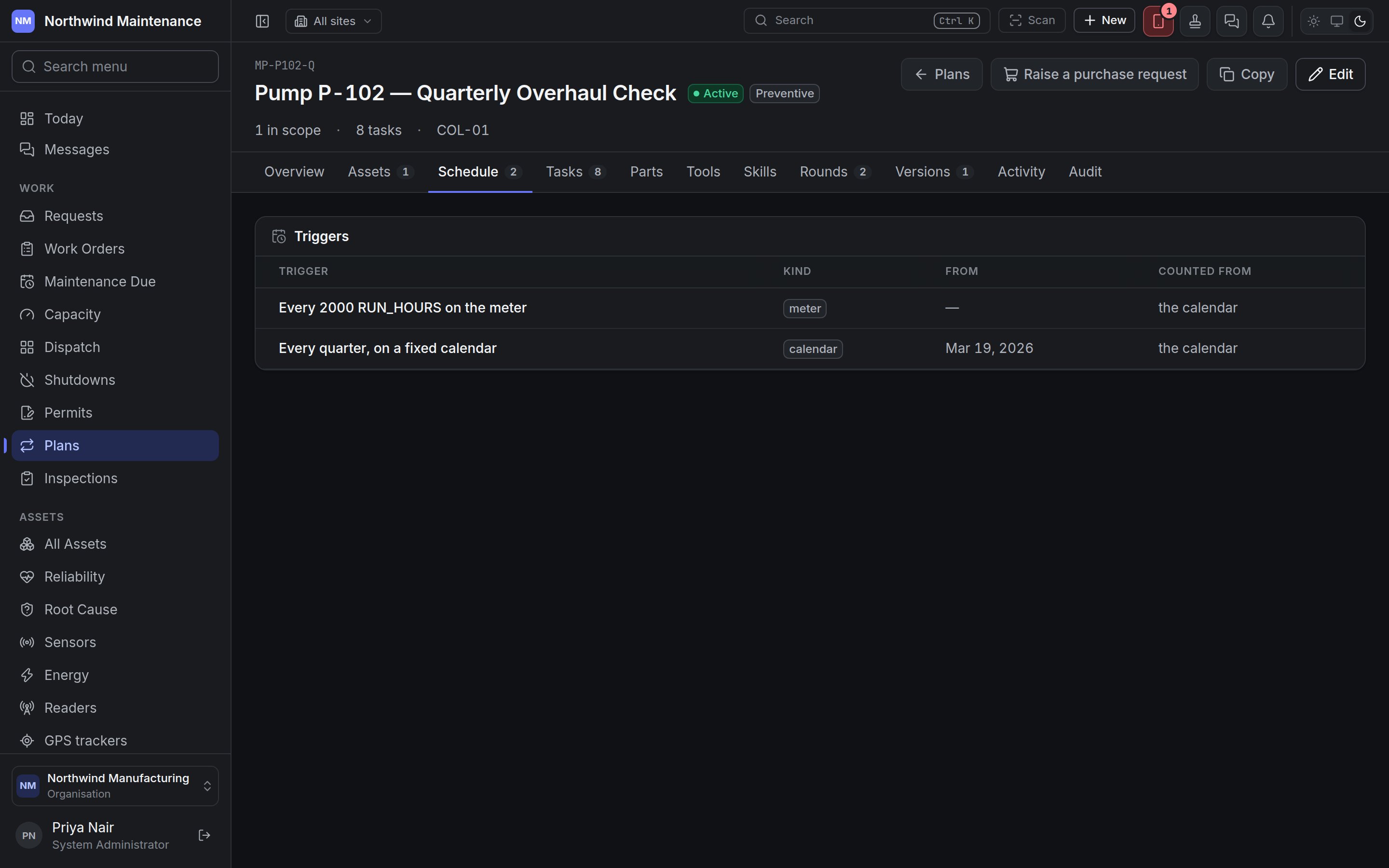
Stands down
This tab appears only on a plan that covers other plans — typically an annual service that already includes everything the monthly round does. It explains that a month that gets this plan’s round does not also get theirs; their round is still recorded for that month, marked as covered by this one, and it does not count against PM compliance.
Choose the plans this one covers on the builder’s Scheduling step.
Tasks
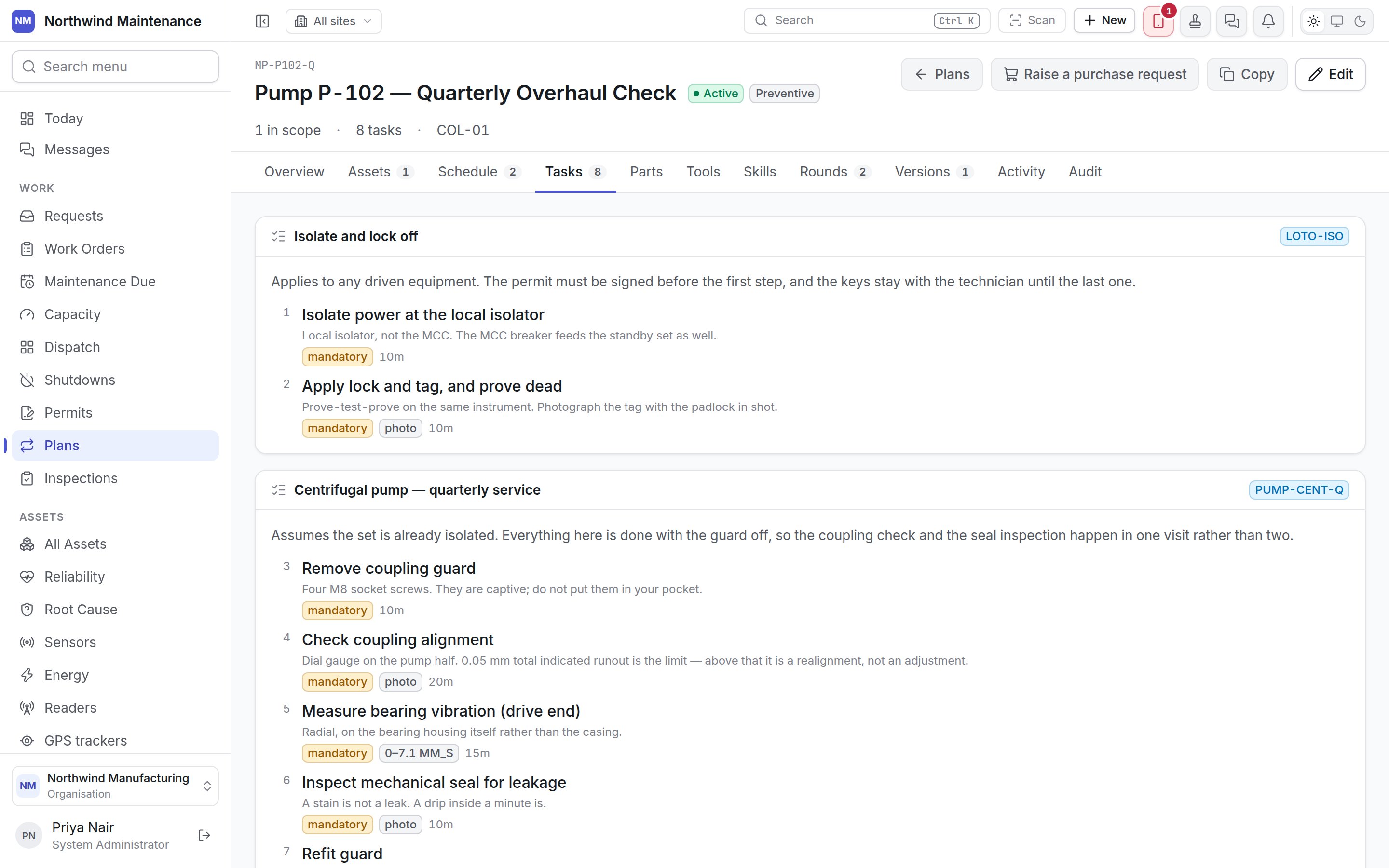
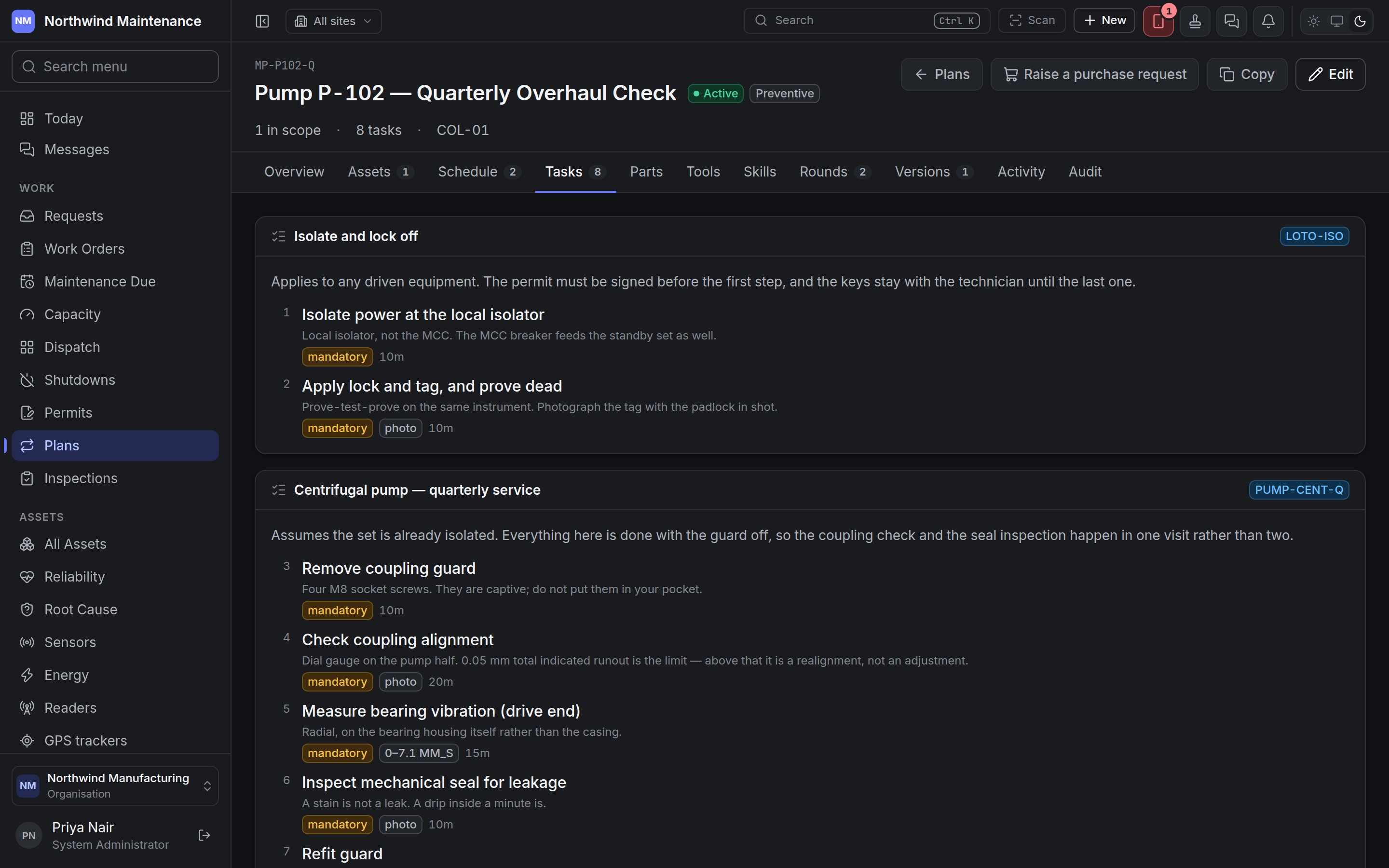
Drawings and reference files attached to a section or a step are listed under it and can be opened from here.
Parts, Tools and Skills
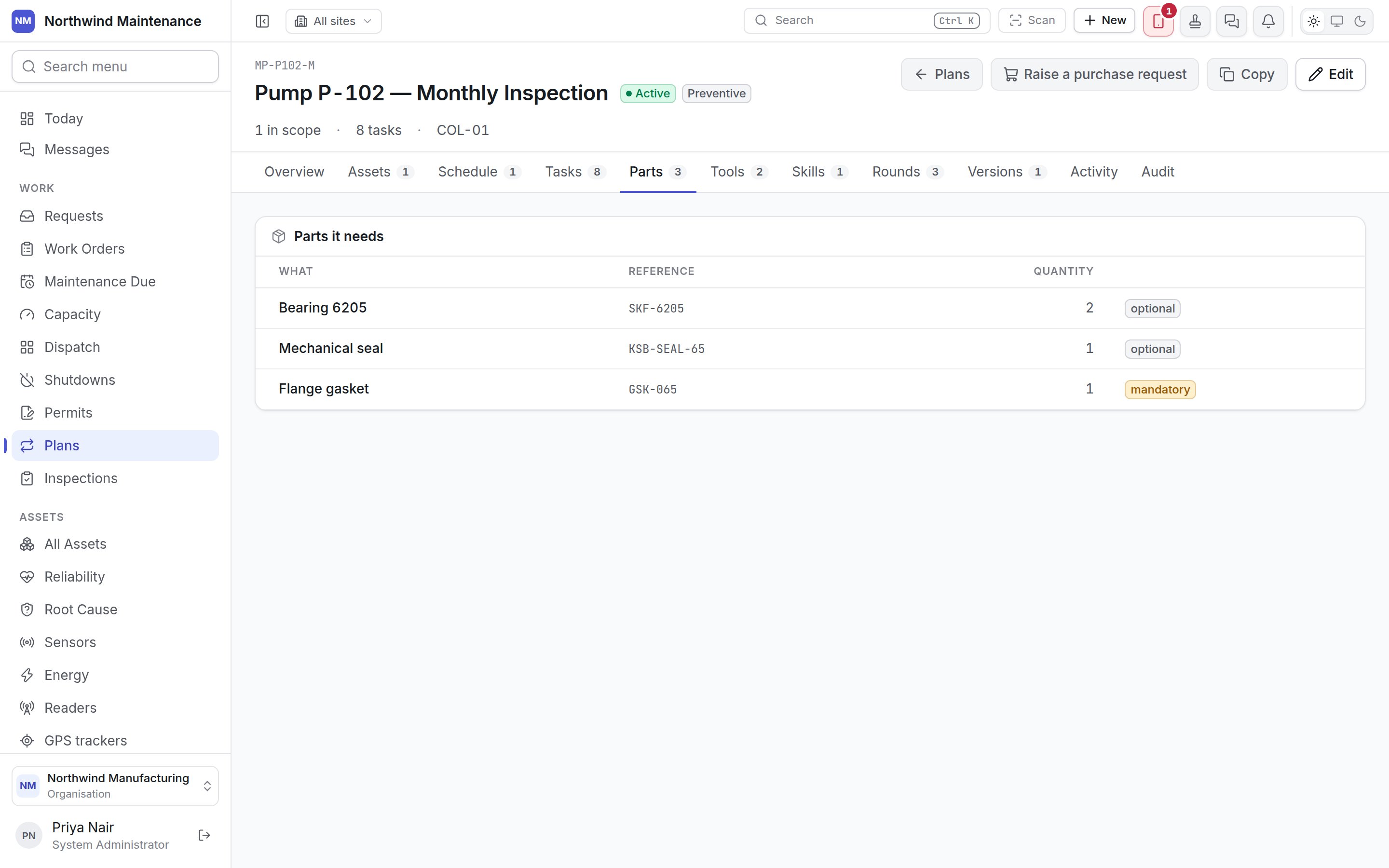
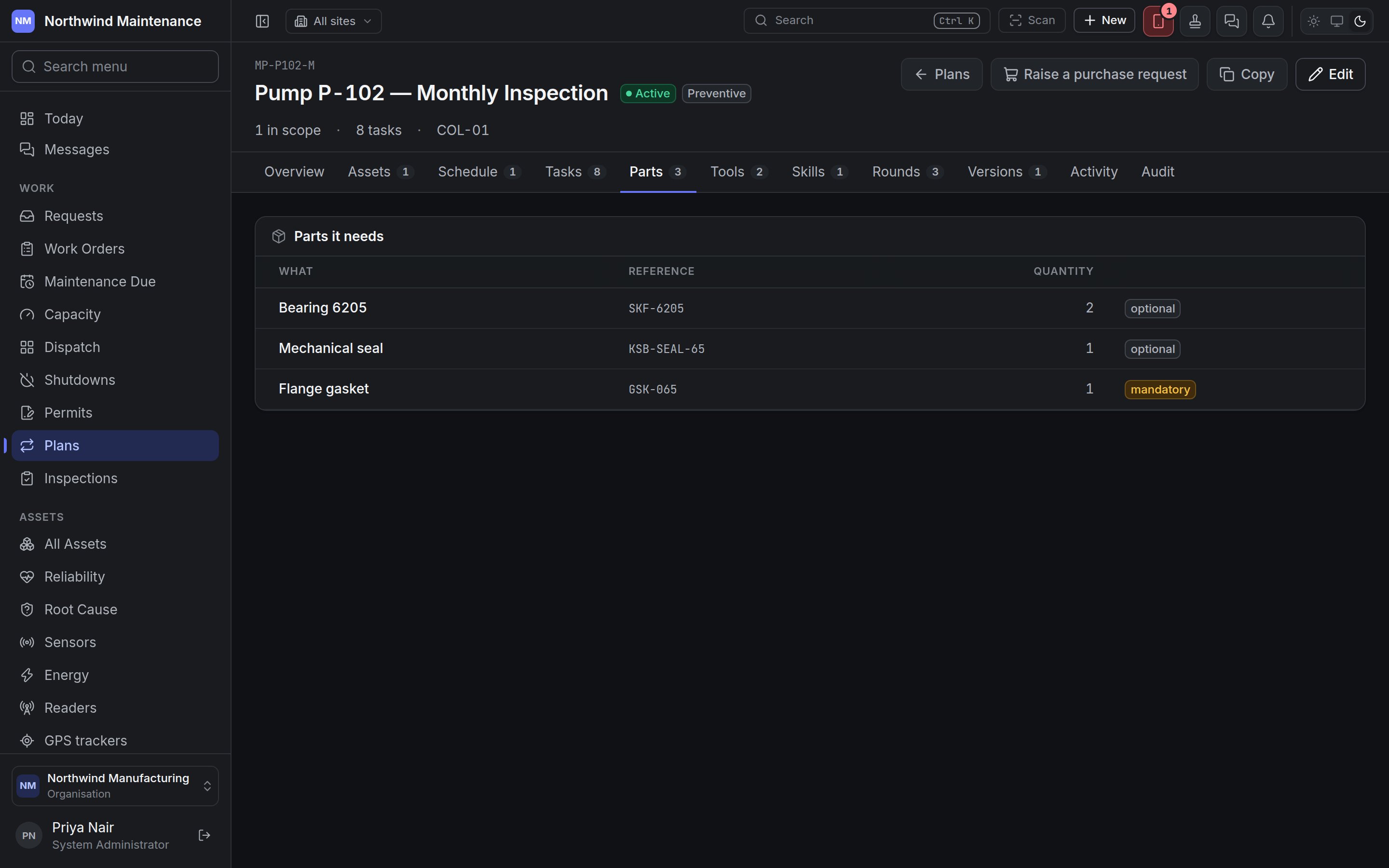
Vendors a plan needs are set in the builder and are not shown as a tab.
Rounds
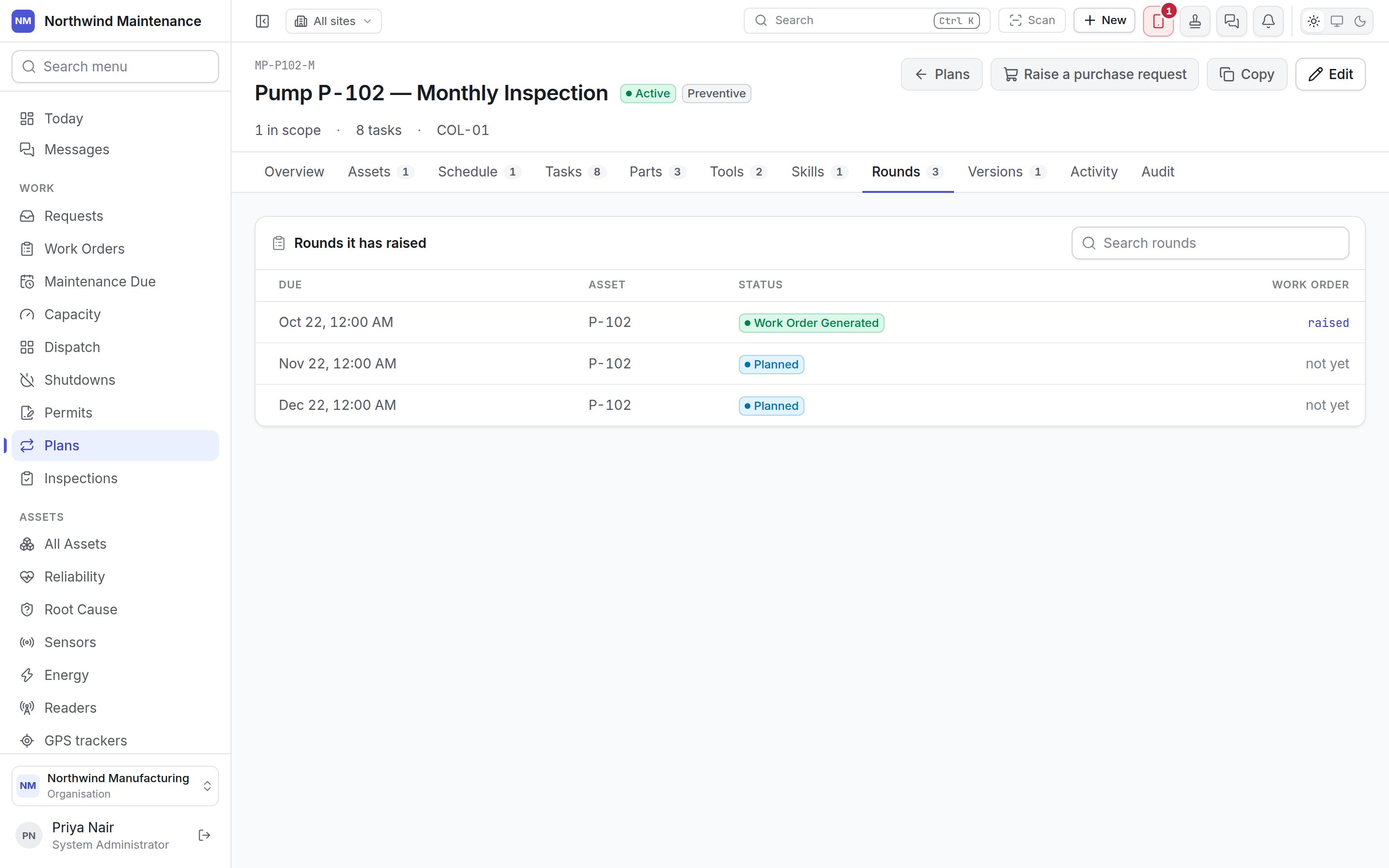
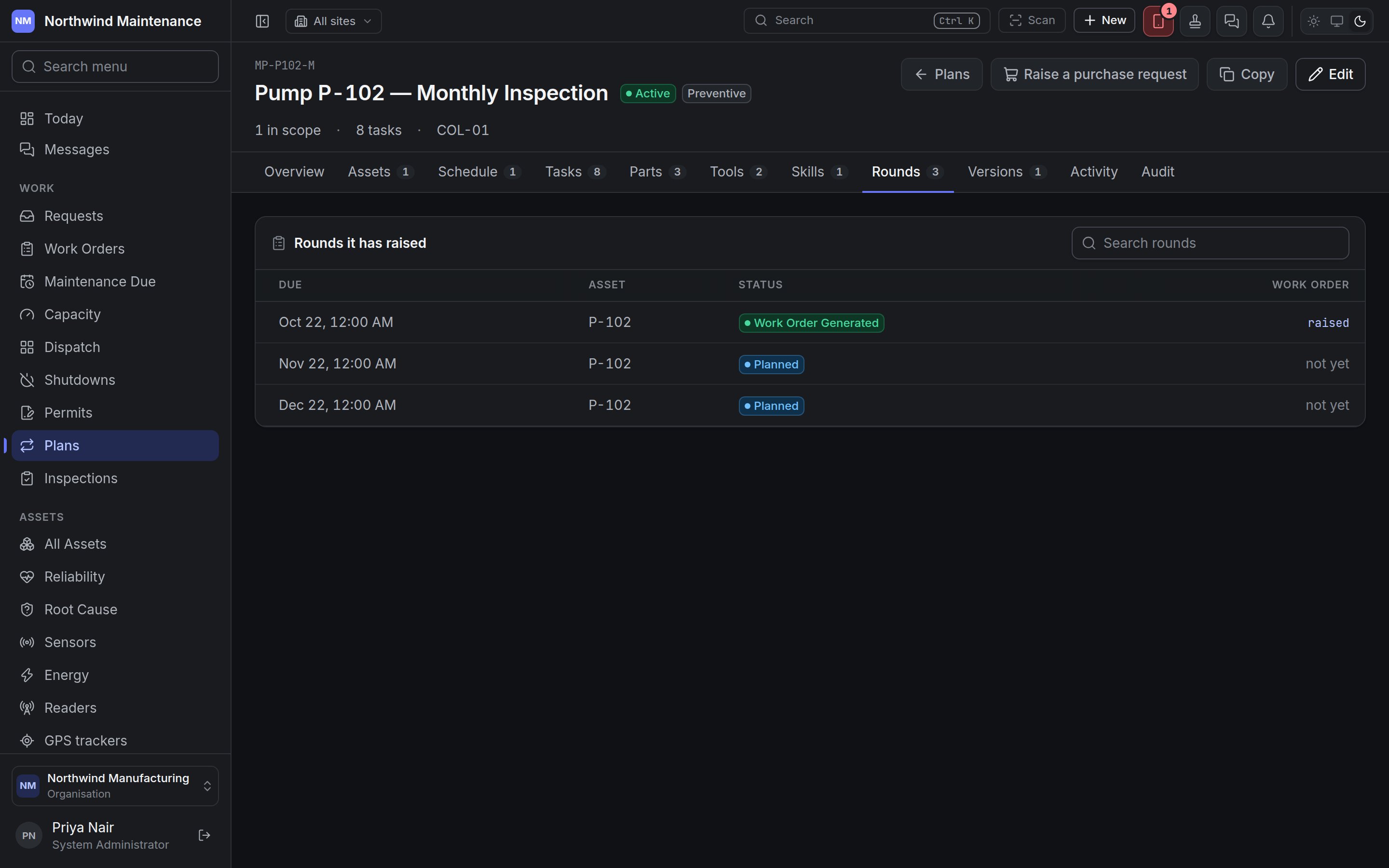
Rounds appear as the schedule reaches them. To act on a round — raise it early, defer it or skip it — use Maintenance Due.
Versions
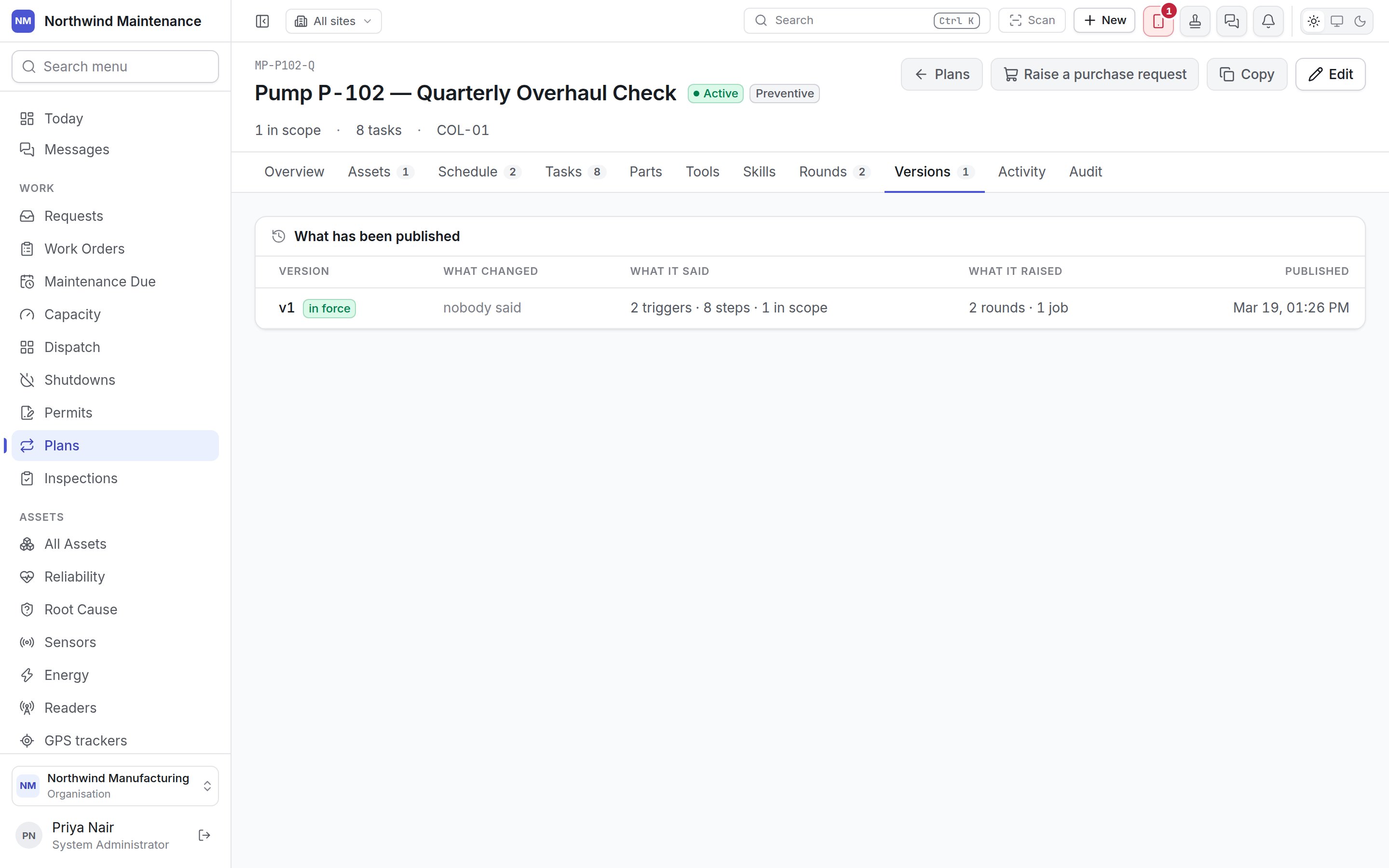
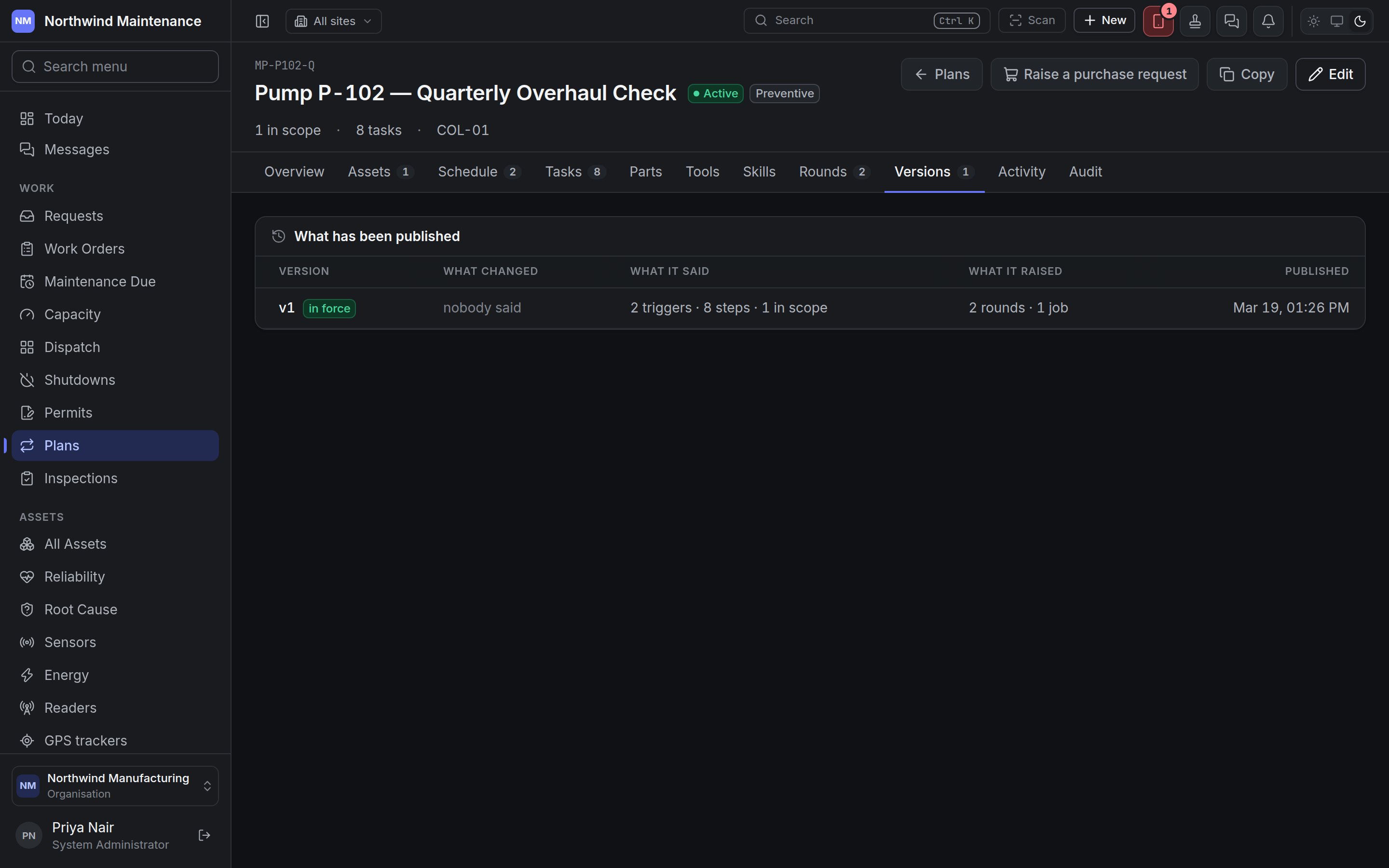
A plan that has never been activated says Nothing published yet: activating publishes version 1 and starts building its schedule.
Activity and audit
Activity tells the plan’s story in sentences — created, activated, paused with the reason given, edited — with any comments people left. Audit (for people who can read the audit trail) is the field-level record behind those sentences: which value changed, from what, to what, by whom and when.Publishing a new version
Publish version N opens a dialog that says which plan you are revising and What differs from version N — the parts of the plan that have changed:
Publishing does not change the schedule — that already follows your edits. It records which version the rounds raised from now on were raised under.
Change this plan
The builder, step by step.
How plans raise work
What happens to a round after it is raised.