

If you don’t see this in your navigation, your administrator can switch the module on under Administration → Modules (it is part of Capex planning), or it may not be included in your plan.
How a row gets here
A capex proposal comes here the moment the last level of its workflow approves it, as Approved for Consolidation Plan. Its row is made then, with what the proposal decided — its unit and location, categories, investment type and amount — fixed, and the figures head office plans copied onto the row so they can be changed here without touching the approved proposal. The plan on each row is then approved in a planning workflow of its own:- Where a planning workflow applies, the row goes to its first level by itself. While it is with its approvers, the approver it is waiting on plans it here — the row says This proposal’s plan is waiting on you. Plan it here and save, then approve it in Approvals. — and approves it in Approvals.
- Where none applies, the row waits here for head office to plan it and Send for approval. If no planning workflow applies when it is sent, the row is approved straight away and the screen says so.
The list
The header has Upload (see Updating the plan from a spreadsheet) and Export, which downloads the rows the list is showing headed as its grid is, and needs Download a plan’s proposals and phasing as a spreadsheet. Search the consolidated plan, saved Views, Filter, Columns, Select all and Amounts shown in work as on any register. Your administrator can choose in Form Studio how the list is drawn — which columns are held in place as you scroll sideways, a # column numbering the rows, and its colours.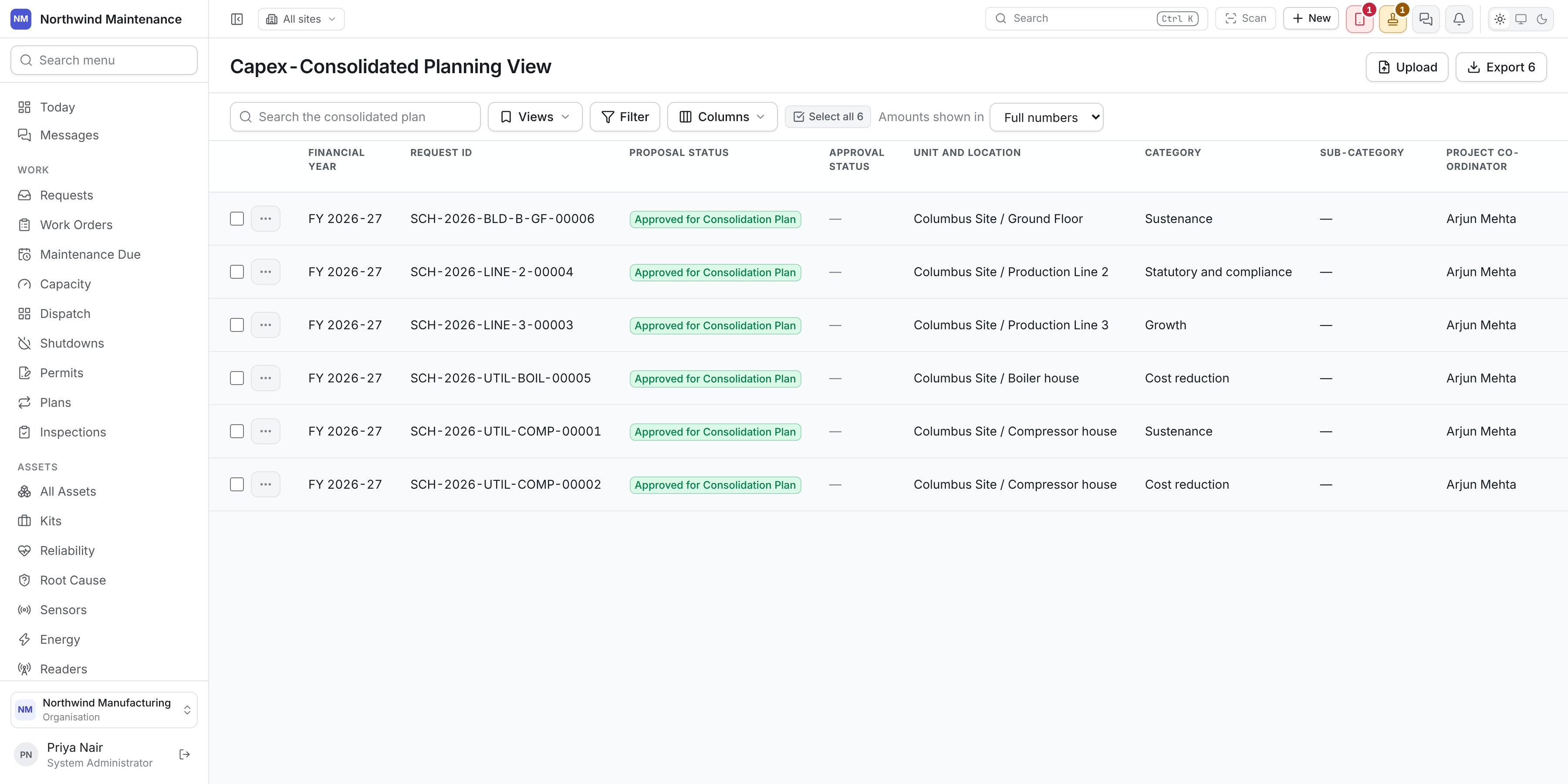
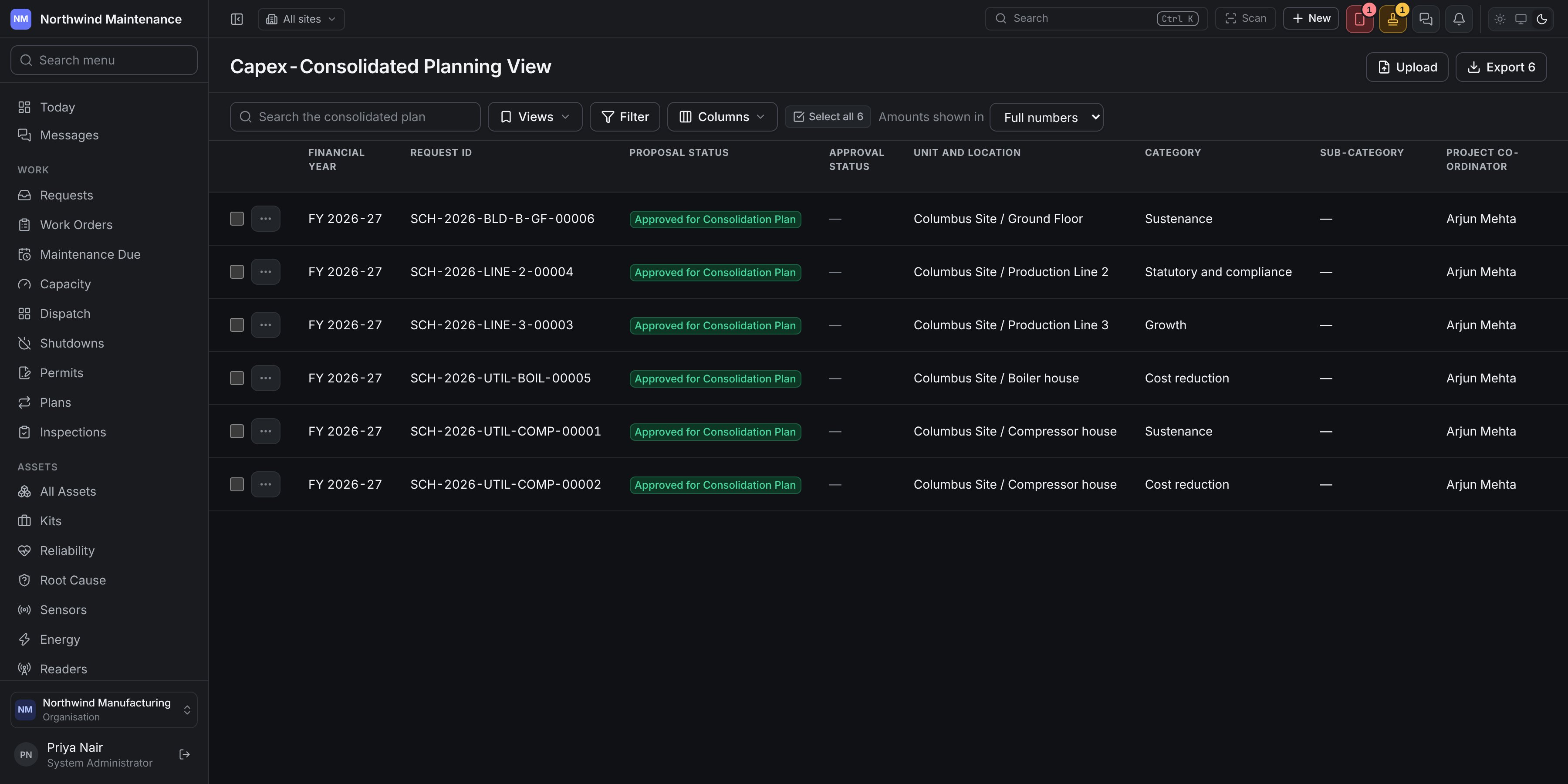
Proposal Status and Approval Status stand beside the Request ID because Approval Status is how an approver finds a row waiting on them: clicking it opens the request in Approvals. A row whose twelve months do not add up to the year’s outflow is marked The months do not add up to the year’s estimated cash outflow.
What is worked out
A fresh-money proposal is asked the fresh-money figures and a carry forward the carry-forward ones; the boxes the other type would use are greyed.
Planning a row
The row’s ⋯ offers Edit where the row is yours to change — head office’s, holding Change an approved proposal’s figures on the consolidated plan, while no approver holds it, and the approver’s while it is waiting on them — and Send for approval on a row no workflow has taken. Clicking a row opens it to read, as View planning. Edit opens Edit planning. What the proposal decided is drawn greyed and cannot be changed here; every figure worked out follows what you type. The form has four headed sections that fold away, and your administrator arranges it — the order of its boxes, its sections, which boxes it asks, and who may write each — in Form Studio under Capex-Consolidated Planning, which Edit form opens.
An amount can be at most 9,99,99,99,999, and the quantity has to be more than zero and at most 99,999. Save writes the row; the approved proposal is left as it was.
Before a row’s plan can be sent or approved it needs an Item Description, Quantity, Nature of Investment, Detailed Justification, GST Rate, Asset Block, Carry Forward of Approved Cashflow of CY on a carry forward, and the twelve months adding up to the estimated cash outflow during PY1. A GST rate whose name no longer says a percentage counts as missing. A row still missing any of them says Before its plan can be approved it still needs: and names them.
Changing many rows at once
Tick the rows you want — or Select all — and Edit selected in the bar at the foot of the list opens their boxes in the grid itself. Type into the boxes on each row: what the proposal decided and every figure worked out are greyed, and the figures follow what you type. Save writes every row you changed, Cancel leaves them as they were, and Clear unticks the selection. If you changed nothing, nothing is saved and the screen says so. Only rows you may edit can be ticked.Approving a row’s plan
The approver a row’s plan is waiting on opens it from Approval Status, or from Approvals. The approval dialog draws the row’s planning form — The plan you are approving. Change what it needs here and save it before you approve. — with Save plan to save what you changed. Approve waits until the plan is saved and has everything it still needs, and says beside it what is missing. Somebody signing on another’s behalf, or reading a request they raised, sees the same form greyed.Updating the plan from a spreadsheet
Upload opens Update the plan from a spreadsheet. It is offered to people who may change the consolidated plan, and to an approver with a row waiting on them.
An older
.xls file is refused: open it in Excel, save it as .xlsx, and choose it again. Where nothing in the file changes a proposal you may change, the dialog says there is nothing to update.
Capex planning
The plans and proposals that reach this view once approved.
Approvals
Where a row’s plan is approved.