

If you don’t see this in your navigation, your administrator can switch the module on under Administration → Modules, or it may not be included in your plan. Reordering is a separate switch from Inventory, and seeing it needs the View stock permission.
Recommendations
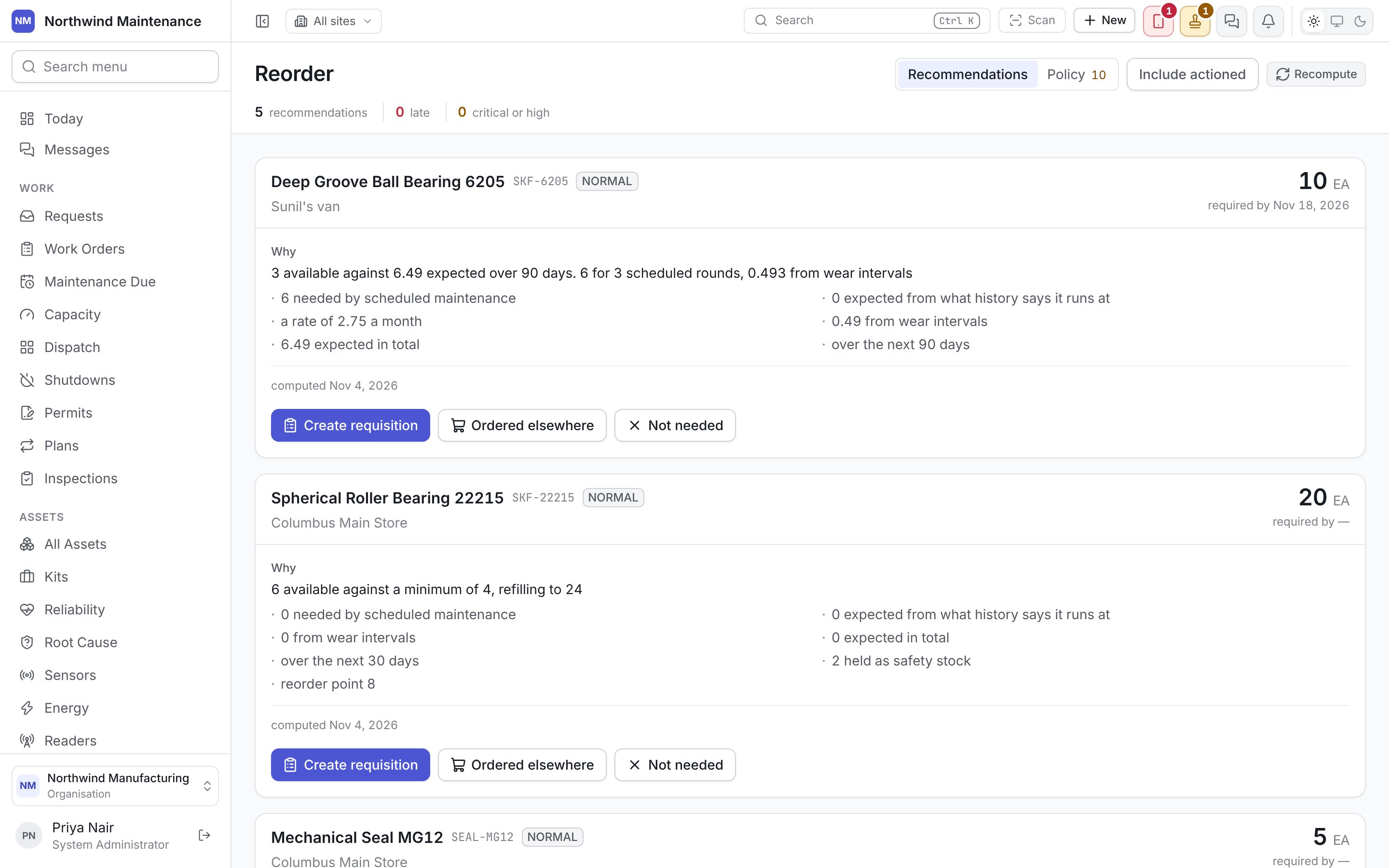
The list follows the shelf: a part is recomputed the moment stock moves, and the storekeeper is emailed when one crosses below its point. Opening the screen also asks for a fresh calculation if anything has moved since the last one, and a nightly sweep covers the rest — what planned maintenance will consume and what history says a part runs at. Late recommendations sort first, then by required-by date.
Reading a card
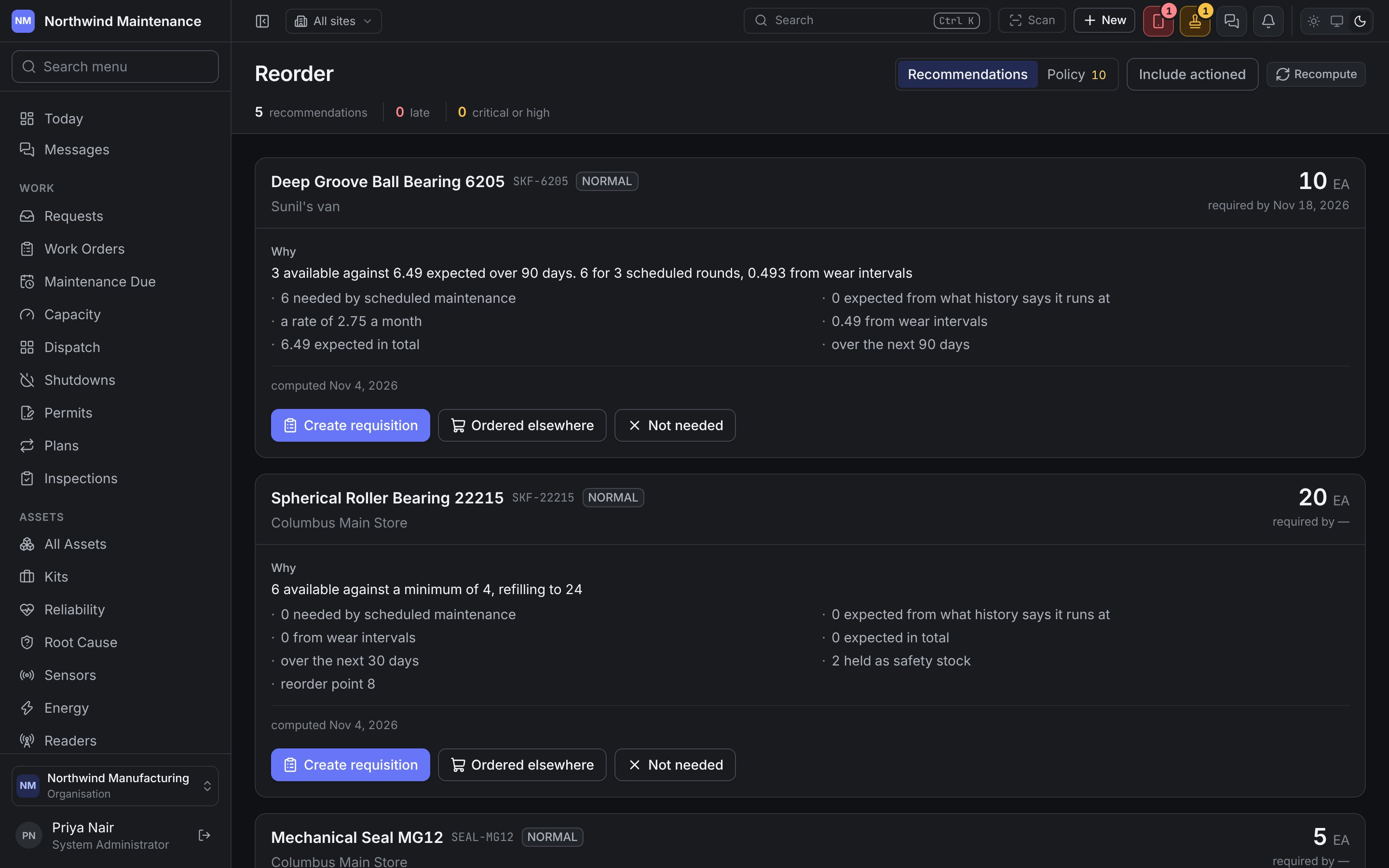
Each card names the part and its number, the recommendation’s urgency, the store it is for, the quantity to buy, and the date it is required by (or was required by, when late). Why gives the argument in a sentence — for example “3 available against 6.49 expected over 90 days” or “6 available against a minimum of 4, refilling to 24” — followed by the evidence behind it:
Planned demand is the part people miss. A part with three on the shelf and a plan that consumes four next month is short now, even though nothing has gone below its reorder point. The reason travels with the recommendation, so somebody approving a purchase sees why rather than trusting a number.
Acting on a recommendation
Once actioned, a card shows what happened to it — Raised as with a link to the request, or Dismissed with the reason — and is visible under Include actioned.
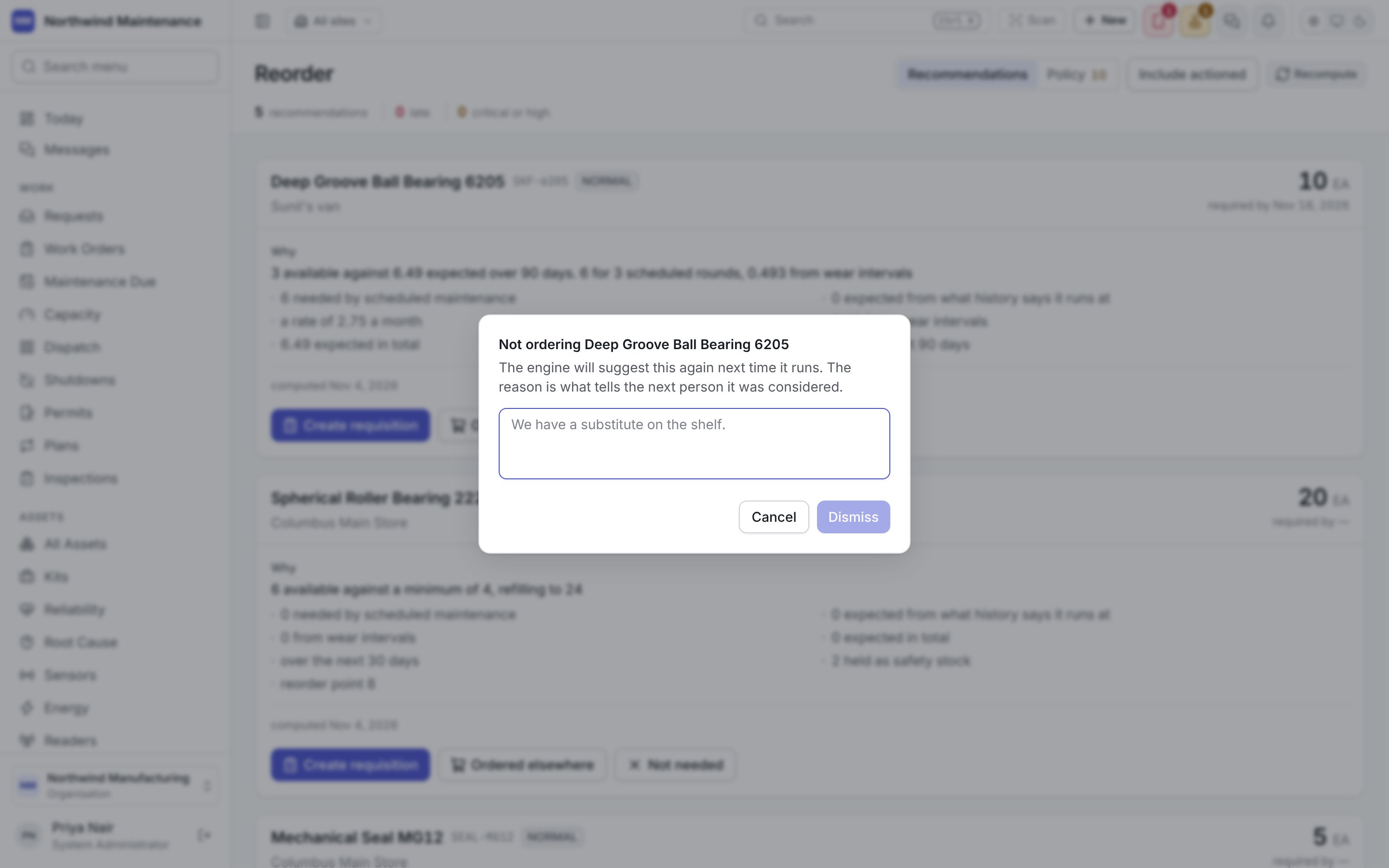
Not needed opens Not ordering (part name), with one box for the reason, such as “We have a substitute on the shelf”. The engine will suggest the part again the next time it runs; the reason is what tells the next person it was considered. Click Dismiss to confirm.
Reorder policies
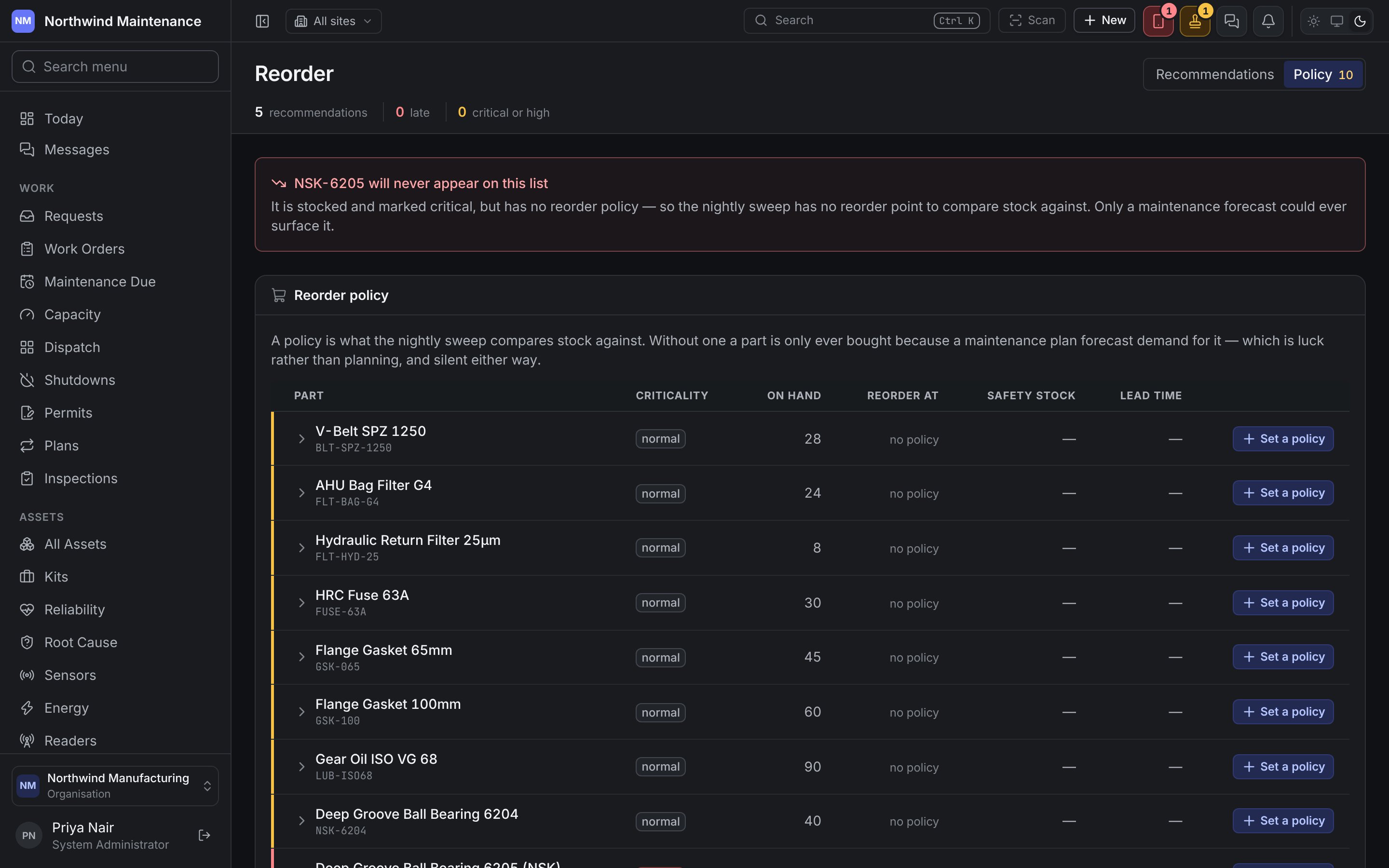
Policy lists every part with its Criticality, On hand, Reorder at, Safety stock and Lead time. Parts with no policy are listed first, with Set a policy; parts with one show Edit policy.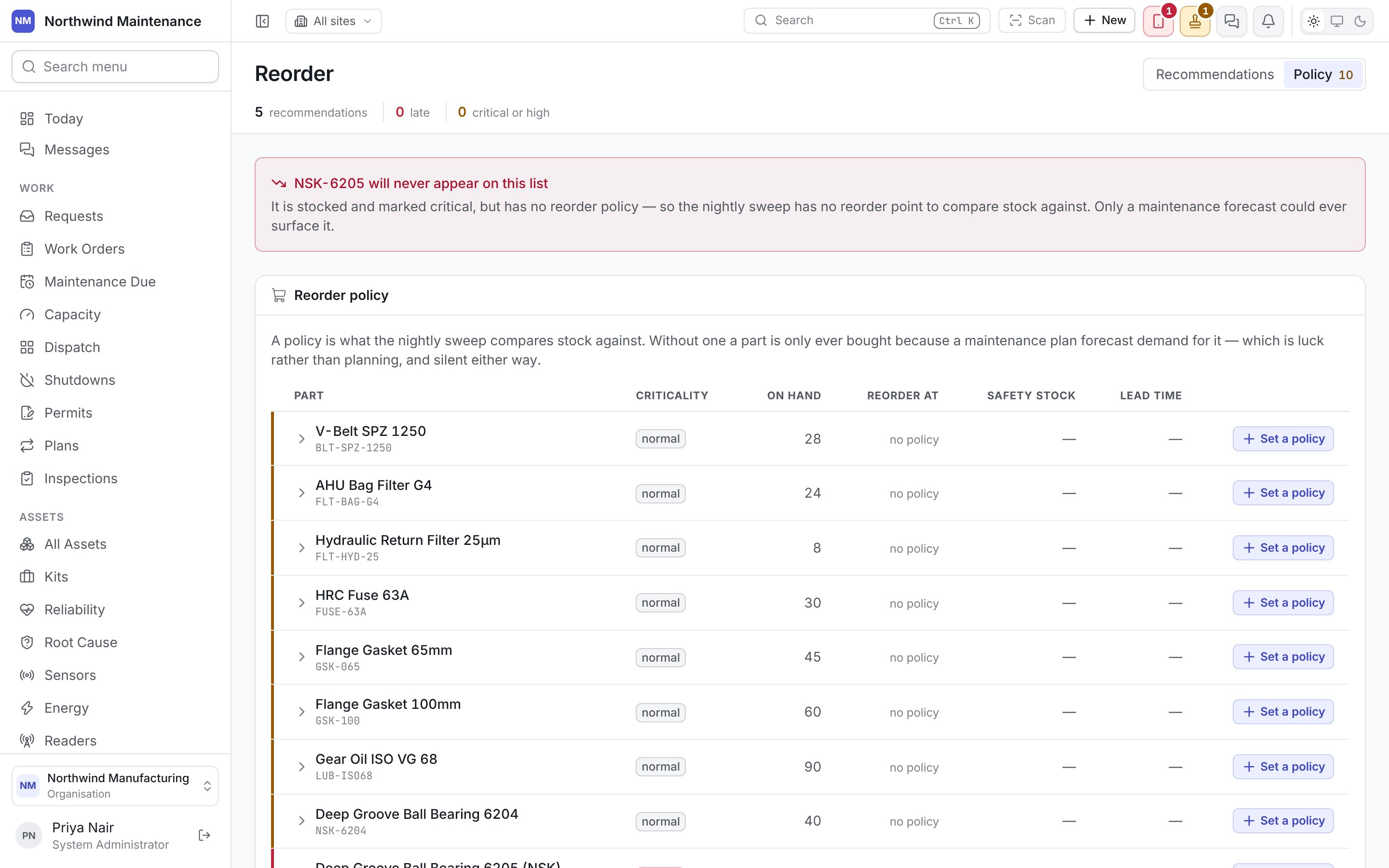
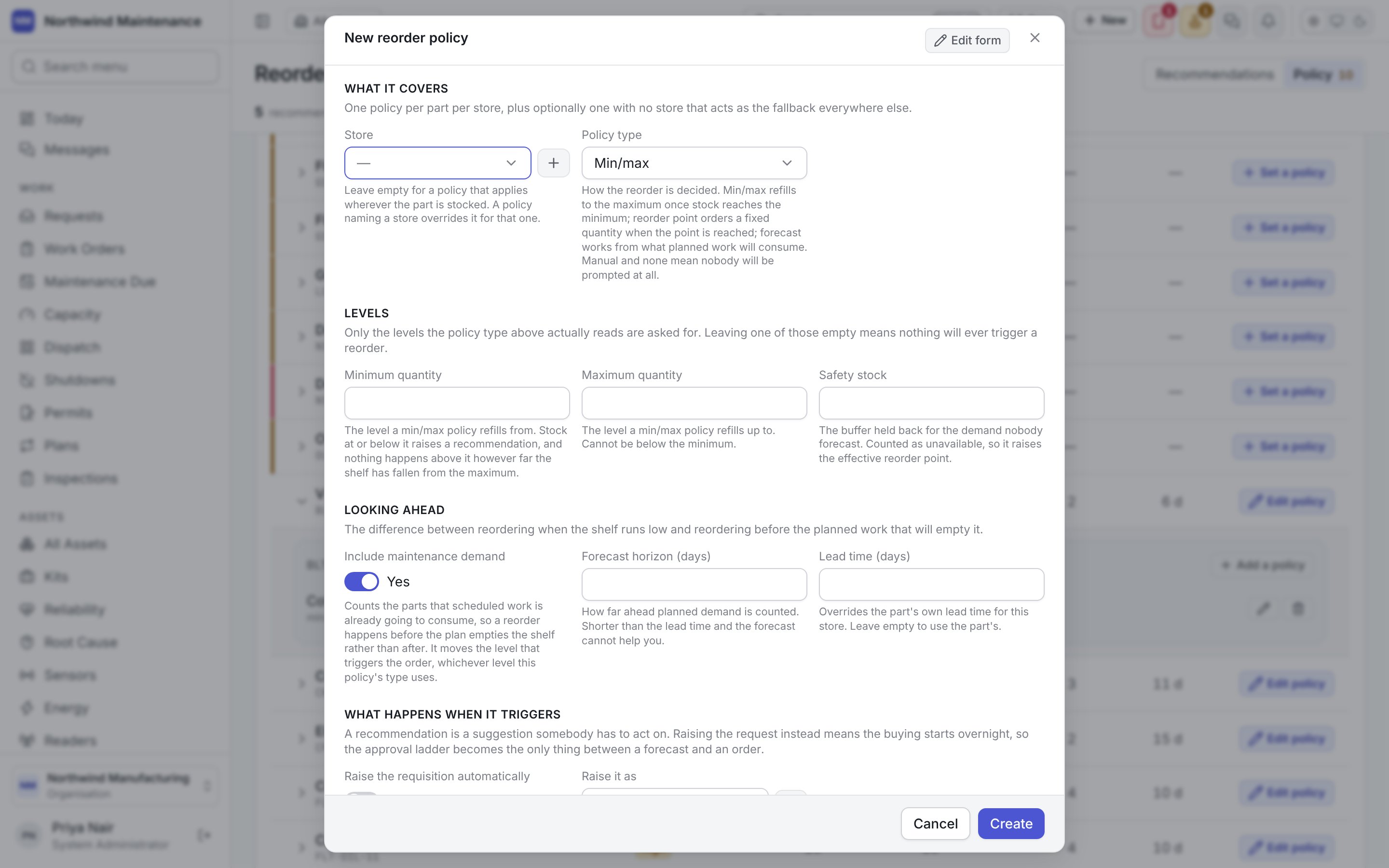
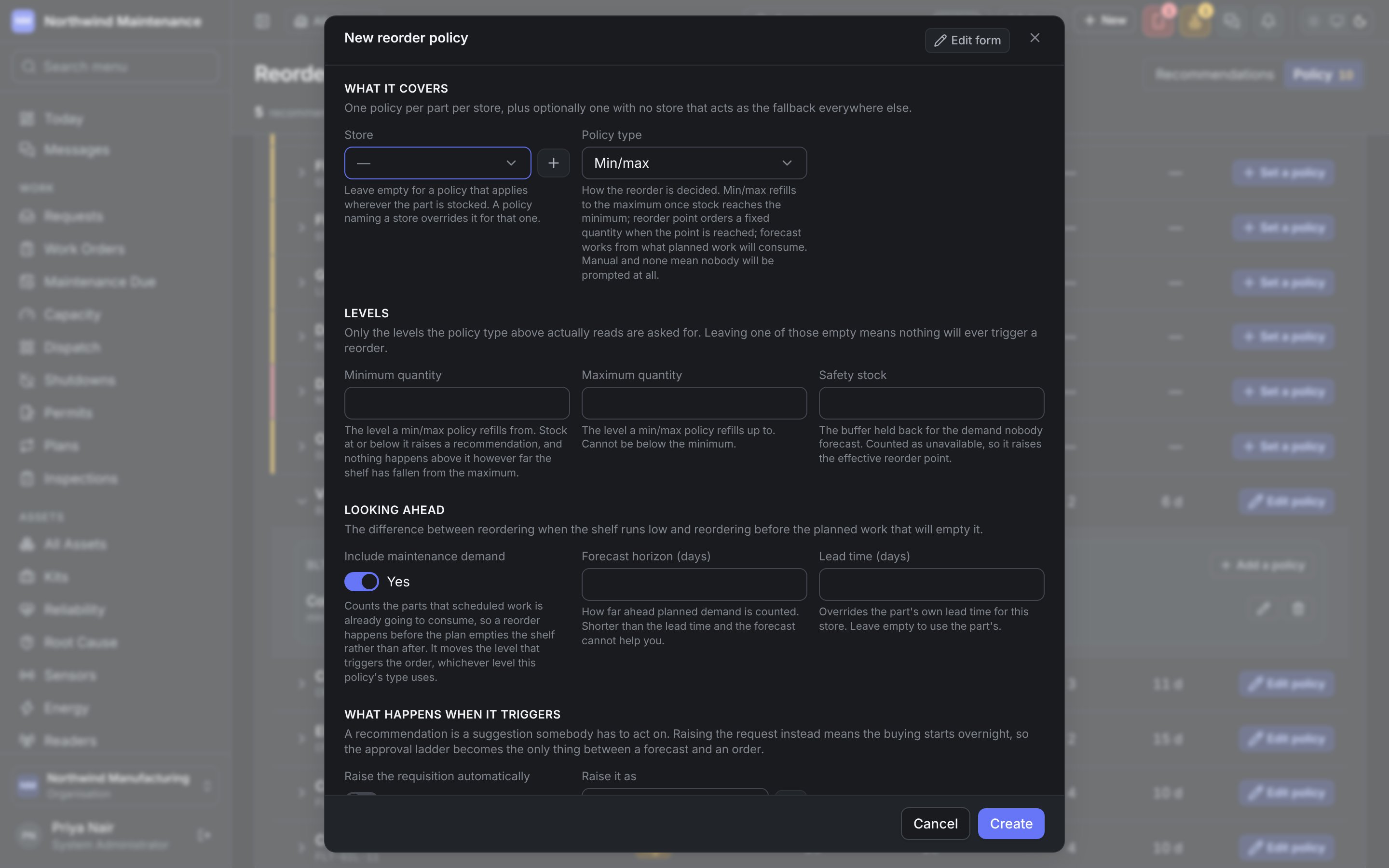
Adding a policy needs Add parts, stores and bills of materials; changing one needs Maintain the part master.
Keeping it honest
Recommendations are only as good as what is recorded. Parts issued against jobs build the consumption history; parts taken off a shelf without being issued do not, and the forecast drifts low. Issuing against the job is what keeps this screen worth reading.Inside a part
Stock, movements, suppliers and the demand history behind every recommendation.