

Details
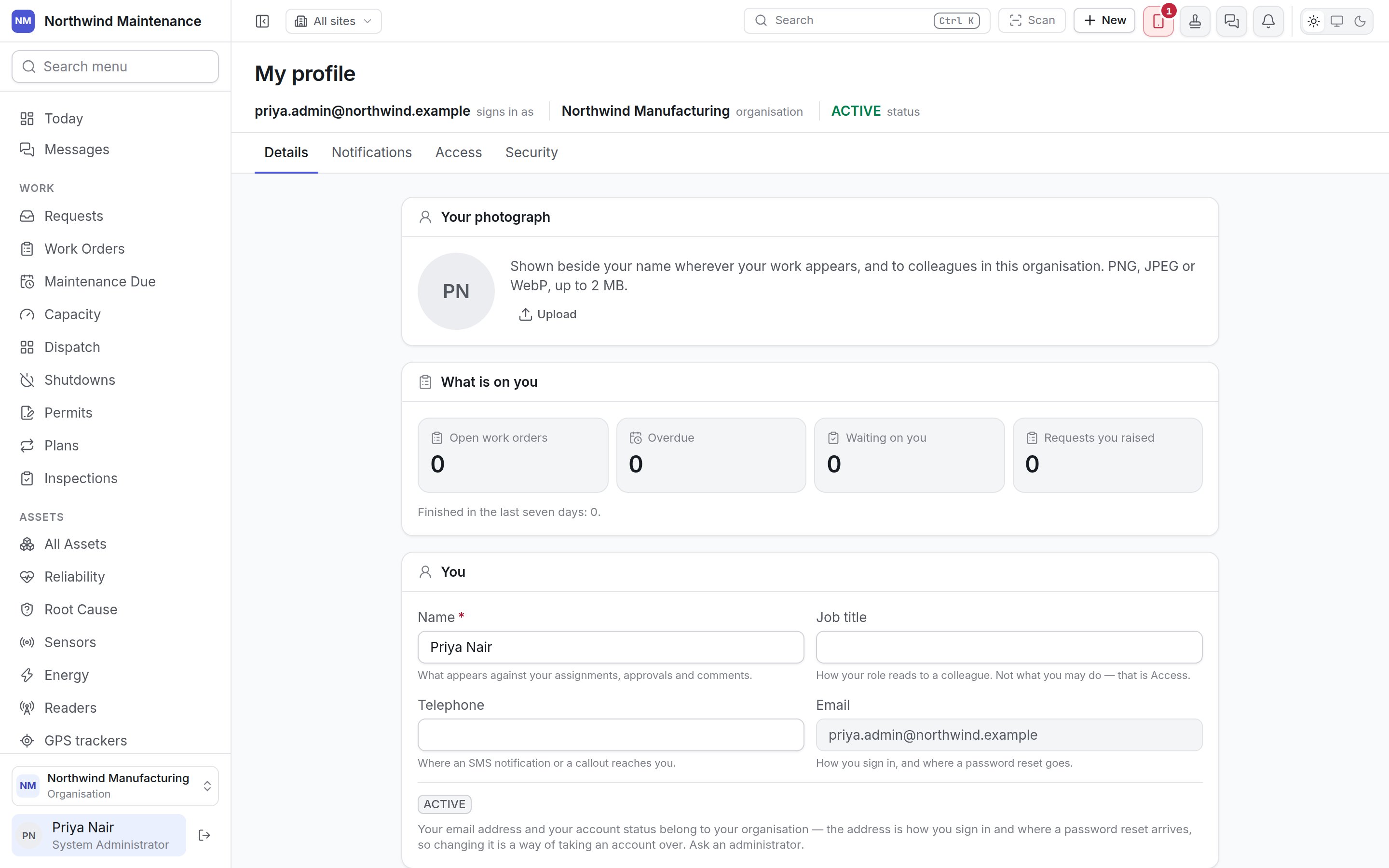
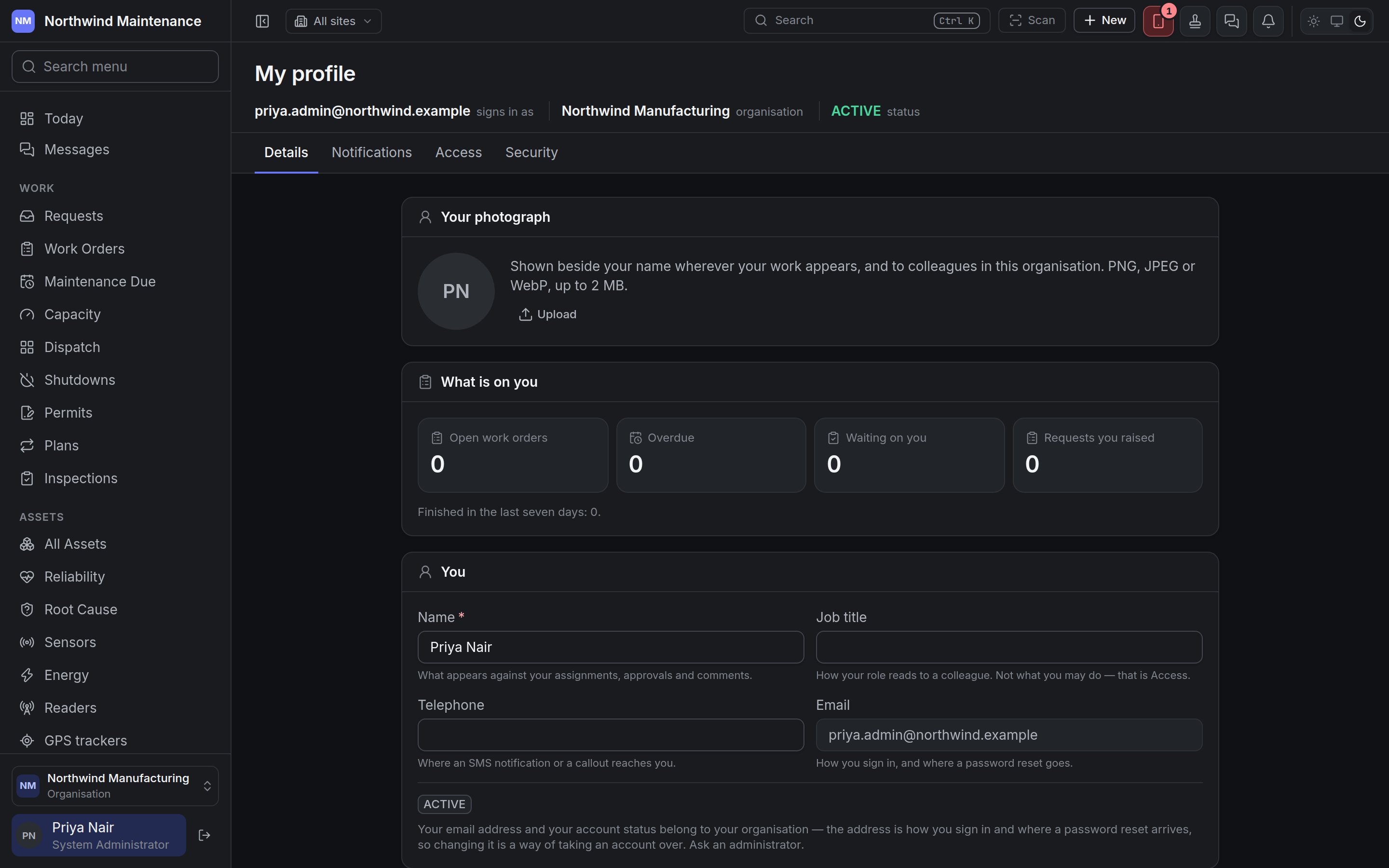
Your photograph
Shown beside your name wherever your work appears — assignments, approvals, comments, the sidebar — and to colleagues in your organisation. Upload a PNG, JPEG or WebP of up to 2 MB; once one is in place you can Replace or Remove it. Without a photograph your initials are shown.What is on you
A quick summary of your own work, each figure linking to the list behind it:
Underneath, Finished in the last seven days counts the jobs you completed this week.
You
How the product reads for you
Each of these is left empty by default and then follows your organisation’s setting, which is shown beneath the field (for example Your organisation: America/New_York). Choose My organisation’s to go back to following it.
Click Save to keep changes to the You and How the product reads for you sections.
Developer mode
Shown only to people whose role lets them view integrations. When it is On, every screen gains an API button that names the calls behind it — what each takes, what it answers with, and a request you can copy into a terminal. It changes nothing about what you may read or write; it is a reference for whoever builds integrations against your organisation. It is Off until you turn it on.Notifications
Who is told about an event is decided by your organisation under notification settings. This tab is where you say how those notifications reach you.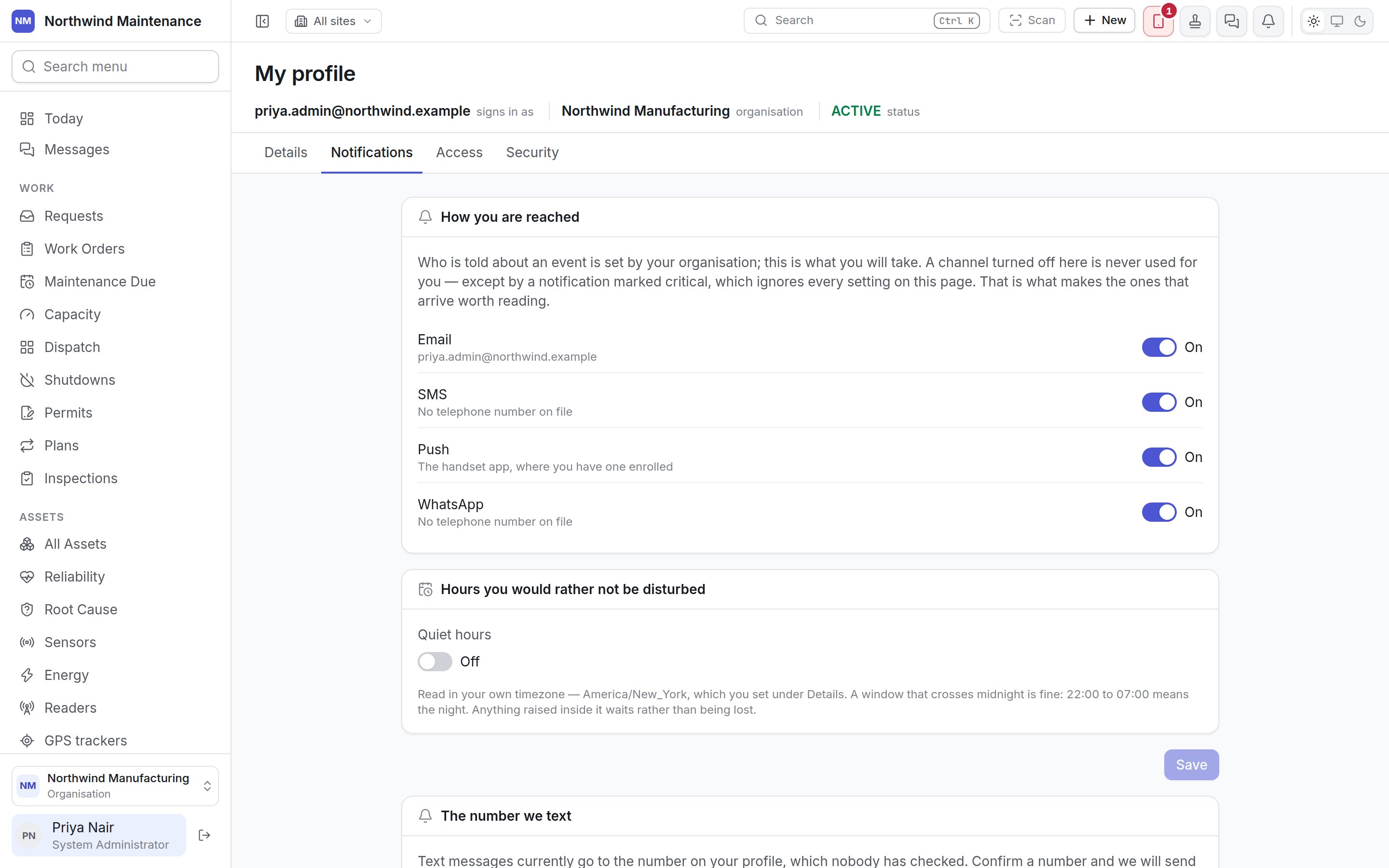
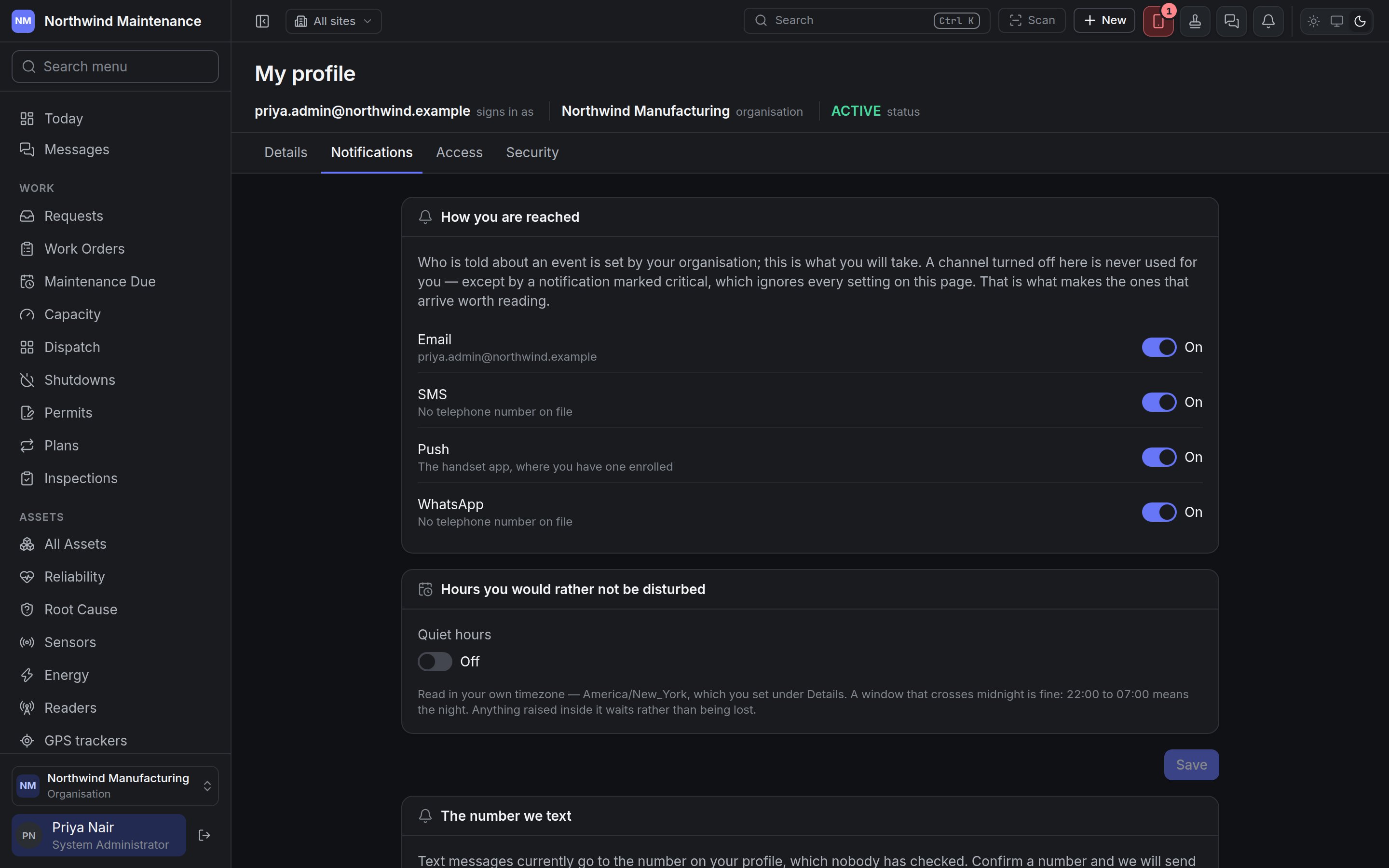
How you are reached
A channel turned off here is never used for you — with one exception. A notification your organisation has marked critical ignores every setting on this page, which is what makes the ones that do arrive worth reading.
Quiet hours
Turn Quiet hours on and set From and To to name the hours you would rather not be disturbed. The times are read in the timezone on your Details tab. A window that crosses midnight is fine — 22:00 to 07:00 means the night. Anything raised inside the window waits until it ends rather than being lost; critical notifications still come through. Click Save.The number we text
By default text messages go to the telephone number on your profile, which nobody has checked. Confirming a number proves it reaches you rather than whoever used to have it.
Once confirmed the number shows confirmed and the date. Remove takes it away — texts then go back to the number on your profile; to stop them altogether, turn SMS off above.
Your Telegram
Where your organisation uses Telegram, Connect Telegram gives you a link. Open it, tap Start in Telegram, and this page notices and shows Connected. The link works once and expires in fifteen minutes. Disconnect stops Telegram notifications reaching you.Access
What you may do and where you may do it are set by your organisation, not by you. This tab reads it back exactly as it stands today.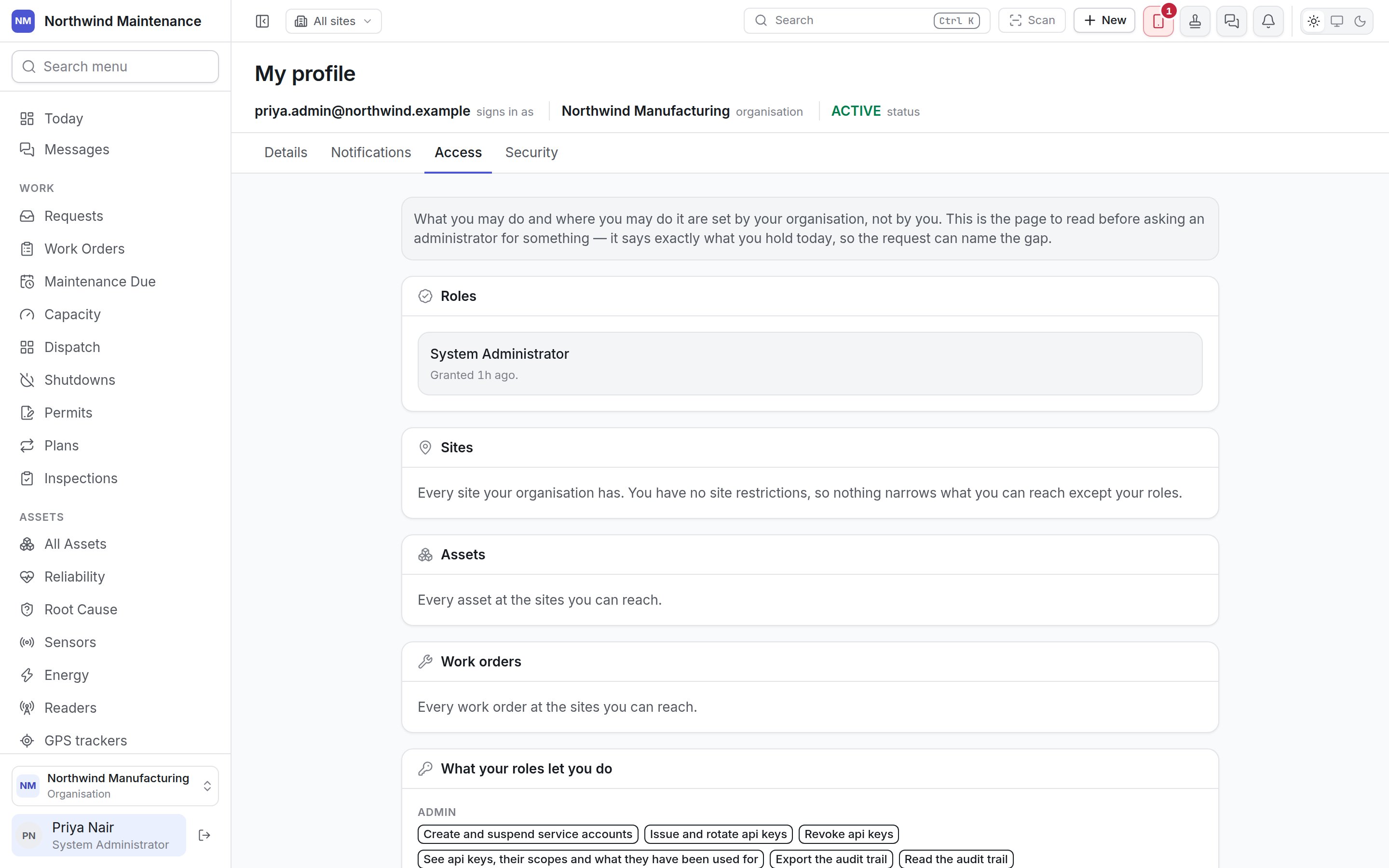
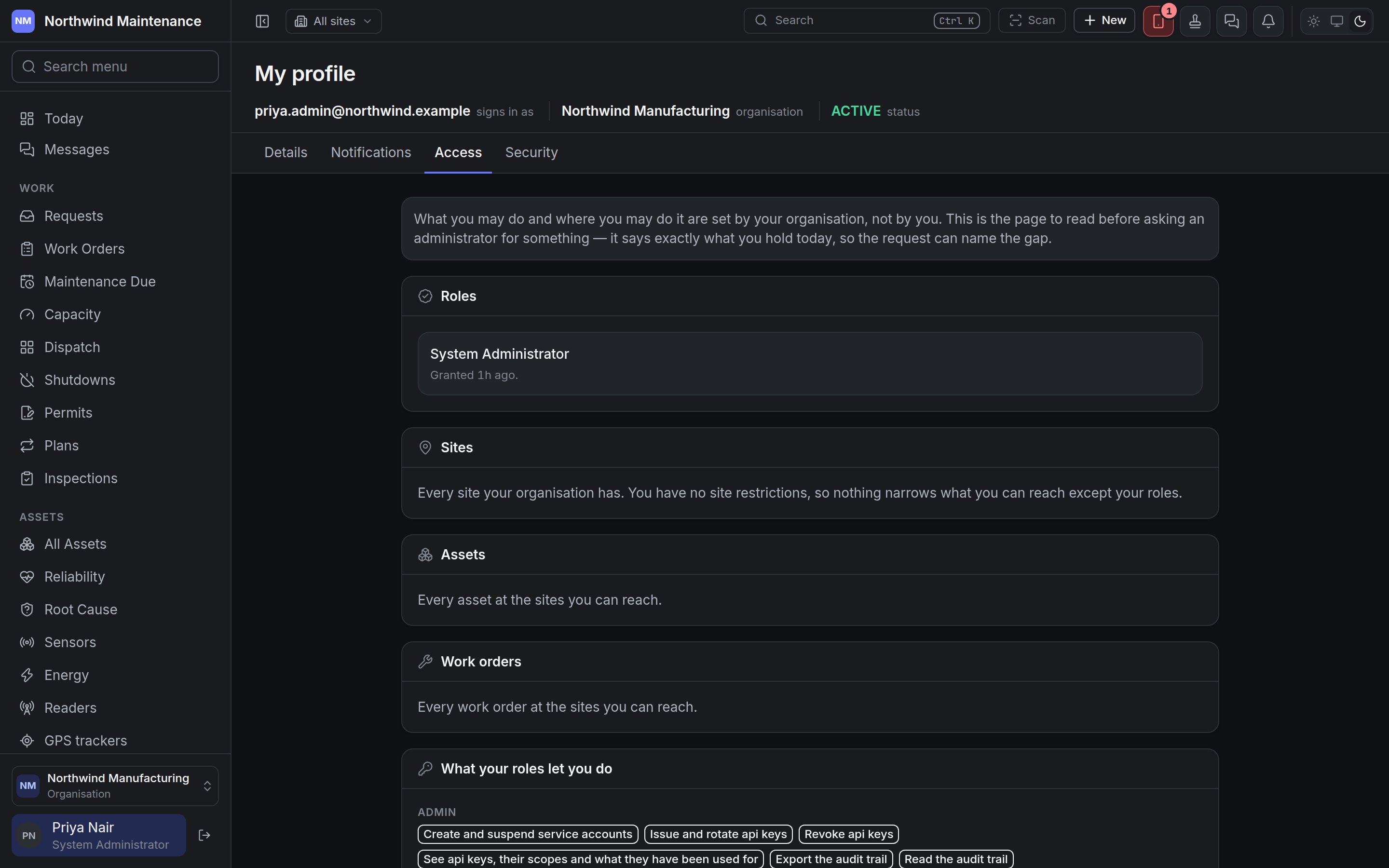
If a button you expected is missing, this is the page to read before asking: find the permission that would allow it, and ask for that by name. Roles are managed under roles and people and access.
Security
Password
Says when you last changed it.
Click Change password. If you sign in only through an external account (Google, Microsoft or your organisation’s identity provider) there is no password to change; the section says so and explains that an administrator can set one, or you can use Forgot password on the sign-in page.
Two-step sign-in
Shown when your organisation has two-step sign-in available or required.
With two-step sign-in on, enter Your password to use either button: New recovery codes replaces the whole set, and Turn it off removes the second step. Turn it off is absent where your organisation requires two-step sign-in — to move it to a new phone, ask an administrator to clear it.
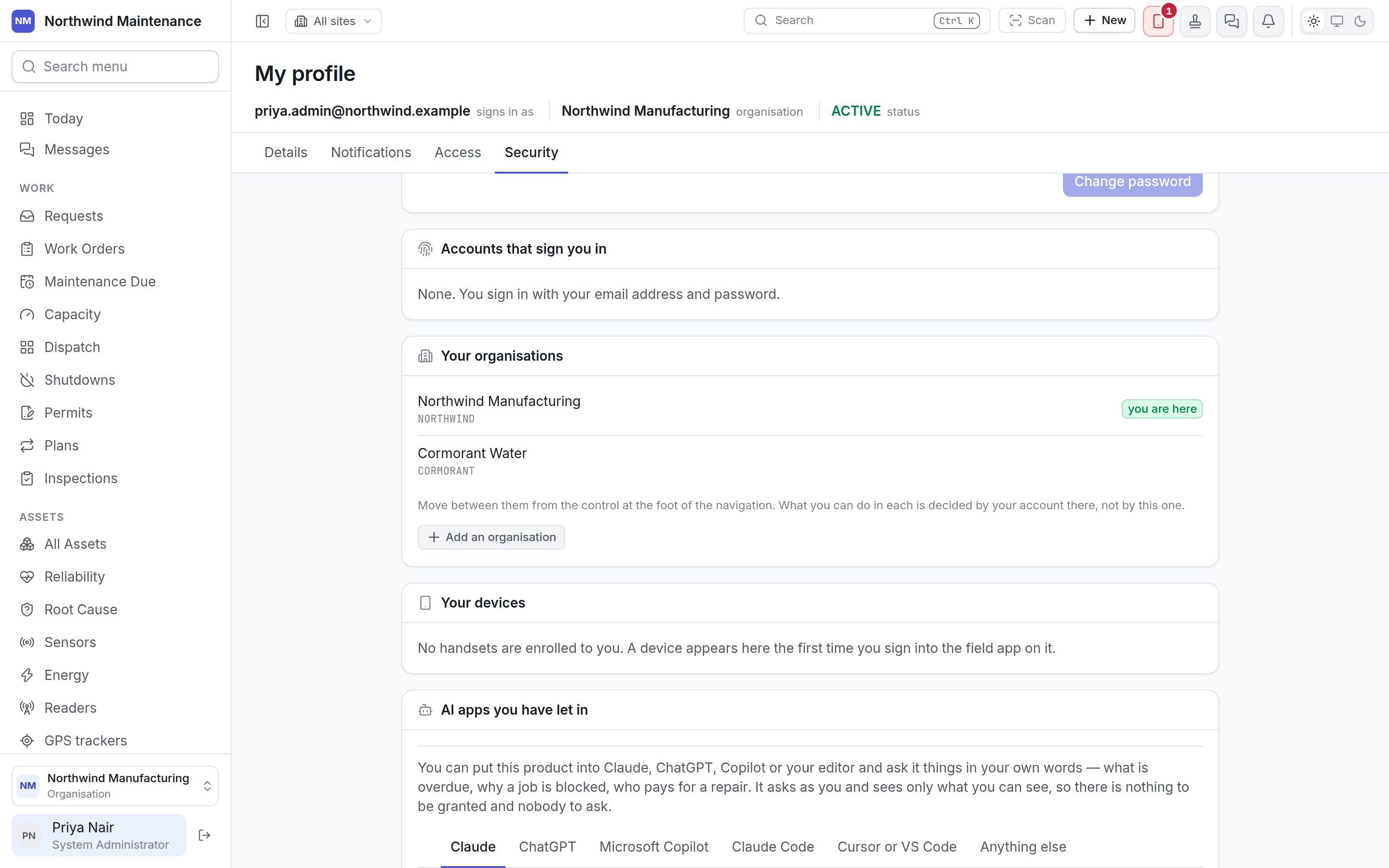
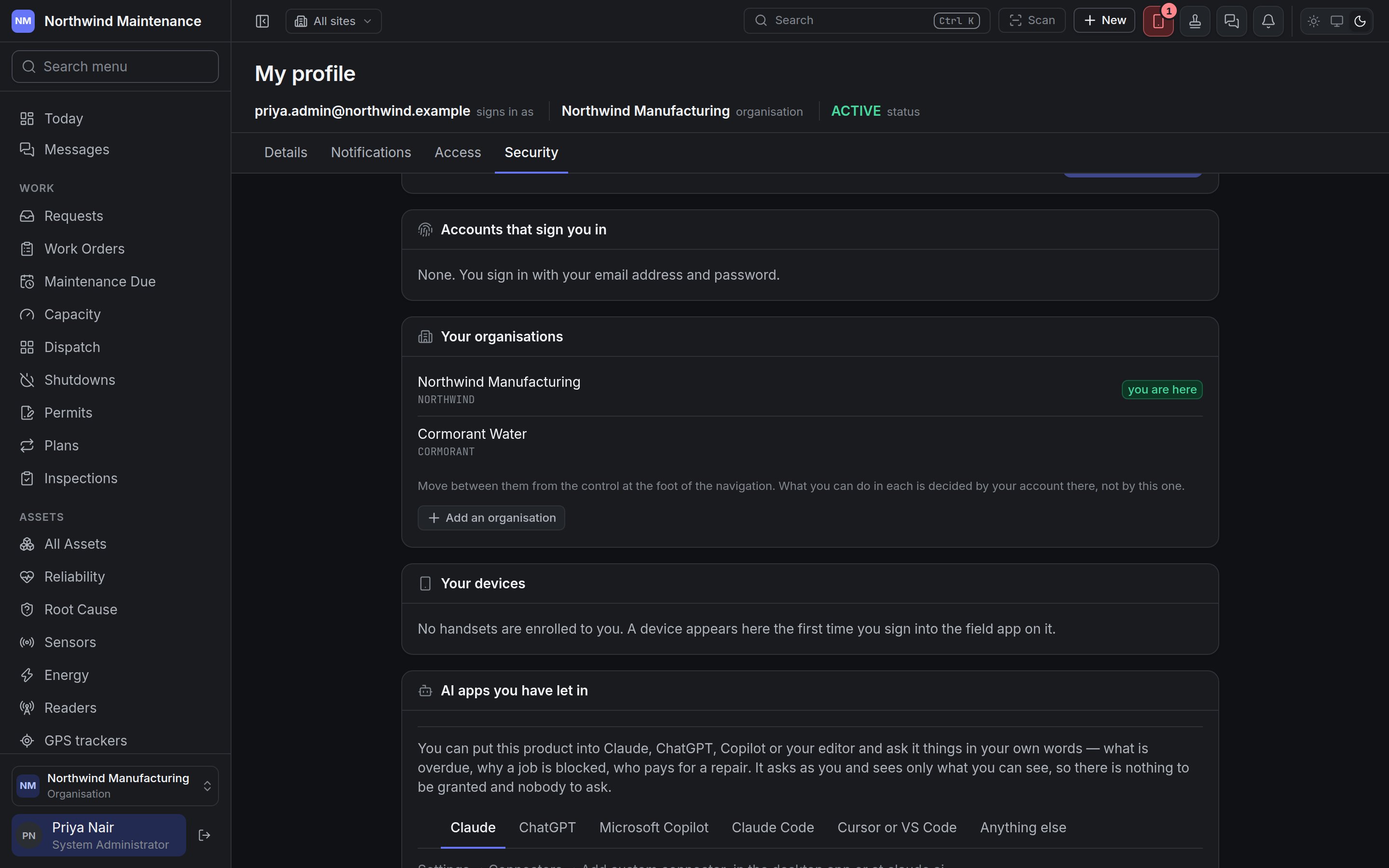
Accounts that sign you in
The Google or Microsoft accounts linked to you, each with its address, when it was linked and when it was last used. Unlink removes one — unless it is the only way you can sign in, in which case it cannot be unlinked until you have a password. None means you sign in with your email and password.Your organisations
Every organisation your account can enter, with you are here against the current one. Move between them from the organisation switcher at the foot of the sidebar; what you can do in each is decided by your account there. Add an organisation opens a short form, where the installation allows it:
Click Open it. You become its administrator, signing in with this same address; it starts empty with the standard roles and lifecycles.