

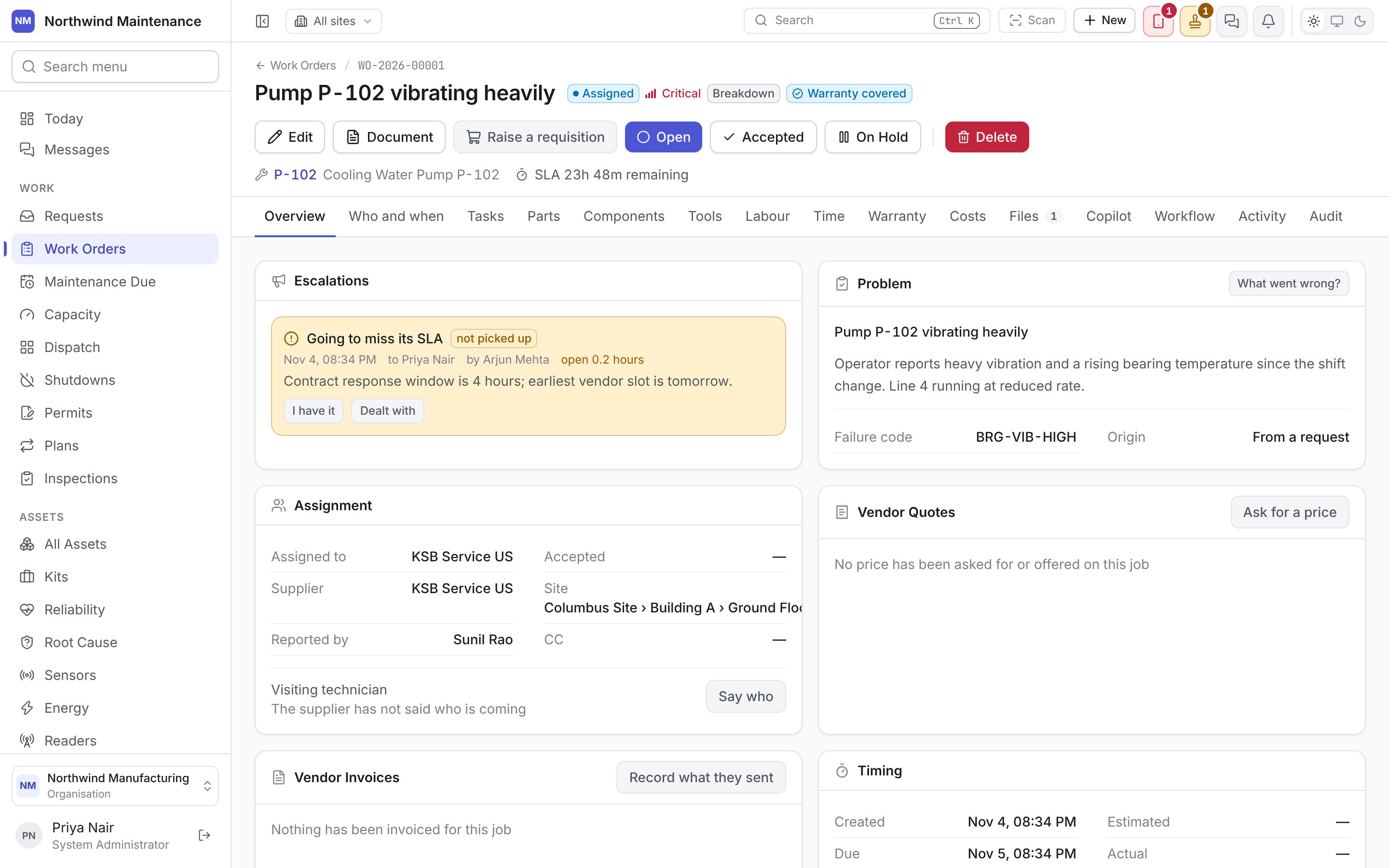
/work-orders/WO-2026-00001 in an email opens the job directly. The screen refreshes itself while it is open, so a status, an assignee or a check-in made from the field app appears without reloading.
The header
The top of the screen tells you what the job is and where it stands:Header actions
A job waiting for an approval is held whole: nothing that would change it is offered until the approval is decided, because a change made underneath a request somebody is deciding would mean the approver signed for something other than what is there. Labour, parts, tasks and comments can still be recorded against it. The work order list marks such jobs too.
Accepting or turning down a job
Where your organisation asks the assignee to answer a job before working it, the job waits on that answer, and the header leads with Accept and Deny. Only the person the job is waiting on is offered them; a planner looking at the same job sees the usual moves. Accept takes the job to the status your organisation chose, or records the yes and leaves it where it is, if that is how the status is set up. Deny opens Turn this job down?, which says which status the job goes back to — “It goes back to status. Say why, so whoever picks it up next knows.” — and needs an answer to Why are you turning it down? before Deny can be pressed. The reason is kept on your assignment, so whoever picks the job up next can decide whether to send somebody else. Edit is withdrawn while the job is waiting on your answer, and comes back once you have given it. In the edit form’s Status box, an answer reads as the answer and where it goes, such as “Accept → In Progress”.What a move can ask
A status move may stop and ask something first — who is taking the job, a failure code, a resolution, a closing code from the person who raised it, or fields your organisation insists on. A move that needs approval is submitted rather than made: “Submitted for approval. The job moves once it is signed off — you can follow it under Approvals.” The lifecycle explains each of these.The moves come from your organisation’s state model. There is no free switch between statuses that bypasses it, and the buttons you see are only the ones your lifecycle allows from where the job is now.
Tabs
The tabs appear in this order. Some only appear when they have something to show or when your organisation has the module:Overview
The overview arranges the job’s facts in sections. Not every section appears on every job.Permit banner
When the job needs a permit that is not in force, a red banner at the very top says why it may not start — for example “No lock-out/tag-out permit has been issued for this job”. This is the same sentence a technician sees if they press Start work. People with Draft permits to work get a Raise a permit button here, which opens the permit form with this job already chosen. See Permits.Time
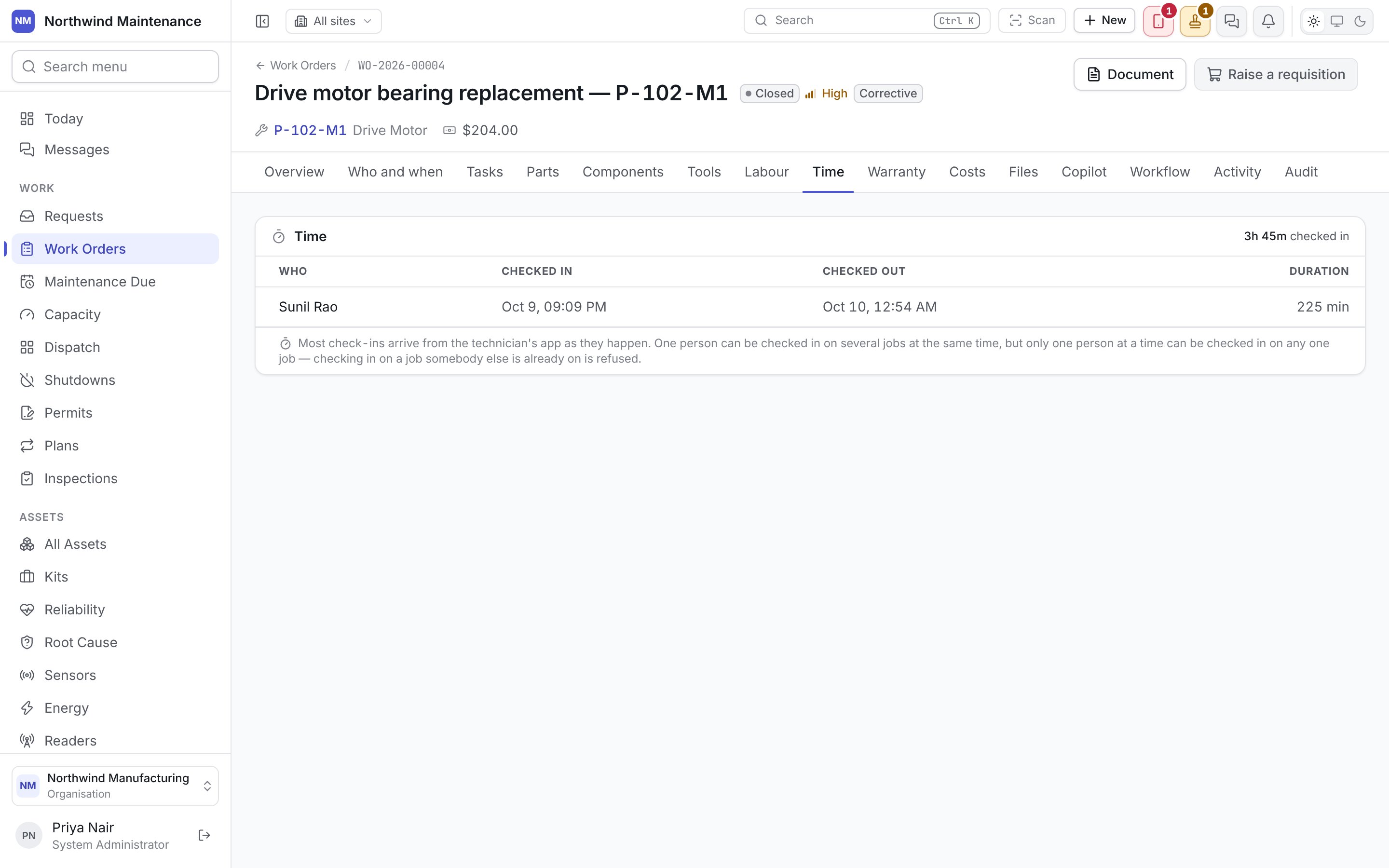
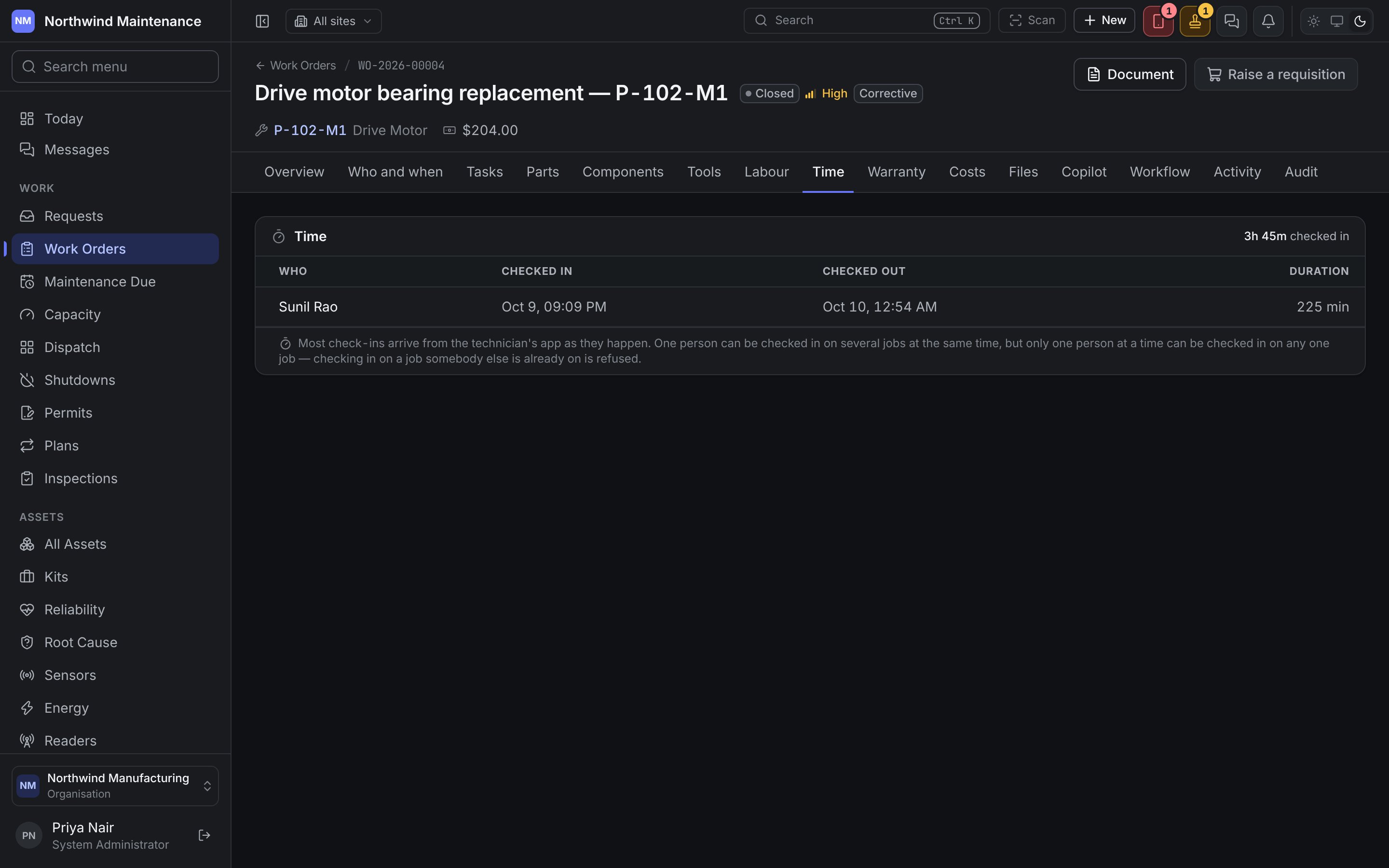
Shown in statuses that allow time to be booked. Check in starts a time segment against the job for you (or for somebody else, if you choose them), and Check out ends it. This is the same control as on the Time tab, put here because the overview is where somebody standing at the job is already looking.Escalations
Shown only when the job has been escalated. Escalations are raised automatically by your organisation’s escalation ladder when a job passes its resolution target; there is no button to raise one by hand — a job that needs attention sooner needs its priority changed, which is what the ladder reads. Each escalation shows its reason, its level, when it was raised, who it went to (or to the queue), who raised it, and how long it has been open:
People with Edit work orders can press I have it to acknowledge an escalation (it stops showing not picked up) and Dealt with to close it once it needs no more attention.
Problem, or Planned work
On a breakdown or any other job raised by somebody, the card is headed Problem and opens with the job’s title, which is the fault as whoever reported it put it. On a job a maintenance plan raised, it is headed Planned work instead, because nothing has gone wrong yet; its title is the plan’s name, which the facts below already carry. The card shows the first photograph attached to the job (or the asset’s own photograph, marked as borrowed, if nobody has photographed the job), the description, any Remarks, and these facts: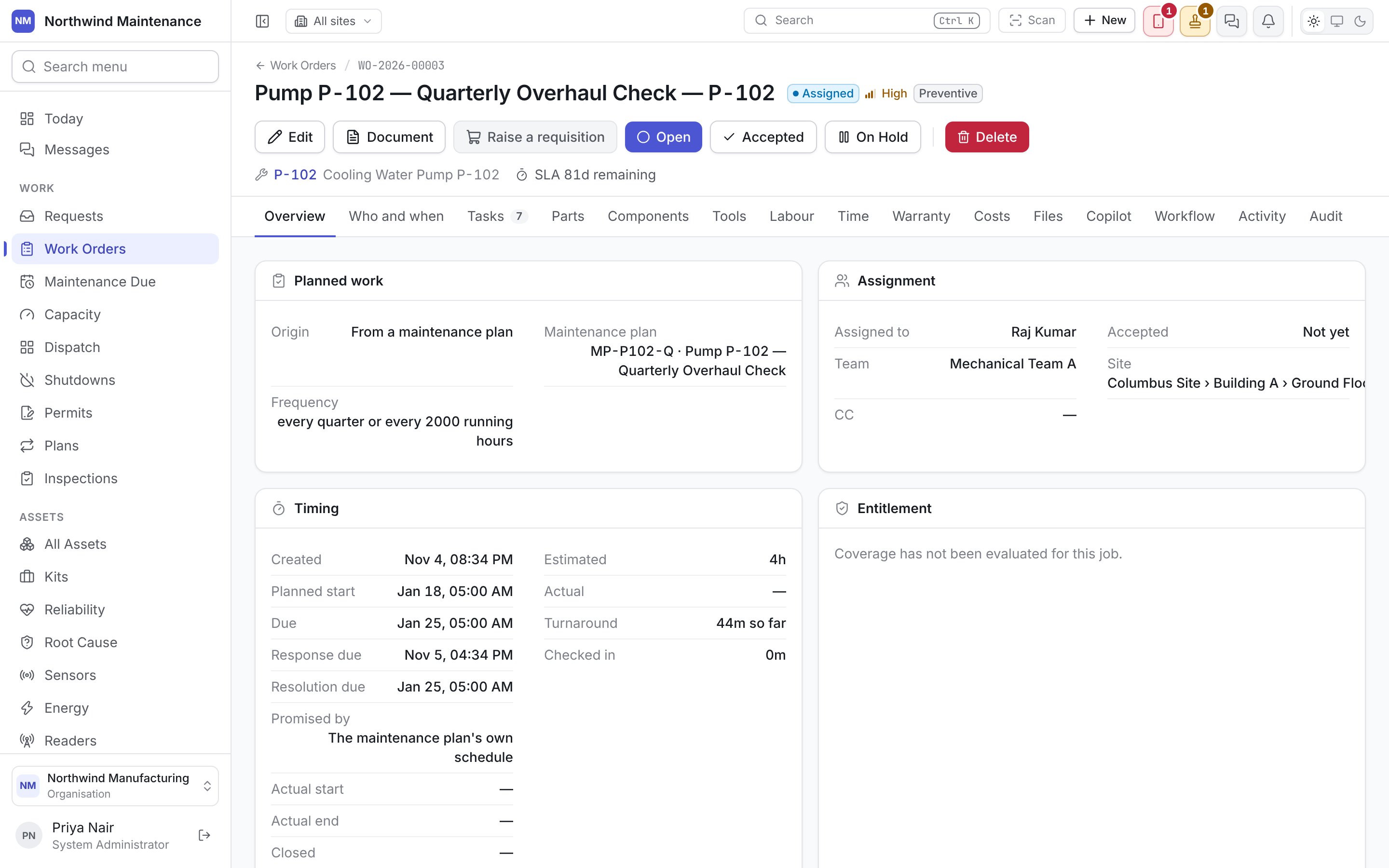
Record it saves the failure. A repair with no failure recorded is a repair the plant learns nothing from.
Assignment
Visiting technician appears when the job is with a supplier. Say who (or Change) records Who is coming and Their number, so the gatehouse and the person meeting them know who to expect. People with Edit work orders can set it.
Vendor Quotes and Vendor Invoices
These two sections appear when the job has been sent to a supplier, and read as one conversation in order: the price, then the bill.
Quote statuses read Awaiting a price, Awaiting a decision, Agreed, Refused or Withdrawn. Suppliers working through the supplier portal see Send your price and Submit your invoice in the same places. See also supplier invoices.
Timing
The dates run down one column and the durations down the other.
Turnaround is how long the plant waited; checked-in time is how long the work took. Together they answer “how long did this take”.
Entitlement
Shown only where your organisation has the contracts module. The warranty or contract coverage decision as it was recorded, not decided again: the result in words (Covered, Partly covered, Not covered or Needs a person — the same words the Warranty tab uses), Contract, Vendor, Coverage percentage, whether an Authorised vendor is required, Decided by (the engine or a named person who overrode it), and the reason in full. “Coverage has not been evaluated for this job.” means nobody has asked yet — see Warranty.Readiness
The same readiness score as the tab, with a meter, a count such as “7 of 8 met · 1 blocking”, and each requirement with its type and status. Only on jobs with requirements or a permit.Sign-off
Shown once a job is Completed or Closed: who reviewed the finished work, when, the outcome, the quality rating out of five and their comments. “Nobody has looked at this since it was finished.” means it has not been reviewed. People with Complete and close work orders see Review it (or Review again), which asks:
Record the review saves it. A review records what somebody thought; it does not move the job. If the work must be done again, somebody reopens it.
What we know about this
Shown only where your organisation has the knowledge base. Knowledge relevant to this job, found from its asset, type and fault: controlled documents such as the manufacturer’s manual, knowledge base articles, guides, procedures and notes left by other technicians. Search everything searches further.- Write down what you found adds a short note to this job and its asset — A tip, A warning, A workaround, About a tool, About a part, About getting to it or Something I noticed. Needs Capture notes on a job or an asset.
- Record what this taught us records a lesson learned for the knowledge base.
Your organisation’s own fields
Fields your organisation has added to work orders appear last, read-only, under Additional fields. Fields your organisation placed into one of the form’s own sections appear without a heading; sections your organisation created for itself keep their own names. They are answered on the raise and edit forms. A field a status insists on is asked for when somebody tries that move.Readiness
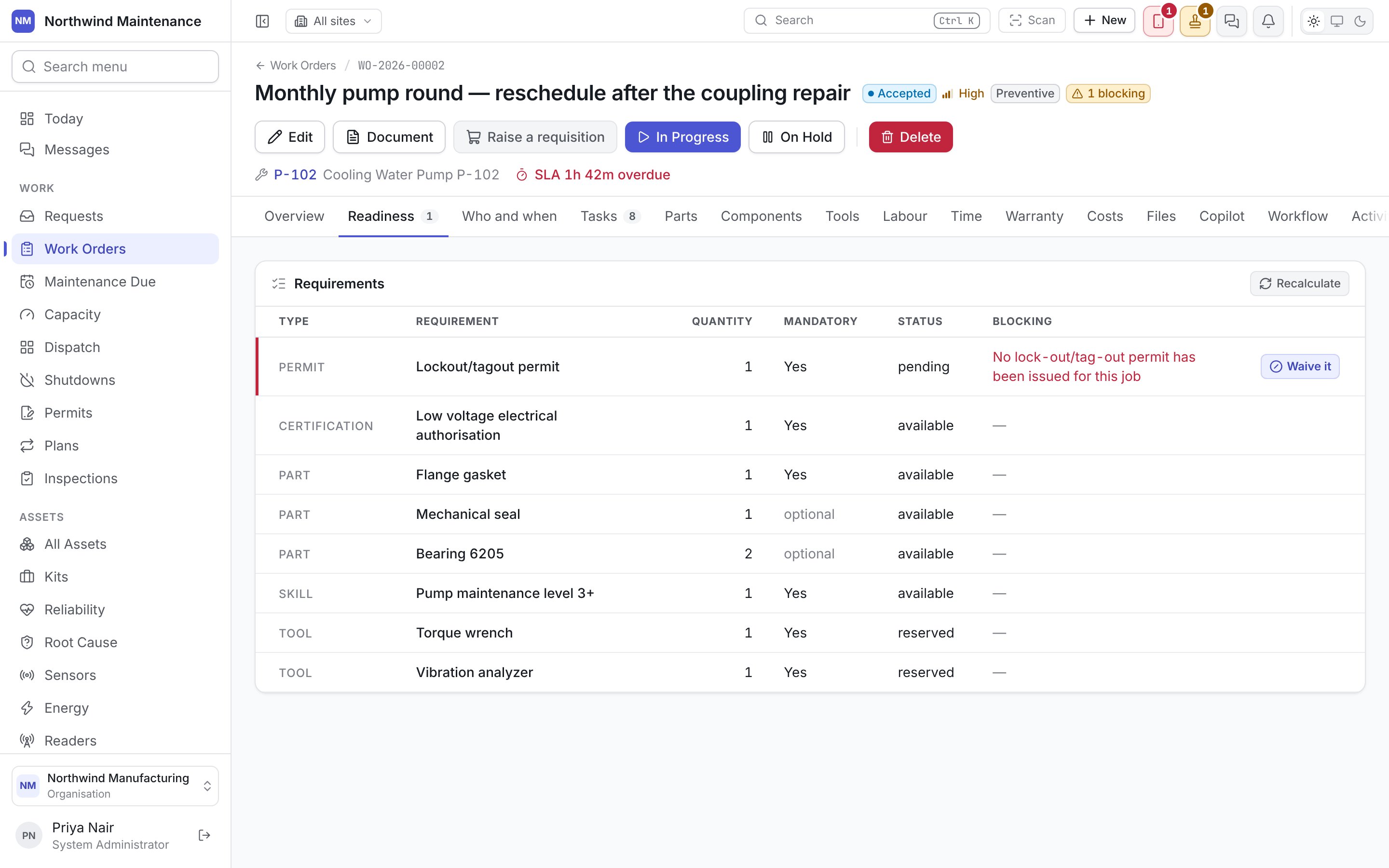
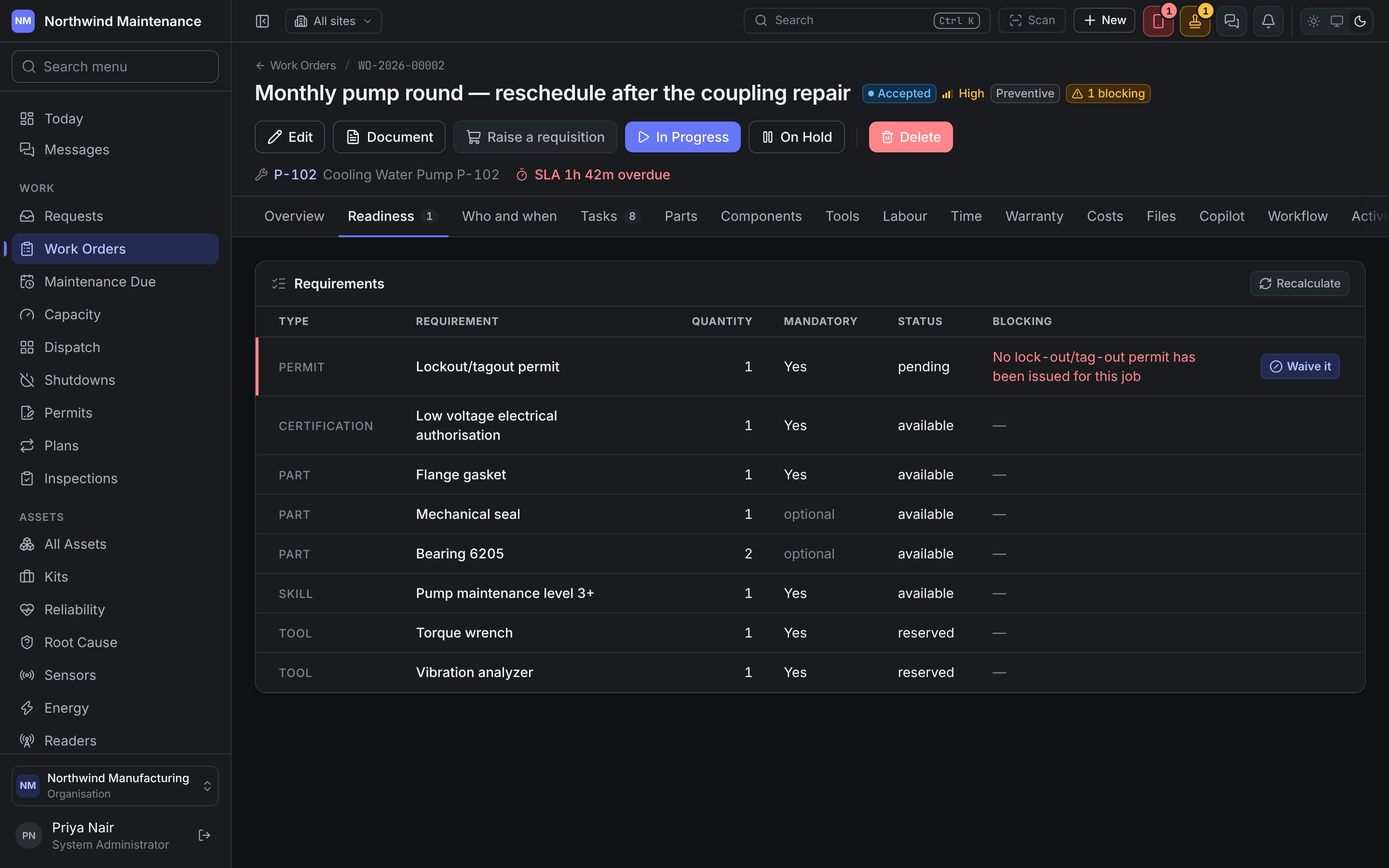
Recalculate works the answers out again. Stock moves, tools get booked and certifications lapse without anything touching the job, so this is how you find out whether the blocker you were told about an hour ago is still there.
Each row’s buttons sit at the right-hand end of the row and stay in view however wide the table is. Waive it appears on a permit requirement for people with Issue a permit, and waive the permit a job asks for. It records, with your name and a reason you must type, that this job does not need the permit it asks for. It is the only way past a permit requirement without a permit, and it is the sentence somebody reads if the job goes wrong.
Who and when
Assignment
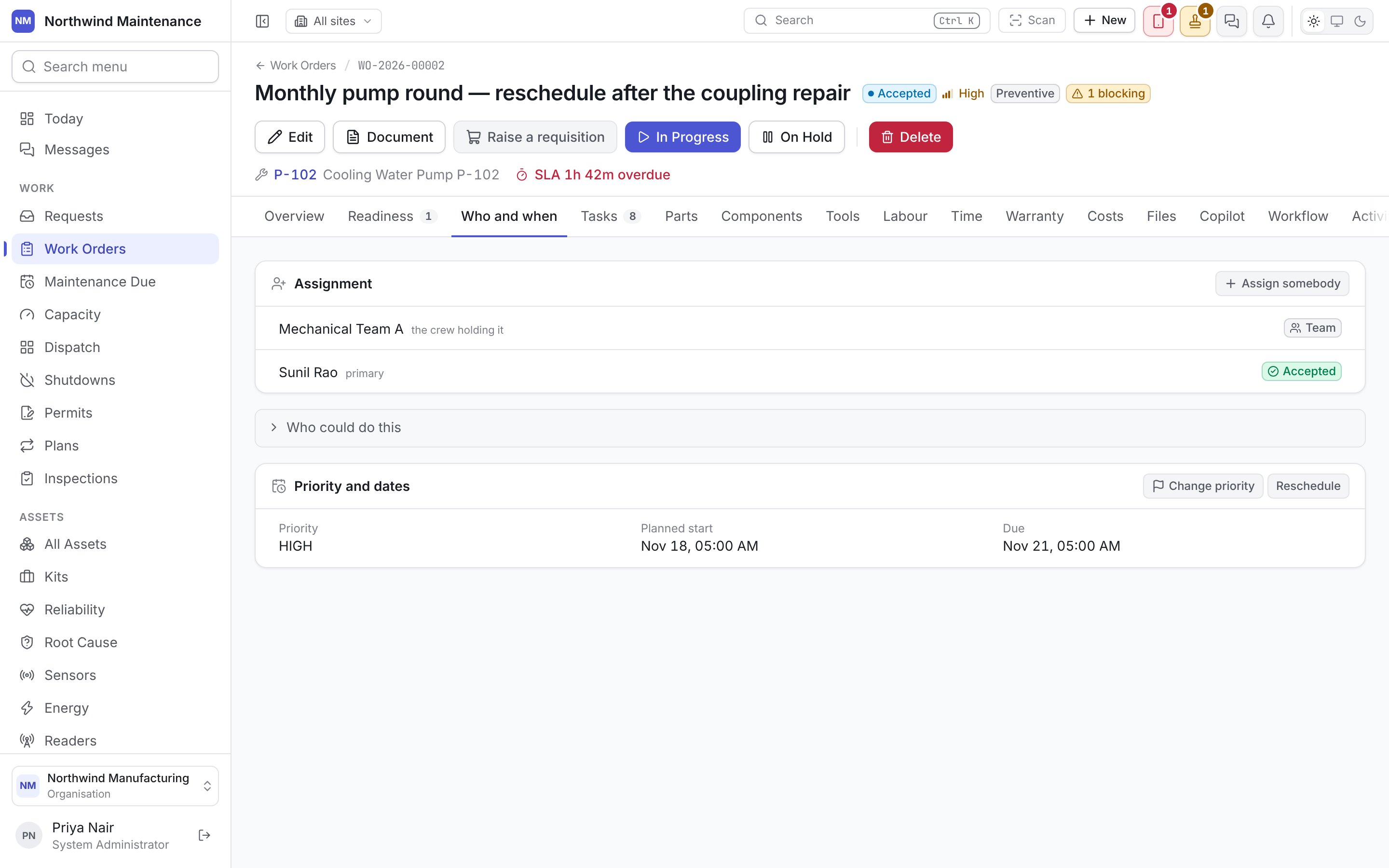
Lists who holds the job: the crew (the crew holding it), the supplier (out with this supplier), and each person with their role (primary for the person going) and whether they have accepted (Not accepted yet). With nobody on it: “Nobody is on this job. An unassigned job sits in the queue until somebody picks it up.” Assign somebody (for people with Assign or reassign work orders) opens a short form:
Assign hands the job over. Assigning an Open job also moves it to Assigned.
Who could do this (closed until you open it) lays out every party that covers the job — technicians with how loaded they already are, crews with how many hands they have, and suppliers with their committed response time and whether they are the manufacturer. Coverage is a crew or supplier declaring the sites, equipment and kinds of work it takes; this is a survey, not a ranking. Give it to them assigns the job to that party directly.
Priority and dates
Shows Priority, Planned start and Due.
Both are disabled while a request for more time, or any other approval on the job, is waiting. Changing the priority or the dates is deliberately not part of Edit, because each one changes what was promised and is recorded with a reason.
Tasks
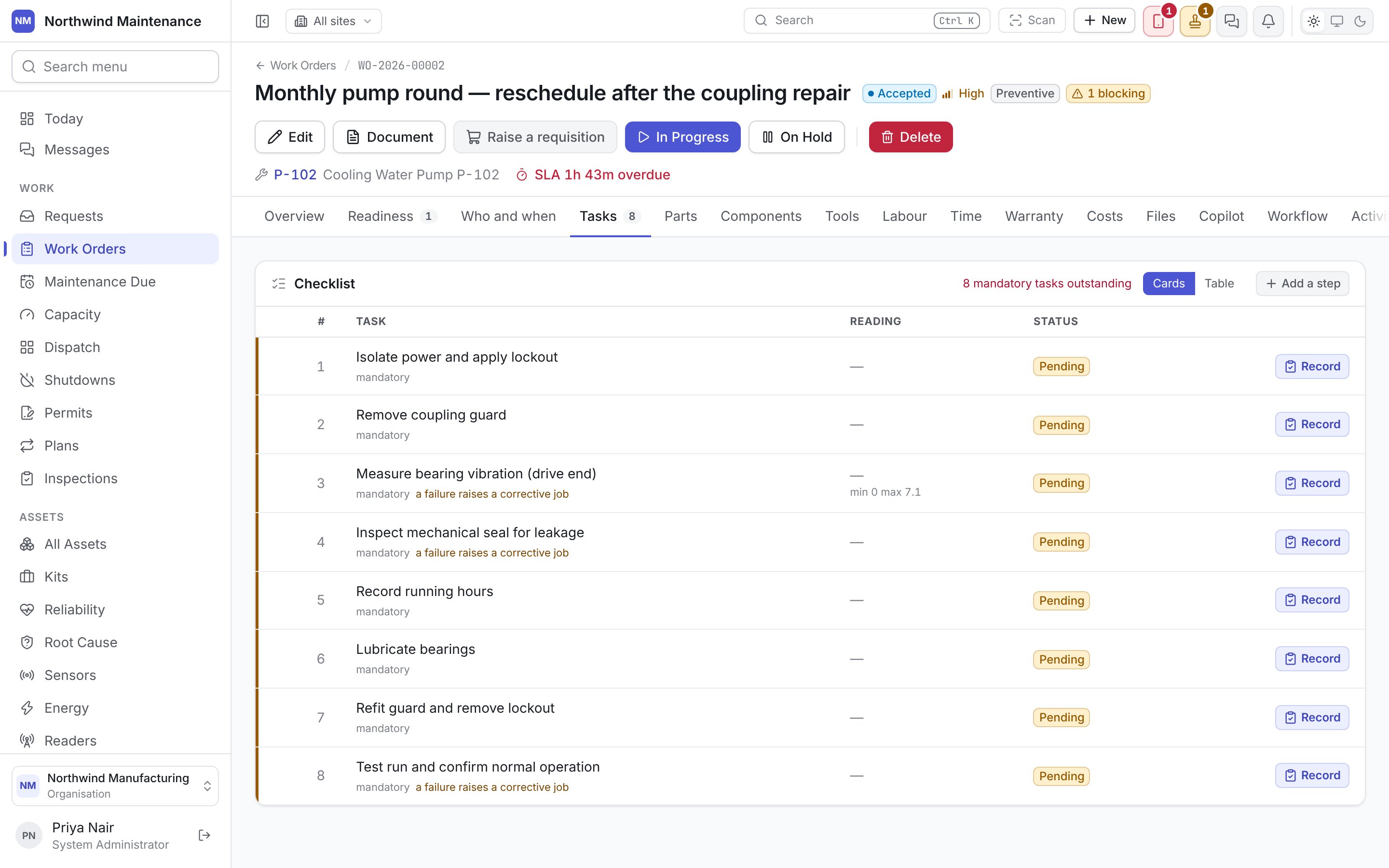
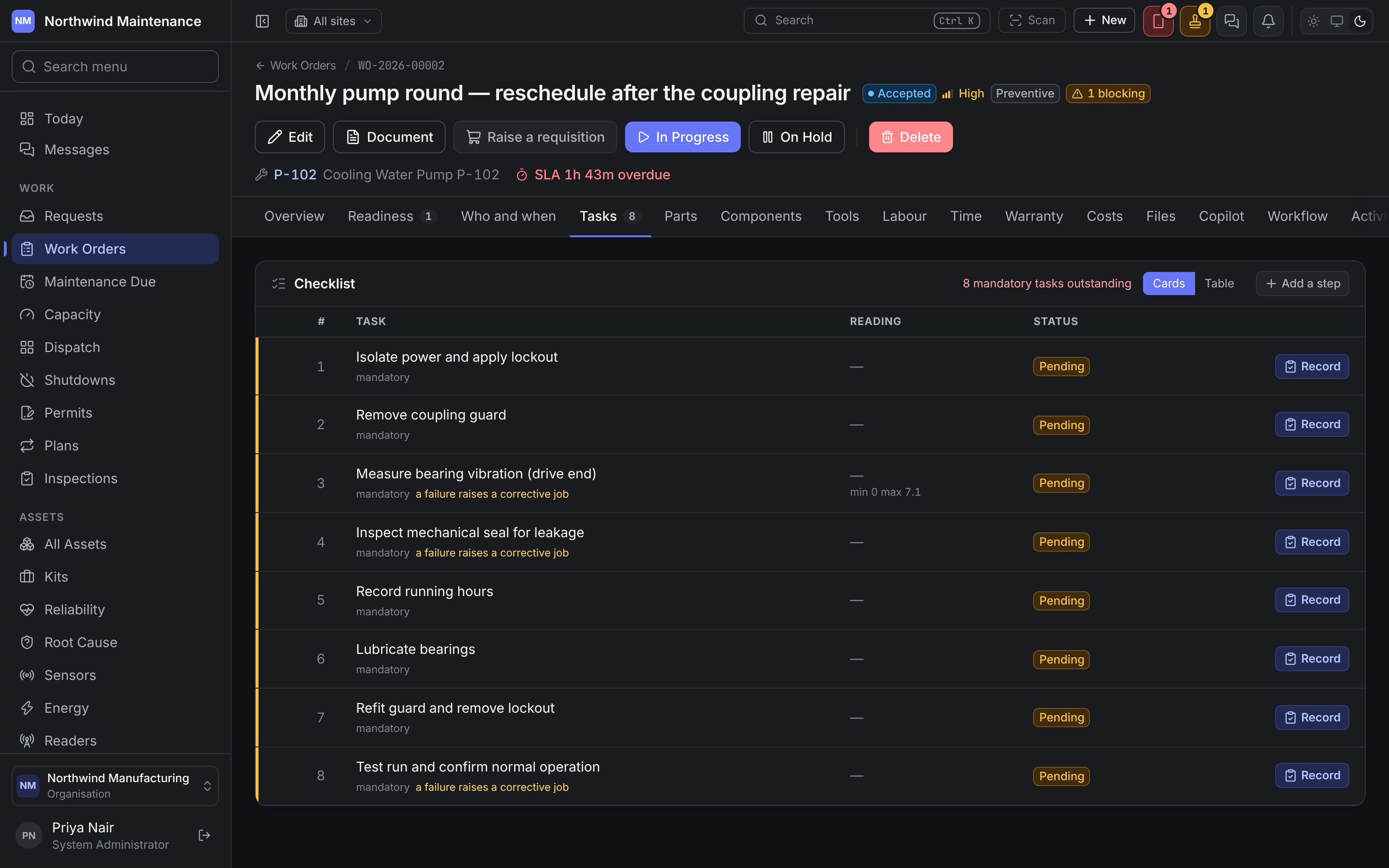
Once a step is answered, your organisation can limit who may change the answer to the roles its checklist names. Where you hold none of them, the step shows Locked instead of Change, and hovering over it says which roles can. Where the checklist names no roles at all — which is how a checklist starts — a saved answer is final: the step shows Final, and hovering over it says “This answer is final — only an administrator can change it”. A step added on the job itself came from no checklist, so its answer can still be changed.
Pass or fail is decided for you where the step has an expected range or a list of answers — “Pass or fail is decided from the range, not chosen.” Some answers need a photograph of the step, or a remark saying what was found, before they can be recorded. A step that still owes its photograph or signature is flagged, because the job cannot close without it.
When a step that raises a corrective job fails, the new work order is named beside the failure, so a corrective job never appears on the board with no visible cause. The job cannot be completed while mandatory steps are outstanding. Technicians normally work through the checklist in the field app.
Parts
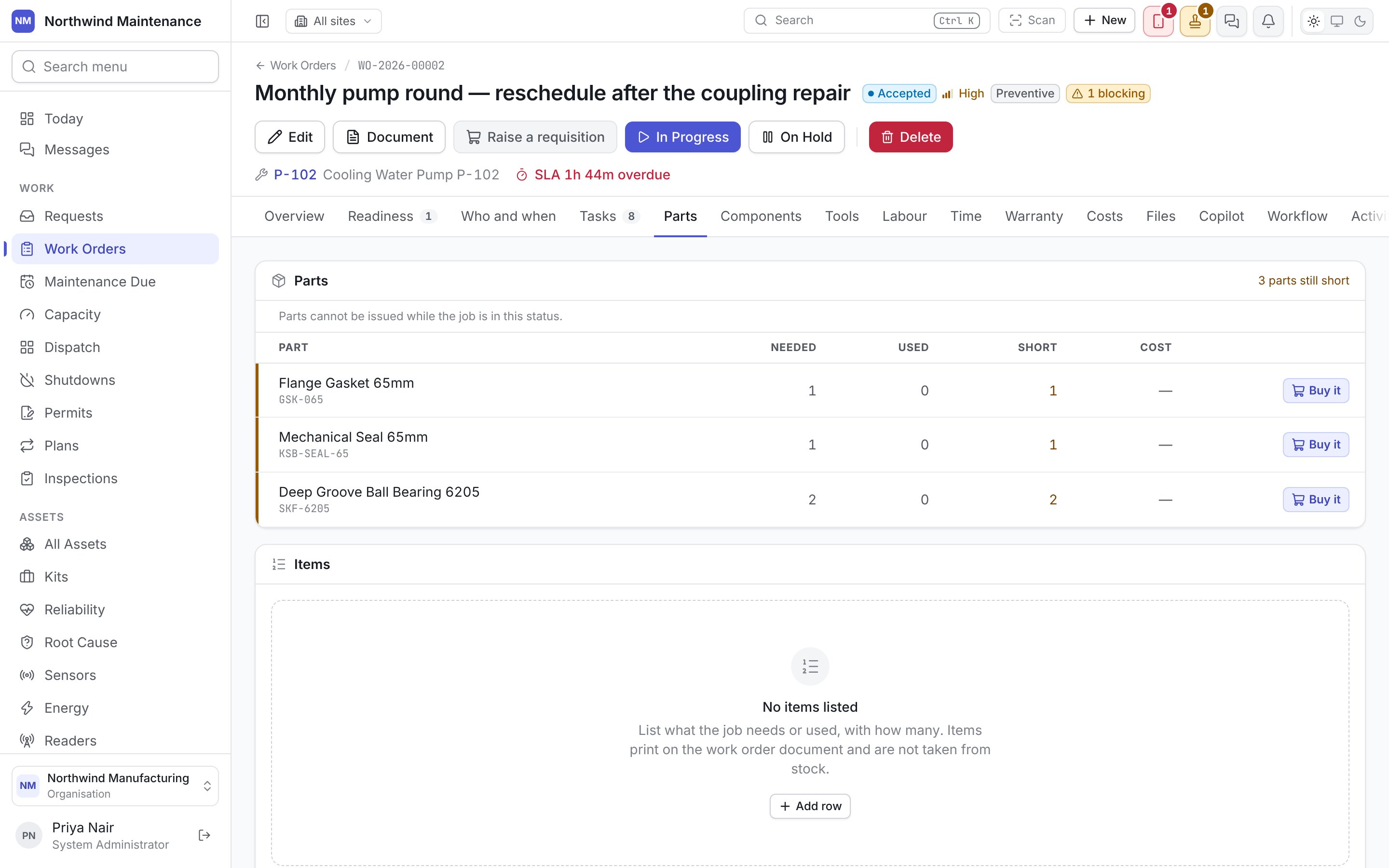
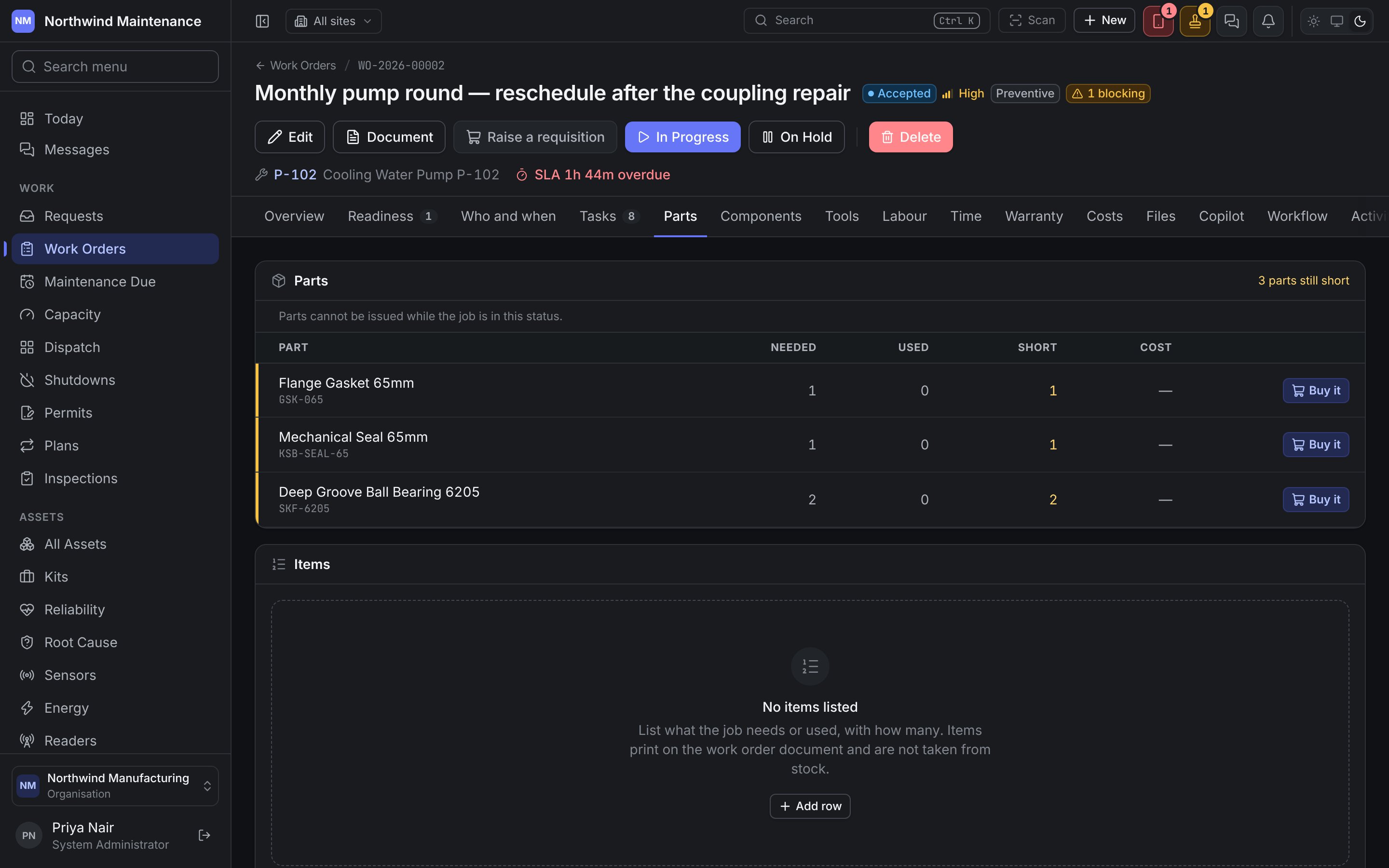
Stock
The heading counts parts still short.
Whether parts can be issued depends on the job’s status, not on your permissions: “Parts cannot be issued while the job is in this status.” By default parts can only be issued In Progress. See the lifecycle and parts.
Items
A typed list of what the job needs or used, with a quantity for each. Items print on the work order document and are not taken from stock — use this when your organisation does not run the inventory module, or for things that are not stock parts. Add row (or Edit items) opens the list for editing: each row needs a description (“What it is, as it should read on the printed job”) and a quantity above zero. Save keeps the list. Needs Edit work orders; not available once the job is finished.Components
Two lists that record what physically changed on the asset — different from Parts, which records what left the store.- What this job swapped — each replacement made on this job: which position, what came off and why, and what went on in its place.
- Fitted to this asset — the components fitted now. Fit a component records a component going on at a position, against this job.
Tools
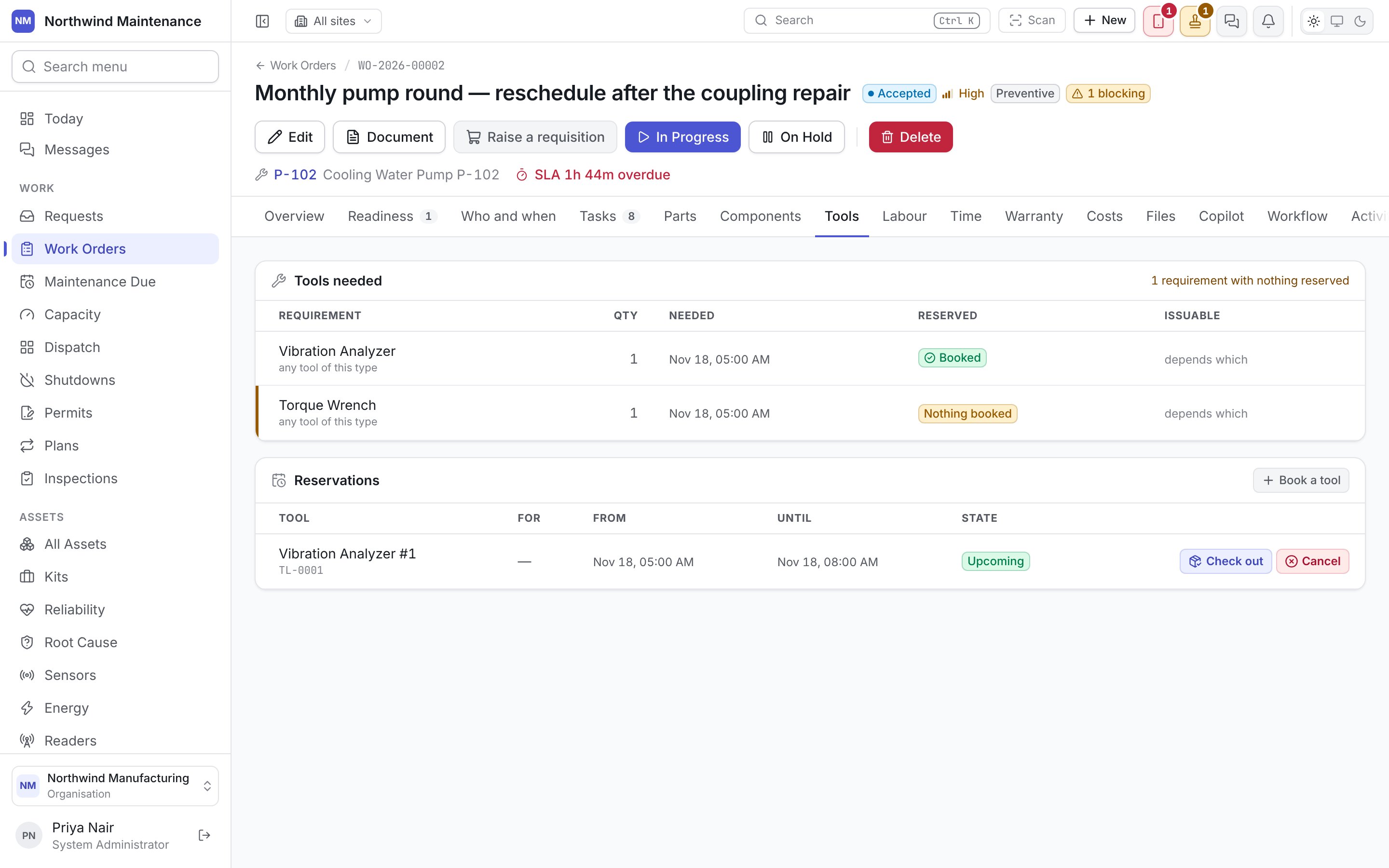
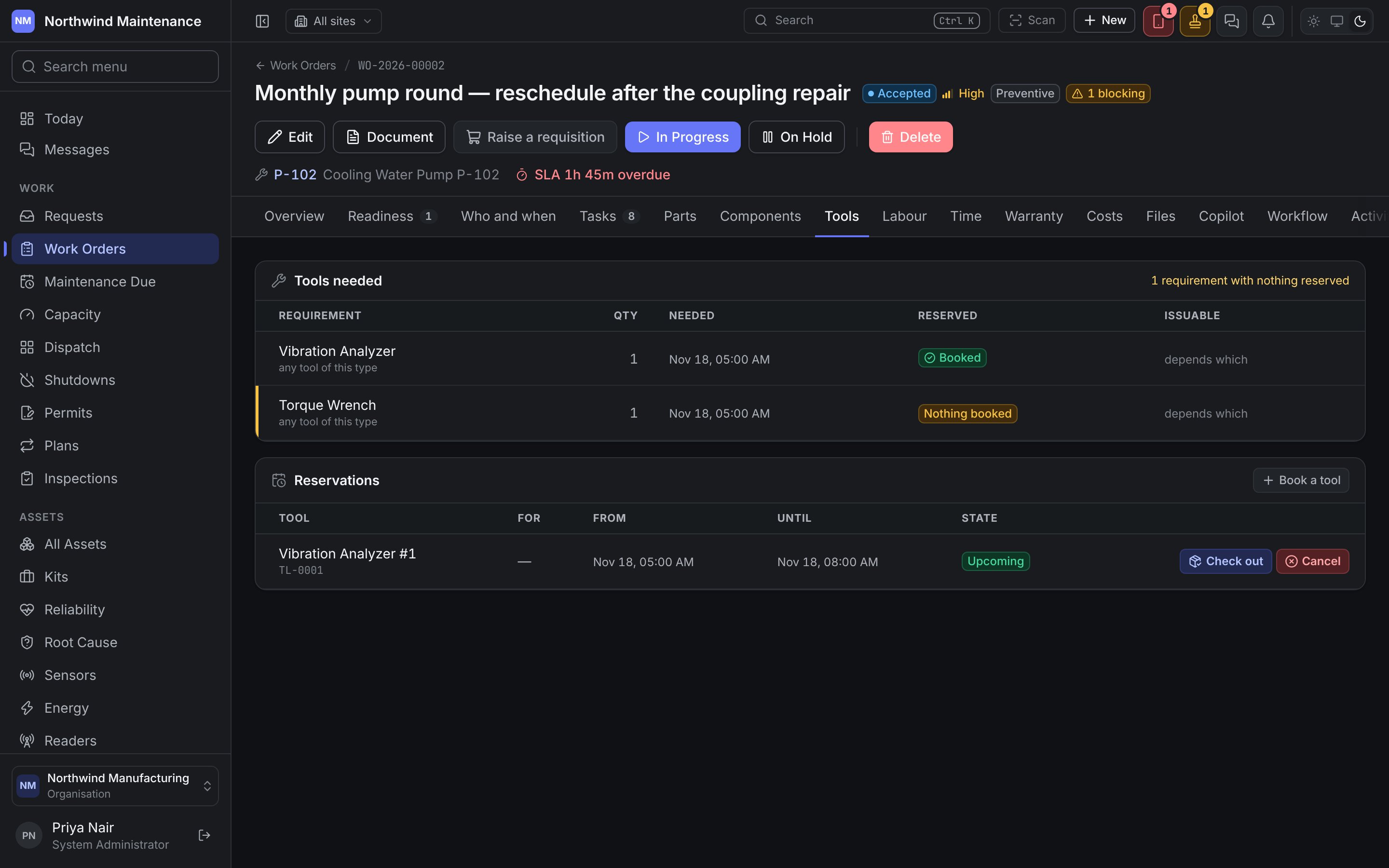
A tool can be unavailable by status, unusable by condition, or out of calibration — the last is the worst, because the instrument still works and its readings are no longer evidence. See tools.
Labour
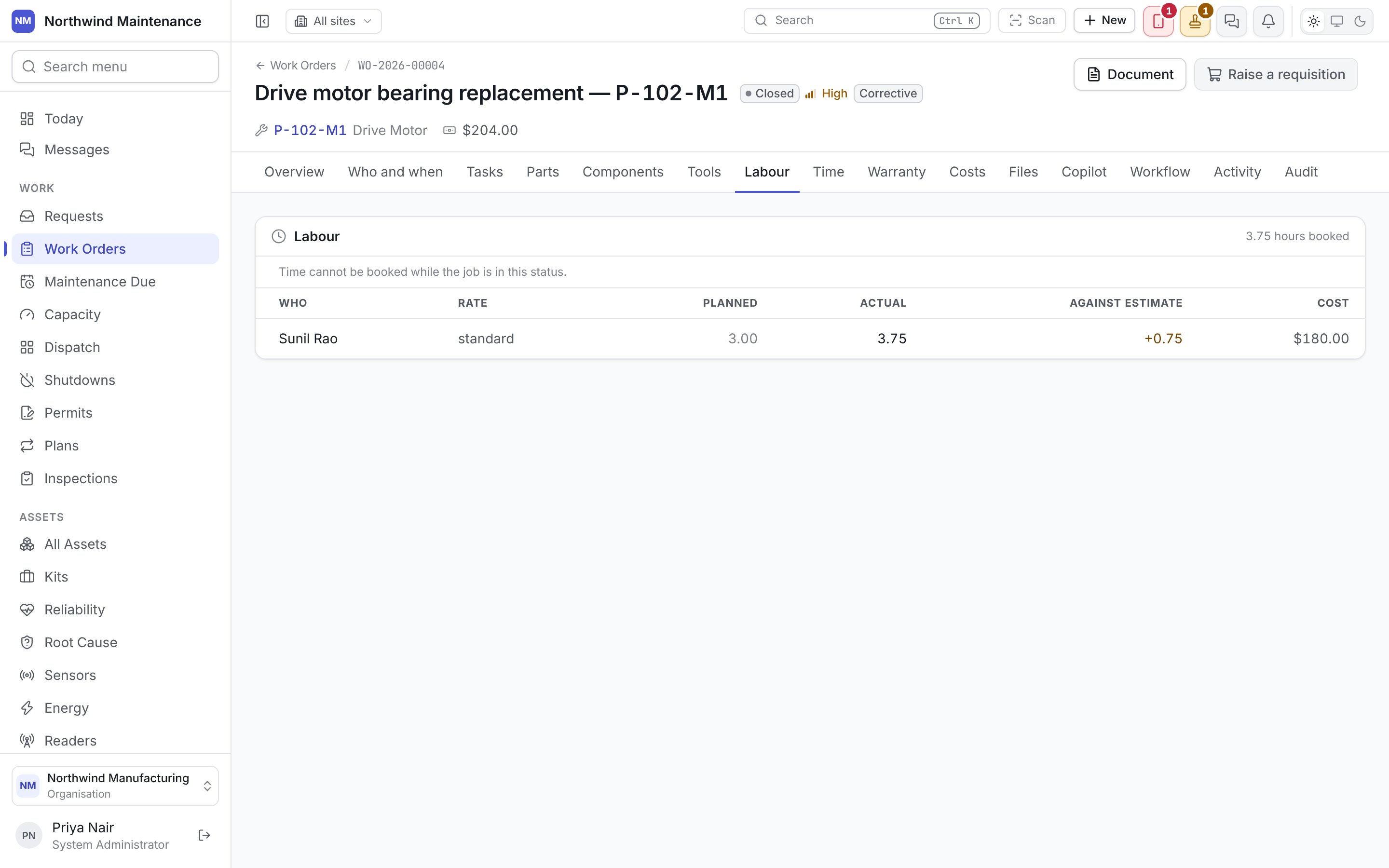
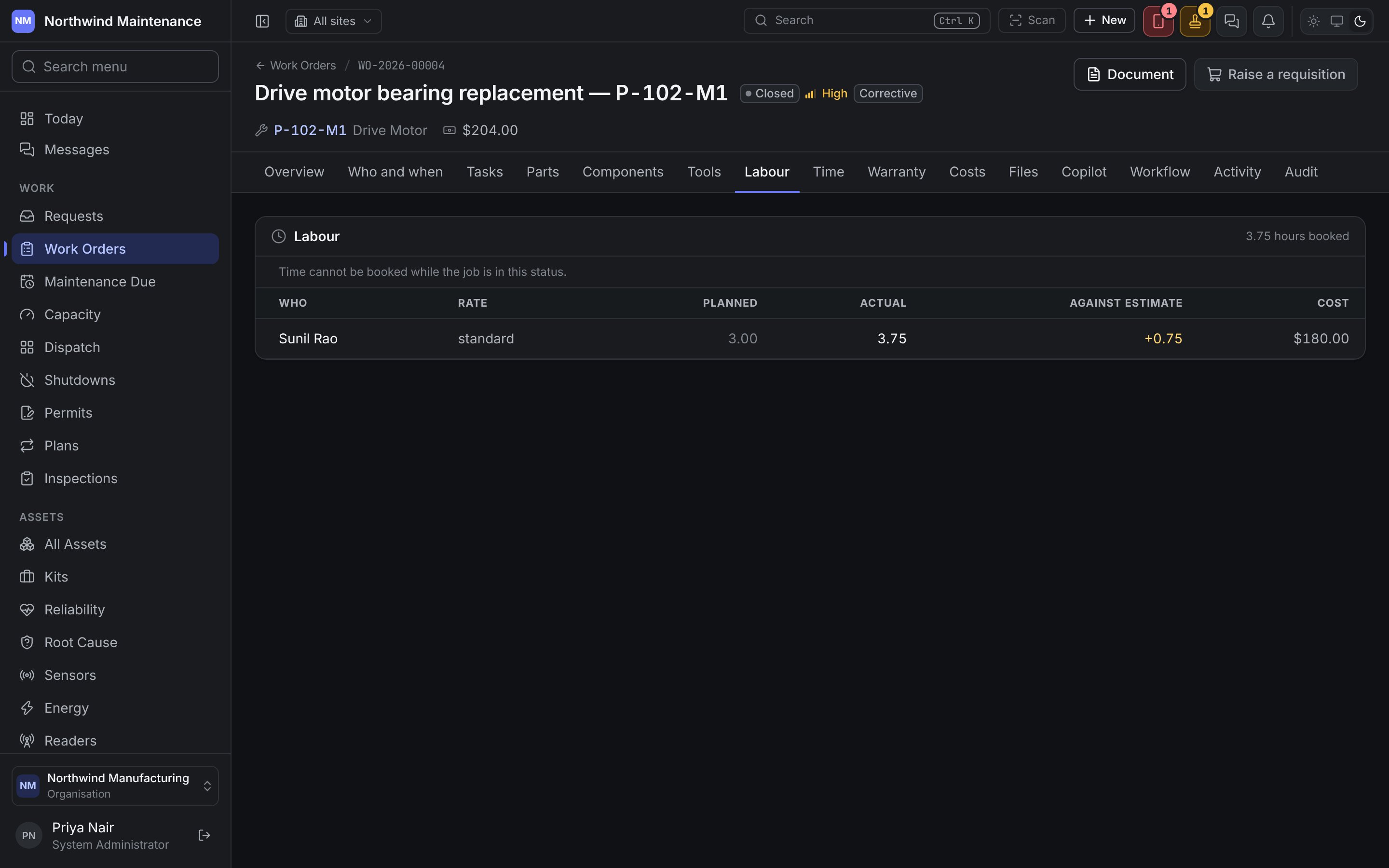
Book time asks for Who, Hours, Rate — Standard, Overtime, Weekend, Holiday, Night, Travel or Callout, which “decides which of their rates applies” — and Notes. Book stays disabled until somebody is chosen under Who and the hours are above zero. Technicians normally book their own hours from the field app; supervisors correct them here. “Time cannot be booked while the job is in this status.” means the status does not allow it — by default, time can be booked In Progress and On Hold.
Time
Warranty
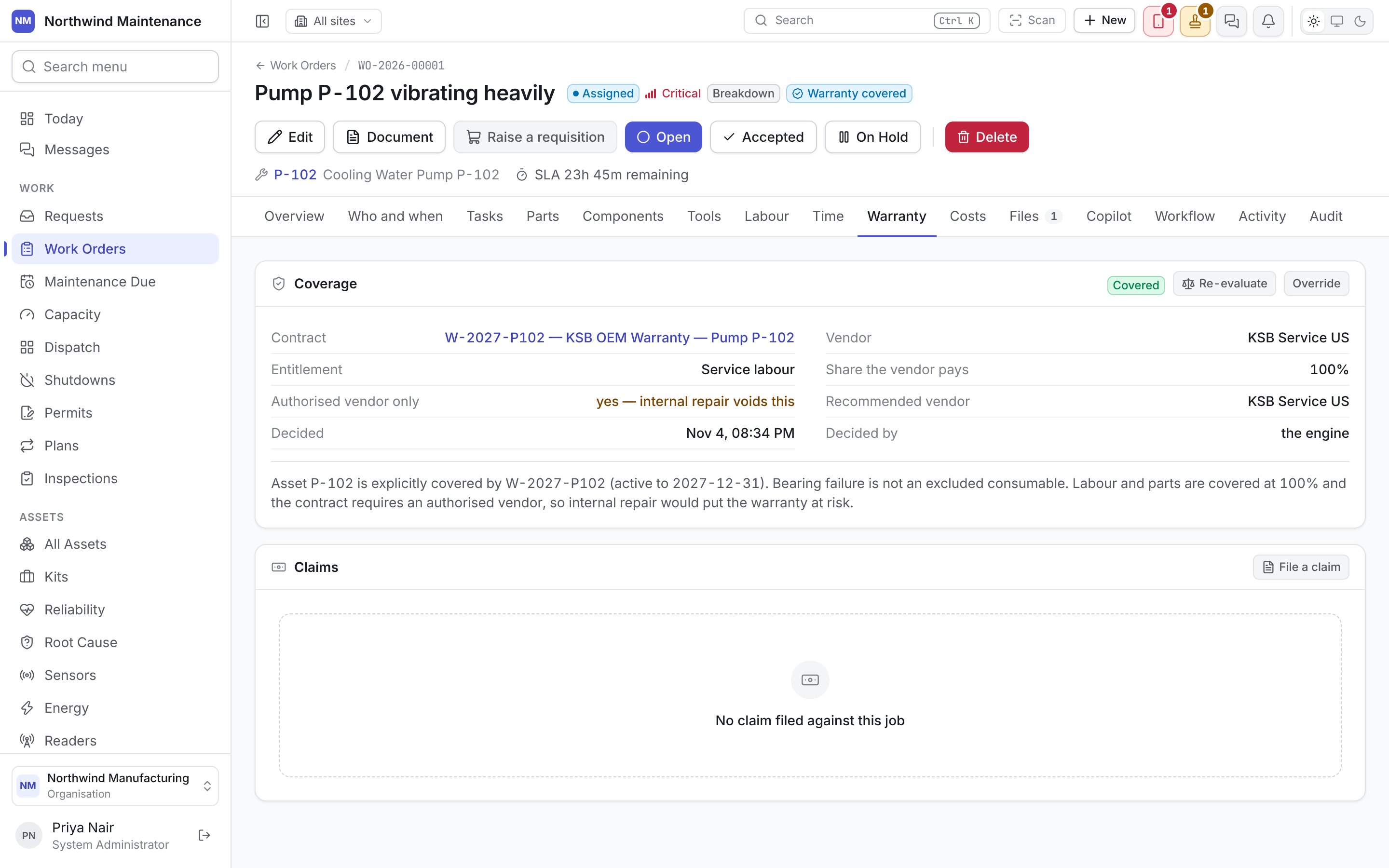
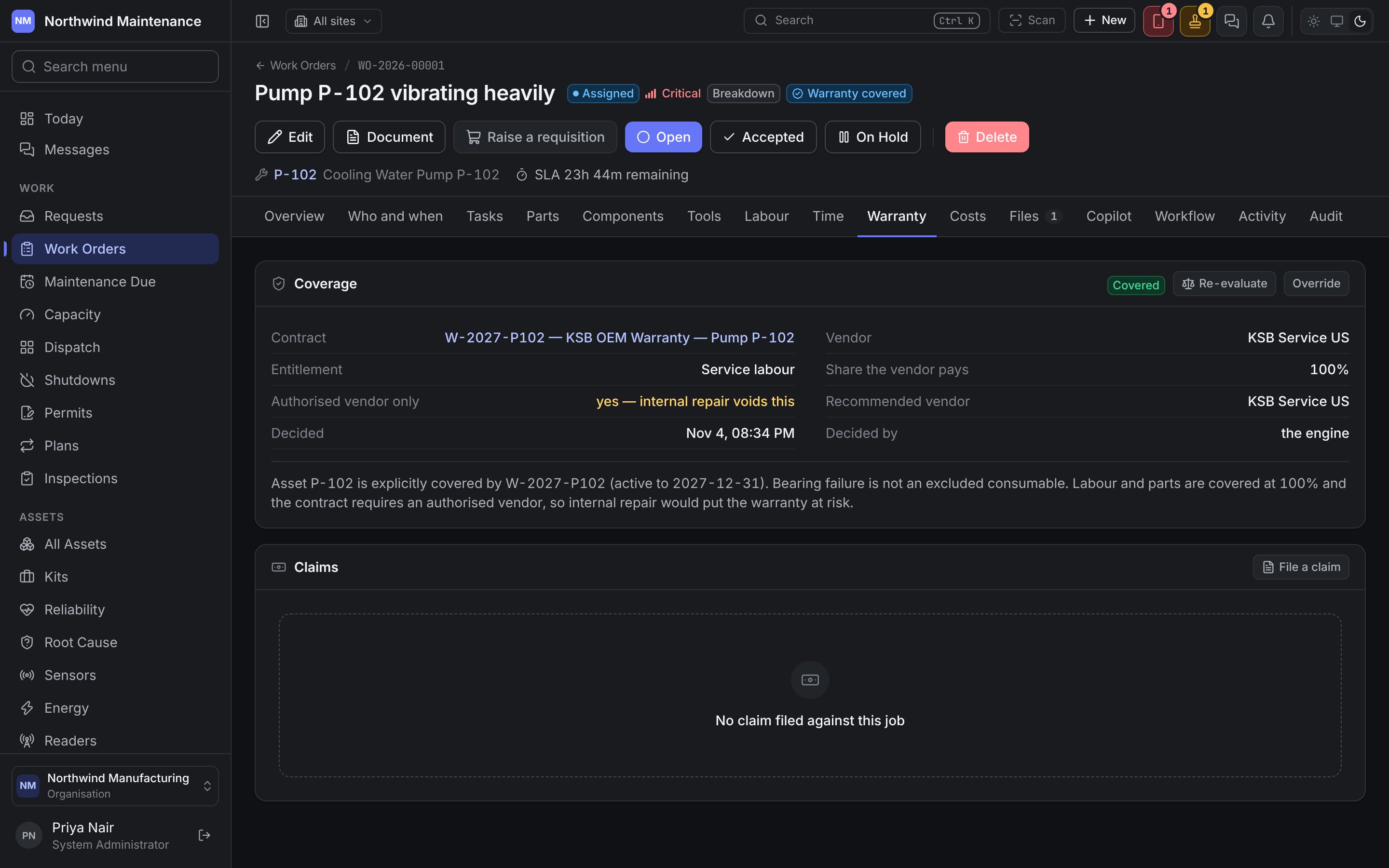
Claims lists warranty claims filed against the decision, with Claim, Status, What failed, Claimed, Approved and Still owed. File a claim asks What failed (written for the vendor to read) and Amount claimed (leave empty to claim the job’s covered cost); File claim saves it. Send records the claim going to the vendor with Their reference. A claim needs a covered or partly covered decision first.
See entitlements and claims.
Costs
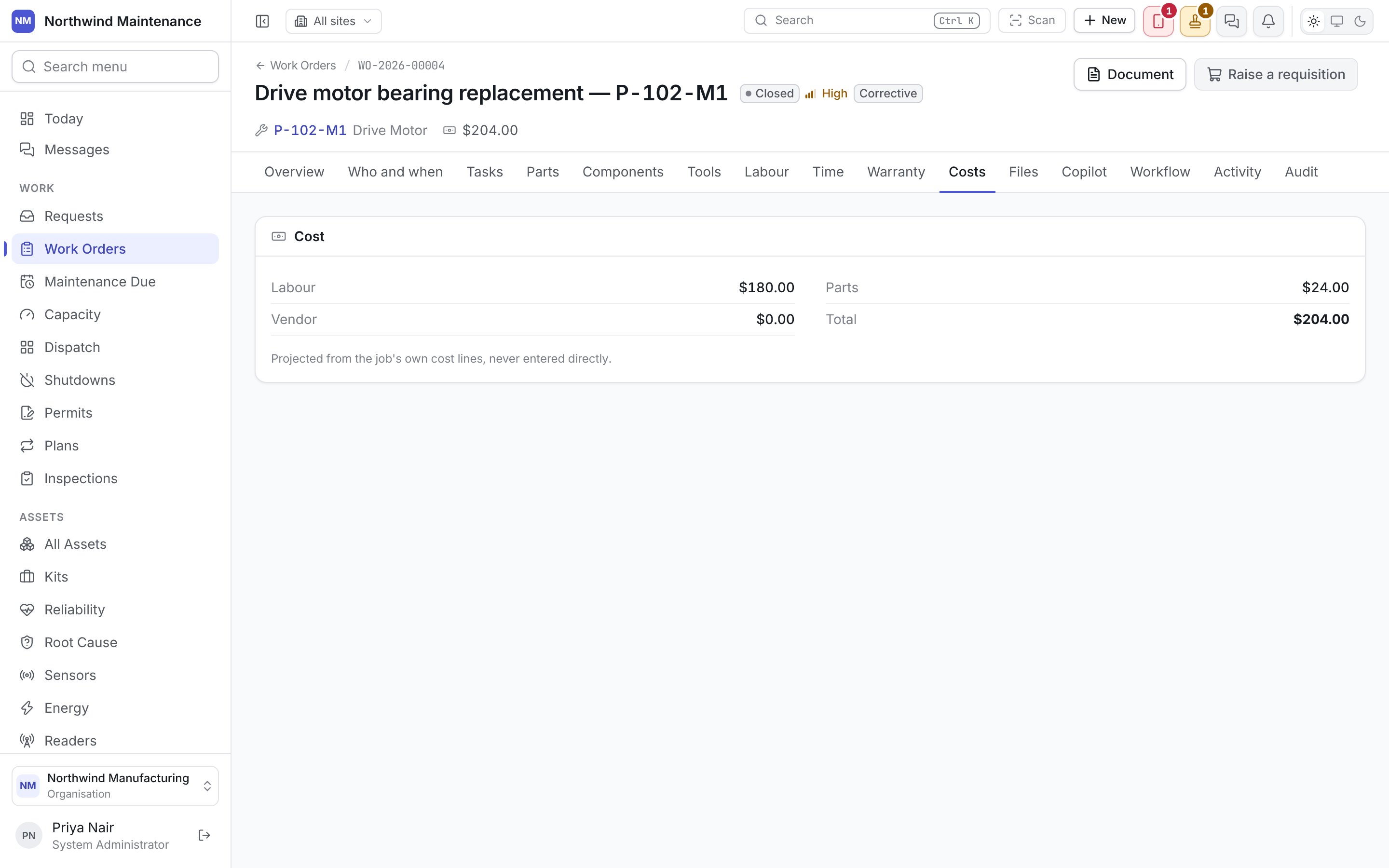
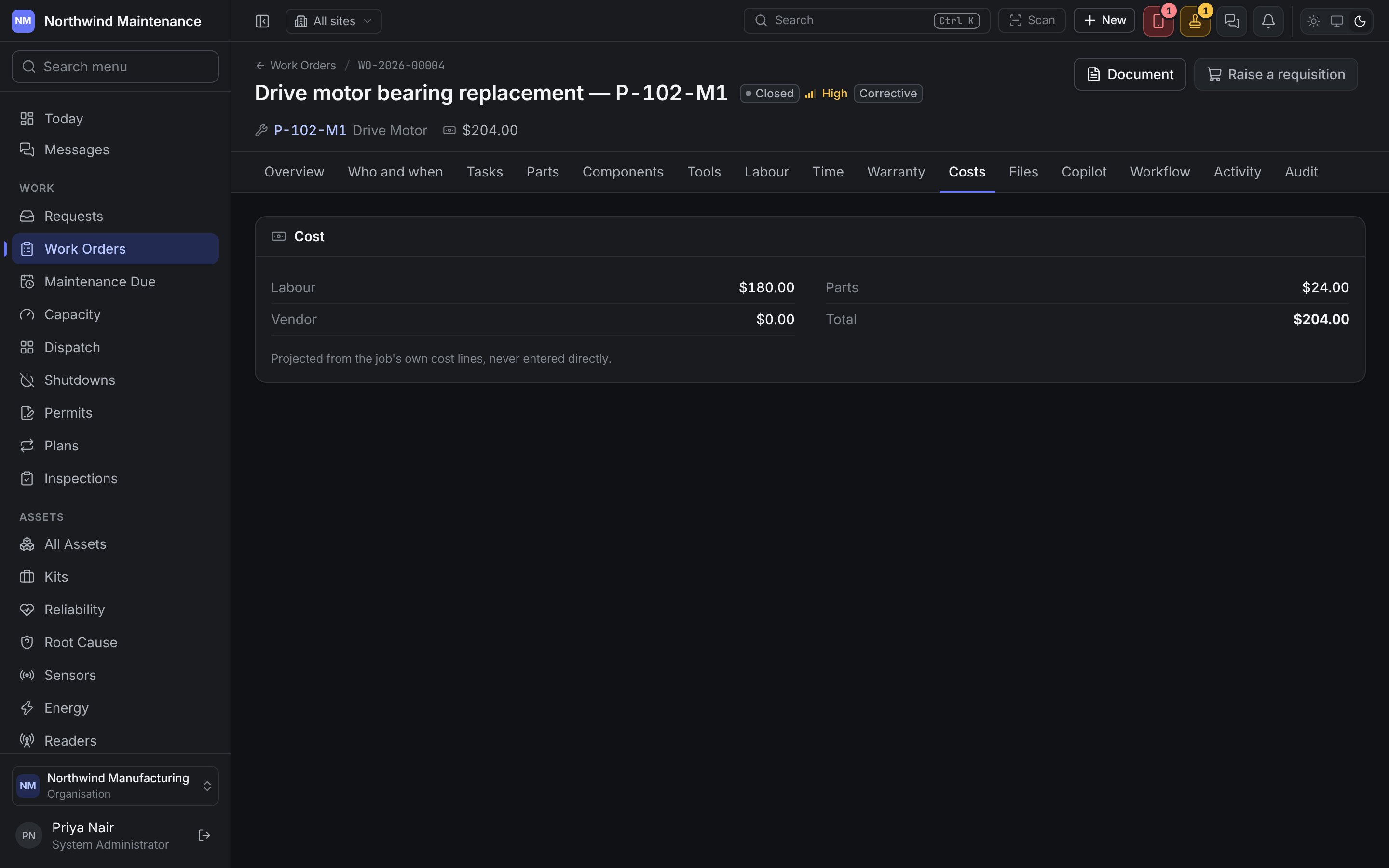
Files
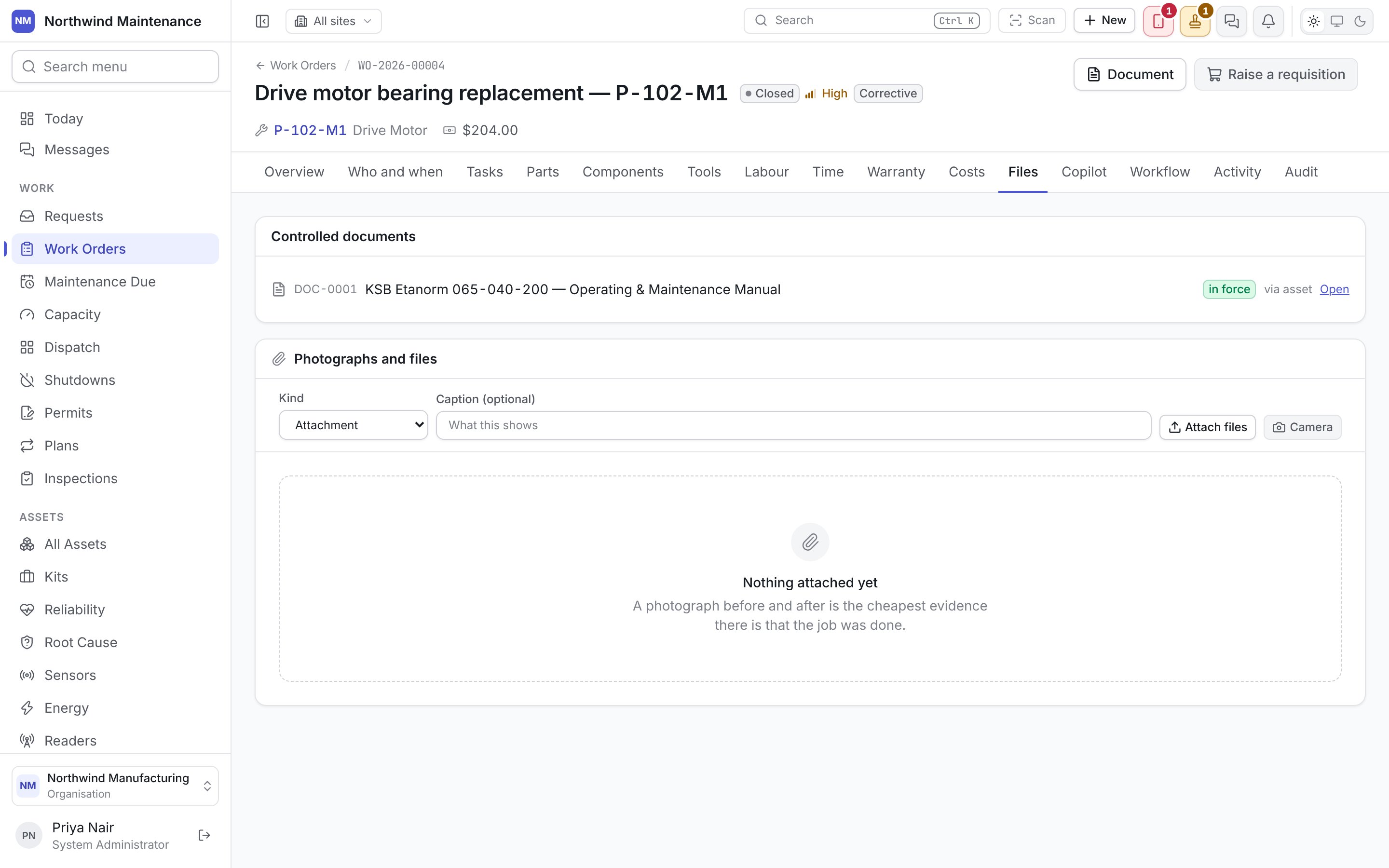
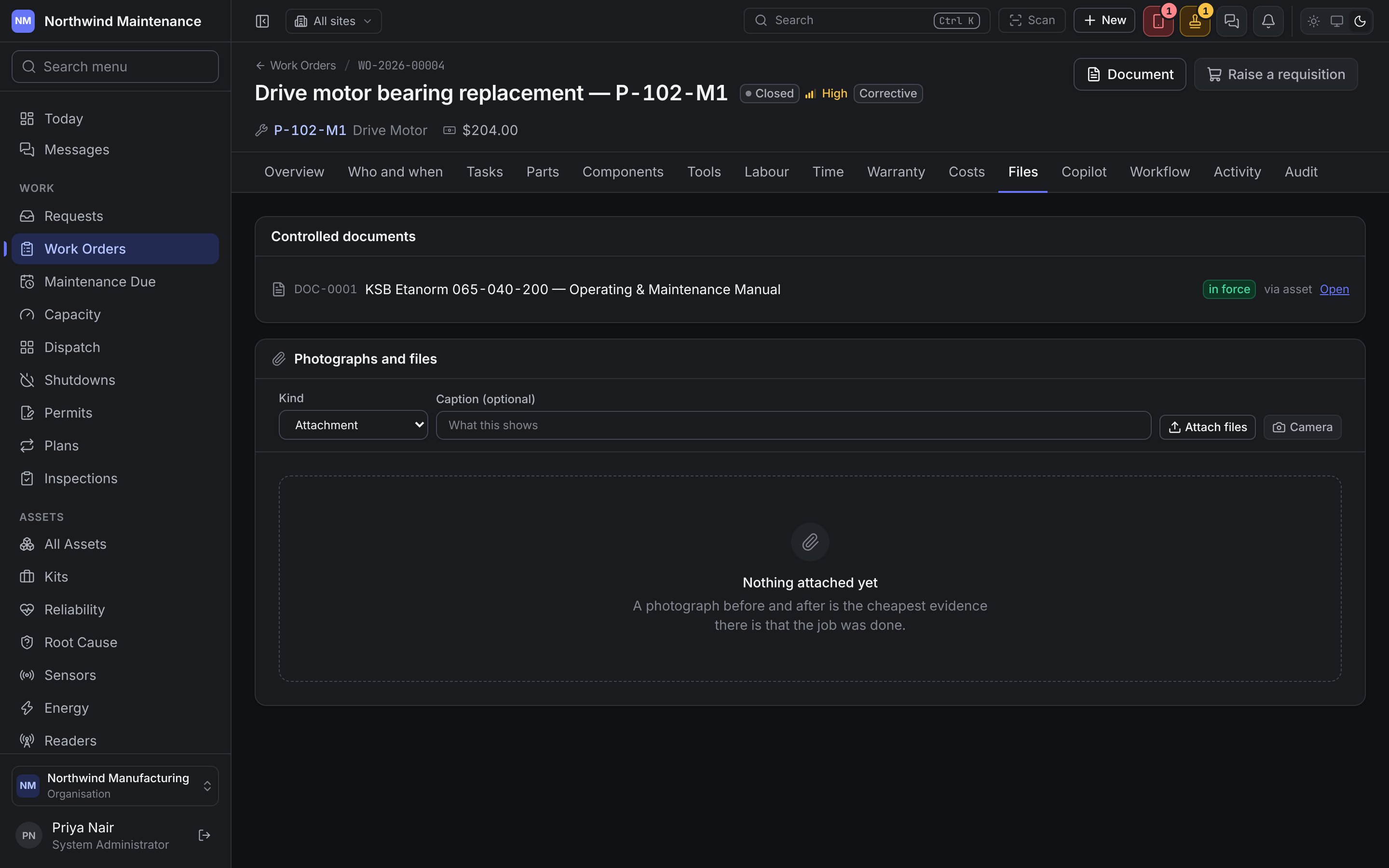
Copilot
Ask the AI assistant for a classification, a diagnosis, or help with the job in front of you. What comes back is a proposal: nothing is written to the work order until somebody accepts it. The tab appears only where your organisation has the AI module, and the assistant is switched off until an administrator turns it on under AI settings. See Copilot.Workflow
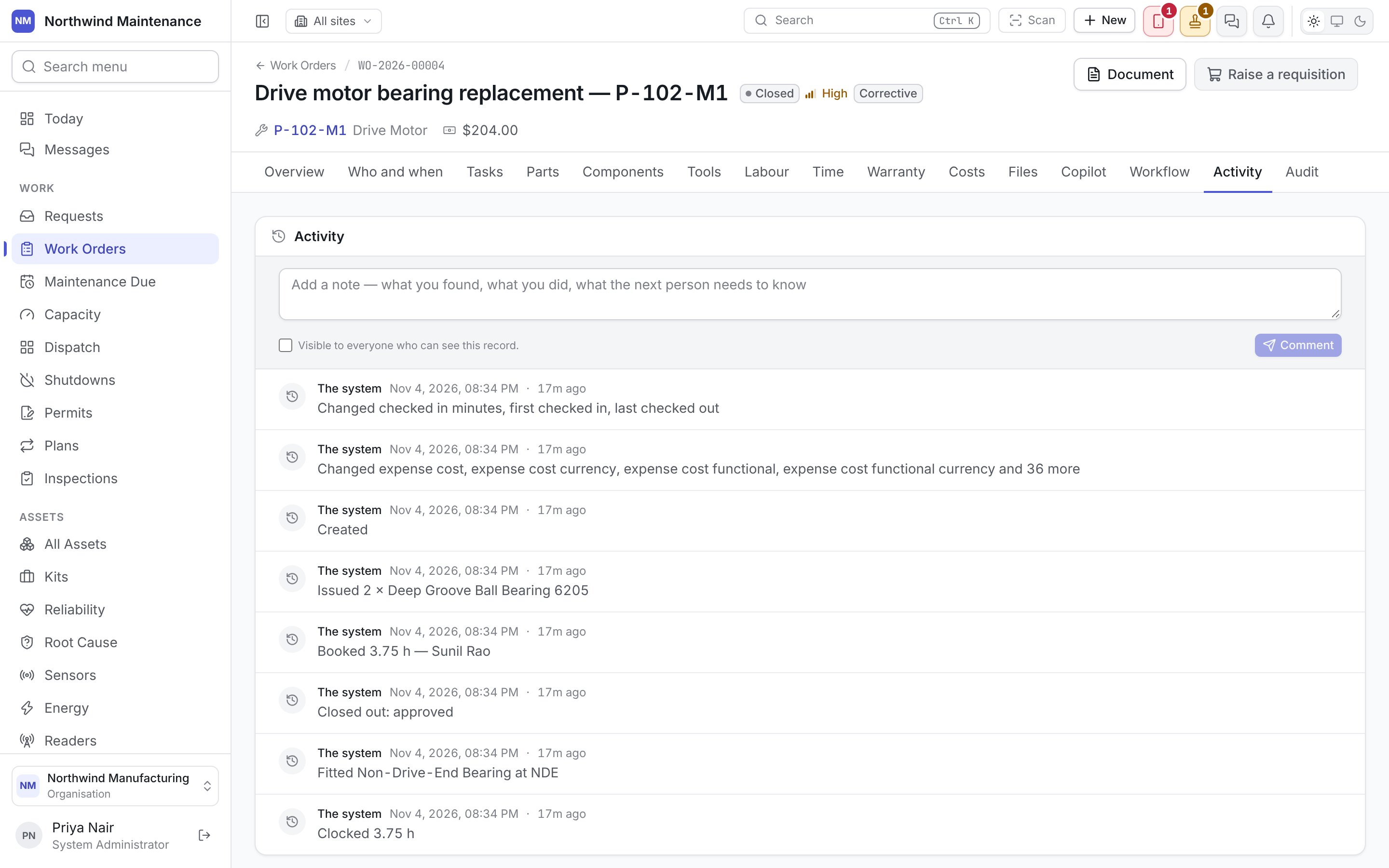
Where the job has been and where it is now, as a list of stays rather than as sentences among the edits on Activity. It answers the question a supervisor asks of a job that has gone quiet — where is it sitting, and since when — and the one an argument about a breach turns on.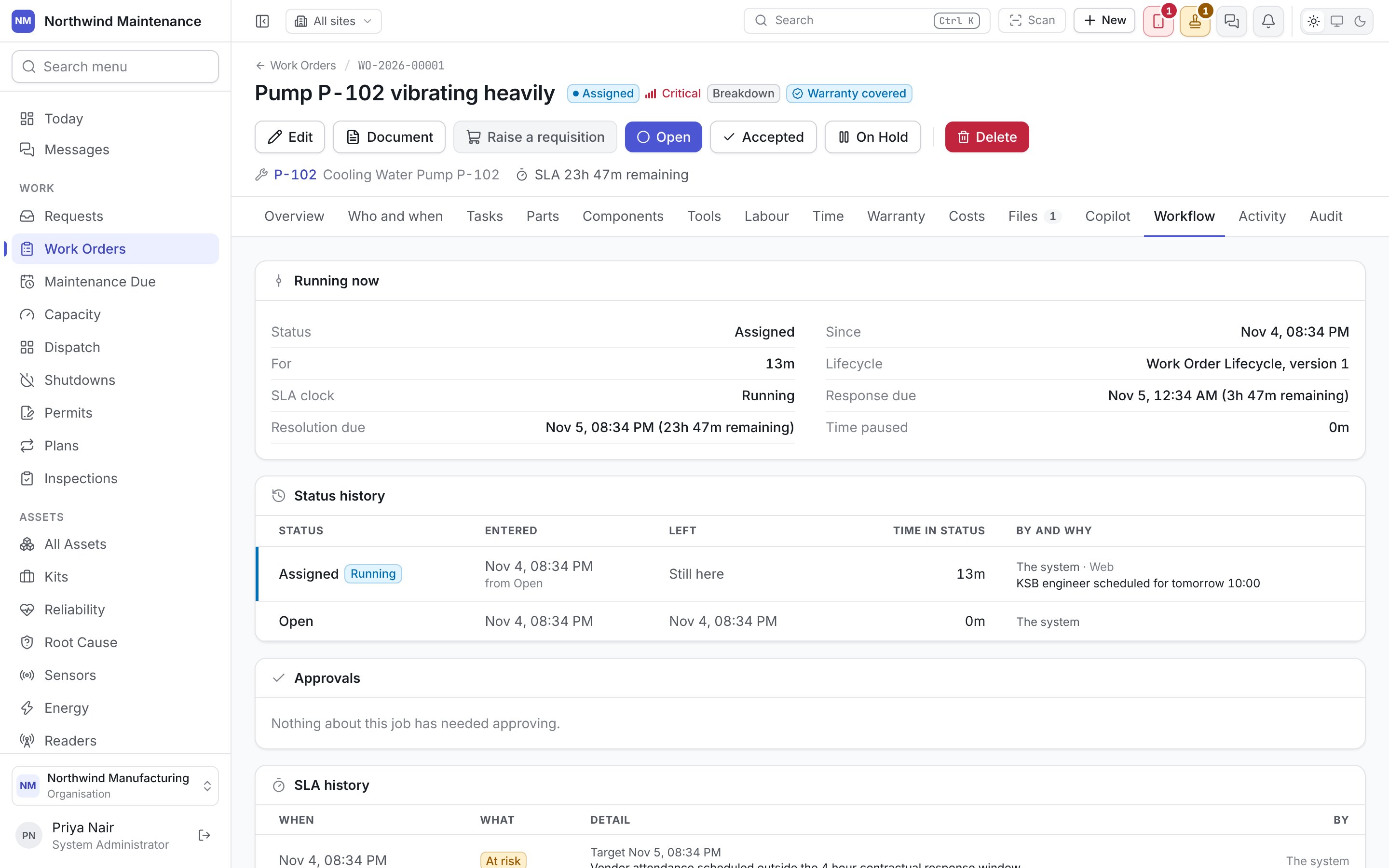
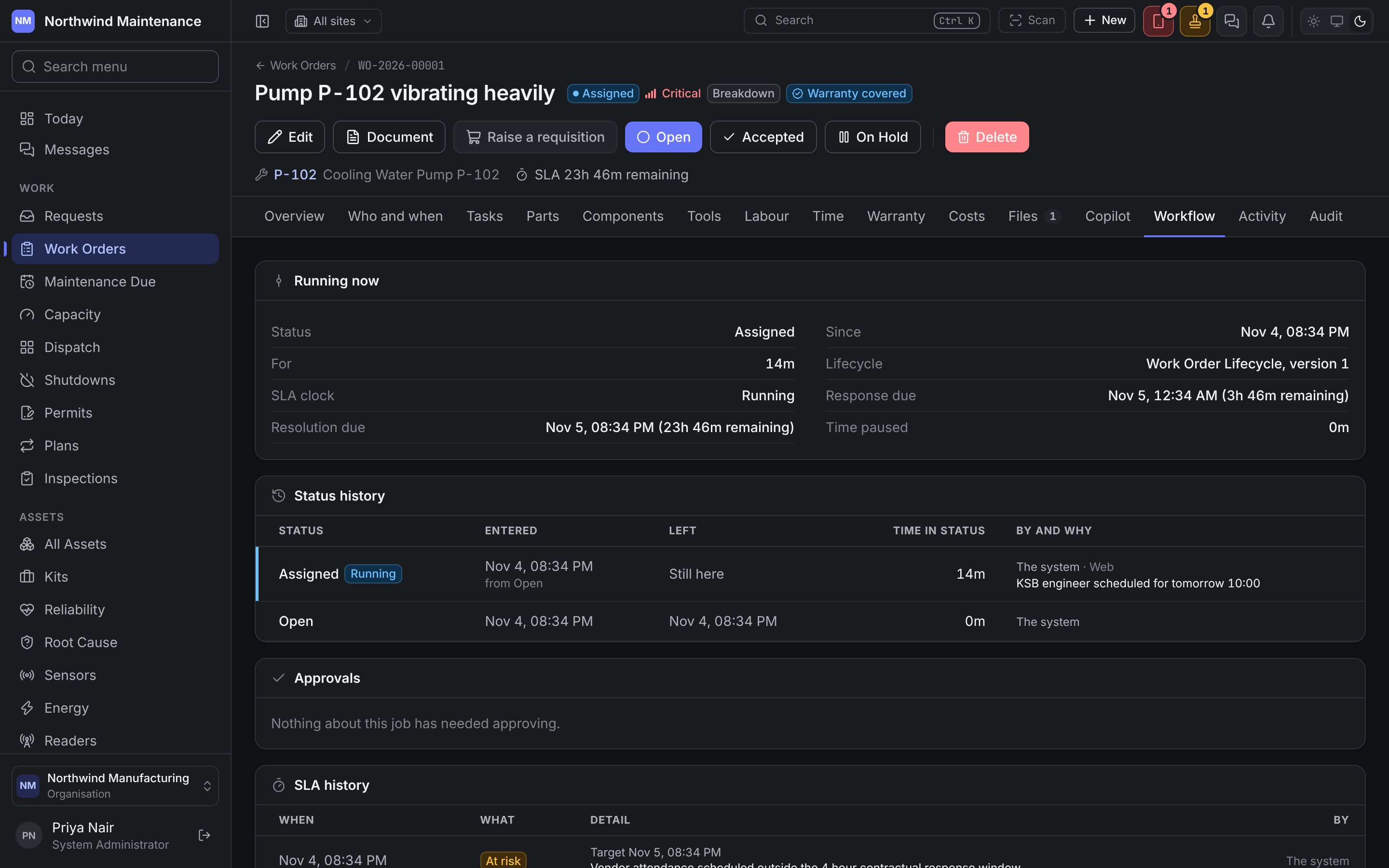
Approvals shows every approval the job’s raise, edits and moves have been held for, decided or still waiting, with each step’s decision — the same chain and Rollbacks and revisions trail as anywhere else. “Nothing about this job has needed approving.” means there have been none.
SLA history lists what happened to the job’s targets: Target set, Response met or Response breached, At risk, Resolution met or Resolution breached, Clock paused and Clock resumed, each with When, the Detail — the target, how far overdue, the contract it came from, and any note — and By whom. “No SLA on this job” means no contract, priority or plan has given it a deadline.
Two more sections appear only on a job that has asked for more time:
The tab refreshes itself while it is open.
Activity
Audit
The full change record: every field, its old and new value, who changed it and when. Every change is recorded as it is made and never edited afterwards. A value that points at another record is shown as that record’s name. Only visible to people with Read the audit trail — normally administrators and auditors.Editing a work order
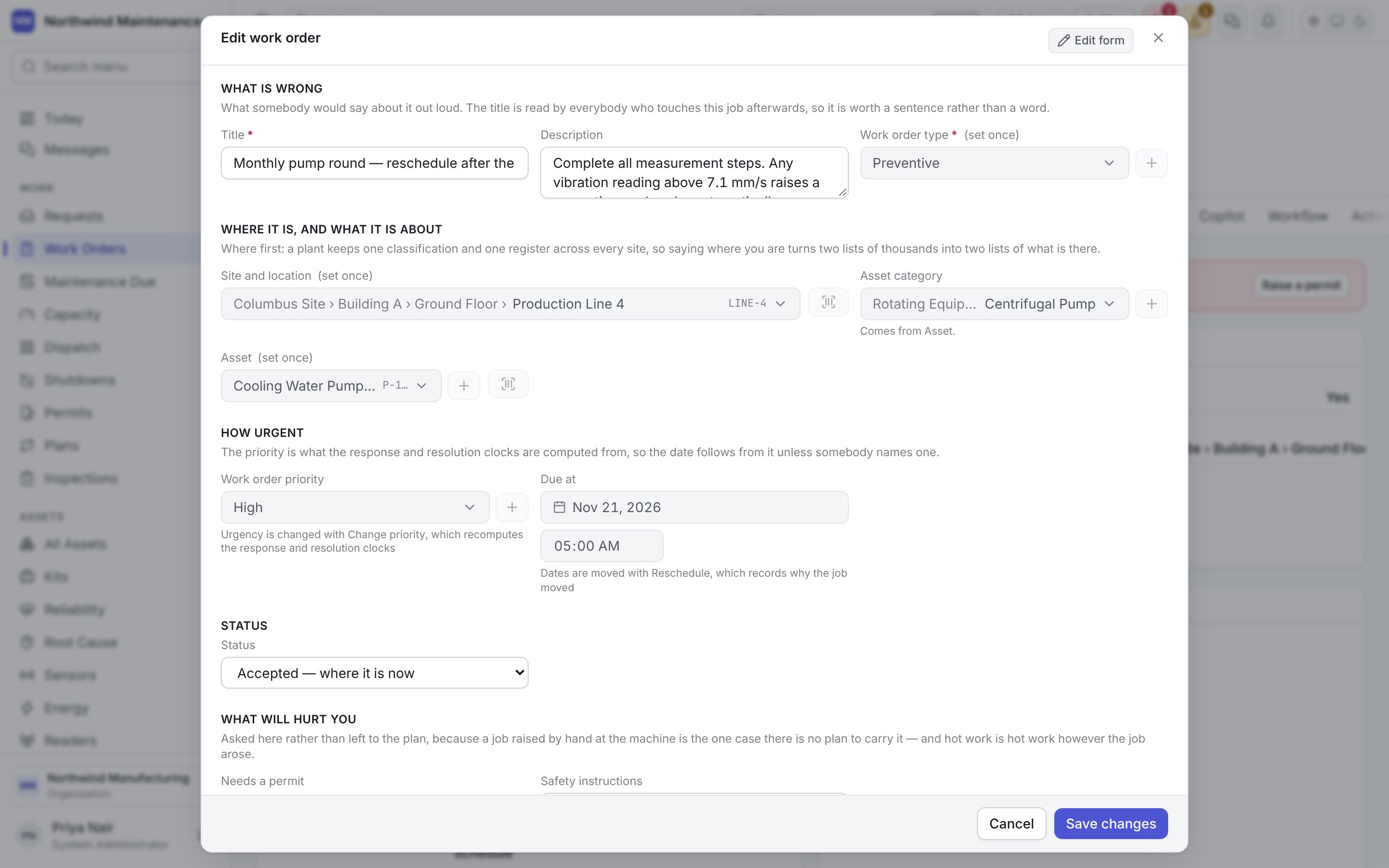
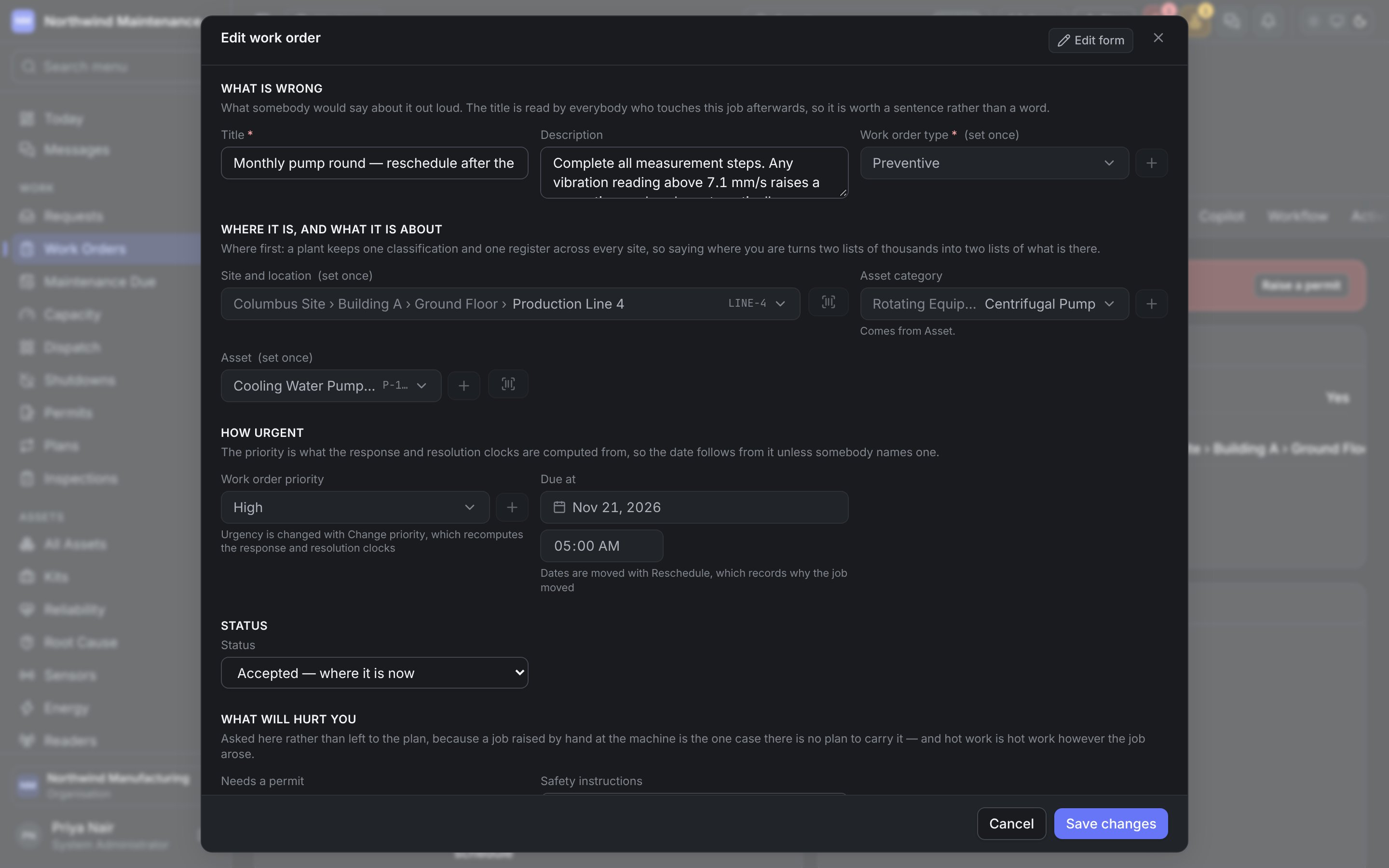
- Work order priority and the dates are shown but locked, with a note naming the action that changes them: “Urgency is changed with Change priority, which recomputes the response and resolution clocks” and “Dates are moved with Reschedule, which records why the job moved”. Use Change priority and Reschedule on Who and when.
- Work order type, Site and location and Asset are set once, when the job is raised, and are locked on the edit form with “(set once)”. The job’s service level was worked out from them and its labour and parts were filed against them, so a job raised against the wrong thing is raised again rather than corrected. Estimated duration (minutes) is set once too, but only once it has a value: until somebody gives an estimate it can be filled in here.
- When the job names an asset, Asset category follows the asset and is locked, with “Comes from Asset.” A job about a pump is always filed under the pump’s category.
- A Status box offers the moves your lifecycle allows (“Accepted — where it is now” is the resting choice). A move you pick “moves to that status when you save”; choose the current status again to leave it where it is. An assignee’s answer reads as the answer and where it goes, such as “Accept → In Progress”. An Accept that leaves the job where it is is not offered here, because it changes no status; use the button in the header.
- When it is meant to happen adds Planned start at, Planned end at and Estimated duration (minutes), which the raise form leaves out. The two planned dates are asked only of planned work — a job whose type is marked Planned — or of a job somebody has already put a planned date on. Reported by is asked only of work that is not planned. Change the type on the form and the fields swap before you save.
- In statuses that allow time booking, a Time section offers check-in and check-out.
- Edit is withdrawn while a request for more time is waiting. A form that was already open when the request went in shows the asset category locked “(held until more time is decided)”, and the rest of what you typed still saves.
- The Give it to picker names each technician with how many open jobs they already have, for example “Rohit · 3 open”. Their worker number still finds them when you type it.
- Additional assignees, under Give it to, lists everybody else on the job — support, a supervisor, an observer — with whether each has Accepted or is Not accepted yet, or says “Nobody else is on this job.” People with Assign or reassign work orders see + Add somebody else: choose a person and their role (support, supervisor or observer) and press Add. They are shown as Added on save until you save. Only people can be added this way, not crews or suppliers, and nobody can be taken off the job from here.
Related
The lifecycle
Every default status and move.
Permits
The permit a job may need before it can start.