
The header
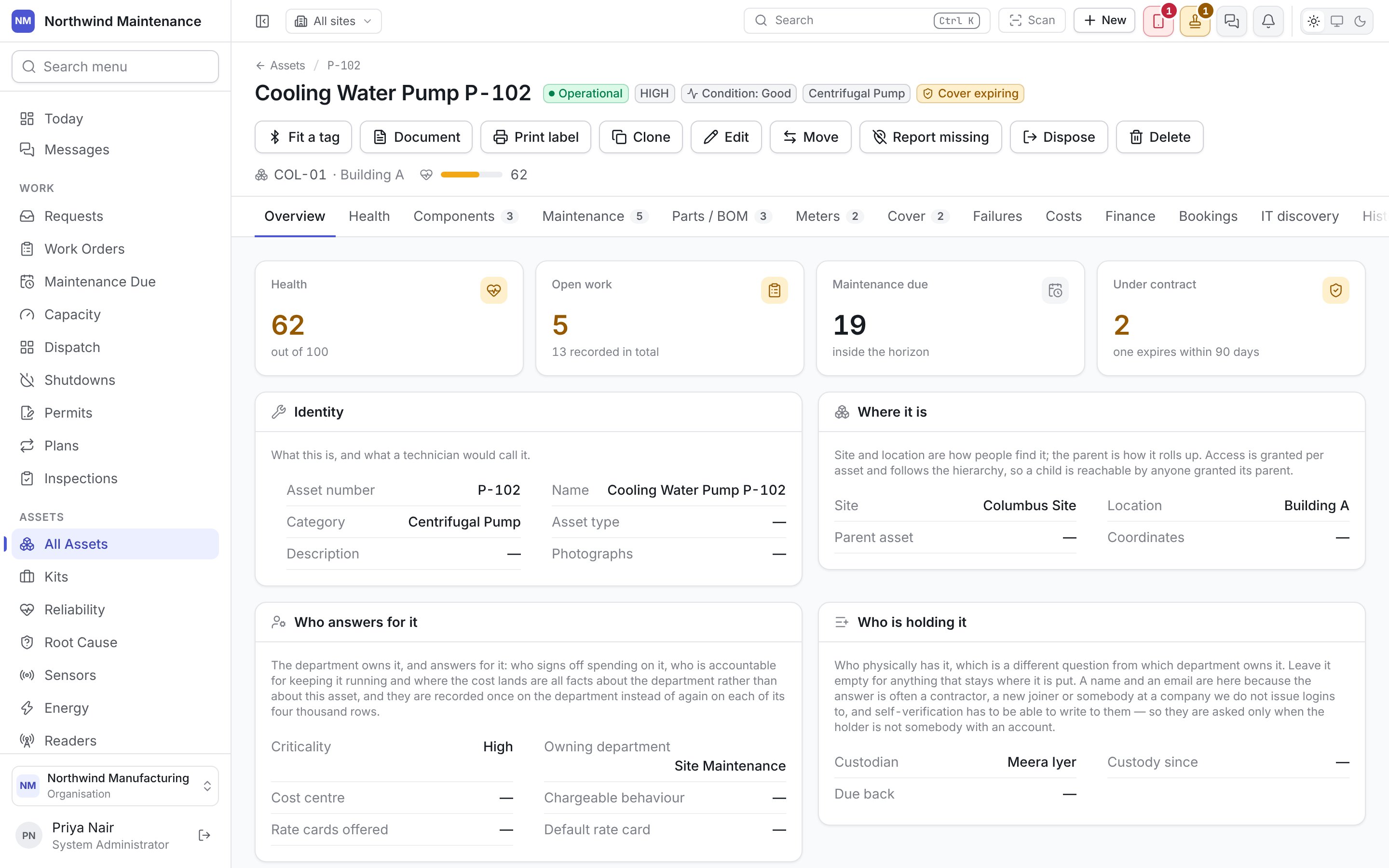
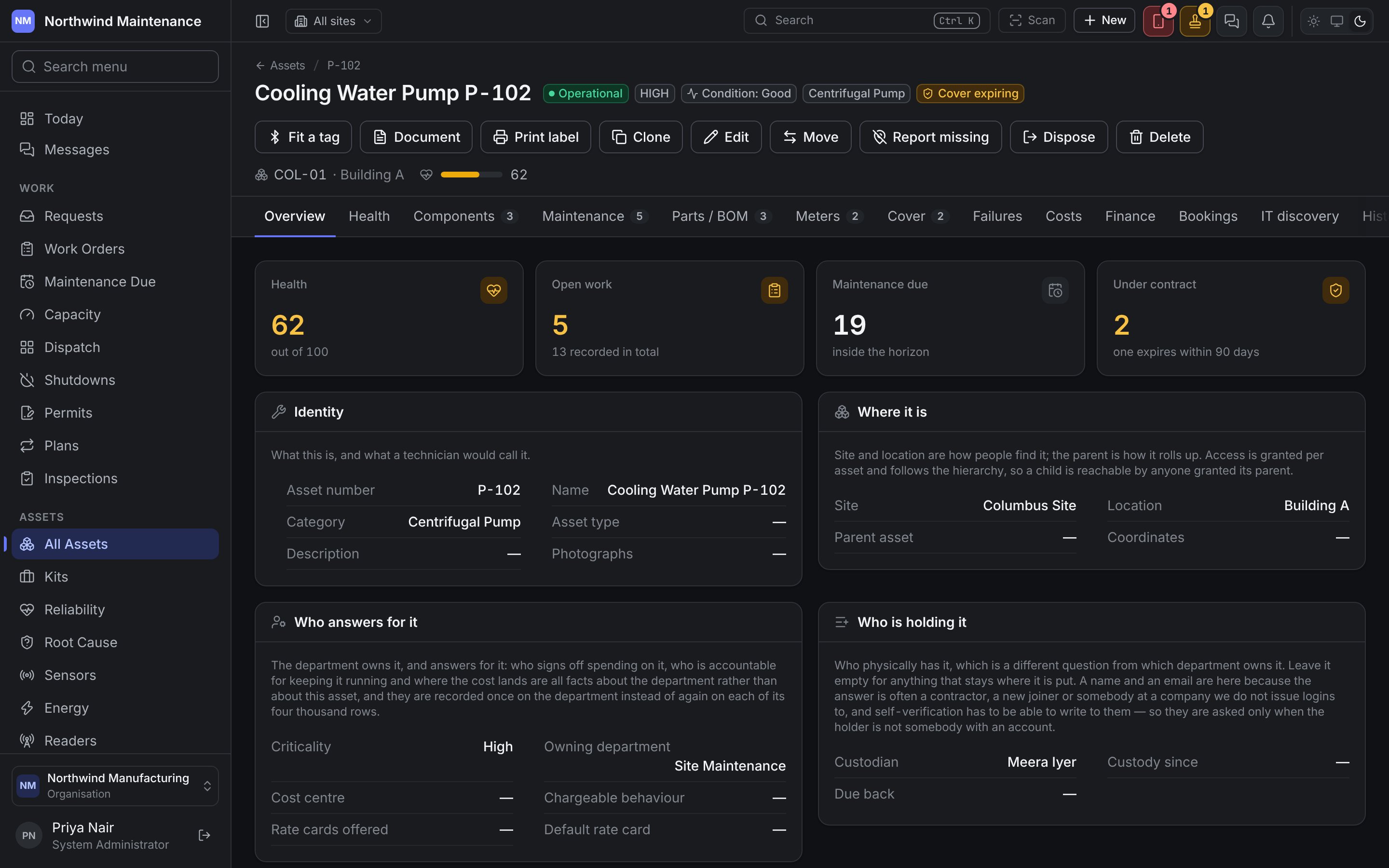
The top of the screen says what the asset is and how it stands, before you open any tab.Header actions
While an approval is open
When an edit, a move, a transfer or a disposal of the asset is waiting for approval, the asset is held whole until somebody decides it. Edit, Move, Report missing, Dispose and Delete are withdrawn, an Awaiting approval link to Approvals stands where Delete was, and a line at the top of the screen says This record is waiting for approval and cannot be changed yet. The buttons come back as soon as the request is approved, rejected or sent back.While it is missing
When the asset has been reported missing, a banner above the tabs says so, whichever tab you open: Missing since the date it was reported (or Reported missing — waiting for approval), when and where it was Last seen, any Reference, what happened, and who reported it. Its buttons are the ways out of it:Tabs
Some tabs appear only when they have something to say, or when your organisation uses the module behind them.
A number beside a tab is a count: open jobs on Maintenance, fitted components on
Components, upcoming bookings on Bookings, moves on History, files on Files.
Overview
Up to four tiles across the top, then every answered question from the asset form, arranged in the same sections as the form. A tile appears only where your organisation uses the module behind it.
Below the tiles are the sections Identity, Where it is, Who answers for it, Who is
holding it, Nameplate and paperwork, Dates and expected life, What it cost, and what it
would cost again and Status. Each field is explained under
adding an asset.
Health
The health score, and how it was arrived at.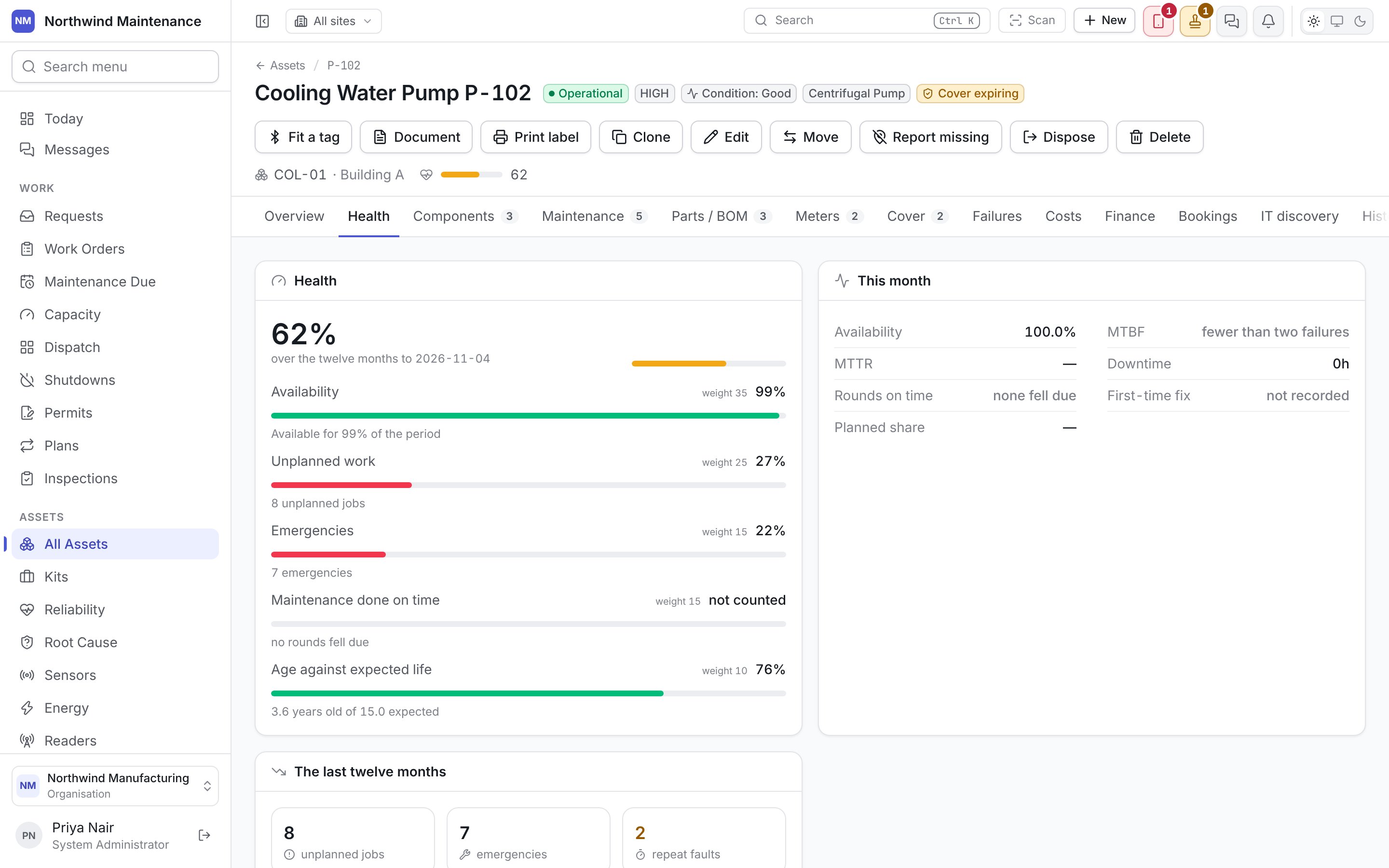
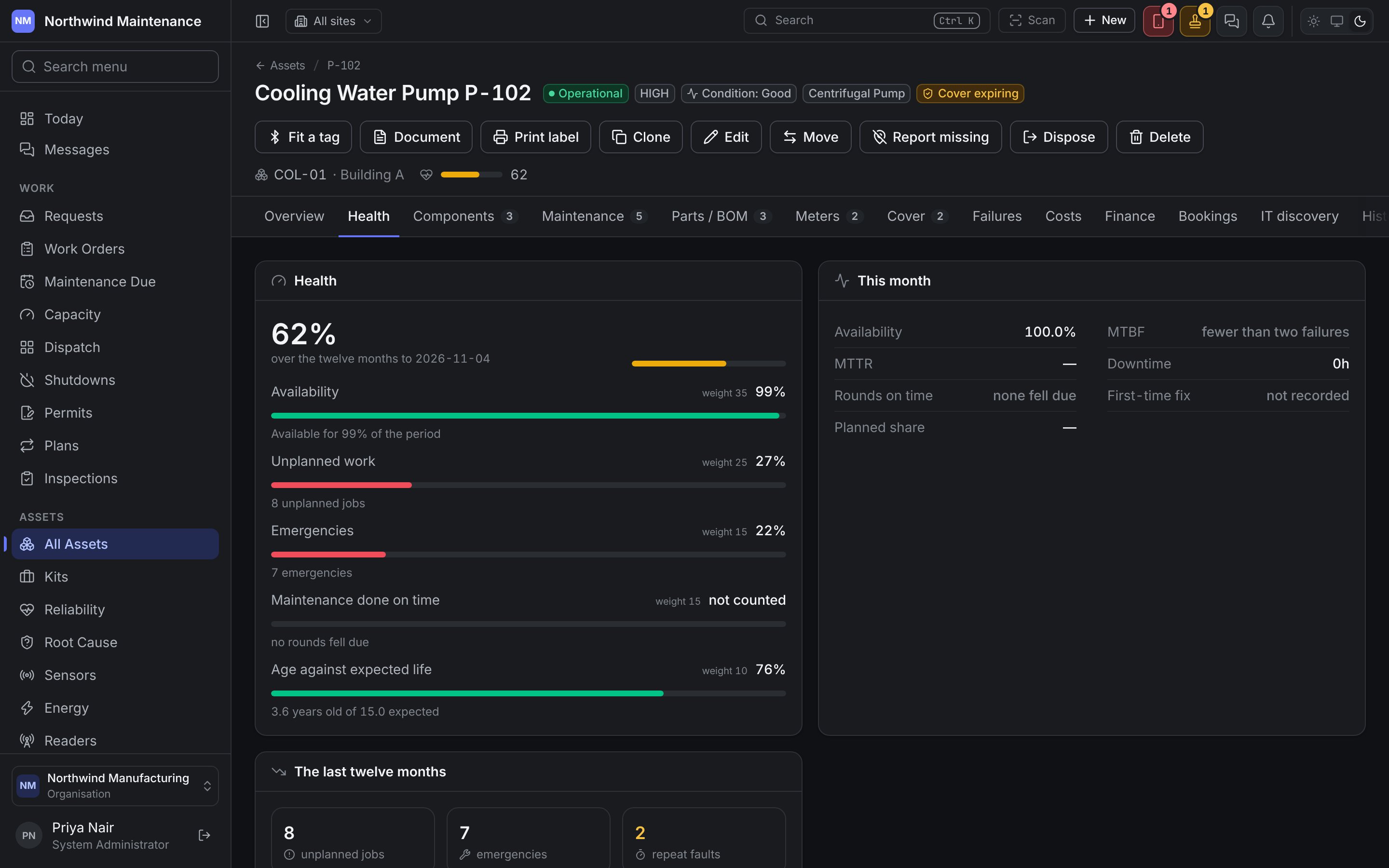
Below the breakdown, This month shows availability, MTBF, MTTR, downtime, rounds on time,
first-time fix and planned share. The last twelve months totals unplanned jobs, emergencies,
repeat faults, hours down, months on record and maintenance cost, and Month by month lists the
health, availability, failures, downtime, MTBF and cost of each month.
Read the breakdown rather than the number. A machine scoring 58 because it is old is a different
problem from one scoring 58 because it failed four times last quarter. Scores of 80 and above show
green, 50 to 79 amber and below 50 red. The same figures feed Reliability.
Components
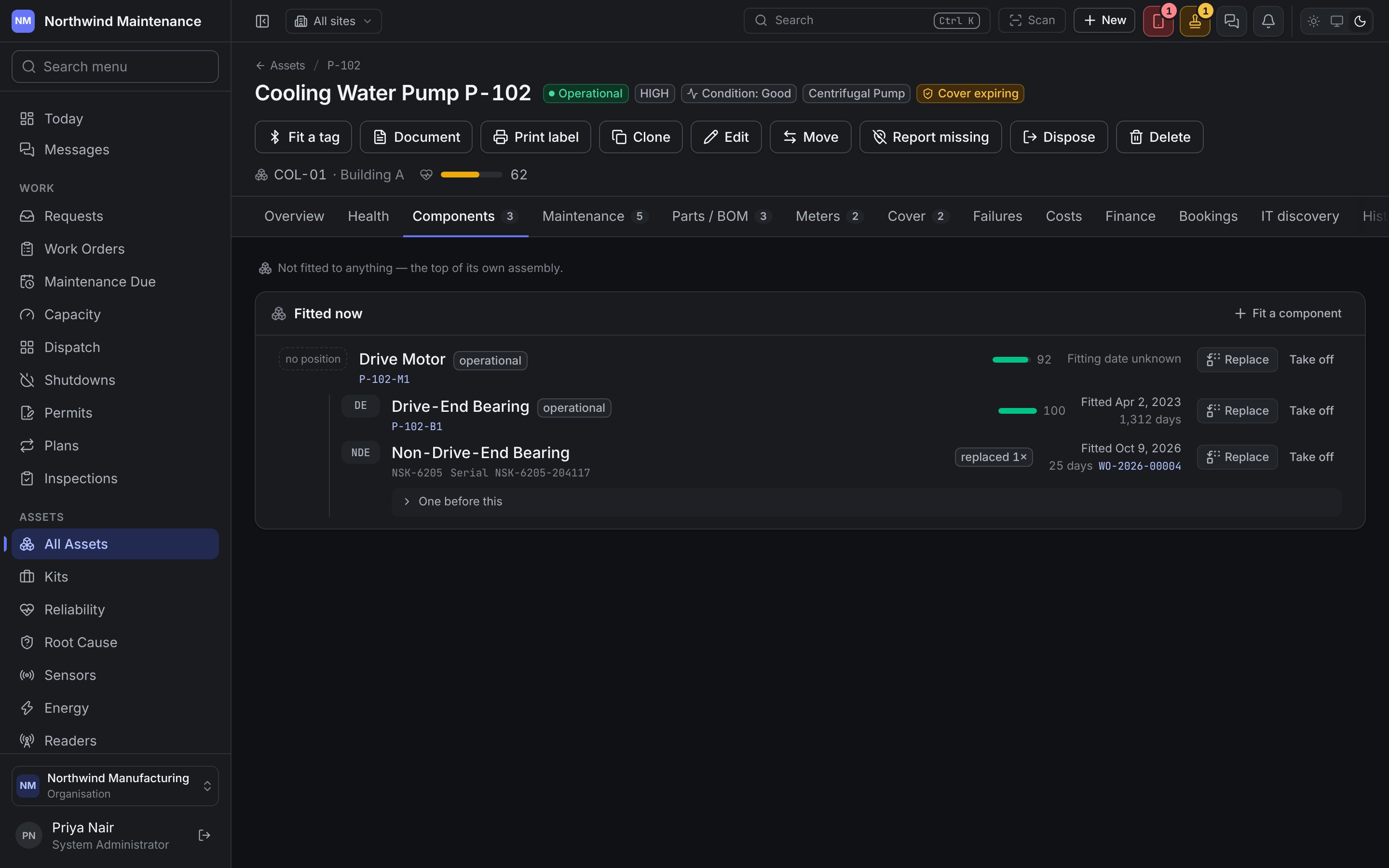
What is fitted to the machine, at every level — the pump’s motor, the motor’s bearing — and what was fitted before.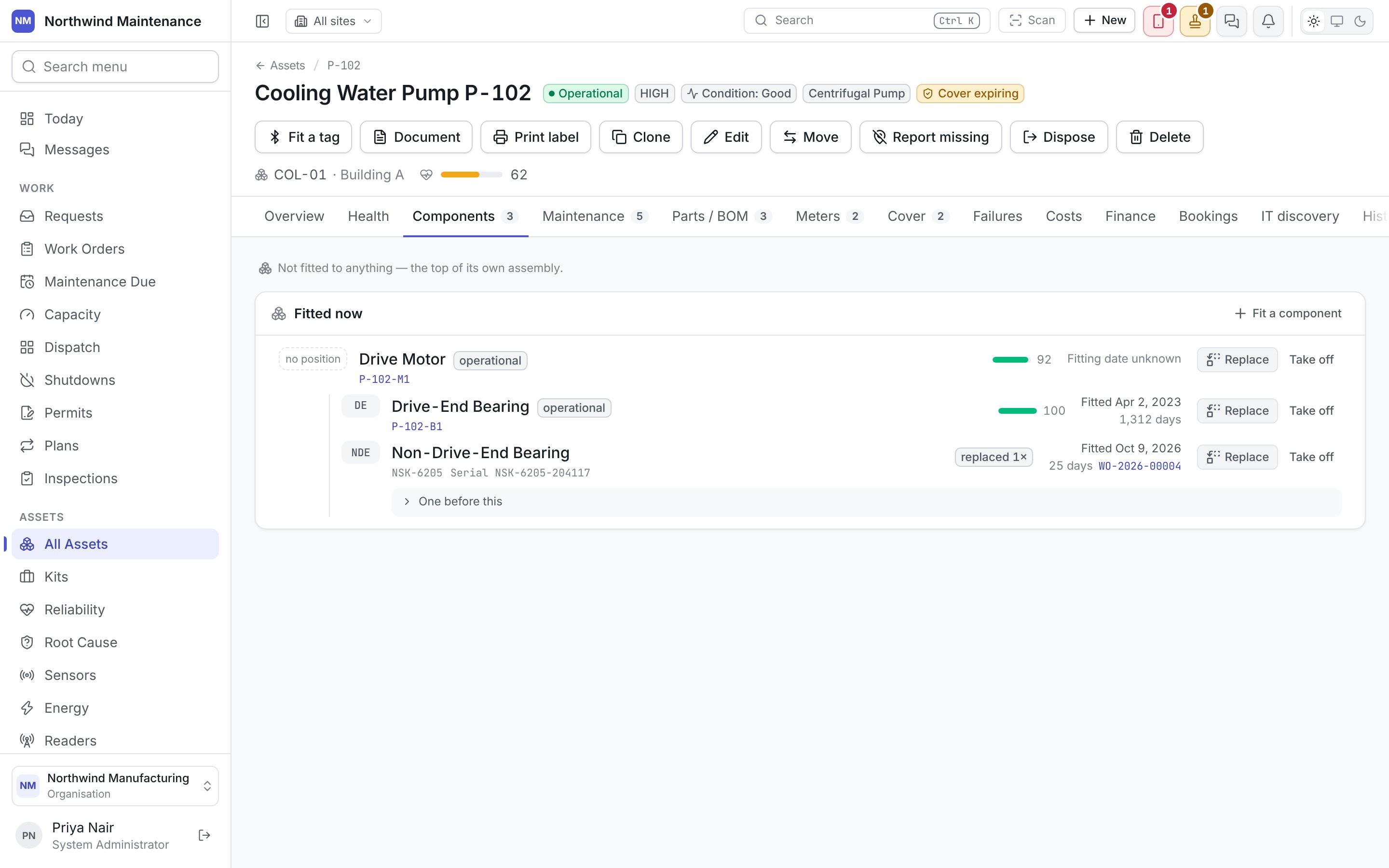
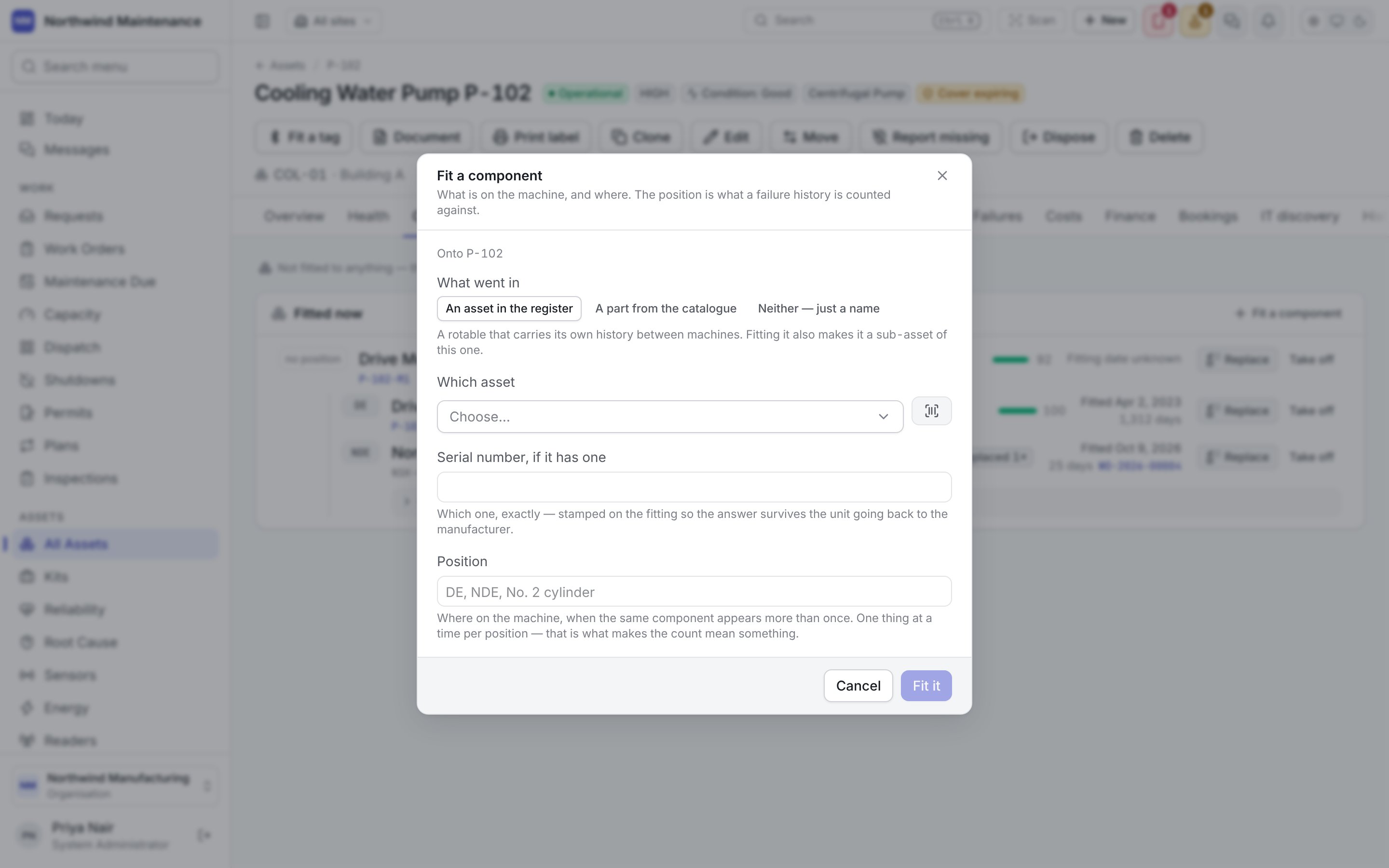
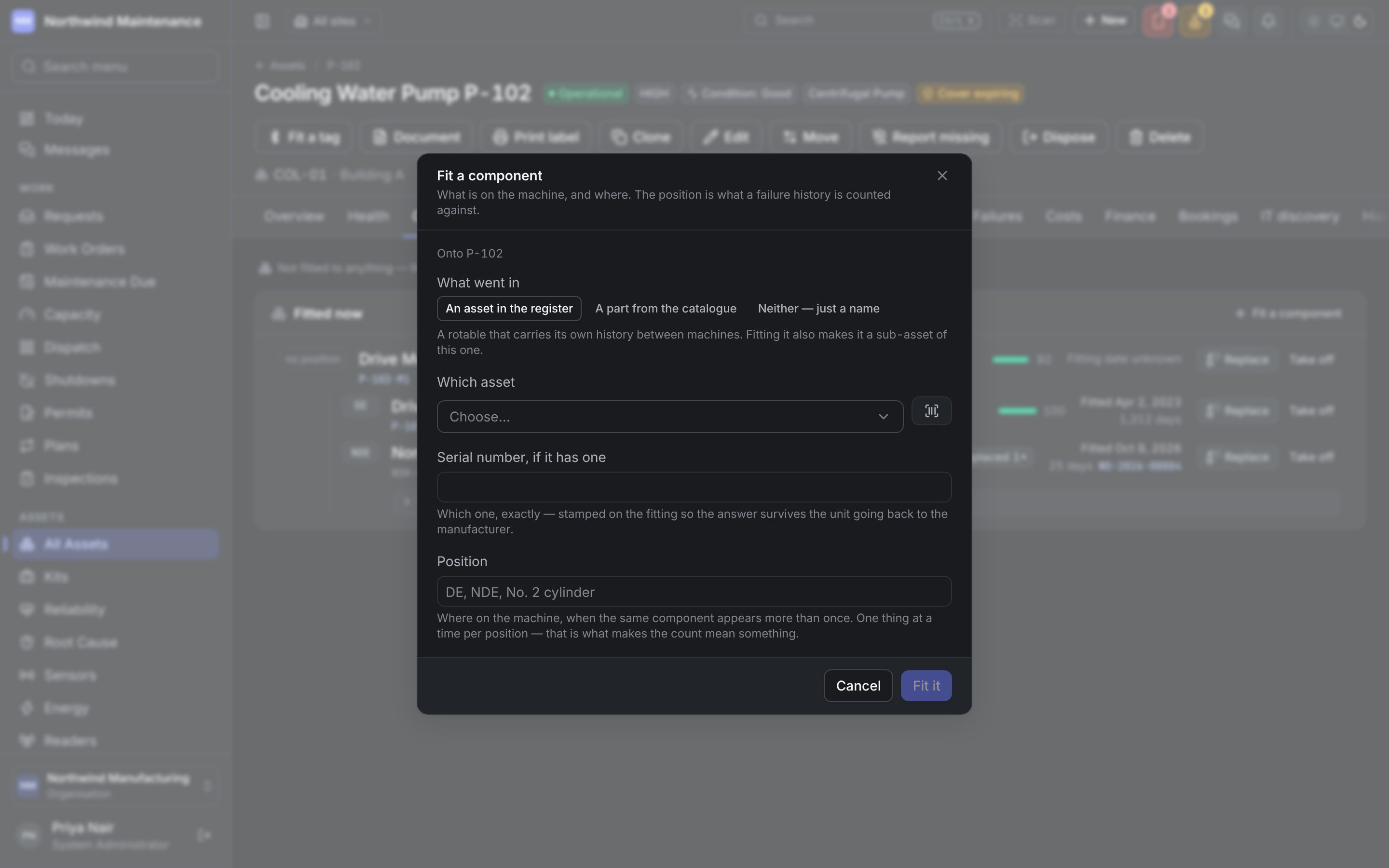
The Replace a component dialog asks the same questions, plus:
Fitting, removing and replacing need Fit, remove and replace components. The same records appear
on the work order that did the swap.
Maintenance
The plans that cover this asset, and every work order raised against it, in one place.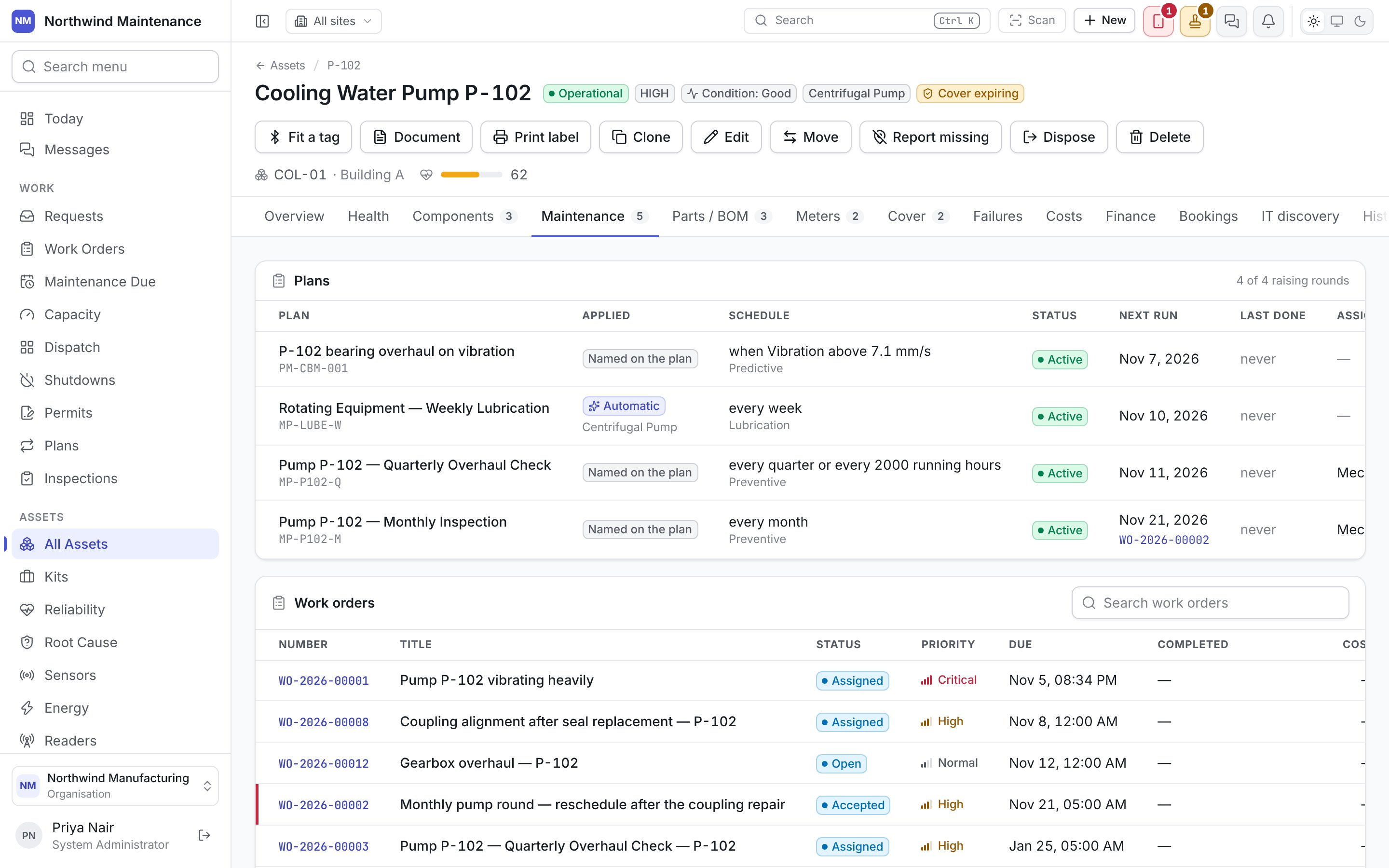
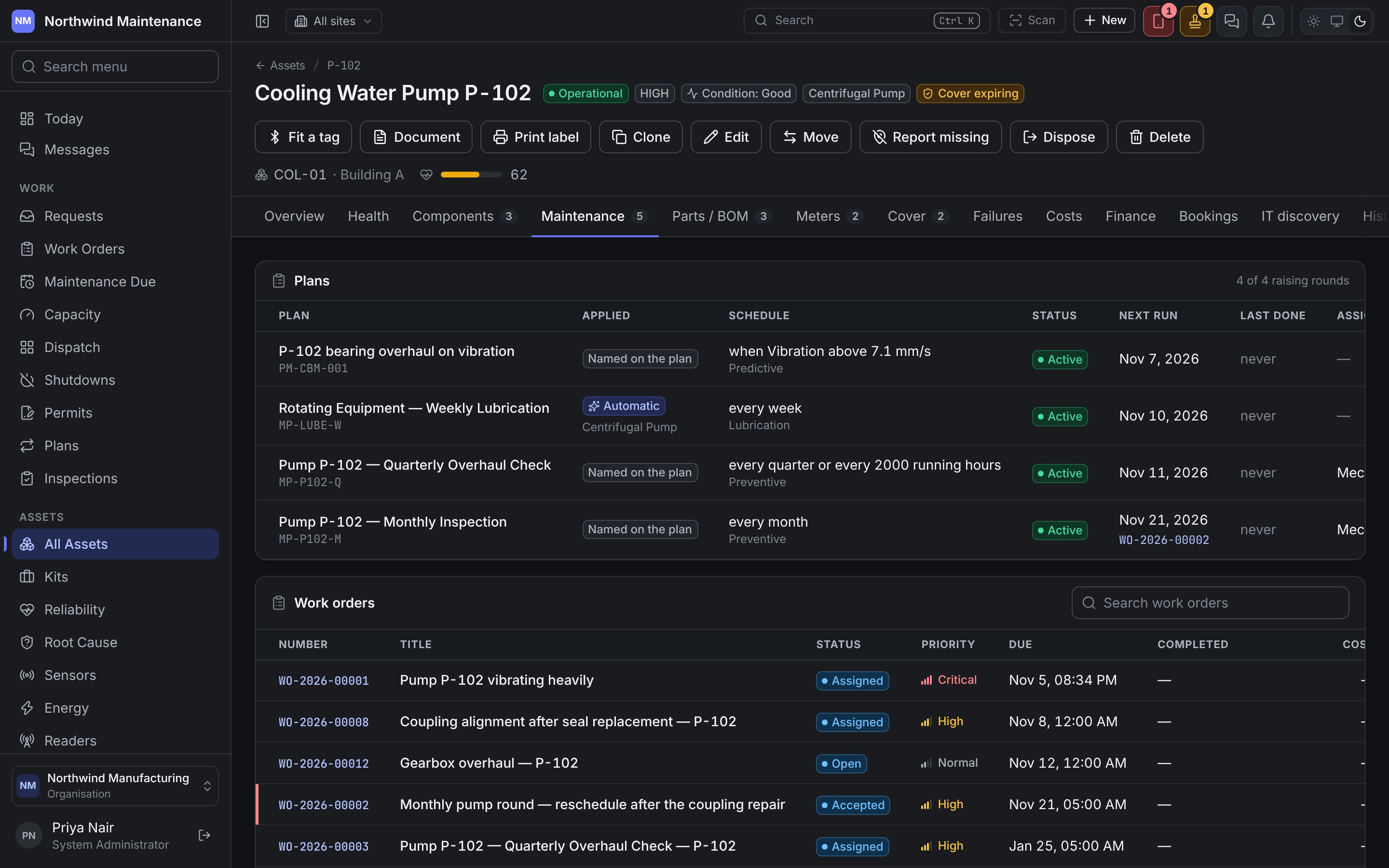
Work orders lists every job against the asset — open ones first — with its number, title,
status, priority, due date, completion date and cost. This is the machine’s repair history and the
first thing to read before deciding whether a fault is new. See
maintenance plans and work orders.
Parts / BOM
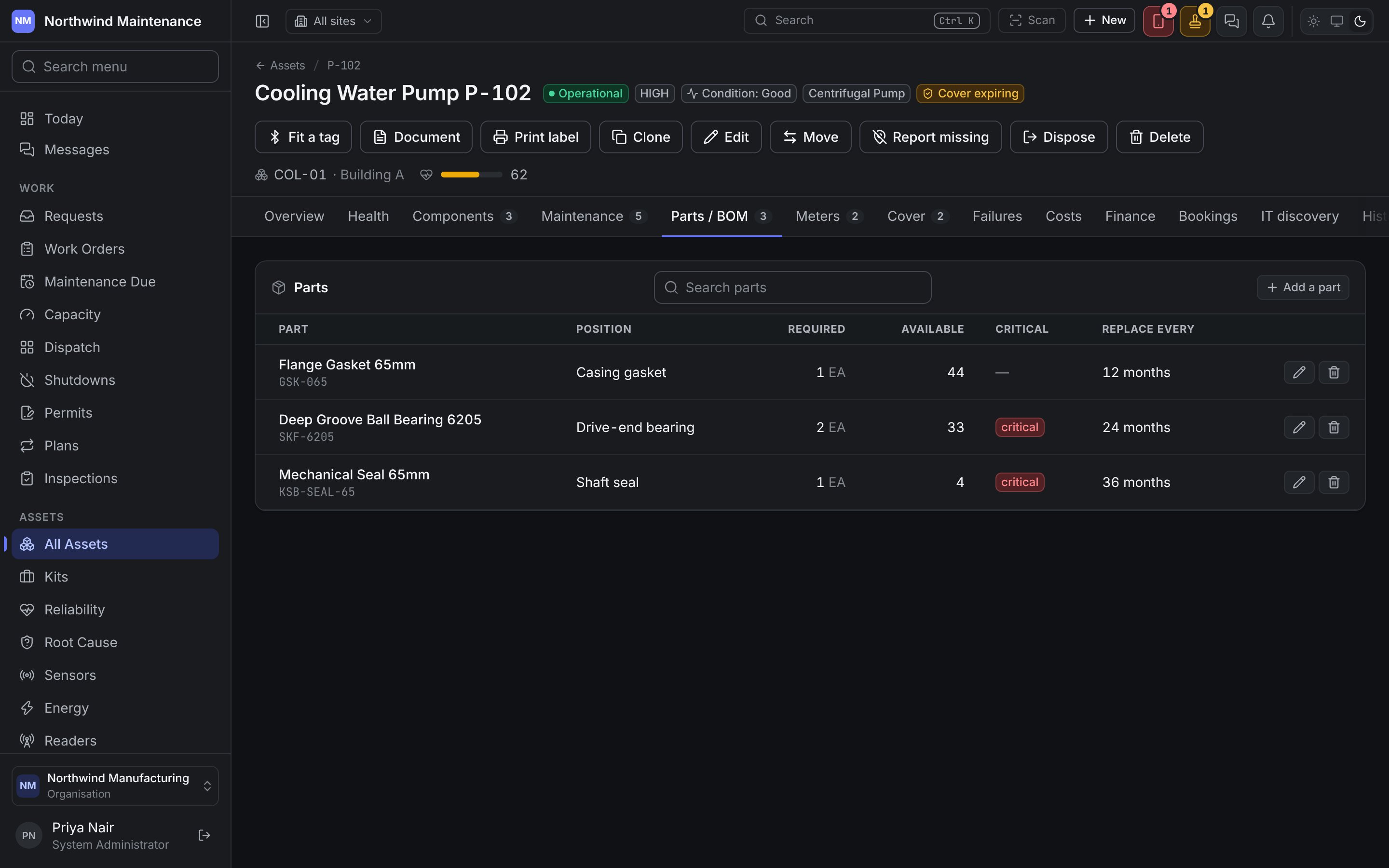
The bill of materials: which parts fit this asset and how many it uses.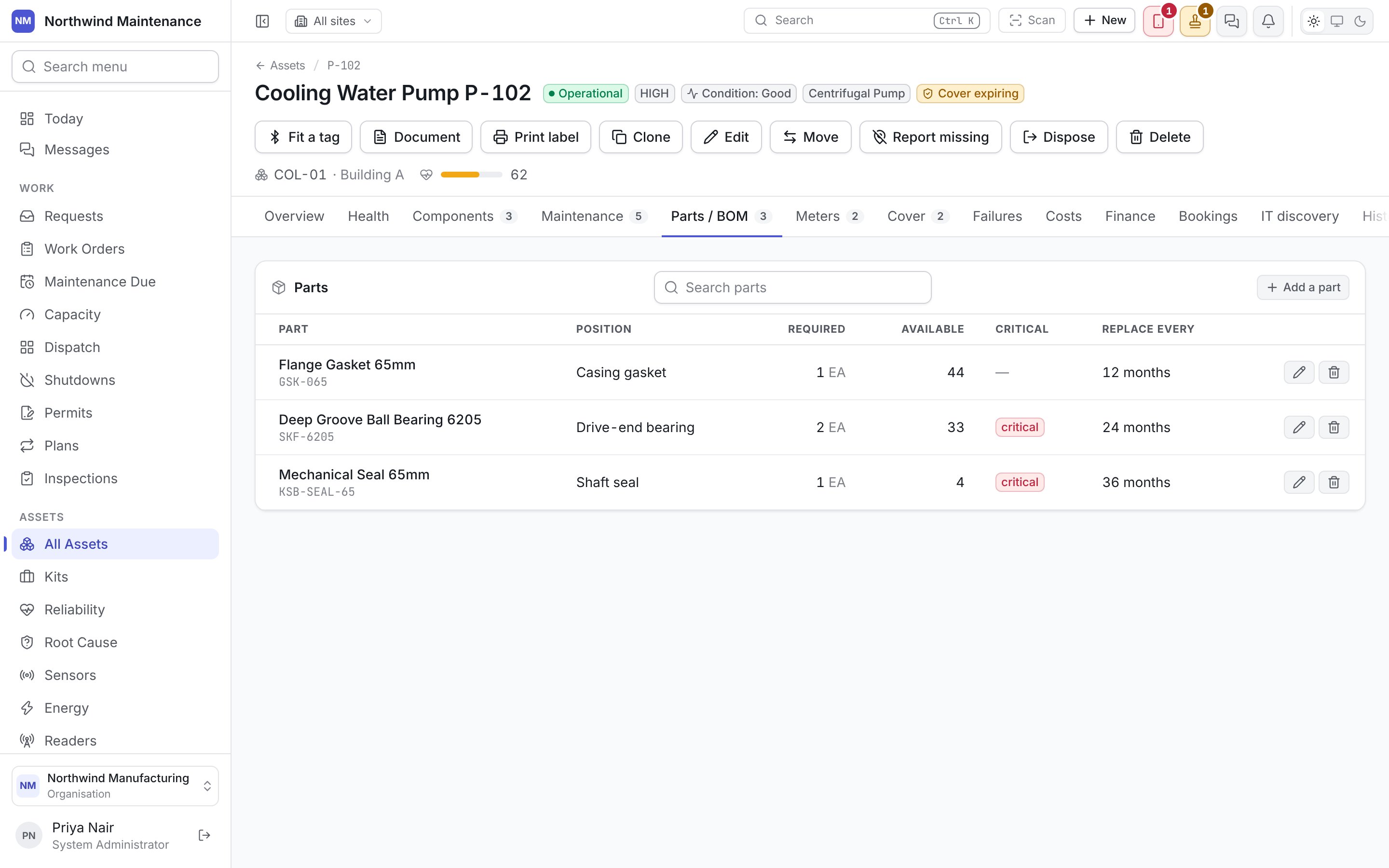
Meters
Run hours, cycles, distance, temperature, vibration — anything counted or measured on the asset, with every reading. Recent readings show any files attached to them, and a reading somebody got wrong can be corrected, with every correction kept in a Reading change log. See meters and readings for the full description, including the Add a meter, Reading and Edit reading forms.Cover
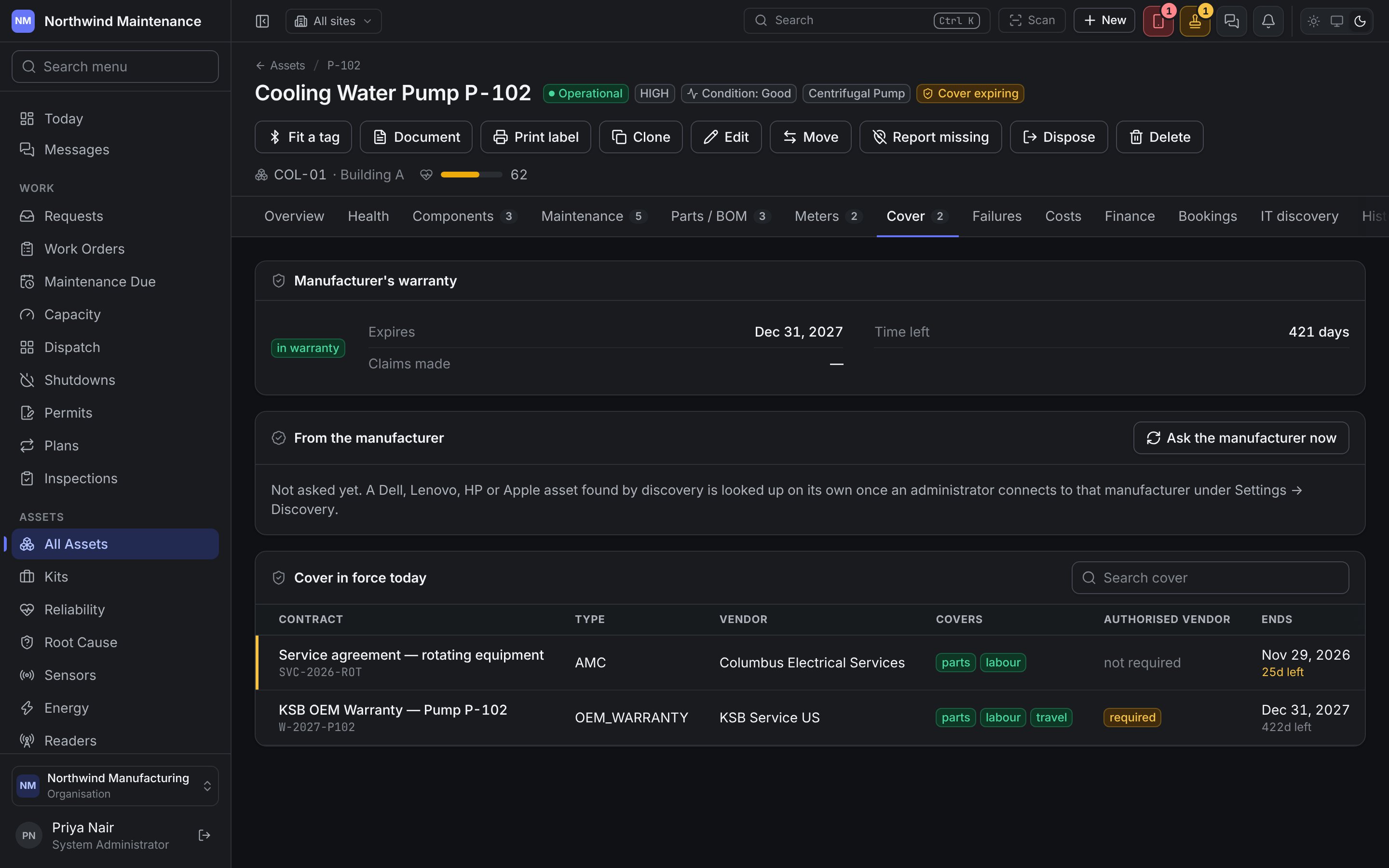
Who pays if this breaks: the manufacturer’s warranty and every contract covering the asset.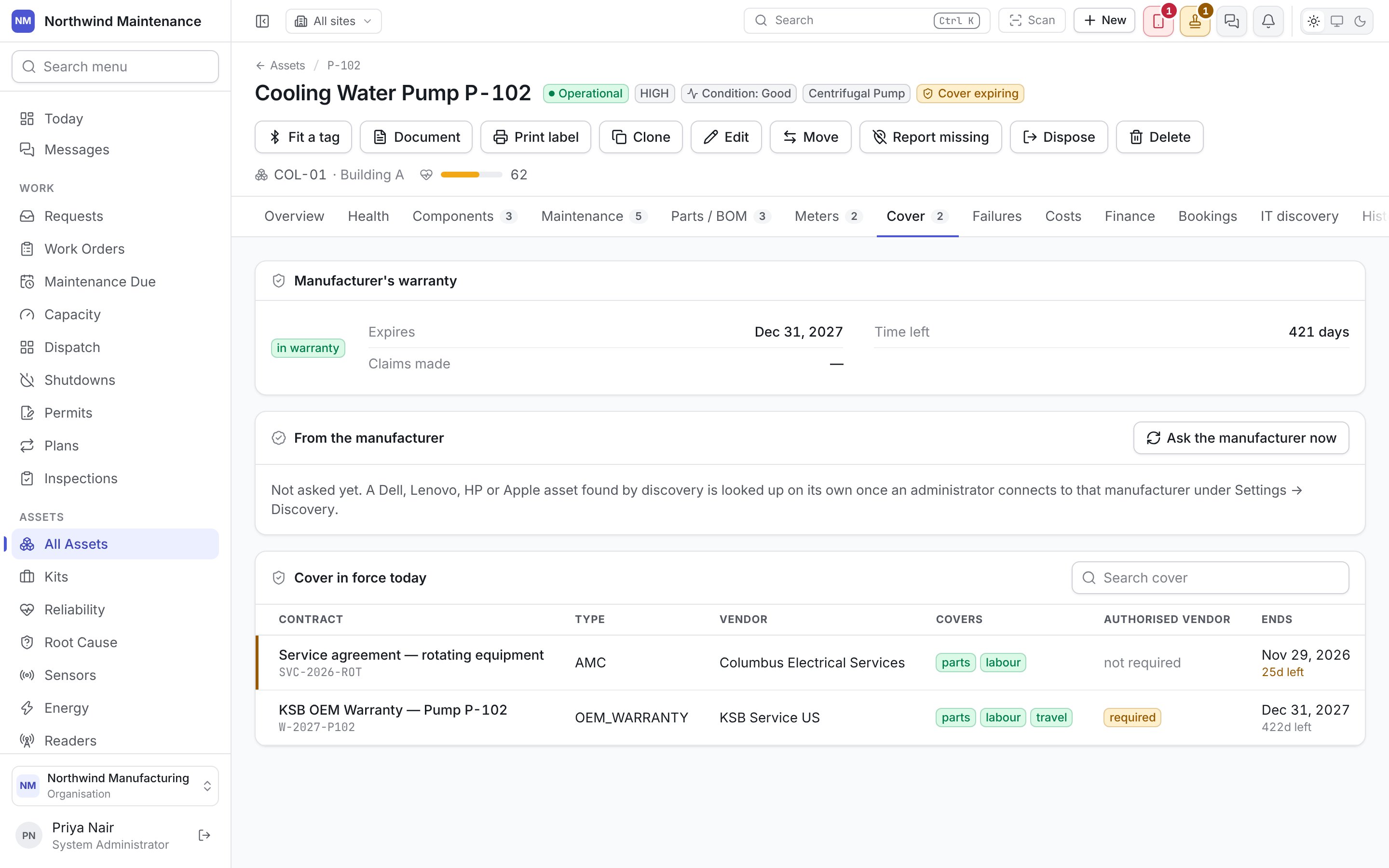
The manufacturer’s end date fills the asset’s Warranty expires on only while nobody has typed one.
When the two disagree, the panel says so and leaves the asset’s date alone: a person entered it, and an
extension bought from a reseller the manufacturer never heard of is the usual reason. If the
manufacturer is right, change the date on the asset. Ask the manufacturer now looks it up again,
for people with Edit assets.
Cover in force today lists each contract: its number, type, vendor, what it Covers (parts,
labour, travel), whether an Authorised vendor must do the work, and when it Ends. When
nothing applies, work on the asset is billed internally. Warranty and contracts share a tab because
they answer the same question. See contracts and
entitlements and claims.
Failures
Inspection findings — inspection items on this asset that failed against their limits — with the finding, whether it is critical, its status, when it was recorded, the expected value, and the work order raised from it (or not raised). The count on the tab is the findings still open. See inspections. Failures classified on work orders are analysed on Root cause and Reliability.Costs
What the asset has cost to keep running, and whether it is worth keeping.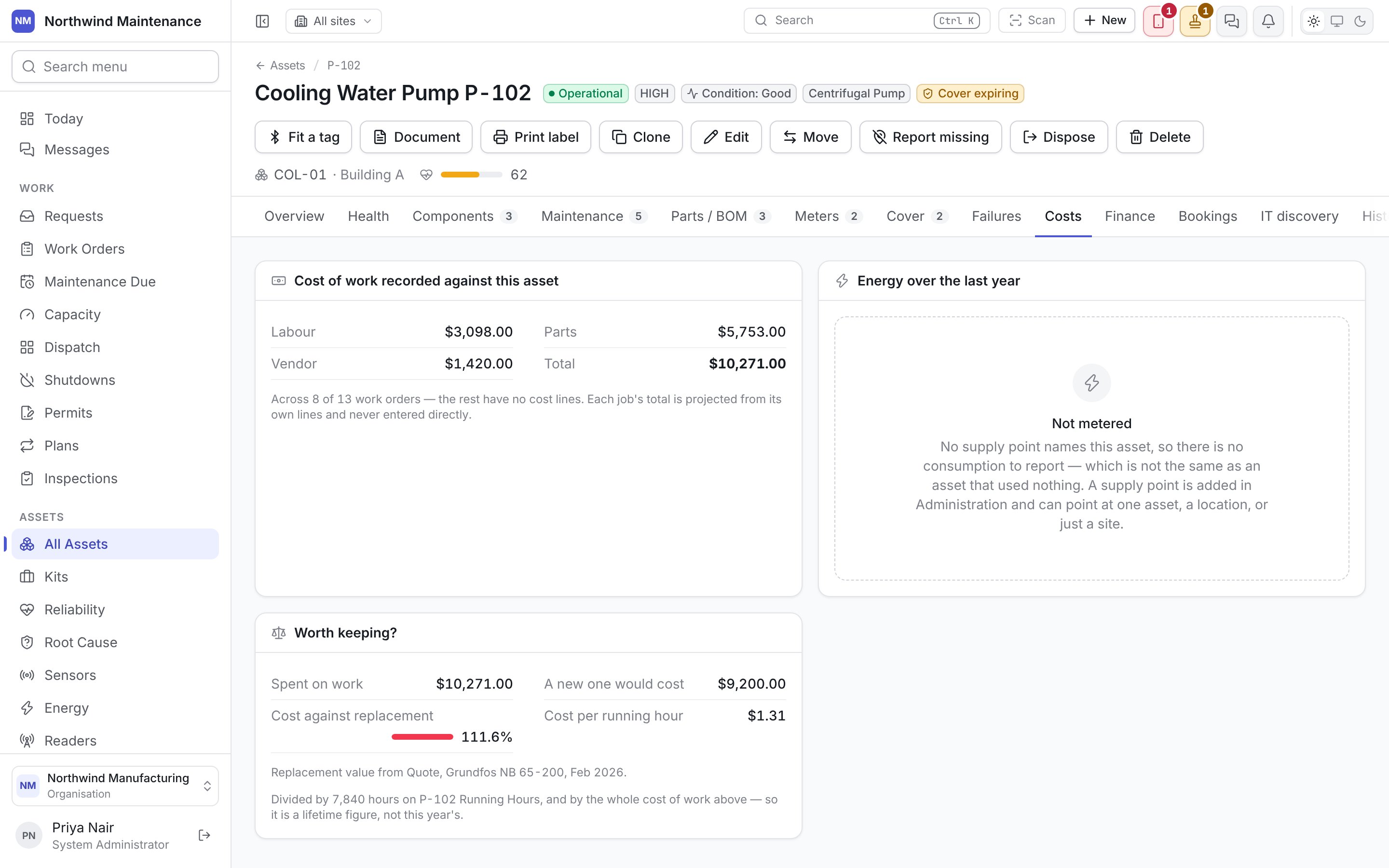
Finance
What the asset is worth in every depreciation book that carries it — carrying amount, method, policy, class, in-service date, residual value, this year’s charge, periods charged and left, and any revaluation reserve — with Capitalise, Dispose, Revise the estimate, Revalue and Write it down for finance users. See depreciation.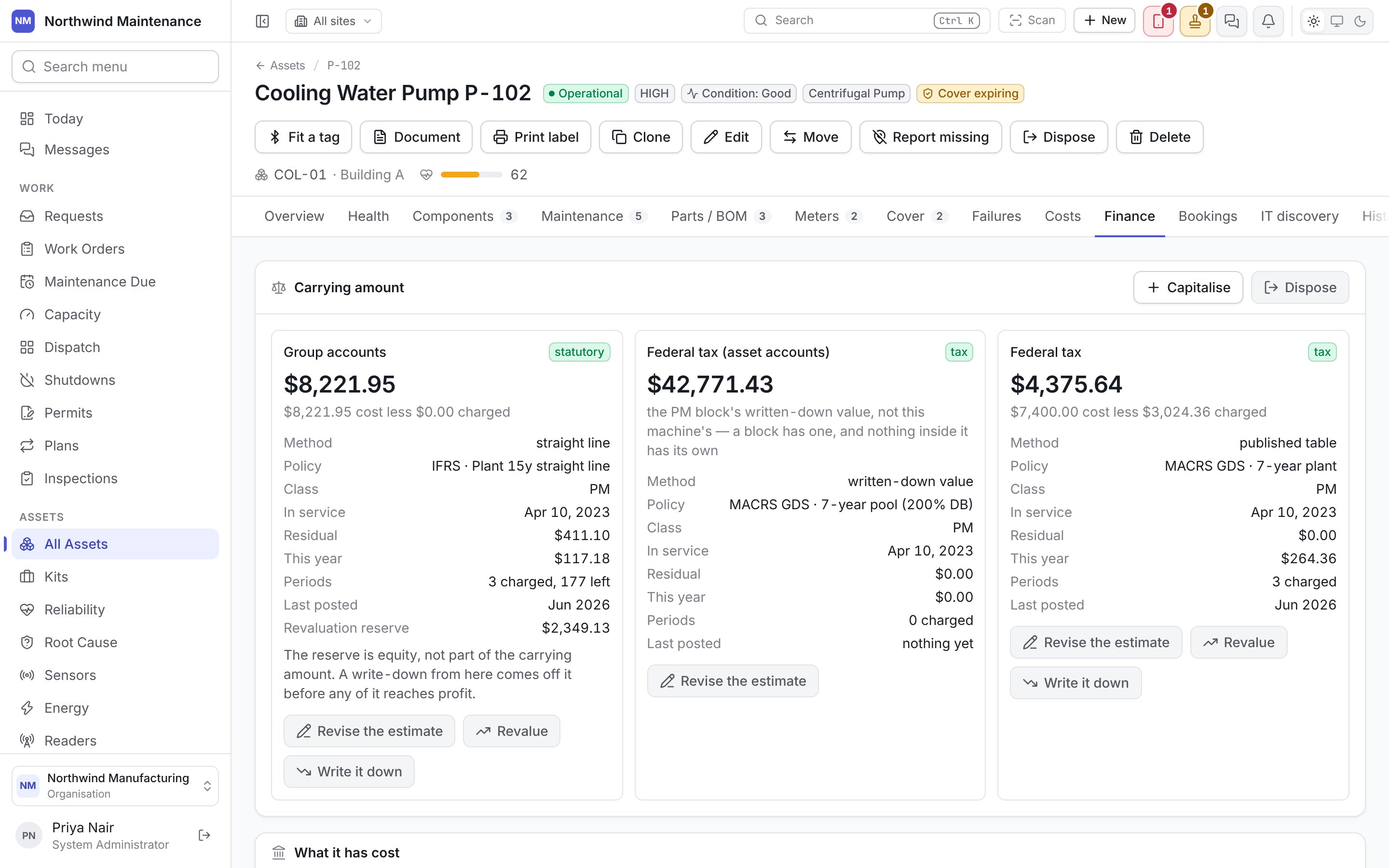
Bookings
What the asset is promised to and to whom — the whole booking history, not only what is coming up.
See bookings.
IT discovery
For IT equipment found by your discovery agents and connectors: what they report about the device right now — hardware, software, network details and when it was last seen.History
Where the asset has been and what state it was in, on one tab.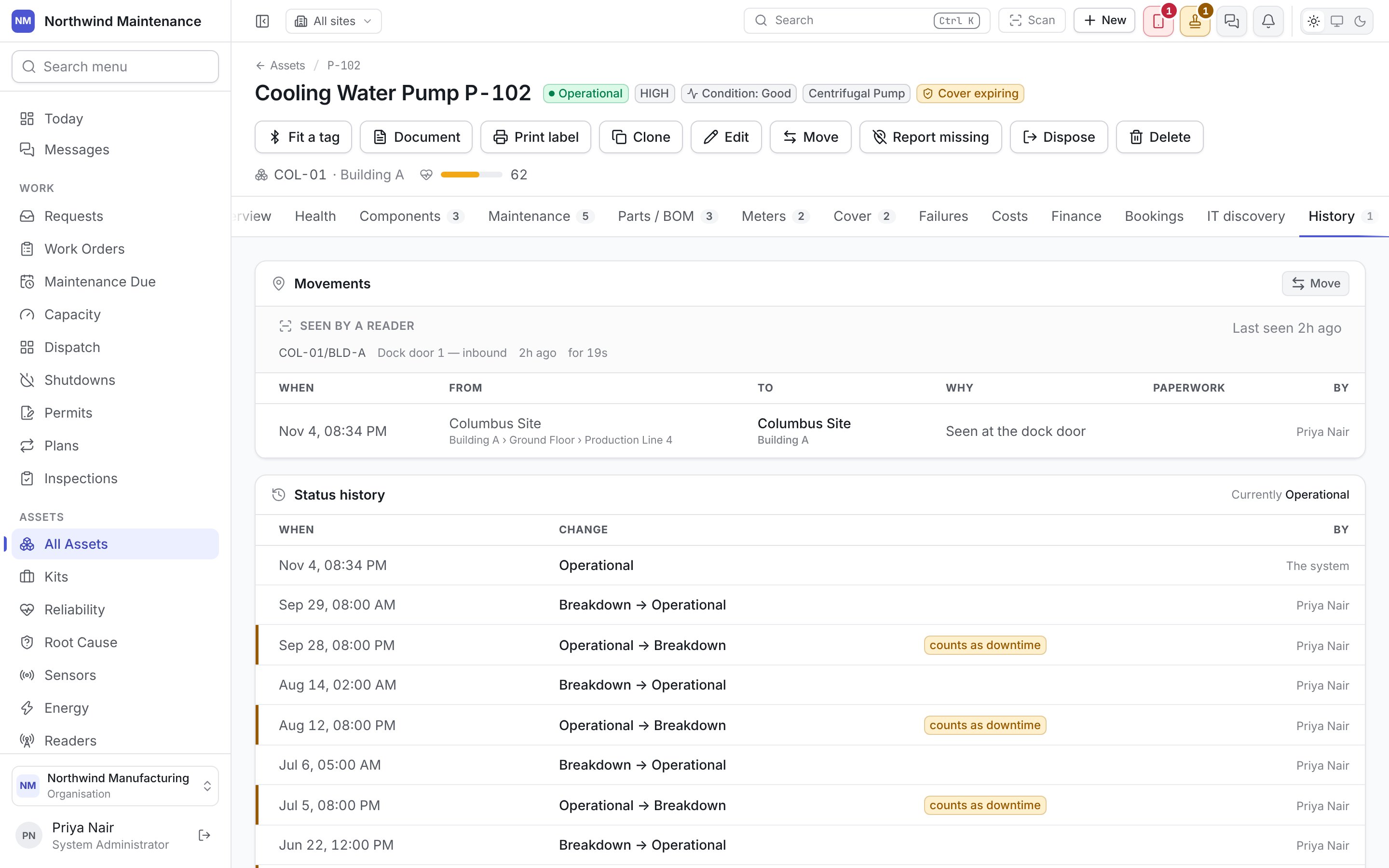
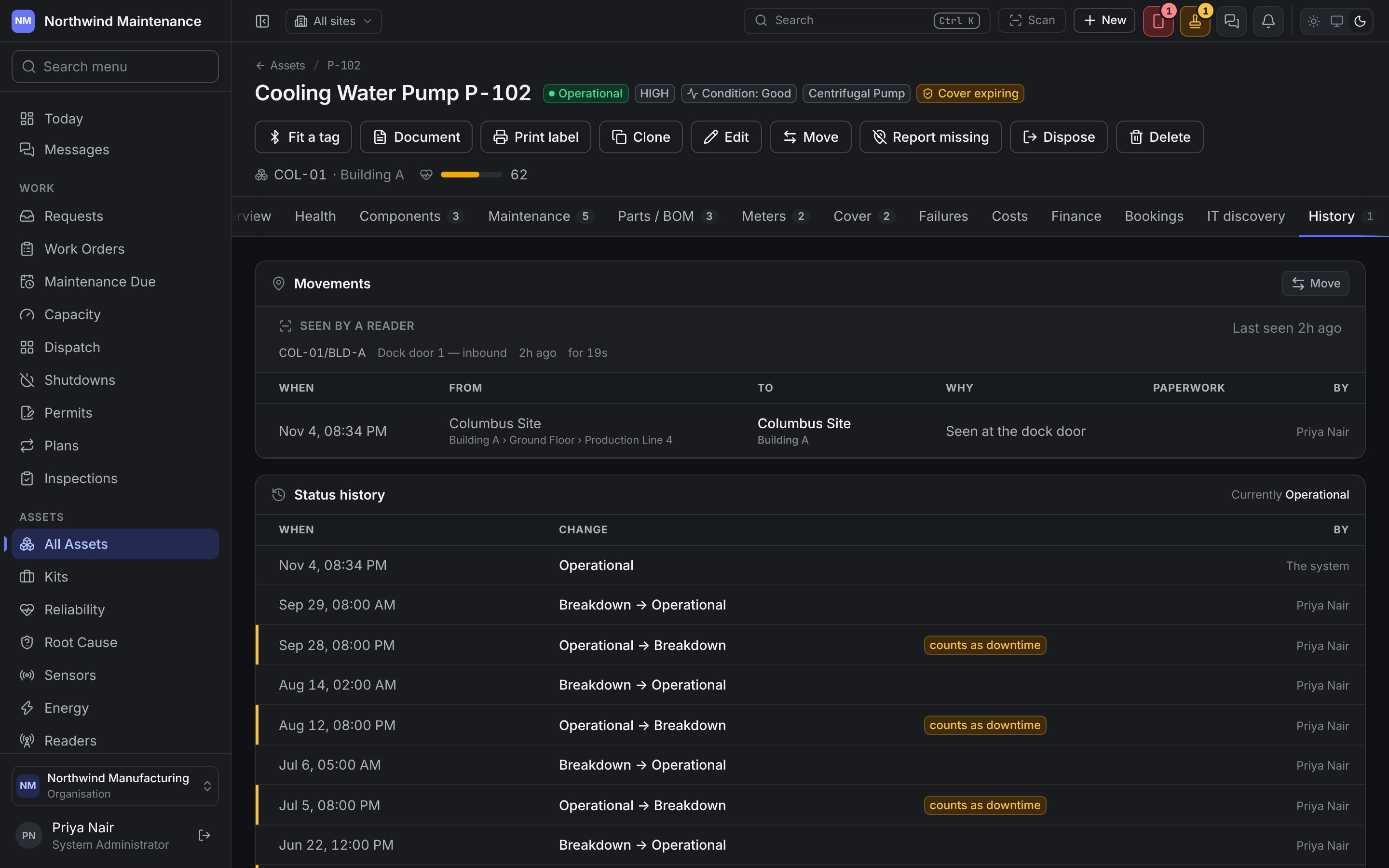
A failure investigation asks where an asset was and what state it was in, not only where it is now,
which is why both live here.
Downtime
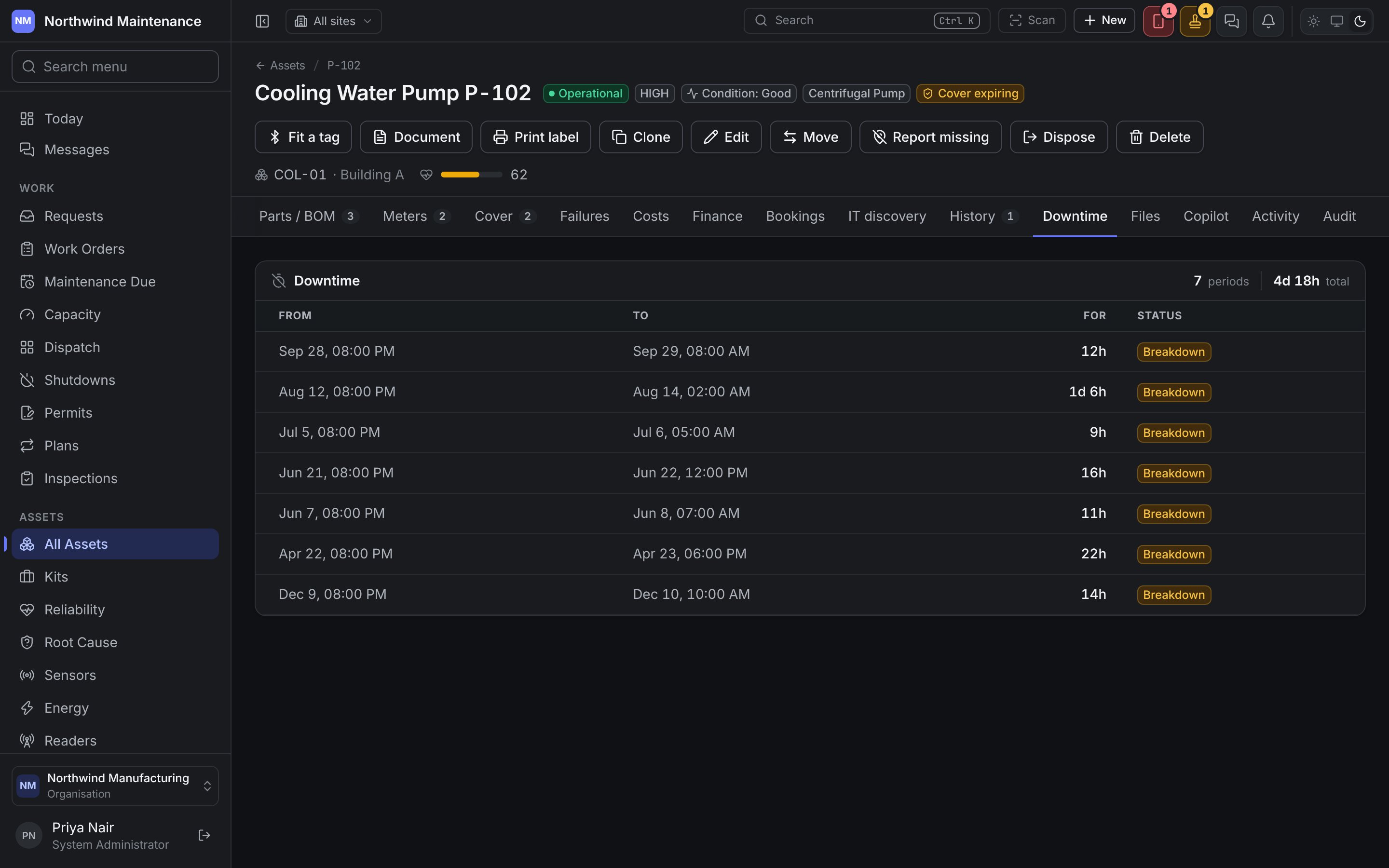
How many periods the asset has spent down and for how long in total, then each period with its start, end, duration and status. When it is down now, the tab says so and counts the time so far.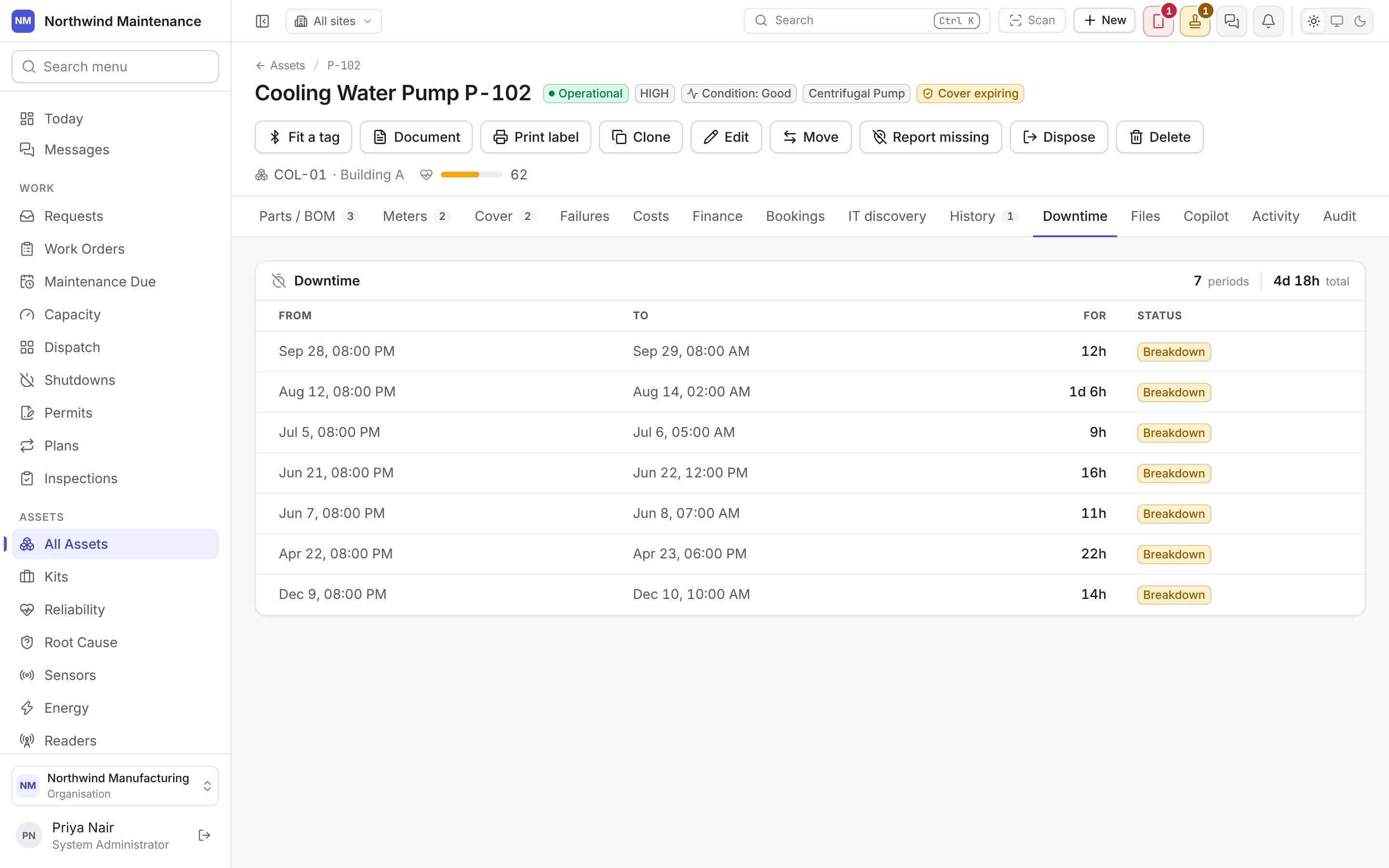
Files
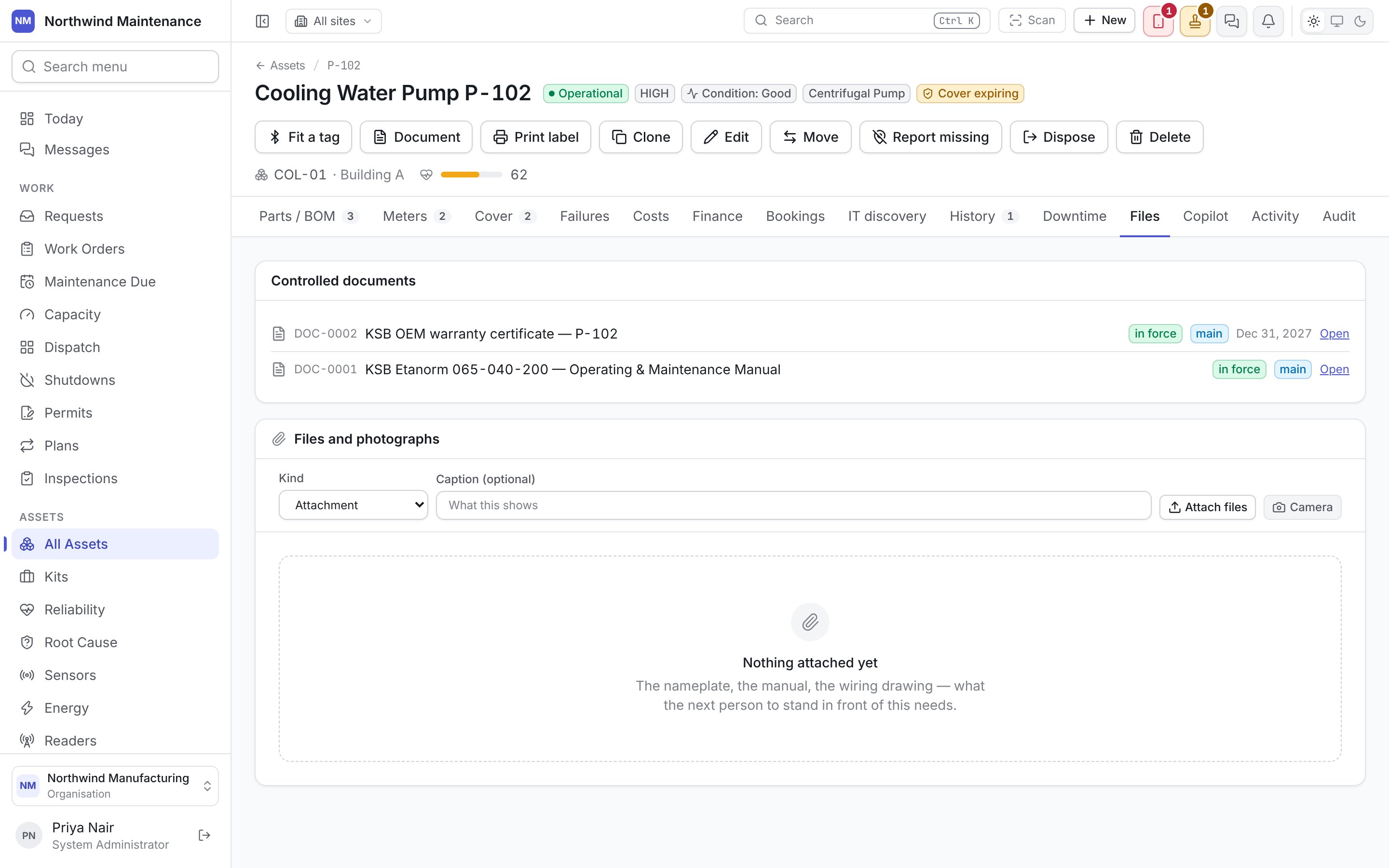
Copilot
Ask for a diagnosis or for help with this asset, using its own history and recorded failures. Suggestions are proposals — nothing reaches the record until somebody accepts one. Until an administrator switches Copilot on under Administration → AI, the tab says it is switched off. See Copilot.Activity
Every change to the record in order, each with its date and time, with comments. Comment adds one; a comment can be marked internal. Where a change did not come from the web app, a label beside it says in words where it came from — field app, import, integration, approved request, automatic for something the product did itself, or set up for what was there when your organisation was created. Changes made in the web app carry no label, because they are the ordinary case.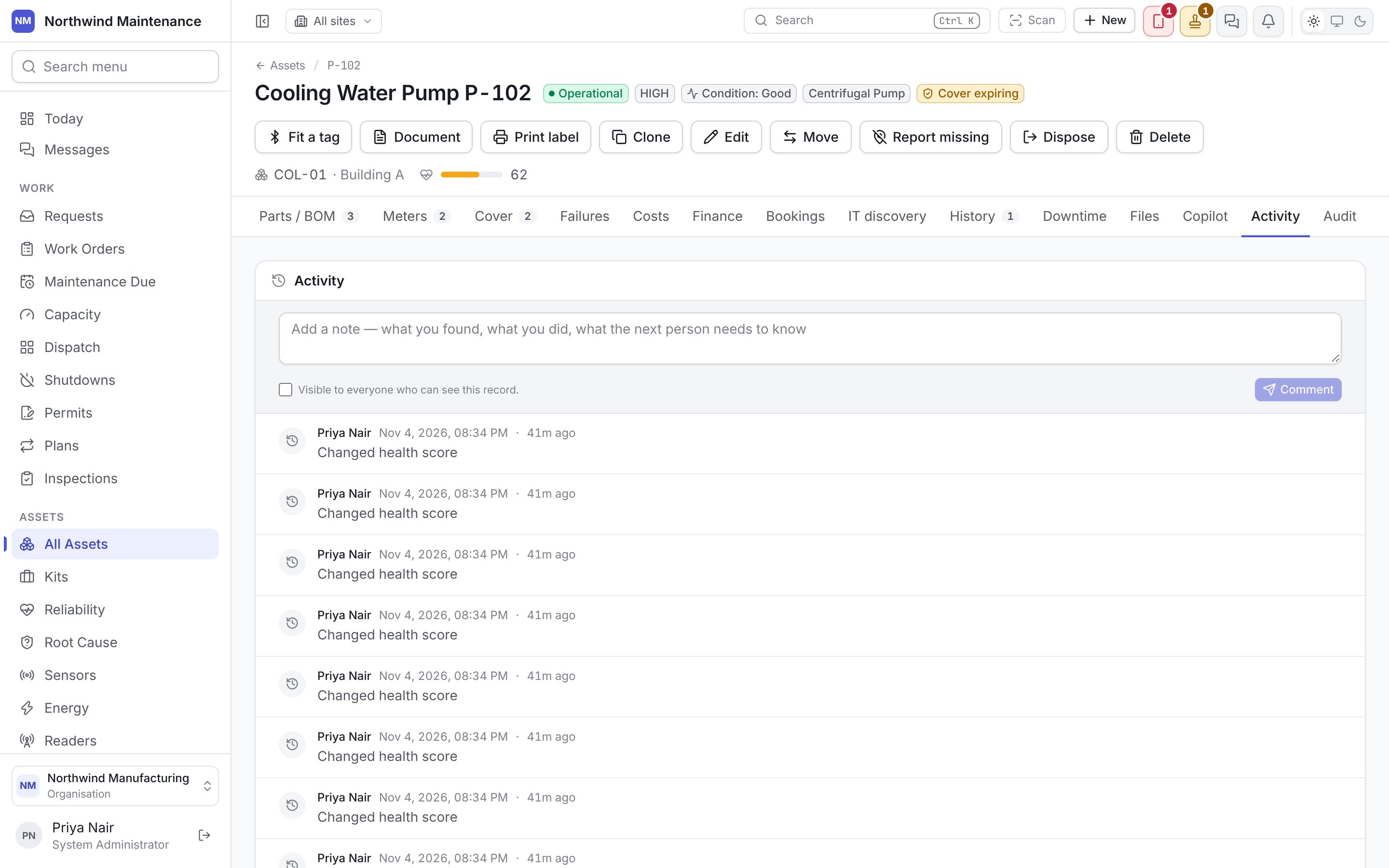
Audit
The full field-by-field change history — every value before and after, who changed it and when. Shown only to people with the audit permission. See roles.Editing
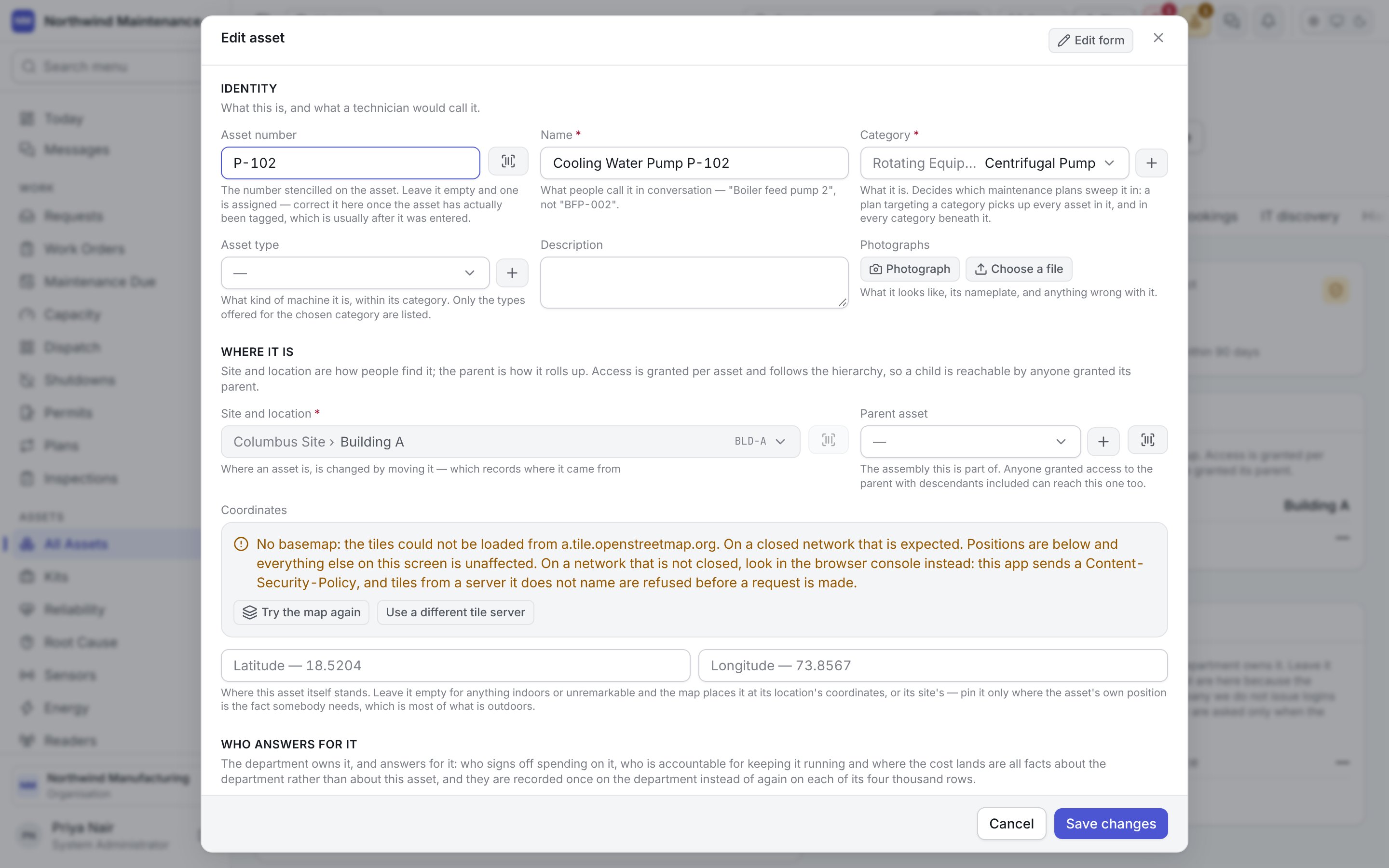
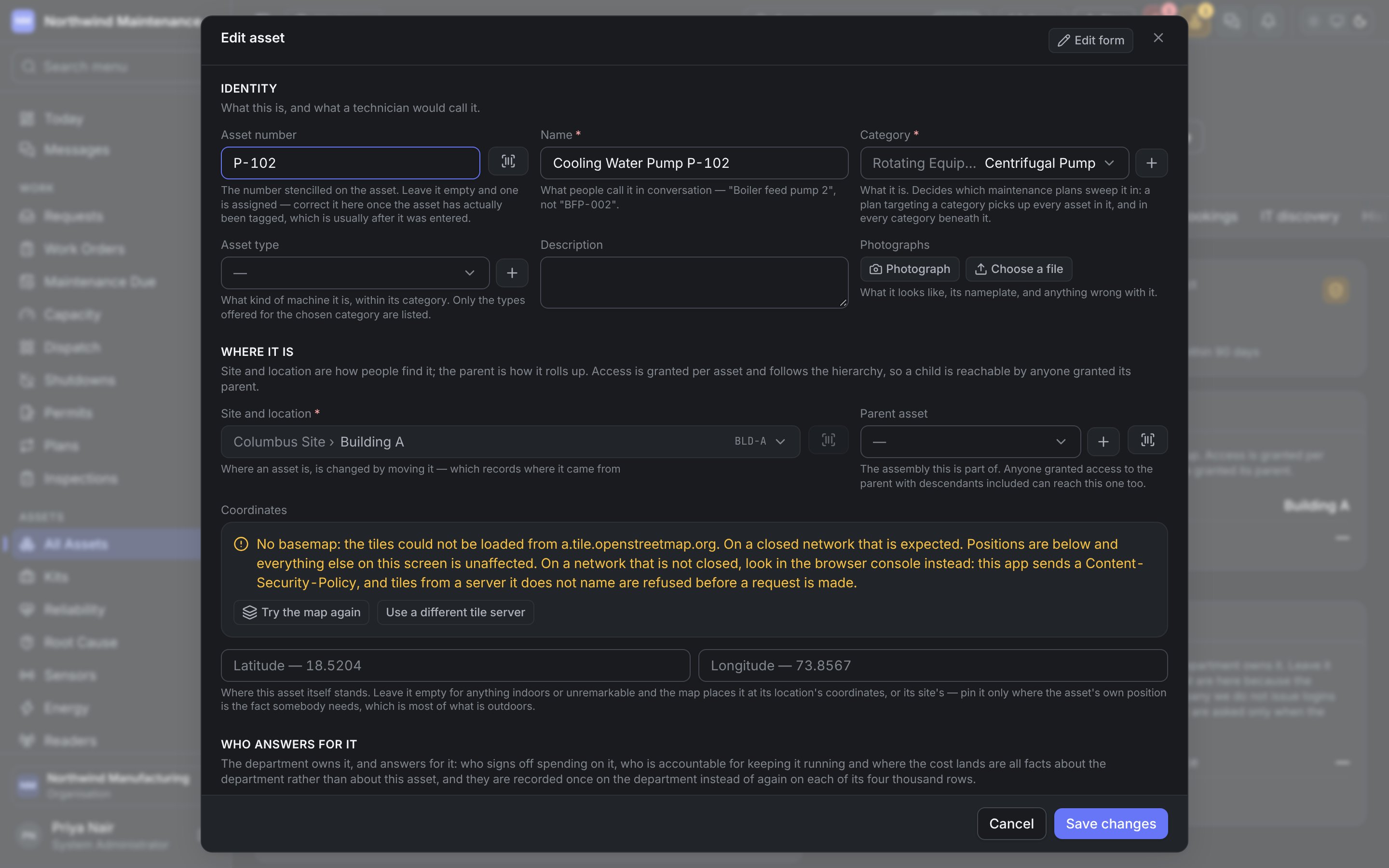
Edit opens the same form as New asset, filled in. Two things behave differently from a new asset:- Site and location cannot be changed here. The field says Where an asset is, is changed by moving it, and the Move dialog records where it came from.
- Status offers only the moves your state model allows from where the asset is now. The box starts on the current status (Operational — where it is now). Picking a new one asks for any reason the move needs, but nothing happens until you press Save changes — so abandoning the form leaves the asset as it was. If the move needs approval, it is sent for approval and a notice on the asset says so.
Move
Move is for a machine physically going somewhere, in somebody’s hands, with paperwork coming out at the end. It moves the asset, hands it to a custodian and restates its status as one recorded transfer rather than three separate edits. The same dialog opens from Move on the register’s bulk bar for several assets at once, and empty from Move assets in the register’s header, to fill by number.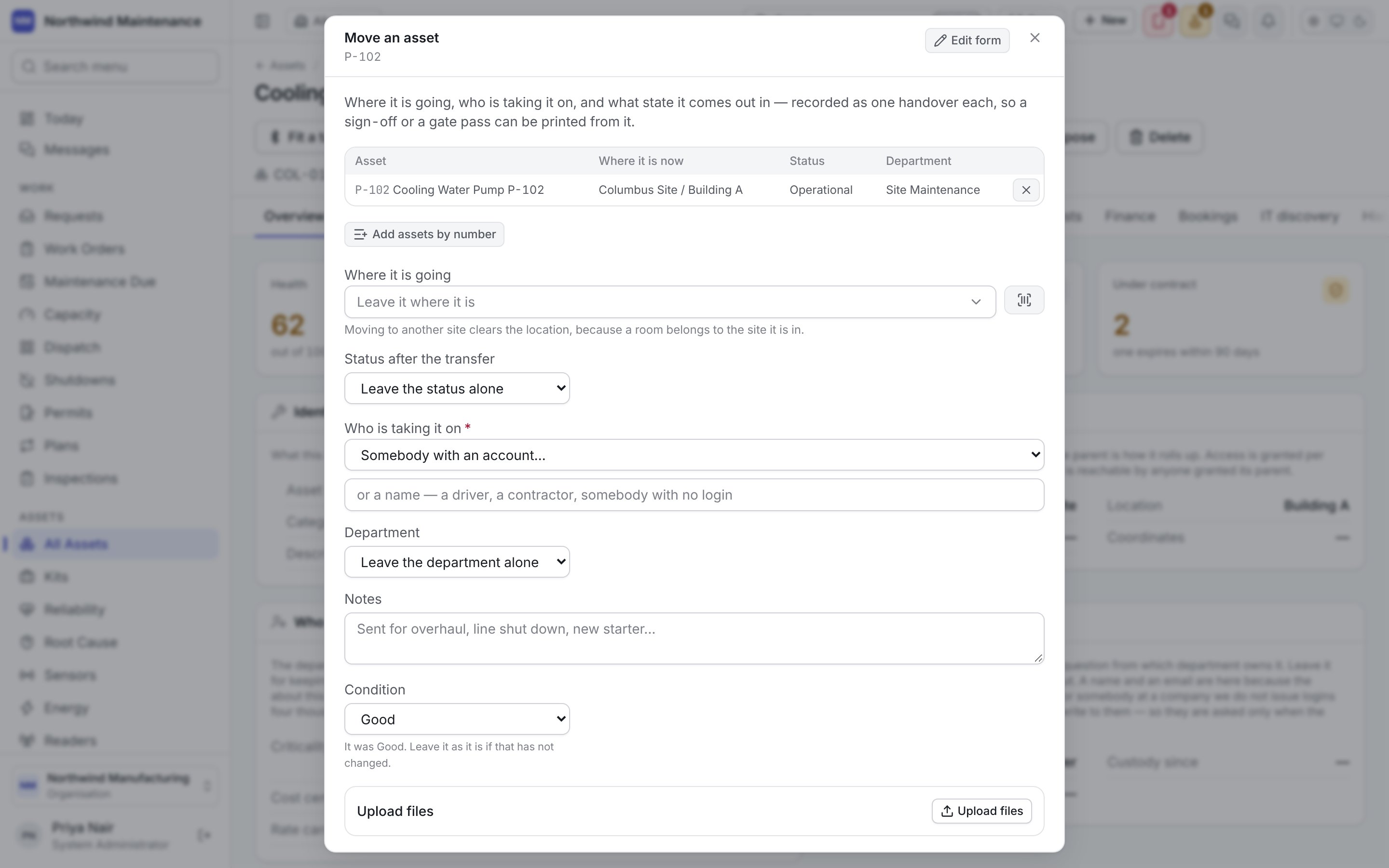
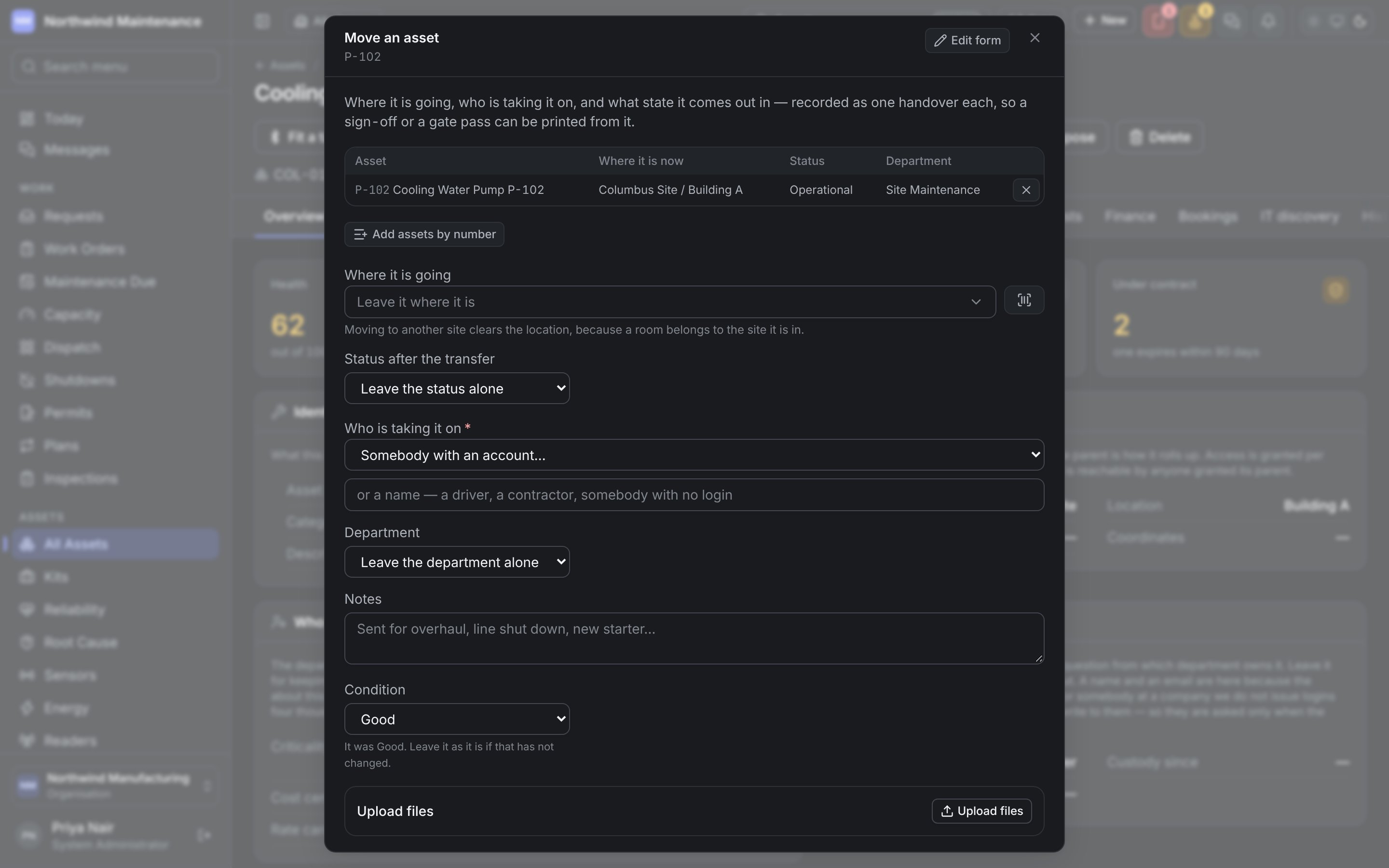
Move it records the transfer; Move it and produce the paperwork records it and produces the
chosen document straight away, while the van is still outside. The result names the transfer
recorded against each asset and the Condition recorded, showing a change as, for example,
Fair → Poor.
If the move retires the asset, its open work orders, requests and planned rounds are cancelled and
the result says how many. If a step needs approval, the result says it was sent for approval and
nothing changes until it is signed off. To correct a single fact — the custodian’s name, say — use
Edit or Update fields instead.
E-way bills for a move
Where your organisation works under India GST, a move to another site no longer files its e-way bill in the same dialog. The result says that if the goods travel on an e-way bill, you prepare it on the E-way bills screen — one per vehicle, each for its part of the move — with Open E-way bills to go there.Adding assets by number
A list somebody already has — two hundred separators in an email — is added by number rather than ticked row by row. Add assets by number, under the table in Move and in Dispose, opens a box:
A number that cannot be added is listed with the reason: not an asset you can see here, listed twice,
retired or disposed of, waiting on an approval, a count that is not a whole number or is more than the
line holds, a count given for an asset that is not a line, or a price that is not a plain figure.
A move that needed approval and was sent back to you for revision opens from
Approvals in this same dialog, titled Correct the move and send it again. It
starts with what the approver asked you to change and with the answers you gave the first time.
Report missing
Report missing records that nobody can find the asset. It moves to the Missing tab of the register, its preventive maintenance pauses, and it stays there until somebody marks it found, retires it or disposes of it. The same dialog opens from Report missing on the register’s bulk bar for several assets at once.
Reporting an asset missing is a move through its status, so where such moves need
approval the dialog says the asset is waiting and has not moved yet. Which status it moves to is set
under missing assets settings.
Mark it found
Mark found, on the missing banner or on the Missing tab’s bulk bar, records that the asset turned up.
Where the move back needs approval, the dialog says the asset is waiting for approval before it comes
back.
Clone
Clone makes one or more copies of the asset, including what is fitted to it — a fleet of eight arriving on one lorry is otherwise one asset described eight times.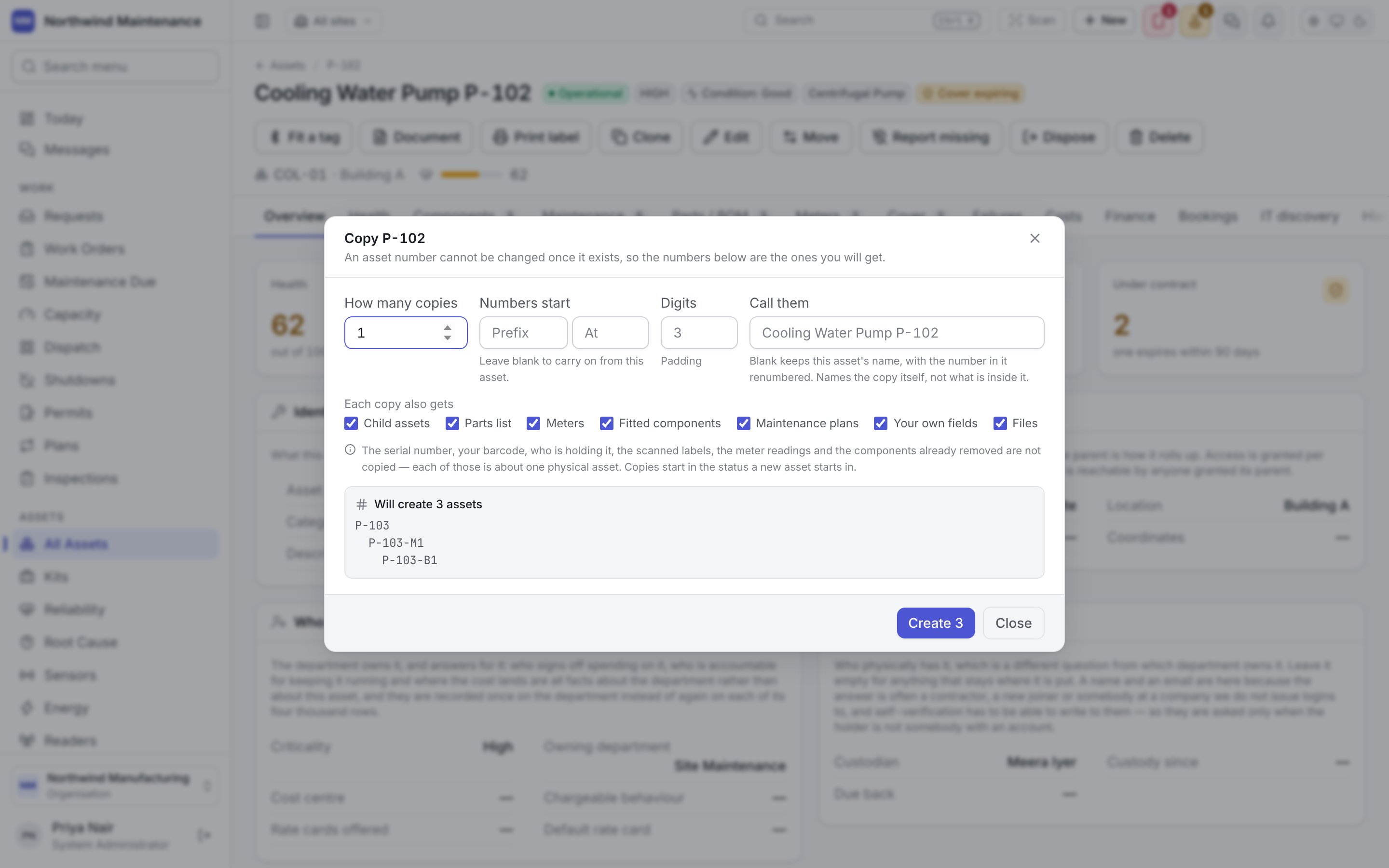
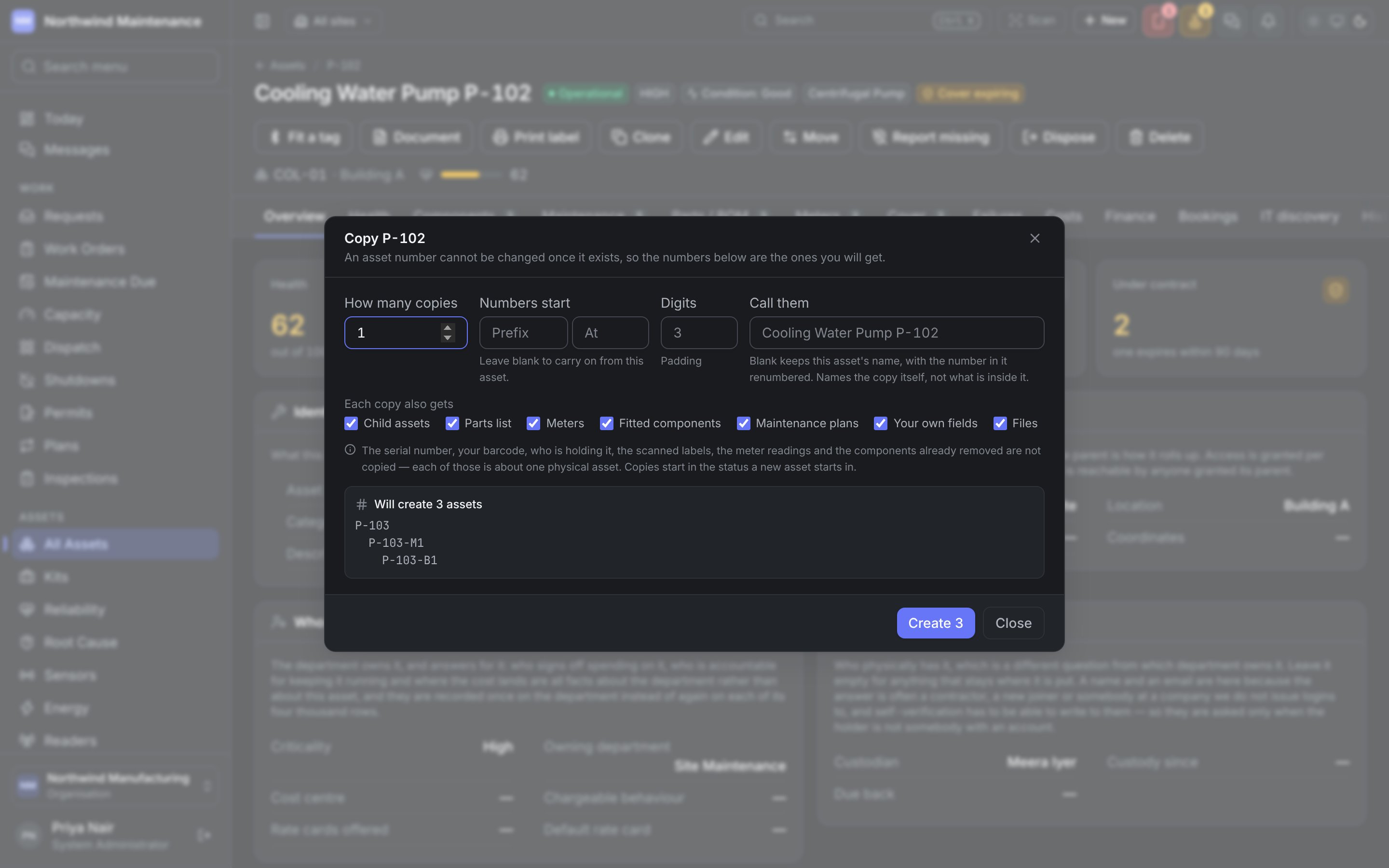
The serial number, barcode, custodian, scanned labels, meter readings and components already removed
are never copied — each of those is about one physical asset. Copies start in the status a new asset
starts in. Will create N assets lists every number before anything is made, because an asset
number cannot be changed once it exists; Create N makes them.
Dispose
Dispose takes the asset out of the register for good. It records the disposal itself — when it left, why, and who took it — for every organisation, and then does up to two more things at once: the status move to Disposed (through any steps your state model requires on the way, such as Retired), and, where you run fixed-asset depreciation, the disposal in every book that carries it. The same dialog opens from Discard / Close on the register’s bulk bar for several assets, and empty from Discard assets in the register’s header, to fill by number.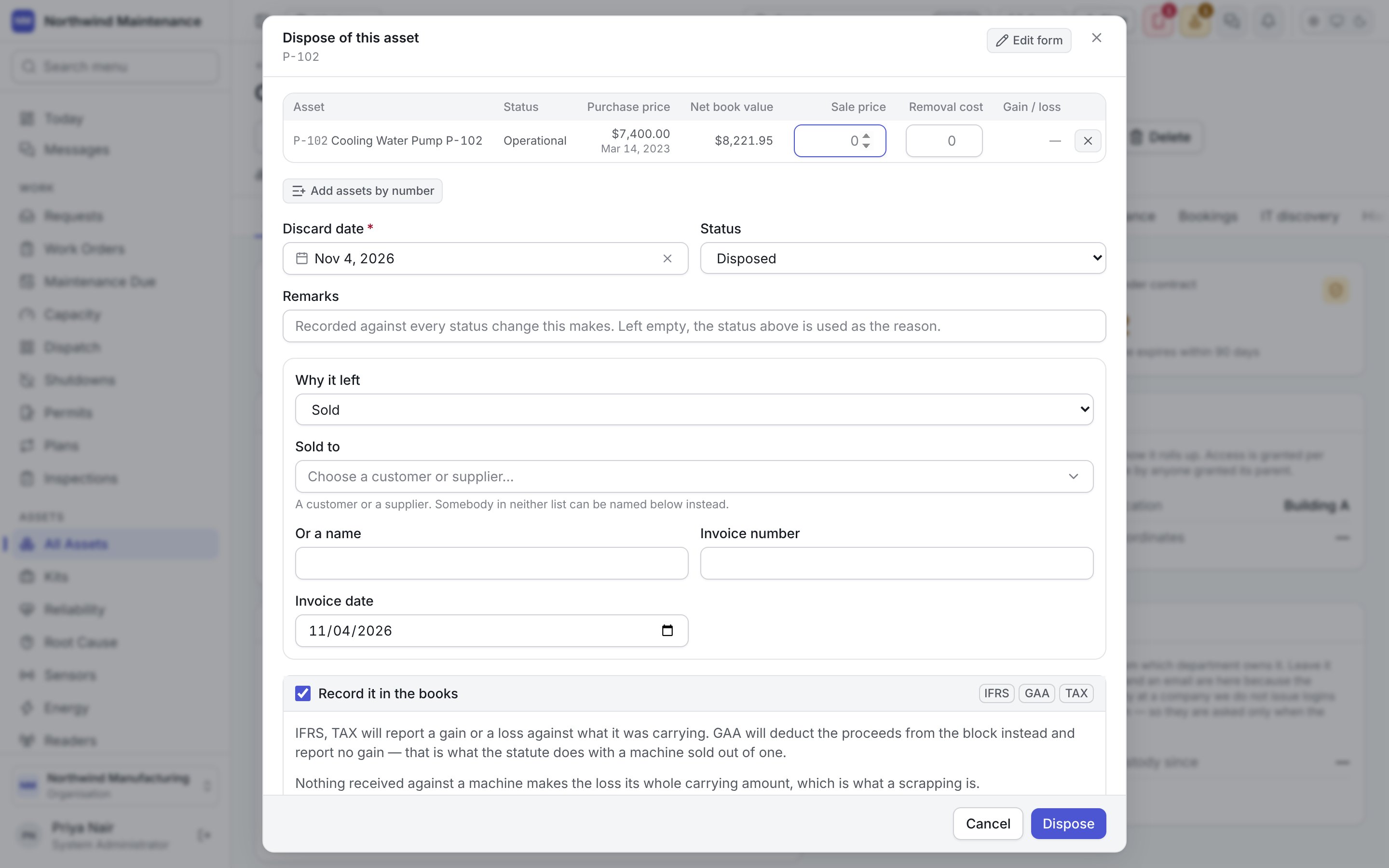
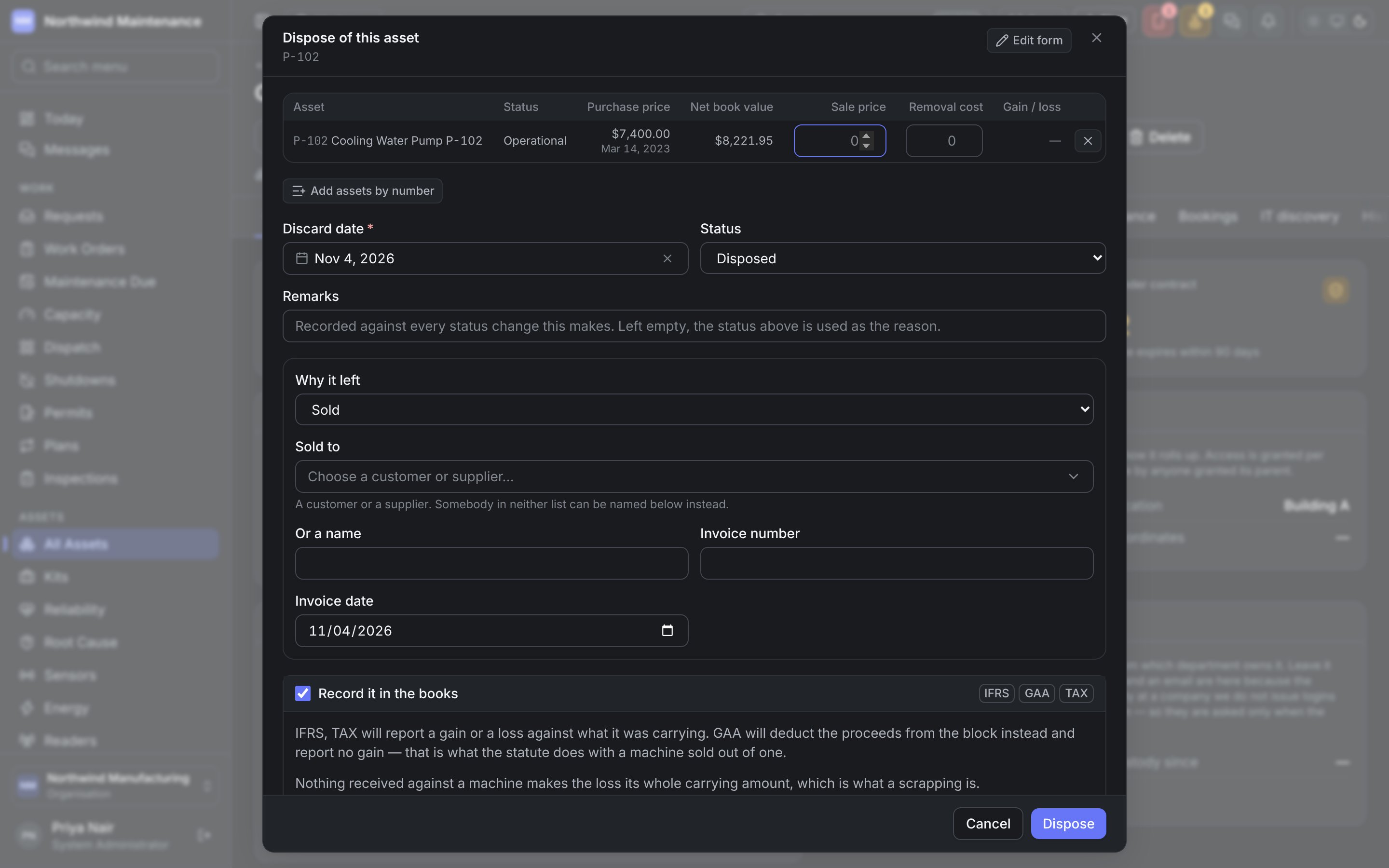
When it left
Why it left, and who took it
These are asked once, at the top, whatever your organisation keeps — so an organisation without depreciation books can still say who bought a machine, and nobody types the buyer and the price twice.What is leaving
The list of what is leaving sits at the top of the dialog, with each asset’s current Status and the figures below. Where one of them is a line counted by quantity, it also asks How many: fewer than the line holds are split off into an asset of their own and disposed of, and the rest stay. The split and the disposal happen together, so a refusal leaves the line whole, and the figures are that share of the line’s. The cross at the end of a row takes that asset off the list, and Add assets by number under it adds more. An asset in a kit cannot be disposed of until it is taken out of the kit.Record it in the books
A tick box, shown where depreciation is switched on, with the depreciation books that will record the disposal. Untick it to change the status only. The dialog says how each book treats the sale — one reports a gain or loss against what it was carrying, a book that pools assets in blocks deducts the proceeds from the block instead — and which assets have nothing for the books to record. Upload files attaches a sale invoice or a scrap certificate; with several assets, the same paperwork is attached to every disposal.Take it out of the register
A tick box (untick it to record only the books’ half) that shows the path the asset will walk — for example Operational → Retired → Disposed — and that each step is recorded in its status history. Open jobs, requests and planned rounds are called off; what was already done stays exactly as it is. When it is done, the dialog reports per asset what the books and the register did, what was split off, and what was called off. It is headed Disposed, or Sent for approval when every asset is waiting for approval, or Nothing was disposed of.E-way bills for a sale
Where your organisation works under India GST, a sale no longer prepares its e-way bill in the same dialog. The result says that if the goods travel on an e-way bill, you prepare it on the E-way bills screen — one per vehicle, each for its part of the sale — with Open E-way bills to go there. The buyer, invoice and prices you gave here are what the bill starts from.Delete
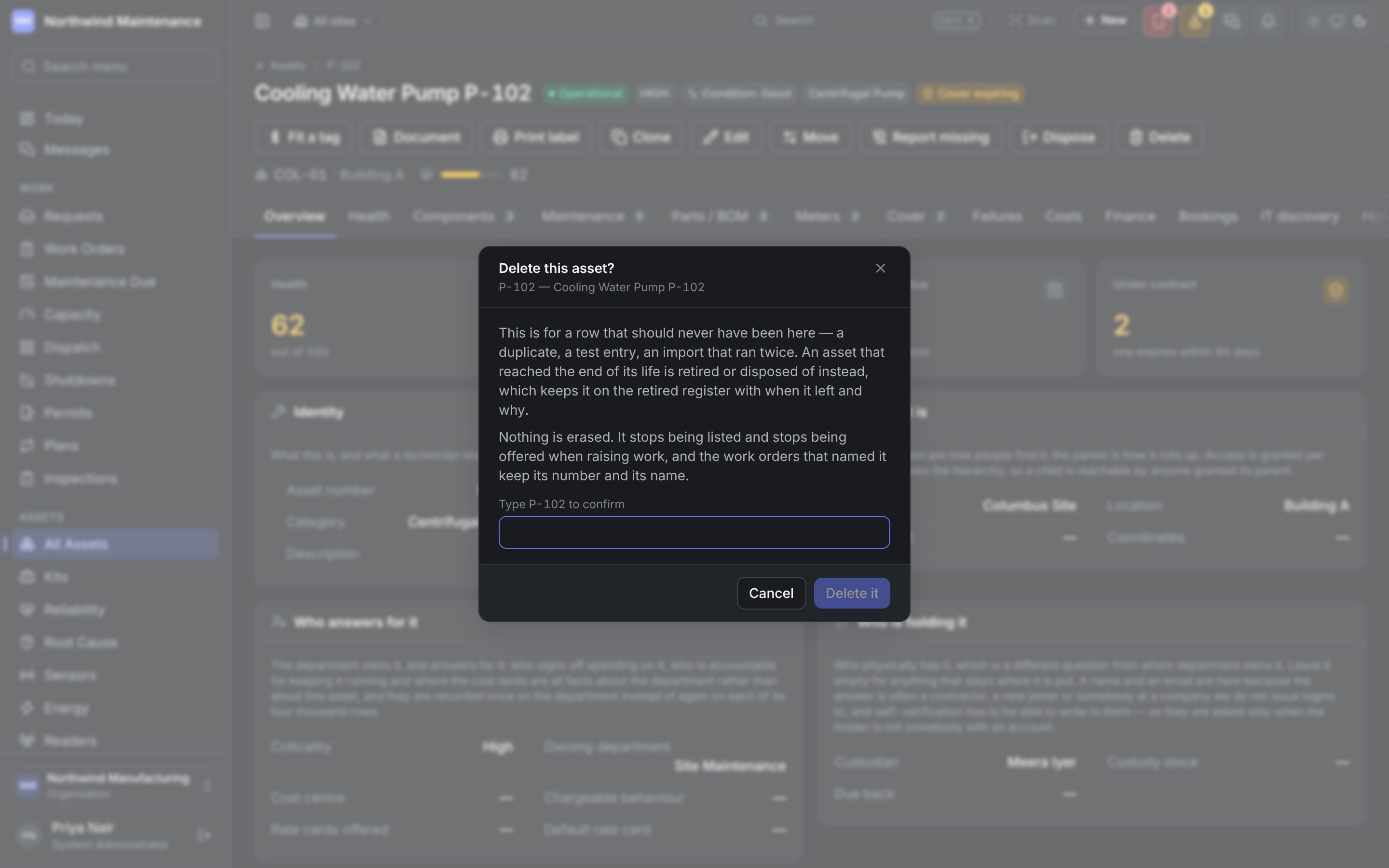
Delete is for a row that should never have existed — a duplicate, a test entry, an import that ran twice — not for an asset at the end of its life. Nothing is erased: the asset stops being listed and offered when raising work, and work orders that named it keep its number and name. You confirm by typing the asset number, then Delete it.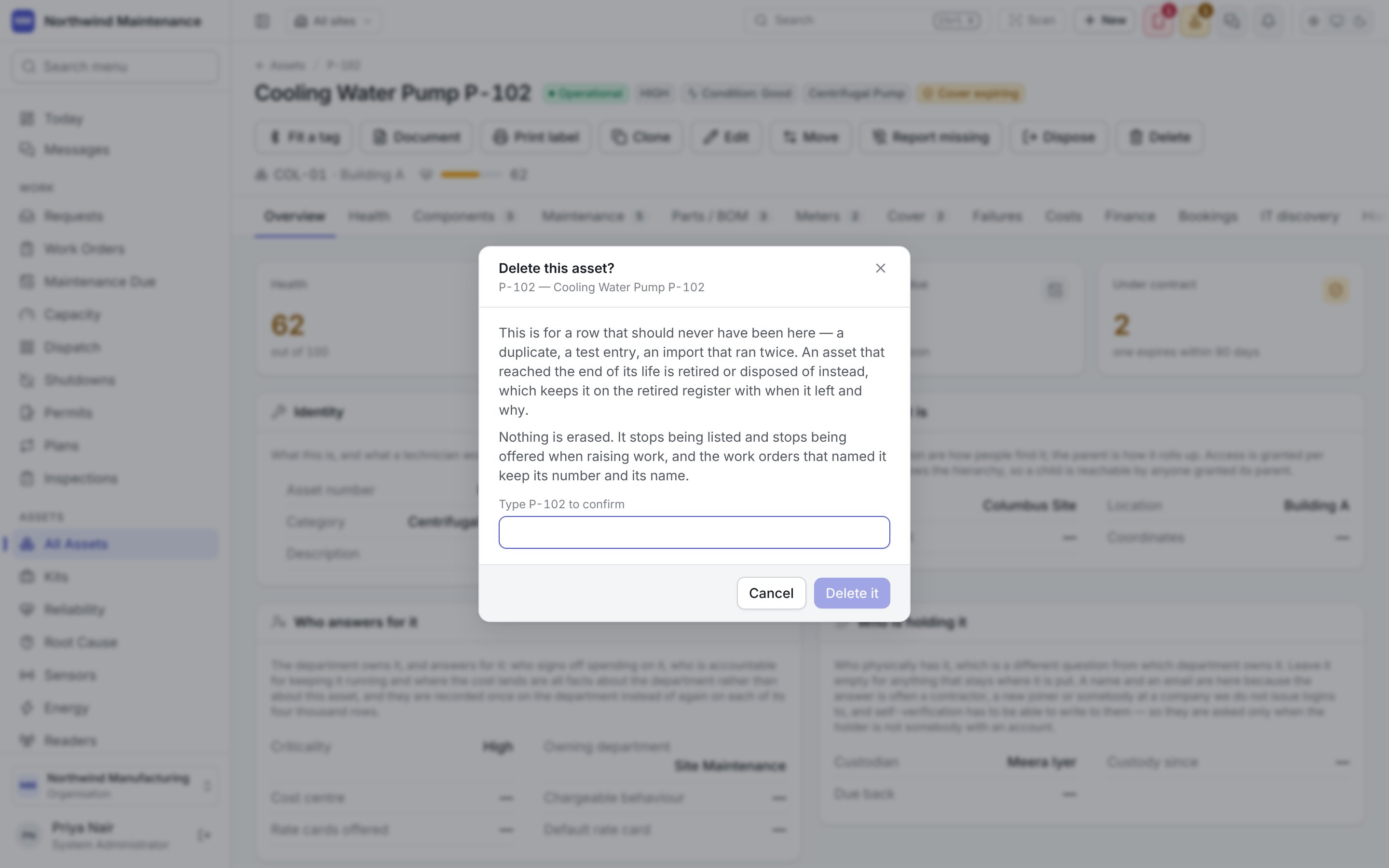
Delete is not Dispose. Dispose says a machine reached the end of its life and keeps it on the
Retired register with when and why. Delete says the row was a mistake.
Print label
Print label prints the asset’s label.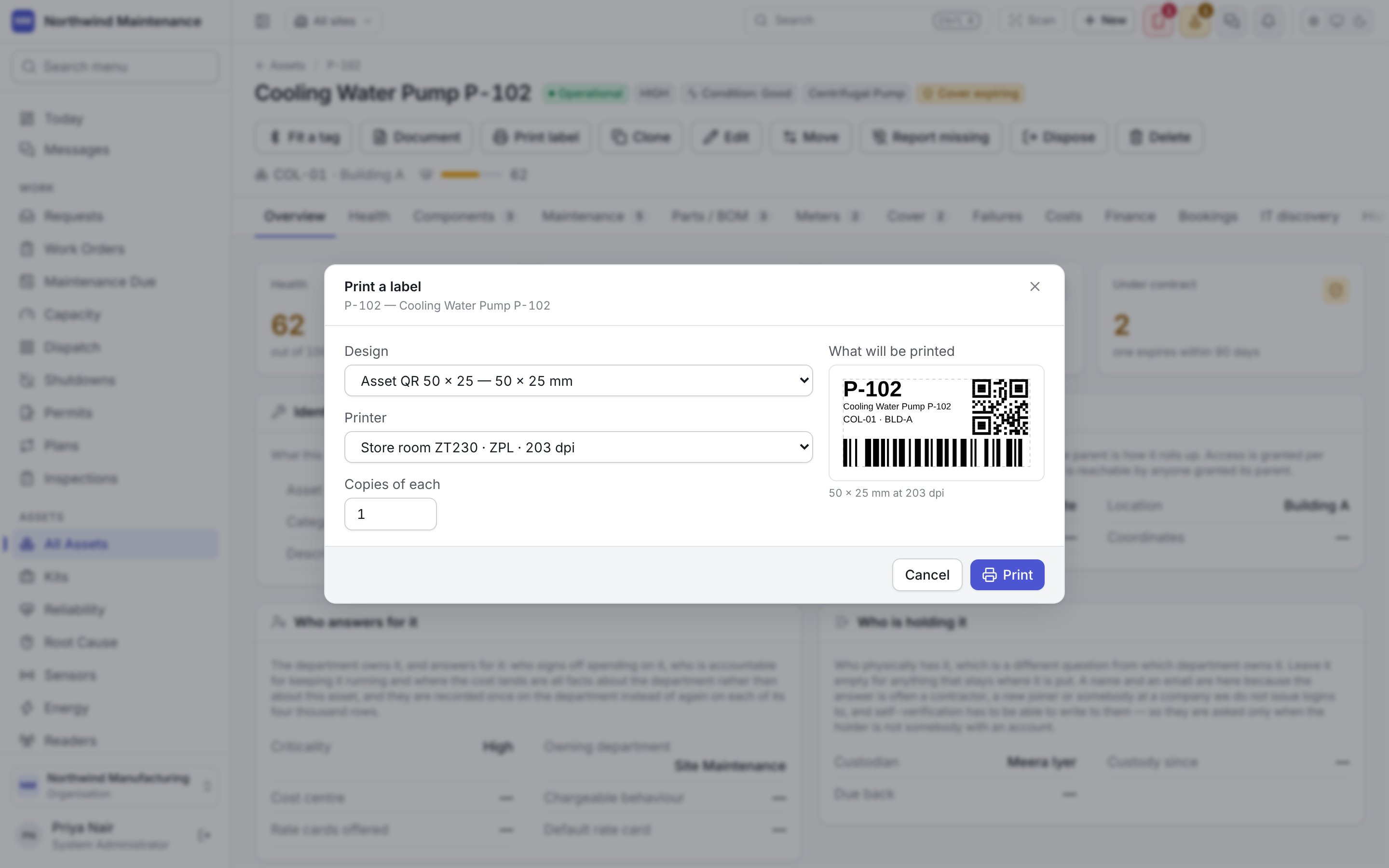
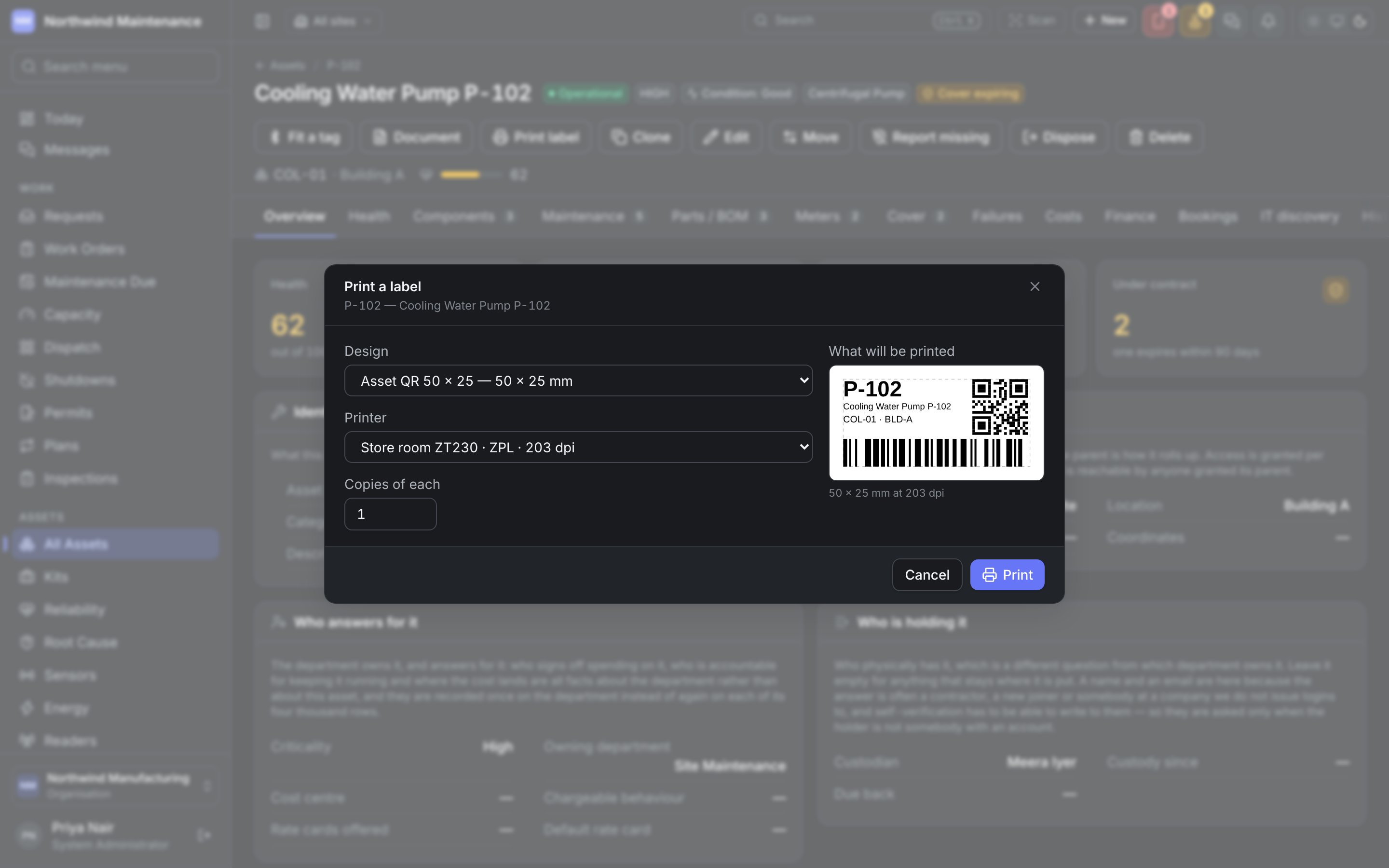
Designs and printers are set up under Labels.
Document
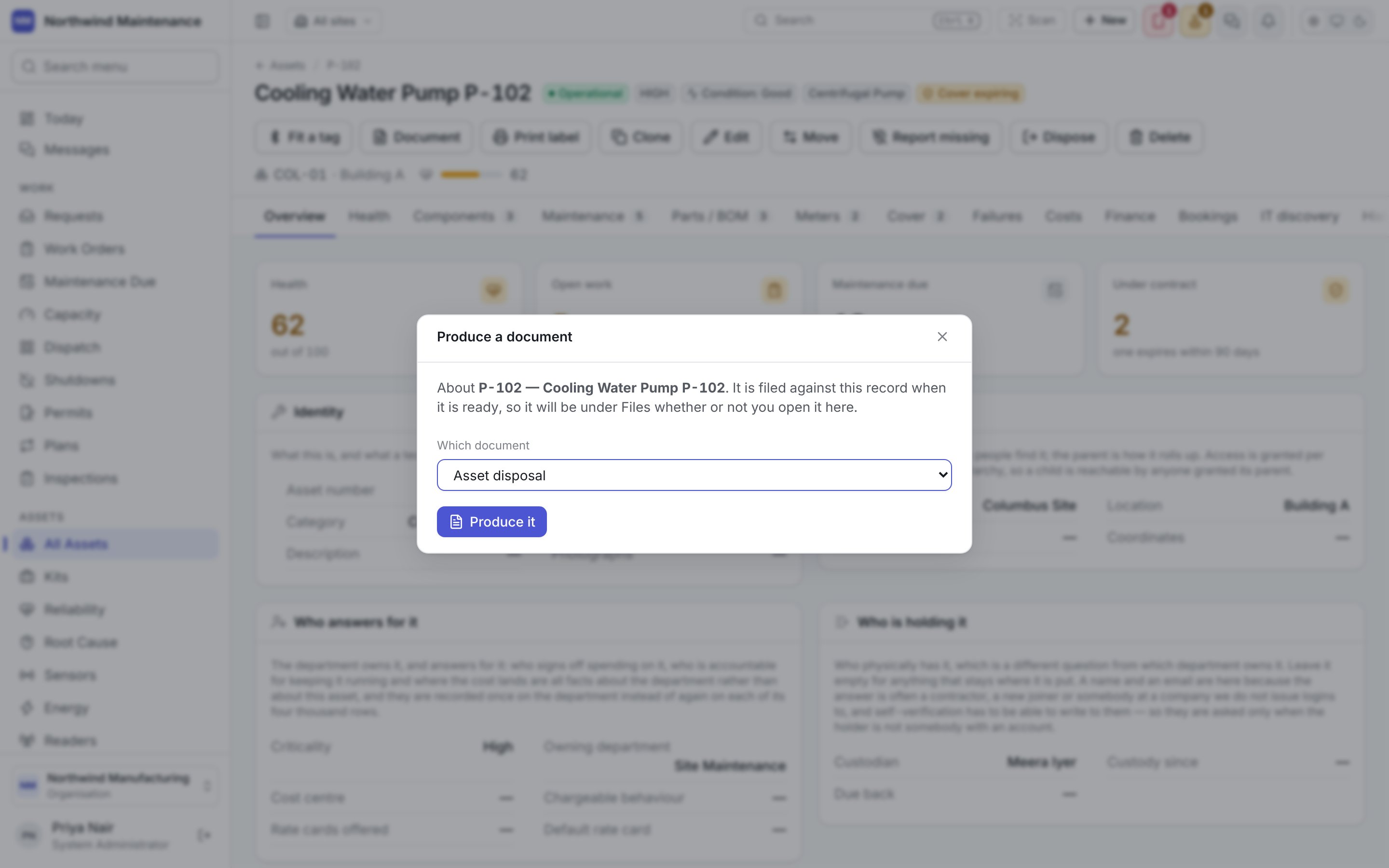
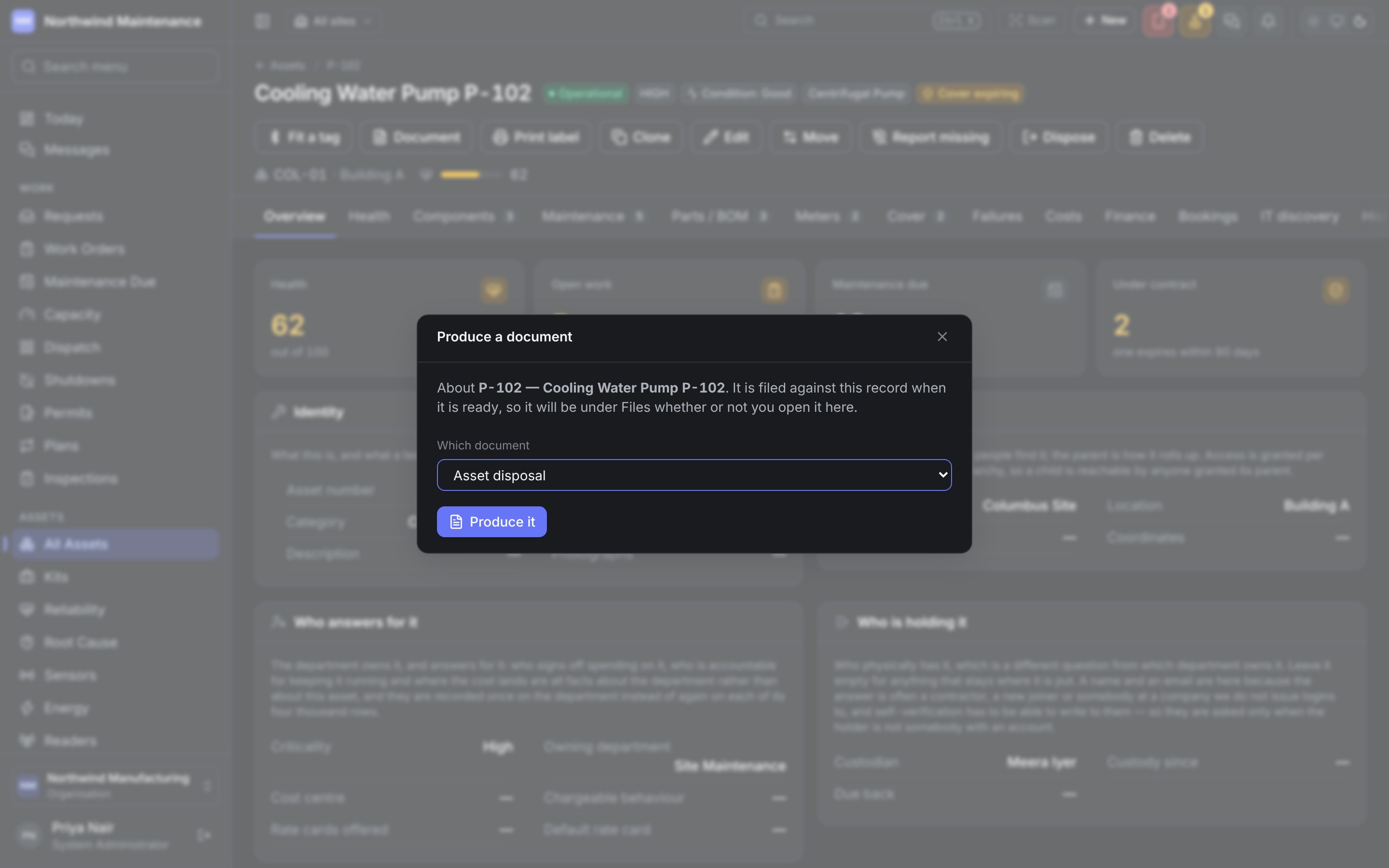
Document produces a document about the asset from a template and files it under Files.