

You sign in in the installed iOS or Android app. The field app does not run in a web browser: opening its address in one shows Use the app on your phone, which points you to the phone app, or to the web app for work at a desk, and offers nothing to sign in to. See getting it.
First time on a device
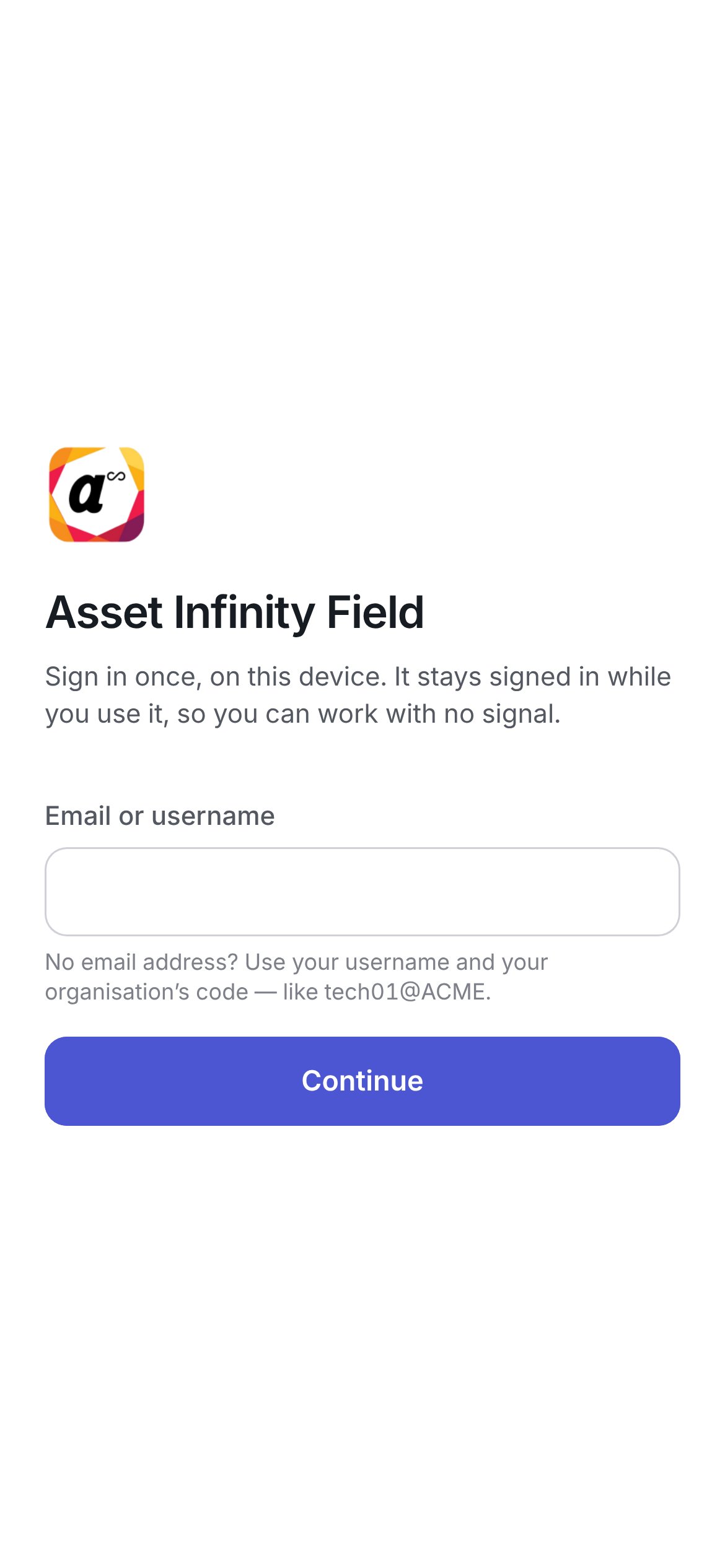
The screen shows the Asset Infinity icon — always the product’s own here, because nobody has said which organisation they belong to yet — and opens with Sign in once, on this device. It stays signed in while you use it, so you can work with no signal. Where your organisation signs in with Google or Microsoft, those buttons are on this first screen, above the address box and separated from it by or, so you need not type an address only to be shown the button you came for. On a handset that has never been set up, pressing one first asks for A passcode for this device on its own, then Continue with opens the provider’s sign-in; Back returns to the first screen. An organisation with a single sign-on connection of its own (SAML or OpenID Connect) is offered on the next step instead, once you have typed your address.1
Email or username
Type the address you sign in to the web app with and tap Continue. An account without a mailbox works too: use your username and your organisation’s code, like
tech01@ACME. The address is asked for on its own because what comes next depends on how your organisation signs in. Change under the address takes you back to correct it.2
Password and device passcode
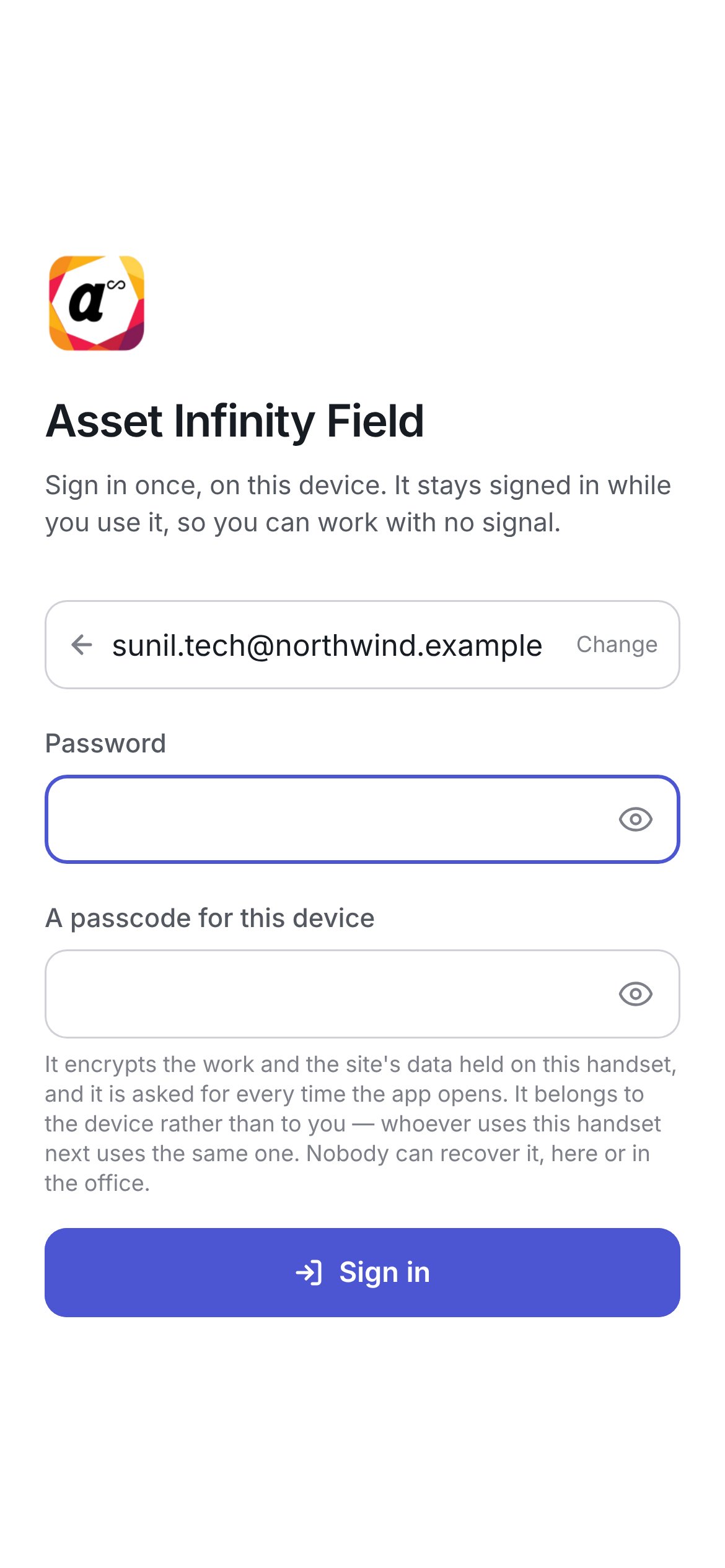
On a handset that has never been set up, the second step asks for two things on one screen — your password and a new passcode for the device. Both must be filled before Sign in does anything.
3
A code, where two-step sign-in is required
A six-digit code from your authenticator app, or one of your recovery codes.
4
Choose an organisation, if you belong to more than one
See which organisation.
5
Wait for your work to download
Getting your work onto this handset — this happens once and needs a signal. Leave the app open until it finishes.
Signing in through your organisation’s provider
Where your organisation uses single sign-on (SAML or OpenID Connect), a Continue with button appears above the password, separated by or. Tapping it opens the provider’s own sign-in in the device’s browser and hands you back to the app when it is done. The password box stays below, with a note that it is for administrators when the provider cannot be reached. Use a password set here instead and Directory unreachable? Administrators can sign in with a password are the routes for that case. Where your organisation’s domain has no connection of its own, the deployment’s Google and Microsoft buttons are offered here too. If the organisation has no sign-in method configured at all, the screen says so and asks for an administrator.Setting up two-step sign-in
If your organisation requires two-step sign-in and you have not set it up yet, the app does it here: Set up two-step sign-in shows the key to add to your authenticator app, asks for a Code from the app, and then shows your recovery codes under Keep these somewhere safe. Each recovery code signs you in once if you lose your phone; they are shown only this once. Tap I have kept them to carry on.Choosing your own password
If an administrator issued the password you signed in with, the app asks you to replace it before going further — Choose a password:
Save and continue needs a connection. Sign out leaves anything already done on the handset in place.
Which organisation
If your account belongs to more than one organisation, the app asks Which organisation? after the password, with one button per organisation. Pick the one you are working for today. Back returns to the password.A second organisation on the same handset
A handset can hold work for more than one organisation — useful for a contractor who works for two clients. Each organisation gets its own encrypted store on the device, separate from the one already there; nothing already on the handset is replaced. Taking on a second organisation normally asks for nothing more than the sign-in itself. The handset is already unlocked, so it creates the new organisation’s store without asking for the passcode again. Only where it cannot — for example a handset unlocked with a fingerprint, or a sign-in from the first screen on a handset that already holds another organisation — does the app show A second organisation and ask for This device’s passcode: the passcode you already use to unlock this handset, not a new one. That one passcode unlocks every store on the device. Tap Continue. A fingerprint or face unlock set up on the handset covers every organisation on it, including one added afterwards. Once a second organisation is possible, More shows an Organisations list:Every time the app opens
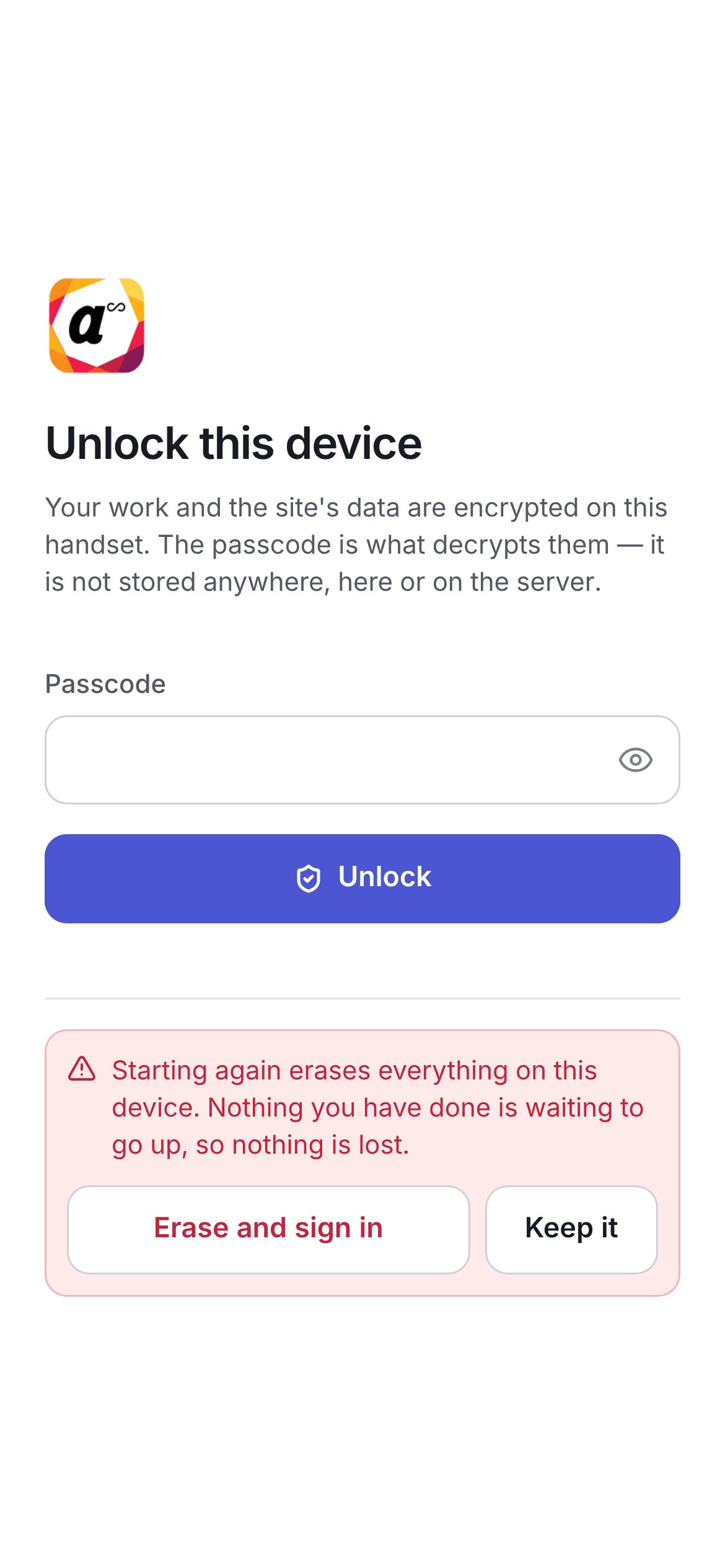
Opening the app after the first time shows Unlock this device, under your organisation’s icon (or the Asset Infinity icon where your organisation has not uploaded one). Your work is encrypted on the handset and the passcode is what decrypts it — it is not stored anywhere, on the device or on the server — so there is no way past this screen without it.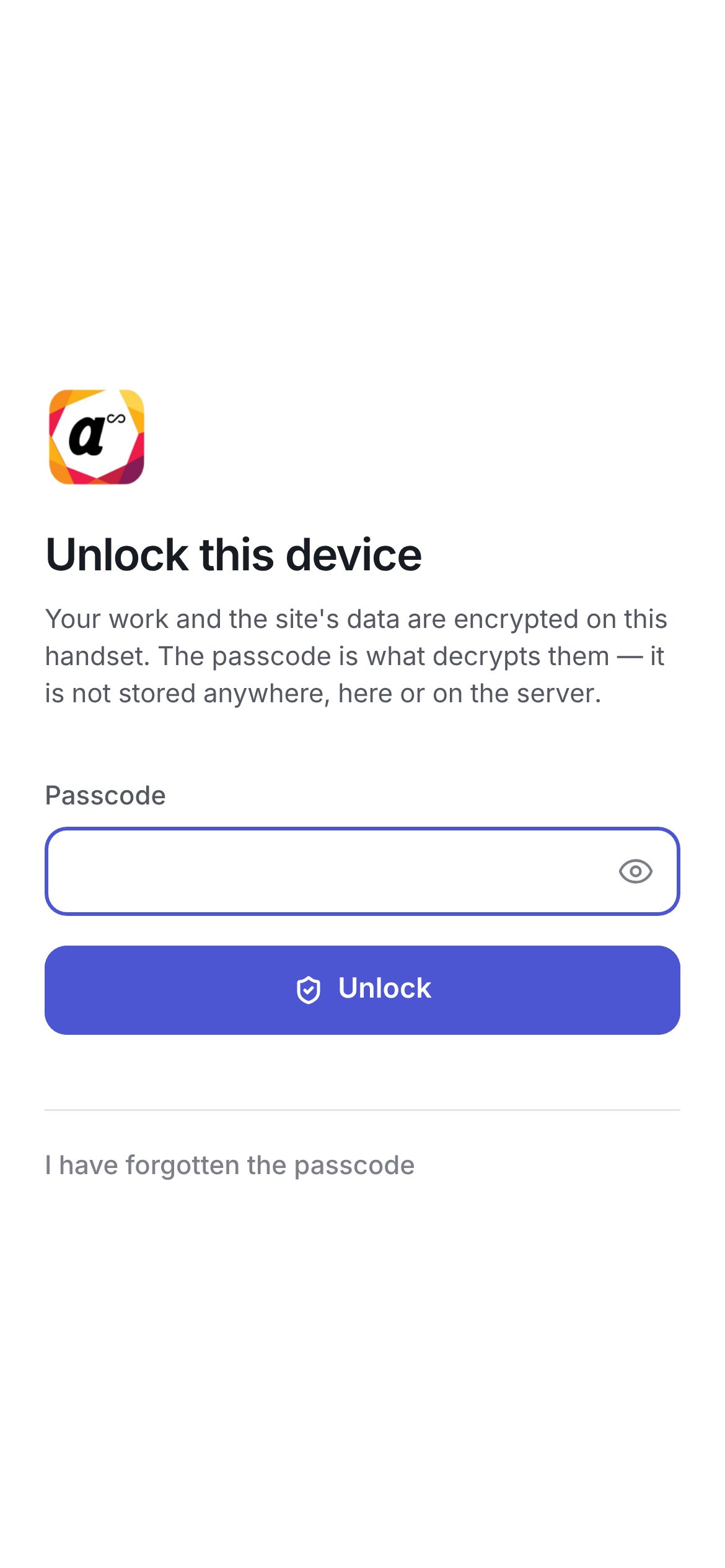
If nobody knows the passcode
Three things about the passcode
It protects your organisation’s data. A phone left in a canteen does not hand over the asset register.
Unlocking with a fingerprint or face
On a handset that supports it, More → Use biometrics to unlock lets the lock screen accept your fingerprint or face instead of the passcode. The biometric check stands in for the passcode — it opens the same encrypted store — and it proves only that you are holding the handset. Declining the prompt, or a handset with nothing enrolled, always falls back to the passcode. Stop using biometrics to unlock turns it off again. The option does not appear on a handset with no biometric hardware.How long you stay signed in
A handset stays signed in for as long as your organisation allows a handset session — ninety days unless your administrator has changed it — counted from the last time the app renewed it. The app renews it whenever you use it with a signal, so a technician who opens the app at least once in that window is never asked for the password again. More → Session ends shows the date. The number is A handset stays signed in for on your organisation’s authentication settings, between 1 and 365 days. Where an administrator has switched off Let a handset extend its session, a session lasts a shift from sign-in instead. The long session is safe because the device passcode protects what is on the handset, and because revoking a lost device takes effect at once: every request it makes afterwards is refused, reads included.If your session has ended
You can unlock the handset long after its session has run out — unlocking decrypts the device; signing in is what the server accepts. When the session has gone, the app shows Your session has ended before you reach Home, and says plainly that unlocking is not signing in:
The header shows Session ended until you do, and the Sync screen offers Sign in again too.
If your work did not come down
If the first download cannot reach the server, the app shows Your work did not come down with Try again and Carry on without it. Carrying on opens an empty app; open Sync when you next have a signal.If the device has been wiped or has expired
Two situations end with the local copy erased, and the app tells you which on the next launch:
The screen also says whether the system has been told the wipe happened.