

If you don’t see this in your navigation, your administrator can switch the module on under Administration → Modules, or it may not be included in your plan.
Lost reports
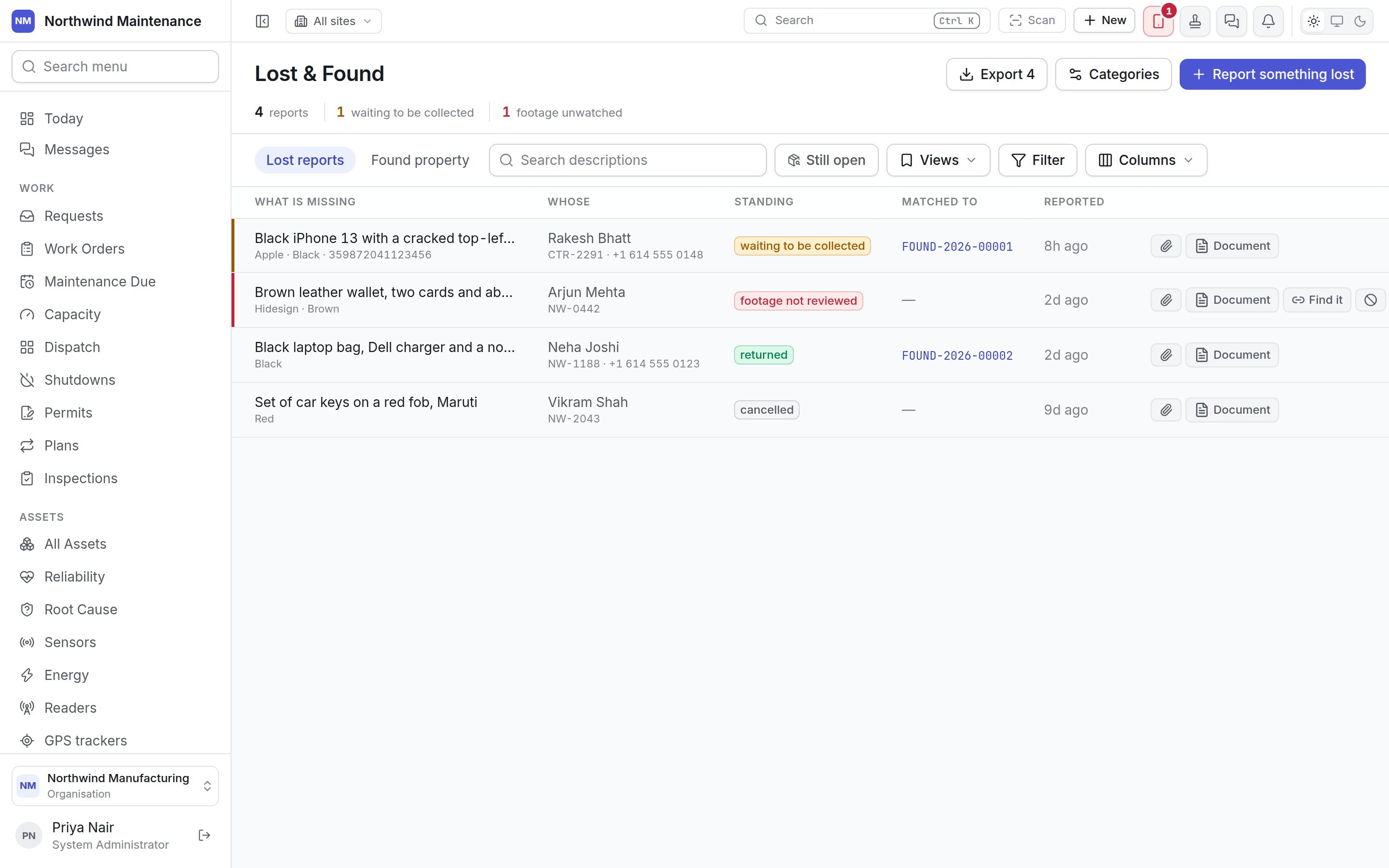
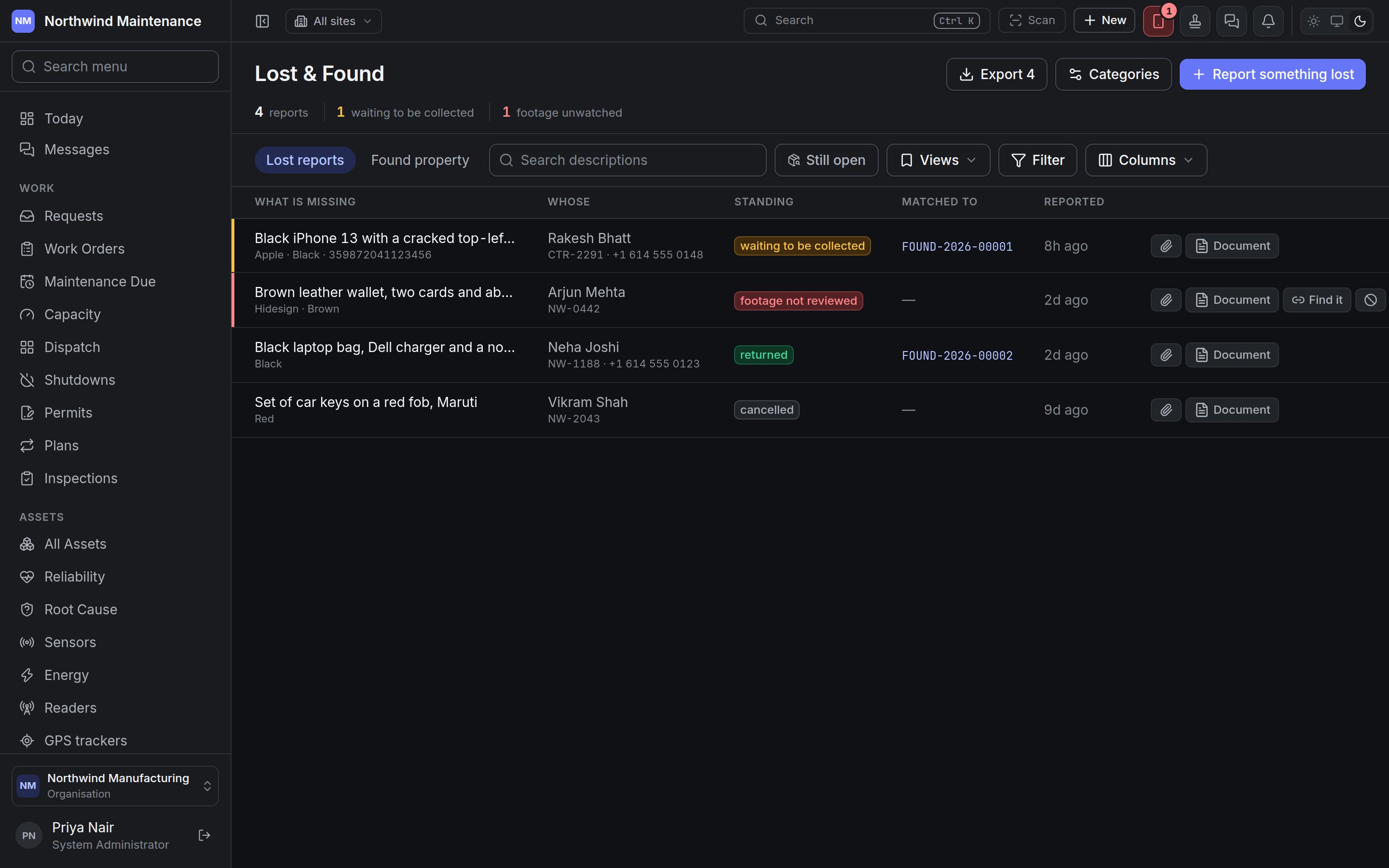
The header
Still open shows only reports that are not yet closed. Search descriptions matches the description.
Columns
Hidden columns: Category, Where (site and location), Last known (the note on where exactly), Went missing, the camera (or no camera), Who they are, Taken by, and How it ended.
Standing
The standing is worked out from the report’s status and dates, and leads with what needs doing:
Behind the standing, a report has one of four statuses: Open, Matched, Returned or Cancelled. These are fixed rather than configurable, because the matching and handover steps depend on them.
Reporting something lost
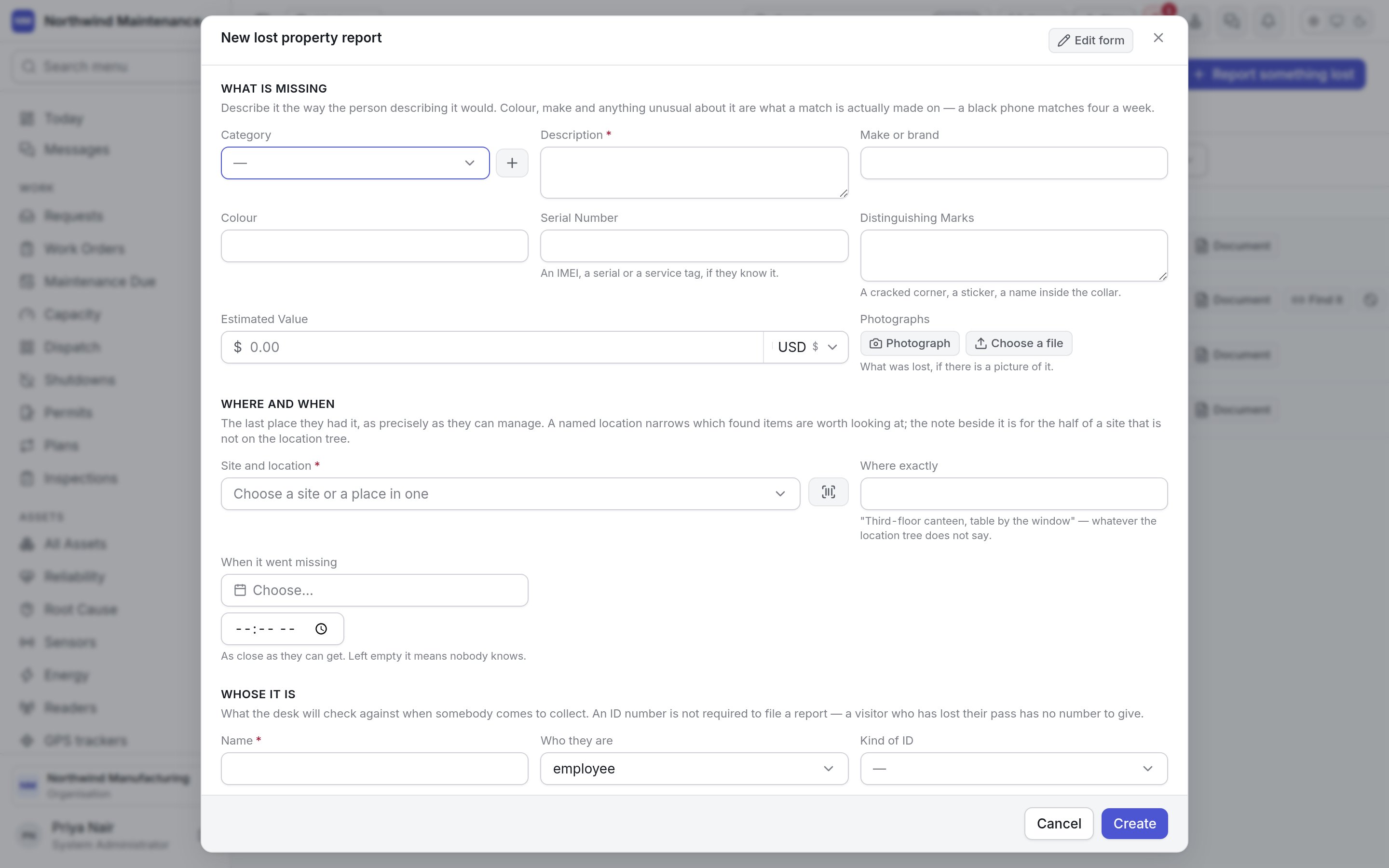
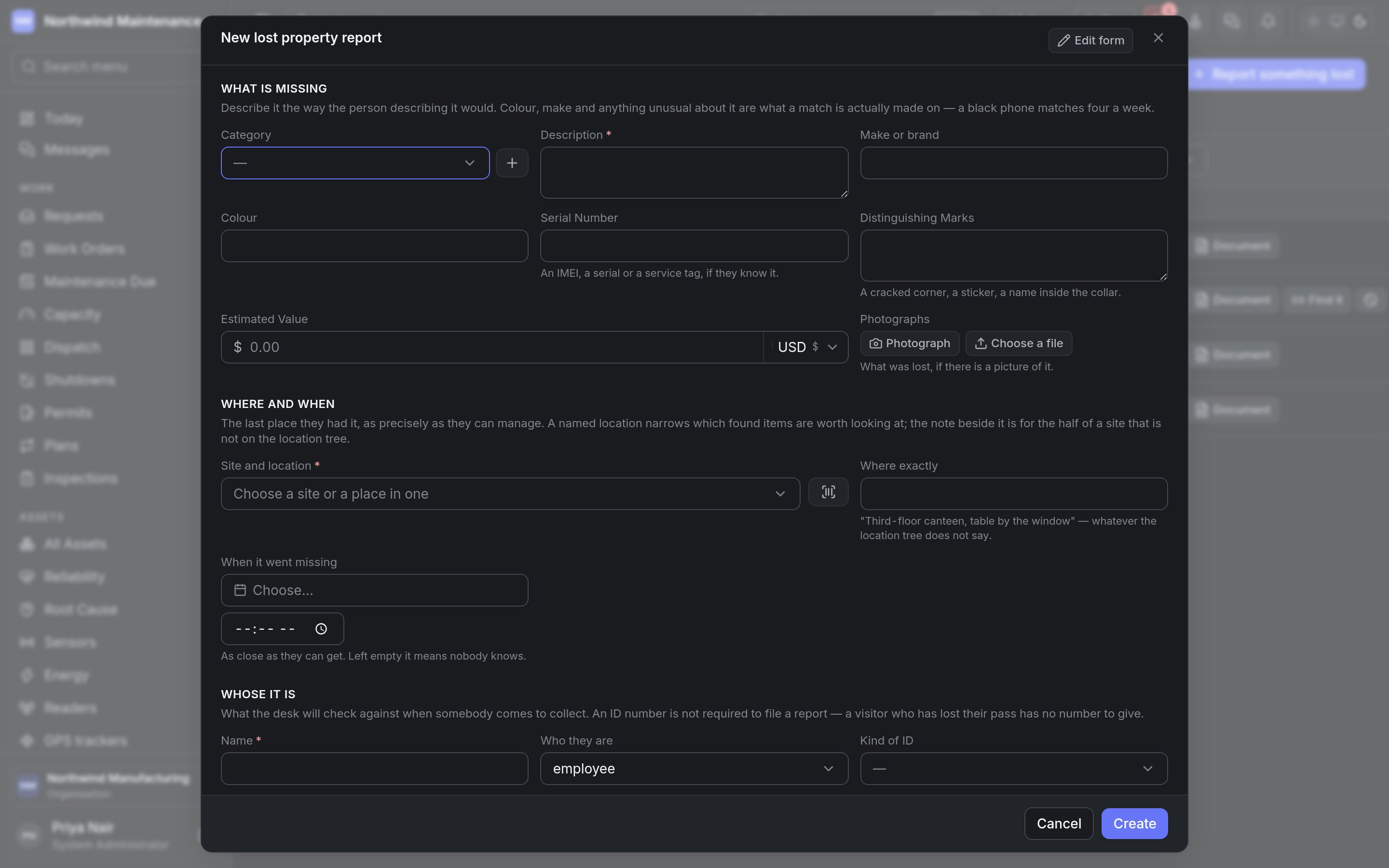
Where and when
Whose it is
CCTV — recorded whether or not anybody has looked yet, because footage is overwritten and a report that names the camera a fortnight late names nothing.
The report itself
Closing a report
The close button on an open report opens Close this report, which asks why — “Found it in his own car the next morning”. Both endings live here: they found it themselves, or nobody ever came back. The reason is what tells them apart. It needs Edit and close lost property reports.Found property
The header
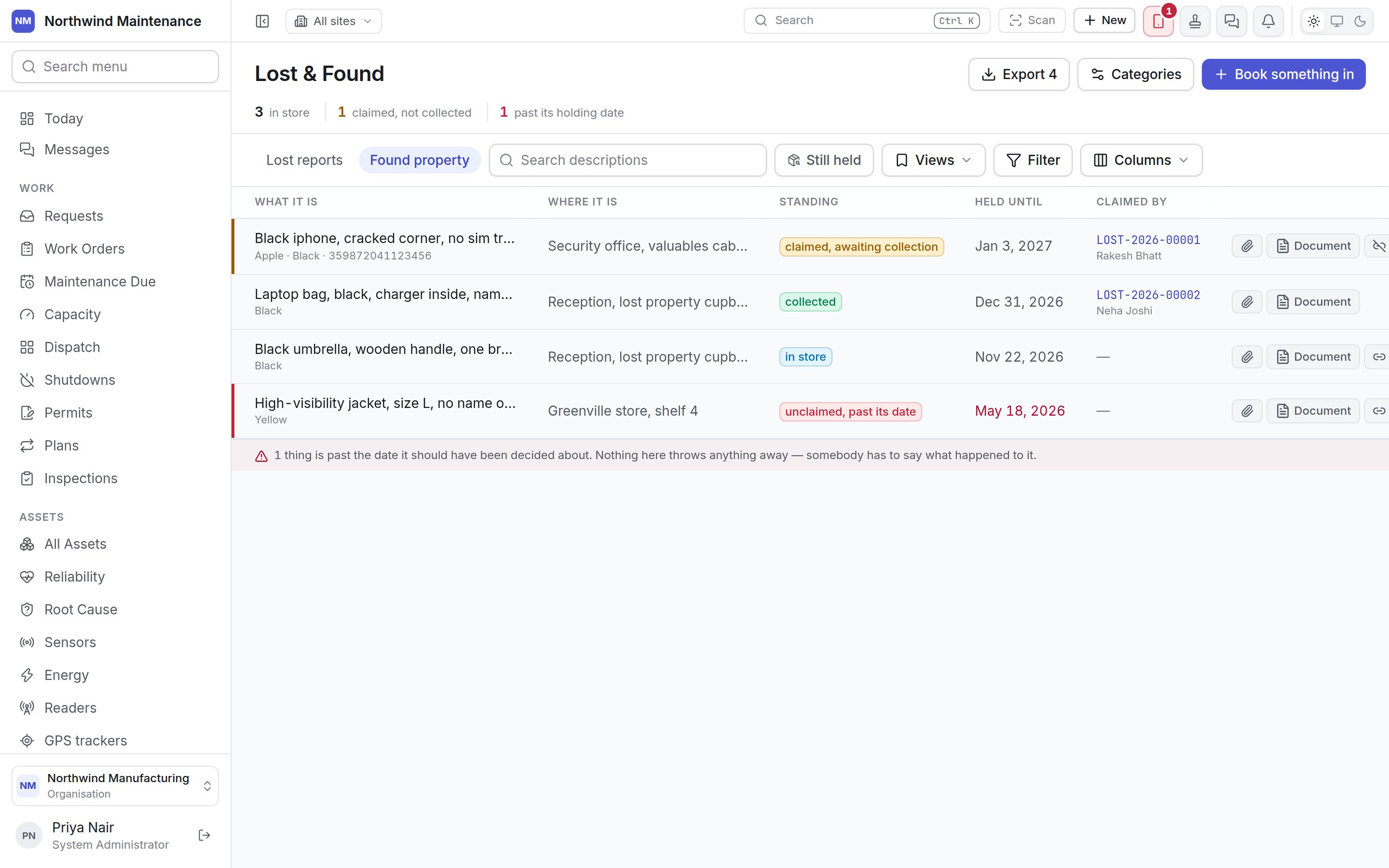
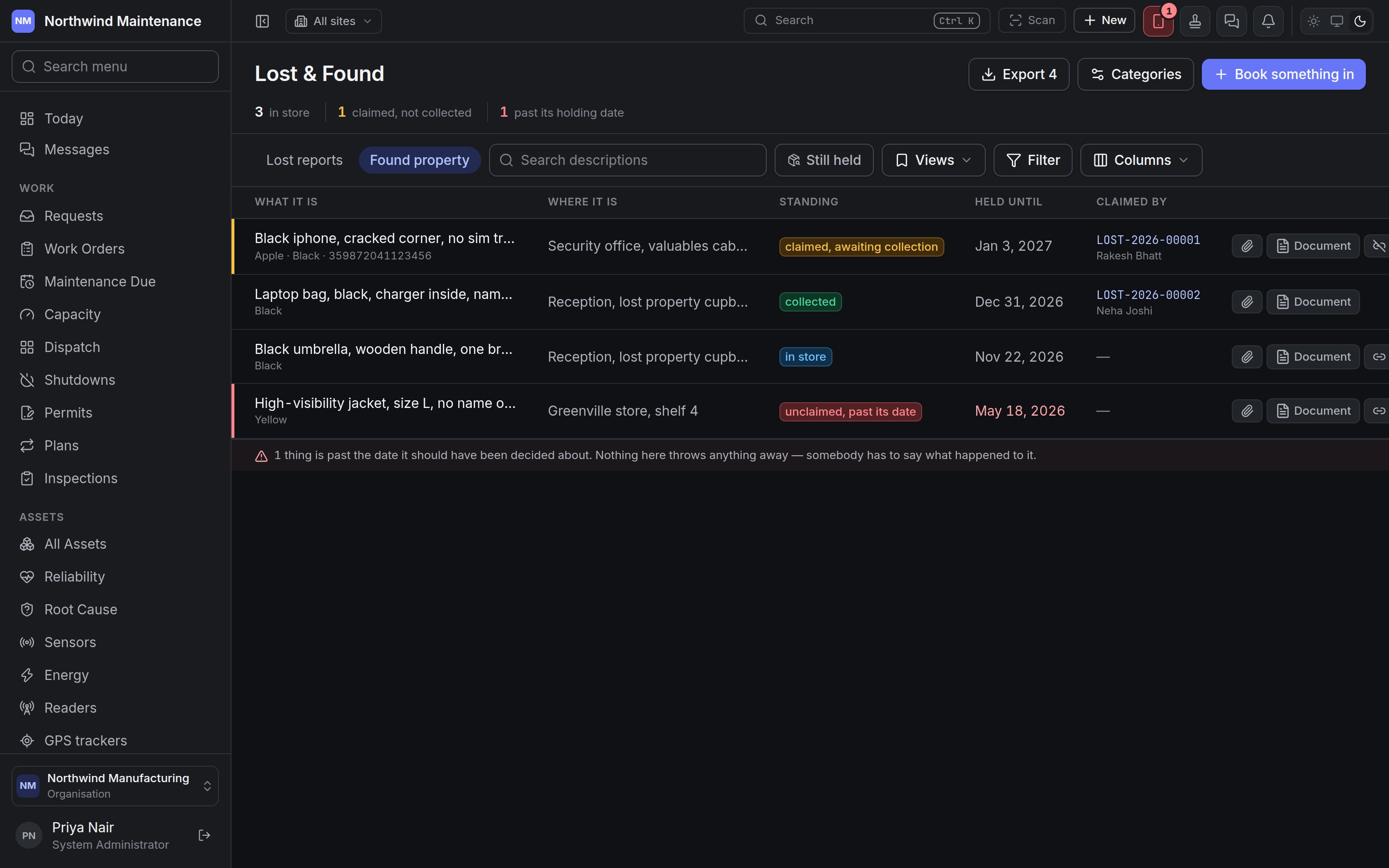
Still held shows only items still in store or claimed. Search descriptions matches the description.
You can also log a found item from anywhere with New → Found item in the header.
Columns
Hidden columns: Category, Handed in, Days held, Found by, Found at, Found, Qty, Booked in by, Handed over by (with signed for where a signature was taken) and What became of it.
Behind the standing, an item has one of four fixed statuses: In store, Claimed, Collected or Disposed of.
Booking something in
Describe it as somebody who has never seen it would have to. The description is what a claim is checked against, so a detail nobody would guess is worth more than three everybody would.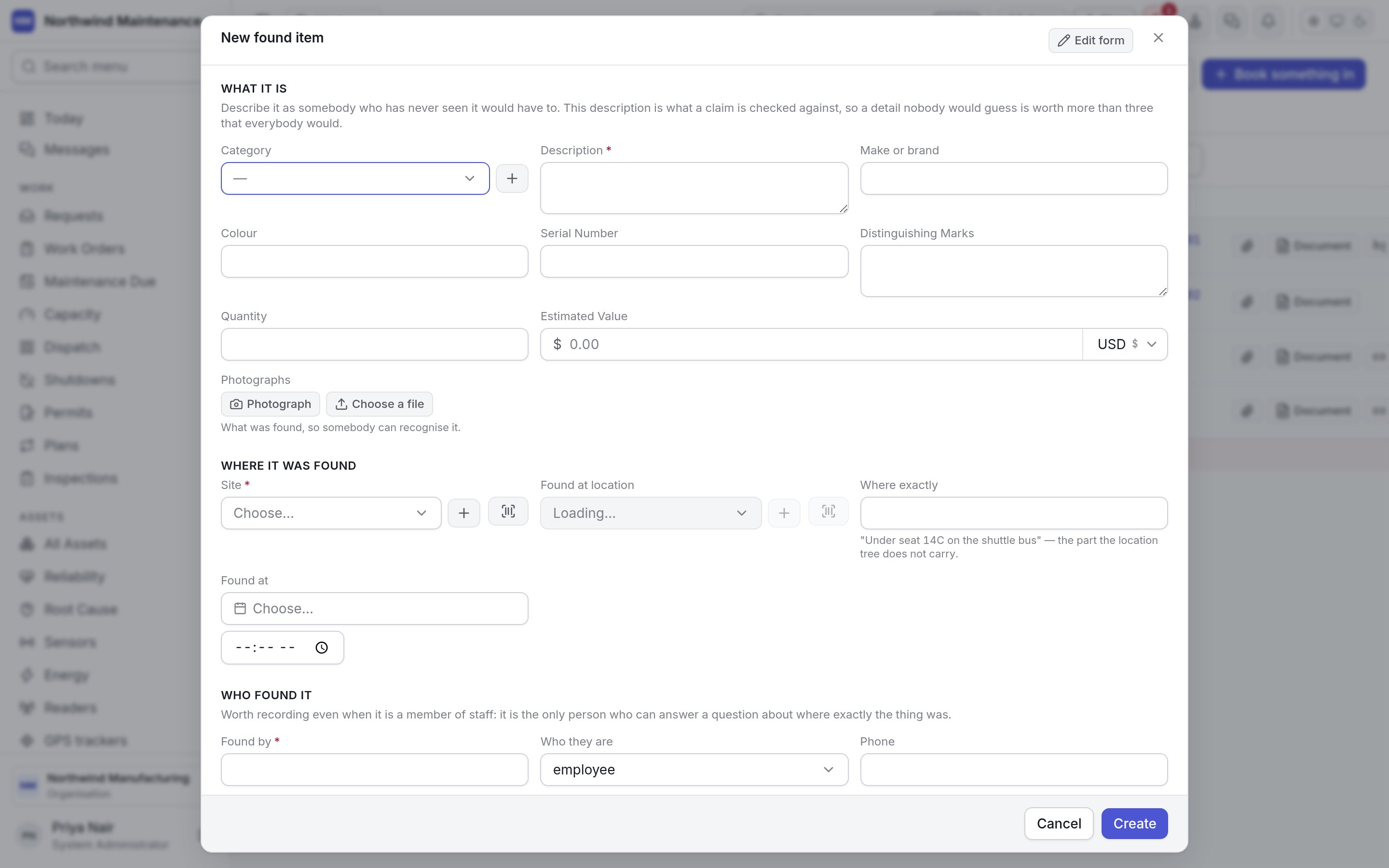
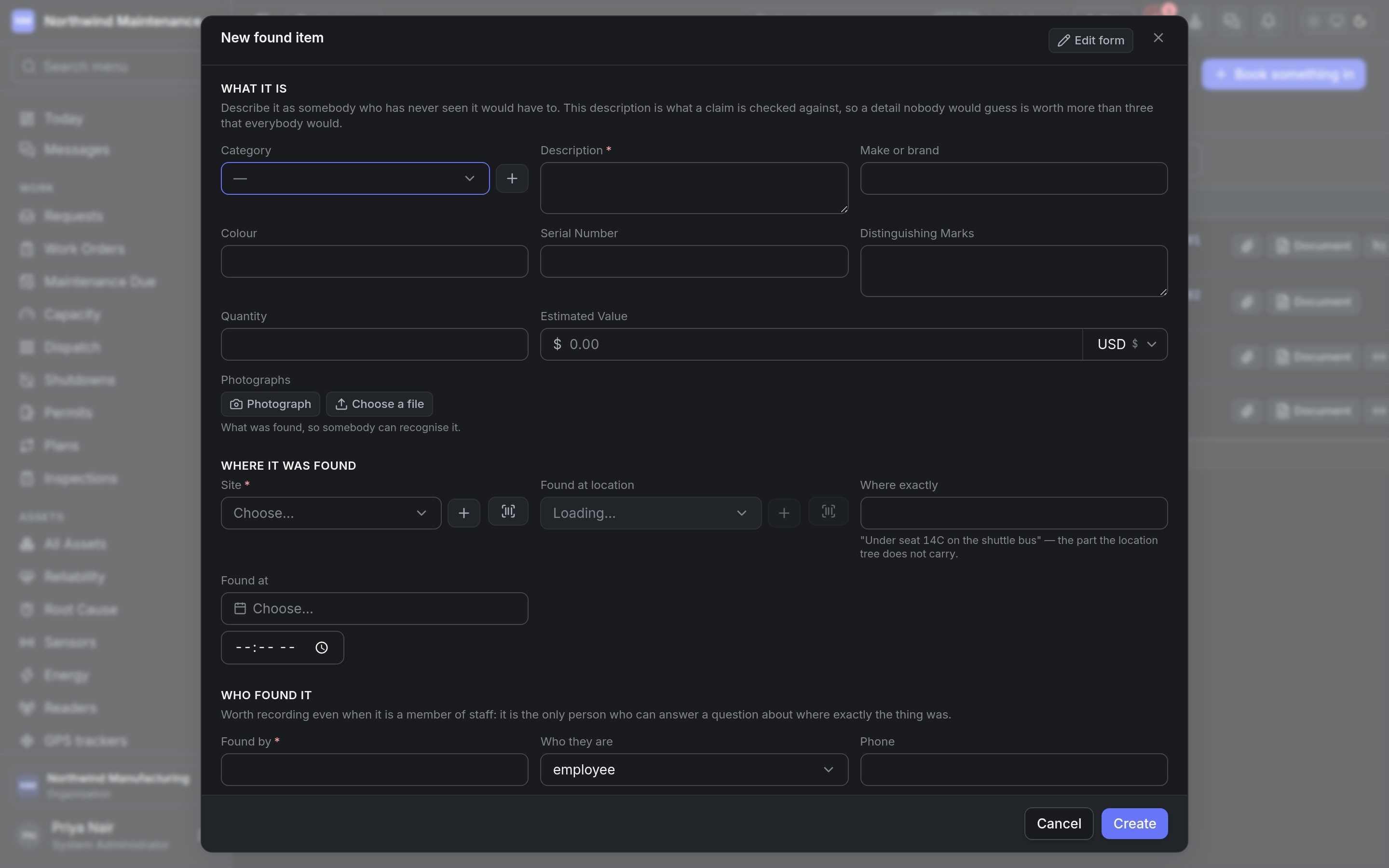
Where it was found
Who found it — worth recording even for a member of staff, because they are the only person who can say exactly where it was.
Where it is kept — specific enough that a different person on a different shift can put their hand on it.
Matching an item to a report
From either side:- Find it on an open lost report asks Which of these is it? and lists found items at the same site handed in since it went missing.
- Whose? on an item in store asks Whose is this? and lists open lost reports at the same site that it could answer.
Handing it over
Hand over opens Hand it over — for a claimed item, or an item in store with no report at all, which is the ordinary case at a counter.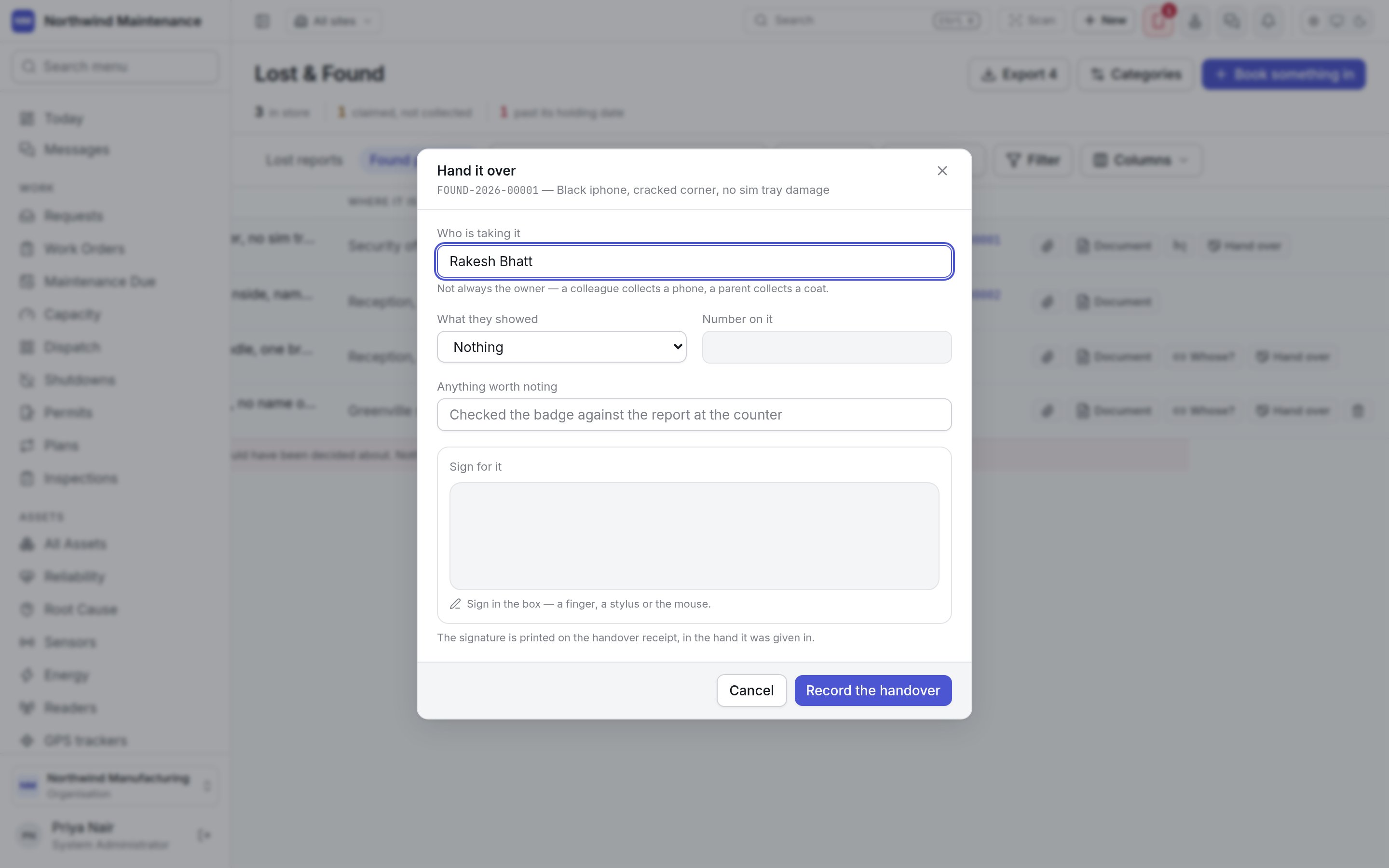
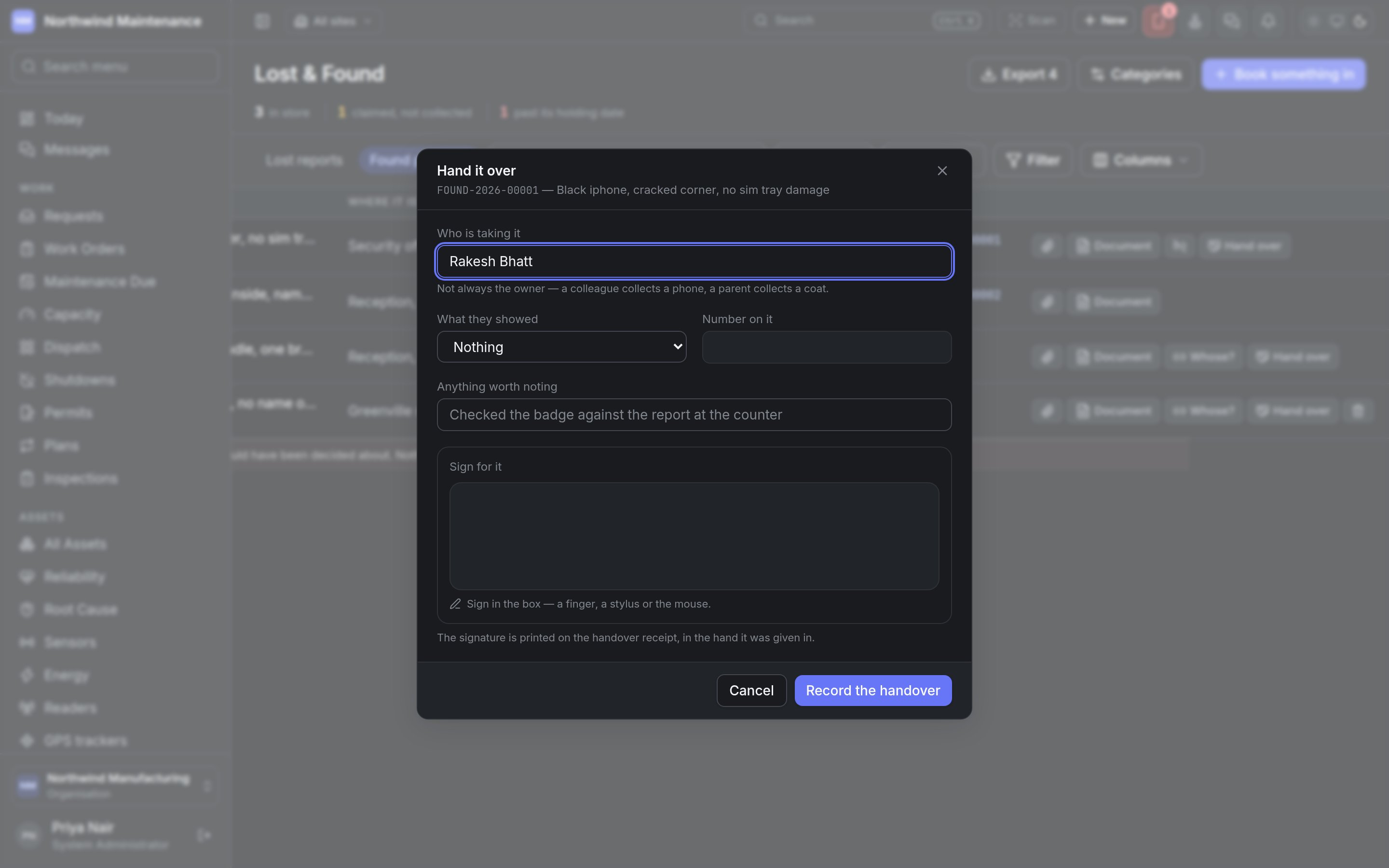
Record the handover marks the item Collected and any matched report Returned. That name is your evidence if someone comes back later asking where their property went. Document on the row prints the handover receipt.
Disposing of unclaimed property
Each category carries its own default holding period, set in Lost & Found settings, so a phone might be held for weeks and an umbrella for days. Once an item in store is past its Held until date, a dispose button (Nobody came back for it) appears on its row. It shows how long the item was held and asks:
Record it marks the item Disposed of.
Handing over and disposing need Hand property over, and record what became of what nobody claimed.
Lost & Found settings
The categories your desk uses, each one’s holding period, and which need a signature.