

If you don’t see this in your navigation, your administrator can switch the module on under Administration → Modules, or it may not be included in your plan. The module is called IT asset discovery there.
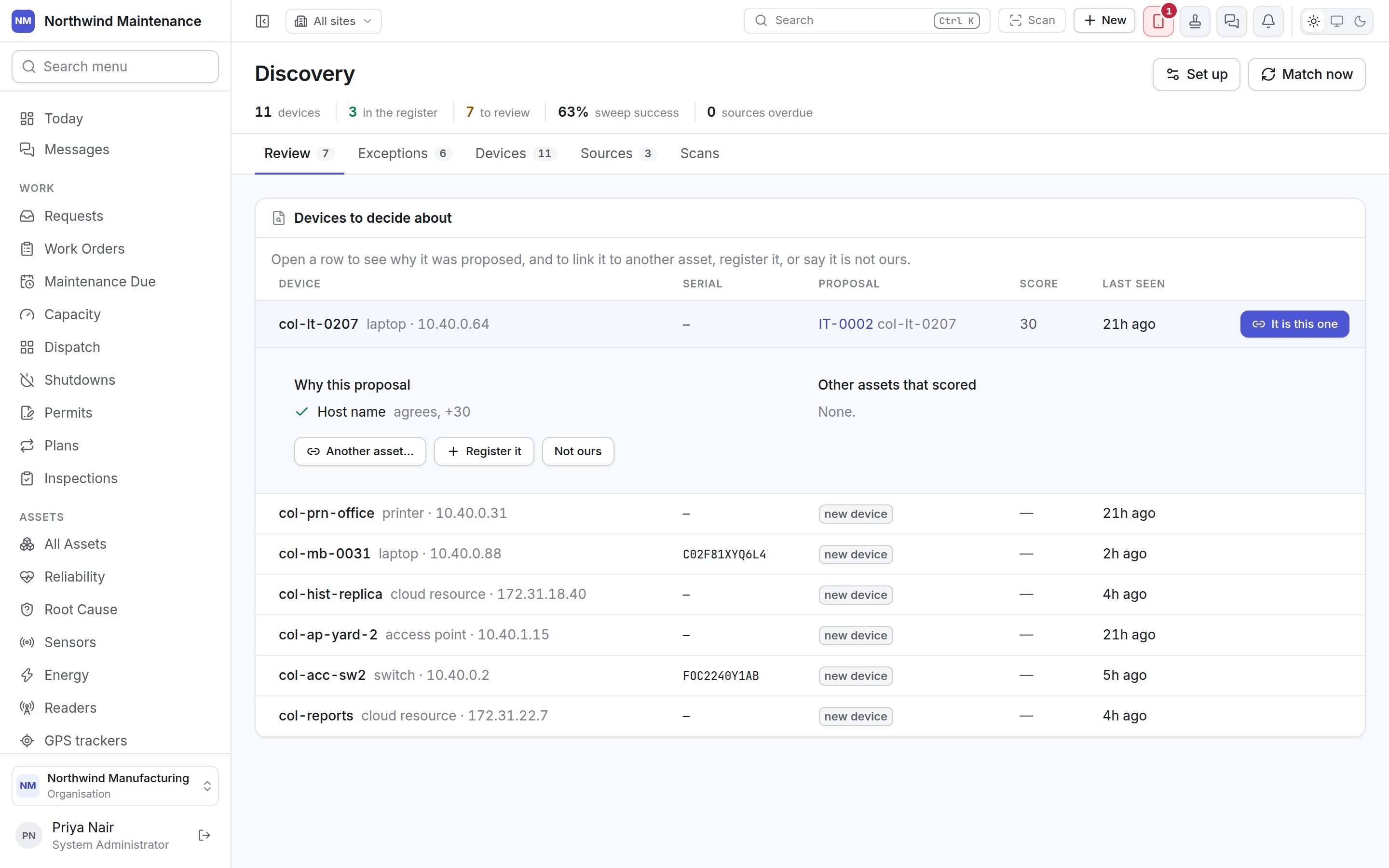
Each report is a scan. A minute after a scan arrives, the reconciler matches every device in it
against the register, scoring the evidence — serial number, MAC address, host name, hardware UUID and
so on. A device it is sure about is linked to its asset with nobody involved. A device it is not sure
about goes to Review.
Sources, enrolment keys, scan authorisations, credentials, the match rules and thresholds are set up
under Settings → IT discovery — see IT discovery settings. The Set up button takes you there.
The header
Match now matches waiting scans against the register immediately, exactly as the schedule would a
minute later. It needs permission to change match rules, thresholds and automatic creation.
Banners appear when sources have enrolled and are waiting for approval (their scans are refused
until somebody approves them on the Sources tab) or when sources are overdue.
Review
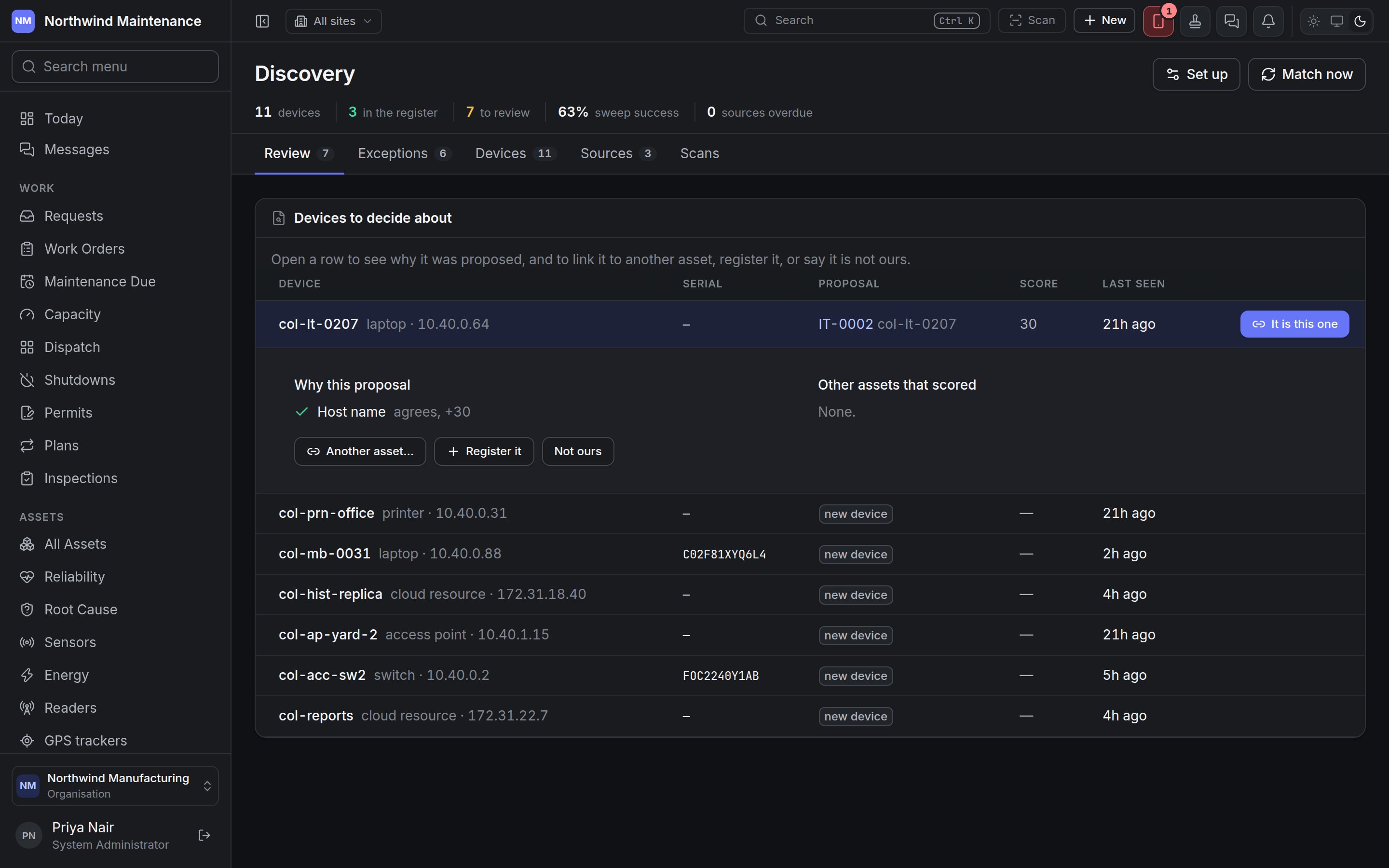
Devices to decide about lists devices the reconciler was not sure enough about.
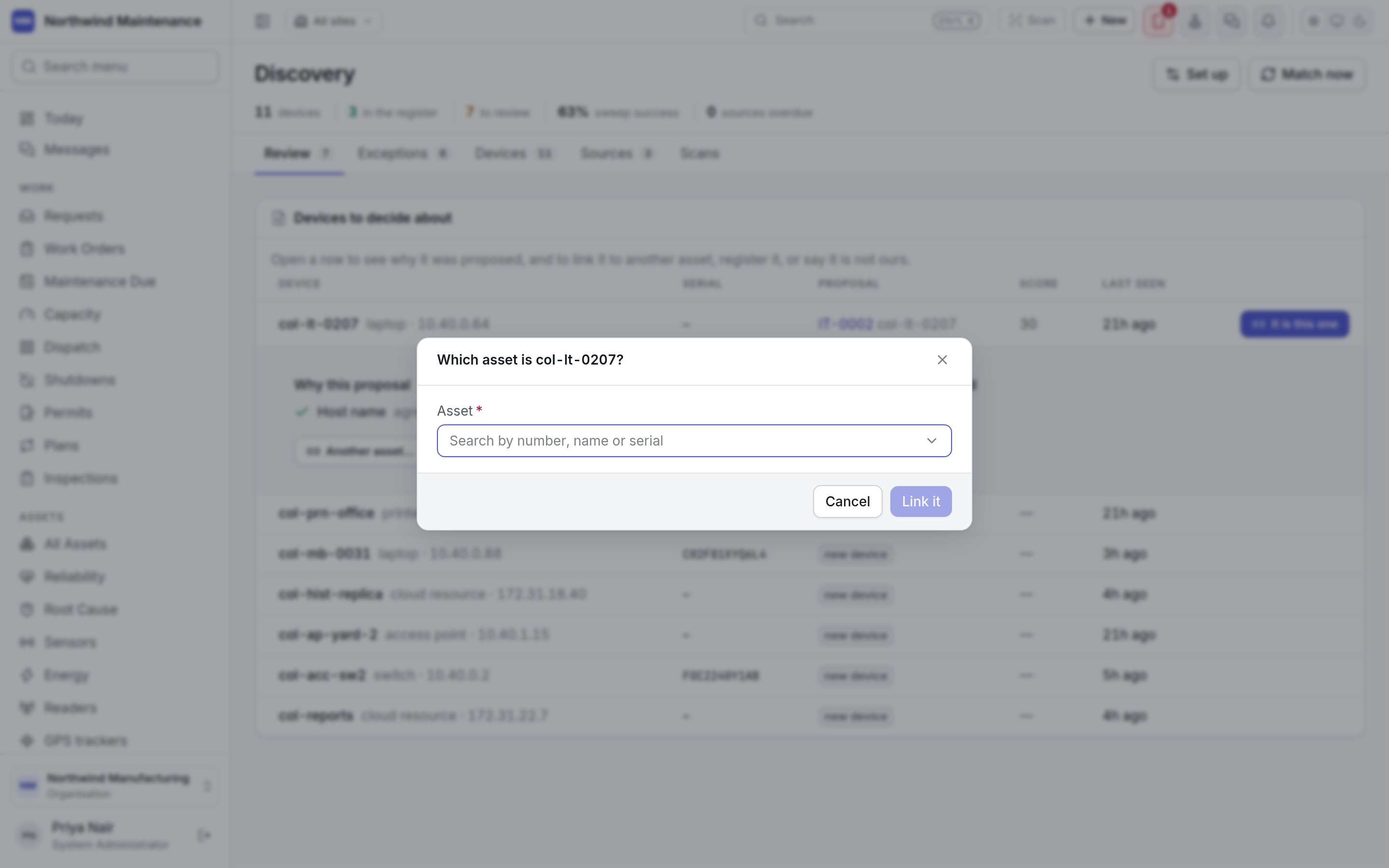
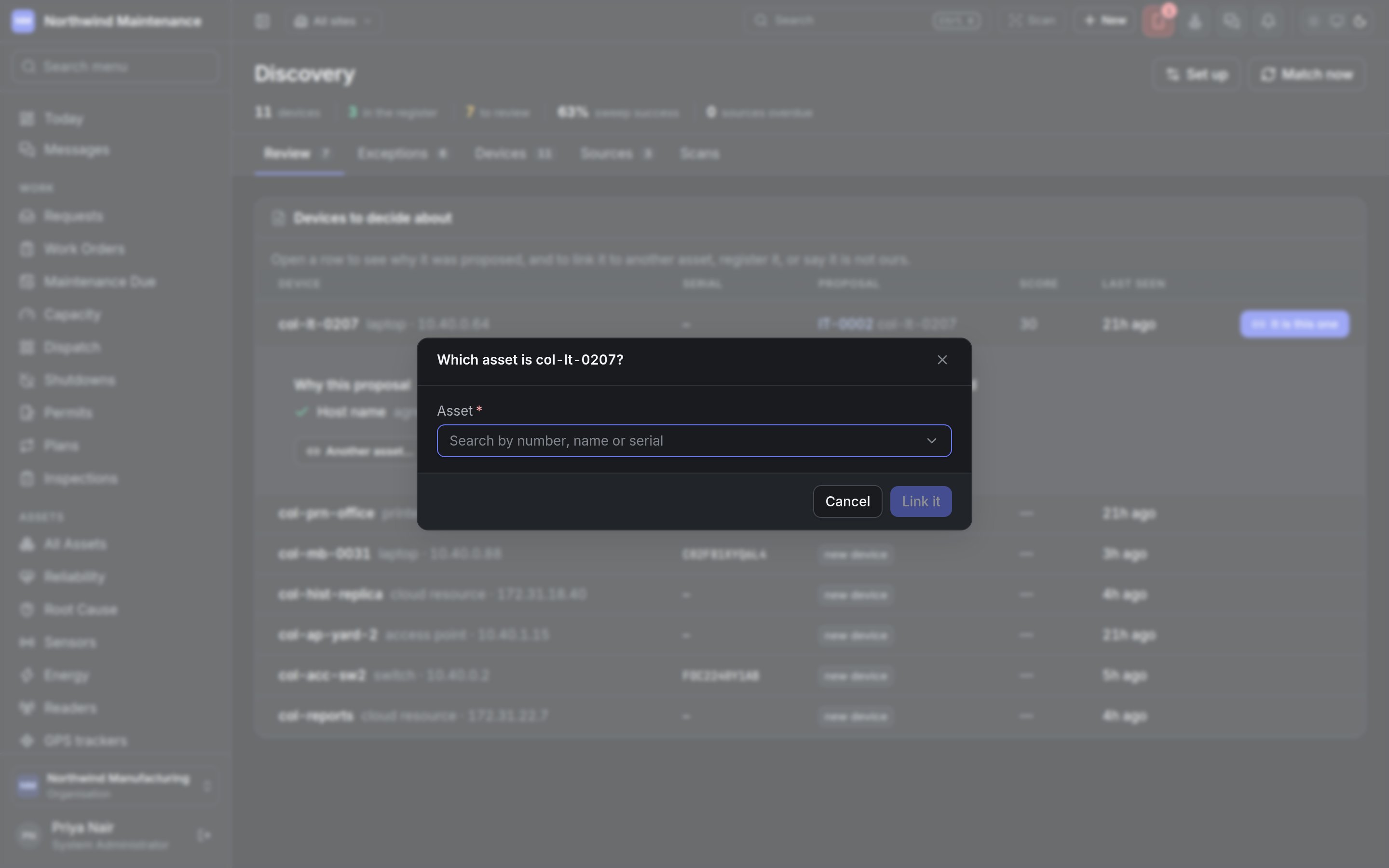
It is this one accepts the proposal and links the device to the proposed asset.
Open a row to see Why this proposal: each piece of evidence that agrees (with the weight it
added) or disagrees — some disagreements rule a match out altogether. Other assets that scored
lists the runners-up. If the device would have been registered automatically and was refused, the
reason is given. Three buttons follow:
Deciding needs permission to accept, link or dismiss a discovered device.
Registering a device as a new asset
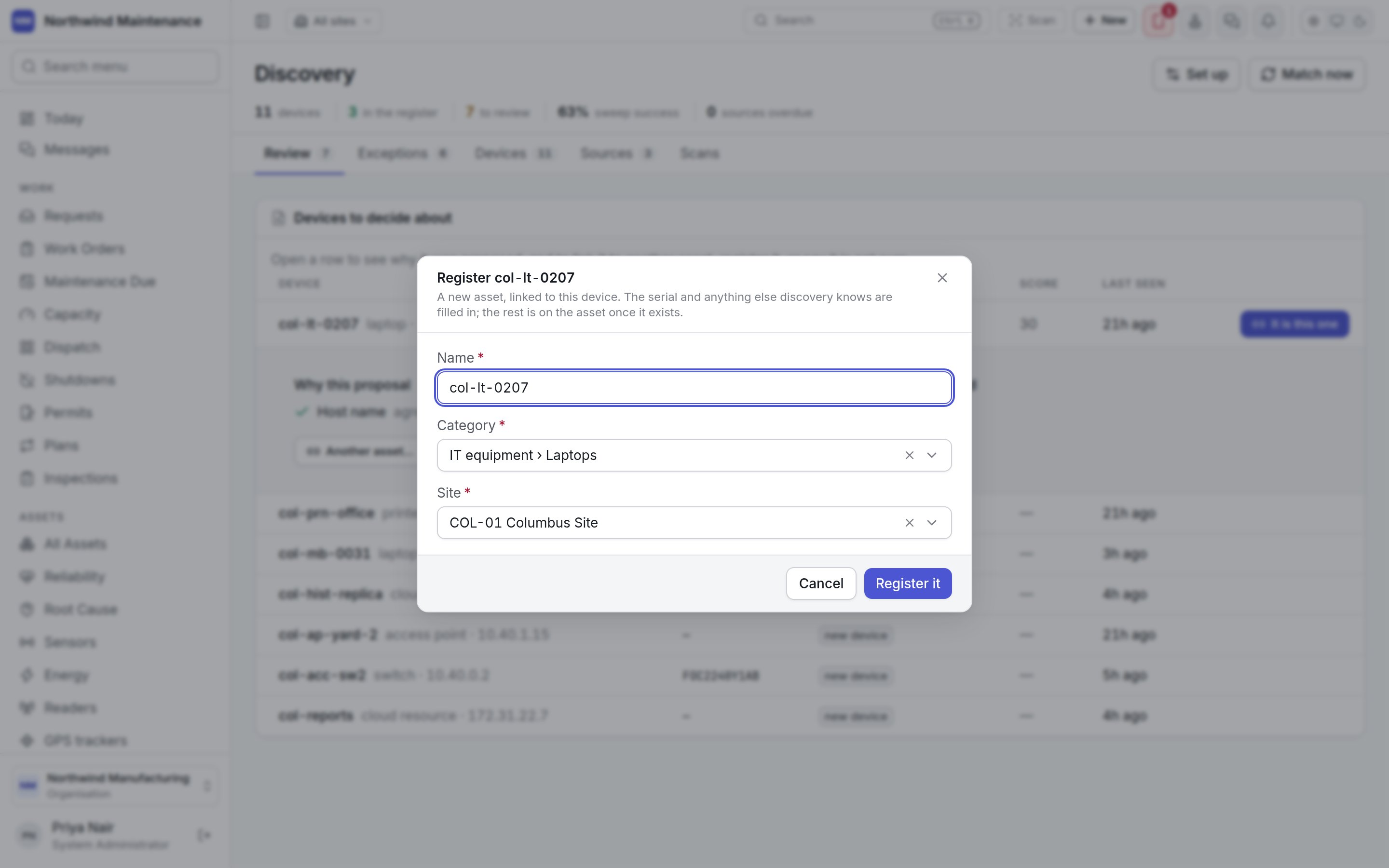
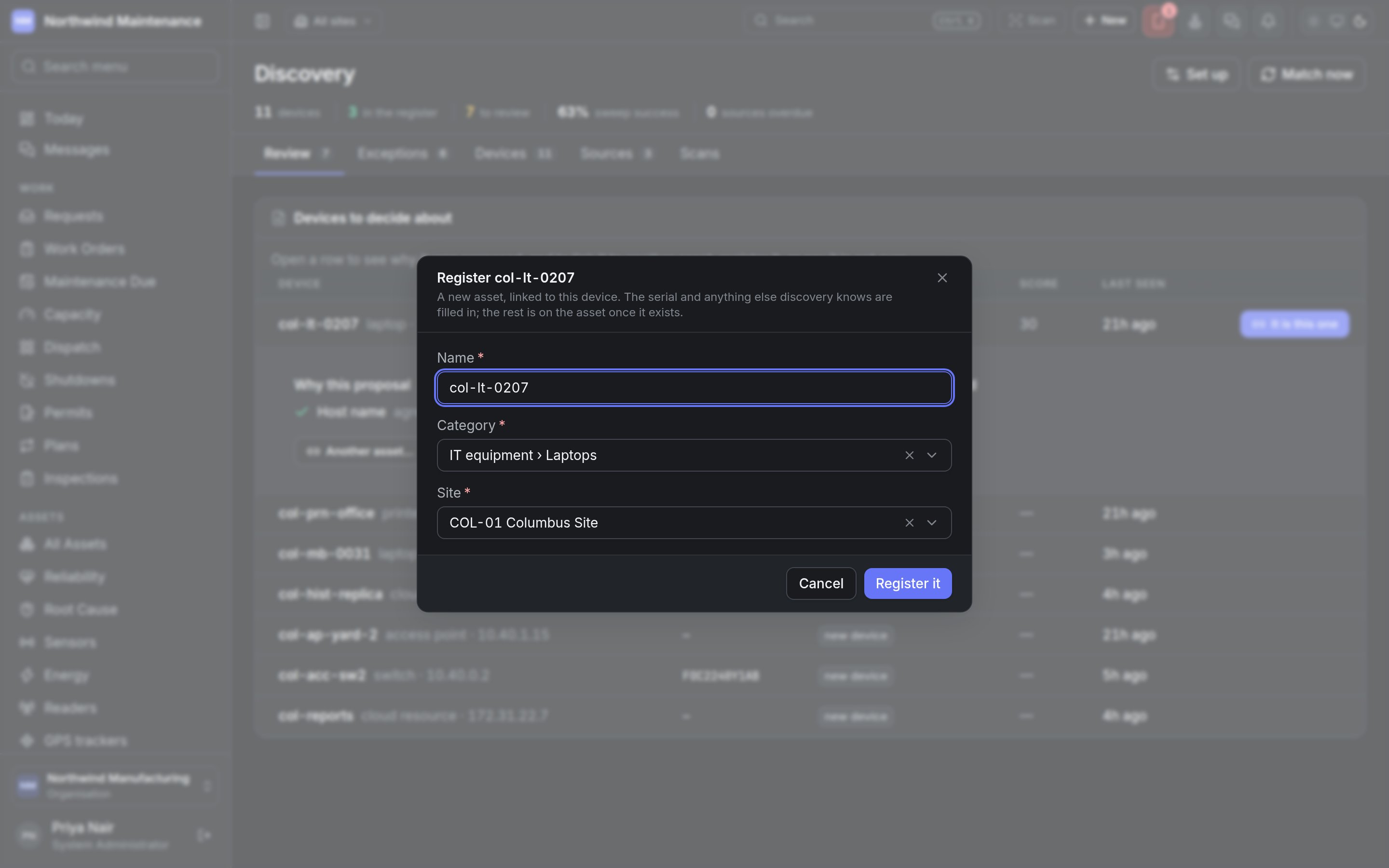
The serial and anything else discovery knows are filled in on the asset. The person last signed in to
the machine is suggested as its custodian; change it on the asset if they are not the one answerable
for it.
Dismissing a device
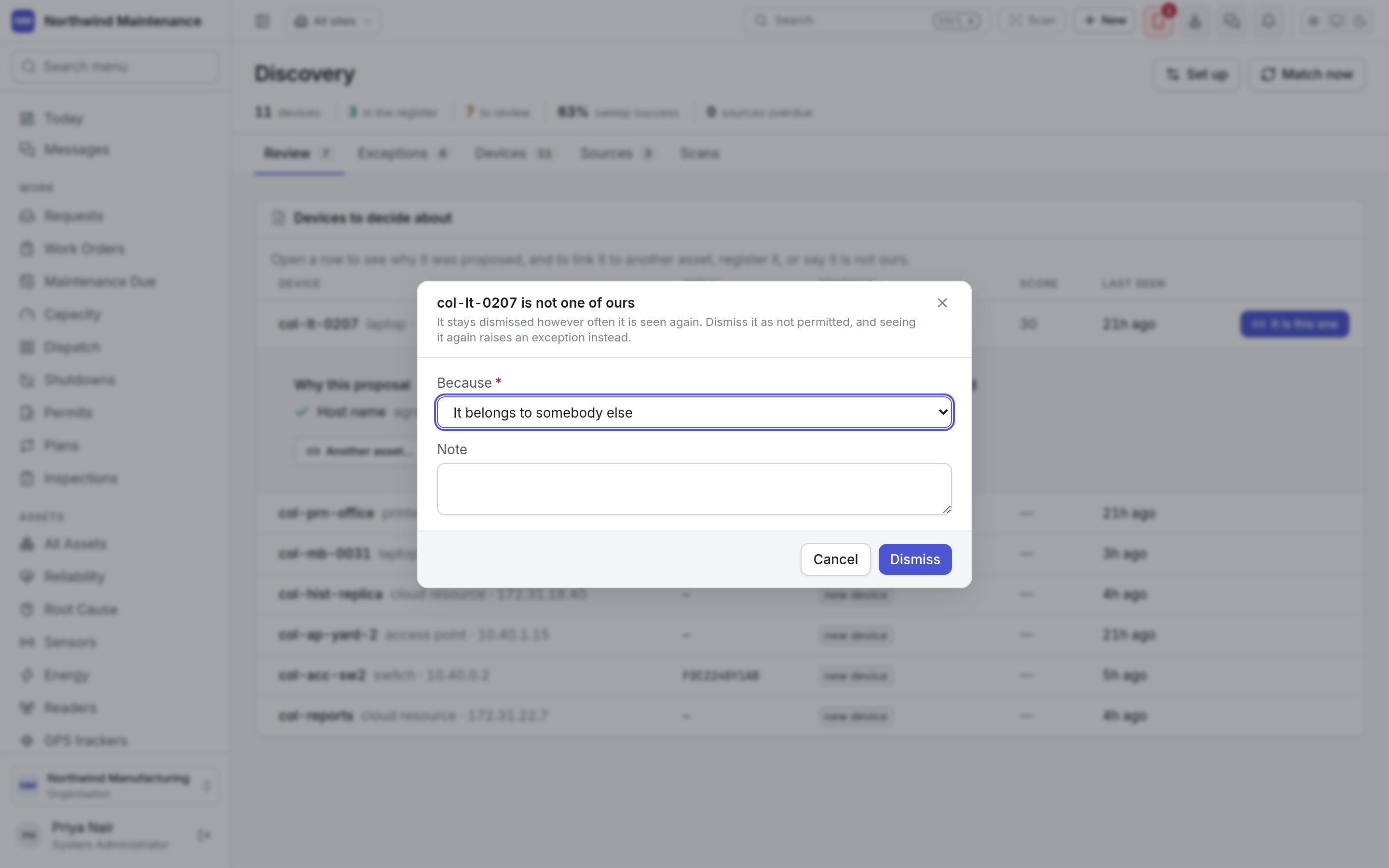
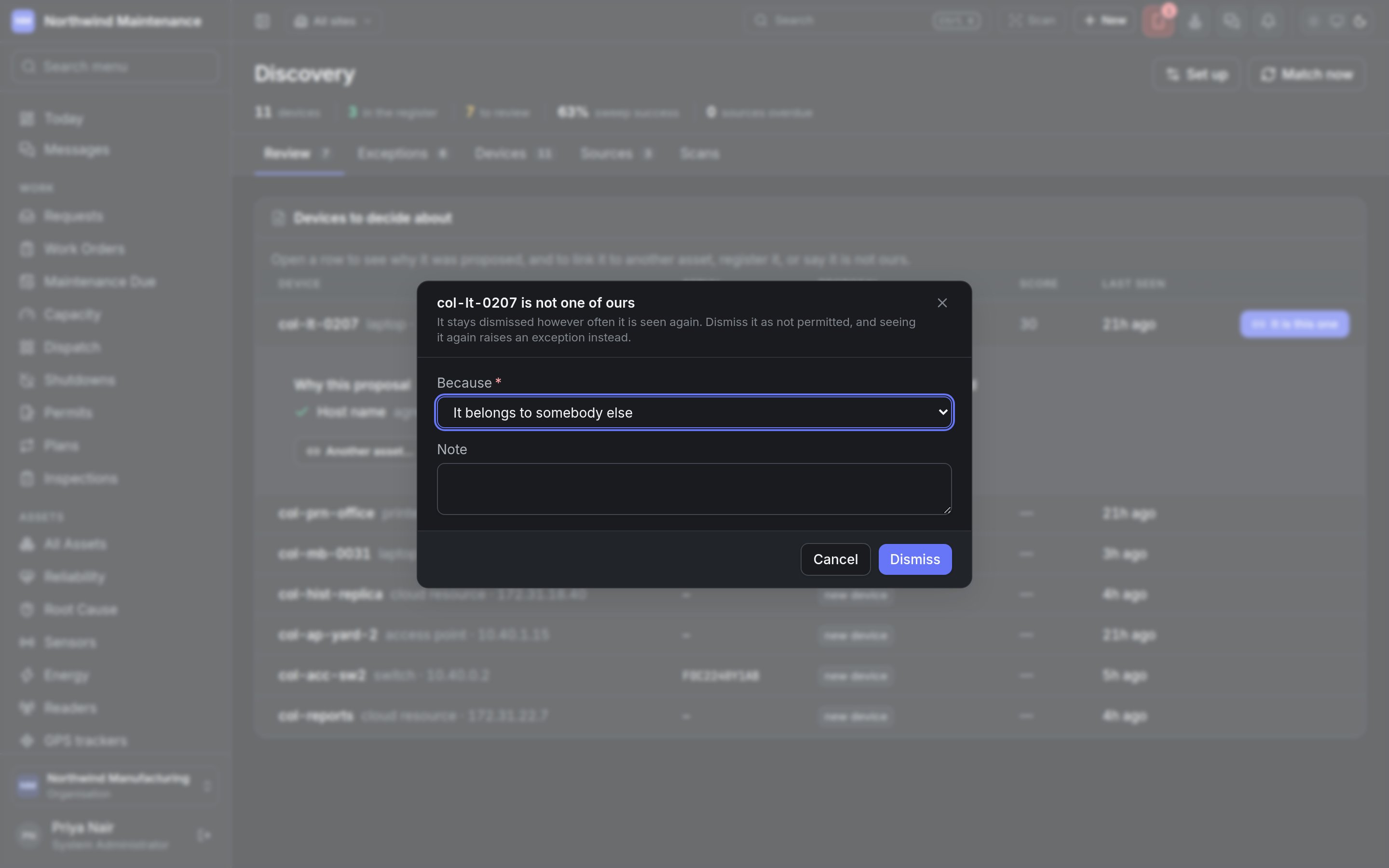
A dismissed device stays dismissed however often it is seen again. One dismissed as It should not
be on this network raises an Unauthorised exception each time it is seen again.
Exceptions
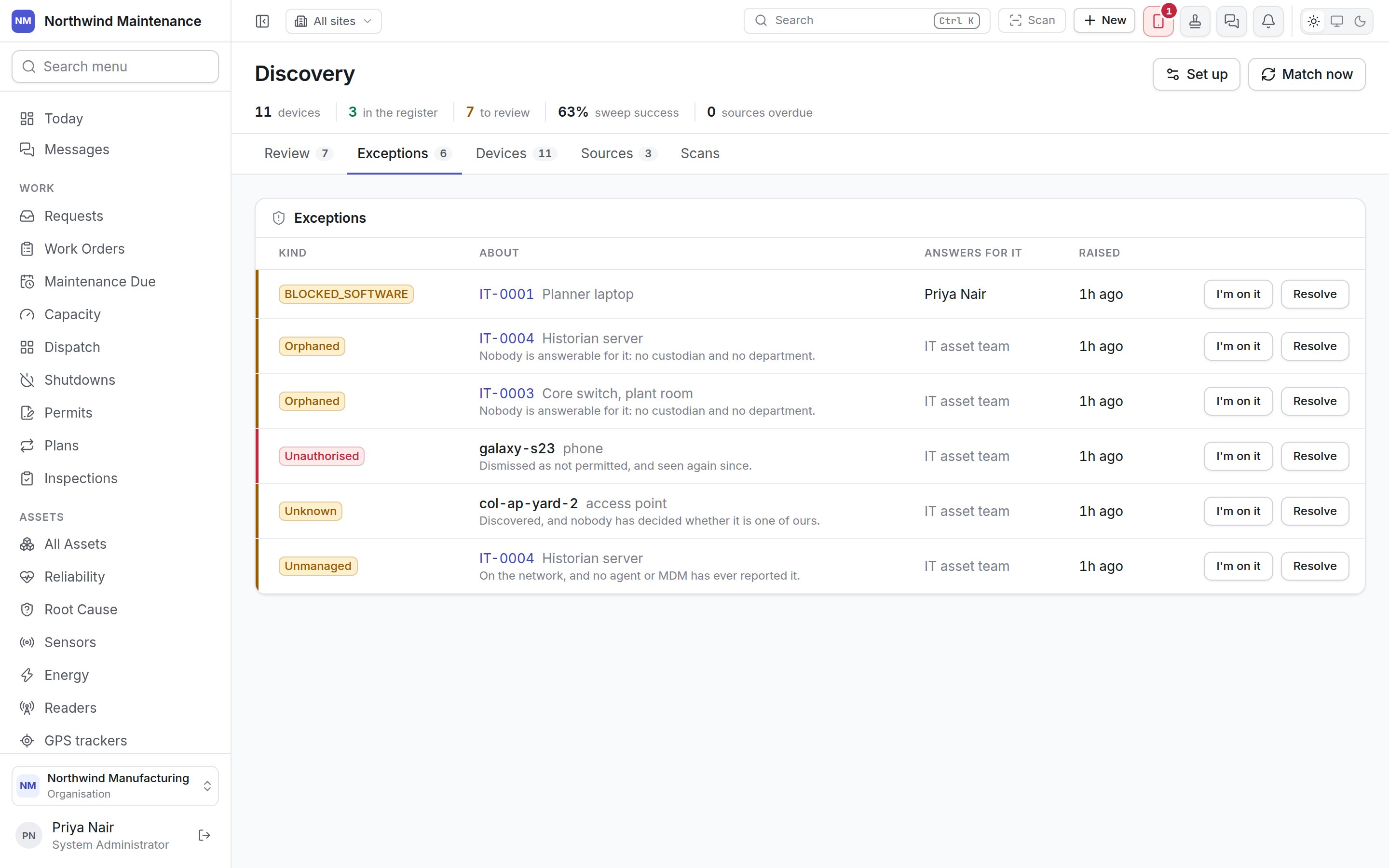
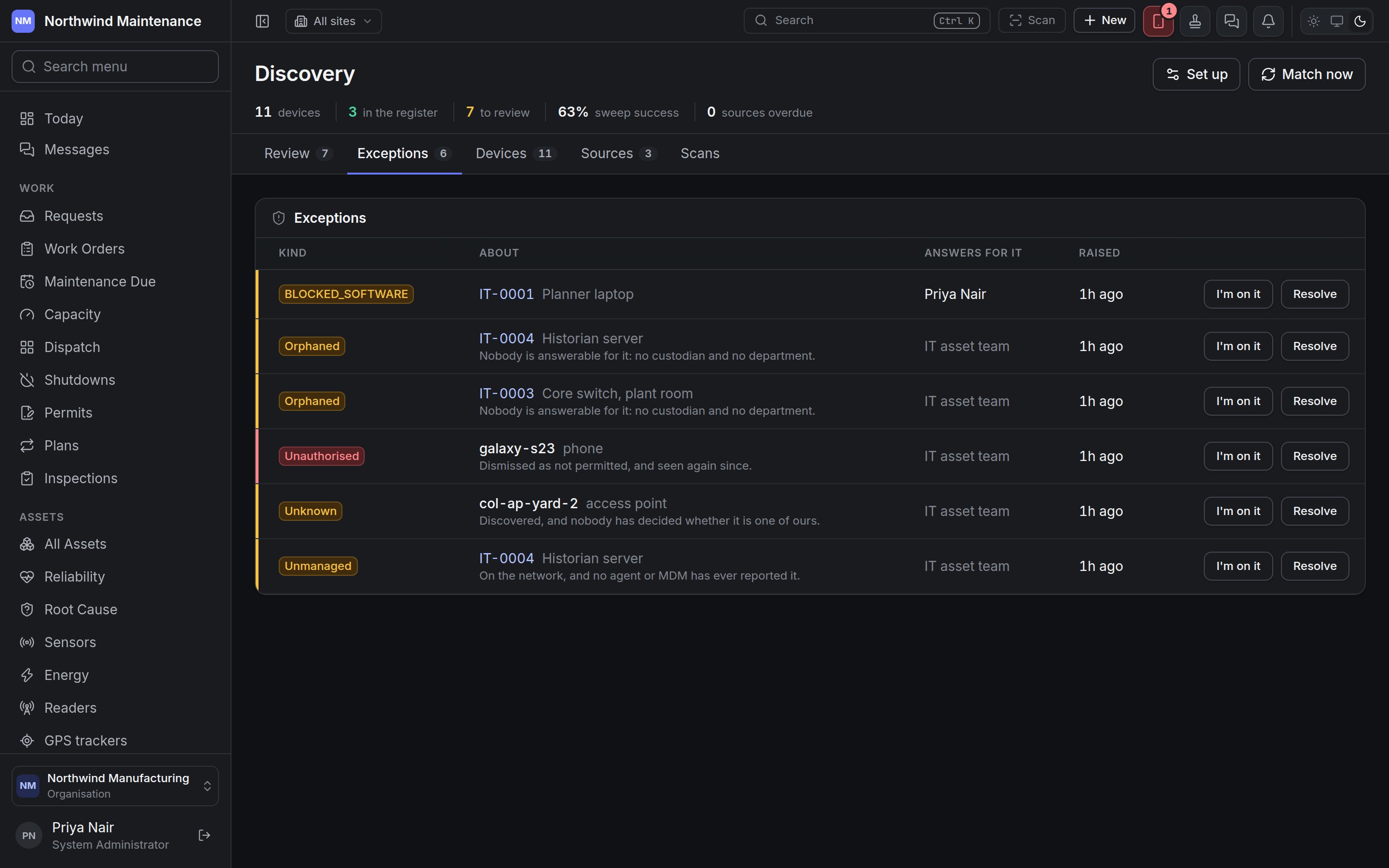
I’m on it marks it as in hand (needs permission to acknowledge and reassign discovery exceptions).
Resolve asks What was done about it? and closes it (needs permission to resolve discovery
exceptions). If the condition still holds at the next hourly sweep, a new exception is raised — so
resolve it once the cause is dealt with, not to clear the list.
Devices
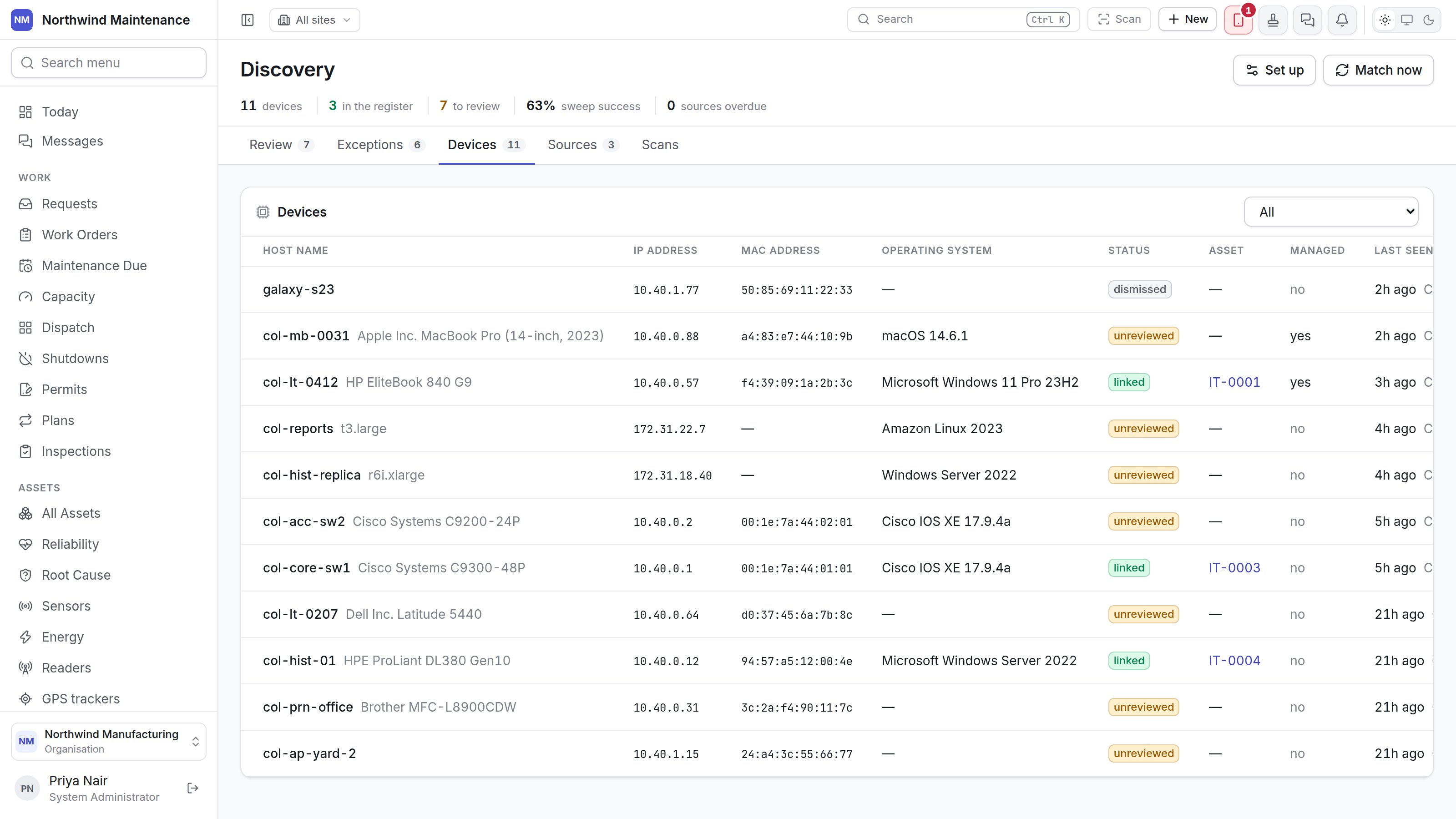
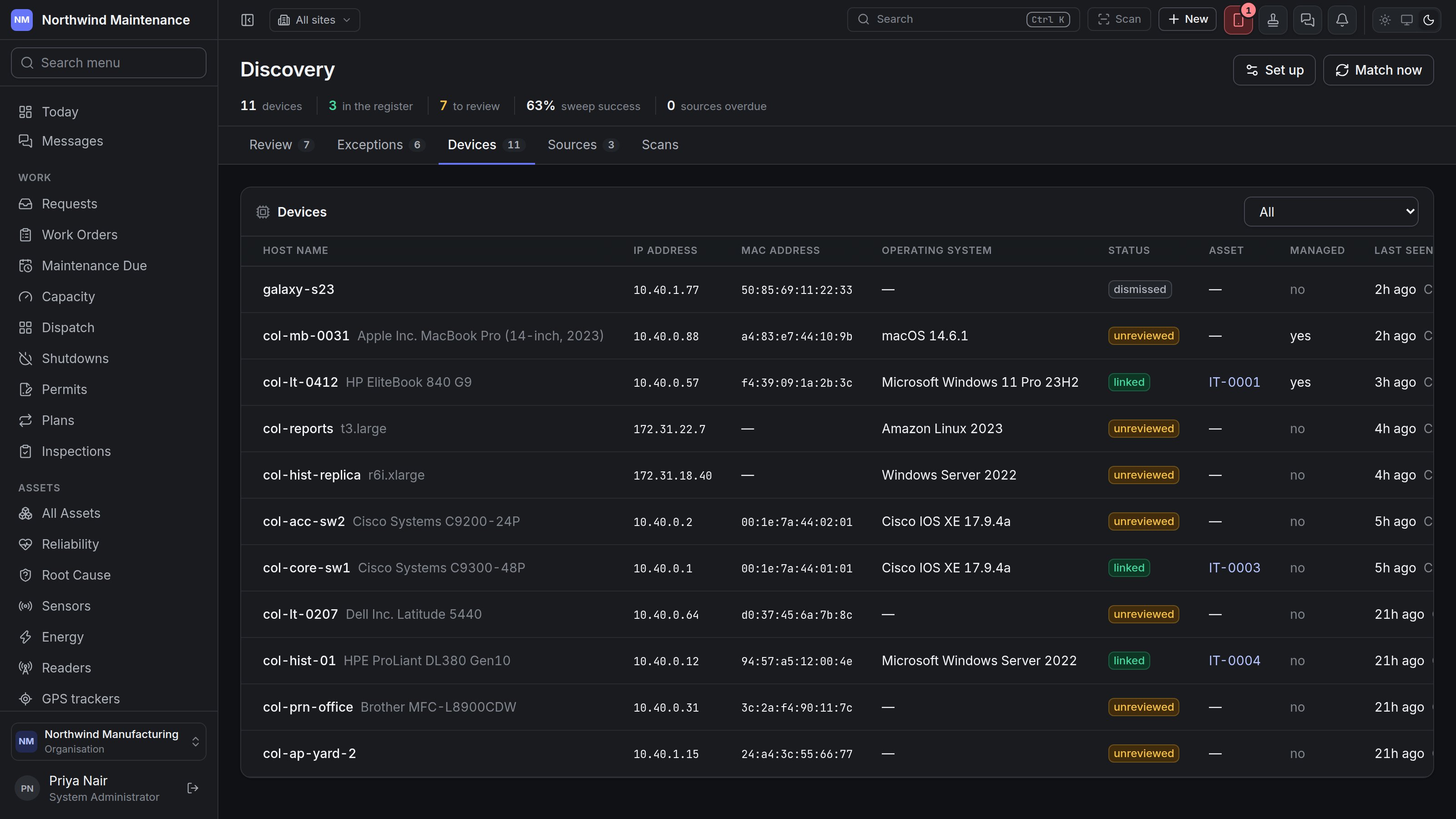
Row buttons depend on the status: Unlink (asks Why was the link wrong?; the link stays in the
device’s history and the device goes back to review), Review again for a dismissed device, and
Not ours for an unreviewed one. Opening a row shows what recognised it and the Software installed
now — reported only by an agent or MDM, never by a network sweep.
Sources
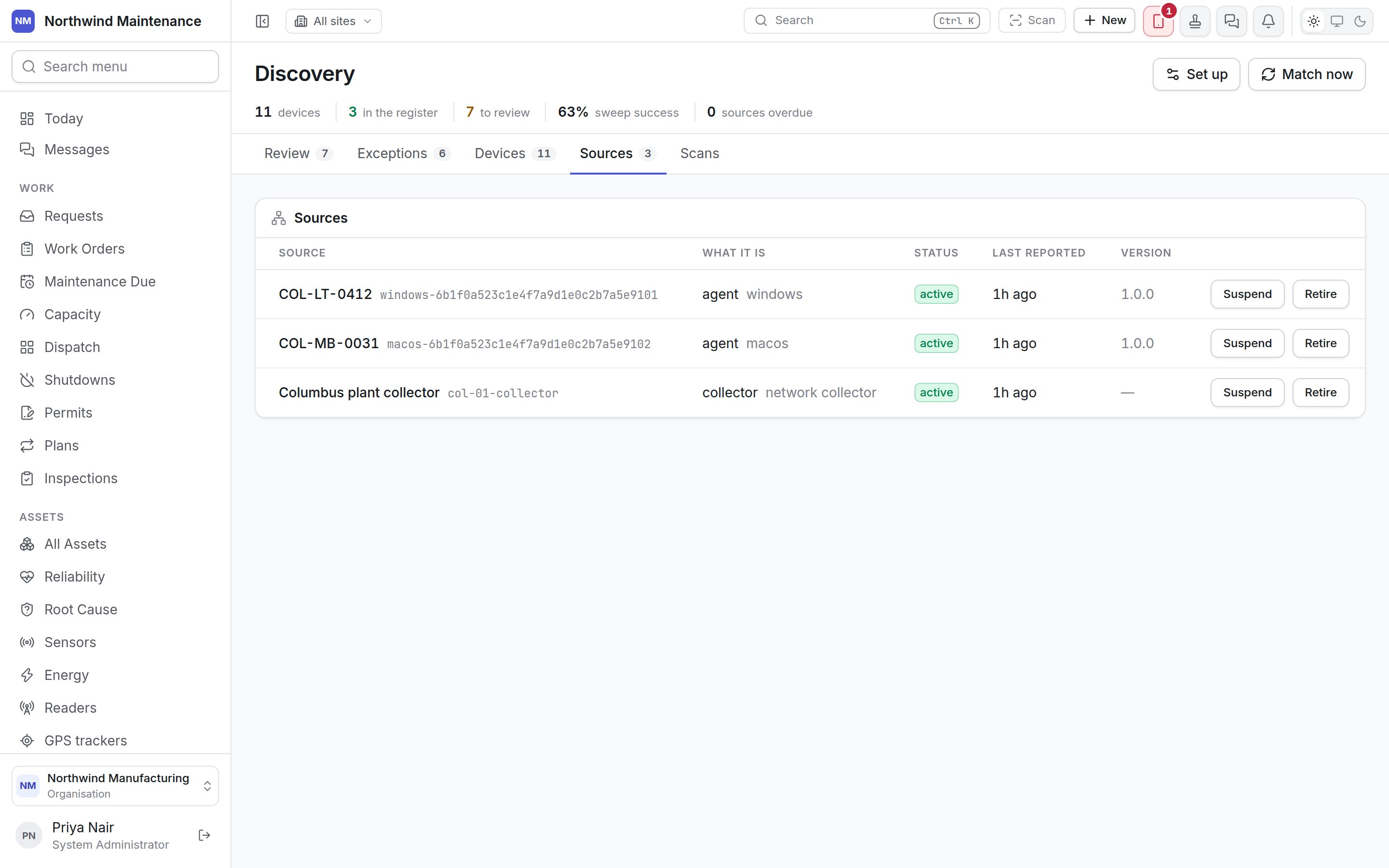
These need permission to approve, suspend and retire discovery sources.
Scans
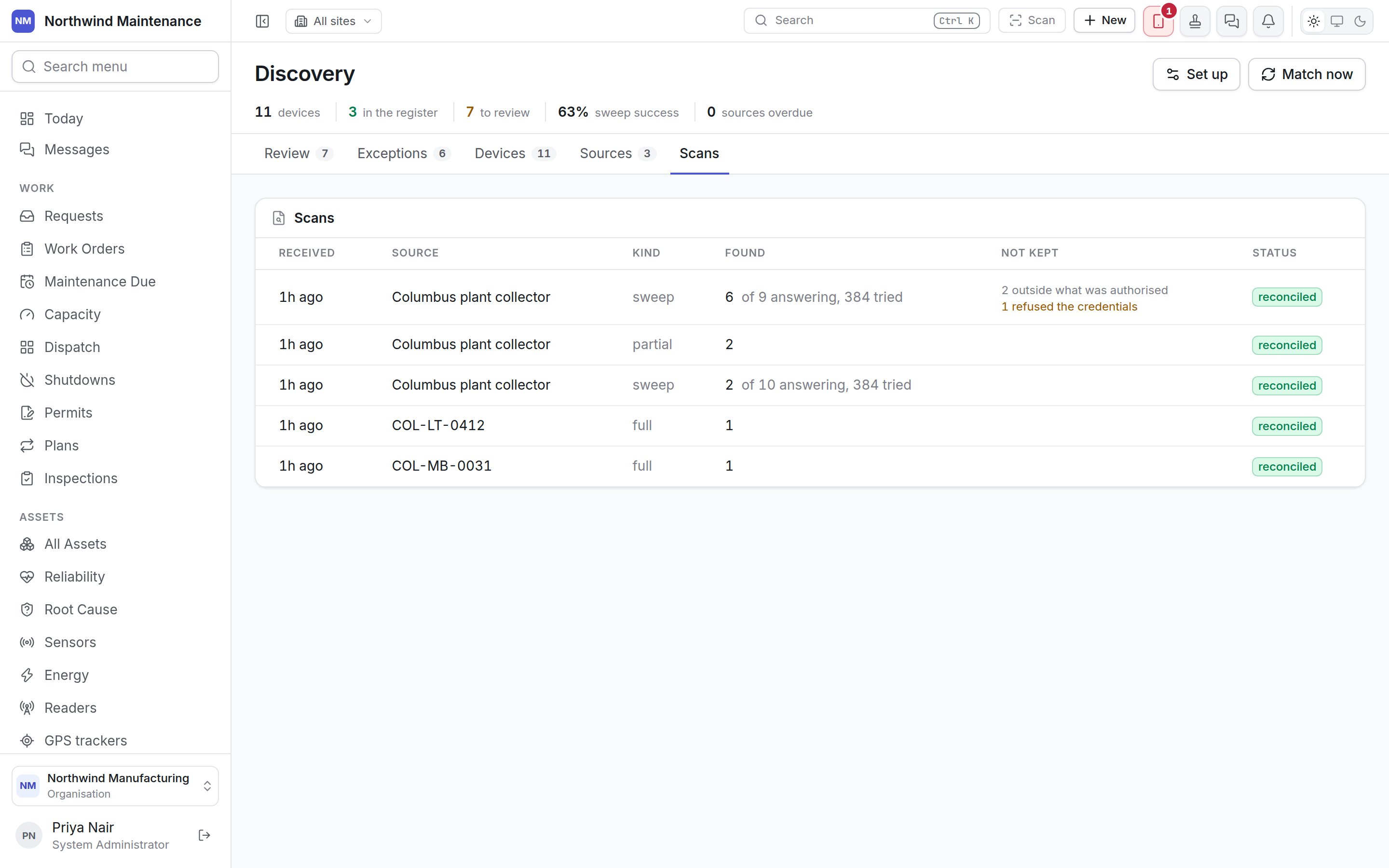
Who can do what
See also software for what is installed on these devices and
network topology for how they are connected.