

You need Booking · assign (Issue and receive back what is booked, on the roles page), and the bookings module. Without it none of these buttons appear. On a hand-over, changing a machine’s terms, swapping it or charging the booking to a different payer also needs permission to edit bookings; without it you see what was booked but cannot change it.
Each of these opens a sheet that fills most of the screen. Back, or the cross, closes it without sending anything. When the server takes it, the sheet says Issued, Handed over or Taken back with the asset numbers, and Done closes it.
The counter needs a connection. Whether an asset is free, due for maintenance or already taken by somebody else is decided now, so nothing here is queued for later. Without a signal the buttons stay on the screen, greyed, with Needs a connection under them. Everything in a sheet is sent together: if the server refuses one asset, nothing goes, and the reason is shown above the button in the server’s own words.
Issuing without a booking
Issue appears under a selection when at least one ticked asset is in. It opens Issue — Without a booking — for the ticked assets that are in. An asset a booking holds is not issued from here: its card says Booked on now. Hand it over from the booking., the foot of the sheet says held by a booking — issue those from the booking., and the sheet cannot be sent until you take it out of the selection.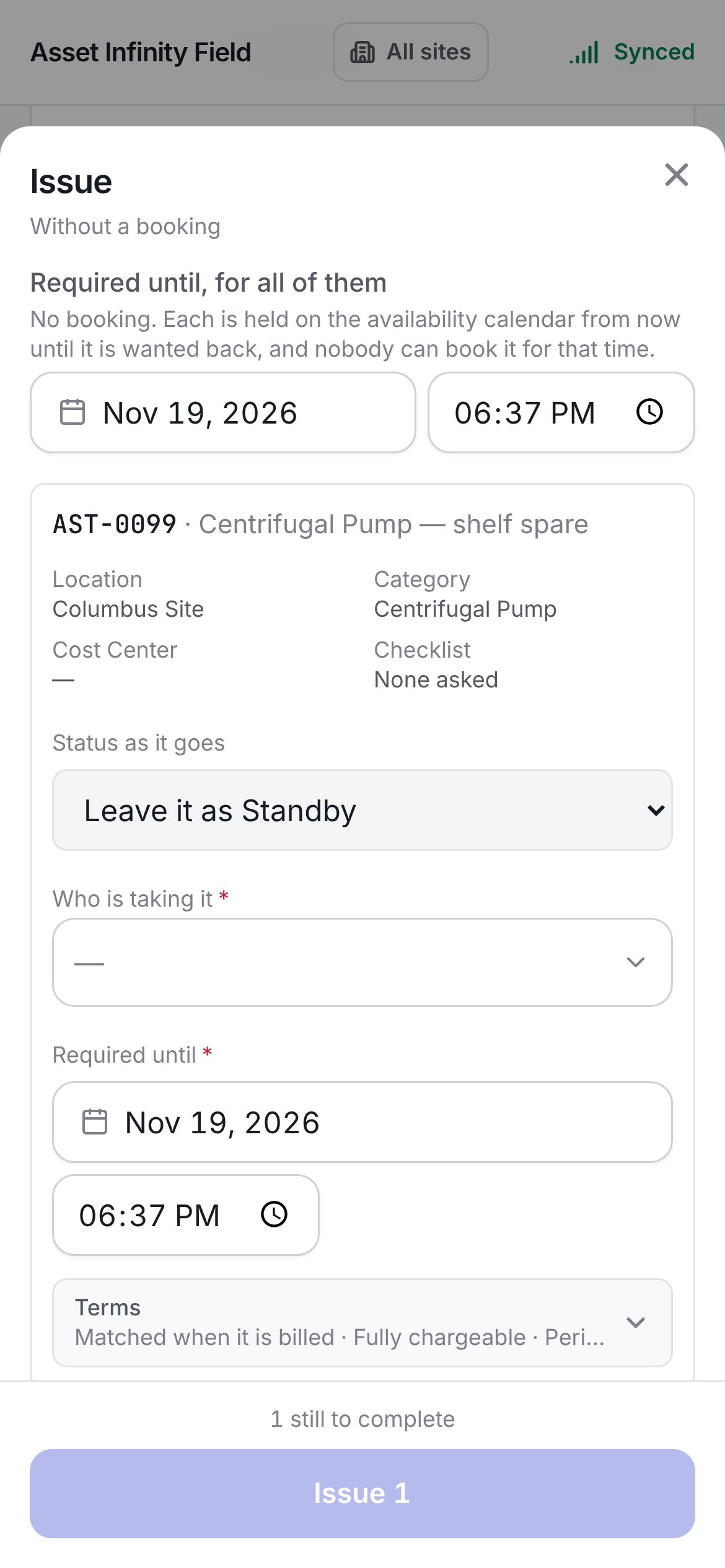
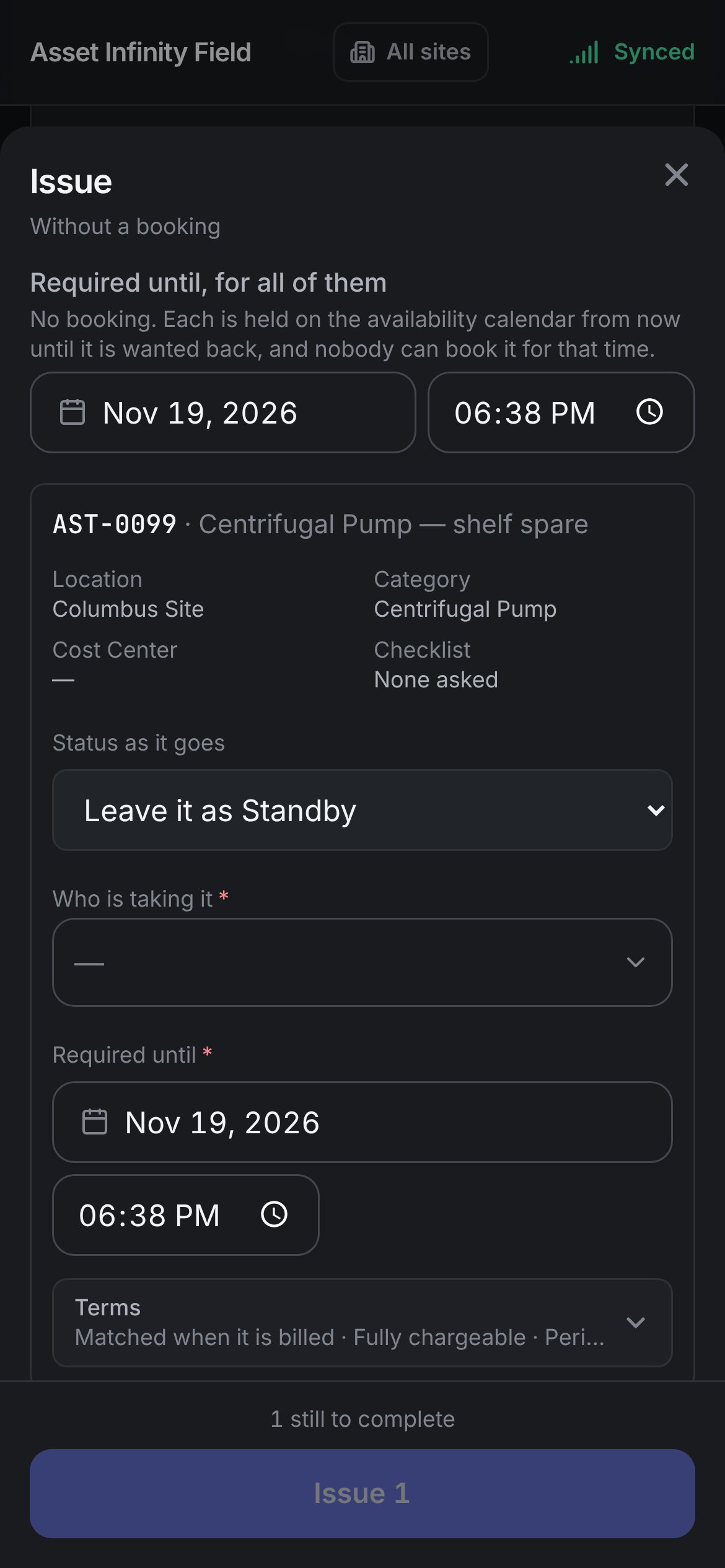
Who pays for all of them is asked once:
The line above the button says still to complete, Say who pays for them. or Every asset is ready to go. Issue sends it, and the finished sheet shows the Checkout number.
Handing a booking over
The hand-over is titled Hand it over, with the booking numbers under it. Only bookings that are Booked or Confirmed and have assets waiting to go out can be handed over; one awaiting approval is held back. Several bookings go out together only when they are charged to the same payer.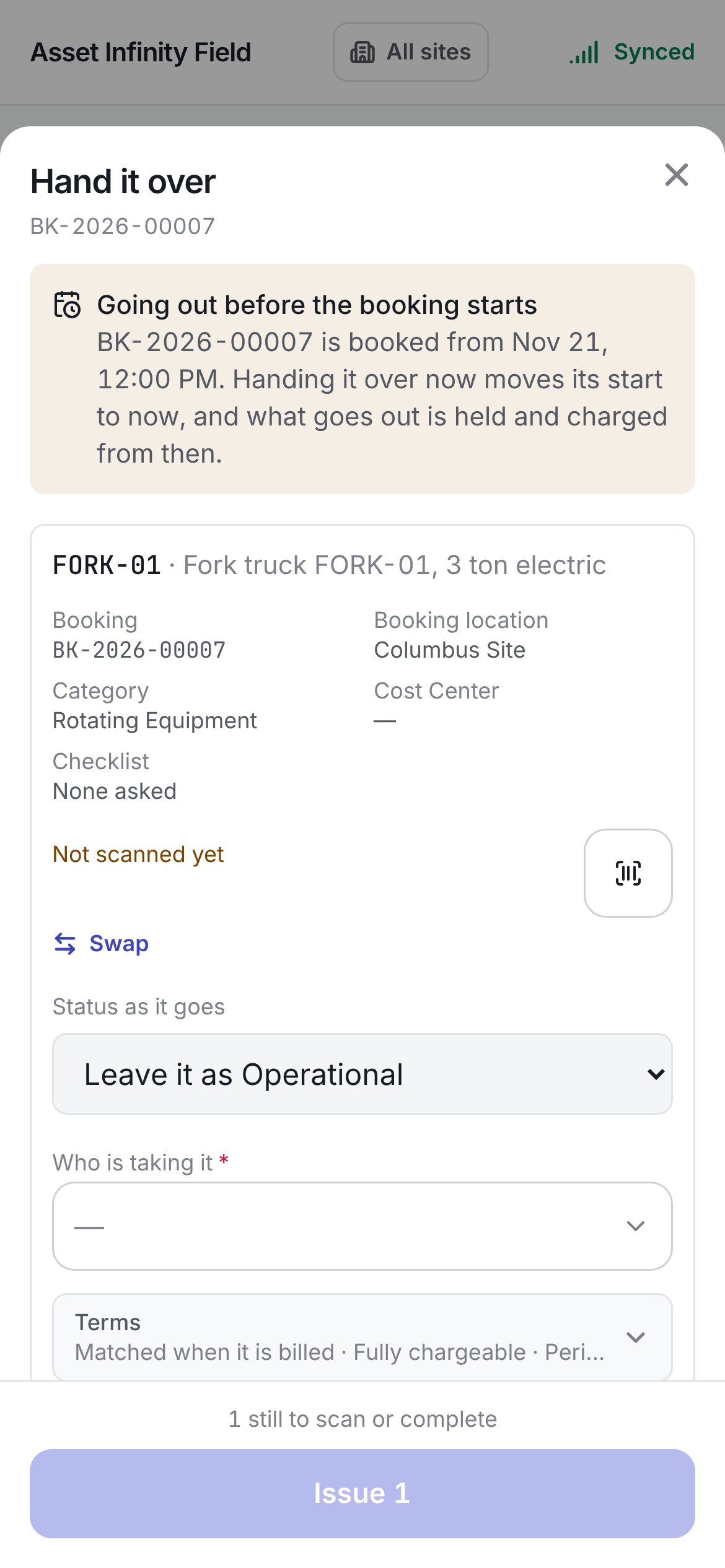
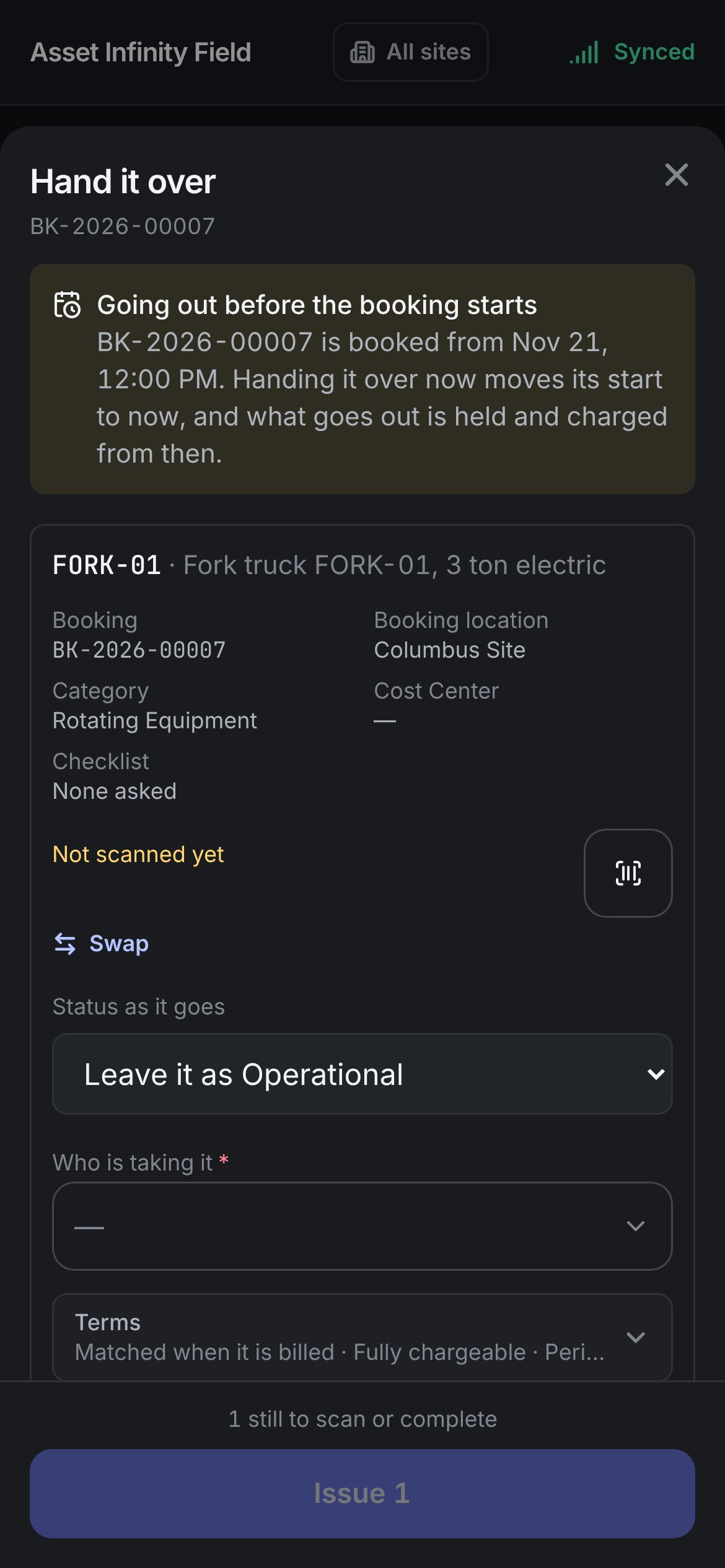
Under the machines:
The line above the button says still to scan or complete until every machine is scanned or excused and every question answered, then Every machine is scanned. Issue hands them over.
Taking assets back
Take them back lists the assets that are out — the ticked ones, or everything out on the booking. If none of them is out any more, it says None of these is out now. It may have been taken back already. With more than one asset, Site at the top sets where all of them are received — Sets every row below. Change a row to receive that asset somewhere else. If you are not allowed to move assets, the sheet says You cannot move assets, so each one goes back to where it is now. Each asset shows what it is Against (the booking, or Direct for an issue without one), who it is Out with, when it was Required until and what it Bills on check-in, and asks:
Parts that went out on a booking are listed under Parts coming back, each with How many — What came back unused. The charge for it is reversed rather than edited.
Receive takes them back. The sheet reminds you that Damage raises a corrective job against the asset.
Terms
Each machine’s terms sit behind Terms, which shows what it goes out on in one line until you open it:
On a hand-over, the terms open on what the booking holds and can be changed only by people allowed to edit bookings. On an issue without a booking, they open on the asset’s own defaults.