

If you don’t see this in your navigation, your administrator can switch the module on under Administration → Modules, or it may not be included in your plan. The module is called Readers there, and is part of Sensors.
How it works
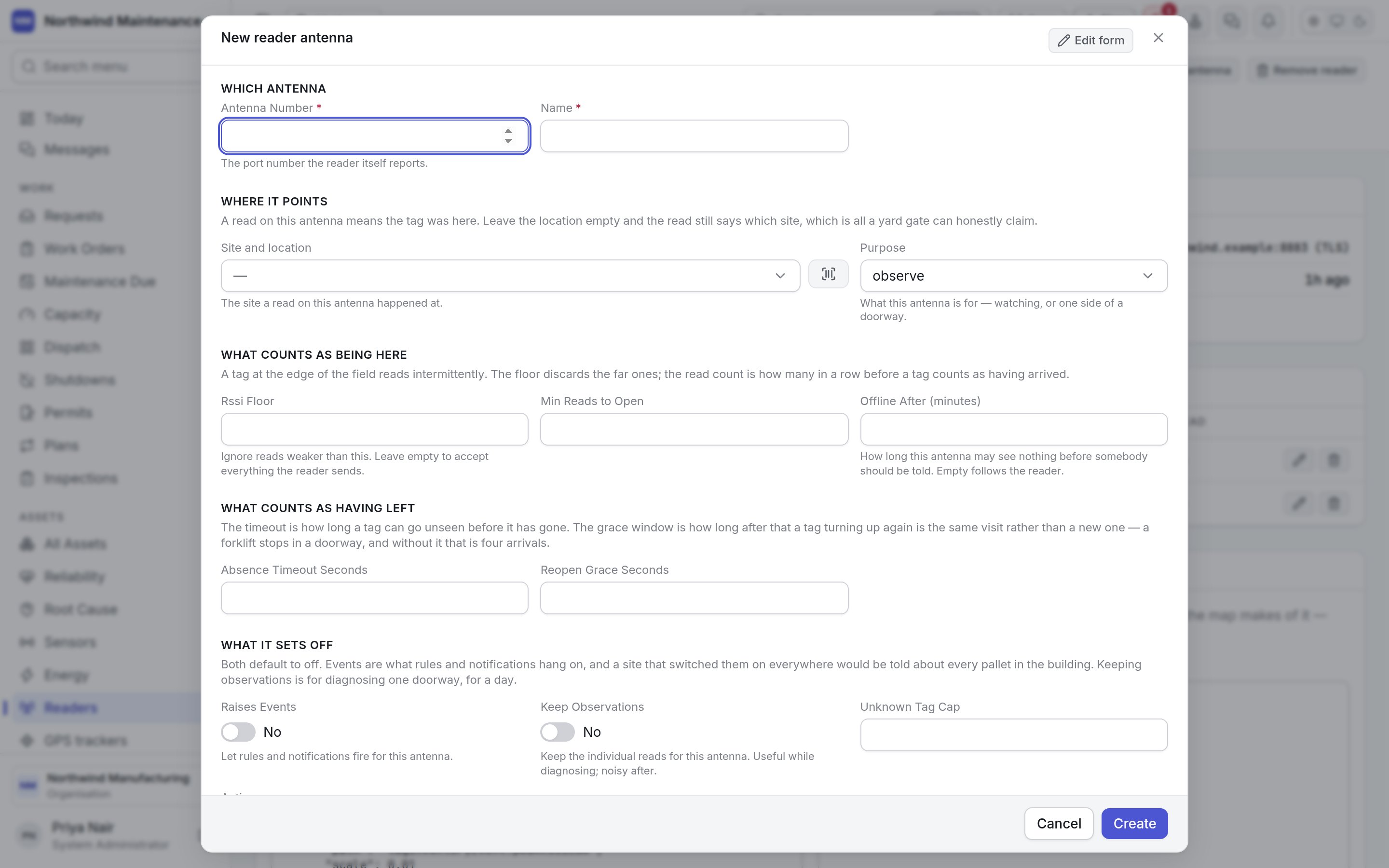
A visit opens once a tag has been read enough times in a row (Min Reads to Open), and closes once
it has not been seen for a while (Absence Timeout Seconds). If it turns up again within the grace
window (Reopen Grace Seconds), the same visit carries on — a forklift that stops in a doorway is
one arrival, not four. A tag is in one place at a time: opening a visit at one antenna closes any
other open visit for that tag.
How reads move assets
A visit on its own records where the tag was seen. To act on it, switch on Raises Events for the antenna, then write an automation rule on the asset that runs when a tag arrives or departs. Rules can:- move the asset to the place the antenna points at, so its location in the register follows it through the doorway;
- notify somebody — “tell me when it leaves the yard”;
- check conditions about the read: which antenna and its purpose, the reader’s code, the tag, how long it stayed, how many times it was read, and the strongest signal.
The header
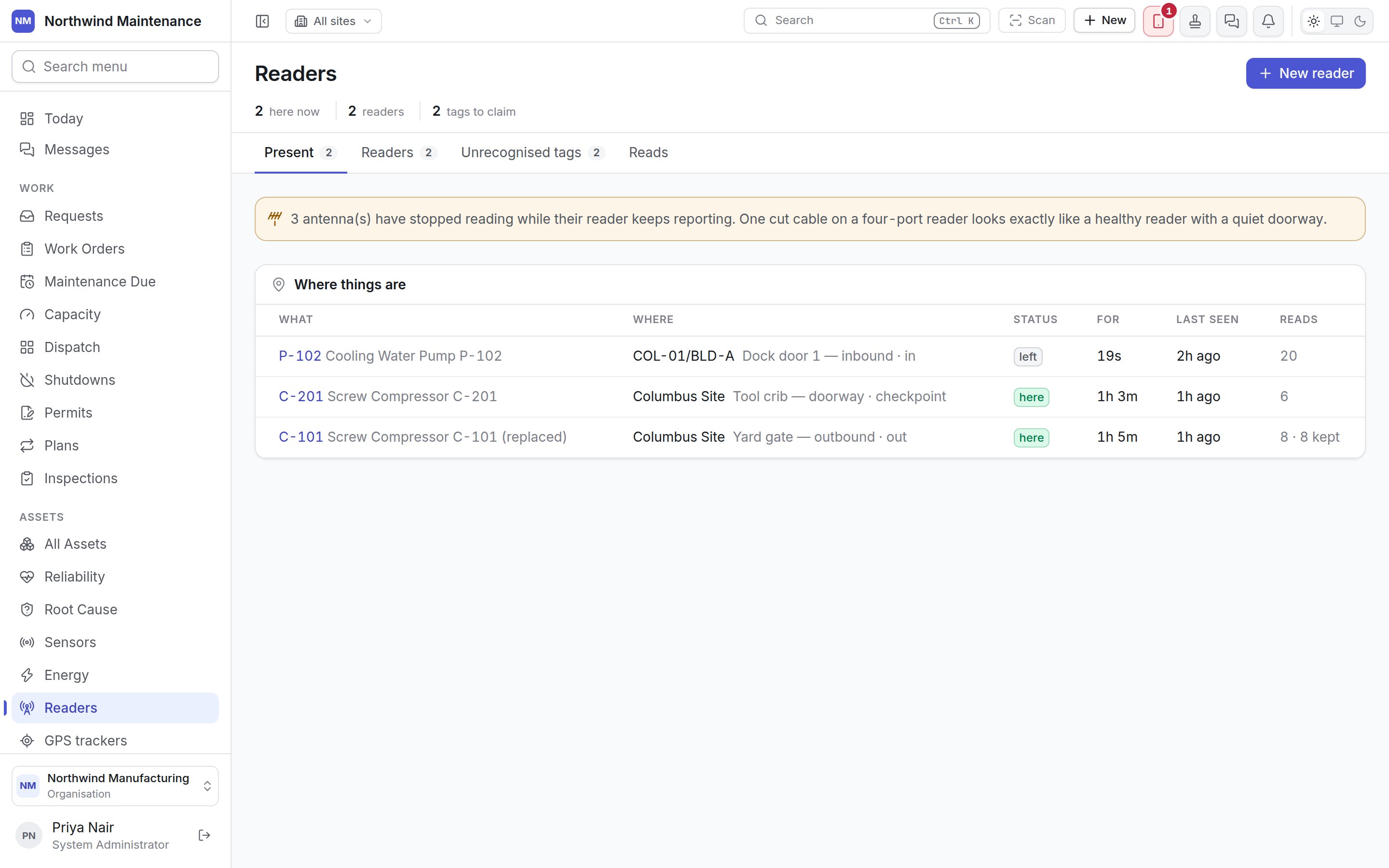
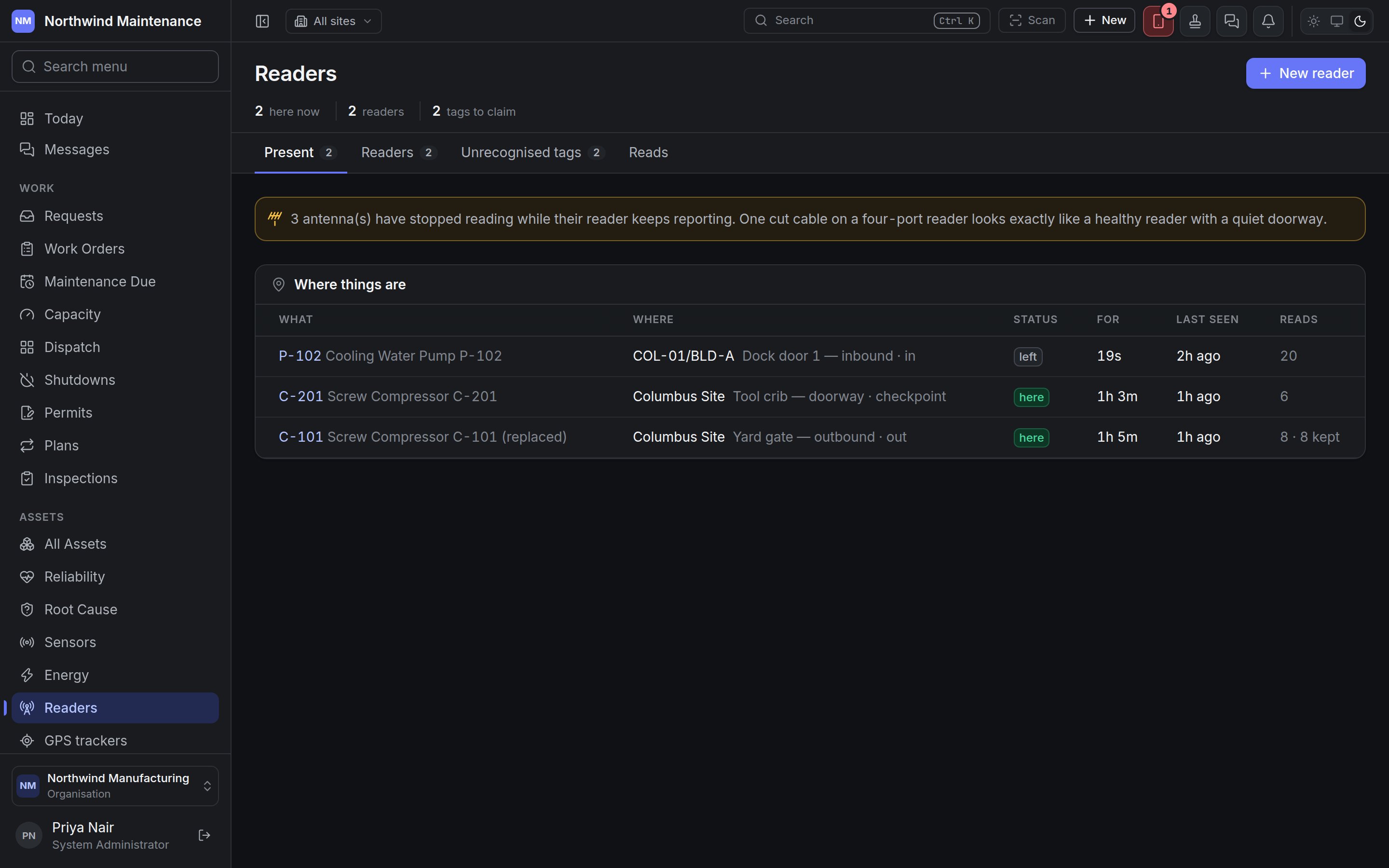
New reader adds one. A banner appears when an antenna has stopped reading while its reader keeps
reporting — one cut cable on a four-port reader looks exactly like a healthy reader with a quiet
doorway.
Present
Where things are lists every recent visit by a recognised tag.
A visit appears the moment a reader sees a tag that the register says is on something. Until a tag is
registered, its reads land under Unrecognised tags instead.
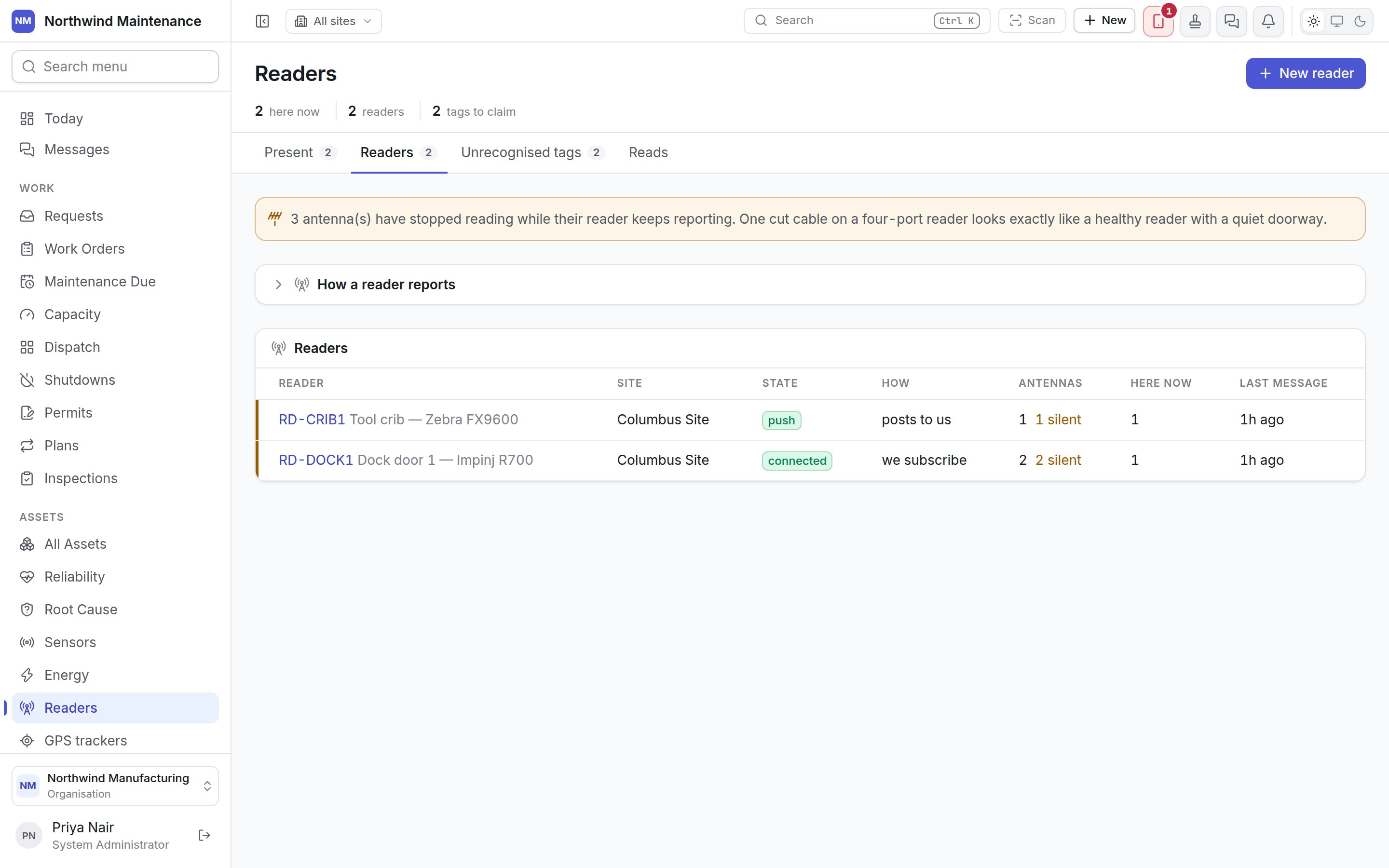
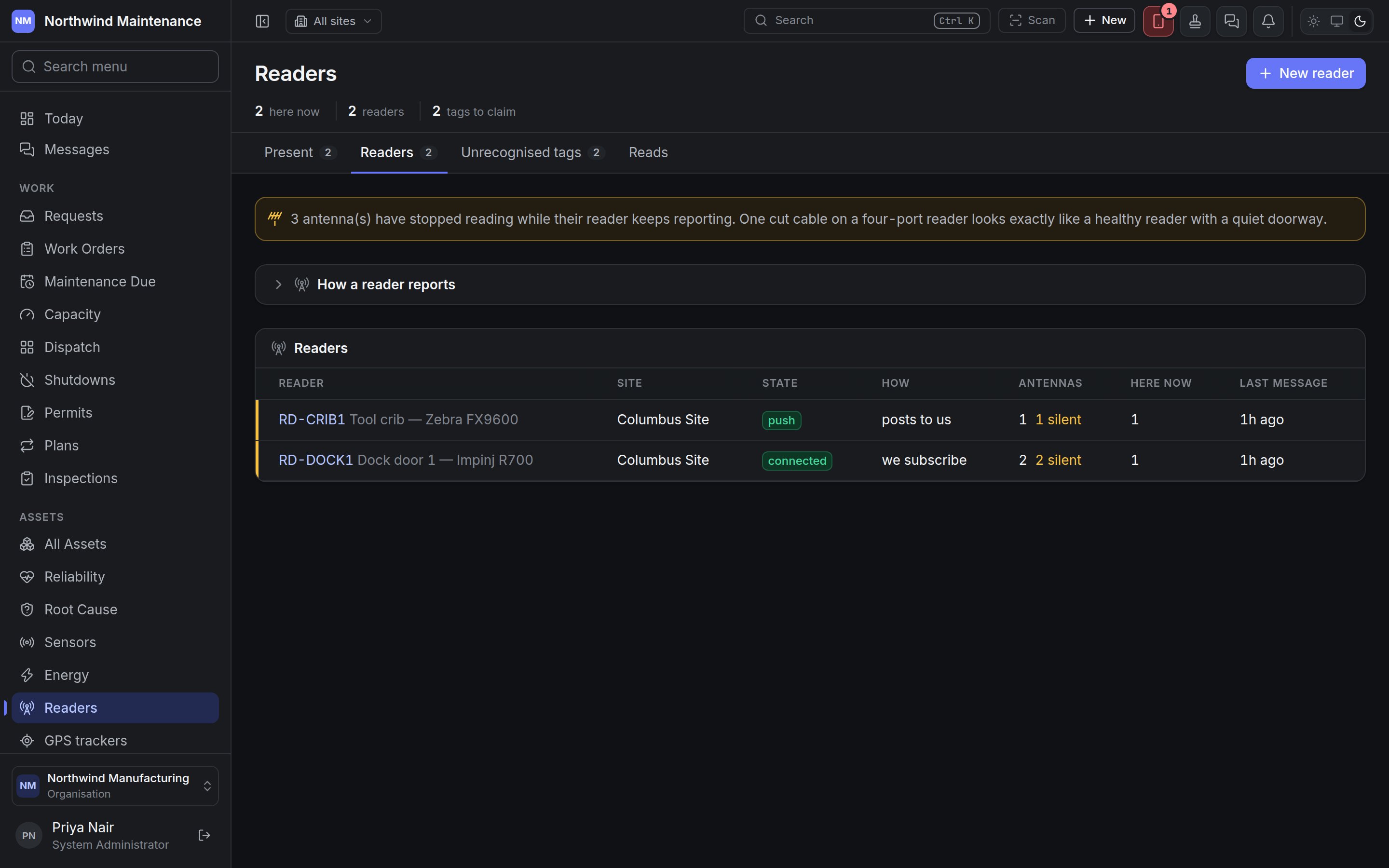
Readers
Unrecognised tags
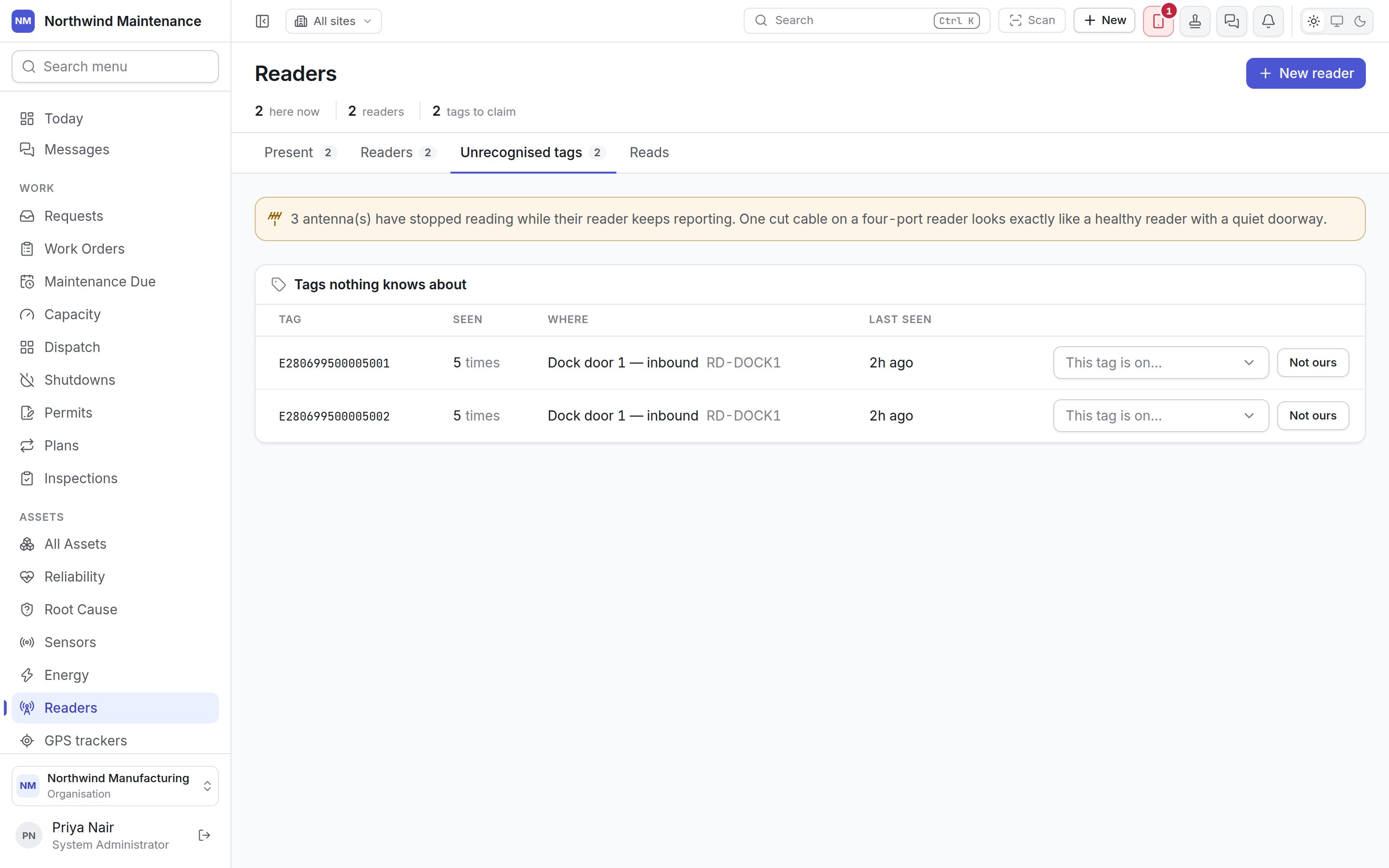
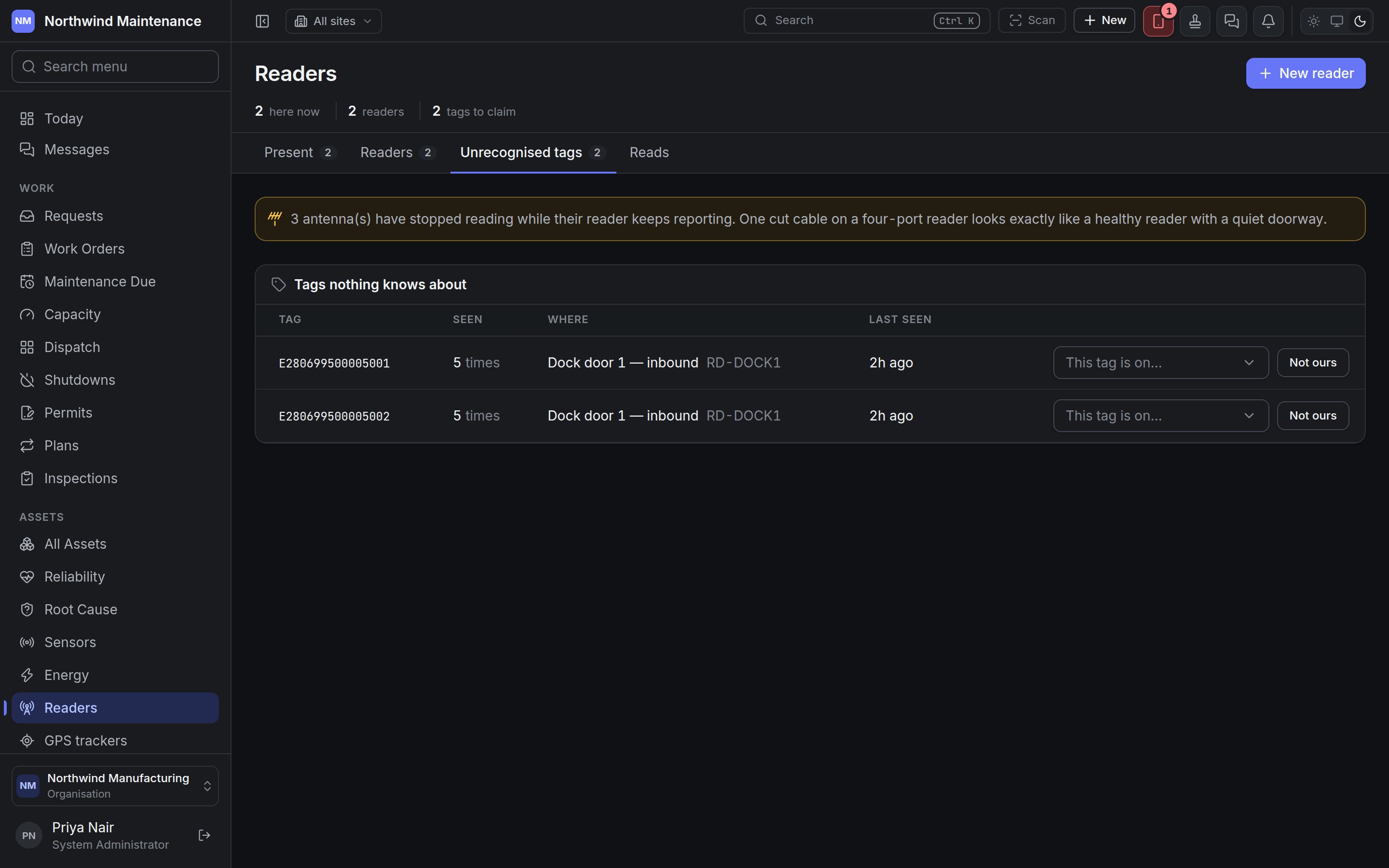
On each row, This tag is on… lets you pick the asset the tag is attached to; the tag is then
registered against that asset and every later read is recognised. It needs permission to create
assets. Not ours stops the tag being asked about — it keeps being seen, it just stops appearing
here. It needs permission to configure readers.
Each antenna records unrecognised tags one by one up to its Unknown Tag Cap per hour, so a flood of
cartons never affects a registered tag.
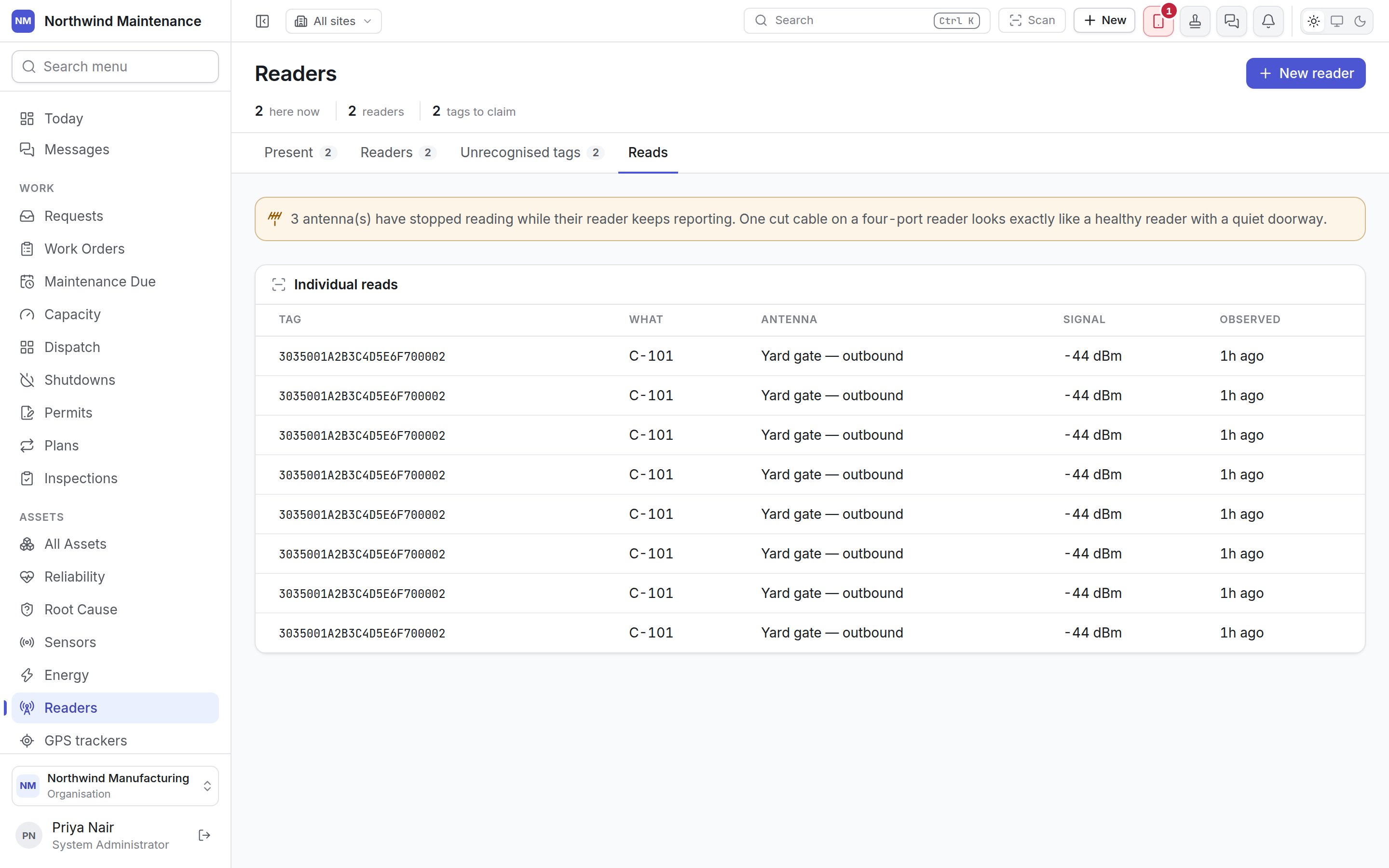
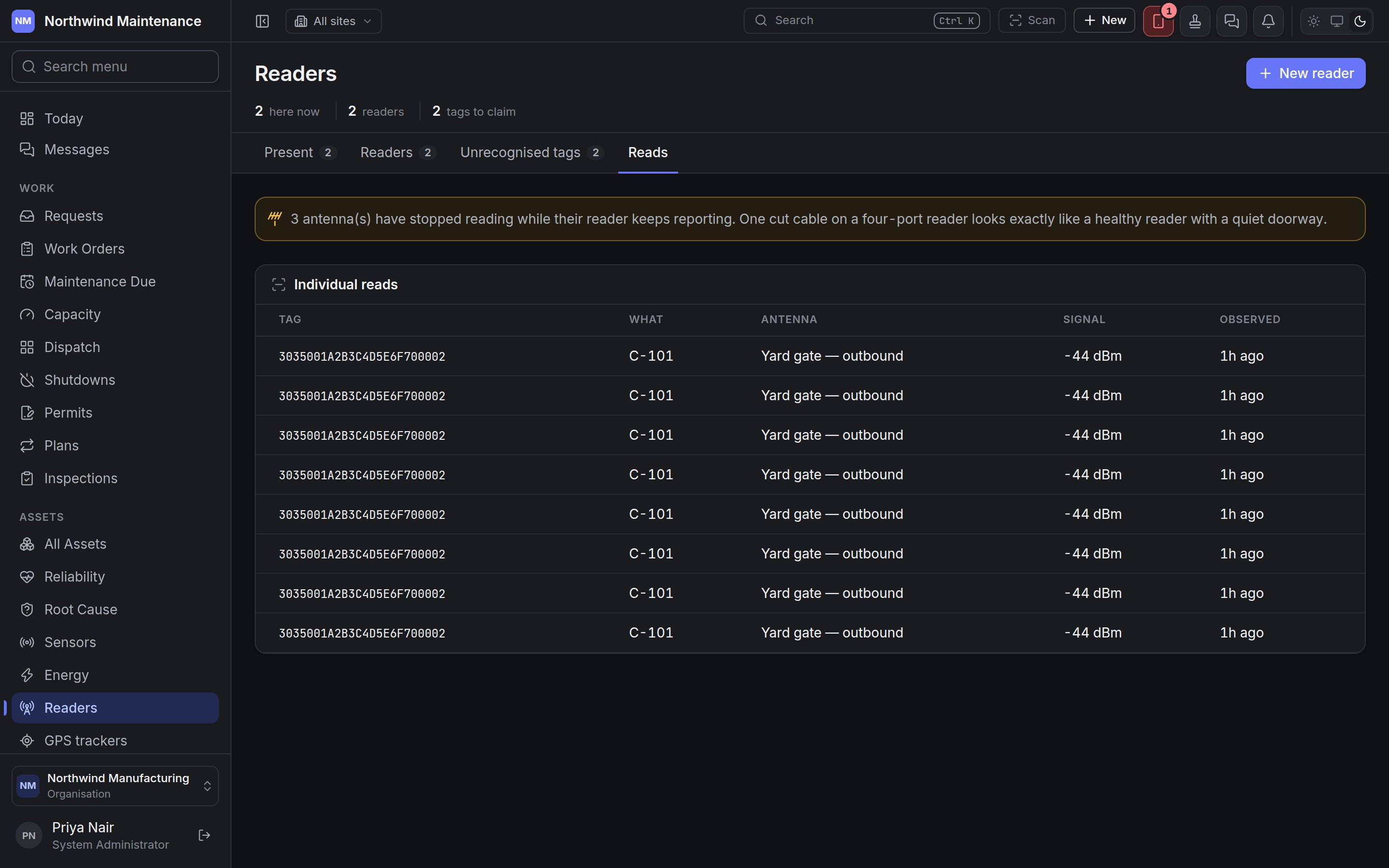
Reads
Adding a reader
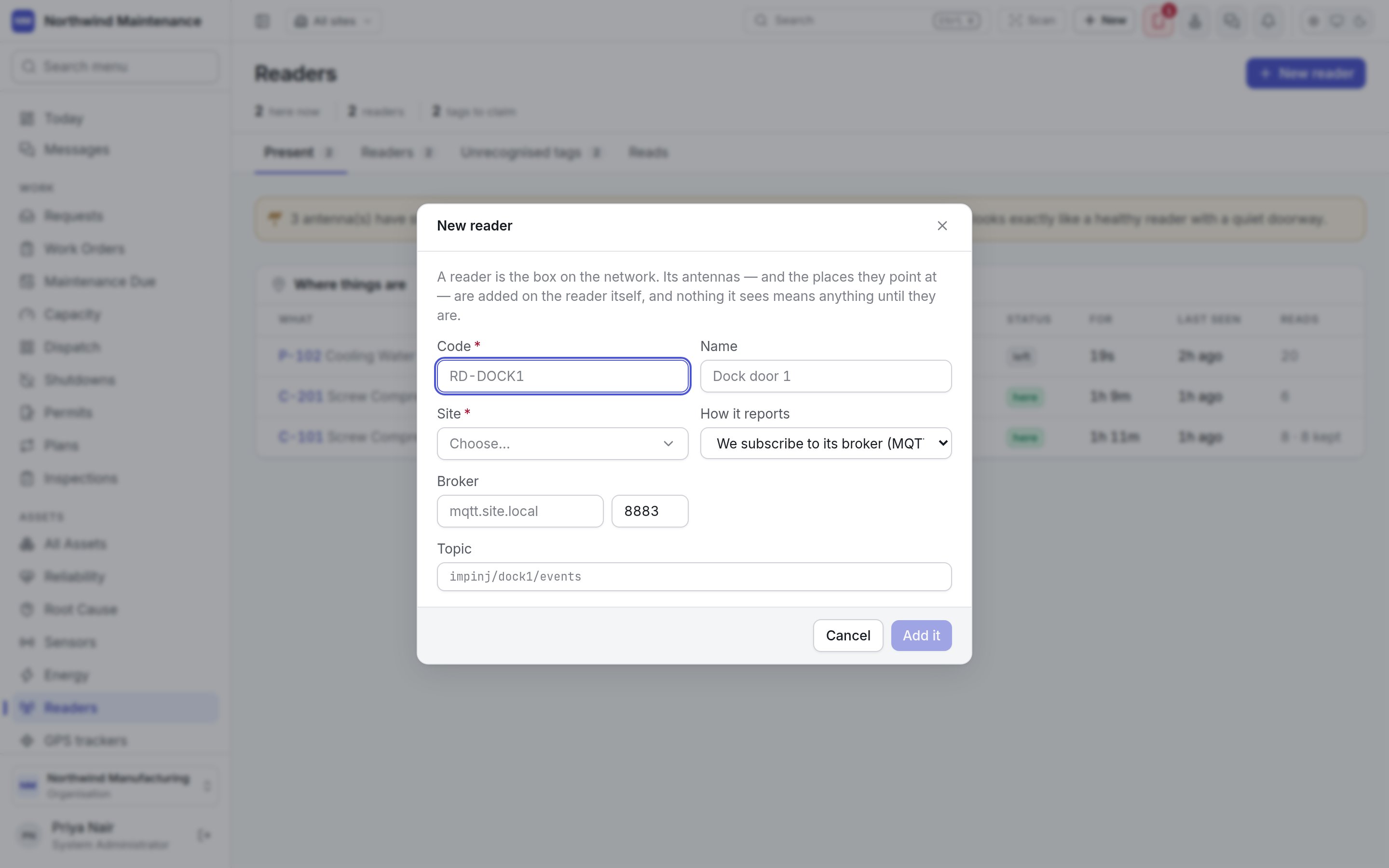
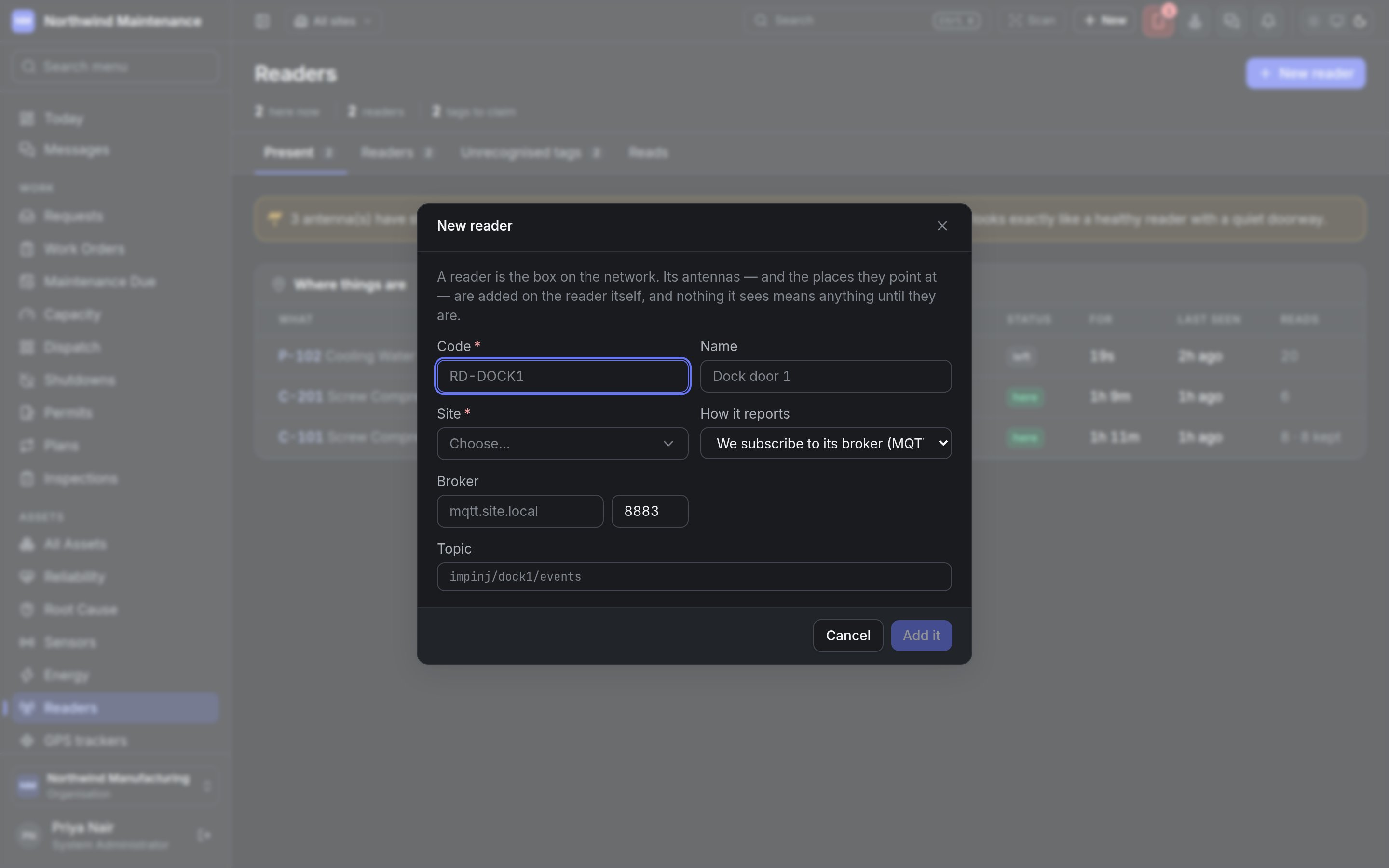
Add it creates the reader and opens it. Nothing it sees means anything until its antennas are
added. Adding readers needs permission to add readers and antennas.
One reader
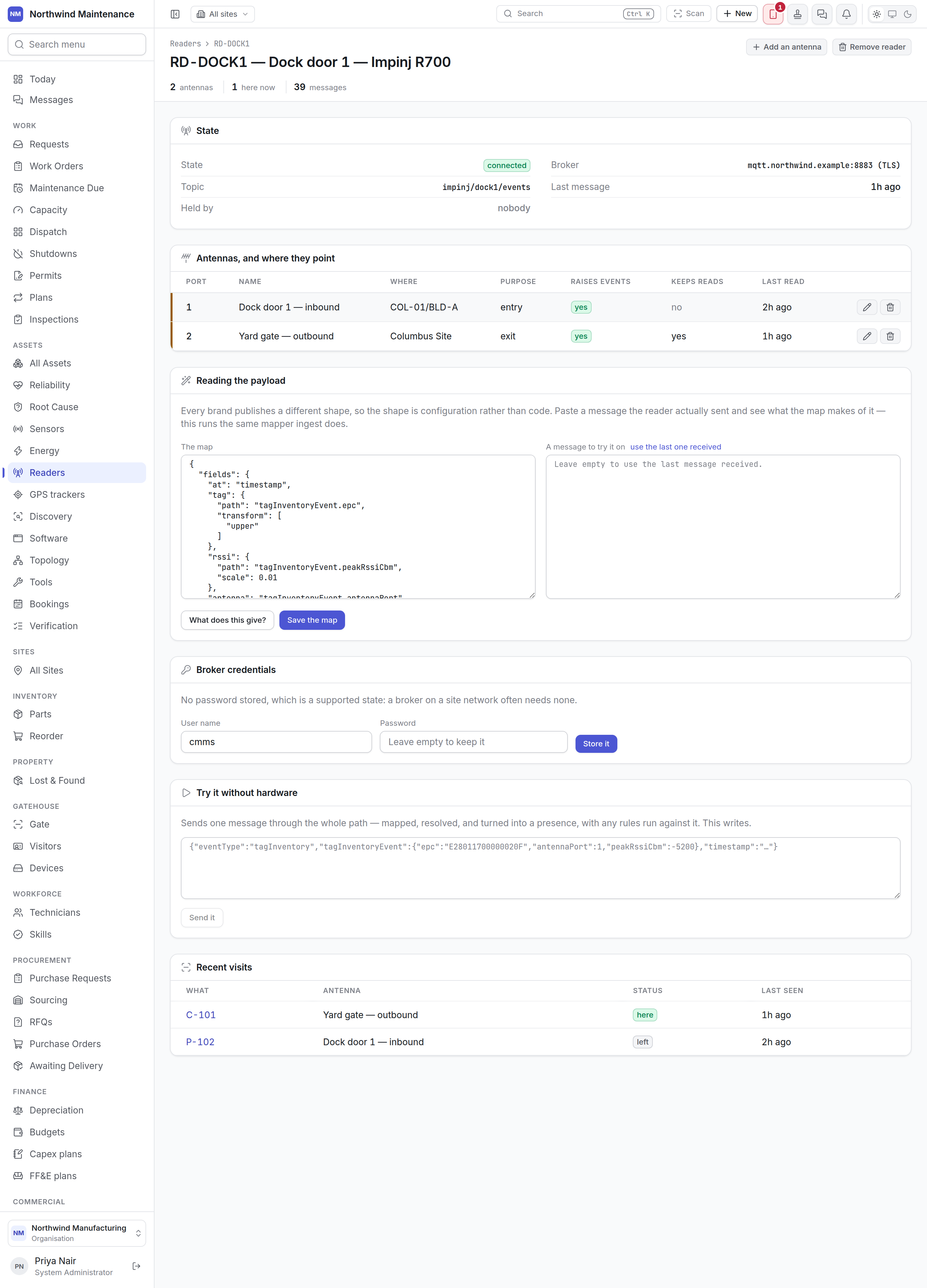
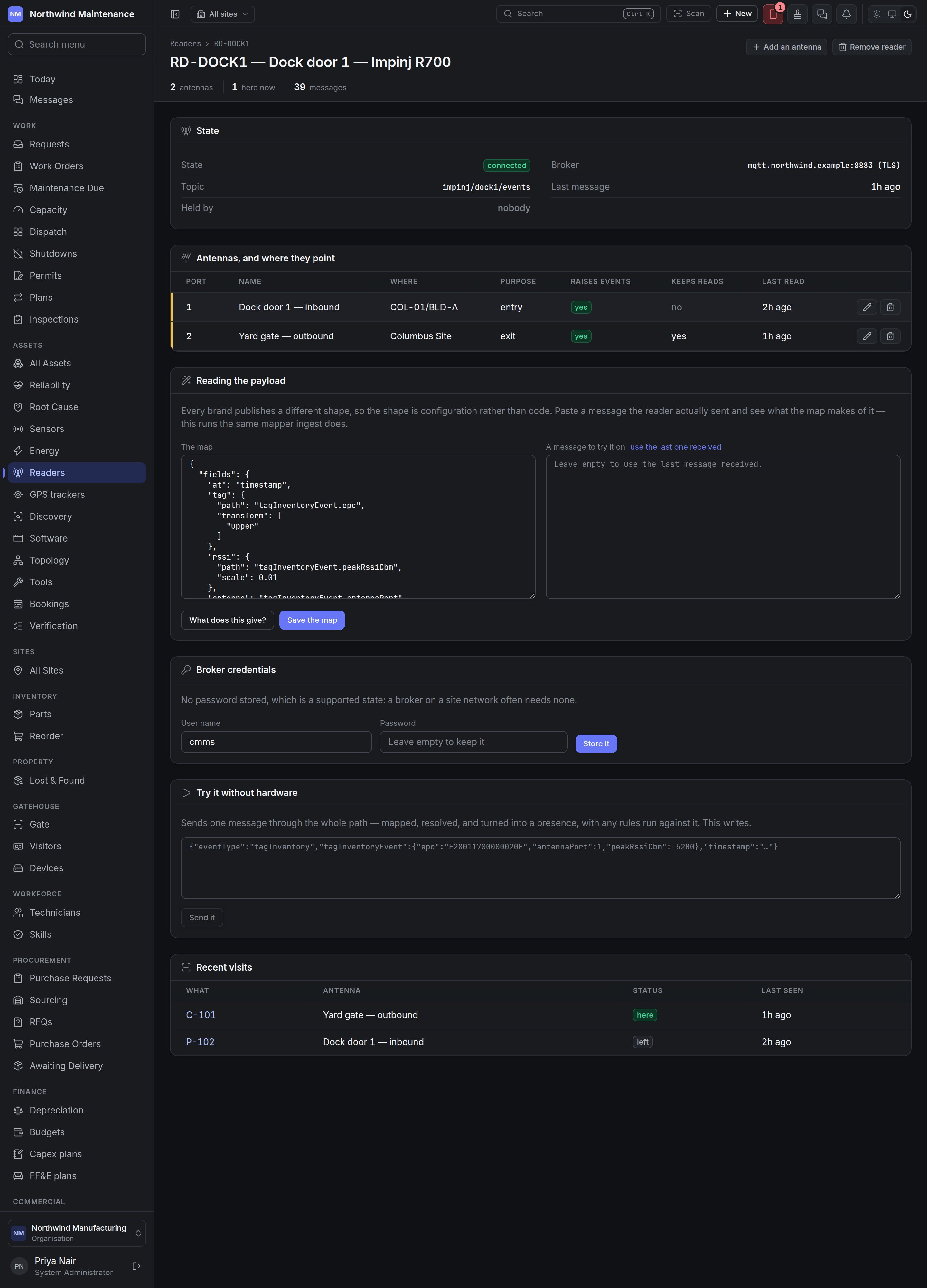
State
Antennas, and where they point
Each row has edit and remove buttons.
Adding an antenna
Reading the payload
Every brand of reader sends a differently shaped message, so the shape is configuration rather than code. The map says which fields of a message hold the tag, the antenna and the signal. Paste a real message into A message to try it on — or use use the last one received — and press What does this give? to see the reads the map produces. This runs the same mapper that live messages go through. Save the map saves it.Broker credentials
For a subscribed reader: a User name and Password for the broker. Store it saves them encrypted; afterwards only the last few characters are shown. No password is a supported state — a broker on a site network often needs none.Posting to this reader
For a reader that posts its messages in, this section replaces the broker settings.- This reader’s own address is for a reader with one box for a server address. Point it there and it posts whatever it emits — JSON, a form or a line of text. Copy the address copies it; Issue a key for this reader creates the key to send with it.
- Through a relay or middleware gives a worked example of trading an API key for a token and posting the reader’s messages. Copy the push example copies it.