

Getting there
Scanning needs no permission of its own. What it finds is limited to what you could already open: a label at a site you cannot reach is reported as not found, exactly like a code that does not exist.
Looking a code up
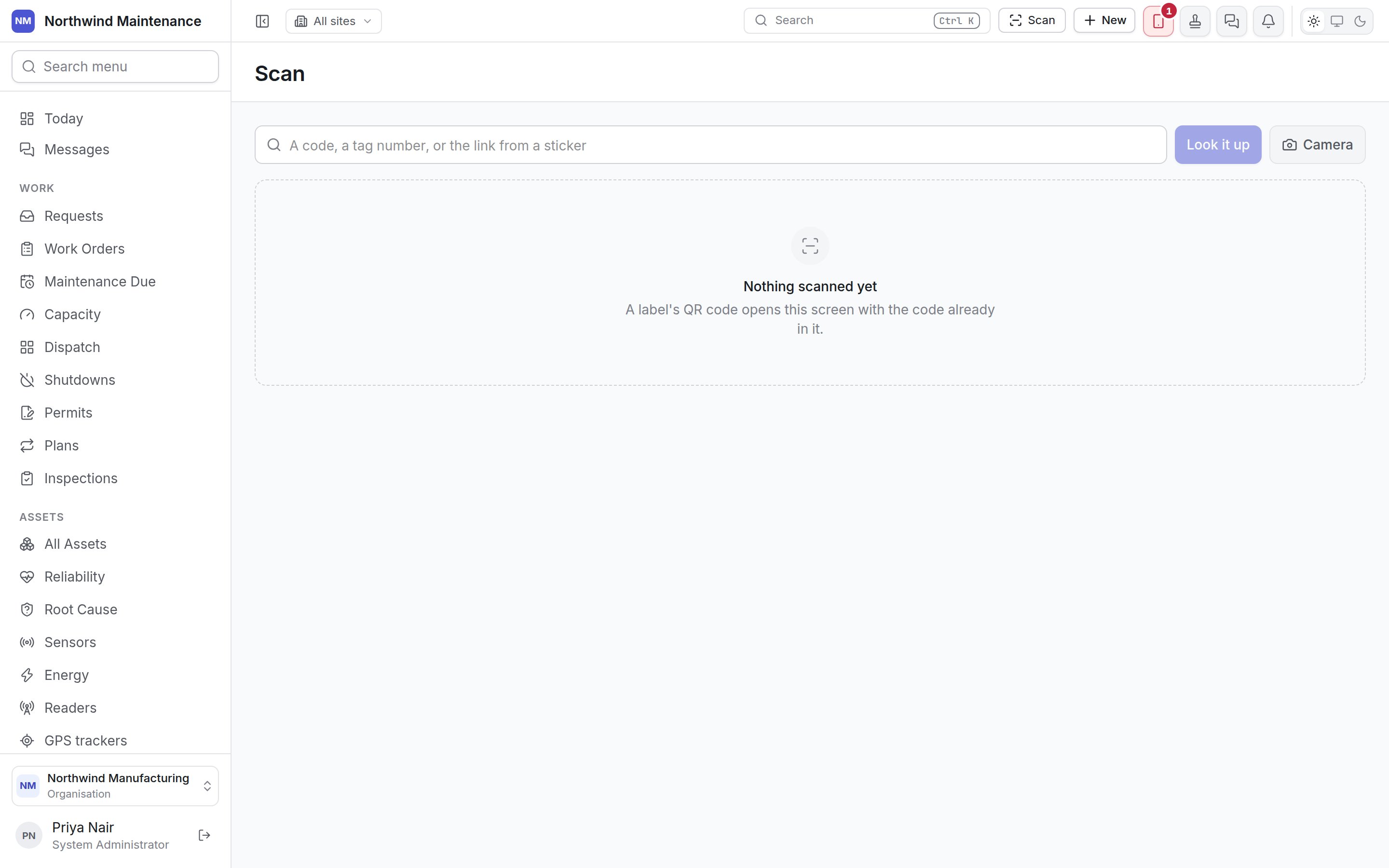
In a browser with no barcode decoder the screen says so under the box: type the code, use a wedge scanner, or use the field app. If the camera cannot be used — no camera, or permission refused — the screen says The camera is not available with the reason, and you can type the code instead.
What a code can find
The lookup tries each kind of code a label can carry: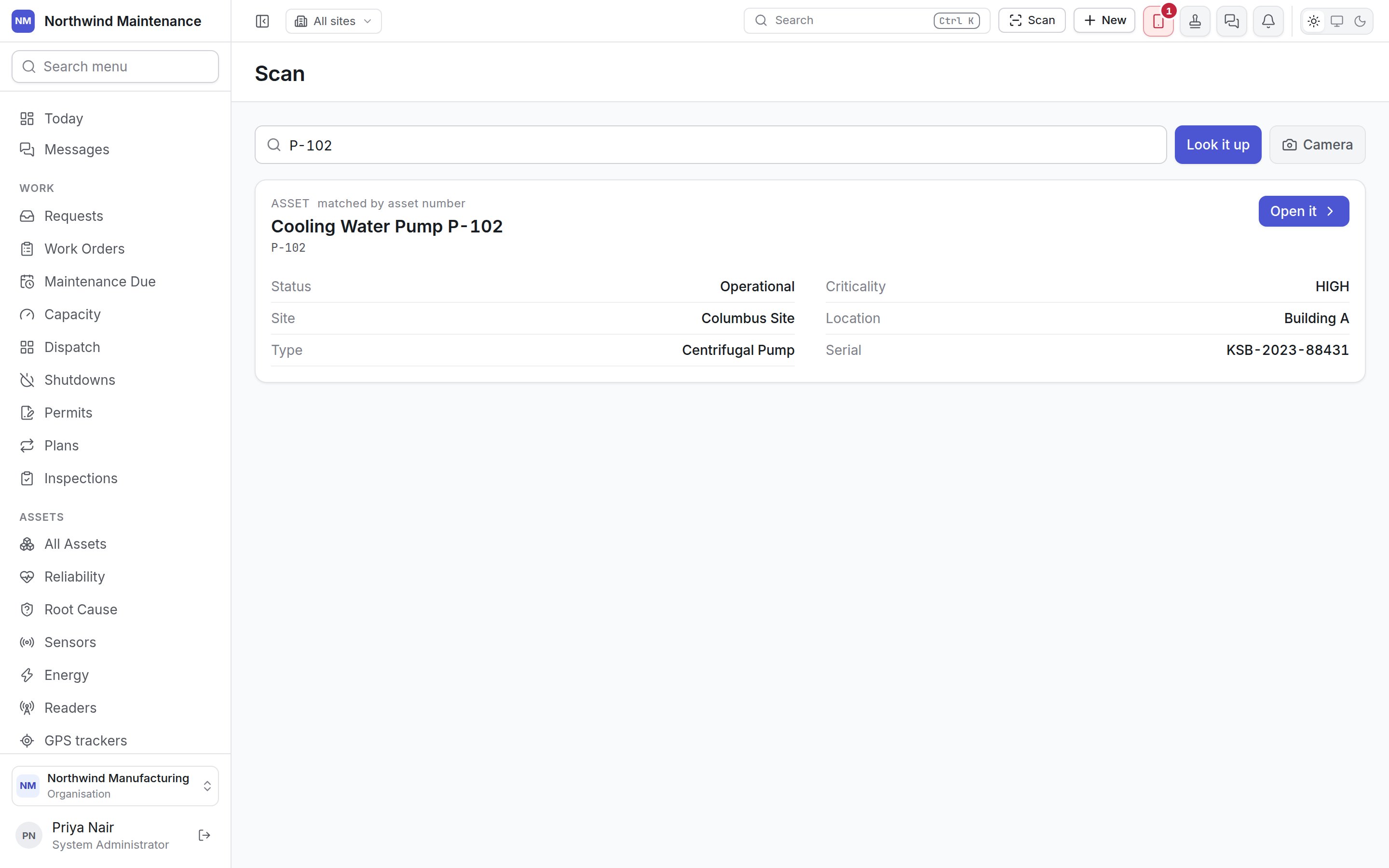
The result
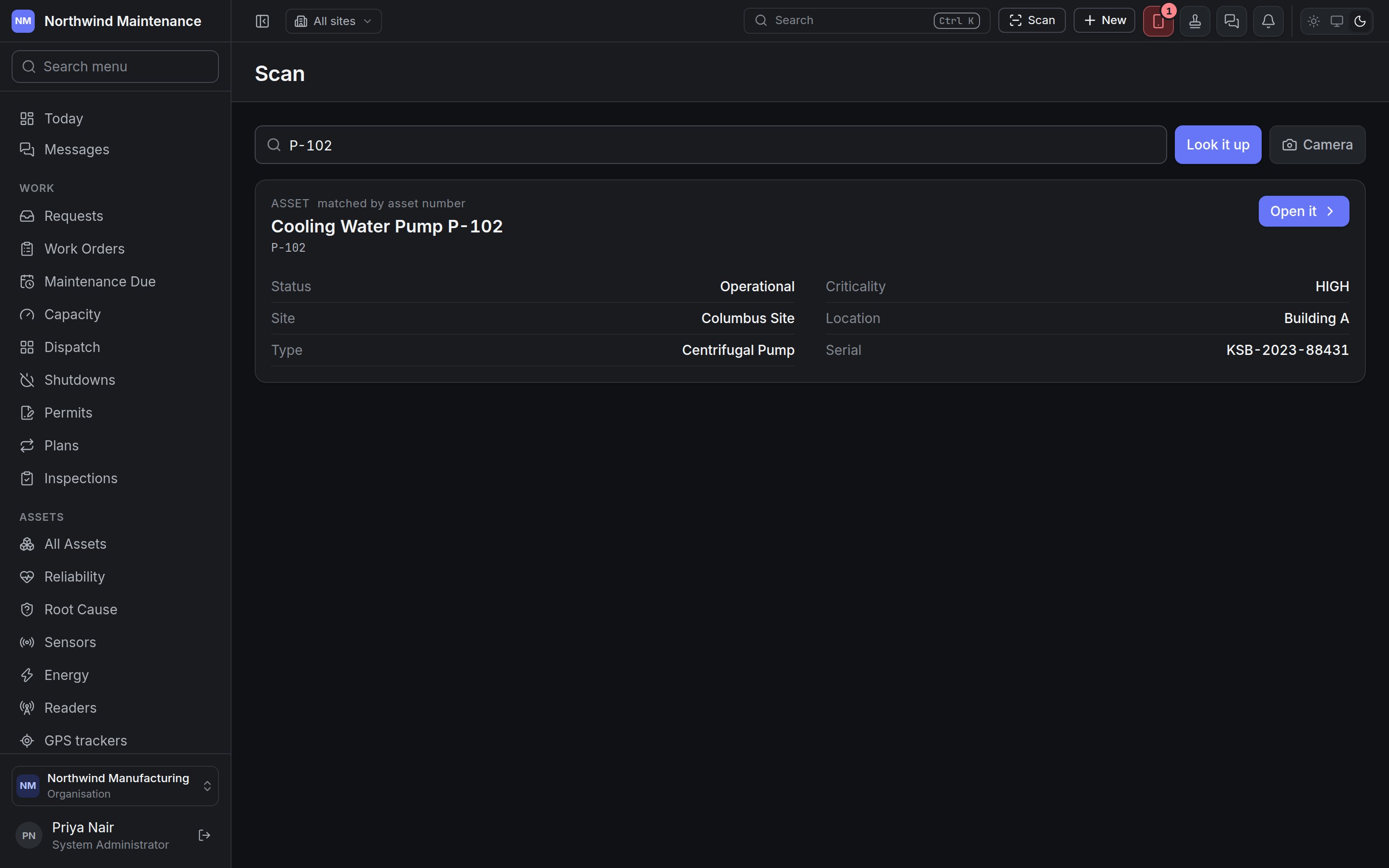
A match shows a card naming the kind of record and how it was matched (for example Asset — matched by asset number), its name and code, and a few facts so you can confirm it is the right thing before opening it:
Open it goes to the record’s own screen.
If nothing matches you see Nothing here is labelled … — the code may belong to another system, or to a site you do not have access to.
Labels themselves are designed and printed in the label studio.