

If you don’t see this in your navigation, your administrator can switch the module on under Administration → Modules (it is the Catalogue module inside Purchasing), or it may not be included in your plan. Without it, a requisition is written line by line.
Browsing
The catalogue opens on Browse, with the number of items in the header.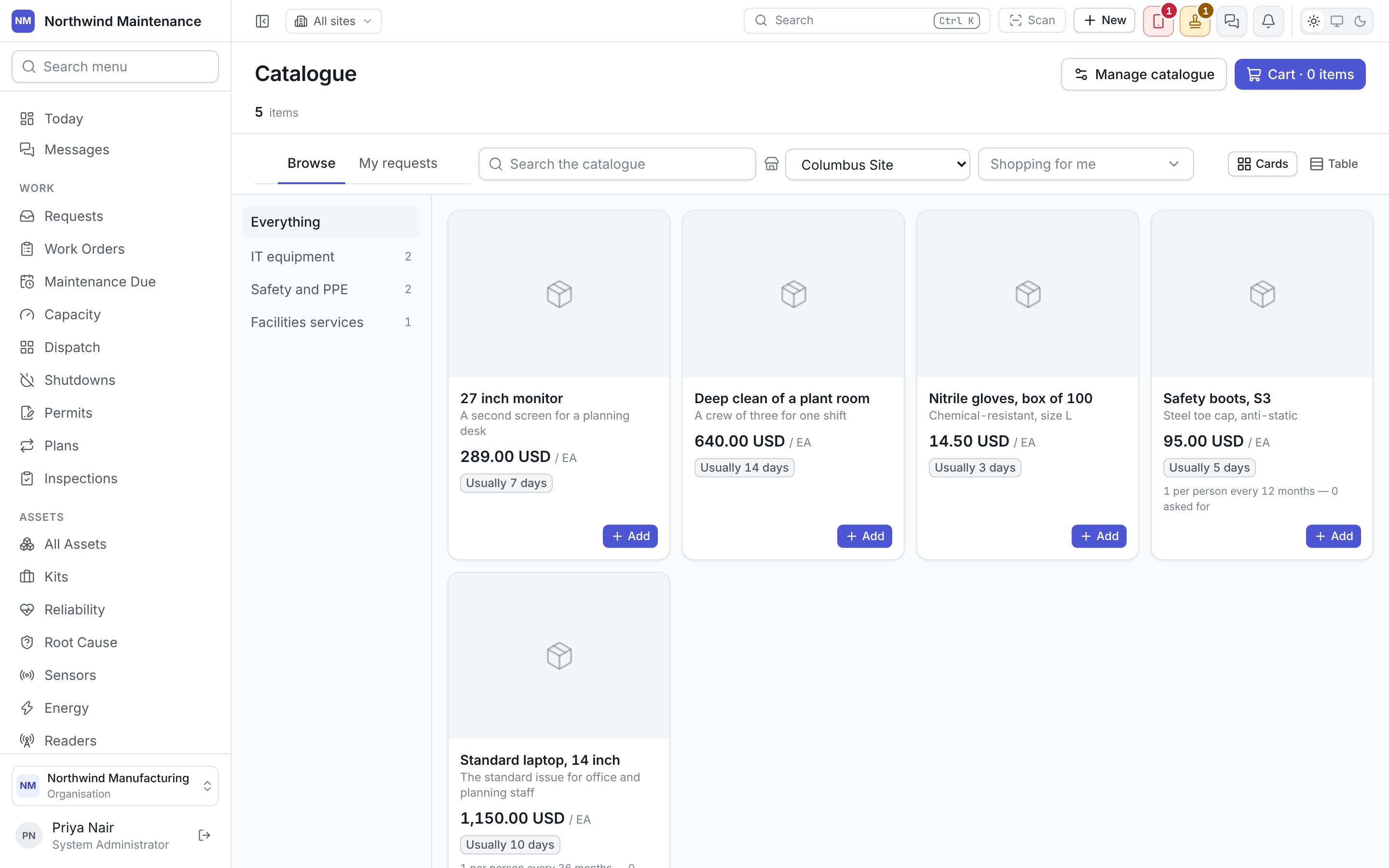
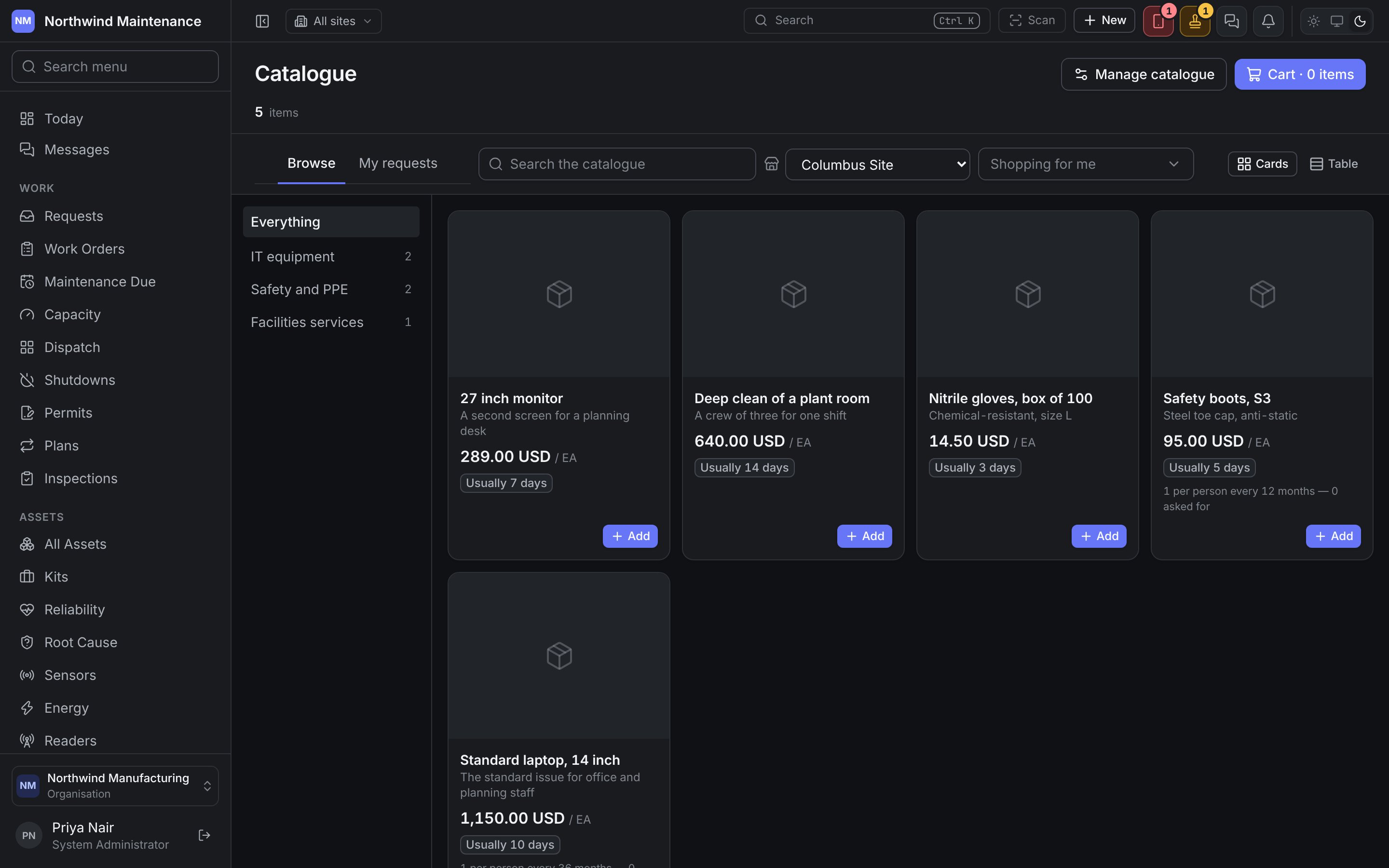
Each card shows the item’s picture, name, summary and price, how long it Usually takes to arrive, whether it is In stores now, the pack size (Packs of 10) and how many are already in cart. Where the item carries a limit per person, the card says it before you reach it — for example 1 per person every 36 months — 1 asked for — and Add is not offered once you have asked for all it allows. Add puts one pack in the cart.
In the table, the columns are Picture, Item, Code, Shelf, Price, Supplier, Lead time, In stores and In cart.
Clicking an item opens its page: every picture (Show full size to enlarge one), the full description, Price agreed until a date where one is set, Supplier, Lead time, Pack, Most per request, its specifications, and who it is Offered to where it is restricted. Add to cart adds it there too.
When nothing matches, the catalogue says so. Anything not in it can still be asked for on an ordinary requisition.
The cart
The cart is kept for you on the server, so it follows you from one computer to another. Your cart lists each line with its picture, price per unit and line total. Change a quantity with Fewer and More (a pack at a time) or by typing it, and take a line off with the bin.Checking out
Review the request opens the New requisition form with the cart’s lines in it. The title is the item’s name, or Catalogue request — n items for more than one, and Where this came from reads Chosen from the catalogue. A catalogue line’s unit and price are the item’s, agreed by procurement, so only its quantity can be changed. Add anything the form still needs — Why it is needed before it can be submitted, for example — and click Raise request. The cart is emptied once the requisition is raised, and you land on it. If the requisition could not be raised, the cart is left as it was. From there it is an ordinary requisition: it goes through your approval rules, and Sourcing answers it from stock, with a spare asset or with an order.My requests
My requests lists the requisitions you raised and those somebody raised for you, newest first: Request, Title, Status, For (Me, or Me — raised by whoever raised it), Site, Estimate and Raised. It is how the new starter whose laptop it is follows where it has got to, even without access to the requisition register.Keeping the catalogue
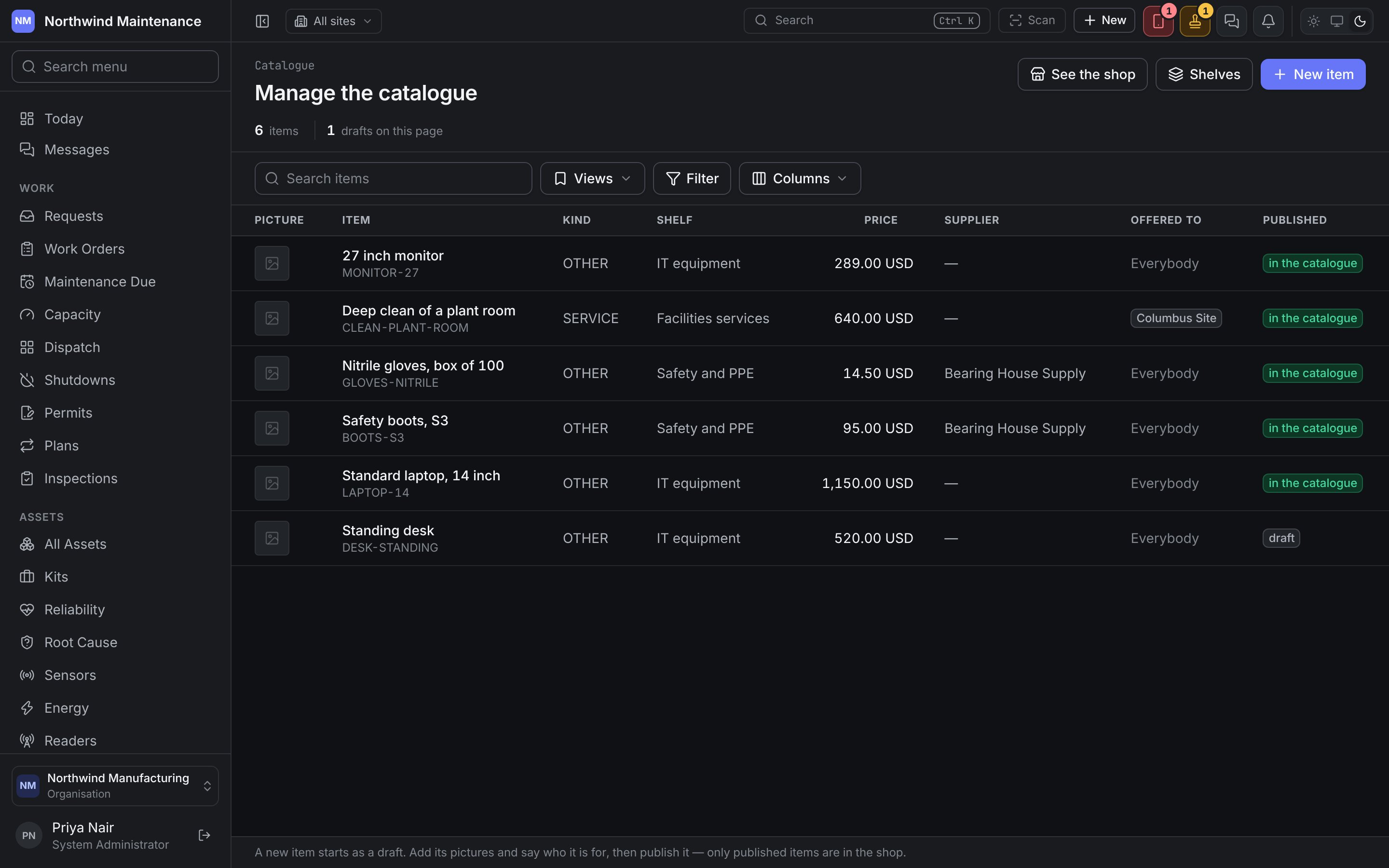
Manage the catalogue is the procurement desk’s side. Opening it needs View the catalogue as its maintainers see it. The register lists every item, published or not, with Picture, Item, Kind, Shelf, Price, Supplier, Offered to (or Everybody), Published (in the catalogue or draft) and Pictures. The header counts items and drafts on this page, and See the shop goes back to browsing.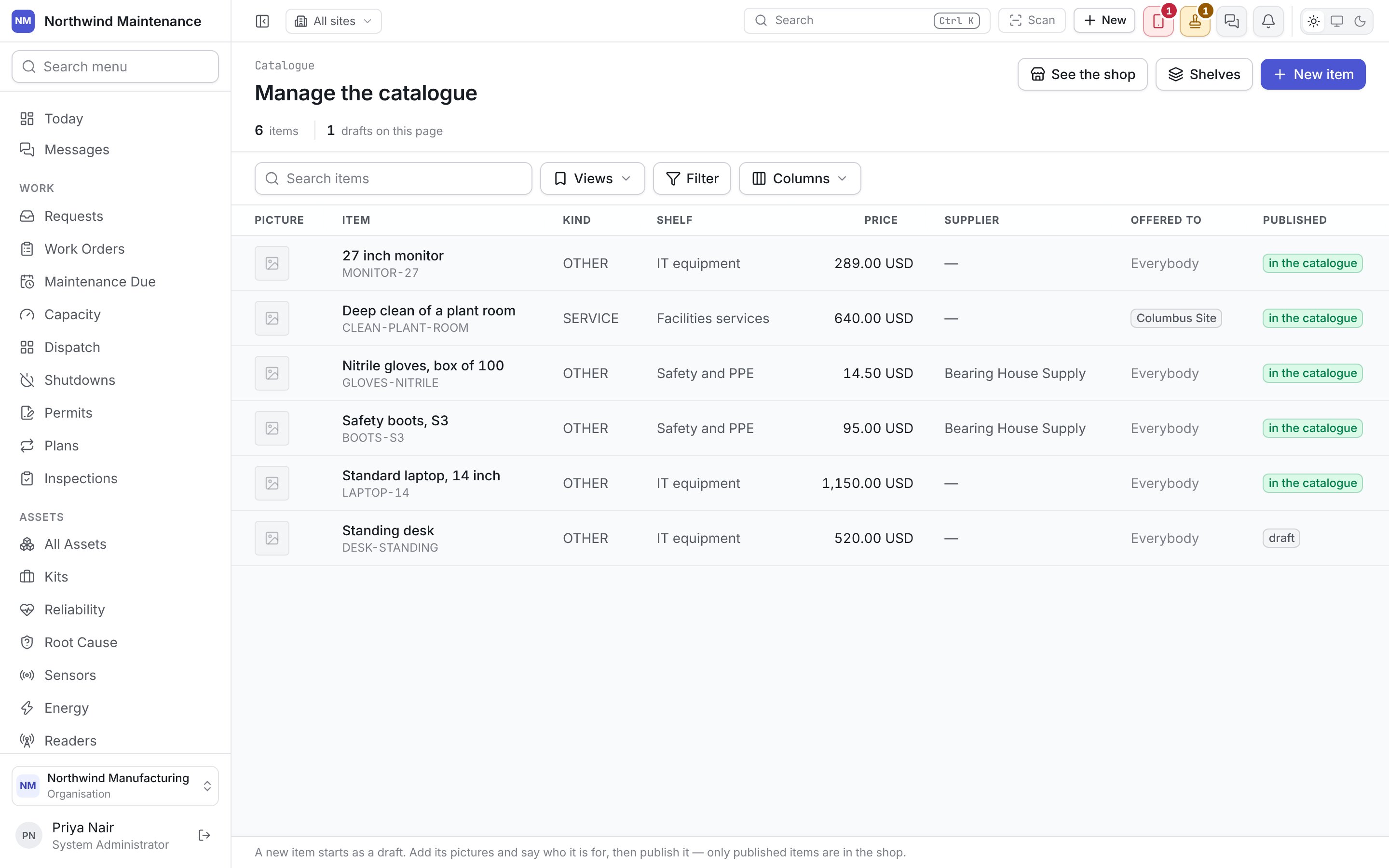
Your administrator can rearrange this form, like any other, in Form Studio.
Clicking an item opens its panel, where you can Edit details, Publish it or Take it out of the catalogue without losing it, add Pictures and documents (the first picture is the one on the card), and change Who it is for. Those need Edit, price, publish and restrict catalogue items.
Who an item is for
An item with no restriction is for everybody who may raise a requisition, at every site. Change asks Who is item for? with three lists — Sites, Departments and Roles; leave all three empty for everybody. Names of one kind are alternatives, and kinds together must all match: a department and a site mean that department’s people at that site. Adding a restriction can only narrow who sees an item, never widen it. The same rule is checked when a requisition is raised, so a requisition can never carry a catalogue line the shop would not have offered, and it takes the item’s price, unit, kind and supplier whatever was typed.Shelves
Shelves (needs Edit, price, publish and restrict catalogue items) lists the shelves people find things by — Shelf, Code, Order, Published items and On the rail (shown or switched off). New shelf adds one; a shelf can sit under another. Items goes back to the item list.Requisitions
What checking out raises, and how it is approved.
Sourcing
How an approved catalogue request is answered from stock, spares or an order.