

If you don’t see this in your navigation, your administrator can switch the module on under Administration → Modules, or it may not be included in your plan. Seeing it needs the View the skills matrix across the workforce permission.
Why it is a separate screen
The technician list answers “what is Raj able to do”. The matrix answers “who else can do this when Raj is on leave” — the question that decides whether a site can cover a shift. A per-person list can never answer it: you would have to hold every row in your head to see the gap, and gaps found that way are found late.The header
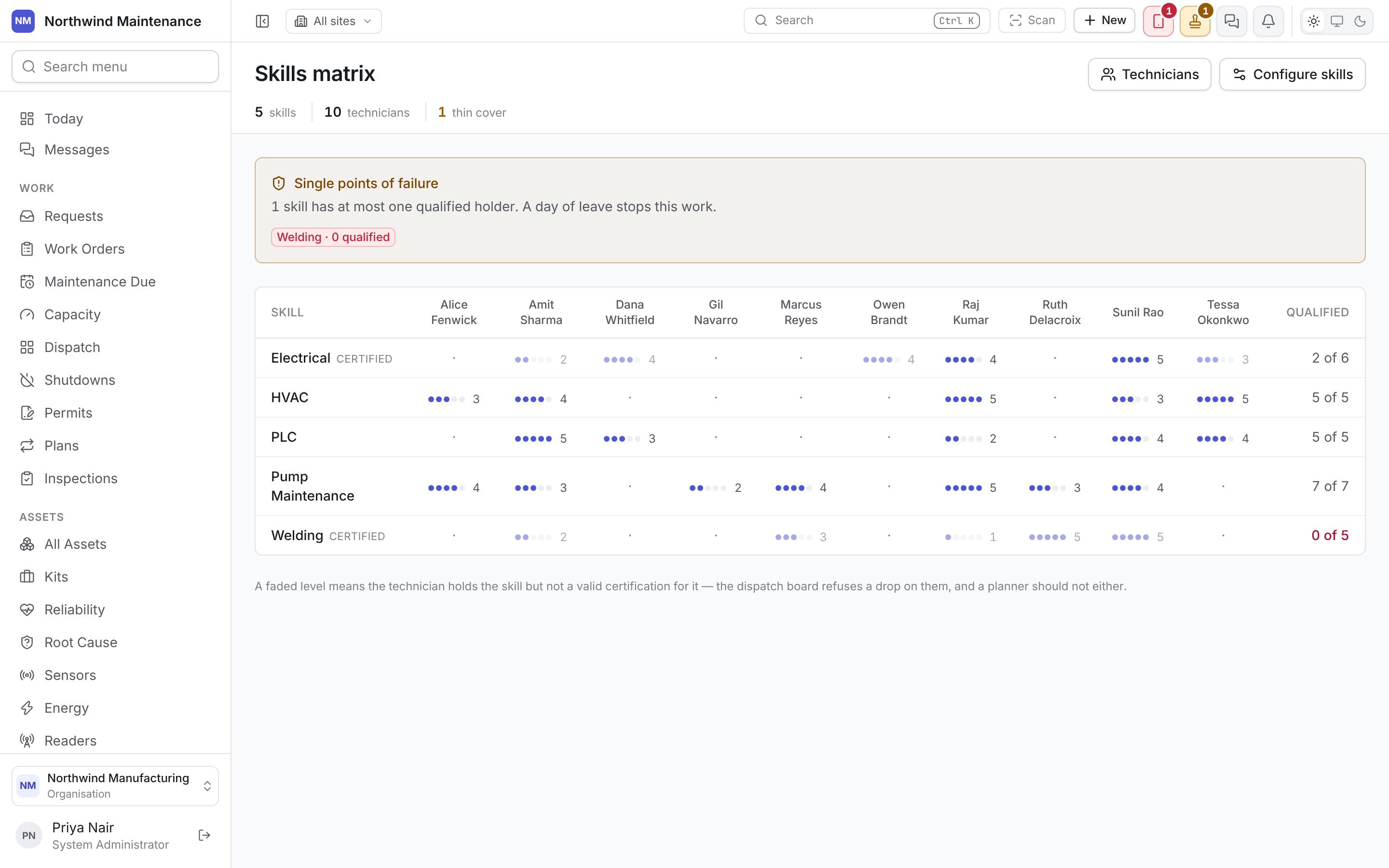
Single points of failure
When any skill has one qualified holder or none, a banner lists them (“Welding · 0 qualified”). A skill with one holder is shown amber; one with nobody qualified is red. A day of leave stops that work.Reading the grid
Skills run down the side and technicians across the top.
What you are looking for is a row with one mark in it, or a Qualified count of 0 or 1.
What to do about a thin row
- Train somebody. Training courses are configured under workforce settings and recorded on the technician’s Training tab.
- Renew a certificate. Where people hold the skill but the count is low, a lapsed certification is often the reason — record the renewed one on the technician’s Certifications tab.
- Cover it by contract. A vendor with that capability is cover, if a contract is in place before you need it.
- Know about it. Sometimes one person is the honest answer — but it should be a decision, not a discovery.