

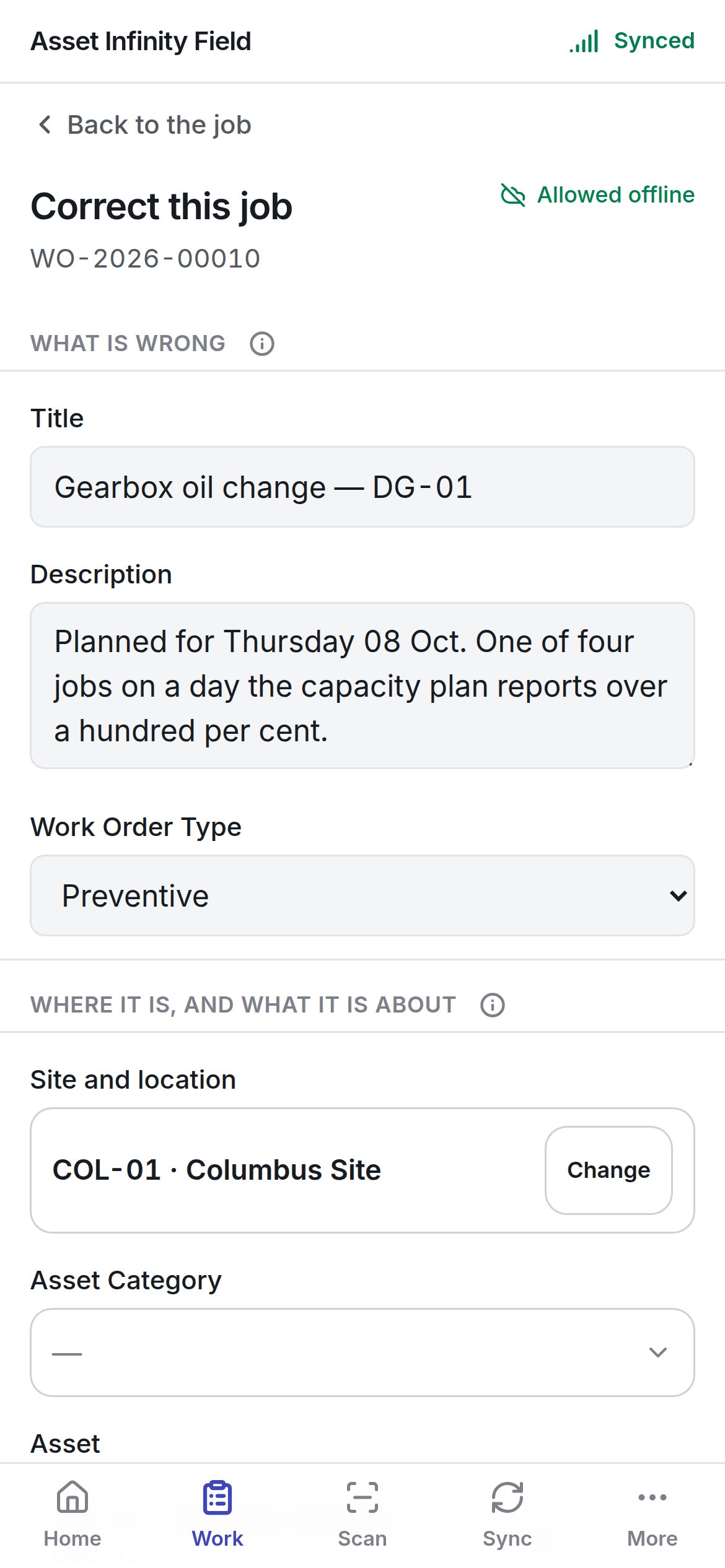
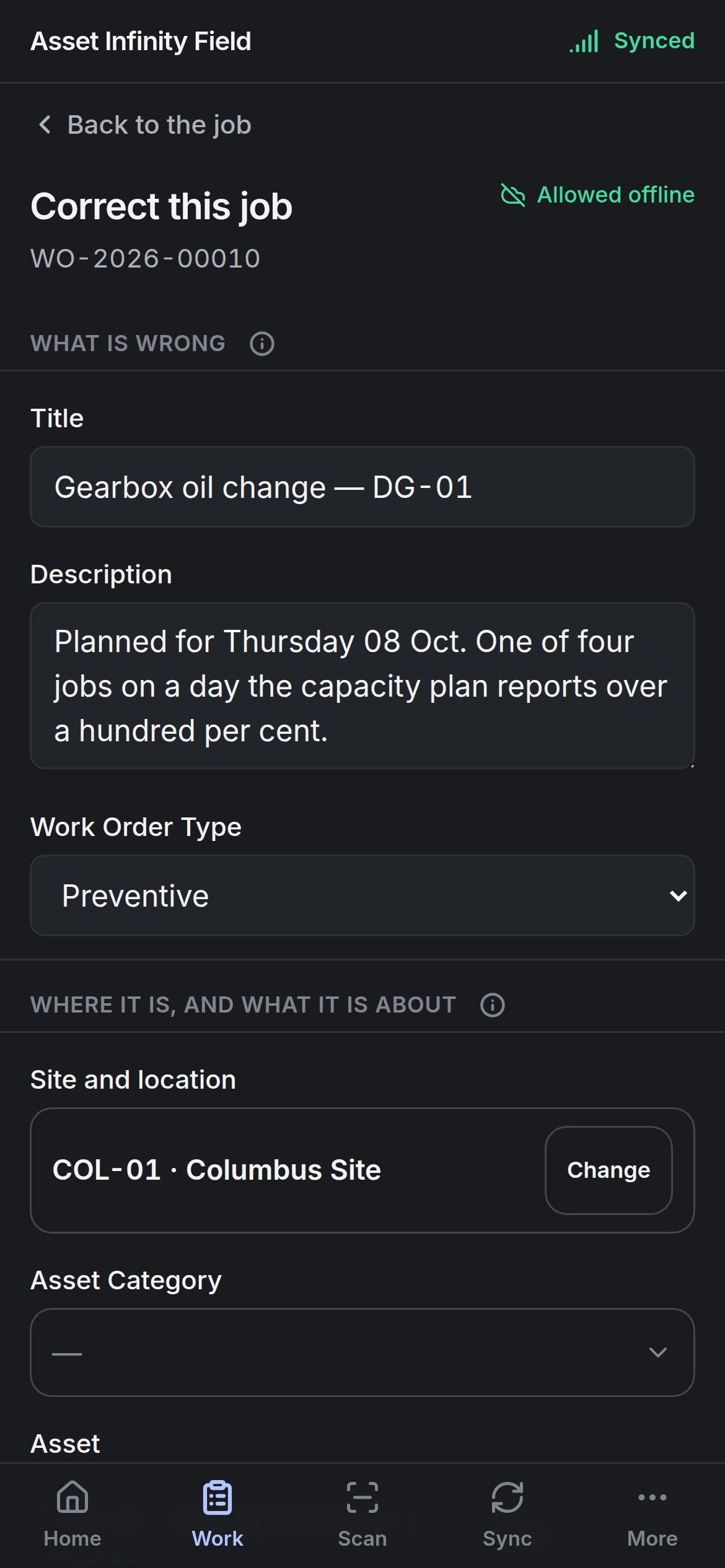
Opening it
Tap the pencil beside the job’s number on the job screen. The pencil appears only if you are allowed to edit work orders; without that permission the form says Changing a job is not something your account can do — you can still accept, work and close the job. Back to the job returns without saving. The badge in the corner says whether saving works offline — normally Allowed offline. If your organisation has switched off correcting jobs from a handset, the form says so and the change needs a connection and somebody at a desk.The fields
The form is built from your organisation’s own work order form in the Form Studio, so its sections, labels, help text and required marks match the web app. The default sections and fields are:
Some fields cannot be answered on a handset, and say why rather than disappearing: a field Calculated from the other answers, so it is not one to fill in, a picker whose options are not on the device (Answer this one from a browser), and a field that a rule has closed (no longer editable).
Saving
Save stays greyed with Change something and this will send it. until you change a field. Once saved, It is recorded on this device now and sent on the next sync. If a required field is still empty, Still needed: . names it. If a rule closed a field while you were filling the form in, the form warns that that one change will not be saved and everything else will. While a request for more time is waiting for an answer, the form says the job’s status, dates and deadline stay as they are until somebody decides; everything else can still be corrected.Moving the dates
Reschedule opens Move the dates.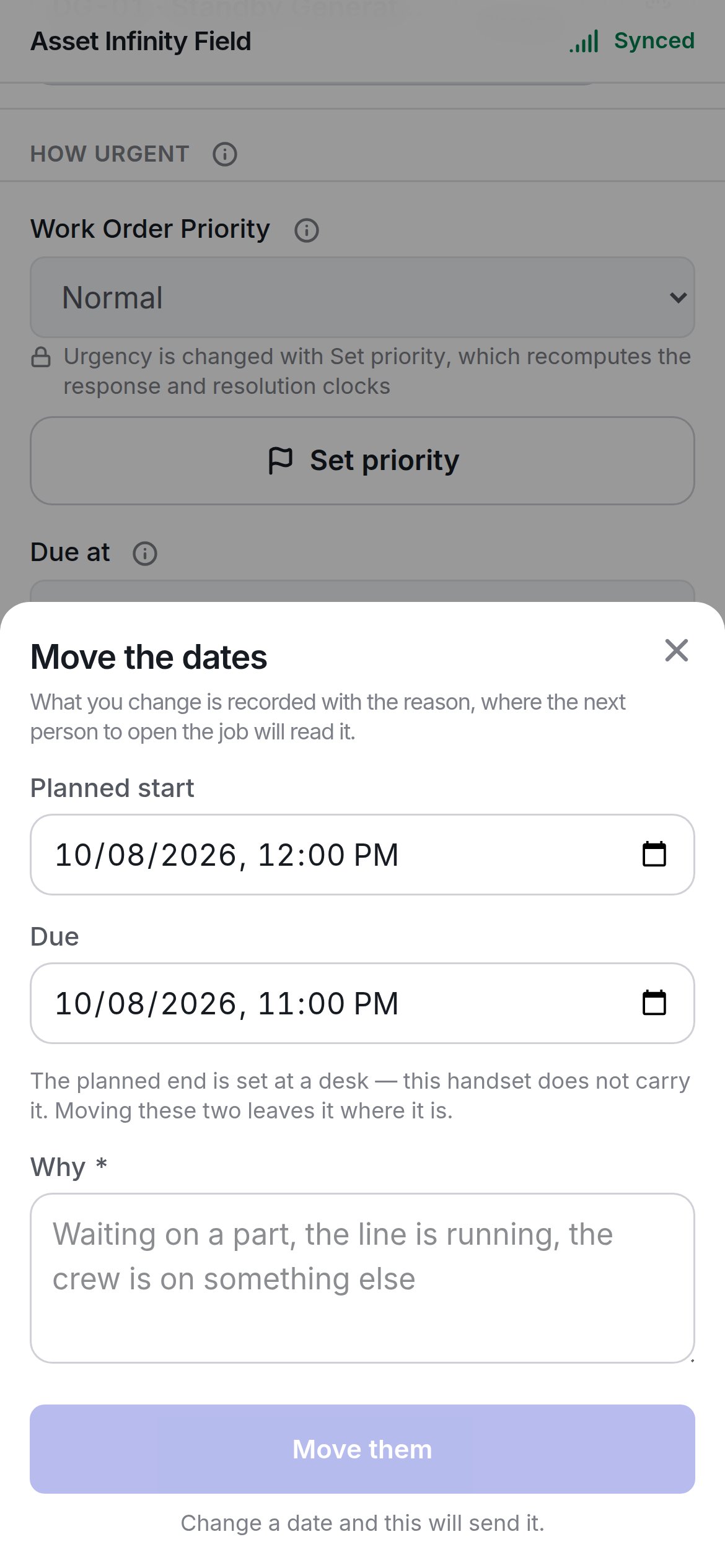
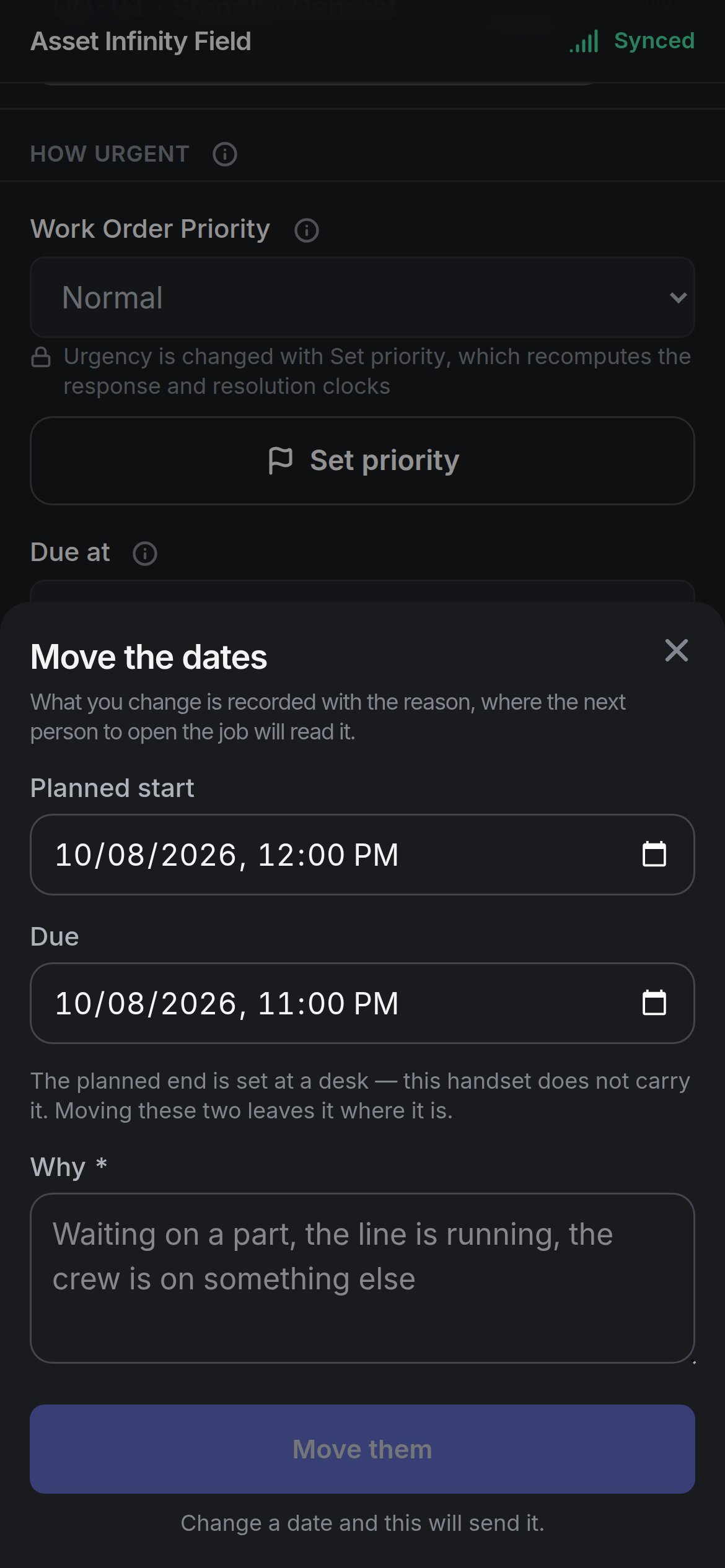
The planned end is set at a desk — the handset does not carry it, and moving these two leaves it where it is. Move them queues the change; it stays greyed until a date has changed.
Changing how urgent it is
Set priority opens Change how urgent it is.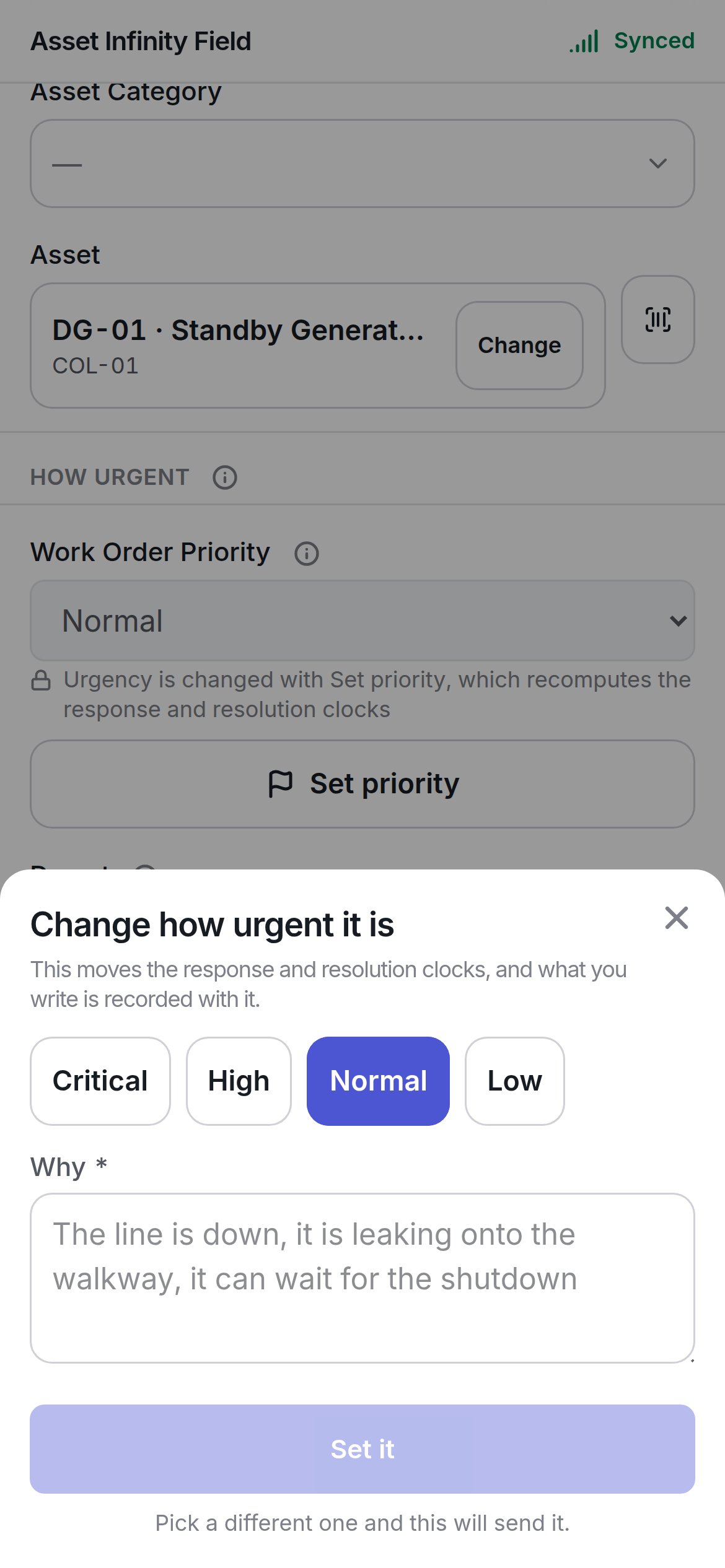
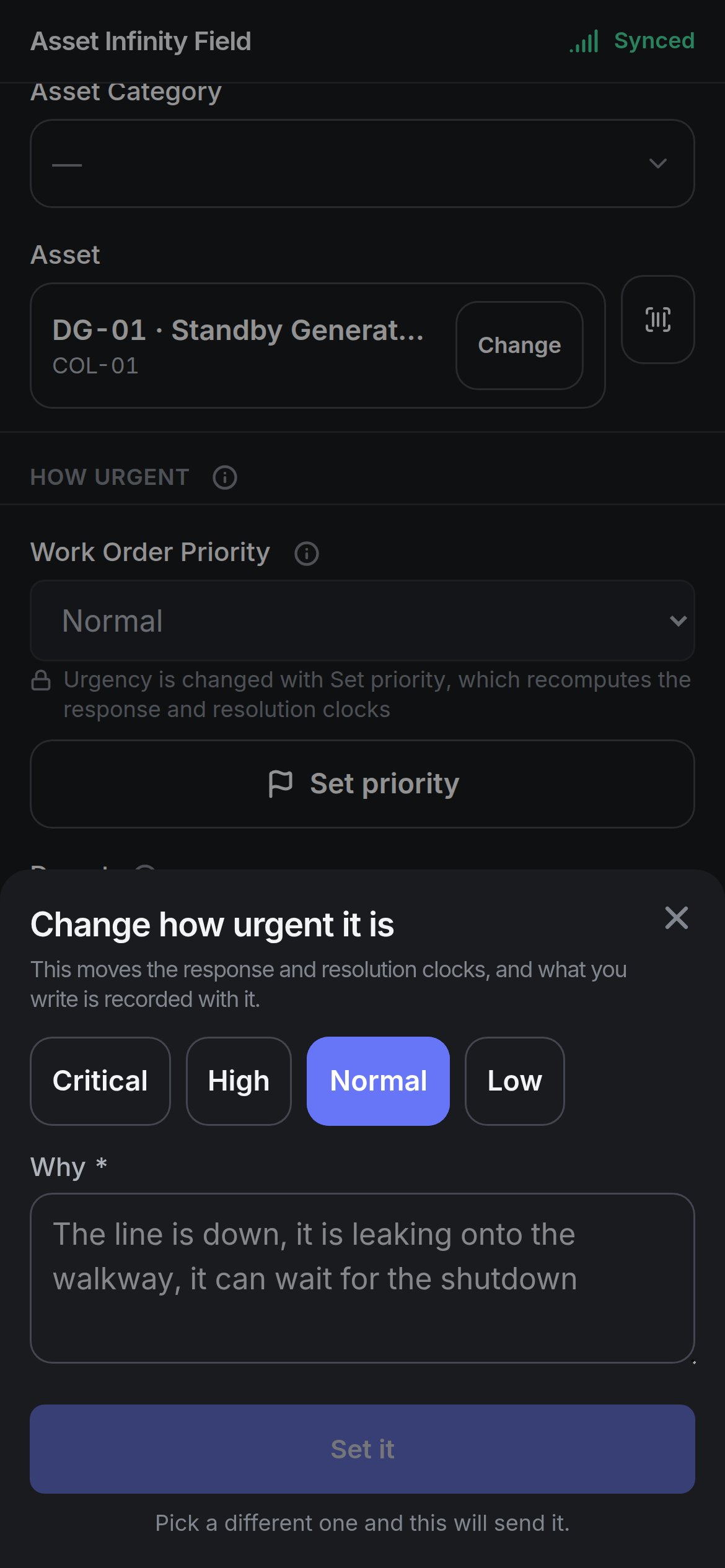
Changing the priority moves the job’s response and resolution clocks. Set it stays greyed until you pick a different priority.
Asking for more time
Ask for more time, on the job screen under the due date, opens a sheet that asks to move what the job promised — its deadline — which is not the same as moving the plan.
Ask sends the request. Where your organisation has somebody sign these off, the date moves when they approve — until then the job keeps showing the date it has, and the job screen shows Somebody is deciding whether this job gets longer. The button appears only when you hold the permission to request an extension and the job’s status allows one.
The job screen
Back to working the job.