

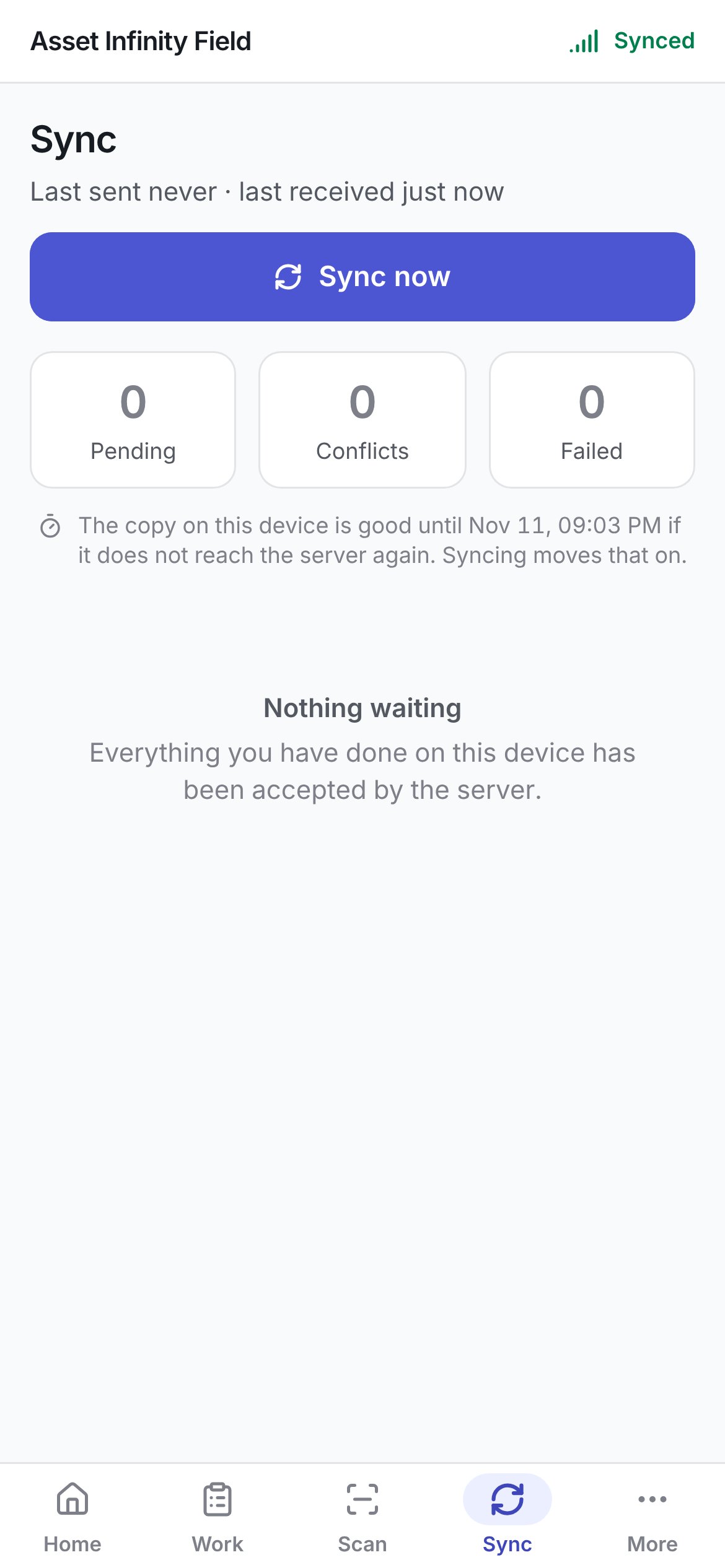
The field app assumes there is no network, and the Sync tab is where you see what that means for your work: what is still on the handset, what the server has accepted, what it refused and what is waiting for somebody in the office to decide. The Sync tab with Sync now, the Pending, Conflicts and Failed counts, and the date the copy is good until The Sync tab with Sync now, the Pending, Conflicts and Failed counts, and the date the copy is good until

What is on the handset

An encrypted copy of the work assigned to you, the assets, meters and stock at your sites, and the lists needed to fill a job in — types, priorities, statuses, the forms your organisation uses, the people you can name. Not the whole organisation: what you need for your work. The database is encrypted with the device passcode, which is what unlocks it each time the app opens.

How a change travels

  1. You press a button. The screen changes immediately.
  2. The change goes into the handset’s outbox.
  3. When there is a signal, the outbox is sent in the order things happened. A change that depends on an earlier one on the same record — completing a job you started offline — is applied after it.
  4. The server accepts it, refuses it with a reason, or reports a collision.
  5. The chip on the record updates.
Things that are their own outcome — taking a tool, recording a reading — do not wait on each other, so one refusal does not hold up unrelated work.

Syncing happens on its own

You do not have to open Sync. The app syncs when it opens, when the network comes back, and when you bring it back to the foreground. If a sync finds no server — common straight after the phone wakes — it retries on its own for a short while, so Offline does not outlive the reason for it. Every so often the app also asks the server what became of changes it already sent. A change the handset thought was delivered can turn out, later, to have been refused or put in conflict on the server; this catch-up brings that back so the Sync tab shows the real outcome.

The Sync tab

With nothing waiting, the tab says Nothing waiting — Everything you have done on this device has been accepted by the server. The Sync tab in the bottom bar carries a badge: amber with the number pending, red with the number that need attention.

The four states

Photographs waiting for a virus check

Where your organisation scans uploads for viruses, a photograph can be up on the server and not yet cleared. The handset does not count it as sent until it is: a checklist step it answers is held back until the check finishes, because the server would refuse a step whose evidence is not yet evidence. The app asks after the check itself on each sync and keeps asking while one is waiting, so the step goes up as soon as the check finishes without anybody pressing Sync now. The summary after a sync says how many things are waiting on a photograph’s virus check. A file that fails the check is reported as That file failed its virus scan and has been quarantined rather than left pending.

Failed changes

A failure shows the server’s own code and message — for example that a mandatory checklist step still needs a photograph — and, where the server gave one, a second line saying what to do about it or who to ask. Common causes are a record that moved to a status that no longer allows what you did, stock used up elsewhere, or a permission that changed. Try again puts the change back in the queue once whatever blocked it has moved. Where the fix is to do the thing again — record a verification line with the location the count needed, or resubmit a round with the inspector named — the new attempt replaces the old refusal on this tab instead of leaving both side by side. Too many requests, wait a moment and try again is the one refusal you do not need to act on. At shift start, when every handset on a site syncs at once from the same connection, the server may ask some of them to slow down. The app waits and tries again by itself, a little later each time, and the sentence stays on screen only while it is waiting; your unsent work stays queued and goes up as soon as the server accepts it. The app does not show Offline in this case, because the server did answer. A handset holding one item it can no longer open — for example after a problem with its keys — still shows everything else in the same list; the one unreadable item is left on the device rather than thrown away.

Conflicts

A conflict is not a failure: two people did something to the same record, and the system will not guess which is right. The row says Somebody changed this while you were offline. It is kept here until it is resolved in the office — nothing has been overwritten. There is no retry button, because resending would quietly discard the other person’s change. Conflicts are resolved in the web app’s Sync Center, where both versions can be shown side by side. Where two changes did not touch the same fields, the office can merge them by rule.

Photographs

Photographs and signatures travel separately from the queue of status changes, so a large image on a weak connection does not hold up the completion behind it. Photograph opens the camera. On Android, if the app is not allowed to use the camera, the button says The camera did not open: this app is not allowed to use it. Turn the camera on for this app in Settings, or choose Gallery. and offers Open settings, which takes you to the app’s settings on the phone. A photograph taken on a form that has not been sent yet — adding an asset, raising a job — has nothing to attach to until the record itself is queued. The app holds it on the form and sends it straight after the record, so it arrives attached to the right row. Leaving the form without saving takes its photographs with it.

At the end of a shift

Get within signal and open Sync. If Pending, Conflicts and Failed all read 0, you are done. If something is pending, leave the app open a moment. If something is failed or in conflict, tell your supervisor — those need a person.
Do not erase a handset with pending work. That work has not reached the server, and erasing is the one action that loses it. Sign out keeps it.