

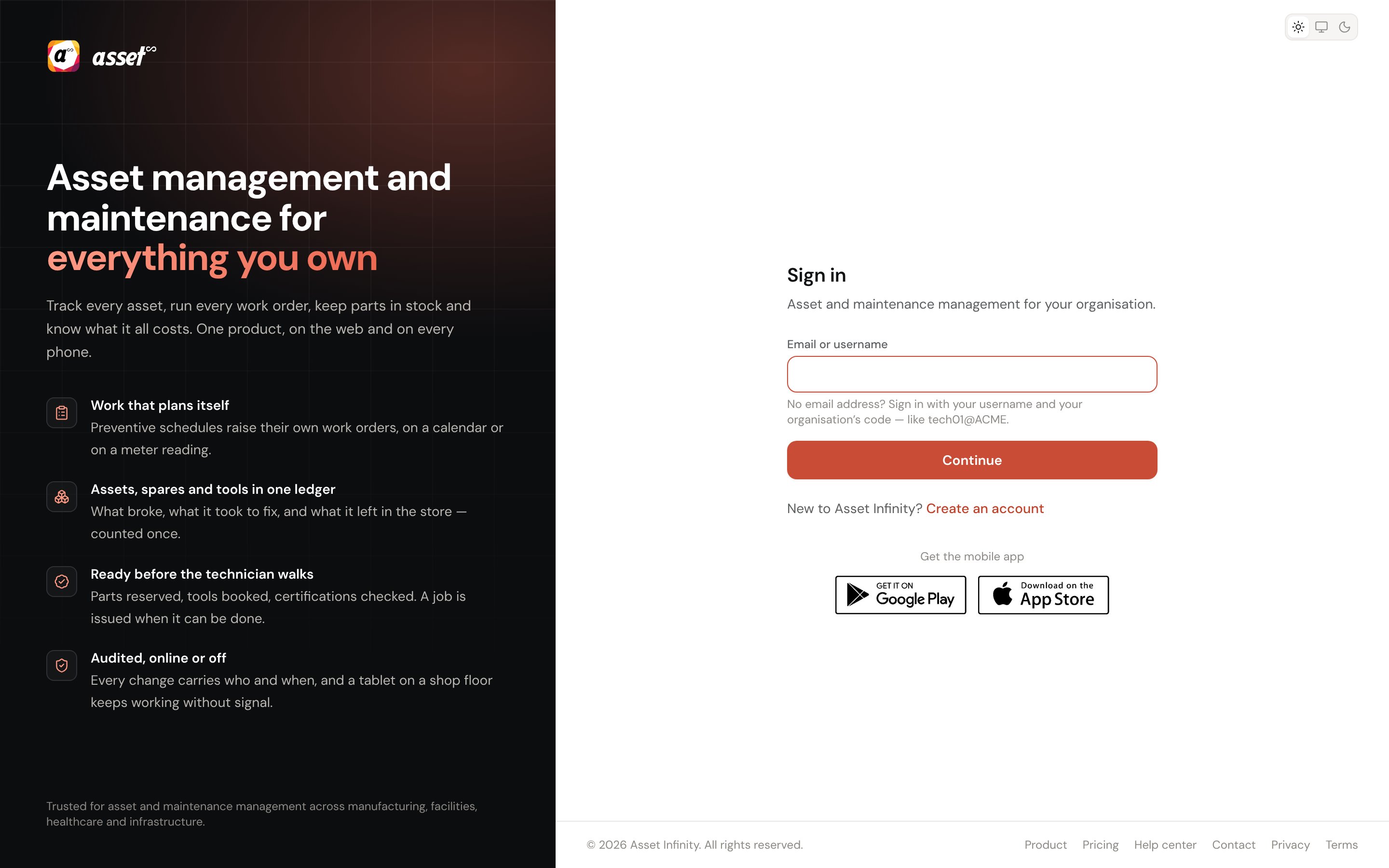
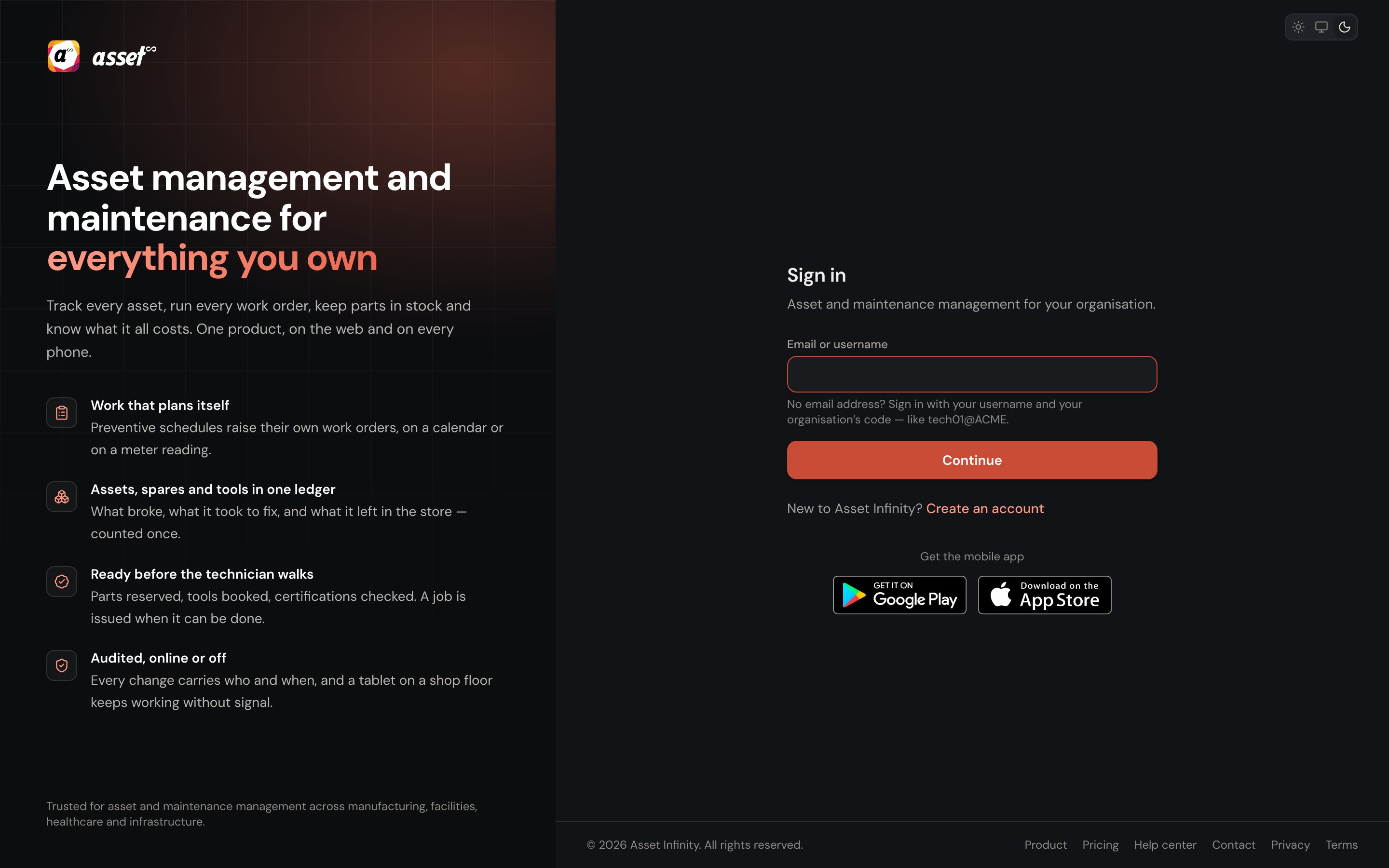
Signing in
Sign-in is two steps.
The first step decides what the second shows. Depending on how your organisation is set up, after
Continue you may see a password box, a button for your organisation’s identity provider, a
password box labelled with your directory’s name, or more than one of these.
The sign-in page’s logo, cover image, headline and help desk link follow what your organisation has
set under Branding, so it looks different at each organisation’s own address.
Google and Microsoft
Where your installation has configured them, Continue with Google and Continue with Microsoft appear on the first step. Signing in with a provider still requires an account here — the provider proves who you are, and your account decides what you may do. A verified work address from Google or Microsoft is matched to the account with the same address.Your organisation’s own sign-in
Your organisation can connect its own identity provider or directory under identity providers. Where it has:
If an organisation has no sign-in method configured at all, the screen says so and that an
administrator needs to look at its authentication settings.
Accepting an invitation
Most accounts start as an invitation. The email you were added under receives a link that opens Choose a password:
Set password and continue finishes it. Your account is ready confirms the address you sign in
with, and Go to sign in takes you to the sign-in screen, where you sign in the way you will every
day. Already have a password? Sign in skips straight there.
An invitation link lasts a week and works once. If it has expired, ask whoever invited you to send it
again — there is no “forgot password” for an account that has never signed in. A link that was
copied incompletely says so: copy the whole address from the email, including everything after
?token=.First sign-in with a password somebody set for you
Some accounts are created with a password an administrator chose — usually for somebody with no email address. Because somebody else knows it, the first sign-in asks you to Choose a password: your Current password, then a New password, and Save and continue.Two-step sign-in
Where your organisation uses it, signing in with a password asks for a second step under Two-step sign-in: a code from an authenticator app, or one of your recovery codes if your phone is lost. If your organisation requires it and you have not set it up, you are walked through it at sign-in — a QR code to scan and a set of recovery codes shown once. Keep the codes somewhere safe straight away. This applies to password sign-in only; your organisation’s own identity provider handles its own second step. See authentication policy.An expired password
Where your organisation sets passwords to expire, a correct but expired password shows That password has expired and asks you to choose a new one before carrying on.Forgotten password
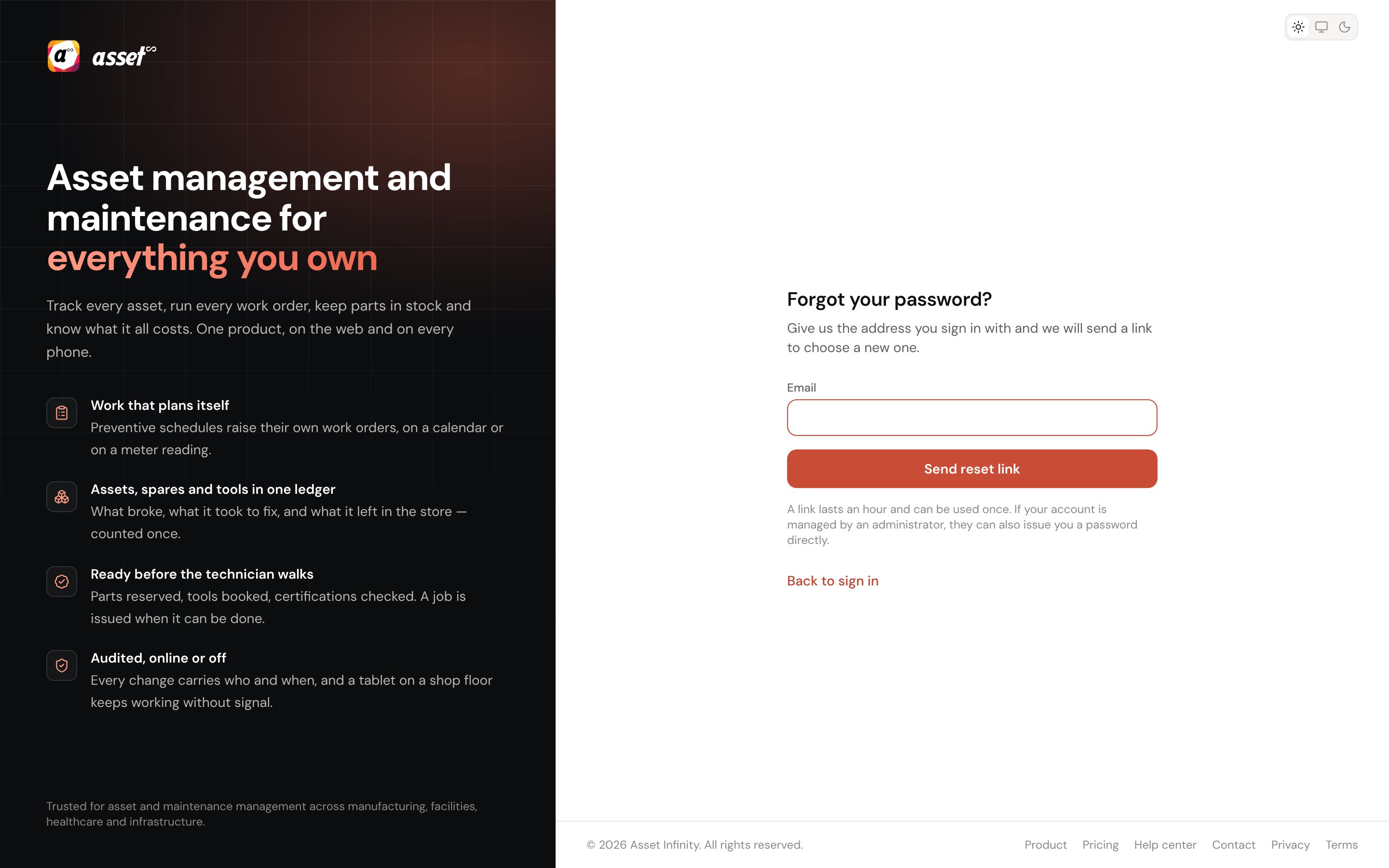
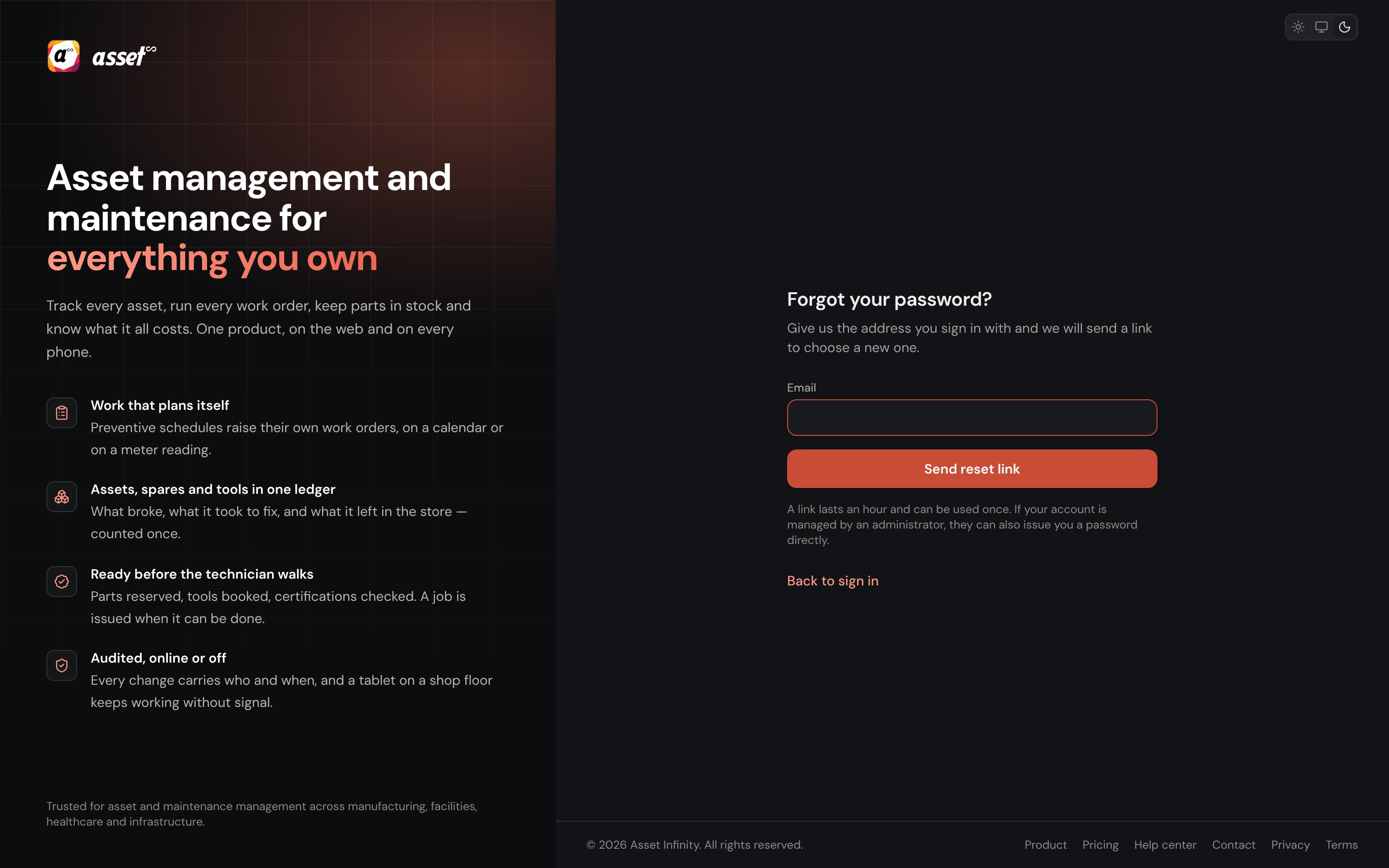
Nothing arrived? Check the spam folder and make sure the address is the one your account uses — Try
another address lets you send again. The link opens Choose a new password (New password,
Type it again, Set password). Password changed confirms it, and any lockout on the account
is cleared. An administrator can also set you a password directly from
people and access.