

If you don’t see this in your navigation, your administrator can switch the module on under Administration → Modules, or it may not be included in your plan. The card appears only where India GST and e-way bills is switched on.
Who can use this screen
See roles.
The header
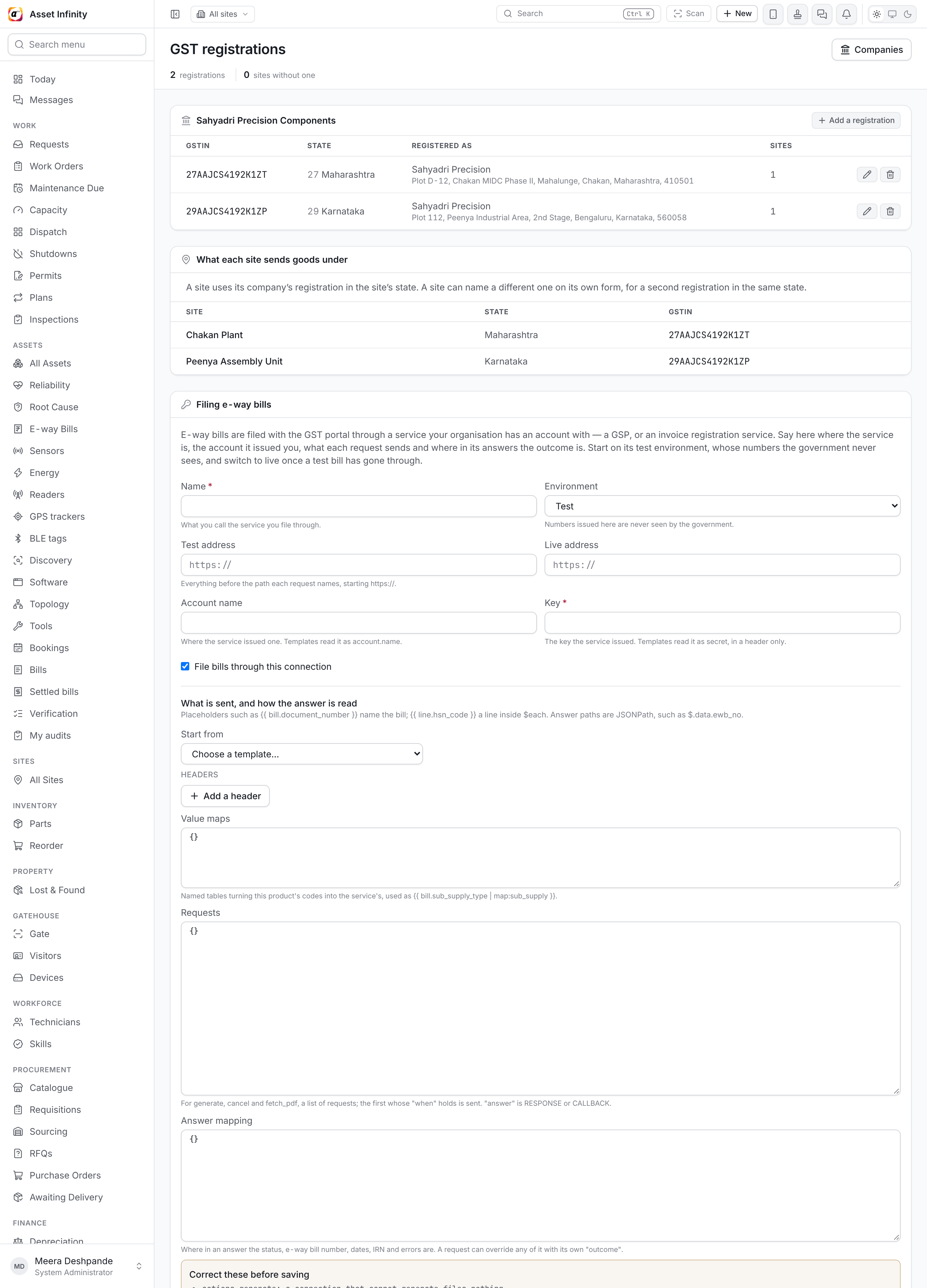
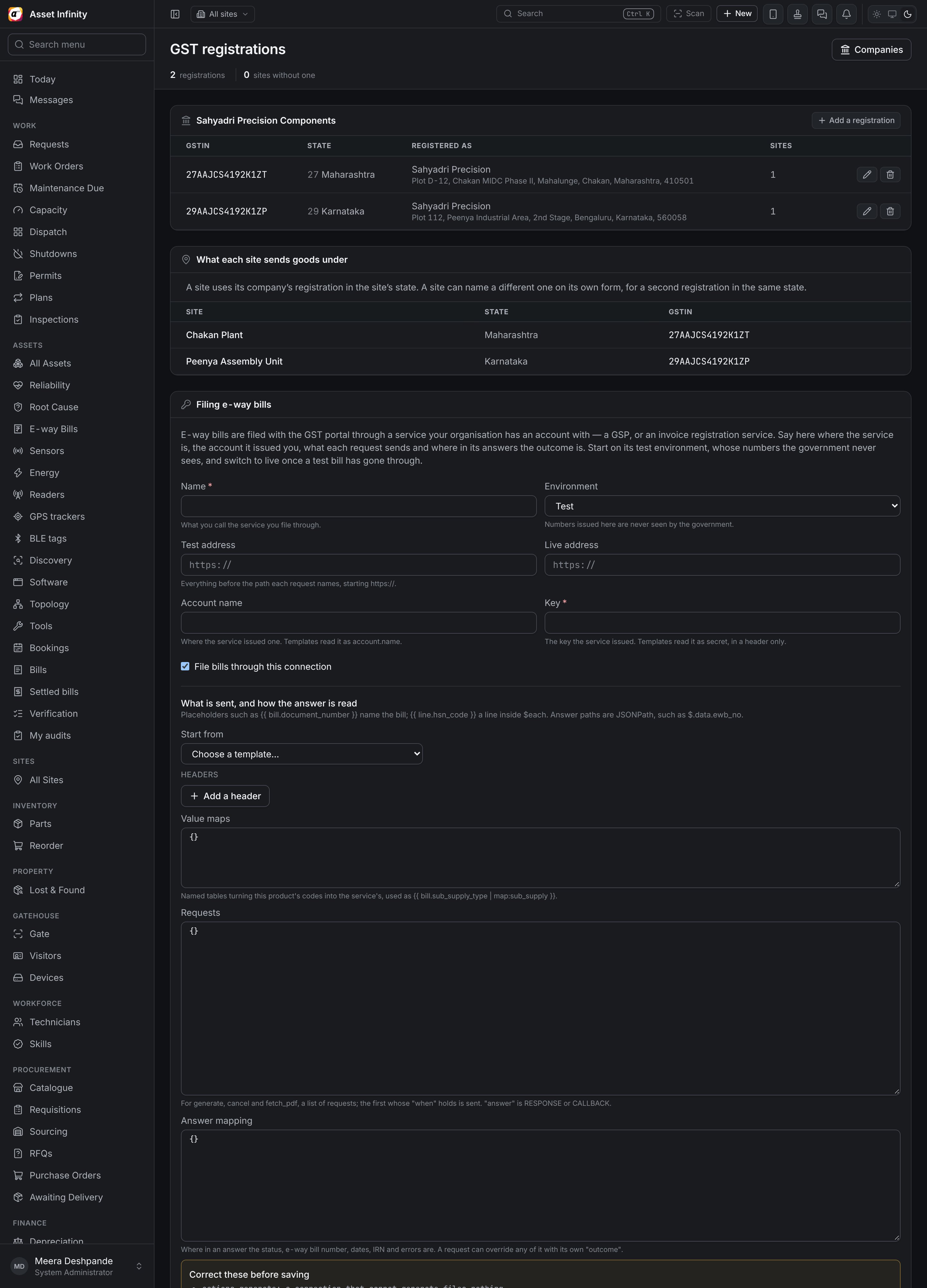
Registrations, company by company
Each company has its own section, named for it, because a registration belongs to a company and two companies in a group are two taxpayers whose GSTINs should not read as one list. If you have no companies yet, the screen says so: add the company under organisation structure first.
Add a registration, at the top of a company’s section, opens the form for that company — the
company is taken from the section rather than asked.
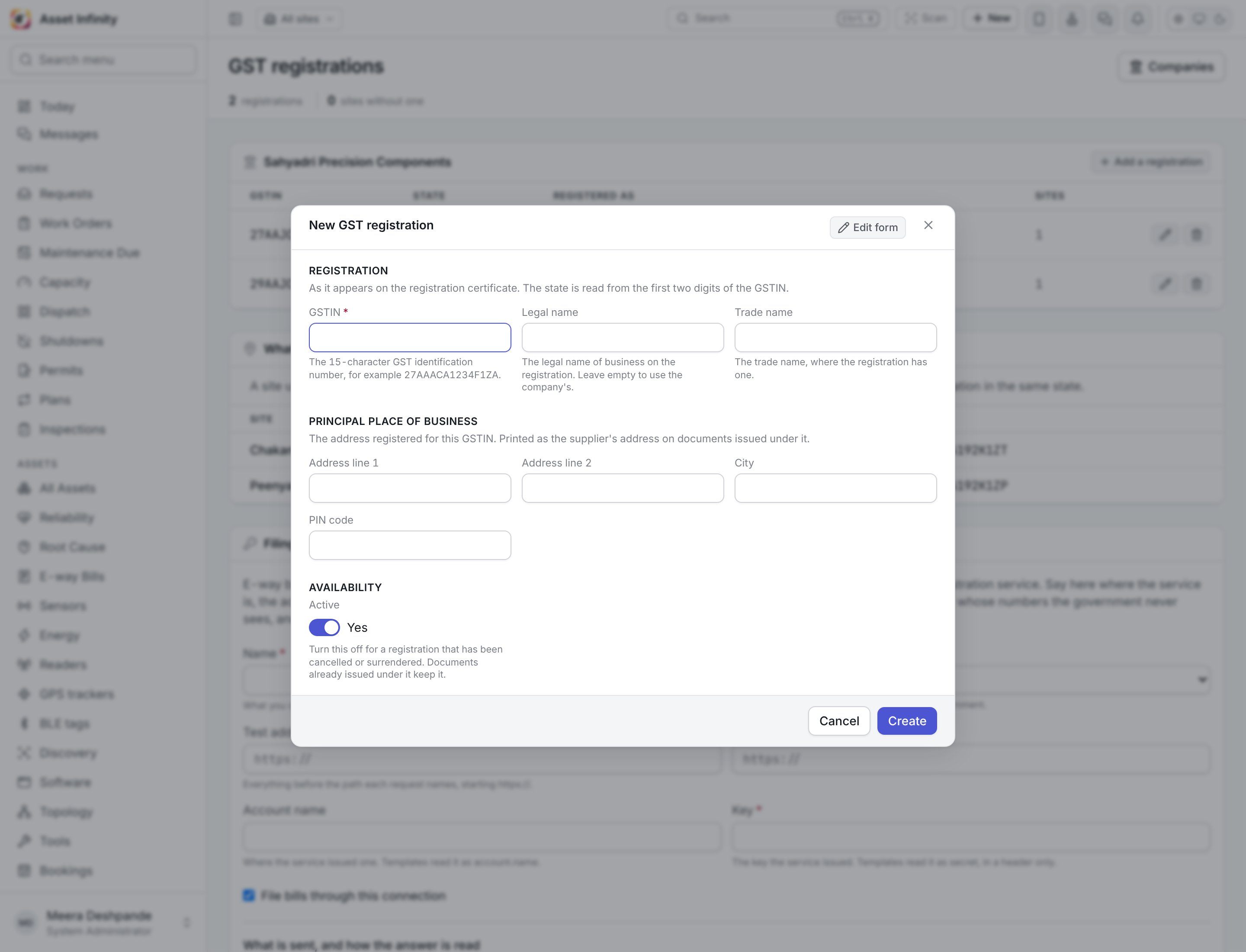
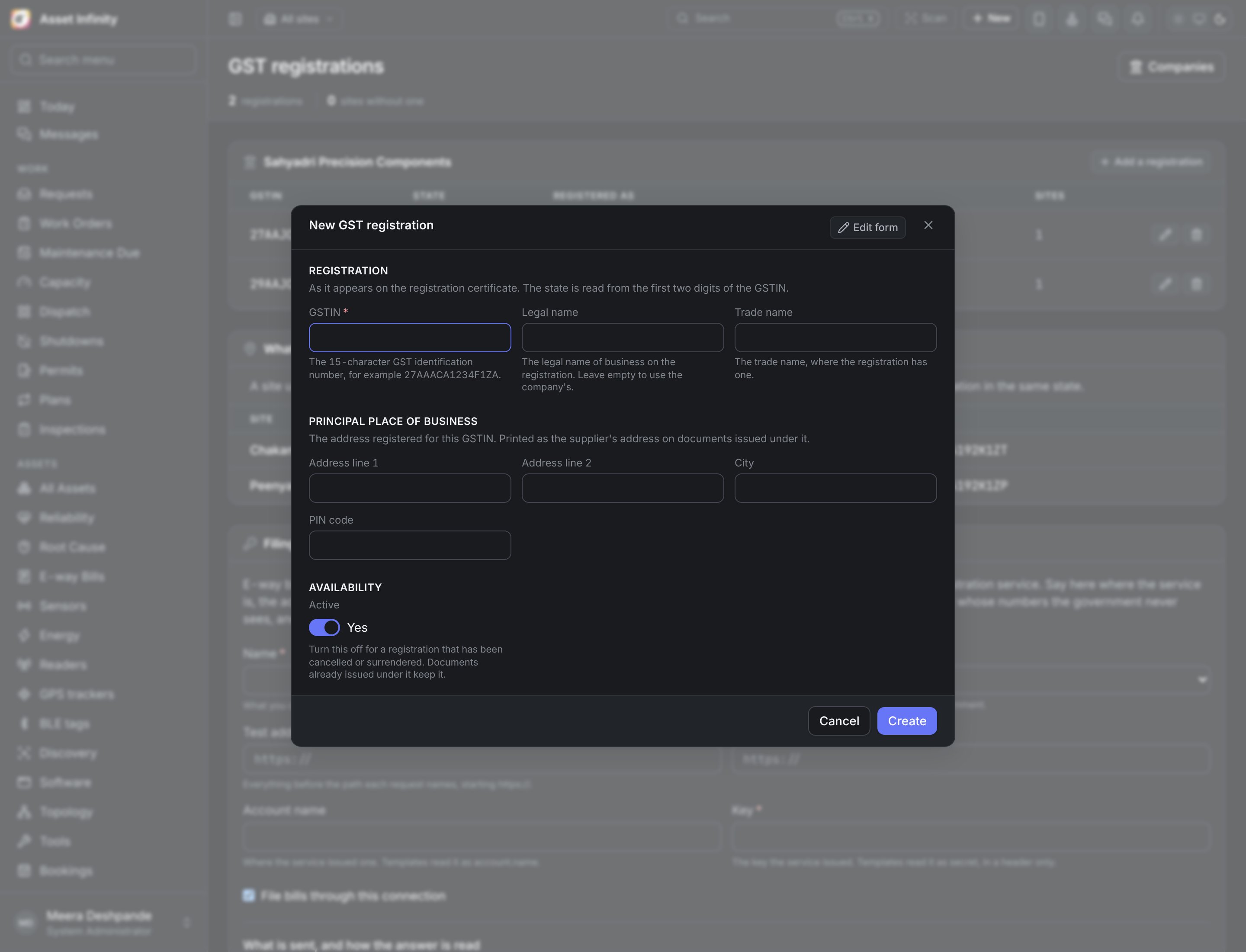
You are never asked for the state. The first two digits of every GSTIN are its state code, so the
product reads the state from the number rather than asking you to type the same fact twice.
What each site sends goods under
Below the companies, every site is listed with the registration it resolves to:
A site uses its company’s registration in the site’s state. The law allows a second registration in
one state — a separate business vertical, a unit in a special economic zone — so a site can name a
different registration on its own form. Where nothing resolves, the sentence in the GSTIN column
tells you what to fix:
Filing e-way bills
The last section, Filing e-way bills, is the connection bills are filed with the GST portal through. You file through a service your organisation already has an account with — a GST Suvidha Provider, or an invoice registration service — and no two services expect quite the same request, so this section says where the service is, the account it issued you, what each request sends and where in its answers the outcome is. That is set up once, usually by whoever looks after your integrations, with the service’s own technical documentation open beside it. Until a connection is saved, a bill’s page says There is no filing connection yet, so bills cannot be filed. and links here.The service and the account
What is sent, and how the answer is read
The rest of the section describes the requests themselves, as JSON templates with placeholders that name the bill and its lines. You rarely start from an empty box:
While anything in the templates cannot be used — a box that is not valid JSON, a request with no
method or path, no request for generating a bill, or the key used anywhere but a header — the section
lists it under Correct these before saving and Save stays disabled. A new, empty connection
shows one such line straight away, because a connection that cannot generate a bill files nothing.
Once the templates are sound, What it would send appears beneath them: choose a bill under For the
bill and a Request (Generate, Cancel or Fetch the print) to see the exact request
the connection would send for it, with the key shown as dots. Nothing is sent from the preview.
Start on Test, file a test bill, and switch to Live once it has gone through. Save confirms
with Saved.; a refusal is shown above the fields with what to do about it.
Related
- India: GST and depreciation — how GST is entered on purchasing documents, and the e-way bills a move or a sale prepares
- Customer addresses — where a customer is billed and delivered to, with the GSTIN of each address
- Organisation structure — the companies registrations belong to