

The screen is part of the work requests module. If you don’t see it in your navigation, your administrator can switch the module on under Administration → Modules, or it may not be included in your plan.
Who can use this screen
Opening the screen takes View public reporting links and their posters. Making a link takes Add public reporting links and their posters, and changing one — including Edit and New address — takes Edit public reporting links and their posters. These are the screen’s own permissions; a role that could change configuration before they were separated keeps the same reach here. See roles.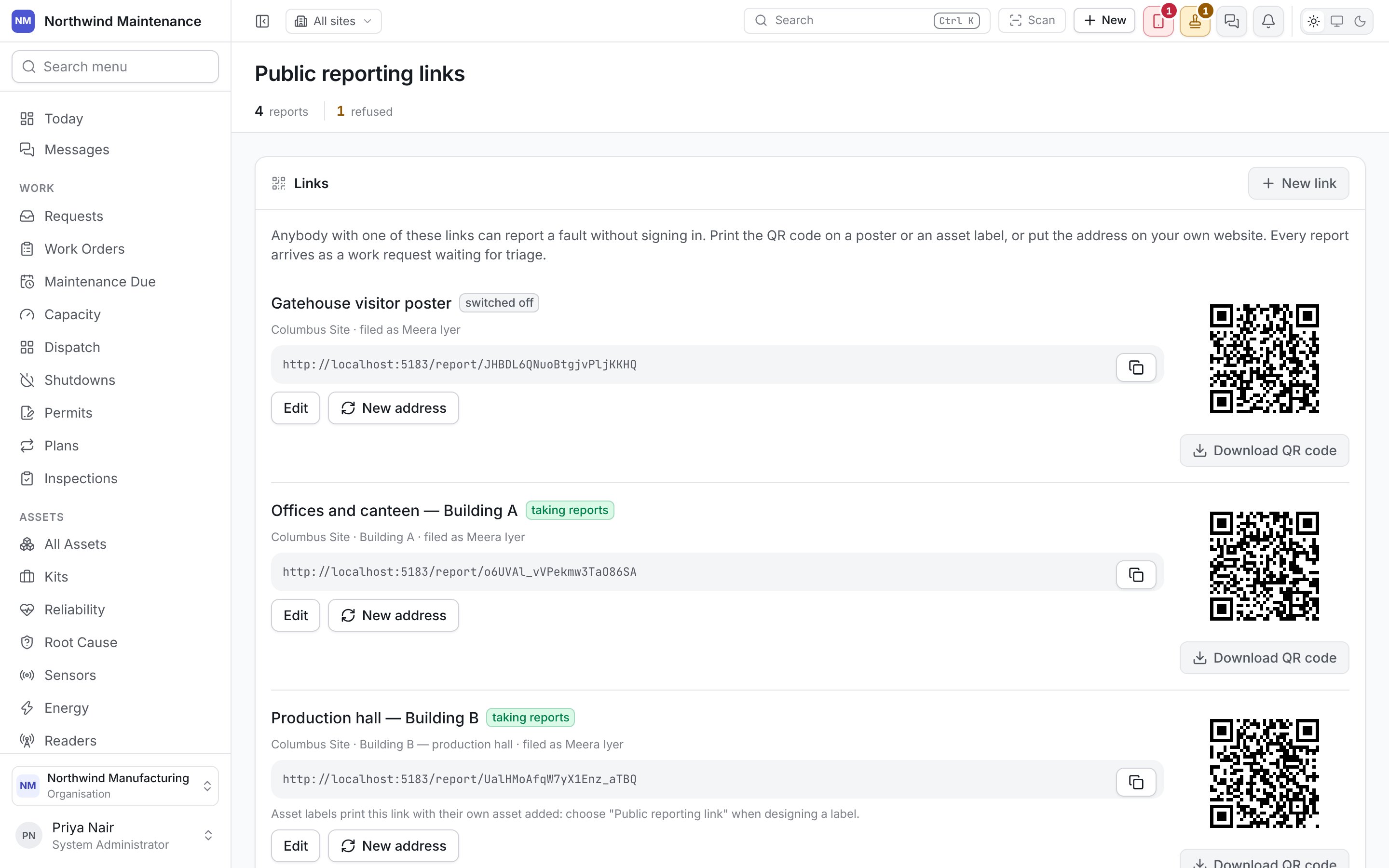
Links
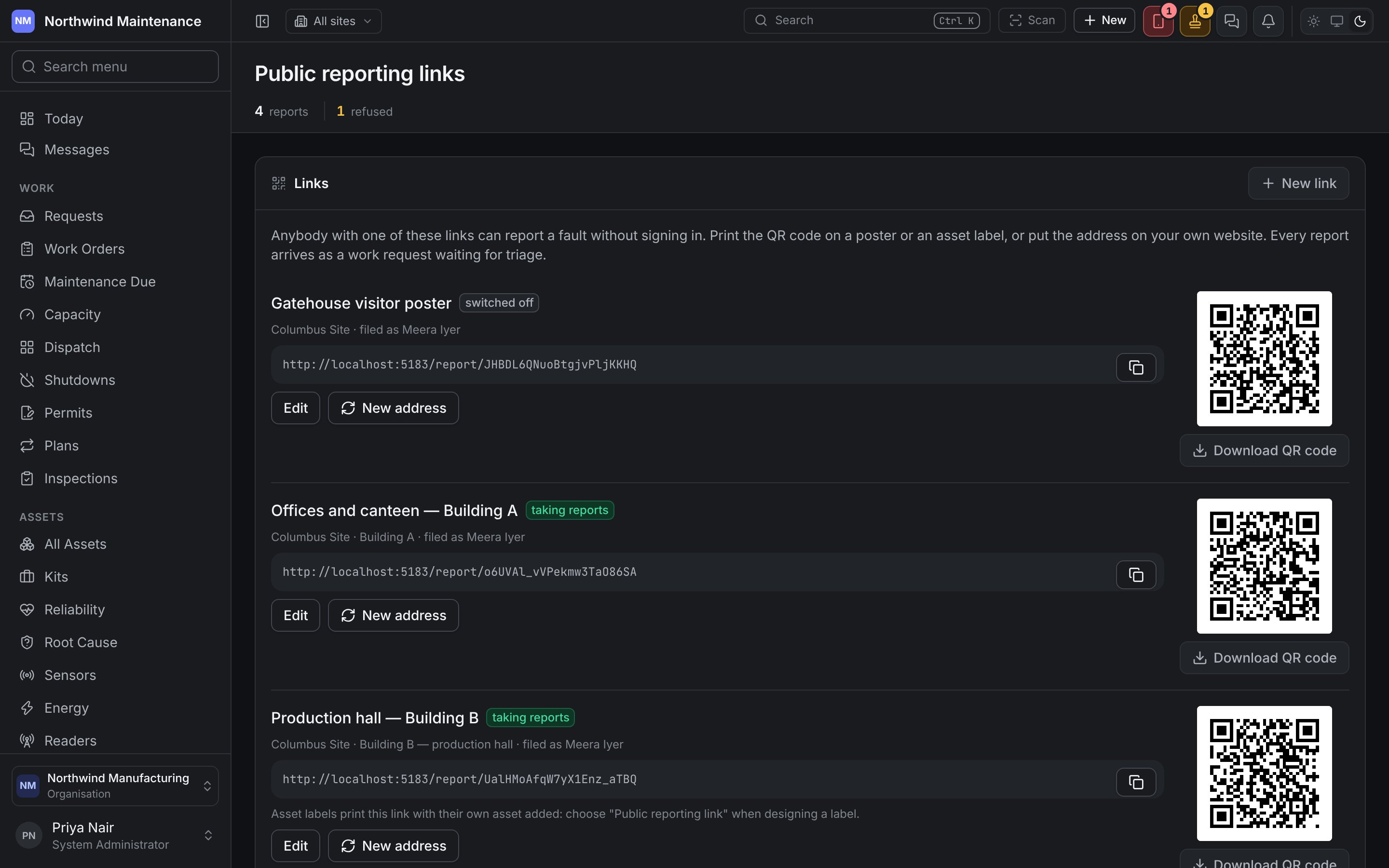
Every link is listed with its name, a pill saying whether it is taking reports or switched off, where its reports land — the site, place and asset — and filed as the person it files reports as. Beside it are its QR code, with Download QR code to save the code as an image for a poster or a sticker, and its Address to copy onto a web page. New link starts one; Edit changes one. When there are none yet, the section reads No links yet.Printing a link on asset labels
With Asset labels may name their asset on, a link printed on asset labels carries each asset with it, so one link serves a whole register of stickers rather than one link per asset. The screen reminds you: “Asset labels print this link with their own asset added: choose “Public reporting link” when designing a label.” On a label, Public reporting link prints the link stuck to that asset if there is one; otherwise the link for the asset’s site whose labels name their asset, preferring the one for the most specific place that holds the asset. A label for a place prints a link posted in exactly that place. Only active links are printed. See labels.Giving a link a new address
New address asks “Give this link a new address?” and, with Give it a new address, replaces the address and its QR code. Every printed copy of the old one stops working at once, and you will need to print the new one. Use it when a link has been posted somewhere it should not be, or is being misused. The link’s settings and history are kept.What came through
Every report made through these links is listed with what became of it, newest first, and the list refreshes by itself every minute. A refused report is recorded rather than dropped.
When something was refused for a reason somebody in your organisation can fix — a closed link, work requests switched off, a wrong label or a person who cannot file there — a box headed Refused for a reason somebody here can fix above the list says what to do.
What a reporter sees
Scanning the QR code or opening the address opens a page headed Report a problem, with your organisation’s name, the link’s name and where it is. It needs no account, and it does not use anybody’s session already signed in on that browser. A link stuck to an asset, or a label naming one, shows About and the asset’s number and name.
Send the report sends it. The page tells the reporter that the report goes to the people who look after the building, and that their name and contact details are seen only by them. Where your deployment uses one, the page also asks the reporter to pass a check that confirms they are a person.
Once it is taken, the page says “Thank you. Your report has been received.” with the work request’s number as their reference, and offers See what happens to it and Copy the link — a link to follow the report, which is shown only once. Pressing Send the report again after a dropped connection does not raise a second request.
The page refuses in words the reporter can act on: a closed or unknown link asks them to tell the people who look after the building another way, and several reports from one phone or network in an hour asks them to try again later or tell staff directly.
Following a report
The link handed out after sending opens a page showing the reference, what was reported, when it was Reported and Last changed, what it was Reported through, and where it stands in the reporter’s words:
Nothing else is shown — not comments, not who has it, not the work order it became. Status links stop working some months after a report is made.
In triage
A report arrives on the work requests inbox like any other, with Public link as its source, the reporter’s name as Reported by, the link’s site already filled in — with its asset, or its place, where the link names one — and the link’s category and severity. Triage it, convert it or reject it as usual.Work requests
Where reports are triaged and turned into work.
Work request settings
Sources, categories and what a severity suggests.